radio CADILLAC ATS 2015 1.G CUE Manual
[x] Cancel search | Manufacturer: CADILLAC, Model Year: 2015, Model line: ATS, Model: CADILLAC ATS 2015 1.GPages: 138, PDF Size: 1.05 MB
Page 17 of 138
Black plate (17,1)Cadillac CUE Infotainment System (GMNA-Localizing-U.S./Canada-
7639728) - 2015 - CRC - 9/3/14
Infotainment System 17
Timeshift:Press to turn Timeshift
on or off. See AM-FM Radio on
page 11.
TuneSelect: For SiriusXM only, this
feature allows alerts to be set for
artists or songs that are played on
any other channel. Press
TuneSelect on the menu during
playback of a desired song or artist
to set an alert. Press Manage
TuneSelect to turn the alerts On
and Off or manage the saved
selection of Artists or Songs. To
unselect an alert, press the Song or
Artist. To delete an alert, press −.
Press
[Back to go back to the
previous menu.
Auto Volume: If equipped, this
feature adjusts the volume based on
the vehicle speed. See AM-FM
Radio on page 11.
Bose AudioPilot Noise
Compensation Technology:
If equipped, this feature adjusts the
volume based on the noise in the
vehicle. See AM-FM Radio on
page 11.
SiriusXM Travel Link
(If Equipped)
SiriusXM Travel Link is available on
the navigation system through a
service fee subscription.
From the Home Page, press
WEATHER. The system displays
the current weather page.
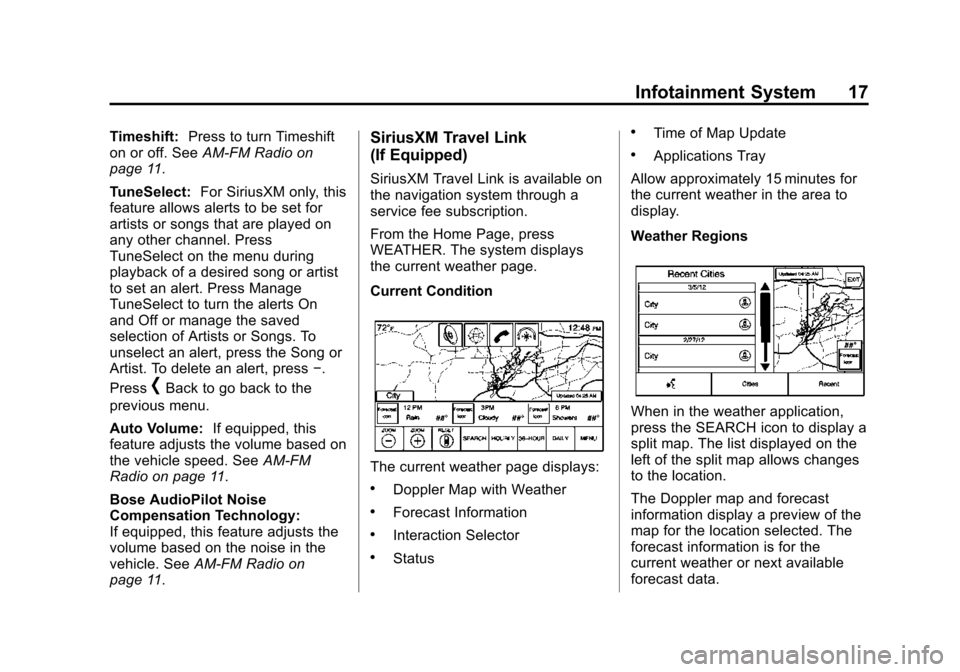
Current Condition
The current weather page displays:
.Doppler Map with Weather
.Forecast Information
.Interaction Selector
.Status
.Time of Map Update
.Applications Tray
Allow approximately 15 minutes for
the current weather in the area to
display.
Weather Regions
When in the weather application,
press the SEARCH icon to display a
split map. The list displayed on the
left of the split map allows changes
to the location.
The Doppler map and forecast
information display a preview of the
map for the location selected. The
forecast information is for the
current weather or next available
forecast data.
Page 20 of 138
Black plate (20,1)Cadillac CUE Infotainment System (GMNA-Localizing-U.S./Canada-
7639728) - 2015 - CRC - 9/3/14
20 Infotainment System
.HOURLY: Press to display the
hourly forecast for the current
vehicle location. A forecast icon
is shown for each period
available.
.36-HOUR: Press to display the
current weather, six-hour
forecast, and tomorrow’s
weather. A forecast icon is
shown for each period available.
.DAILY: Press to display a daily
forecast for the next five days.
A forecast icon is shown for
each period available.
.MENU: Press to display the
current advisories, turn weather
alerts on or off, and view the
map legend.
.ON ROUTE: Press to display the
forecasted weather for the route.
This feature is only available
while under route guidance.
SiriusXM NavTraffic (If
Equipped)
The infotainment system may have
SiriusXM NavTraffic®. It is a
subscription service provided
through SiriusXM Satellite Radio.
A service fee is required to receive
the SiriusXM NavTraffic service.
Detailed traffic information is
delivered to the vehicle’s navigation
system by the SiriusXM Radio
satellites. SiriusXM NavTraffic
provides continuously updated
traffic information.
The service may be available in
more cities in the future. See
www.siriusxmnavtraffic.com for
more details on local coverage.
To access the traffic features, press
the Traffic screen button on the
Map Menu.
If traffic is not available because
there is no valid SiriusXM
subscription, a pop-up displays
information on how to reactivate the
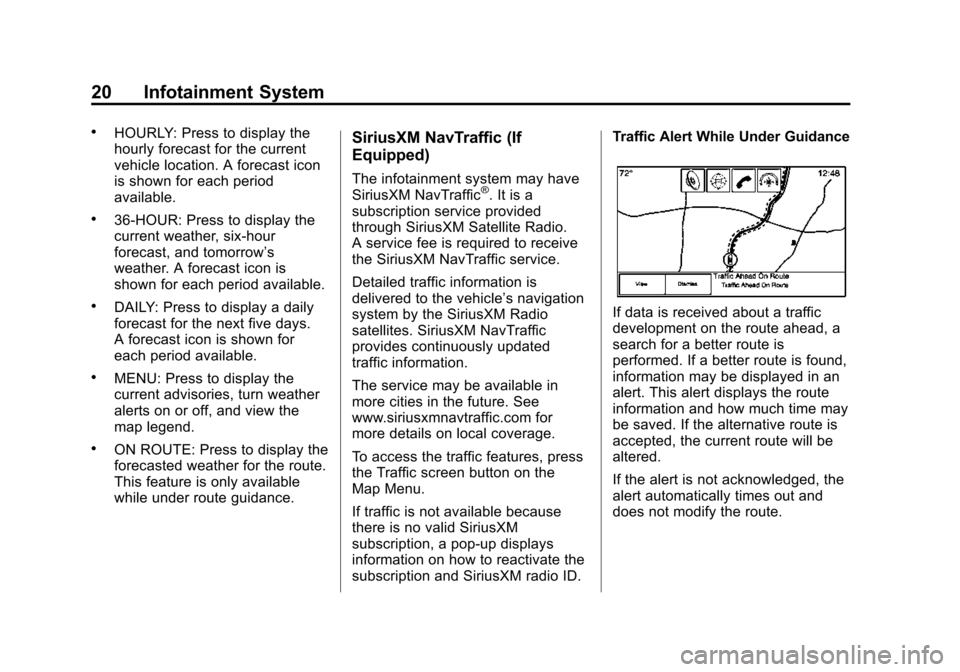
subscription and SiriusXM radio ID. Traffic Alert While Under Guidance
If data is received about a traffic
development on the route ahead, a
search for a better route is
performed. If a better route is found,
information may be displayed in an
alert. This alert displays the route
information and how much time may
be saved. If the alternative route is
accepted, the current route will be
altered.
If the alert is not acknowledged, the
alert automatically times out and
does not modify the route.
Page 22 of 138
Black plate (22,1)Cadillac CUE Infotainment System (GMNA-Localizing-U.S./Canada-
7639728) - 2015 - CRC - 9/3/14
22 Infotainment System
This fuel station POI can either be
searched for through a POI search,
or browsed through the POI
category structure.
.Press the Sort button to change
the sort method. The default sort
method is based on distance,
with the closest fuel stations at
the top of the list.
.Press the Sort button to cycle
through the sorting options of
distance, price, or name. The
last viewed sorting method is
displayed and is retained over
ignition cycles.
If the sorting method of price has
been selected, the fuel stations in
the list will appear from the lowest to
the highest price based on the fuel
type selected. For gasoline, the
price shown is for regular unleaded.
When diesel is selected as the fuel
type, the diesel price is shown.
Radio Reception
Unplug electronic devices from the
accessory power outlets if there is
interference or static in the radio.
FM
FM signals only reach about 16 to
65 km (10 to 40 mi). Although the
radio has a built-in electronic circuit
that automatically works to reduce
interference, some static can occur,
especially around tall buildings or
hills, causing the sound to fade in
and out.
AM
The range for most AM stations is
greater than for FM, especially at
night. The longer range can cause
station frequencies to interfere with
each other. Static can also occur
when things like storms and power
lines interfere with radio reception.
When this happens, try reducing the
treble on the radio.
SiriusXM Satellite Radio
Service
If equipped, SiriusXM Satellite
Radio Service provides digital radio
reception. Tall buildings or hills can
interfere with satellite radio signals,
causing the sound to fade in and
out. In addition, traveling or standing
under heavy foliage, bridges,
garages, or tunnels may cause loss
of the SiriusXM signal for a period
of time.
Cell Phone Usage
Cell phone usage, such as making
or receiving phone calls, charging,
or just having the phone on may
cause static interference in the
radio. Unplug the phone or turn it off
if this happens.
Backglass Antenna
The AM-FM antenna is integrated
with the rear window defogger in the
rear window. Do not scratch the
inside surface or damage the lines
in the glass. If the inside surface is
Page 23 of 138
Black plate (23,1)Cadillac CUE Infotainment System (GMNA-Localizing-U.S./Canada-
7639728) - 2015 - CRC - 9/3/14
Infotainment System 23
damaged, it could interfere with
radio reception. For proper radio
reception, the antenna connector
needs to be properly attached to the
post on the glass.
If attaching a cell phone antenna to
the glass, attach it between the grid
lines.
{Caution
Using a razor blade or sharp
object to clear the inside rear
window can damage the rear
window antenna and/or the rear
window defogger. Repairs would
not be covered by the vehicle
warranty. Do not clear the inside
rear window with sharp objects.
{Caution
Do not apply aftermarket glass
tinting with metallic film. The
metallic film in some tinting
materials will interfere with or
distort the incoming radio
reception. Any damage caused to
the backglass antenna due to
metallic tinting materials will not
be covered by the vehicle
warranty.
Multi-Band Antenna
The roof antenna is for OnStar,
SiriusXM Satellite Radio (U.S. and
Canada only), and GPS (Global
Positioning System). Keep clear of
obstructions for clear reception.
If the vehicle has a sunroof, and it is
open, reception can also be
affected.
Pandora Internet Radio
If equipped, Pandora®is a free
Internet radio service that streams
personalized radio stations based
on artists, tracks, genres, and
comedians. Create stations using
the Pandora website or Smartphone
application, then use
-(thumbs up)
or
,(thumbs down) to personalize
stations. To set up an account, or for
more information, go to
www.pandora.com.
A phone or tablet with an Internet
connection and the Pandora
application installed is required.
Personal cell phone data plans are
used. Make sure the latest version
is installed on the device.
Page 24 of 138
Black plate (24,1)Cadillac CUE Infotainment System (GMNA-Localizing-U.S./Canada-
7639728) - 2015 - CRC - 9/3/14
24 Infotainment System
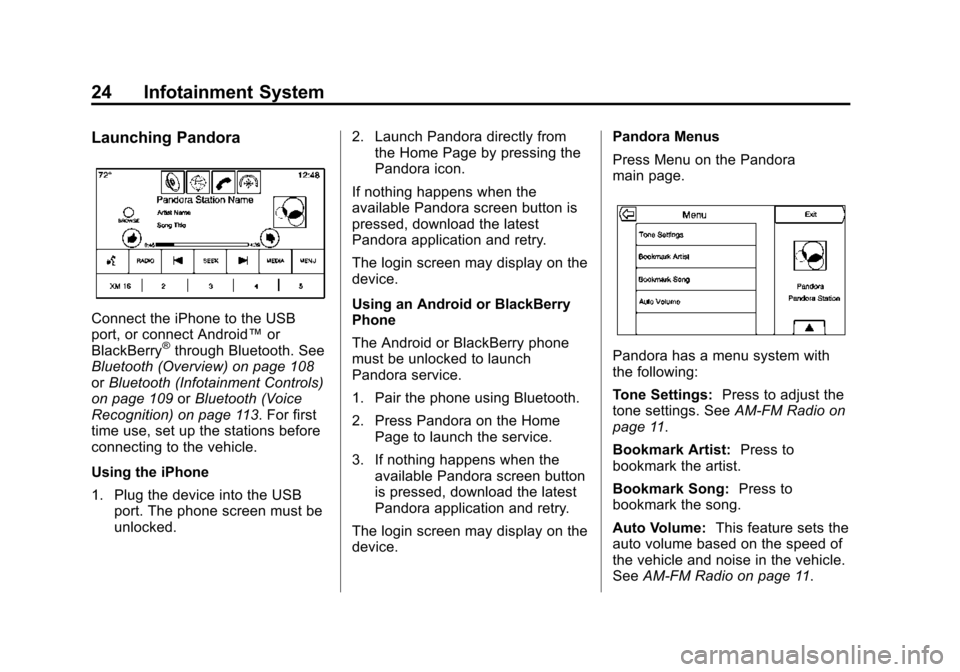
Launching Pandora
Connect the iPhone to the USB
port, or connect Android™or
BlackBerry
®through Bluetooth. See
Bluetooth (Overview) on page 108
or Bluetooth (Infotainment Controls)
on page 109 orBluetooth (Voice
Recognition) on page 113. For first
time use, set up the stations before
connecting to the vehicle.
Using the iPhone
1. Plug the device into the USB port. The phone screen must be
unlocked. 2. Launch Pandora directly from
the Home Page by pressing the
Pandora icon.
If nothing happens when the
available Pandora screen button is
pressed, download the latest
Pandora application and retry.
The login screen may display on the
device.
Using an Android or BlackBerry
Phone
The Android or BlackBerry phone
must be unlocked to launch
Pandora service.
1. Pair the phone using Bluetooth.
2. Press Pandora on the Home Page to launch the service.
3. If nothing happens when the available Pandora screen button
is pressed, download the latest
Pandora application and retry.
The login screen may display on the
device. Pandora Menus
Press Menu on the Pandora
main page.Pandora has a menu system with
the following:
Tone Settings:
Press to adjust the
tone settings. See AM-FM Radio on
page 11.
Bookmark Artist: Press to
bookmark the artist.
Bookmark Song: Press to
bookmark the song.
Auto Volume: This feature sets the
auto volume based on the speed of
the vehicle and noise in the vehicle.
See AM-FM Radio on page 11.
Page 25 of 138
Black plate (25,1)Cadillac CUE Infotainment System (GMNA-Localizing-U.S./Canada-
7639728) - 2015 - CRC - 9/3/14
Infotainment System 25
Bose AudioPilot:If equipped, this
feature adjusts the volume based on
the noise in the vehicle. See AM-FM
Radio on page 11.
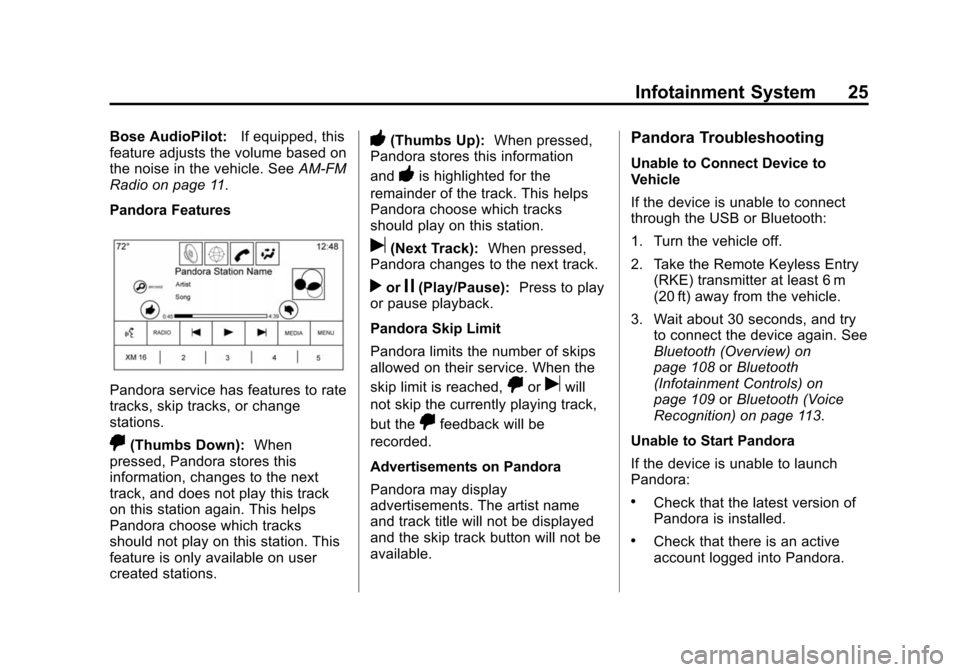
Pandora Features
Pandora service has features to rate
tracks, skip tracks, or change
stations.
,(Thumbs Down): When
pressed, Pandora stores this
information, changes to the next
track, and does not play this track
on this station again. This helps
Pandora choose which tracks
should not play on this station. This
feature is only available on user
created stations.
-(Thumbs Up): When pressed,
Pandora stores this information
and
-is highlighted for the
remainder of the track. This helps
Pandora choose which tracks
should play on this station.
u(Next Track): When pressed,
Pandora changes to the next track.
rorj(Play/Pause): Press to play
or pause playback.
Pandora Skip Limit
Pandora limits the number of skips
allowed on their service. When the
skip limit is reached,
,oruwill
not skip the currently playing track,
but the
,feedback will be
recorded.
Advertisements on Pandora
Pandora may display
advertisements. The artist name
and track title will not be displayed
and the skip track button will not be
available.
Pandora Troubleshooting
Unable to Connect Device to
Vehicle
If the device is unable to connect
through the USB or Bluetooth:
1. Turn the vehicle off.
2. Take the Remote Keyless Entry (RKE) transmitter at least 6 m
(20 ft) away from the vehicle.
3. Wait about 30 seconds, and try to connect the device again. See
Bluetooth (Overview) on
page 108 orBluetooth
(Infotainment Controls) on
page 109 orBluetooth (Voice
Recognition) on page 113.
Unable to Start Pandora
If the device is unable to launch
Pandora:
.Check that the latest version of
Pandora is installed.
.Check that there is an active
account logged into Pandora.
Page 26 of 138
Black plate (26,1)Cadillac CUE Infotainment System (GMNA-Localizing-U.S./Canada-
7639728) - 2015 - CRC - 9/3/14
26 Infotainment System
.Have at least one station
created.
.For Android and BlackBerry
devices, check that the device is
paired with the vehicle, and
whether the device displays in
the Connected phone sources
list under the Phone icon from
the Home Page.
.For an iPhone, check that the
USB cable is connected to the
USB port and the screen is
unlocked.
.Close Pandora on the device
and launch again. Devices that
allow multitasking may require
an extra step to quit the Pandora
application. See the cell phone
manufacturer's user guide.
Thumbs Up or Thumbs Down
Error
If there is an error trying to rate a
track with the
,or-buttons, the
message “Thumbs Down Error” or
“Thumbs Up Error” will display.
Press OK to dismiss. Loss of Audio
Loss of Pandora audio can happen
in different ways:
.Weak or lost data connection.
.Device needs to be charged.
.Application needs to be
relaunched.
.Connection between phone and
radio was lost.
.An iPhone is connected to both
Bluetooth and the USB port.
If there is a loss of audio, playback
can be resumed by changing the
audio flow from Bluetooth to USB
cable.
To change the audio flow:
1. While the iPhone is connected, double tap the phone’s home
button.
2. Swipe a finger to the left on the phone’s screen display. A box
with a triangle displays on the
lower line of the box that is highlighted. Press this box to
display the dock connector
option.
3. Select Dock Connector.
Common Pandora Messages
Pandora Error/Please Check
Device: Not signed in or Pandora
is down for maintenance.
No Stations Available: No stations
are available on the Pandora server
through the connected device.
No Internet Connection: A few
reasons for loss of Internet
connection are:
.The connected device loses its
cellular connection.
.The device does not support
Internet connectivity.
.The device is not in the vehicle.
No Bluetooth Signal: The
Bluetooth signal is lost.
Page 28 of 138
Black plate (28,1)Cadillac CUE Infotainment System (GMNA-Localizing-U.S./Canada-
7639728) - 2015 - CRC - 9/3/14
28 Infotainment System
Use the following controls to play
the disc:
t(Previous/Fast Reverse):
.Press to seek to the beginning of
the current or previous track.
If the track has been playing for
less than 10 seconds, it seeks to
the previous track. If longer than
five seconds, the current track
starts from the beginning.
.Press and hold to fast reverse
through a track. Release the
button to return to playing
speed. Elapsed time displays.
u(Next/Fast Forward):
.Press to seek to the next track.
.Press and hold to fast forward
through a track. Release the
button to return to playing
speed. Elapsed time displays.
When a Blu-ray
®or DVD disc,
if equipped, is loaded and the CD
button is pressed, a message
displays. Go to video application to
play DVD/BD.
Error Messages
If Disc Error displays and/or the disc
comes out, it could be for one of the
following reasons:
.The disc has an invalid or
unknown format.
.The road is very rough. Try the
disc again when the road is
smoother.
.The disc is dirty, scratched, wet,
or upside down.
.The air is very humid. Try the
disc again later.
.There was a problem while
burning the disc.
.The label is caught in the CD
player.
If Disc Player Error displays, it could
be for one of the following reasons:
.The player temperature is
too high.
.There are load or eject errors. If the CD is not playing correctly, for
any other reason, try a known
good CD.
If any error continues, contact your
dealer.
MP3/CD Menu
Press the MENU button while that
source is active to access the menu.
Press any of the following buttons
on the MP3/CD Menu:
Shuffle:
Press to play the tracks
randomly. Press again to stop
shuffle.
Auto Volume: If equipped, this
feature adjusts the volume based on
the speed of the vehicle. See
AM-FM Radio on page 11.
Tone Settings: Press + or−to
adjust Bass, Midrange, Treble,
or Surround. See AM-FM Radio on
page 11.
Page 29 of 138
Black plate (29,1)Cadillac CUE Infotainment System (GMNA-Localizing-U.S./Canada-
7639728) - 2015 - CRC - 9/3/14
Infotainment System 29
MP3 Guidelines
.Sampling rate: 16 kHz,
22.05 kHz, 24 kHz, 32 kHz,
44.1 kHz, and 48 kHz.
.Bit rates supported: 8, 16, 24,
32, 40, 48, 56, 64, 80, 96, 112,
128, 144, 160, 192, 224, 256,
and 320 kbps.
.Recorded on a CD-R or CD-RW.
MP3 Folder Information
Press anywhere between the top
applications tray or the bottom menu
to display the browse screen.
Root Directory: To access, press
the screen anywhere in the central
area of the screen. The root
directory is treated as a folder. All
files contained directly under the
root directory are accessed prior to
any root directory folders.
No Folder: When the CD only
contains compressed audio files
without any folders or playlists, all
files are under the root folder. File System and Naming:
The
song titles, artists, albums, and
genres are taken from the file's ID3
tag and are only displayed if present
in the tag. If a song title is not
present in the ID3 tag, the radio
displays the file name as the
track name.USB/SD Port
Audio from videos stored on SD/
USB cards may be listened to while
the vehicle is in a forward gear.
Videos can be watched while the
vehicle is in P (Park). Use play/
pause or next/previous to control
the video or press the browse
screen to display a list of the current
video filters.
This vehicle may have two SD card
readers and three USB ports: one
SD card reader and one USB port in
the center console, one USB port in
the storage behind the climate
control system, and if equipped with
Rear Seat Entertainment (RSE), there may be one SD card reader
and one USB port in the rear media
console storage area.
Playing from a USB
A USB mass storage device can be
connected to the USB port.
Audio extensions supported by the
USB are:
.MP3
.WMA
.AAC
.OGG
.AIFF
.3GPP
Gracenote
®
When plugging in a USB device,
Gracenote service builds voice tags
for music. Voice tags allow artists,
albums with hard to pronounce
names, and nicknames to be used
to play music through voice
recognition.
Page 30 of 138
Black plate (30,1)Cadillac CUE Infotainment System (GMNA-Localizing-U.S./Canada-
7639728) - 2015 - CRC - 9/3/14
30 Infotainment System
While indexing, infotainment
features are available.
My Media Library
My Media is only available when
more than one indexed device is
connected. It allows access to
content from all indexed media
sources. Press the MEDIA screen
button to scroll through the options
until My Media is selected. Press
anywhere in the central area of the
screen to browse the content.
USB MP3 Player and USB Drives
The USB MP3 players and USB
drives connected must comply with
the USB Mass Storage Class
specification (USB MSC).
To play a USB device:
1. Connect the USB.
2. Press MEDIA until theconnected device is shown. Use the following when playing an
active USB source:
r(Play):
Press to play the current
media source.
j(Pause): Press to pause play of
the current media source.
t(Previous/Reverse):
.Press to seek to the beginning of
the current or previous track.
If the track has been playing for
less than five seconds, the
previous track plays. If playing
longer than five seconds, the
current track restarts.
.Press and hold to reverse
quickly through playback.
Release to return to playing
speed. Elapsed time displays.
u(Next/Fast Forward):
.Press to seek to the next track.
.Press and hold to advance
quickly through playback.
Release to return to playing
speed. Elapsed time displays.
USB Menu
Press Menu to display the USB
menu. The following may be
available:
Shuffle: Press to play the tracks
randomly. Press again to stop
shuffle.
Bose AudioPilot: If equipped,
press to turn Bose AudioPilot on or
off. AudioPilot is an On/Off selection
on the list entry from the Main
menu. See AM-FM Radio on
page 11.
Tone Settings: Press + or−to
adjust Bass, Midrange, Treble,
or Surround. See AM-FM Radio on
page 11.