key CADILLAC ATS 2015 1.G CUE Manual
[x] Cancel search | Manufacturer: CADILLAC, Model Year: 2015, Model line: ATS, Model: CADILLAC ATS 2015 1.GPages: 138, PDF Size: 1.05 MB
Page 111 of 138
Black plate (111,1)Cadillac CUE Infotainment System (GMNA-Localizing-U.S./Canada-
7639728) - 2015 - CRC - 9/3/14
Infotainment System 111
.While the active call is on the
handset, press the Handsfree
screen button to switch to the
hands-free mode. The screen
button changes to Handset once
the Bluetooth device confirms it
is operating as hands-free.
Making a Call Using Contacts
and Recent Calls
Calls can be made through the
Bluetooth system using personal
cell phone contact information for all
phones that support the Phone
Book feature. Become familiar with
the phone settings and operation.
Verify the cell phone supports this
feature.
When supported, the Contacts and
Recent Calls menus are
automatically available.
The Contacts menu accesses the
phone book stored in the cell phone.
The Recent Calls menu accesses
the recent call list(s) from your cell
phone.To make a call using the
Contacts menu:
1. Press the PHONE screen
button.
2. Select CONTACTS.
3. Select the name to call.
4. Select the desired contact number to call.
To make a call using the Recent
Calls menu:
1. Press the PHONE screen button.
2. Select RECENT.
3. Select the name or number to call.
4. If necessary, select between Missed, Recent, and Sent calls
by selecting the View button in
the top right corner of the list.
Making a Call Using the
Keypad
To make a call by dialing the
numbers:
1. Press the PHONE screenbutton.
2. Select KEYPAD and enter a phone number.
3. Select Call to start dialing the number.
Accepting or Declining a Call
When an incoming call is received,
the infotainment system mutes and
a ring tone is heard in the vehicle.
Accepting a Call
There are three ways to accept
a call:
.Pressgon the steering wheel
controls.
.Press Answer on the center
stack display.
.Press Answer on the instrument
cluster using the select button.
Page 112 of 138
Black plate (112,1)Cadillac CUE Infotainment System (GMNA-Localizing-U.S./Canada-
7639728) - 2015 - CRC - 9/3/14
112 Infotainment System
Declining a Call
There are three ways to decline
a call:
.Presscon the steering wheel
controls.
.Press Ignore on the center stack
display.
.Press Ignore on the instrument
cluster using the select button.
Call Waiting
Call waiting must be supported on
the Bluetooth phone and enabled by
the wireless service carrier to work.
Accepting a Call
There are three ways to accept a
call-waiting call:
.Pressgon the steering wheel
controls.
.Press Switch on the center stack
display.
.Press Switch on the instrument
cluster using the select button. Declining a Call
There are three ways to decline a
call-waiting call:
.Presscon the steering wheel
controls.
.Press Ignore on the center stack
display.
.Press Ignore on the instrument
cluster using the select button.
Switching Between Calls (Call
Waiting Calls Only)
To switch between calls, press the
phone icon on the Home Page to
display “Call View.” While in Call
View, press the call information of
the call on hold to change calls.
Three-Way Calling
Three-way calling must be
supported on the Bluetooth phone
and enabled by the wireless service
carrier to work. To start a three-way call while in a
current call:
1. In the Call View, select Add to
add another call.
2. Initiate the second call by selecting from RECENT,
CONTACTS, or KEYPAD.
3. When the second call is active, press the merge icon to
conference the three-way call
together.
4. Once all calls are merged, the merge icon button becomes an
unmerge icon button. Press to
unmerge the calls.
Some wireless service carriers
may not allow a merged call to
become unmerged.Ending a Call
.Presscon the steering wheel
controls.
.Press End on the center stack
display to end all existing calls,
or press End next to a call to
end only that call.
Page 113 of 138
Black plate (113,1)Cadillac CUE Infotainment System (GMNA-Localizing-U.S./Canada-
7639728) - 2015 - CRC - 9/3/14
Infotainment System 113
.Press End on the instrument
cluster using the select button.
Dual Tone Multi-Frequency
(DTMF) Tones
The in-vehicle Bluetooth system can
send numbers during a call. This is
used when calling a menu-driven
phone system.
1. Press the PHONE screenbutton.
2. While in the Call View, press the up arrow to raise the Interaction
Selector.
3. Select KEYPAD and enter the number.
Voice Mail
The default voice mail number is the
phone number of the outgoing
phone source. The voice mail
number can be changed in
Bluetooth settings.
To dial a voice mail number:
1. Press the PHONE screen
button. 2. Select VOICE MAIL.
3. Select Call.
4. Enter the DTMF tones using the
keypad if needed.
Bluetooth (Voice
Recognition)
Using Bluetooth Voice
Recognition
To use voice recognition, press thegbutton on the steering wheel. Use
the commands below for the various
voice features. For additional
information, say “Help”while in a
voice recognition menu. See Voice
Recognition on page 100 for help
using voice recognition commands.
Making a Call
Calls can be made using the
following commands. Using the
“Dial”or“Call”
Command
To call a number:
1. Press
g. The system responds
“Command Please,” followed by
a tone.
2. Say “Dial”or“Call” followed by
the complete phone number.
Use the “Voice Keypad” command
for international numbers or special
numbers which include * or #.
Once connected, the person called
will be heard through the audio
speakers.
To call using a contact from your
phone book:
1. Press
g. The system responds
“Command Please,” followed by
a tone.
2. Say “Dial”or“Call” and then say
the contact name. For example,
say “Call John at Work.”
Page 114 of 138

Black plate (114,1)Cadillac CUE Infotainment System (GMNA-Localizing-U.S./Canada-
7639728) - 2015 - CRC - 9/3/14
114 Infotainment System
Once connected, the person called
will be heard through the audio
speakers.
Calling 911 Emergency
1. Press
g. The system responds
“Command Please,” followed by
a tone.
2. Say “Call 911.”
Once connected, the person called
will be heard through the audio
speakers.
Using the “Switch Phone”
Command
1. Press
g. The system responds
“Command Please,” followed by
a tone.
2. After the tone, say “Switch
Phone.” The system displays a
list of phones to select. Using the
“Voice Keypad”
Command
1. Press
g. The system responds
“Command Please,” followed by
a tone.
2. After the tone, say “Voice
Keypad.” The system allows
entry of special numbers and
characters.
Using the “Voice Mail” Command
1. Press
g. The system responds
“Command Please,” followed by
a tone.
2. After the tone, say “Voice mail.”
The system dials the voice mail
number of the connected phone.
Clearing the System
Unless information is deleted out of
the vehicle Bluetooth system, it will
be retained. This includes phone
pairing information. For directions
on how to delete this information,
see “Deleting a Paired Phone.”
Text Messaging
If equipped, the infotainment system
may allow text messages to be
received and replied to. Received
messages can also be read aloud.
Text Menu
Inbox: Press to display incoming
messages. To view a message,
press on the name of the sender.
Press
>to listen to the text
message. Press the
[Back screen
button to go back to the
previous menu.
Settings: See“Text Settings” later
in this section.
Reply: Press to reply using a
predefined text message. See “Text
Settings.”
Call: Press to place a call to the
sender of the text message.
Page 115 of 138
Black plate (115,1)Cadillac CUE Infotainment System (GMNA-Localizing-U.S./Canada-
7639728) - 2015 - CRC - 9/3/14
Infotainment System 115
Viewing a Text Message
While viewing a text message:
.Press Reply to reply using a
predefined text message.
.Press Call to place a call to the
sender of the text message.
Viewing Sender Information
If equipped, press the name of the
sender to view sender information if
this information matches contact
information already stored.
Select a Predefined Message:
Press to select from a set of quick
messages. Press the message
to send.
Predefined Messages
These are short text messages that
can be used to send so responses
will not have to be typed.
The messages can be deleted or a
new message can be added.To add a new message:
1. Press Text Settings, then press
Manage Predefined Messages.
2. While in the predefined messages list view, select Add
New Predefined Message and a
keyboard displays.
3. Type a new message and press NEW MSG when done to add
the message. Press the
[Back
screen button to go back to
the predefined messages list.
Press
zto delete one character
at a time.
Memory Full
This message may display if there is
no more room on the phone to store
messages.
Text Settings
Text Alerts: When on, this feature
will display an alert when a new text
message has been received. Press
to turn on or off. Manage Predefined Messages:
Press to add, change, or delete
predefined messages.
Wireless Charging
(Escalade)
The vehicle may have dockspot
wireless charging on top of the
center console. See
“Floor Console
Storage” in the owner manual.
The system wirelessly charges one
PMA or Qi compatible mobile
device. To check for phone or
other device compatibility, see
www.gmtotalconnect.com.
The vehicle must be in ON/RUN,
ACC/ACCESSORY, or Retained
Accessory Power (RAP). The
wireless charging feature may not
correctly indicate charging when the
vehicle is in RAP. See “Retained
Accessory Power (RAP)” in the
owner manual.
The operating temperature is -20°C
(-4°F) to 60°C (140°F) for the
charging system and 0°C (32°F) to
35°C (95°F) for the phone.
Page 116 of 138
Black plate (116,1)Cadillac CUE Infotainment System (GMNA-Localizing-U.S./Canada-
7639728) - 2015 - CRC - 9/3/14
116 Infotainment System
{Warning
Remove all metal objects from
charging pad before charging
your mobile device. Metal objects,
such as coins, keys, rings,
or paper clips, between phone
and charging pad will become
very hot. On the rare occasion
that the charging system does not
detect a metal object, and the
object gets wedged between
phone and charger, remove the
phone and allow the metallic
object to cool before removing it
from the charging pad, to prevent
burns.
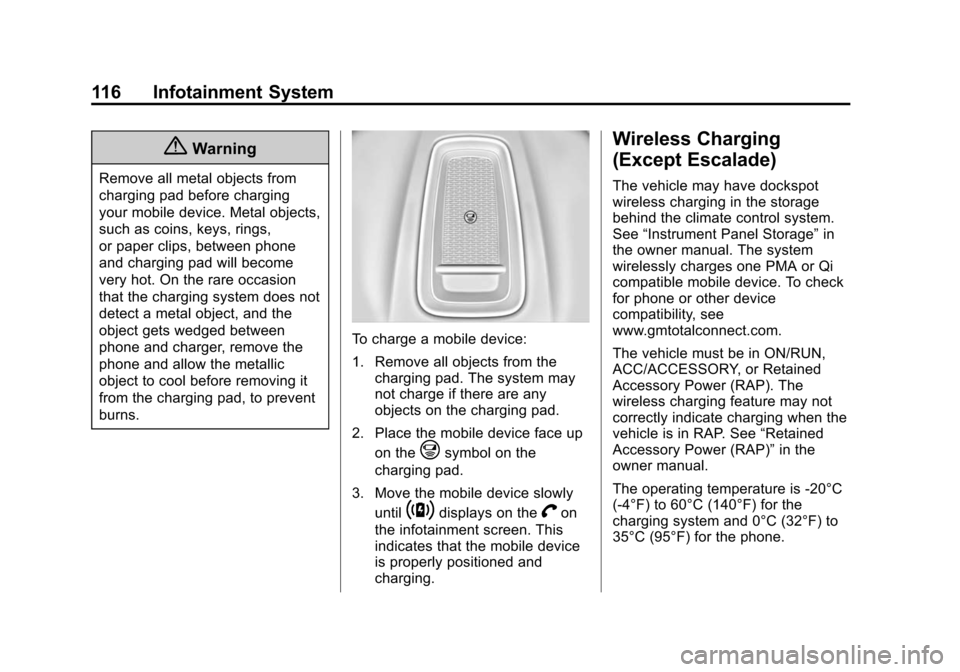
To charge a mobile device:
1. Remove all objects from thecharging pad. The system may
not charge if there are any
objects on the charging pad.
2. Place the mobile device face up on the
@symbol on the
charging pad.
3. Move the mobile device slowly until
~displays on theVon
the infotainment screen. This
indicates that the mobile device
is properly positioned and
charging.
Wireless Charging
(Except Escalade)
The vehicle may have dockspot
wireless charging in the storage
behind the climate control system.
See “Instrument Panel Storage” in
the owner manual. The system
wirelessly charges one PMA or Qi
compatible mobile device. To check
for phone or other device
compatibility, see
www.gmtotalconnect.com.
The vehicle must be in ON/RUN,
ACC/ACCESSORY, or Retained
Accessory Power (RAP). The
wireless charging feature may not
correctly indicate charging when the
vehicle is in RAP. See “Retained
Accessory Power (RAP)” in the
owner manual.
The operating temperature is -20°C
(-4°F) to 60°C (140°F) for the
charging system and 0°C (32°F) to
35°C (95°F) for the phone.
Page 117 of 138
Black plate (117,1)Cadillac CUE Infotainment System (GMNA-Localizing-U.S./Canada-
7639728) - 2015 - CRC - 9/3/14
Infotainment System 117
{Warning
Remove all metal objects from
charging pad before charging
your mobile device. Metal objects,
such as coins, keys, rings,
or paper clips, between phone
and charging pad will become
very hot. On the rare occasion
that the charging system does not
detect a metal object, and the
object gets wedged between
phone and charger, remove the
phone and allow the metallic
object to cool before removing it
from the charging pad, to prevent
burns.
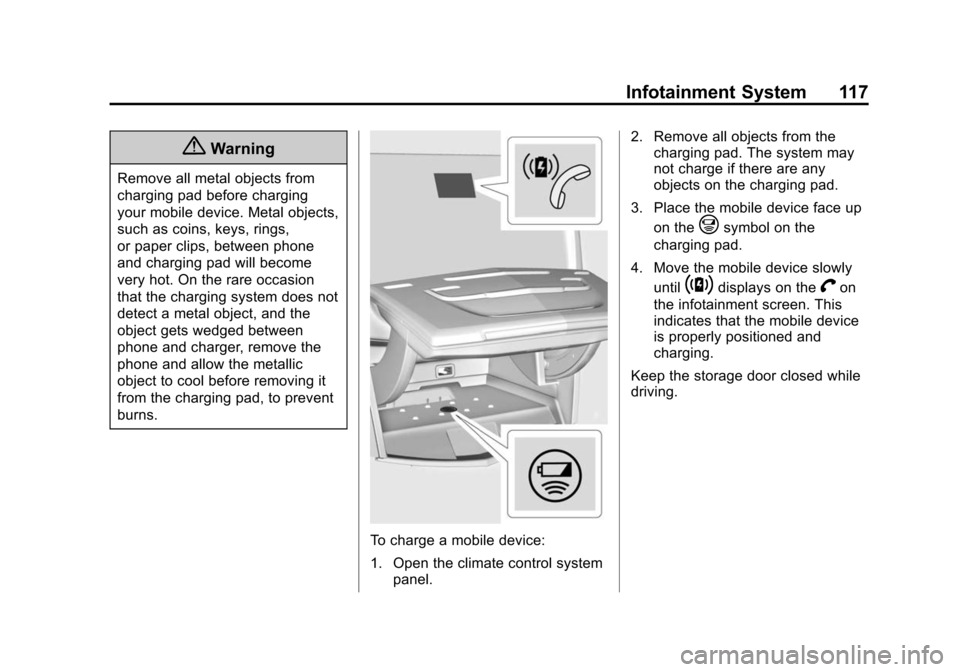
To charge a mobile device:
1. Open the climate control systempanel. 2. Remove all objects from the
charging pad. The system may
not charge if there are any
objects on the charging pad.
3. Place the mobile device face up on the
@symbol on the
charging pad.
4. Move the mobile device slowly until
~displays on theVon
the infotainment screen. This
indicates that the mobile device
is properly positioned and
charging.
Keep the storage door closed while
driving.
Page 118 of 138
Black plate (118,1)Cadillac CUE Infotainment System (GMNA-Localizing-U.S./Canada-
7639728) - 2015 - CRC - 9/3/14
118 Infotainment System
Settings
The Settings menu allows
adjustment of different vehicle and
radio features. The menu may
contain the following:
Time and Date
See“Clock” in the owner manual.
Language
This will set the display language in
the radio, instrument cluster, and
voice recognition. Press Language
and select the appropriate
language. Press the
[Back screen
button to go back to the
previous menu.
Valet Mode (If Equipped)
This will lock the infotainment
system and steering wheel controls.
It may also limit top speed, power,
and access to vehicle storage
locations (if equipped). To enable valet mode:
1. Enter a four-digit code on the
keypad.
2. Press Enter to go to the confirmation screen.
3. Re-enter the four-digit code.
Press LOCK or UNLOCK to lock or
unlock the system. Press
[Back to
go back to the previous menu.
Radio
Press to display the Radio Menu
and the following may display:
.Manage Favorites: Press a
displayed Favorite to select that
favorite to edit. Press Rename to
rename the favorite or Delete to
delete it. Press and hold the
station to drag it to a new
location. Press Done to go back
to the previous menu.
.Number of Favorites Shown:
Press to set the number of
favorites to display. Select Auto,
5, 10, 15, 20, 25, 30, 35, 40,
45, 50, 55, or 60. Auto will automatically add or hide
additional Favorite pages based
on the number of Favorites
stored. Press the
[Back screen
button to go back to the
previous menu.
.Auto Volume: If equipped, this
feature adjusts the volume
based on the vehicle speed. See
AM-FM Radio on page 11.
.Bose AudioPilot Noise
Compensation Technology:
If equipped, this feature adjusts
the volume based on the noise
in the vehicle. See AM-FM
Radio on page 11.
.Maximum Startup Volume: This
feature sets the maximum
startup volume. If the vehicle is
started and the volume is
greater than this level, the
volume is adjusted to this level.
To set the maximum startup
volume, press + or −to increase
or decrease. Press the
[Back
screen button to go back to the
previous menu.
Page 120 of 138
Black plate (120,1)Cadillac CUE Infotainment System (GMNA-Localizing-U.S./Canada-
7639728) - 2015 - CRC - 9/3/14
120 Infotainment System
.Turn Display Off: Press to turn
the display off. Press anywhere
on the display area or any
faceplate button again to turn
the display on.
Rear Camera
Press to display the Rear Camera
menu. See“Driver Assistance
Systems” in the owner manual.
Return to Factory Settings
Pressing Continue restores all
factory settings.
Select Return to Factory Settings
and the following list may display:
.Restore Vehicle Settings:
Restores factory vehicle
personalization settings. Press
Restore Vehicle Settings.
Press Cancel or Continue. Press
the
[Back screen button to go
back to the last menu.
.Clear All Private Data: Clears all
private information. Press Clear
All Private Data. Press Cancel or
Continue. Press the
[Back
screen button to go back to the
last menu.
.Restore Radio Settings:
Restores factory radio settings.
Press Restore Radio Settings.
Press Cancel or Continue.
A confirmation pop-up will
appear indicating the radio
settings have been restored if
Continue is pressed. Press
the
[Back screen button to go
back to the last menu.
English and Metric Unit
Conversion
To change the display units between
English and metric units, see
“Instrument Cluster” in the owner
manual.
Teen Driver
If equipped, Teen Driver allows
keys to be programmed with
customizable vehicle settings.
It limits some vehicle features and
prevents some systems, such as
Park Assist, if equipped, from being
turned off. It also displays a Report
Card of the driving behavior when a
Teen Driver key is used.
To activate or change the settings,
select Teen Driver from the Settings
menu. See “Vehicle Personalization”
in the owner manual. If no keys are
activated, the Teen Driver feature
will not record any Report
Card data.
A Personal Identification Number
(PIN) must be created using the
keypad. The PIN is required to:
.Register keys.
.Change settings.
.Access or delete Report Card
data or Teen Driver settings.
Page 121 of 138
Black plate (121,1)Cadillac CUE Infotainment System (GMNA-Localizing-U.S./Canada-
7639728) - 2015 - CRC - 9/3/14
Infotainment System 121
Register or Unregister a Key
Any of the vehicle keys can be
registered as a Teen Driver key.
Label the key to tell it apart from the
other keys. A maximum of eight
keys can be registered. There is
one Report Card per vehicle.
After creating the PIN, to register or
unregister the key(s):
1. Start the engine.
2. For automatic transmissions, thevehicle must be in P (Park). For
manual transmissions, the
vehicle must be stopped with the
parking brake set.
3. Select Teen Driver from the Settings menu.
4. Enter the PIN.
5. Select Key Registration.
The system will display instructions
for registering or unregistering
a key. For Pushbutton start system:
Once Key Registration is selected,
the system detects whether there is
a transmitter key in the transmitter
pocket, which is inside the center
console storage area or on the side
of the steering column. See
“Remote Keyless Entry (RKE)
System Operation”
in the owner
manual for transmitter pocket
location.
.If no transmitter key is detected,
a message displays indicating to
place the transmitter key in the
transmitter pocket.
.If the transmitter key is in the
transmitter pocket, it will identify
whether the transmitter key is
registered or unregistered.
‐ If the transmitter key is not
registered, a message
displays requesting
confirmation to register. Select
Register and follow the
instructions. A message
displays to confirm successful
registration. ‐
If the transmitter key is already
registered, the option to
unregister displays.
If Unregister is selected, the
transmitter key is no longer
registered and a confirmation
displays.
In vehicles with a Pushbutton start
system, if a Teen Driver transmitter
key and a non-Teen Driver
transmitter key are both present at
start up, the vehicle will recognize
the non-Teen Driver transmitter key
to start the vehicle. The Teen Driver
settings will not be active.
Manage Settings
The PIN can be used to change the
following settings:
Audio Volume Limit: Allows a
maximum radio volume to be set.
Teen Driver Speed Warning:
Allows a warning to be set when a
selected speed is exceeded.