radio CADILLAC ATS 2016 1.G CUE Manual
[x] Cancel search | Manufacturer: CADILLAC, Model Year: 2016, Model line: ATS, Model: CADILLAC ATS 2016 1.GPages: 94, PDF Size: 0.96 MB
Page 18 of 94
Cadillac CUE Infotainment System (GMNA-Localizing-MidEast-9369286) -
2016 - crc - 5/14/15
Audio Players 17
files contained directly under the
root directory are accessed prior to
any root directory folders.
No Folder :When the CD only
contains compressed audio files
without any folders or playlists, all
files are under the root folder.
File System and Naming : The
song titles, artists, albums, and
genres are taken from the file's ID3
tag and are only displayed if present
in the tag. If a song title is not
present in the ID3 tag, the radio
displays the file name as the
track name.
USB Port
Audio from videos stored on SD/
USB cards may be listened to while
the vehicle is in a forward gear.
Videos can be watched while the
vehicle is in P (Park). Use play/
pause or next/previous to control
the video or touch in the browse to
display a list of the current video
filters.
This vehicle may have two SD card
readers and three USB ports: one
SD card reader and one USB port in the center console, one USB port in
the storage behind the climate
control system, and if equipped with
Rear Seat Entertainment (RSE),
there may be one SD card reader
and one USB port in the rear media
console storage area.
Playing from a USB
A USB mass storage device can be
connected to the USB port.
Audio extensions supported by the
USB are :
.
MP3
. WMA
. AAC
. OGG
. AIFF
. 3GPP
My Media Library
The infotainment system allows
access to content from all of the
connected devices. Touch the
MEDIA screen button to scroll
through the options until My Media is selected. Touch anywhere in the
center area of the screen to browse
the content.
USB MP3 Player and USB Drives
The USB MP3 players and USB
drives connected must comply with
the USB Mass Storage Class
specification (USB MSC).
To play a USB device :
1. Connect the USB.
2. Touch MEDIA until the connected device is shown.
Use the following when playing an
active USB source:
r(Play) : Touch to play the current
media source.
j(Pause) : Touch to pause play of
the current media source.
t(Previous/Reverse) :
. Touch to seek to the beginning
of the current or previous track.
If the track has been playing for
less than 10 seconds, the
previous track plays. If playing
longer than five seconds, the
current track restarts.
Page 19 of 94
Cadillac CUE Infotainment System (GMNA-Localizing-MidEast-9369286) -
2016 - crc - 5/14/15
18 Audio Players
.Touch and hold to reverse
quickly through playback.
Release to return to playing
speed. Elapsed time displays.
u(Next/Fast Forward) :
. Touch to seek to the next track.
. Touch and hold to advance
quickly through playback.
Release to return to playing
speed. Elapsed time displays.
USB Menu
Touch Menu to display the USB
menu. The following may be
available :
Shuffle : Touch to play the tracks
randomly. Touch again to stop
shuffle.
Bose AudioPilot (If Equipped) :
Touch to turn Bose AudioPilot on or
off. AudioPilot is an On/Off selection
on the list entry from the Main
menu. See AM-FM Radio 010.
Tone Settings : Touch + or−to
adjust Bass, Midrange, Treble,
or Surround. See AM-FM Radio
0 10. USB Browse Menu
Touch the browse screen button to
view the browse menu and the
following options are displayed
along the bottom of the screen :
Playlists :
Supported Playlist extensions are:
m3u, pls, wpl, asx, b4s, and xspf.
1. Touch to view the playlists stored on the USB.
2. Select a playlist to view the list of all songs in that playlist.
3. Select a song from the list to begin playback.
Artists :
1. Touch to view the list of artists stored on the USB.
2. Select an artist name to view a list of all albums by the artist.
3. To select a song, touch All Songs or touch an album and
then select a song from the list. Albums :
1. Touch to view the albums on the USB.
2. Select the album to view a list of all songs on the album.
3. Select a song from the list to begin playback.
Songs : 1. Touch to display a list of all songs on the USB.
2. To begin playback, select a song from the list.
Genres :
1. Touch to view the genres on the USB.
2. Select a genre to view a list of artists.
3. Select an artist to view albums by that artist.
4. Select an album to view songs on the album
5. Select a song to start playback.
Page 20 of 94
Cadillac CUE Infotainment System (GMNA-Localizing-MidEast-9369286) -
2016 - crc - 5/14/15
Audio Players 19
Podcasts, Composers, Audiobooks,
Videos, and Folder View are shown
when More is selected from the
bottom of the screen.
Podcasts :1. Touch to view the podcasts on the USB.
2. Select podcast to get a list of podcast episodes.
Composers : 1. Touch to view the composers on the USB.
2. Select Composer to view a list of albums by that composer.
Select an album or all songs to
view a list of songs.
3. Select a song from the list to begin playback.
Audiobooks : 1. Touch to view the audiobooks stored on the iPod. Select an
audiobook to get a list of
chapters.
2. Select the chapter from the list to begin playback. Videos :
1. Touch and hold a screen button to store the current video as a
favorite.
2. Touch a screen button in the favorite area to recall a favorite
video; the first episode in the
video begins to play. Not all
formats are supported.
Folder View : 1. Touch to view the directories on the USB/SD card.
2. Select a folder to view a list of all files.
3. Select a file from the list to begin playback.
File System and Naming
File systems supported by the USB
are :
. FAT32
. NTFS
. HFS+
The songs, artists, albums, and
genres are taken from the file’s
song information and are only displayed if present. The radio
displays the file name as the track
name if the song information is not
available.
Supported Apple
®Devices
This feature supports the following
devices :
. iPod touch
®(5th generation)
. iPod touch (4th generation)
. iPod touch (3rd generation)
. iPod touch (2nd generation)
. iPod touch (1st generation)
. iPod nano
®(7th generation)
. iPod nano (6th generation)
. iPod nano (5th generation)
. iPod nano (4th generation)
. iPod nano (3rd generation)
. iPod
®with video
. iPhone
®6
. iPhone 6 Plus
. iPhone 5C
. iPhone 5S
. iPhone 4S
Page 23 of 94
Cadillac CUE Infotainment System (GMNA-Localizing-MidEast-9369286) -
2016 - crc - 5/14/15
22 Audio Players
Bluetooth Audio Menu
Touch the MENU screen button to
display the Bluetooth Audio menu.
The following may be available :
Bose AudioPilot (If Equipped) :
Touch to turn the Bose AudioPilot
on or off. The AudioPilot technology
is an On/Off selection on the list
entry from the main menu. See
AM-FM Radio010.
Tone Settings : Touch + or−to
adjust Bass, Midrange, Treble,
or Surround. See AM-FM Radio
0 10.
Touch
[Back to go back to the
previous menu.
Manage Bluetooth Devices :
Touch to go to the Bluetooth page to
add or delete devices or pair.
When selecting Bluetooth audio, the
radio may not be able to launch the
audio player on the connected
device to start playing. When the
vehicle is not moving, use the
phone to begin playback. All devices launch audio differently.
When selecting Bluetooth audio as
a source, the radio may show as
paused on the screen. Press play
on the device or touch
ron screen
to begin playback.
Some phones support sending
Bluetooth music information to
display on the radio. When the radio
receives this information, it will
check to see if any is available and
display it. For more information
about supported Bluetooth features,
see www.gm.com/bluetooth.
Page 25 of 94
Cadillac CUE Infotainment System (GMNA-Localizing-MidEast-9369286) -
2016 - crc - 5/14/15
24 Rear Seat Infotainment
3. Opening a screen will turn thesystem on. If the screens are
open with the system off, press
the power button on the remote
to turn the system on.
The system can also be turned
on from the front infotainment
system by pressing the Video
screen button. After selected,
another item can be selected
from the Home Page and the
video and audio will continue to
play in the rear.
Push the video screen into its
locked position when it is not in use.
The screen turns off automatically.
The audio may continue with the
screens down. This allows listening
to music without the screen on. To
turn the audio off, press the power
button on the remote or on the front
infotainment Video screen.
Caution
Avoid directly touching the video
screen, as damage may occur.
Sources
Sources, if equipped, include AM,
FM, BD, AUX, Photos, CD/DVD/
Blu-ray, USB, and SD card.
Menus and Features
AM/FM Menu
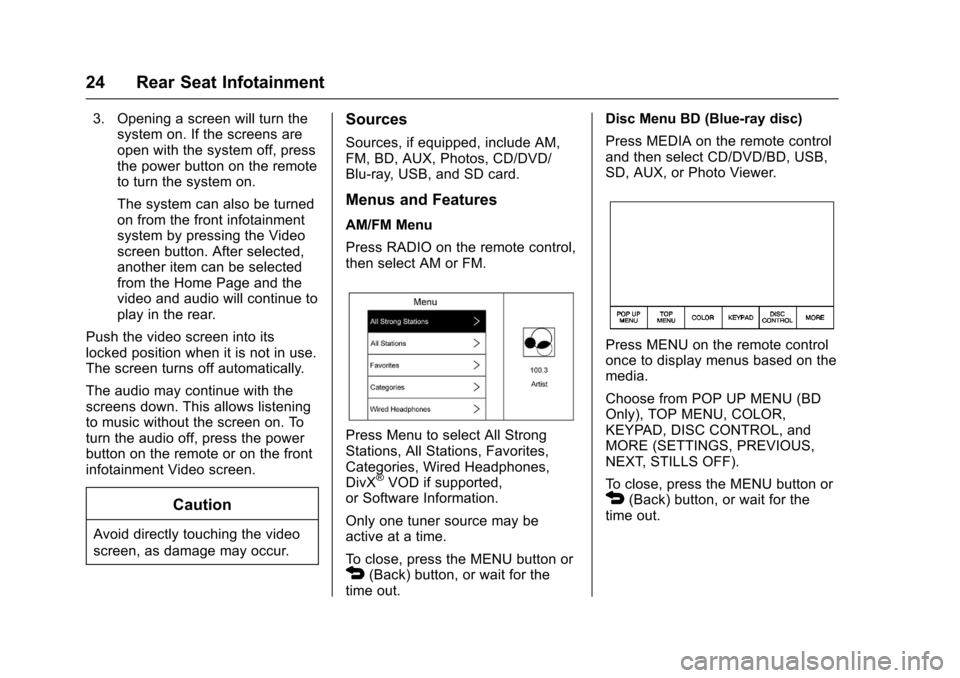
Press RADIO on the remote control,
then select AM or FM.
Press Menu to select All Strong
Stations, All Stations, Favorites,
Categories, Wired Headphones,
DivX
®VOD if supported,
or Software Information.
Only one tuner source may be
active at a time.
To close, press the MENU button or
4(Back) button, or wait for the
time out. Disc Menu BD (Blue-ray disc)
Press MEDIA on the remote control
and then select CD/DVD/BD, USB,
SD, AUX, or Photo Viewer.
Press MENU on the remote control
once to display menus based on the
media.
Choose from POP UP MENU (BD
Only), TOP MENU, COLOR,
KEYPAD, DISC CONTROL, and
MORE (SETTINGS, PREVIOUS,
NEXT, STILLS OFF).
To close, press the MENU button or
4(Back) button, or wait for the
time out.
Page 37 of 94
Cadillac CUE Infotainment System (GMNA-Localizing-MidEast-9369286) -
2016 - crc - 5/14/15
36 Rear Seat Infotainment
If equipped with RSE, features
above will be in the rear of the
center console. These ports are for
the primary use of the rear
passengers and not all media is
available to the front passengers.
The A/V jacks allow audio or video
cables to be connected from an
auxiliary device such as a
camcorder, video game system,
or Apple device. A cable from Apple
is required.
The A/V jacks are color coded :
.Yellow for video input
. White for left audio input
. Red for right audio input
Power for the auxiliary devices is
not supplied by the infotainment
system.
To use the auxiliary inputs of the
RSE system :
1. Connect the auxiliary device cables to the A/V jacks.
2. Power on both the auxiliary device and the RSE video
screen. 3. Press Media on the remote
control and use the left or right
arrows to change the source
to AUX.
USB/SD
This allows for video and audio
playback of supported media.
Audio from these ports can only be
heard and controlled by the rear
seat passengers. Video can be
heard, shown, and controlled by the
rear and front passengers.
To use the USB and SD : 1. Insert the device in the appropriate slot.
2. Select the source via the rear screen menu with the remote
control MEDIA button.
3. Select the source via the front by touching on the Video
application on the home
screen.Audio Output
Audio from a Blu-ray/DVD/CD
player or auxiliary inputs can be
heard through :
.Wireless headphones : Available
for any source depending on the
selected channel.
. Vehicle speakers : Touch the
VIDEO screen button. Select
any other source to stop the
speaker audio.
. Vehicle wired headphone jack :
See “Wired Headphone Jack”
following.
The RSE system transmits the
audio signal to the wireless
headphones if an audio signal is
available. See “Headphones” earlier
in this section.
Front seat passengers can listen to
playback from the A/V jacks through
the vehicle speakers by selecting
Rear A/V as the source on the radio.
Page 38 of 94
Cadillac CUE Infotainment System (GMNA-Localizing-MidEast-9369286) -
2016 - crc - 5/14/15
Rear Seat Infotainment 37
Wired Headphone Jack
Select MENU on the remote control,
then select Settings and then Wired
Headphones to listen to audio on
the wired headphones. The
headphone audio plays depending
on which screen is selected. The
default is screen 1 audio.
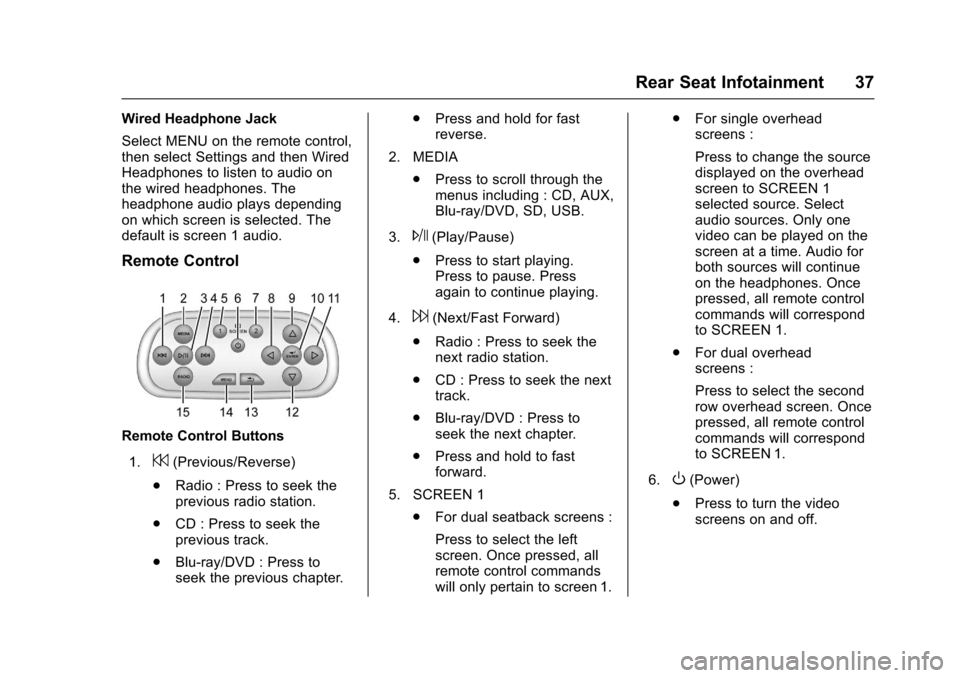
Remote Control
Remote Control Buttons1.
7(Previous/Reverse)
. Radio : Press to seek the
previous radio station.
. CD : Press to seek the
previous track.
. Blu-ray/DVD : Press to
seek the previous chapter. .
Press and hold for fast
reverse.
2. MEDIA .Press to scroll through the
menus including : CD, AUX,
Blu-ray/DVD, SD, USB.
3.
J(Play/Pause)
. Press to start playing.
Press to pause. Press
again to continue playing.
4.
6(Next/Fast Forward)
. Radio : Press to seek the
next radio station.
. CD : Press to seek the next
track.
. Blu-ray/DVD : Press to
seek the next chapter.
. Press and hold to fast
forward.
5. SCREEN 1 .For dual seatback screens :
Press to select the left
screen. Once pressed, all
remote control commands
will only pertain to screen 1. .
For single overhead
screens :
Press to change the source
displayed on the overhead
screen to SCREEN 1
selected source. Select
audio sources. Only one
video can be played on the
screen at a time. Audio for
both sources will continue
on the headphones. Once
pressed, all remote control
commands will correspond
to SCREEN 1.
. For dual overhead
screens :
Press to select the second
row overhead screen. Once
pressed, all remote control
commands will correspond
to SCREEN 1.
6.
O(Power)
. Press to turn the video
screens on and off.
Page 39 of 94
Cadillac CUE Infotainment System (GMNA-Localizing-MidEast-9369286) -
2016 - crc - 5/14/15
38 Rear Seat Infotainment
7. SCREEN 2.For dual seatback screens :
Press to select the right
screen. Once pressed, all
remote control commands
will only pertain to
SCREEN 2.
. For single overhead
screens :
Press to change the source
displayed on the overhead
screen to SCREEN 2
selected source. Only one
video can be played on the
screen at a time. Audio for
both sources will continue
on the headphones. Once
pressed, all remote control
commands will correspond
to SCREEN 2.
. For dual overhead
screens :
Press to select the optional
third row overhead screen.
Once pressed, all remote
control commands will
correspond to SCREEN 2. 8.o(Previous/Reverse/
Decrease)
. Radio and CD : Press to go
to the previous station or
track.
. Press to go to the
previous menu.
. Press to decrease the
brightness of the RSE
screen.
9.
w(Up Arrow)
. Press to scroll up a list.
10.
r/ENTER
. Press to select the
highlighted choice in
any menu.
. Press and hold for
quick play.
11.
p(Next/Forward/Increase)
. Radio and CD : Press to go
to the next station or track.
. Press to go to the
next menu. .
Press to increase the
brightness of the RSE
screen.
12.
x(Down Arrow)
. Press to go down a list.
13.
4(Back)
. Press to go back to the
previous menu.
. Press and hold to go back
to the now playing screen.
14. MENU .Press to go to the menu of
the now playing screen.
15. RADIO .Press to scroll through the
radio sources including AM
or FM.
To use the remote control, aim it at
the transmitter window at either
seatback console or at the second
row overhead screen and press the
buttons firmly. Direct sunlight or very
bright light could affect the ability of
the RSE transmitter to receive
signals from the remote control.
Page 41 of 94
Cadillac CUE Infotainment System (GMNA-Localizing-MidEast-9369286) -
2016 - crc - 5/14/15
40 Rear Seat Infotainment
Sometimes the wireless
headphone audio cuts out or
buzzes :Check for obstructions,
low batteries, reception range, and
interference from cell phone towers
or from cellular telephone use in the
vehicle. Check that the headphones
are on correctly using the L (Left)
and R (Right) on the headphones.
Check that the headphones are
positioned properly with the
headband across the top of
the head.
I lost the remote and/or the
headphones : See your dealer for
assistance.
The Blu-ray/DVD is playing, but
there is no picture or sound :
Check that the RSE video screen is
sourced to the Blu-ray/DVD player
by pressing the MEDIA button on
the remote control.Video Display Error Messages
The video screen may display one
of the following :
Disc Error : There are disc load or
eject problems, the disc is inserted
with the disc label wrong side up,
the disc is damaged, or the disc is
not from the correct region.
No Disc Inserted : No disc is
present.
Disc Player Error : The
temperature is outside the operating
range of the RSE system. If the
temperature is within range, see
your dealer.
Video Distortion
Video distortion can occur when
operating cellular phones, scanners,
CB radios, Global Positioning
Systems (GPSs), two-way radios,
mobile faxes, or walkie talkies.
It might be necessary to turn off the
video player when operating one of
these devices in or near the vehicle.
Rear Seat Entertainment
(RSE) System (Platinum)
Vehicles with an RSE system
include two head restraint video
display screens with integrated DVD
players, auxiliary inputs, two wired
headphones, and remote control.
This system works independently
from the vehicle's Overhead DVD
RSE system. See Rear Seat
Entertainment (RSE) System 023
or Rear Seat Entertainment (RSE)
System (Platinum) 040 for
information about the Overhead
DVD RSE system.
The vehicle has a feature called
Retained Accessory Power (RAP).
With RAP, the RSE system can be
played even after the ignition is
turned off. See “Retained Accessory
Accessory Power (RAP)” in the
owner manual.
Video Display Screens
The video display screens are on
the back of each head restraint.
Page 47 of 94
Cadillac CUE Infotainment System (GMNA-Localizing-MidEast-9369286) -
2016 - crc - 5/14/15
46 Rear Seat Infotainment
To change the Parental Control
Password :1. Press the SETUP button on the remote control.
2. Navigate to the Password sub-menu under the
Preference Menu and press
ENTER.
3. At the Old Password option, enter the old password or the
default password (136900).
4. At the New Password option, enter the new password (six
digits) using numeric buttons.
5. At the Confirm PWD option, confirm the new password by
entering the new password
again.
6. Scroll to the OK button and press ENTER. The message
“Your password has been
changed” displays.
To reset the system back to the
factory default settings : 1. Press the SETUP button on the remote control. 2. Use the left/right and down
navigation arrows on the
remote control to select the
Default sub-menu under the
Preference Page and press the
ENTER button to reset the
settings. The parental settings
will not be affected.
Vehicle Speakers
Audio from the DVD player or an
auxiliary device can be heard
through the vehicle speakers or the
wireless/wired headphones, while
the radio is tuned to one of the
many frequencies selected on the
Sound Around portion of the
system’ s remote control. See
“Remote Control” later in this
section.
Only one audio source can be heard
through the vehicle’ s speakers at a
time. The audio source being used
is specified by the A/V (audio/video)
source selected on the driver side
head restraint video display screen.
To turn the RSE system audio
output to the vehicle’s speakers,
press Sound Around ON, on the
system’ s remote control. The audio from the RSE system can be heard
through the wireless/wired
headphones and the vehicle’s
speakers at the same time. The
volume on the radio can vary when
switching between the radio, CD,
DVD, MP3, or an auxiliary device.
Wired Headphones
VOL0(Volume) :
Use to adjust
the volume on the headphones.
100 Channel FM-Modulation
Control
For Screen “3”Only :
To activate the FM modulation
feature, press the “Sound Around
On/Off ”button on the remote until
the text “FM CH XX.XMH2” is
dislpayed on the monitor.
On the remote, press the “Sound
Around Select” button to cycle
through a pre-established list of 6
channels (88.3MHz, 88.7MHz,
89.1MHz, 89.5MHz, 89.9MHz,
90.3MHz).
If none of these stations are suitable
for FM Modulation, use the “Fine
Tune” Option. To “Fine Tune” the