phone CADILLAC ATS 2016 1.G CUE Manual
[x] Cancel search | Manufacturer: CADILLAC, Model Year: 2016, Model line: ATS, Model: CADILLAC ATS 2016 1.GPages: 94, PDF Size: 0.96 MB
Page 40 of 94
Cadillac CUE Infotainment System (GMNA-Localizing-MidEast-9369286) -
2016 - crc - 5/14/15
Rear Seat Infotainment 39
Check the batteries if the remote
control does not seem to be
working. See“Battery Replacement”
following. Objects blocking the line
of sight could also affect the
function of the remote control.
If a CD, Blu-ray/DVD, or MP3 disc is
in the CD slot, the remote control
O
button can be used to turn on the
video screen display and start the
disc. The infotainment system can
also turn on the video screen
display.
Caution
Storing the remote control in a hot
area or in direct sunlight can
damage it, and the repairs will not
be covered by the warranty.
Storage in extreme cold can
weaken the batteries. Keep the
remote control stored in a cool,
dry place. Battery Replacement
To change the remote control
batteries :
1. Insert a coin or key to pull up the rear cover on the remote
control.
2. Replace the two AAA batteries in the compartment.
3. Replace the battery cover.
Remove the batteries from the
remote control if it will not be used
for an extended period of time.
RSE Troubleshooting
No power : The ignition might not
be in ON/RUN or ACC/
ACCESSORY.
The picture does not fill the
screen. There are black borders
on the top and bottom or on both
sides or it looks stretched out :
Press the MENU button on the
remote control to change the display
mode setting. In auxiliary mode, the picture
moves or scrolls :
Check the
auxiliary input connections at both
devices.
The remote control does not
work : Check to make sure the
remote control is programmed to the
correct screen. Make sure there is
no obstruction between the remote
control and the transmitter window
and check the batteries to make
sure they are not dead or installed
incorrectly.
There is no sound from the
headphones with the indicator
light on : If the batteries are good,
make sure the headphones are
programmed to the correct screen
and on the correct channel for the
screen being viewed.
The auxiliary source is running
but there is no picture or sound :
Check that the RSE video screen is
in the auxiliary source mode by
pressing the MEDIA button on the
remote control. Check the auxiliary
input connections at both devices.
Page 41 of 94
Cadillac CUE Infotainment System (GMNA-Localizing-MidEast-9369286) -
2016 - crc - 5/14/15
40 Rear Seat Infotainment
Sometimes the wireless
headphone audio cuts out or
buzzes :Check for obstructions,
low batteries, reception range, and
interference from cell phone towers
or from cellular telephone use in the
vehicle. Check that the headphones
are on correctly using the L (Left)
and R (Right) on the headphones.
Check that the headphones are
positioned properly with the
headband across the top of
the head.
I lost the remote and/or the
headphones : See your dealer for
assistance.
The Blu-ray/DVD is playing, but
there is no picture or sound :
Check that the RSE video screen is
sourced to the Blu-ray/DVD player
by pressing the MEDIA button on
the remote control.Video Display Error Messages
The video screen may display one
of the following :
Disc Error : There are disc load or
eject problems, the disc is inserted
with the disc label wrong side up,
the disc is damaged, or the disc is
not from the correct region.
No Disc Inserted : No disc is
present.
Disc Player Error : The
temperature is outside the operating
range of the RSE system. If the
temperature is within range, see
your dealer.
Video Distortion
Video distortion can occur when
operating cellular phones, scanners,
CB radios, Global Positioning
Systems (GPSs), two-way radios,
mobile faxes, or walkie talkies.
It might be necessary to turn off the
video player when operating one of
these devices in or near the vehicle.
Rear Seat Entertainment
(RSE) System (Platinum)
Vehicles with an RSE system
include two head restraint video
display screens with integrated DVD
players, auxiliary inputs, two wired
headphones, and remote control.
This system works independently
from the vehicle's Overhead DVD
RSE system. See Rear Seat
Entertainment (RSE) System 023
or Rear Seat Entertainment (RSE)
System (Platinum) 040 for
information about the Overhead
DVD RSE system.
The vehicle has a feature called
Retained Accessory Power (RAP).
With RAP, the RSE system can be
played even after the ignition is
turned off. See “Retained Accessory
Accessory Power (RAP)” in the
owner manual.
Video Display Screens
The video display screens are on
the back of each head restraint.
Page 43 of 94

Cadillac CUE Infotainment System (GMNA-Localizing-MidEast-9369286) -
2016 - crc - 5/14/15
42 Rear Seat Infotainment
the disc partially into the
loading slot with the printed
side facing the rear of the
vehicle. The DVD player
automatically draws the
disc in,“Loading” displays
on the screen along with a
disc indicator, and playback
starts. If the disc is inserted
incorrectly, the DVD player
ejects the disc and “No
Disc” displays.
3. Lever Lock and Release Latch .The viewing angle of the
video screen can be
adjusted by releasing the
latch and gently moving the
screen. Then lock it into a
secure position.
4. EJECT
X
. Press to eject a disc from
the DVD slot.
If a disc is ejected from the
player, but not removed, it
will automatically reload
into the player. Another way
to reload a disc that has
been ejected, but not removed from the DVD
player, is to press the eject
button or the play button.
5. STOP
c
. Press once to stop playing
a DVD.
There is a pre-stop feature
for DVD and video CD only.
This feature resumes
playback of the disc where
it was stopped. Press the
stop button once during
disc playback and
c
displays on the DVD startup
screen. This icon
disappears after a few
seconds. Press the stop
button a second time,
or eject the disc, to cancel
the pre-stop feature and to
clear the disc position
memory.
6. PLAY
r
. Press this button below the
video display screen to start
playback of a disc. On
DVDs and video CDs with
playback control (PBC), menu screens can display
automatically. It might be
necessary to press the play
button again to begin play.
There is a play position
memory feature for DVD
and video CD only. If the
DVD player is turned off
and then turned back on,
the DVD player resumes
playback where the disc
stopped. The play position
memory is erased if the
disc is removed.
7. 3.5 mm (1/8 in) Output Jack .Wired headphones can be
plugged in with a 3.5 mm
(1/8 in) jack.
8. Right Audio Input .The red connector is used
for the right side audio.
9. Left Audio Input .The white connector is
used for the left side audio.
10. Video Input .The yellow connector is
used for video input.
Page 44 of 94
Cadillac CUE Infotainment System (GMNA-Localizing-MidEast-9369286) -
2016 - crc - 5/14/15
Rear Seat Infotainment 43
11. USB Port.Connect the USB drive to
listen to music or view
pictures. To charge a
device, connect it to the
USB port. Not all devices
are able to be charged. For
playback, the formats
available are :
‐JPEG
‐ JPG
‐ M2V
‐ MP3
‐ MPE
‐ MPEG-1
‐ MPEG-2
‐ MPG
‐ OGG
‐ WMA
12. SOURCE .Press to select between
Screen 3, Screen 4, or the
AV INPUT. Each video
display screen can be
adjusted independently, as well as display information
from both DVD players and
both A/V inputs.
13. POWER
O
. Press to turn the power on
or off. Each video screen
can be powered on or off
independently.
Infrared Remote Sensor : Located
in the top center of the video display
screen. Do not block the signal from
the remote to the sensor.
Infrared Transmitters : Located in
the top center of the video display
screen. Do not block the signal from
the headphones to the transmitter.
Using the RSE On-Screen
Display (OSD) Menus
Use the OSD setup display menus
for :
. General Setup
. Audio Setup
. Quality Setup
. Preference Setup To use the OSD menus while using
the DVD player or an auxiliary
device :
1. Press the SETUP button on the remote control to display the
icons and pages on the display
screen.
2. Select the desired page by using the left/right navigation
arrows to move the cursor.
3. Press the SETUP button again on the remote control to cancel
use of the setup display.
Not all DVDs support all of the
feature defaults in the setup menus.
If a feature is not supported, the
defaults are provided by the DVD
media.
General Setup Menu
To set the language for the OSD : 1. Press the SETUP button on the remote control.
2. Use the left/right navigation arrows to navigate the General
Setup Page, then use the down
navigation arrow to select the
OSD language.
Page 47 of 94
Cadillac CUE Infotainment System (GMNA-Localizing-MidEast-9369286) -
2016 - crc - 5/14/15
46 Rear Seat Infotainment
To change the Parental Control
Password :1. Press the SETUP button on the remote control.
2. Navigate to the Password sub-menu under the
Preference Menu and press
ENTER.
3. At the Old Password option, enter the old password or the
default password (136900).
4. At the New Password option, enter the new password (six
digits) using numeric buttons.
5. At the Confirm PWD option, confirm the new password by
entering the new password
again.
6. Scroll to the OK button and press ENTER. The message
“Your password has been
changed” displays.
To reset the system back to the
factory default settings : 1. Press the SETUP button on the remote control. 2. Use the left/right and down
navigation arrows on the
remote control to select the
Default sub-menu under the
Preference Page and press the
ENTER button to reset the
settings. The parental settings
will not be affected.
Vehicle Speakers
Audio from the DVD player or an
auxiliary device can be heard
through the vehicle speakers or the
wireless/wired headphones, while
the radio is tuned to one of the
many frequencies selected on the
Sound Around portion of the
system’ s remote control. See
“Remote Control” later in this
section.
Only one audio source can be heard
through the vehicle’ s speakers at a
time. The audio source being used
is specified by the A/V (audio/video)
source selected on the driver side
head restraint video display screen.
To turn the RSE system audio
output to the vehicle’s speakers,
press Sound Around ON, on the
system’ s remote control. The audio from the RSE system can be heard
through the wireless/wired
headphones and the vehicle’s
speakers at the same time. The
volume on the radio can vary when
switching between the radio, CD,
DVD, MP3, or an auxiliary device.
Wired Headphones
VOL0(Volume) :
Use to adjust
the volume on the headphones.
100 Channel FM-Modulation
Control
For Screen “3”Only :
To activate the FM modulation
feature, press the “Sound Around
On/Off ”button on the remote until
the text “FM CH XX.XMH2” is
dislpayed on the monitor.
On the remote, press the “Sound
Around Select” button to cycle
through a pre-established list of 6
channels (88.3MHz, 88.7MHz,
89.1MHz, 89.5MHz, 89.9MHz,
90.3MHz).
If none of these stations are suitable
for FM Modulation, use the “Fine
Tune” Option. To “Fine Tune” the
Page 48 of 94
Cadillac CUE Infotainment System (GMNA-Localizing-MidEast-9369286) -
2016 - crc - 5/14/15
Rear Seat Infotainment 47
modulator to a specific target station
while the display is active, press the
“Up”or“Down” keys on the remote
to change the channel by 0.2MHz.
Hold down the “Up or“Down” keys
to cycle quickly through the stations.
When the end (107.9MHz) or
beginning (87.5MHz) of the FM
band is reached, the channels will
continue from the beginning
(87.5MHz) or end (107.9MHz),
respectively.
To deactivate the FM modulation
feature, press the “Sound Around
On/Off ”button on the remote until
the text “FM OFF” is displayed on
the monitor.
Caution
Do not store the headphones in
heat or direct sunlight. This could
damage the headphones and
repairs will not be covered by the
warranty. Storage in extreme cold
can weaken the batteries. Keep
the headphones stored in a cool,
dry place.
Remote Control
To use the remote control, aim at
the remote sensor on top center of
the video display screen and press
the desired button.
Objects blocking the line of sight
can affect the function of the remote
control. Direct or very bright light
can affect the ability of the
transmitter to receive signals from
the remote control. If the remote
control does not seem to be
working, the batteries might need to
be replaced. See “Battery
Replacement” later in this section.
The remote control provided with
the RSE system is not a universal
remote control and will not control
other equipment.
Caution
Storing the remote control in a hot
area or in direct sunlight can
damage it, and the repairs will not
be covered by the warranty.
Storage in extreme cold can (Continued)
Caution (Continued)
weaken the batteries. Keep the
remote control stored in a cool,
dry place.
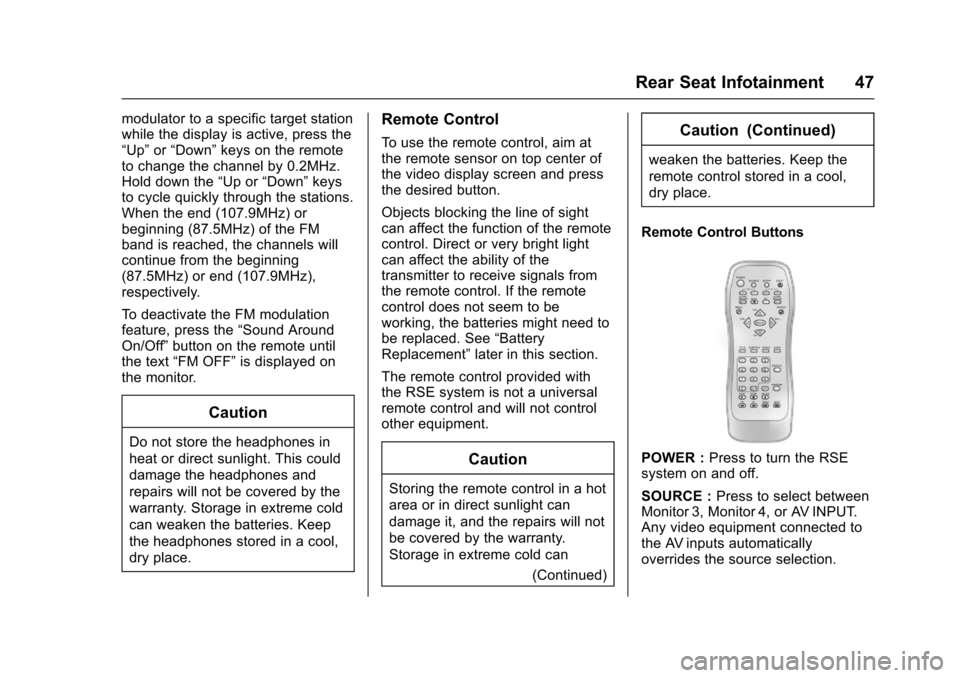
Remote Control Buttons
POWER : Press to turn the RSE
system on and off.
SOURCE : Press to select between
Monitor 3, Monitor 4, or AV INPUT.
Any video equipment connected to
the AV inputs automatically
overrides the source selection.
Page 49 of 94
Cadillac CUE Infotainment System (GMNA-Localizing-MidEast-9369286) -
2016 - crc - 5/14/15
48 Rear Seat Infotainment
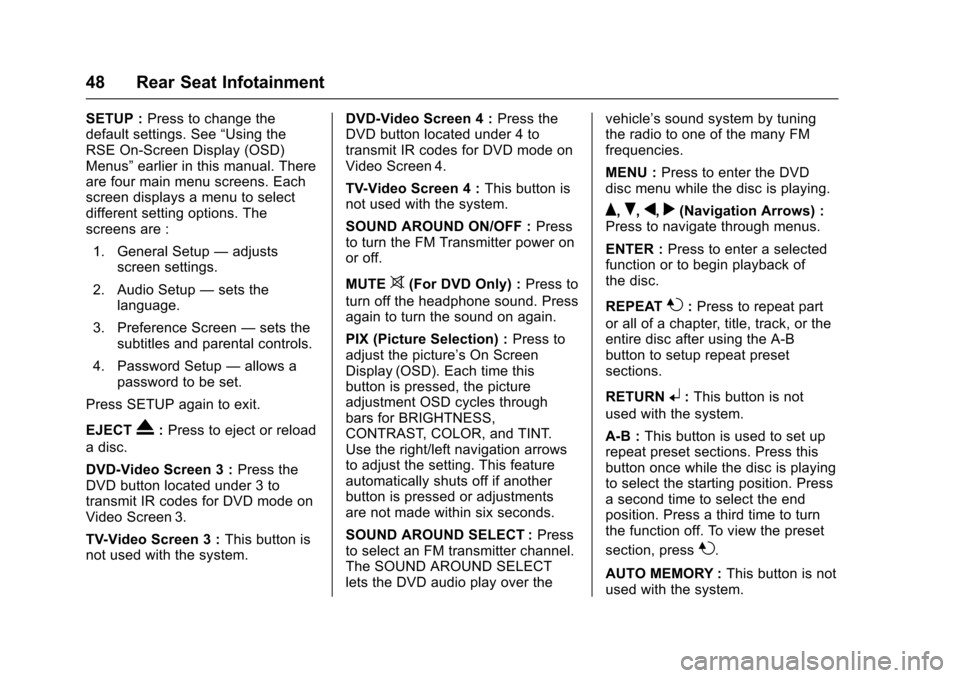
SETUP :Press to change the
default settings. See “Using the
RSE On-Screen Display (OSD)
Menus” earlier in this manual. There
are four main menu screens. Each
screen displays a menu to select
different setting options. The
screens are :
1. General Setup —adjusts
screen settings.
2. Audio Setup —sets the
language.
3. Preference Screen —sets the
subtitles and parental controls.
4. Password Setup —allows a
password to be set.
Press SETUP again to exit.
EJECT
X: Press to eject or reload
a disc.
DVD-Video Screen 3 : Press the
DVD button located under 3 to
transmit IR codes for DVD mode on
Video Screen 3.
TV-Video Screen 3 : This button is
not used with the system. DVD-Video Screen 4 :
Press the
DVD button located under 4 to
transmit IR codes for DVD mode on
Video Screen 4.
TV-Video Screen 4 : This button is
not used with the system.
SOUND AROUND ON/OFF : Press
to turn the FM Transmitter power on
or off.
MUTE
>(For DVD Only) : Press to
turn off the headphone sound. Press
again to turn the sound on again.
PIX (Picture Selection) : Press to
adjust the picture’s On Screen
Display (OSD). Each time this
button is pressed, the picture
adjustment OSD cycles through
bars for BRIGHTNESS,
CONTRAST, COLOR, and TINT.
Use the right/left navigation arrows
to adjust the setting. This feature
automatically shuts off if another
button is pressed or adjustments
are not made within six seconds.
SOUND AROUND SELECT : Press
to select an FM transmitter channel.
The SOUND AROUND SELECT
lets the DVD audio play over the vehicle’s sound system by tuning
the radio to one of the many FM
frequencies.
MENU :
Press to enter the DVD
disc menu while the disc is playing.
Q,R,q,r(Navigation Arrows) :
Press to navigate through menus.
ENTER : Press to enter a selected
function or to begin playback of
the disc.
REPEAT
7: Press to repeat part
or all of a chapter, title, track, or the
entire disc after using the A-B
button to setup repeat preset
sections.
RETURN
8: This button is not
used with the system.
A-B : This button is used to set up
repeat preset sections. Press this
button once while the disc is playing
to select the starting position. Press
a second time to select the end
position. Press a third time to turn
the function off. To view the preset
section, press
7.
AUTO MEMORY : This button is not
used with the system.
Page 64 of 94
Cadillac CUE Infotainment System (GMNA-Localizing-MidEast-9369286) -
2016 - crc - 5/14/15
Navigation 63
Enter the POI information into the
text file in the following format :
.Longitude coordinate, Latitude
coordinate, “Name of POI,”
“Additional information,” “Phone
number.”
Example : 7.0350000,
50.6318040, “Michaels Home,”
“123 Maple Lane,”
“02379234567.”
. The GPS coordinates must be
expressed in decimal degrees
and can be taken from a
geographical map. The
additional information and phone
number strings are optional.
. The POI name and the
additional information string may
not exceed 60 characters.
. POI information for each
destination address must be
entered in a single separate line.
Storing the POI on a USB Drive
In the root directory of a USB drive,
create a folder name “myPOIs,”for
example, “F:\”is the root directory of
the USB drive. In the
“myPOIs” folder, store the text
file with your POIs, for example, “F:
\myPOIs\TomsPOIs.csv.”
Downloading the POI to the
Infotainment System
Connect the USB drive or SD card
containing the POI information to
the USB port or SD card slot of the
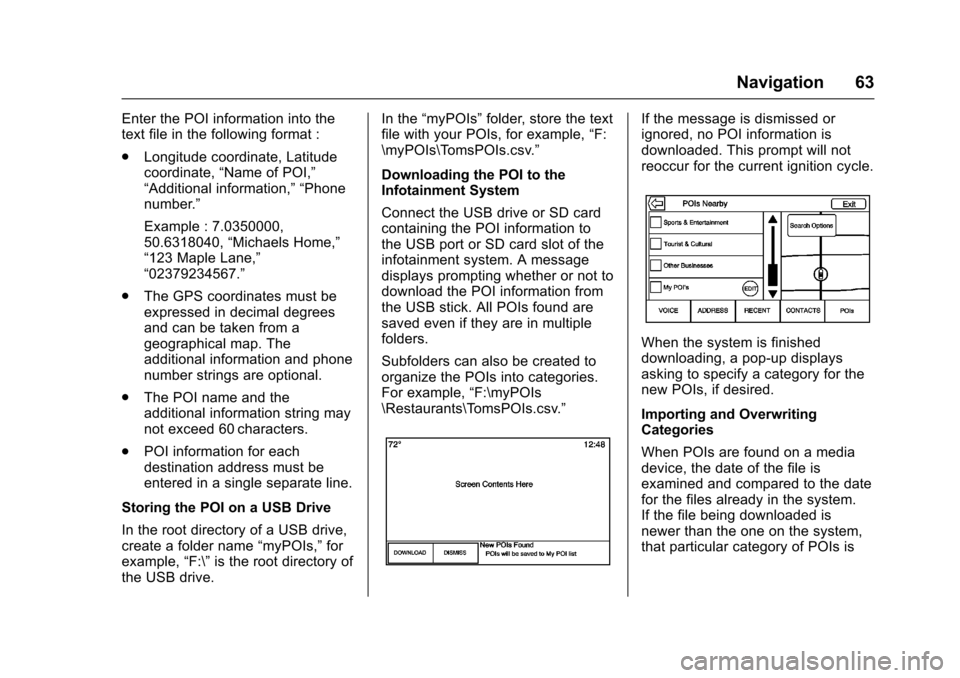
infotainment system. A message
displays prompting whether or not to
download the POI information from
the USB stick. All POIs found are
saved even if they are in multiple
folders.
Subfolders can also be created to
organize the POIs into categories.
For example, “F:\myPOIs
\Restaurants\TomsPOIs.csv.”If the message is dismissed or
ignored, no POI information is
downloaded. This prompt will not
reoccur for the current ignition cycle.
When the system is finished
downloading, a pop-up displays
asking to specify a category for the
new POIs, if desired.
Importing and Overwriting
Categories
When POIs are found on a media
device, the date of the file is
examined and compared to the date
for the files already in the system.
If the file being downloaded is
newer than the one on the system,
that particular category of POIs is
Page 66 of 94
Cadillac CUE Infotainment System (GMNA-Localizing-MidEast-9369286) -
2016 - crc - 5/14/15
Navigation 65
Contacts
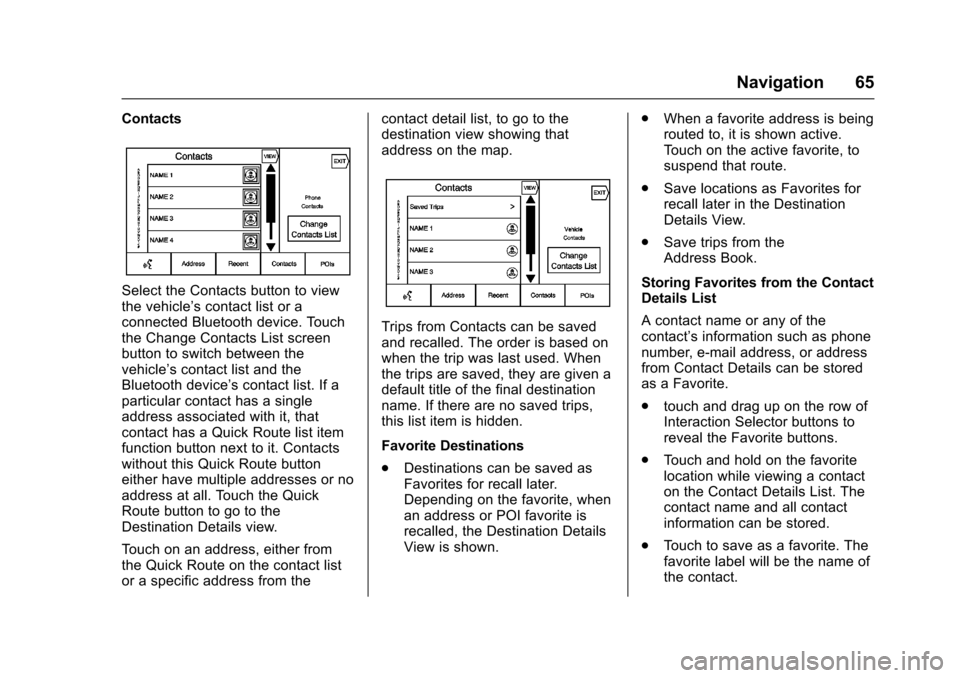
Select the Contacts button to view
the vehicle’s contact list or a
connected Bluetooth device. Touch
the Change Contacts List screen
button to switch between the
vehicle’s contact list and the
Bluetooth device’ s contact list. If a
particular contact has a single
address associated with it, that
contact has a Quick Route list item
function button next to it. Contacts
without this Quick Route button
either have multiple addresses or no
address at all. Touch the Quick
Route button to go to the
Destination Details view.
Touch on an address, either from
the Quick Route on the contact list
or a specific address from the contact detail list, to go to the
destination view showing that
address on the map.
Trips from Contacts can be saved
and recalled. The order is based on
when the trip was last used. When
the trips are saved, they are given a
default title of the final destination
name. If there are no saved trips,
this list item is hidden.
Favorite Destinations
.
Destinations can be saved as
Favorites for recall later.
Depending on the favorite, when
an address or POI favorite is
recalled, the Destination Details
View is shown. .
When a favorite address is being
routed to, it is shown active.
Touch on the active favorite, to
suspend that route.
. Save locations as Favorites for
recall later in the Destination
Details View.
. Save trips from the
Address Book.
Storing Favorites from the Contact
Details List
A contact name or any of the
contact’ s information such as phone
number, e-mail address, or address
from Contact Details can be stored
as a Favorite.
. touch and drag up on the row of
Interaction Selector buttons to
reveal the Favorite buttons.
. Touch and hold on the favorite
location while viewing a contact
on the Contact Details List. The
contact name and all contact
information can be stored.
. Touch to save as a favorite. The
favorite label will be the name of
the contact.
Page 73 of 94
Cadillac CUE Infotainment System (GMNA-Localizing-MidEast-9369286) -
2016 - crc - 5/14/15
72 Phone
Phone
Bluetooth (Overview)
The Bluetooth-capable system can
interact with many cell phones,
allowing :
.Placement and receipt of calls in
a hands-free mode.
. Sharing of the cell phone’s
address book or contact list with
the vehicle.
To minimize driver distraction,
before driving, and with the vehicle
parked :
. Become familiar with the
features of the cell phone.
Organize the phone book and
contact lists clearly and delete
duplicate or rarely used entries.
If possible, program speed dial
or other shortcuts.
. Review the controls and
operation of the infotainment
system. .
Pair cell phone(s) to the vehicle.
The system may not work with
all cell phones. See “Pairing”in
this section.
Vehicles with a Bluetooth system
can use a Bluetooth-capable cell
phone with a Hands-Free Profile to
make and receive phone calls. The
infotainment system is used to
control the system. The system can
be used while in ON/RUN or ACC/
ACCESSORY. The range of the
Bluetooth system can be up to 9.1 m
(30 ft). Not all phones support all
functions and not all phones work
with the Bluetooth system. See
www.gm.com/bluetooth for more
information about compatible
phones.
Controls
Use the buttons on the infotainment
system and the steering wheel to
operate the Bluetooth system.
Steering Wheel Controls
g(Push to Talk) : Press to answer
incoming calls.
c(End Call) : Press to end a call,
decline a call, or cancel an
operation. Press to mute or unmute
the infotainment system when not
on a call.
Infotainment System Controls
For information about how to
navigate the menu system using the
infotainment controls, see
Introduction 02.
PHONE : Press this screen button
to enter the phone main menu.
Audio System
When using the Bluetooth phone
system, sound comes through the
vehicle's front audio system
speakers and overrides the audio
system. Press just above the
chrome volume bar during a call to
change the volume level. The
adjusted volume level remains in
memory for later calls. The system
maintains a minimum volume level.