steering CADILLAC ATS 2019 Owner's Guide
[x] Cancel search | Manufacturer: CADILLAC, Model Year: 2019, Model line: ATS, Model: CADILLAC ATS 2019Pages: 384, PDF Size: 6.11 MB
Page 106 of 384
Cadillac ATS/ATS-V Owner Manual (GMNA-Localizing-U.S./Canada/Mexico-
12460272) - 2019 - crc - 5/8/18
INSTRUMENTS AND CONTROLS 105
Controls
Steering Wheel Adjustment
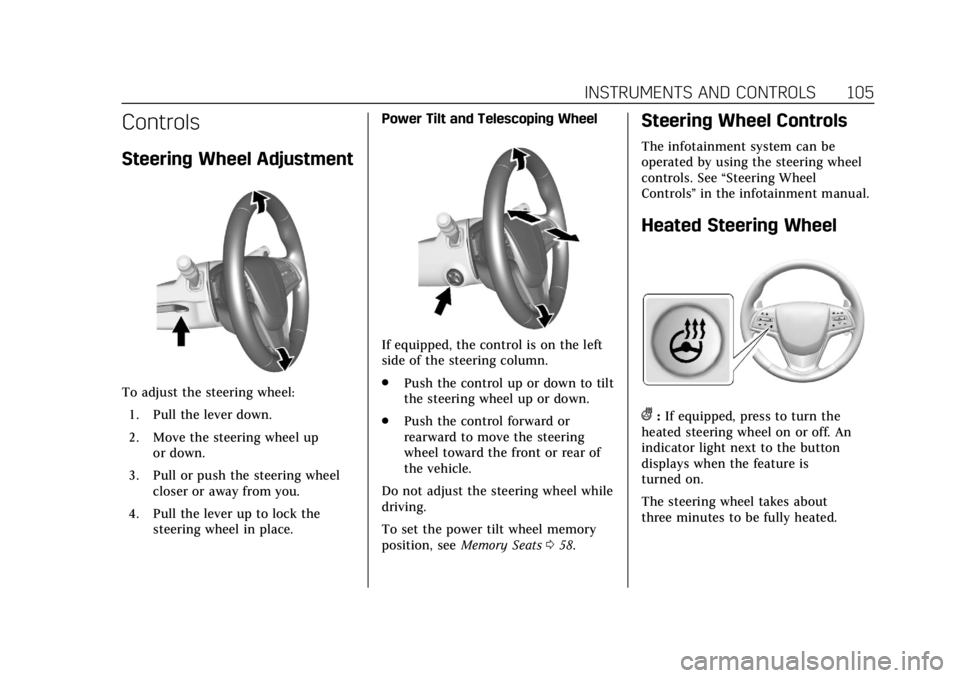
To adjust the steering wheel:1. Pull the lever down.
2. Move the steering wheel up or down.
3. Pull or push the steering wheel closer or away from you.
4. Pull the lever up to lock the steering wheel in place. Power Tilt and Telescoping Wheel
If equipped, the control is on the left
side of the steering column.
.
Push the control up or down to tilt
the steering wheel up or down.
. Push the control forward or
rearward to move the steering
wheel toward the front or rear of
the vehicle.
Do not adjust the steering wheel while
driving.
To set the power tilt wheel memory
position, see Memory Seats 058.
Steering Wheel Controls
The infotainment system can be
operated by using the steering wheel
controls. See “Steering Wheel
Controls ”in the infotainment manual.
Heated Steering Wheel
(:If equipped, press to turn the
heated steering wheel on or off. An
indicator light next to the button
displays when the feature is
turned on.
The steering wheel takes about
three minutes to be fully heated.
Page 107 of 384
Cadillac ATS/ATS-V Owner Manual (GMNA-Localizing-U.S./Canada/Mexico-
12460272) - 2019 - crc - 5/8/18
106 INSTRUMENTS AND CONTROLS
If equipped with a remote start heated
steering wheel, the heated steering
wheel will turn on automatically in
remote start along with the heated
seats when it is cold outside. The
heated steering wheel indicator light
may not come on. SeeHeated Front
Seats 061.
Horn
Pressaon the steering wheel pad to
sound the horn.
Windshield Wiper/Washer
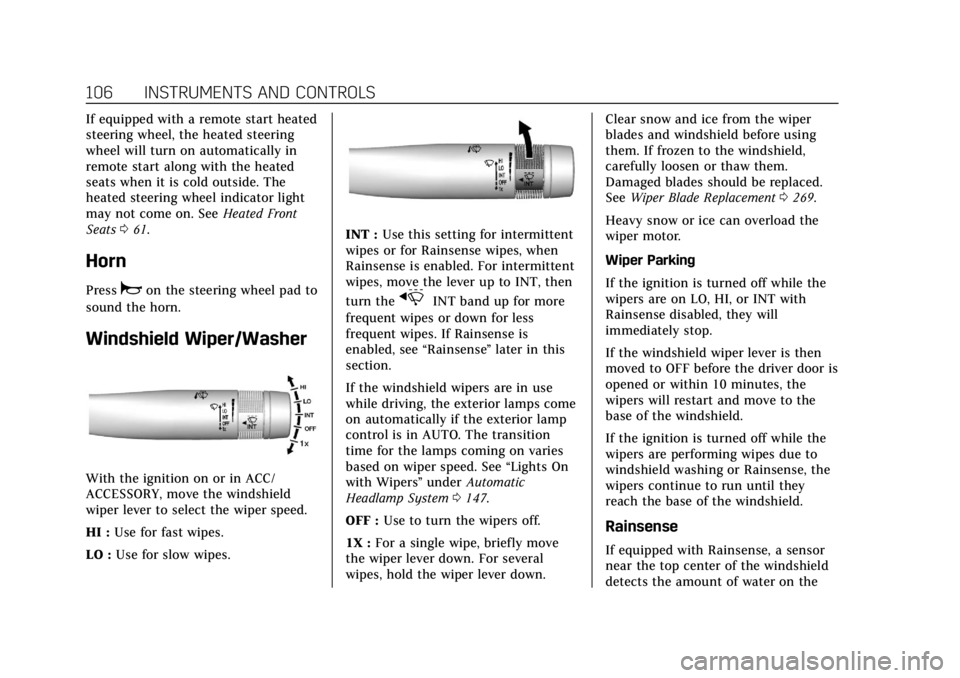
With the ignition on or in ACC/
ACCESSORY, move the windshield
wiper lever to select the wiper speed.
HI : Use for fast wipes.
LO : Use for slow wipes.
INT : Use this setting for intermittent
wipes or for Rainsense wipes, when
Rainsense is enabled. For intermittent
wipes, move the lever up to INT, then
turn the
xINT band up for more
frequent wipes or down for less
frequent wipes. If Rainsense is
enabled, see “Rainsense”later in this
section.
If the windshield wipers are in use
while driving, the exterior lamps come
on automatically if the exterior lamp
control is in AUTO. The transition
time for the lamps coming on varies
based on wiper speed. See “Lights On
with Wipers ”under Automatic
Headlamp System 0147.
OFF : Use to turn the wipers off.
1X : For a single wipe, briefly move
the wiper lever down. For several
wipes, hold the wiper lever down. Clear snow and ice from the wiper
blades and windshield before using
them. If frozen to the windshield,
carefully loosen or thaw them.
Damaged blades should be replaced.
See
Wiper Blade Replacement 0269.
Heavy snow or ice can overload the
wiper motor.
Wiper Parking
If the ignition is turned off while the
wipers are on LO, HI, or INT with
Rainsense disabled, they will
immediately stop.
If the windshield wiper lever is then
moved to OFF before the driver door is
opened or within 10 minutes, the
wipers will restart and move to the
base of the windshield.
If the ignition is turned off while the
wipers are performing wipes due to
windshield washing or Rainsense, the
wipers continue to run until they
reach the base of the windshield.
Rainsense
If equipped with Rainsense, a sensor
near the top center of the windshield
detects the amount of water on the
Page 116 of 384
Cadillac ATS/ATS-V Owner Manual (GMNA-Localizing-U.S./Canada/Mexico-
12460272) - 2019 - crc - 5/8/18
INSTRUMENTS AND CONTROLS 115
Cluster Application Displays
The cluster has three interactive
display zones.
Use the five-way control on the right
steering wheel control to move
between the different display zones
and scroll through the different
displays.
The left and right zones display Driver
Information Center (DIC) information.
SeeDriver Information Center (DIC)
0 128.
The center zone displays application
information for the digital
speedometer, navigation, audio,
phone, efficiency gauge, best fuel
economy, or options.
Digital Speedometer
While the digital speedometer is
displayed, press SEL to select speed
limit information.
Navigation
If there is no active route, a compass
will be displayed. If there is an active
route, press SEL to end route guidance
or turn the voice prompts on or off. Audio
While the Audio application page is
displayed, press SEL to enter the
Audio menu. In the Audio menu
search for music, select from favorites,
or change the audio source.
Phone
While the Phone application page is
displayed, press SEL to enter the
Phone menu. In the Phone menu,
if there is no active phone call, view
recent calls, select from favorites,
or scroll through contacts. If there is
an active call, mute the phone or
switch to handset operation.
Best Fuel Economy
This page displays average fuel
economy, the best fuel economy over
the selected distance, and a bar graph
showing instantaneous fuel economy.
Options
Press SEL while the Options
application page is displayed to enter
the Options menu.
Units :
Press SEL while Units is
highlighted to enter the Units menu.
Choose English or metric units by
pressing SEL while the desired item is
highlighted. A checkmark will be
displayed next to the selected item.
Info Pages : Press SEL while Info
Pages is highlighted to select the
items to be displayed in the DIC
information displays. See Driver
Information Center (DIC) 0128.
Head-up Display (HUD) Rotation :
This feature allows for adjusting the
angle of the HUD image. Press SEL on
the steering wheel controls while
Head-up Display Rotation is
highlighted to enter Adjust Mode.
Press
yorzto adjust the angle of
the HUD display. Press
SorTto
highlight OK, then press SEL to save
the setting. Cancel can also be
selected to cancel the setting. The
vehicle must be in P (Park).
Fav Button Options : Press SEL while
Fav Button Options is highlighted to
select between FAV Primary and SEEK
Primary. This selection allows for
configuration of the
CandB
Page 117 of 384

Cadillac ATS/ATS-V Owner Manual (GMNA-Localizing-U.S./Canada/Mexico-
12460272) - 2019 - crc - 5/8/18
116 INSTRUMENTS AND CONTROLS
steering wheel controls. When FAV
Primary is selected, pressing
Cand
Bwill go to the next or previous
favorite and pressing and holding
C
andBwill seek. When SEEK Primary
is selected, pressing
CandBwill
seek and pressing and holding
Cand
Bwill go to the next or previous
favorite.
Open Source Software : Press SEL
while Open Source Software is
highlighted to display open source
software information.
Speedometer
The speedometer shows the vehicle's
speed in either kilometers per hour
(km/h) or miles per hour (mph).
Odometer
The odometer shows how far the
vehicle has been driven, in either
kilometers or miles.
Trip Odometer
The trip odometer shows how far the
vehicle has been driven since the trip
odometer was last reset.
The trip odometer is accessed and
reset through the Driver Information
Center (DIC). See Driver Information
Center (DIC) 0128.
Tachometer
The tachometer displays the engine
speed in revolutions per minute (rpm).
For vehicles with the Stop/Start
system, when the ignition is on, the
tachometer indicates the vehicle
status. When pointing to AUTO STOP,
the engine is off but the vehicle is on
and can move. The engine could auto
start at any time. When the indicator
points to OFF, the vehicle is off.
When the engine is on, the
tachometer will indicate the engine’s
revolutions per minute (rpm). The
tachometer may vary by several
hundred rpm’s, during Auto Stop
mode, when the engine is shutting off
and restarting.
Caution
If the engine is operated with the
rpm’s in the warning area at the
high end of the tachometer, the
vehicle could be damaged, and the
damage would not be covered by
the vehicle warranty. Do not operate
the engine with the rpm’s in the
warning area.
Fuel Gauge
When the ignition is on, the fuel
gauge indicates about how much fuel
is left in the tank.
Page 122 of 384
Cadillac ATS/ATS-V Owner Manual (GMNA-Localizing-U.S./Canada/Mexico-
12460272) - 2019 - crc - 5/8/18
INSTRUMENTS AND CONTROLS 121
Caution (Continued)
covered by the vehicle warranty.
This could also affect the vehicle’s
ability to pass an Emissions
Inspection/Maintenance test. See
Accessories and Modifications0244.
If the light is f lashing : A
malfunction has been detected that
could damage the emission control
system and increase vehicle
emissions. Diagnosis and service may
be required.
To help prevent damage, reduce
vehicle speed and avoid hard
accelerations and uphill grades.
If towing a trailer, reduce the amount
of cargo being hauled as soon as
possible.
If the light continues to flash, find a
safe place to park. Turn the vehicle off
and wait at least 10 seconds before
restarting the engine. If the light is
still flashing, follow the previous
guidelines and see your dealer for
service as soon as possible. If the light is on steady :
A
malfunction has been detected.
Diagnosis and service may be
required.
Check the following:
. If fuel has been added to the
vehicle using the capless fuel
funnel adapter, make sure that it
has been removed. See “Filling the
Tank with a Portable Gas Can ”
under Filling the Tank 0238. The
diagnostic system can detect if the
adapter has been left installed in
the vehicle, allowing fuel to
evaporate into the atmosphere.
A few driving trips with the
adapter removed may turn off the
light.
. Poor fuel quality can cause
inefficient engine operation and
poor driveability, which may go
away once the engine is warmed
up. If this occurs, change the fuel
brand. It may require at least one
full tank of the proper fuel to turn the light off. See
Recommended
Fuel (LGX 3.6L V6 Engine) 0237 or
Recommended Fuel (LTG 2.0L L4
Turbo Engine) 0236 or
Recommended Fuel (LF4 3.6L Twin
Turbo V6 Engine) 0237.
If the light remains on, see your
dealer.
Emissions Inspection and
Maintenance Programs
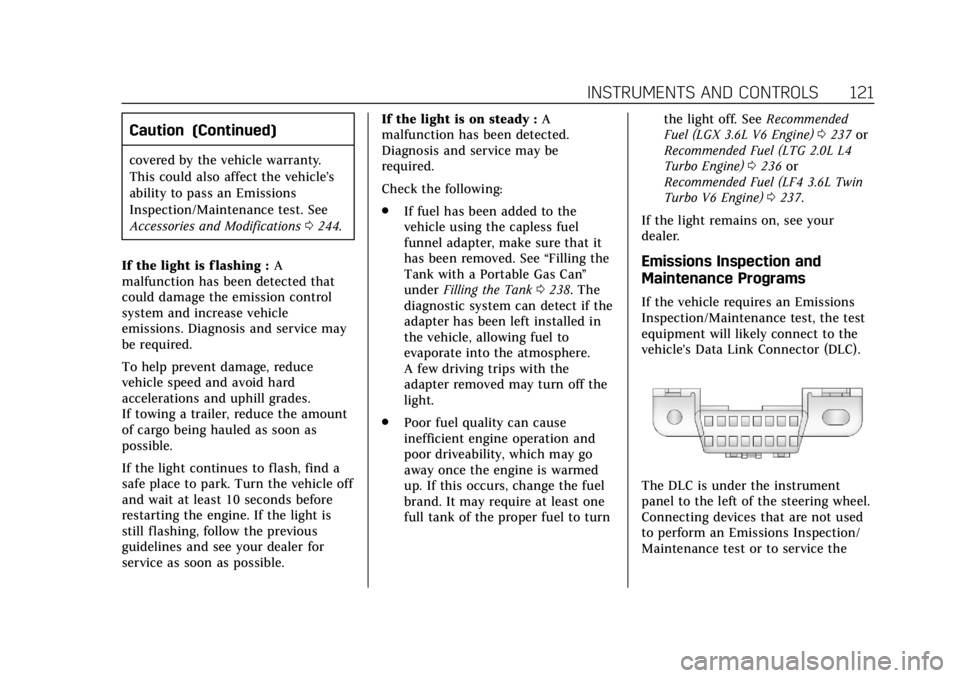
If the vehicle requires an Emissions
Inspection/Maintenance test, the test
equipment will likely connect to the
vehicle's Data Link Connector (DLC).
The DLC is under the instrument
panel to the left of the steering wheel.
Connecting devices that are not used
to perform an Emissions Inspection/
Maintenance test or to service the
Page 125 of 384
Cadillac ATS/ATS-V Owner Manual (GMNA-Localizing-U.S./Canada/Mexico-
12460272) - 2019 - crc - 5/8/18
124 INSTRUMENTS AND CONTROLS
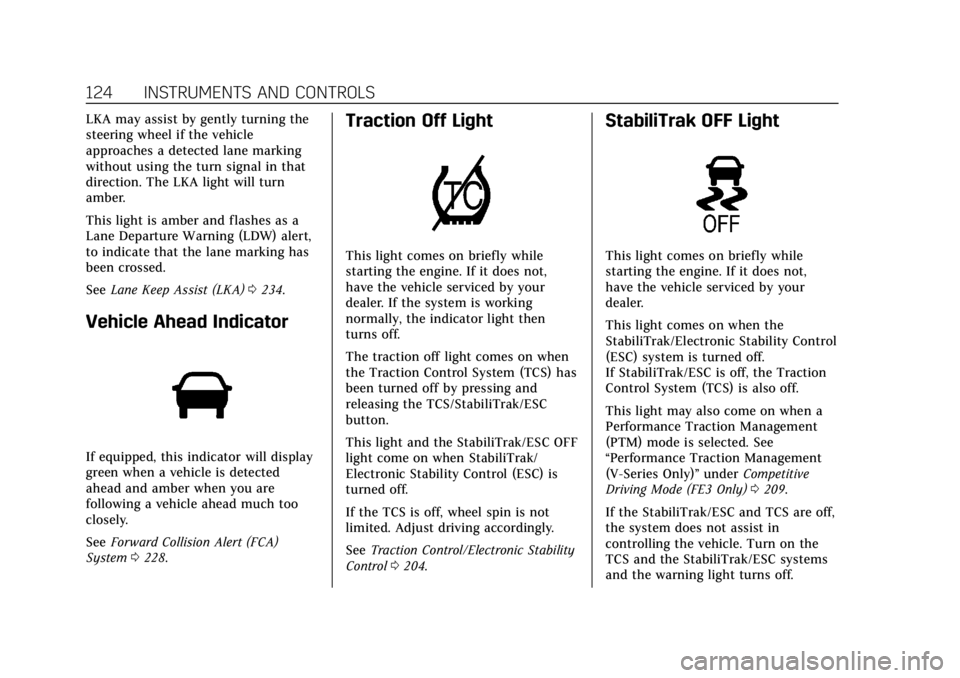
LKA may assist by gently turning the
steering wheel if the vehicle
approaches a detected lane marking
without using the turn signal in that
direction. The LKA light will turn
amber.
This light is amber and flashes as a
Lane Departure Warning (LDW) alert,
to indicate that the lane marking has
been crossed.
SeeLane Keep Assist (LKA) 0234.
Vehicle Ahead Indicator
If equipped, this indicator will display
green when a vehicle is detected
ahead and amber when you are
following a vehicle ahead much too
closely.
See Forward Collision Alert (FCA)
System 0228.
Traction Off Light
This light comes on briefly while
starting the engine. If it does not,
have the vehicle serviced by your
dealer. If the system is working
normally, the indicator light then
turns off.
The traction off light comes on when
the Traction Control System (TCS) has
been turned off by pressing and
releasing the TCS/StabiliTrak/ESC
button.
This light and the StabiliTrak/ESC OFF
light come on when StabiliTrak/
Electronic Stability Control (ESC) is
turned off.
If the TCS is off, wheel spin is not
limited. Adjust driving accordingly.
See Traction Control/Electronic Stability
Control 0204.
StabiliTrak OFF Light
This light comes on briefly while
starting the engine. If it does not,
have the vehicle serviced by your
dealer.
This light comes on when the
StabiliTrak/Electronic Stability Control
(ESC) system is turned off.
If StabiliTrak/ESC is off, the Traction
Control System (TCS) is also off.
This light may also come on when a
Performance Traction Management
(PTM) mode is selected. See
“Performance Traction Management
(V-Series Only)” underCompetitive
Driving Mode (FE3 Only) 0209.
If the StabiliTrak/ESC and TCS are off,
the system does not assist in
controlling the vehicle. Turn on the
TCS and the StabiliTrak/ESC systems
and the warning light turns off.
Page 129 of 384

Cadillac ATS/ATS-V Owner Manual (GMNA-Localizing-U.S./Canada/Mexico-
12460272) - 2019 - crc - 5/8/18
128 INSTRUMENTS AND CONTROLS
Lamps On Reminder
This light comes on when the exterior
lamps are in use. SeeExterior Lamp
Controls 0144.
Cruise Control Light
The cruise control light is white when
the cruise control is on and ready, and
turns green when the cruise control is
set and active. See Cruise Control
0 213.
Adaptive Cruise Control Light
This light comes on when Adaptive
Cruise Control (if equipped) is active.
See Adaptive Cruise Control 0215.
Door Ajar Light
For vehicles equipped with this light,
it comes on when a door is open or
not securely latched. Before driving,
check that all doors are properly
closed.
Information Displays
Driver Information
Center (DIC)
The DIC displays are shown in the left
and right interactive display zones on
the instrument cluster. The displays
show the status of many vehicle
systems. The controls for the DIC are
on the right steering wheel control.
yorz:Press to move up or down
in a list.
Page 133 of 384
Cadillac ATS/ATS-V Owner Manual (GMNA-Localizing-U.S./Canada/Mexico-
12460272) - 2019 - crc - 5/8/18
132 INSTRUMENTS AND CONTROLS
.Speed
. Audio
. Phone
. Navigation
. Performance
. Driver Assistance Features
. Vehicle Messages
Some vehicle messages or alerts
displayed in the HUD may be cleared
by using the steering wheel controls.
See Vehicle Messages 0134.
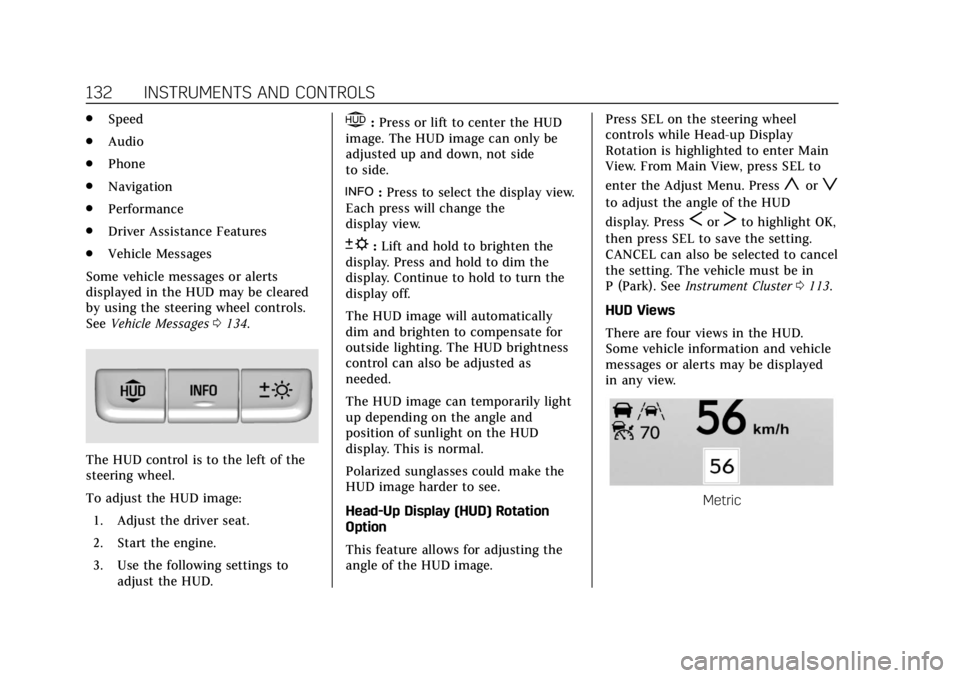
The HUD control is to the left of the
steering wheel.
To adjust the HUD image:
1. Adjust the driver seat.
2. Start the engine.
3. Use the following settings to adjust the HUD.
$:Press or lift to center the HUD
image. The HUD image can only be
adjusted up and down, not side
to side.
!: Press to select the display view.
Each press will change the
display view.
D: Lift and hold to brighten the
display. Press and hold to dim the
display. Continue to hold to turn the
display off.
The HUD image will automatically
dim and brighten to compensate for
outside lighting. The HUD brightness
control can also be adjusted as
needed.
The HUD image can temporarily light
up depending on the angle and
position of sunlight on the HUD
display. This is normal.
Polarized sunglasses could make the
HUD image harder to see.
Head-Up Display (HUD) Rotation
Option
This feature allows for adjusting the
angle of the HUD image. Press SEL on the steering wheel
controls while Head-up Display
Rotation is highlighted to enter Main
View. From Main View, press SEL to
enter the Adjust Menu. Press
yorz
to adjust the angle of the HUD
display. Press
SorTto highlight OK,
then press SEL to save the setting.
CANCEL can also be selected to cancel
the setting. The vehicle must be in
P (Park). See Instrument Cluster 0113.
HUD Views
There are four views in the HUD.
Some vehicle information and vehicle
messages or alerts may be displayed
in any view.
Metric
Page 134 of 384
Cadillac ATS/ATS-V Owner Manual (GMNA-Localizing-U.S./Canada/Mexico-
12460272) - 2019 - crc - 5/8/18
INSTRUMENTS AND CONTROLS 133
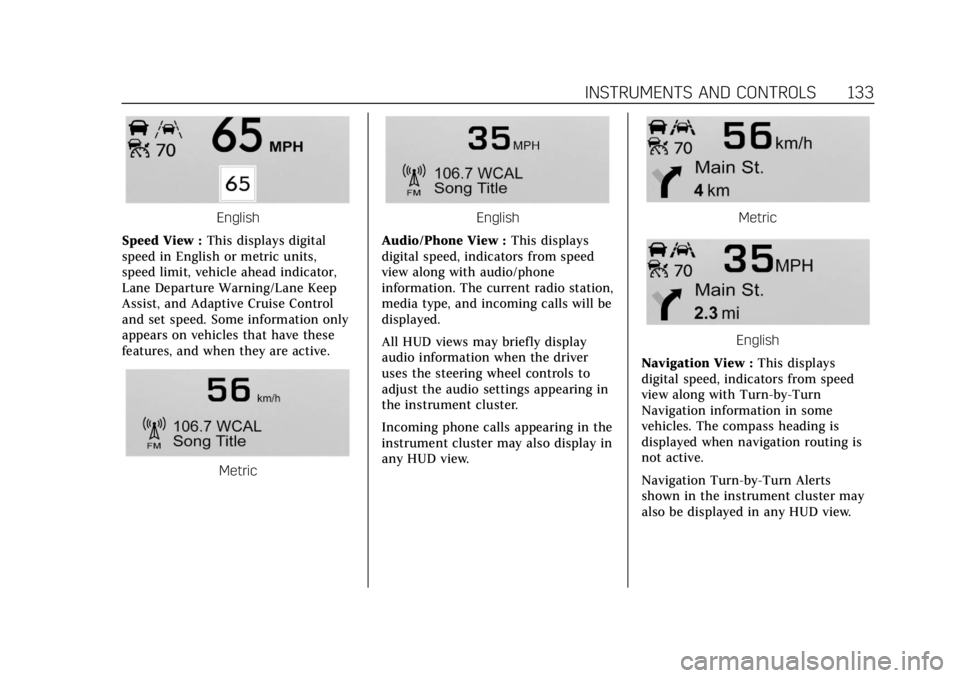
English
Speed View : This displays digital
speed in English or metric units,
speed limit, vehicle ahead indicator,
Lane Departure Warning/Lane Keep
Assist, and Adaptive Cruise Control
and set speed. Some information only
appears on vehicles that have these
features, and when they are active.
Metric
English
Audio/Phone View : This displays
digital speed, indicators from speed
view along with audio/phone
information. The current radio station,
media type, and incoming calls will be
displayed.
All HUD views may briefly display
audio information when the driver
uses the steering wheel controls to
adjust the audio settings appearing in
the instrument cluster.
Incoming phone calls appearing in the
instrument cluster may also display in
any HUD view.Metric
English
Navigation View : This displays
digital speed, indicators from speed
view along with Turn-by-Turn
Navigation information in some
vehicles. The compass heading is
displayed when navigation routing is
not active.
Navigation Turn-by-Turn Alerts
shown in the instrument cluster may
also be displayed in any HUD view.
Page 136 of 384
Cadillac ATS/ATS-V Owner Manual (GMNA-Localizing-U.S./Canada/Mexico-
12460272) - 2019 - crc - 5/8/18
INSTRUMENTS AND CONTROLS 135
.Steering
. Ride Control Systems
. Driver Assistance Systems
. Cruise Control
. Lighting and Bulb Replacement
. Wiper/Washer Systems
. Doors and Windows
. Seat Belts
. Airbag Systems
. Engine and Transmission
. Tire Pressure
. Battery
Engine Power Messages
ENGINE POWER IS REDUCED
This message displays when the
vehicle's propulsion power is reduced.
Reduced propulsion power can affect
the vehicle's ability to accelerate.
If this message is on, but there is no
observed reduction in performance,
proceed to your destination. The
performance may be reduced the next
time the vehicle is driven. The vehicle may be driven while this message is
on, but maximum acceleration and
speed may be reduced. Anytime this
message stays on, or displays
repeatedly, the vehicle should be
taken to your dealer for service as
soon as possible.
Vehicle Speed Messages
SPEED LIMITED TO XXX
KM/H (MPH)
This message shows that the vehicle
speed has been limited to the speed
displayed. The limited speed is a
protection for various propulsion and
vehicle systems, such as lubrication,
thermal, suspension, or tires.
Vehicle Personalization
The following are all possible vehicle
personalization features. Depending
on the vehicle, some may not be
available.
For System, Apps, and Personal
features and functions, see
“Settings”
in the infotainment manual.
To access the vehicle
personalization menu:
1. Touch the Settings icon on the Home Page of the infotainment
display.
2. Touch Vehicle to display a list of available options.
3. Touch to select the desired feature setting.
4. Touch
9orRto turn a feature
off or on.
5. Touch
zto go to the top level of
the Settings menu.