wheel CADILLAC CT4 2022 User Guide
[x] Cancel search | Manufacturer: CADILLAC, Model Year: 2022, Model line: CT4, Model: CADILLAC CT4 2022Pages: 464, PDF Size: 7.82 MB
Page 84 of 464

Cadillac CT4 Owner Manual (GMNA-Localizing-U.S./Canada-15283641) -
2022 - CRC - 10/12/21
INSTRUMENTS AND CONTROLS 83
Controls
Steering Wheel Adjustment
To adjust the steering wheel:1. Pull the lever down.
2. Move the steering wheel up or down.
3. Pull or push the steering wheel closer or away from you.
4. Pull the lever up to lock the steering wheel in place.
Do not adjust the steering wheel while
driving.
Steering Wheel Controls
The infotainment system can be
operated by using the steering wheel
controls. See Steering Wheel Controls
0 139.
Heated Steering Wheel
(:If equipped, press to turn the
heated steering wheel on or off. An
indicator light next to the button
displays when the feature is
turned on.
The steering wheel takes about
three minutes to be fully heated. Automatic Heated Steering Wheel
If equipped with remote start, the
heated steering wheel will turn on
automatically during a remote start
along with the heated seats when it is
cold outside. The heated steering
wheel indicator light may come on.
If equipped with auto heated seats,
the heated steering wheel will turn on
when the auto heated seat is
activated. The heated steering wheel
indicator will display the state of the
steering wheel heat. See
Heated and
Ventilated Front Seats 037.
Horn
Pressaon the steering wheel pad to
sound the horn.
Windshield Wiper/Washer
Page 91 of 464
Cadillac CT4 Owner Manual (GMNA-Localizing-U.S./Canada-15283641) -
2022 - CRC - 10/12/21
90 INSTRUMENTS AND CONTROLS
Cluster Menu
There is an interactive display area in
the center of the instrument cluster.
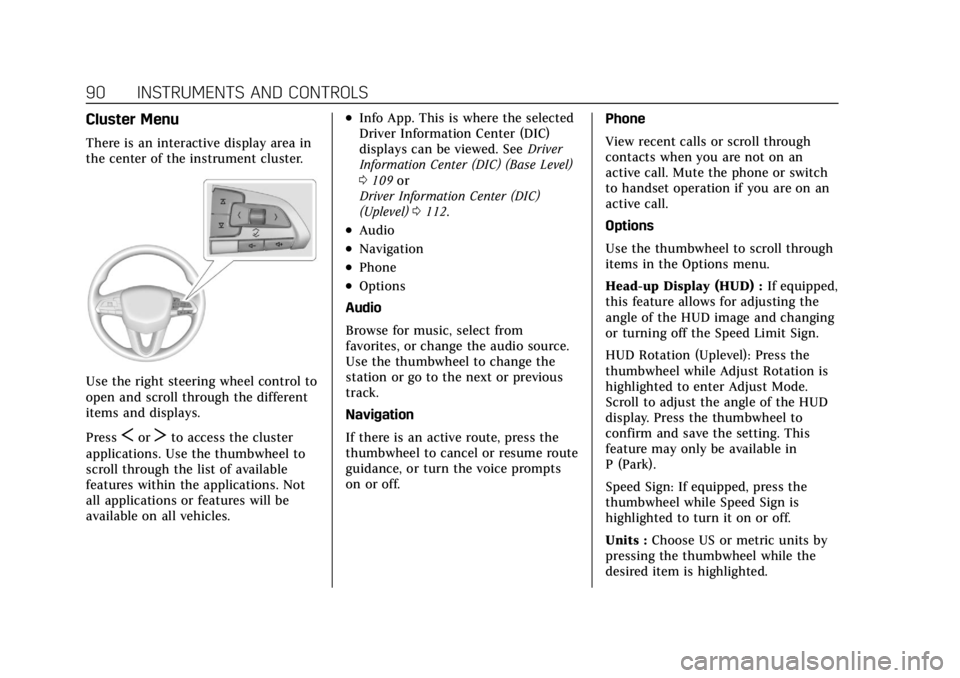
Use the right steering wheel control to
open and scroll through the different
items and displays.
Press
SorTto access the cluster
applications. Use the thumbwheel to
scroll through the list of available
features within the applications. Not
all applications or features will be
available on all vehicles.
.Info App. This is where the selected
Driver Information Center (DIC)
displays can be viewed. See Driver
Information Center (DIC) (Base Level)
0 109 or
Driver Information Center (DIC)
(Uplevel) 0112.
.Audio
.Navigation
.Phone
.Options
Audio
Browse for music, select from
favorites, or change the audio source.
Use the thumbwheel to change the
station or go to the next or previous
track.
Navigation
If there is an active route, press the
thumbwheel to cancel or resume route
guidance, or turn the voice prompts
on or off. Phone
View recent calls or scroll through
contacts when you are not on an
active call. Mute the phone or switch
to handset operation if you are on an
active call.
Options
Use the thumbwheel to scroll through
items in the Options menu.
Head-up Display (HUD) :
If equipped,
this feature allows for adjusting the
angle of the HUD image and changing
or turning off the Speed Limit Sign.
HUD Rotation (Uplevel): Press the
thumbwheel while Adjust Rotation is
highlighted to enter Adjust Mode.
Scroll to adjust the angle of the HUD
display. Press the thumbwheel to
confirm and save the setting. This
feature may only be available in
P (Park).
Speed Sign: If equipped, press the
thumbwheel while Speed Sign is
highlighted to turn it on or off.
Units : Choose US or metric units by
pressing the thumbwheel while the
desired item is highlighted.
Page 92 of 464

Cadillac CT4 Owner Manual (GMNA-Localizing-U.S./Canada-15283641) -
2022 - CRC - 10/12/21
INSTRUMENTS AND CONTROLS 91
Info Page Options :Press the
thumbwheel to select the items to be
displayed in the Info app. See Driver
Information Center (DIC) (Base Level)
0 109 or
Driver Information Center (DIC)
(Uplevel) 0112.
Display : Press the thumbwheel to
enter the Display menu. Select to turn
on or off the speedometer, time, fuel
range, or, if equipped, compass or
speed sign.
Speed Warning : The Speed Warning
display allows the driver to set a
warning at a speed that they do not
want to exceed. To set the Speed
Warning press the thumbwheel when
Speed Warning is displayed. Use the
thumbwheel to adjust the value and
press to set the speed.
Once the speed is set, this feature can
be turned off by pressing the
thumbwheel while viewing this page.
If the selected speed limit is exceeded,
a pop-up warning is displayed with a
chime.
Software Information : Displays open
source software information.Instrument Cluster (Uplevel)
Tour Mode Shown, Other Modes Similar
1. Driver Information Center (DIC)
(Base Level) 0109 or
Driver Information Center (DIC)
(Uplevel) 0112 2.
Fuel Gauge 096
3. Speedometer 095
4. Tachometer 095
Page 93 of 464
Cadillac CT4 Owner Manual (GMNA-Localizing-U.S./Canada-15283641) -
2022 - CRC - 10/12/21
92 INSTRUMENTS AND CONTROLS
Cluster Menu
There is an interactive display area in
the center of the instrument cluster.
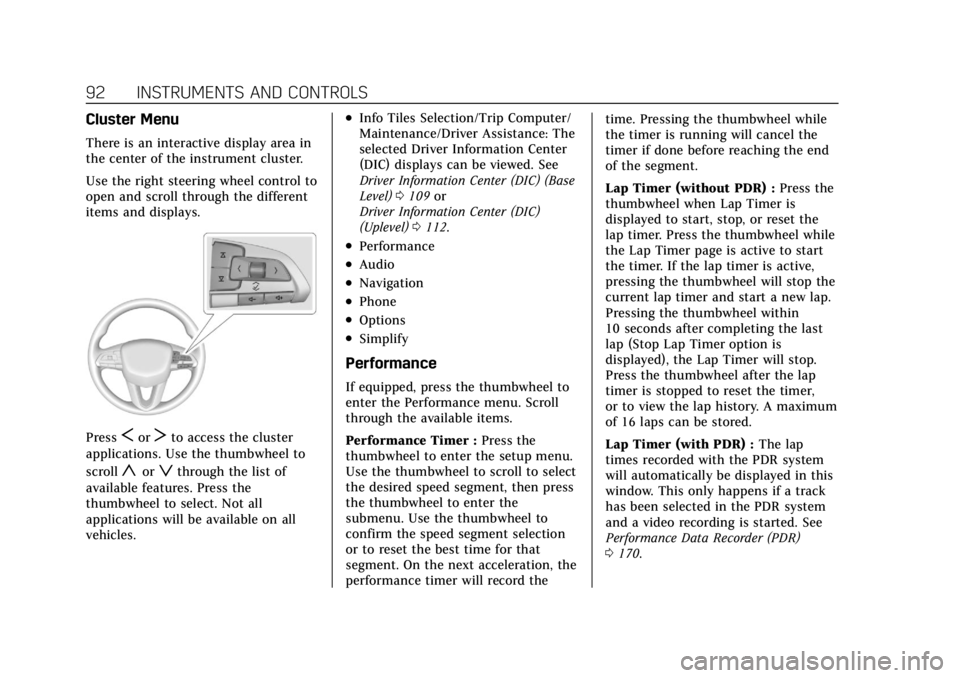
Use the right steering wheel control to
open and scroll through the different
items and displays.
PressSorTto access the cluster
applications. Use the thumbwheel to
scroll
yorzthrough the list of
available features. Press the
thumbwheel to select. Not all
applications will be available on all
vehicles.
.Info Tiles Selection/Trip Computer/
Maintenance/Driver Assistance: The
selected Driver Information Center
(DIC) displays can be viewed. See
Driver Information Center (DIC) (Base
Level) 0109 or
Driver Information Center (DIC)
(Uplevel) 0112.
.Performance
.Audio
.Navigation
.Phone
.Options
.Simplify
Performance
If equipped, press the thumbwheel to
enter the Performance menu. Scroll
through the available items.
Performance Timer : Press the
thumbwheel to enter the setup menu.
Use the thumbwheel to scroll to select
the desired speed segment, then press
the thumbwheel to enter the
submenu. Use the thumbwheel to
confirm the speed segment selection
or to reset the best time for that
segment. On the next acceleration, the
performance timer will record the time. Pressing the thumbwheel while
the timer is running will cancel the
timer if done before reaching the end
of the segment.
Lap Timer (without PDR) :
Press the
thumbwheel when Lap Timer is
displayed to start, stop, or reset the
lap timer. Press the thumbwheel while
the Lap Timer page is active to start
the timer. If the lap timer is active,
pressing the thumbwheel will stop the
current lap timer and start a new lap.
Pressing the thumbwheel within
10 seconds after completing the last
lap (Stop Lap Timer option is
displayed), the Lap Timer will stop.
Press the thumbwheel after the lap
timer is stopped to reset the timer,
or to view the lap history. A maximum
of 16 laps can be stored.
Lap Timer (with PDR) : The lap
times recorded with the PDR system
will automatically be displayed in this
window. This only happens if a track
has been selected in the PDR system
and a video recording is started. See
Performance Data Recorder (PDR)
0 170.
Page 94 of 464
Cadillac CT4 Owner Manual (GMNA-Localizing-U.S./Canada-15283641) -
2022 - CRC - 10/12/21
INSTRUMENTS AND CONTROLS 93
Friction Bubble :A four quadrant
visual display, indicative of the four
corners of the car, with a “bubble”
showing where the most inertia is
being exerted on the vehicle.
Launch Control : If equipped, the
Launch Control display allows the
driver to adjust the parameters of the
Launch Control System. See Track
Events and Competitive Driving (V-Series
and V-Series Blackwing) 0213.
Audio
Browse for music, select from
favorites, or change the audio source.
Use the thumbwheel to change the
station or go to the next or previous
track.
Navigation
If there is an active route, press the
thumbwheel to cancel or resume route
guidance, or turn the voice prompts
on or off.
Phone
View recent calls or scroll through
contacts when you are not on an
active call. Mute the phone or switch
to handset operation if you are on an
active call.
Options
Use the thumbwheel to scroll through
items in the Options menu.
Display Themes
Press the thumbwheel to enter the
Display menu. There are four
instrument cluster display
configurations to choose from. Sport,
Tour, Stealth, and Track (if equipped).
The style of the cluster will change
depending on the theme selected.
Default is linked to Driver Mode.
Other display themes can be set.
If in My Mode then those displays
plus HUD (if equipped) can be set. My
Mode is only selectable when in Link
to Driver mode. Stealth Mode is enabled when the
Instrument Panel Illumination Control
is set to the minimum level. See
Instrument Panel Illumination Control
0
132.
.Sport: Displays Coolant
Temperature, Fuel Gauge, Fuel
Range, Compass, Driver Mode
Control Light, Odometer, Speed,
Tachometer, Electronic
Transmission Range, Current Gear,
Speed Limit, Info Area, and
Interaction Area, and Cruise Control
(if engaged).
.Tour: Displays Fuel Gauge, Fuel
Range, Compass, Driver Mode
Control Light, Odometer, Speed,
Tachometer, Electronic
Transmission Range, Current Gear,
Peak Performance, Speed Limit, Info
Area, and Interaction Area, and
Cruise Control (if engaged).
.Stealth: Displays Fuel Gauge, Digital
Speed, and Tachometer.
.Track: If equipped, displays Coolant
Temperature, Fuel Gauge, Driver
Mode Control Light, Speed,
Page 95 of 464
Cadillac CT4 Owner Manual (GMNA-Localizing-U.S./Canada-15283641) -
2022 - CRC - 10/12/21
94 INSTRUMENTS AND CONTROLS
Tachometer, Electronic
Transmission Range, Current Gear,
Info Area, and Interactive Area.
Preset info tiles shown on each layout:
Sport : Time and Temperature, Oil
Temperature, Tire Status, Oil Pressure
Track : Oil Pressure, Transmission
Fluid Temperature, Tire Status, Oil
Temperature
Tour : Time and Temperature
Stealth : None
Speed Warning
The Speed Warning display allows the
driver to set a speed that they do not
want to exceed. To set the Speed
Warning, press the thumbwheel when
Speed Warning is displayed, or press
the thumbwheel on the main view to
set the speed value. Scroll to adjust
the value. Press the thumbwheel to set
the speed. Once the speed is set, this
feature can be turned off by pressing
the thumbwheel while viewing this
page. If the selected speed limit is
exceeded, a pop-up warning is
displayed with a chime. Speed Sign
Shows sign information, which comes
from a roadway database in the
onboard navigation, if equipped.
Units
Press the thumbwheel while Units is
displayed to enter the Units menu.
Choose US or metric units by pressing
the thumbwheel while the desired
item is highlighted. A selected mark
will be displayed next to the
selected item.
Tachometer
If equipped, the Tachometer allows
the driver to choose between the
traditional tachometer (linear gauge)
or the numerical tachometer (shift
lights with numerical Tachometer
RPM) when Track theme is selected.
Tire Pressure
If the tire pressure readings need to be
recalibrated at any time, this option
initiates the Tire Pressure Relearn
function. The selection of relearn
opens a pop-up when the thumbwheel
is pressed for five seconds.Head-Up Display (HUD) Rotation
Press the thumbwheel while Adjust
Rotation is highlighted to enter Adjust
Mode. Scroll to adjust the angle of the
HUD display. Press the thumbwheel to
confirm and save the setting. See
Head-Up Display (HUD)
0115.
Traction & Stability
If equipped, displays the status of the
Traction (TSC) and Stability (ESC)
control systems. To turn the Traction
Control System (TCS) on or off,
choose Traction. If equipped, to turn
StabiliTrak/Electronic Stability Control
(ESC) on or off, choose Stability. See
Traction Control/Electronic Stability
Control 0257.
Software Licenses
Press the thumbwheel while Software
Licenses is highlighted to display open
source software information.
Reset To Defaults
Allows the driver to reset to default
settings.
Page 96 of 464

Cadillac CT4 Owner Manual (GMNA-Localizing-U.S./Canada-15283641) -
2022 - CRC - 10/12/21
INSTRUMENTS AND CONTROLS 95
Simplify
Press the thumbwheel to enter the
Simplify menu. Simplify Mode allows
certain features of the instrument
cluster to be hidden. These features
include info tiles and interactive areas.
Using the thumbwheel
SorT, except
to acknowledge an alert, will exit
Simplify Mode.
The selected features will stay hidden
even after starting and restarting the
vehicle, unless Simplify Mode is
manually canceled.
Speedometer
The speedometer shows the vehicle
speed in either kilometers per hour
(km/h) or miles per hour (mph).
Odometer
The odometer shows how far the
vehicle has been driven, in either
kilometers or miles.
Trip Odometer
The trip odometer shows how far the
vehicle has been driven since the trip
odometer was last reset.
The trip odometer is accessed and
reset through the Driver Information
Center (DIC). See Driver Information
Center (DIC) (Base Level) 0109 or
Driver Information Center (DIC)
(Uplevel) 0112.
Tachometer
The tachometer displays the engine
speed in revolutions per minute (rpm).
For vehicles with the Stop/Start
system, when the ignition is on, the
tachometer indicates the vehicle
status. When pointing to AUTO STOP
(Base Level) or the cluster displays
AUTO STOP text (Uplevel), the engine
is off but the vehicle is on and can
move. The engine could auto start at
any time. When the indicator points
to OFF, the vehicle is off.
The tachometer may vary by several
hundred rpm, during Auto Stop mode,
when the engine is shutting off and
restarting. Uplevel
The redline of the tachometer adjusts
dynamically based on engine
temperature. The redline displays a
lower indication when the vehicles
odometer value is less than
805 kilometers (500 miles).
If equipped, the shift indicators are
displayed on instrument cluster and
Head-Up Display (HUD). The shift
indicators are only operational when
the automatic transmission is in
Manual mode, or the vehicle has a
manual transmission. See
Manual
Mode (Electronic Shifter) 0249 or
Manual Mode (Mechanical Shifter)
0 248. When the vehicle engine is less
than 70°C (158°F) and the vehicle
odometer value is less than
805 kilometers (500 miles) the shift
indications are not displayed.
A strong visual indicator is displayed
as the vehicle approaches the red line.
Tour and Sport themes feature shift
rings while the Track theme features
shift lights accompanied by a
numerical tachometer display.
Page 102 of 464
Cadillac CT4 Owner Manual (GMNA-Localizing-U.S./Canada-15283641) -
2022 - CRC - 10/12/21
INSTRUMENTS AND CONTROLS 101
brand. It may require at least one
full tank of the proper fuel to turn
the light off. SeeRecommended Fuel
(LSY 2.0L L4 Turbo Engine) 0311 or
Recommended Fuel (L3B 2.7L L4
Turbo and LF4 3.6L V6 Twin Turbo
Engines) 0311.
If the light remains on, see your
dealer.
Emissions Inspection and
Maintenance Programs
If the vehicle requires an Emissions
Inspection/Maintenance test, the test
equipment will likely connect to the
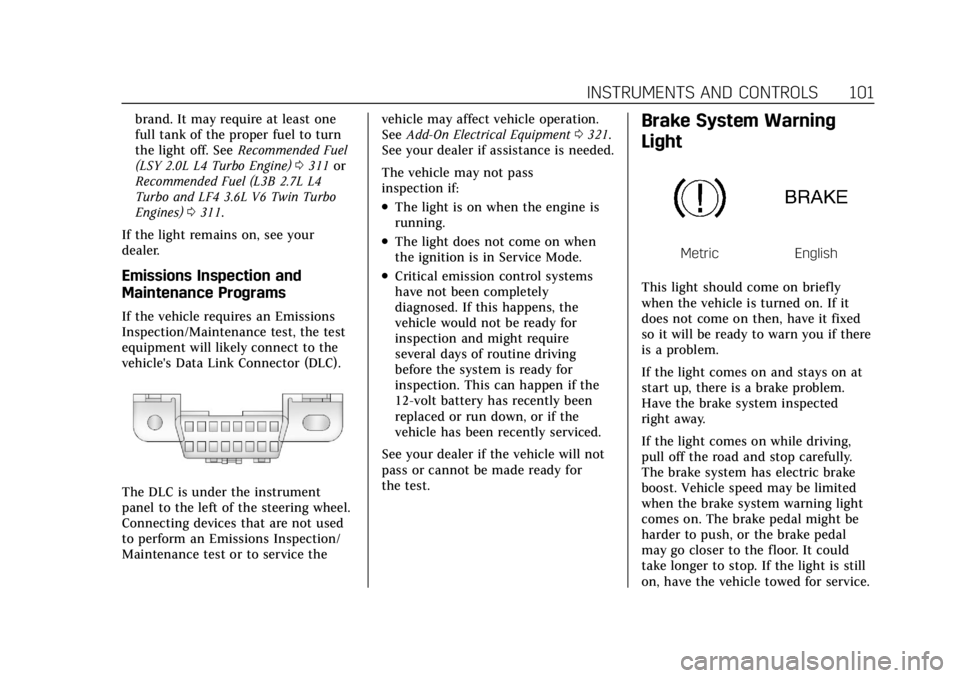
vehicle's Data Link Connector (DLC).
The DLC is under the instrument
panel to the left of the steering wheel.
Connecting devices that are not used
to perform an Emissions Inspection/
Maintenance test or to service the vehicle may affect vehicle operation.
See
Add-On Electrical Equipment 0321.
See your dealer if assistance is needed.
The vehicle may not pass
inspection if:
.The light is on when the engine is
running.
.The light does not come on when
the ignition is in Service Mode.
.Critical emission control systems
have not been completely
diagnosed. If this happens, the
vehicle would not be ready for
inspection and might require
several days of routine driving
before the system is ready for
inspection. This can happen if the
12-volt battery has recently been
replaced or run down, or if the
vehicle has been recently serviced.
See your dealer if the vehicle will not
pass or cannot be made ready for
the test.
Brake System Warning
Light
MetricEnglish
This light should come on briefly
when the vehicle is turned on. If it
does not come on then, have it fixed
so it will be ready to warn you if there
is a problem.
If the light comes on and stays on at
start up, there is a brake problem.
Have the brake system inspected
right away.
If the light comes on while driving,
pull off the road and stop carefully.
The brake system has electric brake
boost. Vehicle speed may be limited
when the brake system warning light
comes on. The brake pedal might be
harder to push, or the brake pedal
may go closer to the floor. It could
take longer to stop. If the light is still
on, have the vehicle towed for service.
Page 104 of 464
Cadillac CT4 Owner Manual (GMNA-Localizing-U.S./Canada-15283641) -
2022 - CRC - 10/12/21
INSTRUMENTS AND CONTROLS 103
If both the ABS warning light and the
brake system warning light are on,
ABS is not functioning and there is a
problem with the regular brakes. See
your dealer for service.
SeeBrake System Warning Light 0101.
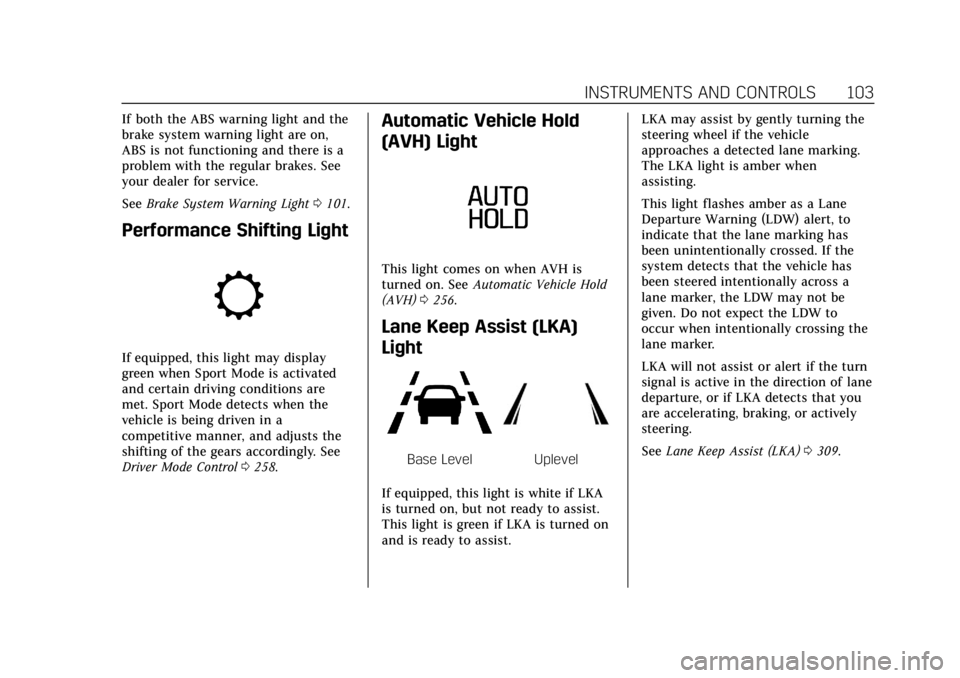
Performance Shifting Light
If equipped, this light may display
green when Sport Mode is activated
and certain driving conditions are
met. Sport Mode detects when the
vehicle is being driven in a
competitive manner, and adjusts the
shifting of the gears accordingly. See
Driver Mode Control 0258.
Automatic Vehicle Hold
(AVH) Light
This light comes on when AVH is
turned on. See Automatic Vehicle Hold
(AVH) 0256.
Lane Keep Assist (LKA)
Light
Base LevelUplevel
If equipped, this light is white if LKA
is turned on, but not ready to assist.
This light is green if LKA is turned on
and is ready to assist. LKA may assist by gently turning the
steering wheel if the vehicle
approaches a detected lane marking.
The LKA light is amber when
assisting.
This light flashes amber as a Lane
Departure Warning (LDW) alert, to
indicate that the lane marking has
been unintentionally crossed. If the
system detects that the vehicle has
been steered intentionally across a
lane marker, the LDW may not be
given. Do not expect the LDW to
occur when intentionally crossing the
lane marker.
LKA will not assist or alert if the turn
signal is active in the direction of lane
departure, or if LKA detects that you
are accelerating, braking, or actively
steering.
See
Lane Keep Assist (LKA) 0309.
Page 105 of 464
Cadillac CT4 Owner Manual (GMNA-Localizing-U.S./Canada-15283641) -
2022 - CRC - 10/12/21
104 INSTRUMENTS AND CONTROLS
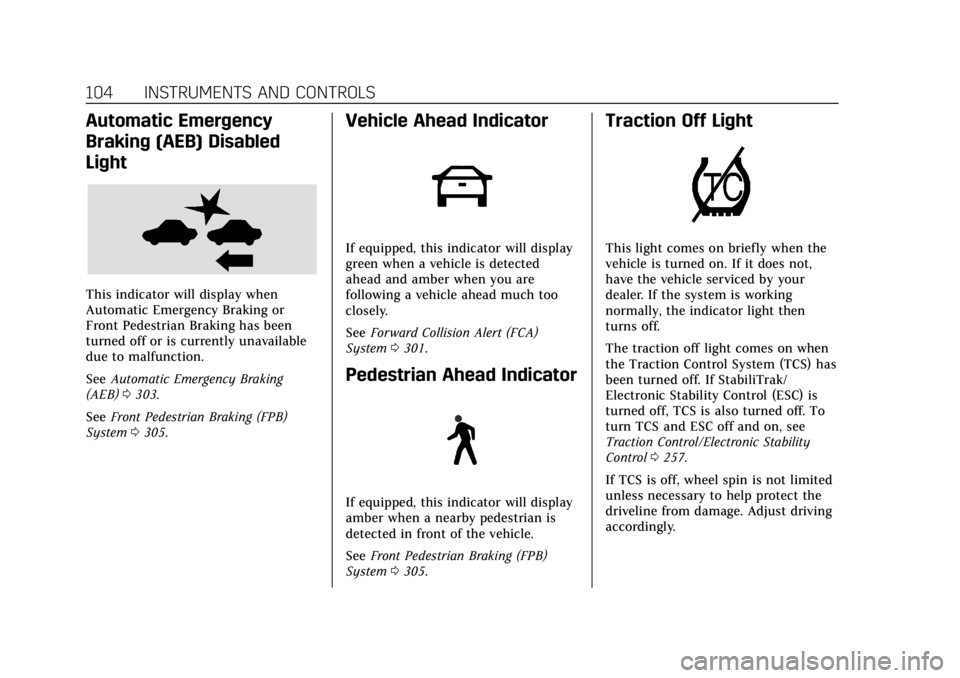
Automatic Emergency
Braking (AEB) Disabled
Light
This indicator will display when
Automatic Emergency Braking or
Front Pedestrian Braking has been
turned off or is currently unavailable
due to malfunction.
SeeAutomatic Emergency Braking
(AEB) 0303.
See Front Pedestrian Braking (FPB)
System 0305.
Vehicle Ahead Indicator
If equipped, this indicator will display
green when a vehicle is detected
ahead and amber when you are
following a vehicle ahead much too
closely.
See Forward Collision Alert (FCA)
System 0301.
Pedestrian Ahead Indicator
If equipped, this indicator will display
amber when a nearby pedestrian is
detected in front of the vehicle.
See Front Pedestrian Braking (FPB)
System 0305.
Traction Off Light
This light comes on briefly when the
vehicle is turned on. If it does not,
have the vehicle serviced by your
dealer. If the system is working
normally, the indicator light then
turns off.
The traction off light comes on when
the Traction Control System (TCS) has
been turned off. If StabiliTrak/
Electronic Stability Control (ESC) is
turned off, TCS is also turned off. To
turn TCS and ESC off and on, see
Traction Control/Electronic Stability
Control 0257.
If TCS is off, wheel spin is not limited
unless necessary to help protect the
driveline from damage. Adjust driving
accordingly.