wheel CADILLAC CT4 2023 Owner's Manual
[x] Cancel search | Manufacturer: CADILLAC, Model Year: 2023, Model line: CT4, Model: CADILLAC CT4 2023Pages: 524, PDF Size: 6.98 MB
Page 123 of 524

Cadillac CT4 Owner Manual (GMNA-Localizing-U.S./Canada-16500442) -
2023 - CRC - 5/4/22
122 Instruments and Controls
If both the ABS warning light
and the brake system warning
light are on, ABS is not
functioning and there is a
problem with the regular
brakes. See your dealer for
service.
See Brake System Warning
Light0120.
Performance Shifting
Light
If equipped, this light may
display green when Sport
Mode is activated and certain
driving conditions are met.
Sport Mode detects when the
vehicle is being driven in a
competitive manner, and
adjusts the shifting of the
gears accordingly. See Driver
Mode Control 0292.
Automatic Vehicle
Hold (AVH) Light
This light comes on when AVH
is turned on. See Automatic
Vehicle Hold (AVH) 0289.
Lane Keep Assist
(LKA) Light
Base LevelUplevel
If equipped, the Lane Keep
Assist Light may display the
following colors:
.Blank: LKA is disabled.
.White: Appears when the
vehicle starts. A steady
white light indicates that
LKA is not ready to assist.
.Green: Appears when LKA is
turned on and ready to
assist. LKA will gently turn
the steering wheel if the
vehicle approaches a
detected lane marking.
.Amber: Appears when LKA is
active. The light flashes
amber as a Lane Departure
Warning (LDW) alert to
indicate that the lane
marking has been
unintentionally crossed.
If the system detects you
are steering intentionally (to
pass or change lanes), the
LDW alert may not display.
LKA will not assist or alert if
the turn signal is active in the
direction of lane departure,
or if LKA detects that you are
accelerating, braking,
or actively steering. See Lane
Keep Assist (LKA) 0351.
Page 125 of 524

Cadillac CT4 Owner Manual (GMNA-Localizing-U.S./Canada-16500442) -
2023 - CRC - 5/4/22
124 Instruments and Controls
turned off, TCS is also turned
off. To turn TCS and ESC off
and on, see Traction Control/
Electronic Stability Control
0290.
If TCS is off, wheel slip during
acceleration is not limited
unless necessary to help
protect the driveline from
damage. Adjust driving
accordingly.
StabiliTrak OFF Light
This light comes on briefly
when the vehicle is turned on
to show that the light is
working. If it does not come on
then, have it fixed so it will be
ready to warn you if there is a
problem.
This light comes on when the
StabiliTrak/Electronic Stability
Control (ESC) system is turned off. If StabiliTrak/ESC is off,
the Traction Control System
(TCS) is also off. To turn ESC
off and on, see Traction
Control/Electronic Stability
Control
0290.
If ESC and TCS are off, the
systems do not assist in
controlling the vehicle. Adjust
driving accordingly.
Traction Control
System (TCS)/
StabiliTrak Light
This light comes on briefly
when the vehicle is turned on
to show that the light is
working. If it does not come on
then, have it fixed so it will be
ready to warn you if there is a
problem. If the light is on and not
flashing, the TCS and
potentially the StabiliTrak/ESC
system are not fully
operational and may not assist
in maintaining control. Adjust
driving accordingly. If the
condition persists, see your
dealer as soon as possible.
A Driver Information Center
(DIC) message may display.
The light flashes when the
TCS and/or the StabiliTrak/
ESC system is actively
working.
See Traction Control/
Electronic Stability Control
0
290.
Engine Coolant
Temperature Warning
Light
Page 131 of 524

Cadillac CT4 Owner Manual (GMNA-Localizing-U.S./Canada-16500442) -
2023 - CRC - 5/4/22
130 Instruments and Controls
yorz:Use the thumbwheel
to scroll to the previous or
next selection.
V: Press the thumbwheel to
open a menu or select a menu
item. Press and hold to reset
values on certain screens.
Info Page Options
The info displays on the DIC
can be turned on or off
through the Options menu.
1. Press
Tto scroll to the
Options menu. Use the
thumbwheel to scroll to
Info Pages and press the
thumbwheel to select.
2. Scroll
yorzto move
through the list of possible
info displays.
3. Press the thumbwheel while an item is highlighted
to select or deselect
that item.
The info pages can also be
turned on or off through the
DIC Info Page Options.
DIC Information Displays
The following is the list of all
possible DIC information
displays. Some of the
information displays may not
be available for your particular
vehicle.
While in the Info Page Options
menu, the info pages can be
restored to the default factory
settings by pressing and
holding
Ron the left steering
wheel controls and the
thumbwheel on the right
steering wheel controls at the
same time.
Speed : Shows the vehicle
speed in either kilometers per
hour (km/h) or miles per
hour (mph).
Trip 1 or Trip 2 and Average
Fuel Economy : The Trip
display shows the current
distance traveled, in either
kilometers (km) or miles (mi),
since the trip odometer was
last reset. The trip odometer can be reset by pressing
V
and selecting yes or no while
this display is active.
The Average Fuel Economy
display shows the
approximate average liters per
100 kilometers (L/100 km) or
miles per gallon (mpg). This
number is calculated based on
the number of L/100 km (mpg)
recorded since the last time
this menu item was reset. This
number reflects only the
approximate average fuel
economy that the vehicle has
right now, and will change as
driving conditions change. The
Average Fuel Economy can be
reset by pressing
Vand
selecting yes or no while this
display is active.
Fuel Range : Shows the
approximate distance the
vehicle can be driven without
refueling. LOW will be
displayed when the vehicle is
low on fuel. The fuel range
estimate is based on an
average of the vehicle's fuel
Page 133 of 524
Cadillac CT4 Owner Manual (GMNA-Localizing-U.S./Canada-16500442) -
2023 - CRC - 5/4/22
132 Instruments and Controls
based on the various vehicle
speeds recorded since the last
reset. Reset the average
speed by pressing the
thumbwheel while this display
is active to show a
confirmation window to select
yes or no.
Timer :This display can be
used as a timer. To start the
timer, press the thumbwheel
while this display is active. The
display will show the amount
of time that has passed since
the timer was last reset. To
stop the timer, press the
thumbwheel briefly while this
display is active and the timer
is running.
Press the thumbwheel while
this display is active to reset
the timer.
Follow Distance/Gap
Setting : When Adaptive
Cruise Control (ACC) is not
engaged, the current follow
time to the vehicle ahead is
displayed as a time value on
this page. When ACC has been engaged, the display switches
to the gap setting page. This
page shows the current gap
setting along with the vehicle
ahead telltale.
Driver Assistance :
If equipped, shows information
for Lane Keep Assist (LKA)
and Forward Collision
Alert (FCA).
Battery Voltage :
Shows the
current battery voltage.
Coolant Temperature :
Shows the engine coolant
temperature in either degrees
Celsius (°C) or degrees
Fahrenheit (°F).
Oil Temperature : Shows the
engine oil temperature in
either degrees Celsius (°C) or
degrees Fahrenheit (°F).
Engine Hours (Hourmeter) :
Shows the total number of
hours the engine has run. The
display also shows the engine
idle hours. Engine Boost :
Displays
engine manifold pressure
relative to ambient air
pressure. It will display boost
pressure generated by the
turbocharging system.
Transmission Fluid
Temperature : Shows the
temperature of the automatic
transmission fluid in either
degrees Celsius (°C) or
degrees Fahrenheit (°F).
Info Page Options : Scroll to
choose which info pages
appear on the DIC. Press the
thumbwheel to select or
deselect.
Blank Page : Allows for no
information to be displayed in
the cluster info display areas.
Driver Information
Center (DIC) (Uplevel)
The DIC is displayed in the
instrument cluster. It shows
the status of many vehicle
systems.
Page 134 of 524

Cadillac CT4 Owner Manual (GMNA-Localizing-U.S./Canada-16500442) -
2023 - CRC - 5/4/22
Instruments and Controls 133
DIC information is broken
down into two main zones:
Left Zone :Displays on the
instrument cluster to the left
of the speedometer.
Right Zone : Displays on the
instrument cluster to the right
of the speedometer.
SorT: Press to move left or
right between the interactive
display zones in the cluster.
Press the thumbwheel to
select.
yorz: Use the thumbwheel
to scroll up or down in a list.
Press the thumbwheel to
select.
DIC Info Tiles Selection
The following is the list of all
possible DIC Info Tiles.
Depending on the vehicle,
some may not be available.
Left Zone
Battery Voltage : Displays the
current battery voltage. The
battery voltage can fluctuate
while viewing this information
on the DIC. This is normal.
Coolant Temperature :
Displays the coolant
temperature in either degrees
Celsius (°C) or degrees
Fahrenheit (°F).
eLSD : Displays the amount of
rear differential coupling when
the Electronic Limited-Slip
Differential (eLSD) is active
and functioning during vehicle
operation. A reading of 1% is
an open differential and 100% is locked. It is normal for the
value to make small or large
changes due to driving
conditions and driver inputs.
For the V-Series Blackwing
models, the eLSD maintains
some coupling even if the
vehicle is stationary or not
accelerating. Coupling values
of 3% and up are typical. See
Limited-Slip Differential
0301.
Engine Boost : If equipped,
displays engine manifold
pressure relative to ambient
air pressure. It will display
boost pressure generated by
the turbocharging system.
Instantaneous Fuel
Economy/Economy Trend :
Displays the current fuel
economy in liters per
100 kilometers (L/100 km) or
miles per gallon (mpg). This
number reflects only the
approximate fuel economy and
changes frequently as driving
conditions change. This display
cannot be reset.
Page 135 of 524

Cadillac CT4 Owner Manual (GMNA-Localizing-U.S./Canada-16500442) -
2023 - CRC - 5/4/22
134 Instruments and Controls
When in tour mode, shows
history of the Average Fuel
Economy from the last 100 km
(62 mi). Each bar represents
about 5 km (3 mi) of driving.
When driving, the bars shift to
reflect the most recent
distance on the right side.
Lateral G-Force :If equipped,
displays inertial forces being
exerted on the vehicle in the
lateral (side-to-side) direction
as numerical value and as
graphical depiction.
Oil Pressure : Shows the
current oil pressure in either
kilopascal (kPa) or in pounds
per square inch (psi).
Oil Temperature : Shows the
current oil temperature in
either degrees Celsius (°C) or
degrees Fahrenheit (°F).
Time & Temperature :
Displays the current time and
the current outside air
temperature. Tire Status :
Shows individual
tire pressures and overall
temperature as either Cold,
Cool, Normal, Warm, or Hot.
Normal is typical for normal
driving while Warm is typical
for aggressive driving.
Unknown displays when tire
temperature information is
unavailable.
Transmission Fluid
Temperature : If equipped,
shows the temperature of the
transmission fluid in either
degrees Celsius (°C) or
degrees Fahrenheit (°F).
Right Zone
Trip 1 or 2/Average Speed/
Average Fuel Economy : Trip
displays the current distance
traveled, in either
kilometers (km) or miles (mi),
since the trip odometer was
last reset. The trip odometer
can be reset by pressing and
holding the thumbwheel while
this display is active. Average Speed displays the
average speed of the vehicle
in kilometers per hour (km/h)
or miles per hour (mph). This
average is calculated based on
the various vehicle speeds
recorded since the last reset
of this value. The average
speed can be reset by
pressing and holding the
thumbwheel while this display
is active.
Average Fuel Economy
displays the approximate
average liters per
100 kilometers (L/100 km) or
miles per gallon (mpg). This
number is calculated based on
the number of L/100 km (mpg)
recorded since the last time
this menu item was reset. This
number reflects only the
current, approximate average
fuel economy and changes as
driving conditions change. The
Average Fuel Economy can be
reset by pressing and holding
the thumbwheel while this
display is active.
Page 136 of 524

Cadillac CT4 Owner Manual (GMNA-Localizing-U.S./Canada-16500442) -
2023 - CRC - 5/4/22
Instruments and Controls 135
Fuel Economy :Displays the
average fuel economy, the
best fuel economy over the
selected distance, and a bar
graph showing instantaneous
fuel economy. Pressing the
thumbwheel opens a menu to
change the selected distance
or reset the current values.
Trip Timer/Fuel Used : This
display can be used as a timer.
To start/stop the timer, press
the thumbwheel while this
display is active and then
select the start/stop the
timer. The display shows the
amount of time that has
passed since the timer was
last reset. To reset the timer
to zero, press the thumbwheel
to access the menu while this
display is active.
Fuel Used displays the
approximate liters (L) or
gallons (gal) of fuel that have
been used since last reset.
The fuel used can be reset by pressing the thumbwheel and
selecting Reset Fuel Used in
the menu.
Current Drive Cycle :
Displays
information in relation to the
current drive cycle including
Distance Traveled, Average
Fuel Economy, and the Total
Time. They will reset after the
drive cycle is completed.
Driver Assistance :
If equipped, displays the
status of all active safety
systems.
Oil Life : Displays an estimate
of the remaining useful oil life.
If REMAINING OIL LIFE 99% is
displayed, that means 99% of
the current oil life remains.
When the remaining oil life is
low, the CHANGE ENGINE OIL
SOON message appears on
the display. The oil should be
changed as soon as possible.
See Engine Oil 0378. In
addition to the engine oil life
system monitoring the oil life, additional maintenance is
recommended. See
Maintenance Schedule
0469.
The Oil Life display must be
reset after each oil change.
It will not reset itself. Do not
reset the Oil Life display
accidentally at any time other
than when the oil has just
been changed. It cannot be
reset accurately until the next
oil change. See Engine Oil Life
System 0381.
Air Filter Life : If equipped,
shows an estimate of the
engine air filter’s remaining
useful life and the state of the
system. Engine Air Filter Life
95% means 95% of the
current air filter life remains.
Messages are displayed based
on the engine air filter life and
the state of the system. When
the REPLACE AT NEXT OIL
CHANGE message displays,
the engine air filter should be
replaced at the time of the
next oil change. When the
REPLACE NOW message
Page 138 of 524
Cadillac CT4 Owner Manual (GMNA-Localizing-U.S./Canada-16500442) -
2023 - CRC - 5/4/22
Instruments and Controls 137
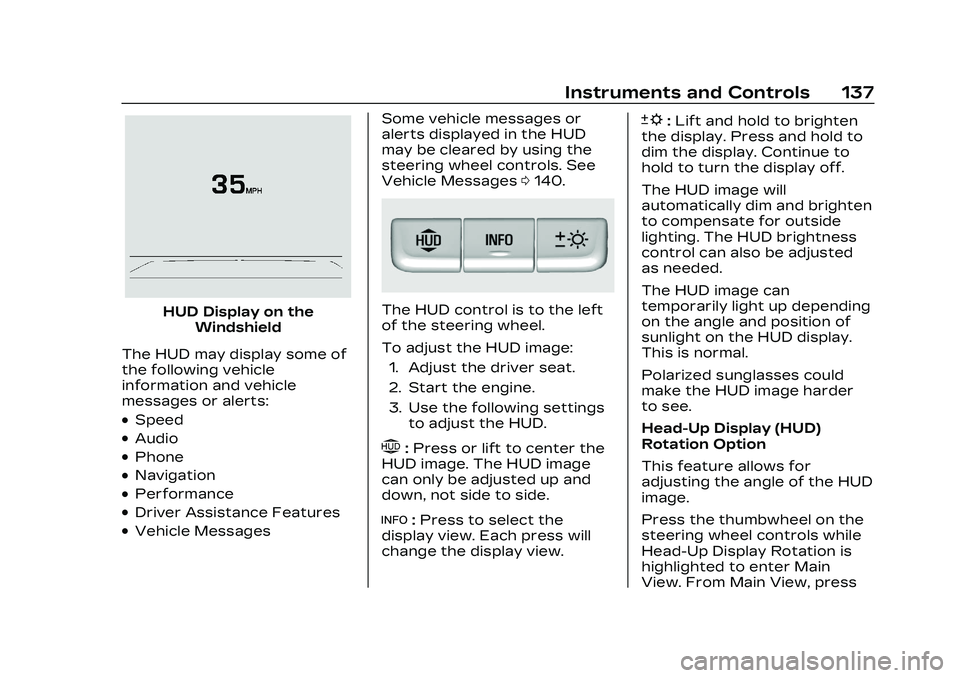
HUD Display on theWindshield
The HUD may display some of
the following vehicle
information and vehicle
messages or alerts:
.Speed
.Audio
.Phone
.Navigation
.Performance
.Driver Assistance Features
.Vehicle Messages Some vehicle messages or
alerts displayed in the HUD
may be cleared by using the
steering wheel controls. See
Vehicle Messages
0140.
The HUD control is to the left
of the steering wheel.
To adjust the HUD image:
1. Adjust the driver seat.
2. Start the engine.
3. Use the following settings to adjust the HUD.
$:Press or lift to center the
HUD image. The HUD image
can only be adjusted up and
down, not side to side.
!: Press to select the
display view. Each press will
change the display view.
D: Lift and hold to brighten
the display. Press and hold to
dim the display. Continue to
hold to turn the display off.
The HUD image will
automatically dim and brighten
to compensate for outside
lighting. The HUD brightness
control can also be adjusted
as needed.
The HUD image can
temporarily light up depending
on the angle and position of
sunlight on the HUD display.
This is normal.
Polarized sunglasses could
make the HUD image harder
to see.
Head-Up Display (HUD)
Rotation Option
This feature allows for
adjusting the angle of the HUD
image.
Press the thumbwheel on the
steering wheel controls while
Head-Up Display Rotation is
highlighted to enter Main
View. From Main View, press
Page 139 of 524
Cadillac CT4 Owner Manual (GMNA-Localizing-U.S./Canada-16500442) -
2023 - CRC - 5/4/22
138 Instruments and Controls
the thumbwheel to enter the
Adjust Menu. Press
yorzto
adjust the angle of the HUD
display. Press
SorTto
highlight OK, then press the
thumbwheel to save the
setting. CANCEL can also be
selected to cancel the setting.
The vehicle must be in
P (Park). See Instrument
Cluster (Base Level) 0106 or
Instrument Cluster (Uplevel)
0 108.
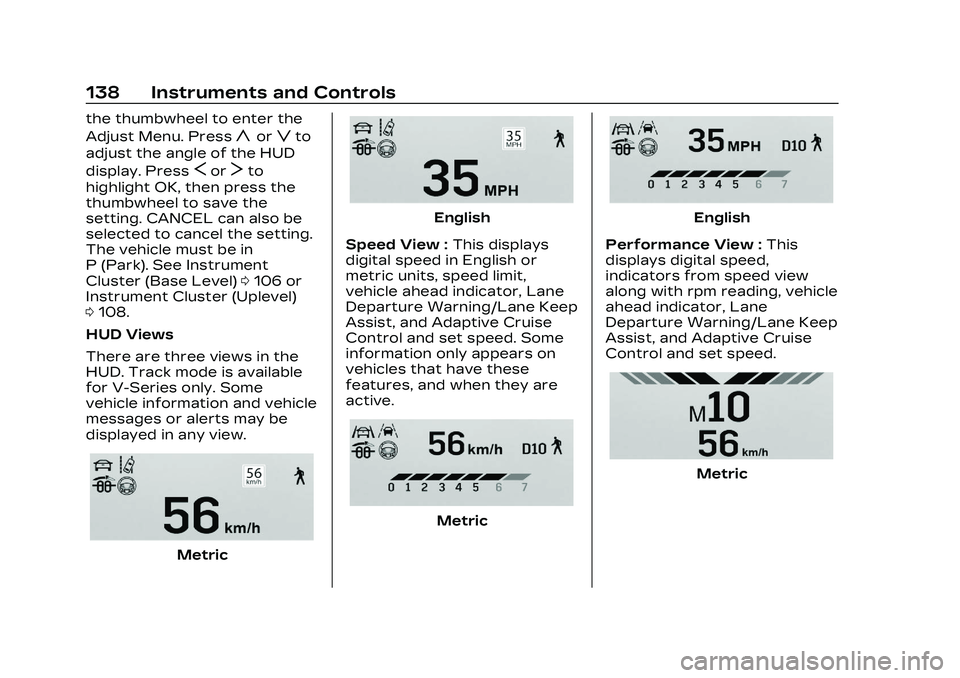
HUD Views
There are three views in the
HUD. Track mode is available
for V-Series only. Some
vehicle information and vehicle
messages or alerts may be
displayed in any view.
Metric
English
Speed View : This displays
digital speed in English or
metric units, speed limit,
vehicle ahead indicator, Lane
Departure Warning/Lane Keep
Assist, and Adaptive Cruise
Control and set speed. Some
information only appears on
vehicles that have these
features, and when they are
active.
Metric
English
Performance View : This
displays digital speed,
indicators from speed view
along with rpm reading, vehicle
ahead indicator, Lane
Departure Warning/Lane Keep
Assist, and Adaptive Cruise
Control and set speed.
Metric
Page 140 of 524
Cadillac CT4 Owner Manual (GMNA-Localizing-U.S./Canada-16500442) -
2023 - CRC - 5/4/22
Instruments and Controls 139
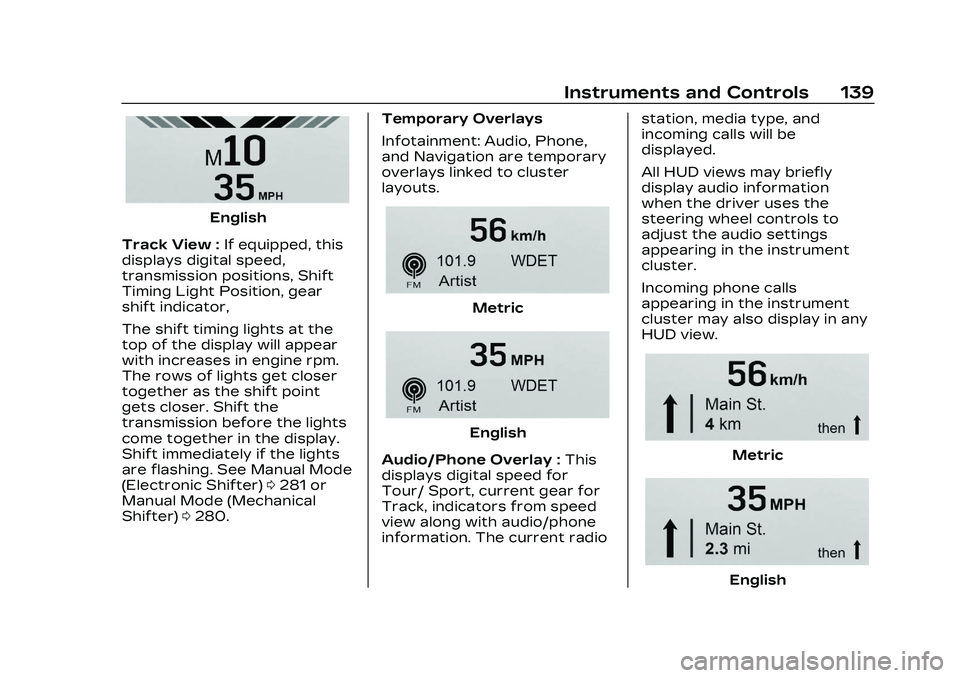
English
Track View : If equipped, this
displays digital speed,
transmission positions, Shift
Timing Light Position, gear
shift indicator,
The shift timing lights at the
top of the display will appear
with increases in engine rpm.
The rows of lights get closer
together as the shift point
gets closer. Shift the
transmission before the lights
come together in the display.
Shift immediately if the lights
are flashing. See Manual Mode
(Electronic Shifter) 0281 or
Manual Mode (Mechanical
Shifter) 0280. Temporary Overlays
Infotainment: Audio, Phone,
and Navigation are temporary
overlays linked to cluster
layouts.
Metric
English
Audio/Phone Overlay : This
displays digital speed for
Tour/ Sport, current gear for
Track, indicators from speed
view along with audio/phone
information. The current radio station, media type, and
incoming calls will be
displayed.
All HUD views may briefly
display audio information
when the driver uses the
steering wheel controls to
adjust the audio settings
appearing in the instrument
cluster.
Incoming phone calls
appearing in the instrument
cluster may also display in any
HUD view.
Metric
English