On star CADILLAC CT5 2022 Repair Manual
[x] Cancel search | Manufacturer: CADILLAC, Model Year: 2022, Model line: CT5, Model: CADILLAC CT5 2022Pages: 466, PDF Size: 7.21 MB
Page 157 of 466
Cadillac CT5 Owner Manual (GMNA-Localizing-U.S./Canada-15268585) -
2022 - CRC - 10/11/21
156 INFOTAINMENT SYSTEM
Songs:1. Touch to display a list of all songs on the USB.
2. To begin playback, touch a song from the list.
Albums: 1. Touch to view the albums on the USB.
2. Touch the album to view a list of all songs on the album.
3. Touch a song from the list to begin playback.
Genres: 1. Touch to view the genres on the USB.
2. Touch a genre to view a list of artists.
3. Touch an artist to view albums by that artist.
4. Touch an album to view songs on the album.
5. Touch a song to start playback.
Composers: 1. Touch to view the composers on the USB. 2. Touch a Composer to view a list of
albums by that composer.
3. Touch an album or All Songs to view a list of songs.
4. Touch a song from the list to begin playback.
Folders: 1. Touch to view the directories on the USB.
2. Touch a folder to view a list of all files.
3. Touch a file from the list to begin playback.
Podcasts : Touch to view the podcasts
on the connected Apple device and
get a list of podcast episodes.
Audiobooks:
1. Touch to view the audiobooks stored on the Apple device.
2. Touch an audiobook to get a list of chapters.
3. Touch the chapter from the list to begin playback.
File System and Naming
File systems supported by the USB
may include:.FAT32
.NTFS
.HFS+
The songs, artists, albums, and genres
are taken from the file’s song
information and are only displayed if
present. The radio displays the file
name as the track name if the song
information is not available.
Supported Apple Devices
To view supported devices, see
my.cadillac.com/learn.
Storing and Recalling Media
Favorites
To store media favorites, touch
Browse to display a list of media
types.
Touch one of the following Browse
options to save a favorite:
Playlists : Touch
Hnext to any
playlist to store the playlist as a
favorite. Touch a saved favorite to
recall a favorite playlist. The first song
in the playlist begins to play.
Page 159 of 466
Cadillac CT5 Owner Manual (GMNA-Localizing-U.S./Canada-15268585) -
2022 - CRC - 10/11/21
158 INFOTAINMENT SYSTEM
start playing. When the vehicle is not
moving, use the mobile device to
begin playback.
All devices launch audio differently.
When selecting Bluetooth as a source,
the radio may show as paused on the
display. Press play on the device or
touch
pon the display to begin
playback.
Browse functionality will be provided
where supported by the Bluetooth
device. This media content will not be
part of the MyMedia source mode.
Some smartphones support sending
Bluetooth music information to
display on the radio. When the radio
receives this information, it will check
to see if any is available and display it.
For more information about supported
Bluetooth features, see
my.cadillac.com/learn.
Navigation
Using the Navigation
System
If equipped, launch the Nav
application by touching the Nav icon
on the Home Page or on the shortcut
tray near the bottom of the
infotainment display.
When the Nav application is launched
for the first time, a product
walkthrough is available. Use of the
feature requires the Terms and
Conditions and the Privacy statement
to be confirmed. If available and
signed into a profile, it is also
suggested to enable and confirm
Predictive Navigation.
Predictive Navigation (If Equipped)
If Predictive Navigation is available
and confirmed, this feature learns
preferences by remembering where
the vehicle has been. It uses the
locations and navigation history to
personalize routes and results.
Predictive Navigation may learn
elements such as:
.Personalized routes based on
preferred streets.
.Search results that provide best
matches at the top of the list.
.Predictive traffic.
.Local map content updating.
Predictive Navigation can also be
enabled or disabled at a later time by
touching
A(Options). While in
Options, touch Settings, then Map and
Navigation Settings, and then
Predictive Navigation. See Settings
0 189.
Navigation Map View
After opening the Nav application for
the first time, the application will
always open in full map view
displaying the vehicle’s current
location. When the vehicle is stopped,
Page 160 of 466
Cadillac CT5 Owner Manual (GMNA-Localizing-U.S./Canada-15268585) -
2022 - CRC - 10/11/21
INFOTAINMENT SYSTEM 159
the search bar will appear along the
top of the navigation map view.
Manually close the search bar by
touching
z. When the vehicle is
moving, the
}(Search) icon will
replace the search bar to maximize
the full map view.
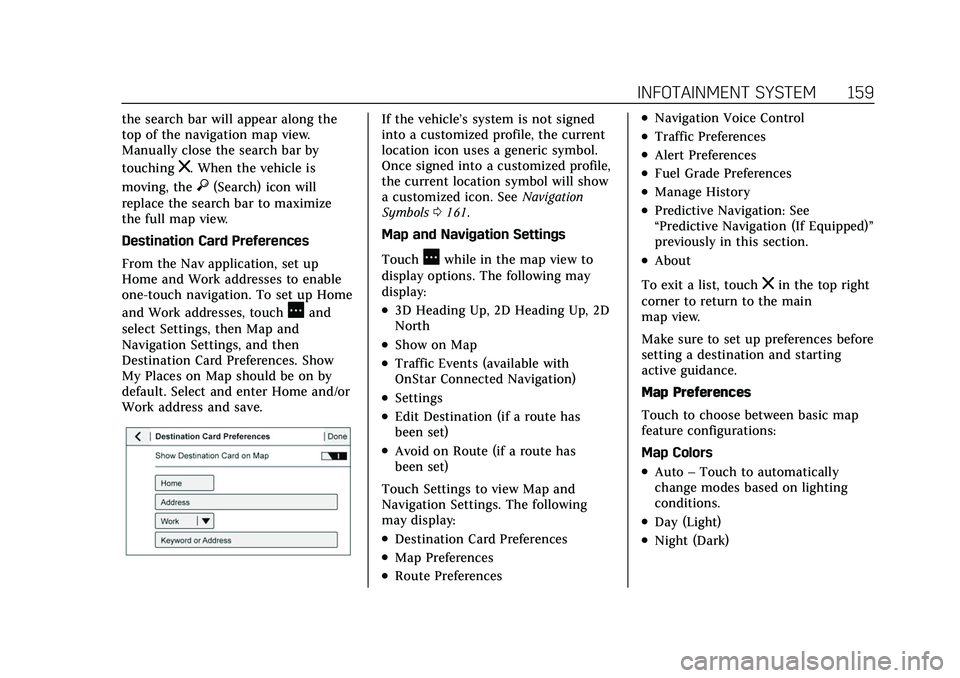
Destination Card Preferences
From the Nav application, set up
Home and Work addresses to enable
one-touch navigation. To set up Home
and Work addresses, touch
Aand
select Settings, then Map and
Navigation Settings, and then
Destination Card Preferences. Show
My Places on Map should be on by
default. Select and enter Home and/or
Work address and save.
If the vehicle’s system is not signed
into a customized profile, the current
location icon uses a generic symbol.
Once signed into a customized profile,
the current location symbol will show
a customized icon. See Navigation
Symbols 0161.
Map and Navigation Settings
Touch
Awhile in the map view to
display options. The following may
display:
.3D Heading Up, 2D Heading Up, 2D
North
.Show on Map
.Traffic Events (available with
OnStar Connected Navigation)
.Settings
.Edit Destination (if a route has
been set)
.Avoid on Route (if a route has
been set)
Touch Settings to view Map and
Navigation Settings. The following
may display:
.Destination Card Preferences
.Map Preferences
.Route Preferences
.Navigation Voice Control
.Traffic Preferences
.Alert Preferences
.Fuel Grade Preferences
.Manage History
.Predictive Navigation: See
“Predictive Navigation (If Equipped)”
previously in this section.
.About
To exit a list, touch
zin the top right
corner to return to the main
map view.
Make sure to set up preferences before
setting a destination and starting
active guidance.
Map Preferences
Touch to choose between basic map
feature configurations:
Map Colors
.Auto –Touch to automatically
change modes based on lighting
conditions.
.Day (Light)
.Night (Dark)
Page 161 of 466
Cadillac CT5 Owner Manual (GMNA-Localizing-U.S./Canada-15268585) -
2022 - CRC - 10/11/21
160 INFOTAINMENT SYSTEM
3D Landmark (Default is On) :
Touch On or Off. When turned on, the
system will display all 3D Landmarks
on the map depending on the zoom
level.
3D Building (Default is Off ) :Touch
On or Off. When turned on, the
system will display all of the possible
3D building shapes on the map
depending on the zoom level.
Show Terrain in 3D (Default is
Off ) : If equipped, touch On or Off.
When turned on, the system will
display terrain information on the
map in 3D view.
Auto-Zoom (Default is On) : Touch
On or Off. When turned on, the
system will automatically adjust the
zoom level when the vehicle is
approaching a turn. After the turn is
completed, the system automatically
brings the zoom back to the originally
set level. If the vehicle is approaching
a turn with the next turn occurring
shortly after, the Auto-Zoom will
remain on until both turns are
completed. Route Preferences
Touch to access the Route
Preferences. The choices are:
.Preferred Route
–Choose from two
different route options: Fastest or
Eco-Friendly.
‐ Fastest would be the route with
the shortest drive time.
‐ Eco-Friendly would be the most
fuel-efficient route.
.Avoid on Current Route –Choose
any of the road features to avoid
while on route:
‐ Highways
‐ Unpaved Roads
‐ Ferries
‐ Carpool Lanes
‐ Toll Roads
‐ Tunnels
‐ Country Borders
Navigation Voice Control
Touch to access the voice control
setting display.
.Navigation Volume –To adjust the
volume level, touch the up and
down arrows. If the voice guidance prompt is being heard, volume can
also be adjusted using the knob on
the center stack or the volume
switch on the steering wheel.
.Navigation Voice Prompt Level
during a Call. Options available are:
‐
Full Prompt (Selected by default)
‐ Tone Only
‐ None
Traffic Events (If Equipped)
This feature provides a list of events
that are on the route or nearby. Touch
Aand then select Traffic Events. An
OnStar connected Navigation service
plan is required.
Traffic Preferences (If Equipped)
While in Map View, touch
A, then
Settings and then Map and Navigation
Settings to access Traffic Preferences.
When Show Traffic on Map is turned
on, the feature provides an overview
of the traffic flow using different
coded colors. The following options
are available for rerouting:
Page 164 of 466
Cadillac CT5 Owner Manual (GMNA-Localizing-U.S./Canada-15268585) -
2022 - CRC - 10/11/21
INFOTAINMENT SYSTEM 163
Destination
Receiving Destination Directions
from Different Sources
Destinations can be received or
transferred from different sources to
the Nav application for route
guidance. If equipped, some of these
sources may include:
.Navigation from search results.
.OnStar Advisor destination
download.
.An address from the Contacts list.
.An application on the smartphone
that can send destinations to the
vehicle.
.An application downloaded to the
vehicle such as OnStar Services that
can send destinations to the
navigation system.
Waypoints
Add up to five waypoints, which are
additional destinations, along the
route. To add an additional stop or
waypoint:1. From active guidance, touch
}. 2. Search for the destination using
One-Box, Voice search, or the Quick
Category icons.
3. Choose search results Along Route, Nearby, or Near Destination.
4. Choose the desired waypoint and touch Add to Trip or replace the
current destination by touching
New Destination.
Route options are not available for
waypoints.
Arriving at a Waypoint
When approaching a waypoint, the
system will display a Destination
Arrival view. To continue on to the
next destination touch the Drive to
message on the infotainment display.
If the vehicle passes the waypoint or
gets out of the current route, the
system will automatically reroute back
to this waypoint. At the same time, it
will show a Drive to icon along with
the next waypoint address so the
current waypoint can be skipped and
guidance can resume to the next
waypoint or destination. Editing a Waypoint
When waypoints are added during
active guidance, the system allows a
stop to be deleted or the order to be
changed. To edit a waypoint:
1. Touch
A.
2. Touch Edit Destinations.
.Modify destination order by
touching and holding the arrow
until it is highlighted. Drag to
move the waypoint up or down
the list.
.Delete a waypoint by touching
Y. A pop-up will appear to
confirm waypoint removal. Once
the request is confirmed, the
system will remove the address
from the destinations list. Touch
zon the top right corner so the
system can recalculate the
route.
If there is only one address in
the destinations list, the system
will disable the move and delete
functions. The system will not
allow the final destination to be
deleted.
Page 168 of 466
Cadillac CT5 Owner Manual (GMNA-Localizing-U.S./Canada-15268585) -
2022 - CRC - 10/11/21
INFOTAINMENT SYSTEM 167
Favorites
The navigation favorites can have
contacts, addresses, or POIs that have
been saved through the favorite icon
on the details view.
Accessing Favorites
In the Nav application, view the
Favorites list by touching
Hin the
search bar along the top of the Nav
map view. If the search bar is closed,
touch
}and selectH.
Saving Favorites
Favorites can be added from a number
of the system’s applications. Touch
the favorites icon to save content as a
favorite.
Renaming Navigation Favorites 1. Touch the Settings icon on the Home Page and touch the
System tab.
2. Touch Favorites to access the Manage Favorites option.
3. Touch a saved Navigation favorite to access the edit icon. Touch the
edit icon to rename the favorite. 4. Touch Save to store the renamed
favorite.
Recents
TouchHto access a list of recent
destinations.
Recenter Position Icon
Touch the Recenter Position arrow in
the middle of the map view to reset
the map to the current location.
Last Parked Location
The Last Parked Location is the last
location the vehicle engine was turned
off. That location is displayed in the
first row of the Recents list. Touching
the last Parked Location shows the
Address Details view to either save the
address or drive to it. The Last Parked
Location can be deleted by entering
the Edit display. Once the Last Parked
Location is deleted, it no longer
appears in the Recents list, unless the
vehicle is started at that location
again.
Show POI Icons
To see the POI categories, touch
Options, then touch Show on Map. Up
to eight categories of icons can be
selected.
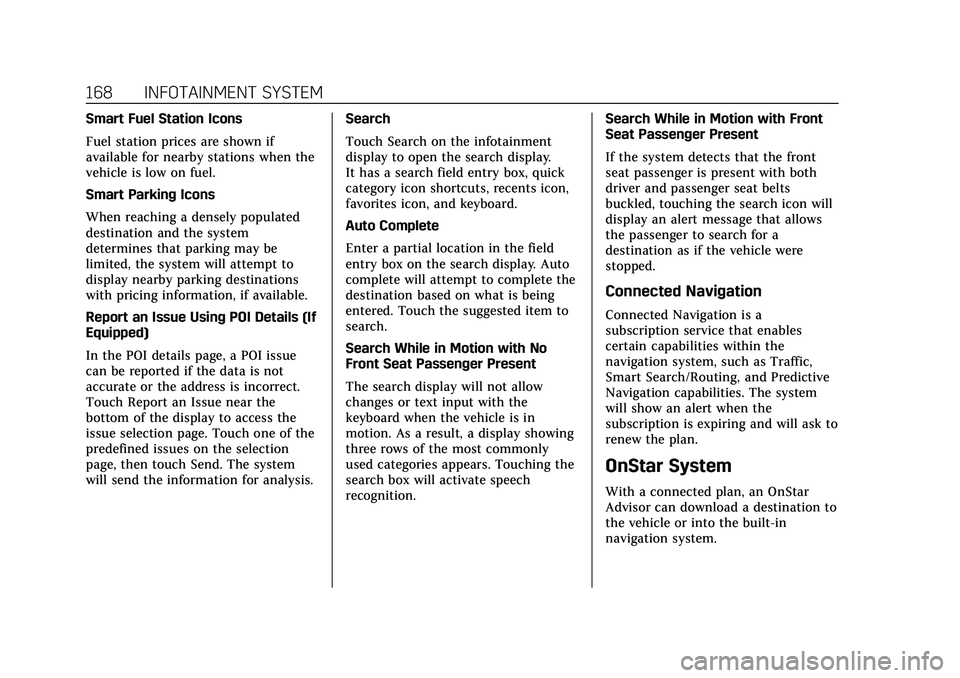
Smart POI Icons on Map (If
Equipped)
The smart POI icons such as fuel
stations and parking may appear
based on time, location, driver search
behavior, driving conditions, and
vehicle conditions.
Touch a smart POI icon to open the
corresponding details:
.Left side: Name and address of
the POI.
.Right side:E+ ETE (Estimated
Time Enroute.)
Page 169 of 466
Cadillac CT5 Owner Manual (GMNA-Localizing-U.S./Canada-15268585) -
2022 - CRC - 10/11/21
168 INFOTAINMENT SYSTEM
Smart Fuel Station Icons
Fuel station prices are shown if
available for nearby stations when the
vehicle is low on fuel.
Smart Parking Icons
When reaching a densely populated
destination and the system
determines that parking may be
limited, the system will attempt to
display nearby parking destinations
with pricing information, if available.
Report an Issue Using POI Details (If
Equipped)
In the POI details page, a POI issue
can be reported if the data is not
accurate or the address is incorrect.
Touch Report an Issue near the
bottom of the display to access the
issue selection page. Touch one of the
predefined issues on the selection
page, then touch Send. The system
will send the information for analysis.Search
Touch Search on the infotainment
display to open the search display.
It has a search field entry box, quick
category icon shortcuts, recents icon,
favorites icon, and keyboard.
Auto Complete
Enter a partial location in the field
entry box on the search display. Auto
complete will attempt to complete the
destination based on what is being
entered. Touch the suggested item to
search.
Search While in Motion with No
Front Seat Passenger Present
The search display will not allow
changes or text input with the
keyboard when the vehicle is in
motion. As a result, a display showing
three rows of the most commonly
used categories appears. Touching the
search box will activate speech
recognition.Search While in Motion with Front
Seat Passenger Present
If the system detects that the front
seat passenger is present with both
driver and passenger seat belts
buckled, touching the search icon will
display an alert message that allows
the passenger to search for a
destination as if the vehicle were
stopped.
Connected Navigation
Connected Navigation is a
subscription service that enables
certain capabilities within the
navigation system, such as Traffic,
Smart Search/Routing, and Predictive
Navigation capabilities. The system
will show an alert when the
subscription is expiring and will ask to
renew the plan.
OnStar System
With a connected plan, an OnStar
Advisor can download a destination to
the vehicle or into the built-in
navigation system.
Page 170 of 466
Cadillac CT5 Owner Manual (GMNA-Localizing-U.S./Canada-15268585) -
2022 - CRC - 10/11/21
INFOTAINMENT SYSTEM 169
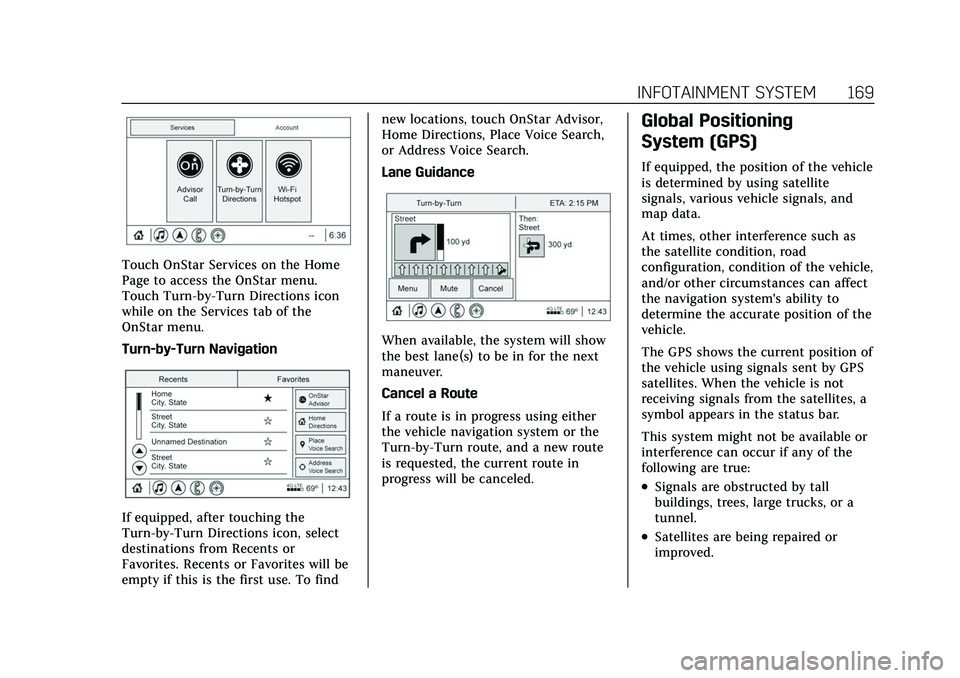
Touch OnStar Services on the Home
Page to access the OnStar menu.
Touch Turn-by-Turn Directions icon
while on the Services tab of the
OnStar menu.
Turn-by-Turn Navigation
If equipped, after touching the
Turn-by-Turn Directions icon, select
destinations from Recents or
Favorites. Recents or Favorites will be
empty if this is the first use. To findnew locations, touch OnStar Advisor,
Home Directions, Place Voice Search,
or Address Voice Search.
Lane Guidance
When available, the system will show
the best lane(s) to be in for the next
maneuver.
Cancel a Route
If a route is in progress using either
the vehicle navigation system or the
Turn-by-Turn route, and a new route
is requested, the current route in
progress will be canceled.
Global Positioning
System (GPS)
If equipped, the position of the vehicle
is determined by using satellite
signals, various vehicle signals, and
map data.
At times, other interference such as
the satellite condition, road
configuration, condition of the vehicle,
and/or other circumstances can affect
the navigation system's ability to
determine the accurate position of the
vehicle.
The GPS shows the current position of
the vehicle using signals sent by GPS
satellites. When the vehicle is not
receiving signals from the satellites, a
symbol appears in the status bar.
This system might not be available or
interference can occur if any of the
following are true:
.Signals are obstructed by tall
buildings, trees, large trucks, or a
tunnel.
.Satellites are being repaired or
improved.
Page 171 of 466
Cadillac CT5 Owner Manual (GMNA-Localizing-U.S./Canada-15268585) -
2022 - CRC - 10/11/21
170 INFOTAINMENT SYSTEM
For more information if the GPS is not
functioning properly, seeProblems
with Route Guidance 0170 and
If the System Needs Service 0171.
Vehicle Positioning
At times, the position of the vehicle
on the map could be inaccurate due to
one or more of the following reasons:
.The road system has changed.
.The vehicle is driving on slippery
road surfaces such as sand, gravel,
or snow.
.The vehicle is traveling on winding
roads or long, straight roads.
.The vehicle is approaching a tall
building or a large vehicle.
.The surface streets run parallel to a
freeway.
.The vehicle has been transferred by
a vehicle carrier or a ferry.
.The current position calibration is
set incorrectly.
.The vehicle is traveling at high
speed.
.The vehicle changes directions more
than once, or the vehicle is turning
on a turn table in a parking lot.
.The vehicle is entering and/or
exiting a parking lot, garage, or a lot
with a roof.
.The GPS signal is not received.
.A roof carrier is installed on the
vehicle.
.Tire chains are installed on the
vehicle.
.The tires are replaced or worn.
.The tire pressure for the tires is
incorrect.
.This is the first navigation use after
the map data is updated.
.The 12-volt battery has been
disconnected for several days.
.The vehicle is driving in heavy
traffic where driving is at low
speeds, and the vehicle is stopped
and started repeatedly.
Problems with Route
Guidance
Inappropriate route guidance can
occur under one or more of the
following conditions:
.The turn was not made on the road
indicated.
.Route guidance might not be
available when using automatic
rerouting for the next right or
left turn.
.The route might not be changed
when using automatic rerouting.
.There is no route guidance when
turning at an intersection.
.Plural names of places might be
announced occasionally.
.It could take a long time to operate
automatic rerouting during
high-speed driving.
.Automatic rerouting might display a
route returning to the set waypoint
if heading for a destination without
passing through a set waypoint.
.The route prohibits the entry of a
vehicle due to a regulation by time
or season or any other regulation
which may be given.
.Some routes might not be searched.
.The route to the destination might
not be shown if there are new roads,
if roads have recently changed, or if
certain roads are not listed in the
map data. See Maps0161.
Page 172 of 466
Cadillac CT5 Owner Manual (GMNA-Localizing-U.S./Canada-15268585) -
2022 - CRC - 10/11/21
INFOTAINMENT SYSTEM 171
To recalibrate the vehicle's position on
the map, park with the vehicle
running for two to five minutes, until
the vehicle position updates. Make
sure the vehicle is parked in a location
that is safe and has a clear view of the
sky and away from large obstructions.
If the System Needs
Service
If the navigation system needs service,
see your dealer.
Map Data Updates
The map data in the vehicle is the
most up-to-date information available
when the vehicle was produced.
See www.gmnavdisc.com for details on
ordering, purchasing, and installing a
new or replacement SD card. Features
are subject to change. For more
information on this feature, see
my.cadillac.com/learn.
Database Coverage
Explanations
Coverage areas vary with respect to
the level of map detail available for
any given area. Some areas feature
greater levels of detail than others.
If this happens, it does not mean
there is a problem with the system. As
the map data is updated, more detail
can become available for areas that
previously had limited detail. SeeMap
Data Updates 0171.
Voice Recognition
If equipped, voice recognition allows
for hands-free operation within the
navigation, audio, phone, and weather
applications. This feature can be
started by pressing
gon the steering
wheel or touching
gon the
infotainment display.
However, not all features within these
areas are supported by voice
commands. Generally, only complex
tasks that require multiple manual
interactions to complete are
supported by voice commands. For example, tasks that take more
than one or two touches, such as a
song or artist to play from a media
device, would be supported by voice
commands. Other tasks, like adjusting
the volume or seeking up or down, are
audio features that are easily
performed by touching one or two
options, and are not supported by
voice commands.
In general there are flexible ways to
speak commands for completing the
tasks.
If your language supports it, try
stating a one-shot command, such as
“Directions to address
Do not include
the ZIP code while stating the address
during the command. Another
example of a one-shot Destination
Entry command is, “Directions to
Place of Interest at
commands do not work, try saying,
“Take me to Place of Interest ”or “Find
address ”and the system will walk you
through by asking additional
questions.