lights CADILLAC CTS 2012 2.G Infotainment Manual
[x] Cancel search | Manufacturer: CADILLAC, Model Year: 2012, Model line: CTS, Model: CADILLAC CTS 2012 2.GPages: 76, PDF Size: 0.61 MB
Page 56 of 76
Black plate (56,1)Cadillac CTS/CTS-V Navigation System (Includes Mex) - 2012
56 Infotainment System
Master Volume Level:Press the
+ (plus) or −(minus) screen buttons
to increase or to decrease the
volume of all voice categories.
Voice Guidance: Press to turn
voice instructions on and off while
traveling on a planned route. Voice
guidance is on when the button is
highlighted.
Traffic Event Voice Prompt: Press
to turn traffic voice instructions on
and off. Traffic voice is on when the
button is highlighted.
Speech Recognition Prompt:
Press to turn speech recognition
prompts on and off. Speech prompts
are on when the button is
highlighted.
Speech Confirmation Feedback:
Press to turn speech confirmation
feedback on and off. Speech
feedback is on when the button is
highlighted. Route Preference
Press the Route Preference screen
button to change route options
when the system calculates a route.
Avoid Freeway:
The system
avoids major roads when calculating
a planned route.
Avoid Toll Road: The system
avoids toll roads when calculating a
planned route.
Avoid Ferry: The system avoids
ferries when calculating a planned
route.
Avoid time and seasonal
restricted road: The system
avoids time restricted and seasonal
roads when calculating a planned
route.
Back Track
Press the Back Track screen button
to turn recording and displaying on
and off or to delete the path being
traveled when not on a
marked road. Record Back Track:
When this
feature is active the system starts
recording the path being traveled
when not on a marked road. This
button highlights when it is active.
Display Back Track: When this
feature is active the system displays
the path that is being traveled. This
path is a simulation since the map
database coverage will not have
these roads on the system. This
button highlights when it is active.
Delete Recorded Back Track:
Press to delete the recorded path.
Map Database Information
Press the Map Database
Information screen button to view
system information.
Page 57 of 76
Black plate (57,1)Cadillac CTS/CTS-V Navigation System (Includes Mex) - 2012
Infotainment System 57
XM NavTraffic™(USA and
Canada)
The navigation system might have
an XM NavTraffic receiver. It is a
subscription service provided
through XM Satellite Radio.
A service fee is required to receive
the XM NavTraffic service.
Real-time traffic information is
provided to fully integrate the
navigation system to display current
traffic conditions for the chosen
route.
A screen displays to indicate that
the XM Traffic subscription is not
activated.
If activated, traffic information
displays:
.Unscheduled traffic incident
data, such as accidents and
disabled vehicles
.Scheduled traffic incident data,
such as road construction and
road closures
.Traffic flow information (rate of
speed data). Flow data might not
be available in all markets.
Traffic information is delivered to the
vehicle by the XM Radio satellites.
XM NavTraffic provides continuously
updated traffic information.
XM NavTraffic currently broadcasts
the traffic information for many
markets nationally. The service may
be available in more cities in the
future. Visit www.xmnavtraffic.com
for more details on local coverage.
To turn XM NavTraffic on or off:
1. Press the CONFIG control button, then press CONFIG
repeatedly until Nav is selected
or press the Nav screen button.
2. Press the Traffic Information button. 3. Press the Display Traffic
Information button. This button
highlights when it is active.
Selecting Use Traffic Information
for Guidance enables the system
to show a pop-up screen
notifying you of a possibly quick
route. If currently driving using a
planned route, the pop-up
screen appears on the display
when this has been selected.
When these features are
highlighted while traveling on a
route, accidents can be viewed
and avoided that are on the
route.
When traffic is enabled, a vehicle
traffic symbol appears in the Traffic
screen button. The vehicle traffic
symbol is color coded, as follows:
.No symbol displays if traffic
conditions reported to the
navigation system do not affect
the vehicle, or no information is
received while driving on a route
that is not active.
Page 59 of 76
Black plate (59,1)Cadillac CTS/CTS-V Navigation System (Includes Mex) - 2012
Infotainment System 59
Avoid Traffic Condition
Avoid:The vehicle must be on
Route Guidance and the traffic
condition must be on the route for
the Avoid feature to work.
Press the Avoid screen button next
to the traffic condition to be avoided.
The current route updates to
remove the area with the traffic
condition from the route. Select
each traffic condition to avoid.
Avoided List: Once one or more
traffic conditions have been
avoided, touch this screen button to
view the list of traffic conditions that
have been selected to avoid. Select
one or more of the avoided traffic
conditions to place the condition(s)
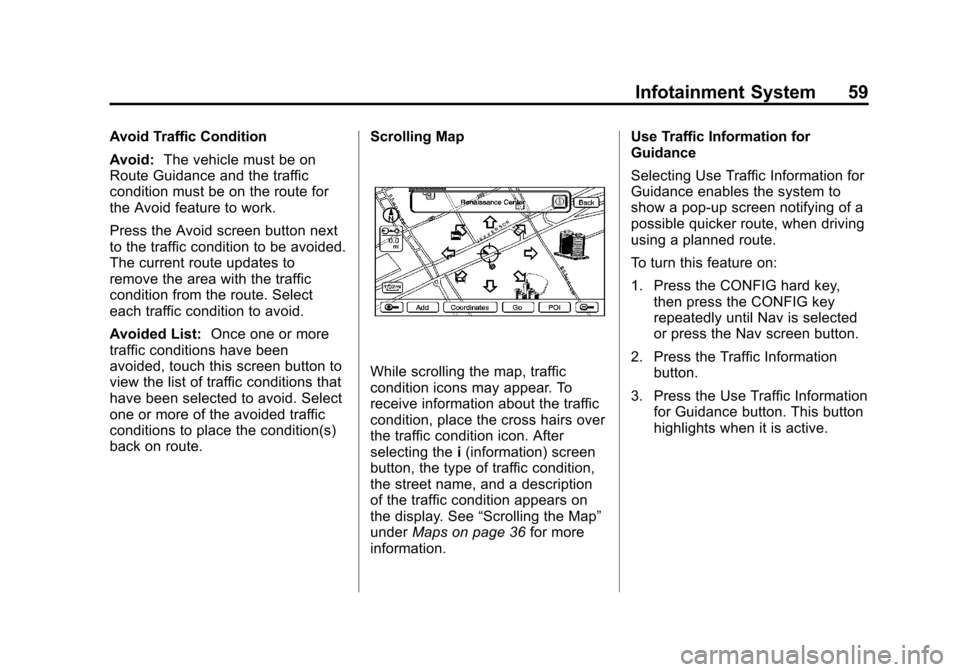
back on route. Scrolling Map
While scrolling the map, traffic
condition icons may appear. To
receive information about the traffic
condition, place the cross hairs over
the traffic condition icon. After
selecting the
i(information) screen
button, the type of traffic condition,
the street name, and a description
of the traffic condition appears on
the display. See “Scrolling the Map”
under Maps on page 36 for more
information. Use Traffic Information for
Guidance
Selecting Use Traffic Information for
Guidance enables the system to
show a pop-up screen notifying of a
possible quicker route, when driving
using a planned route.
To turn this feature on:
1. Press the CONFIG hard key,
then press the CONFIG key
repeatedly until Nav is selected
or press the Nav screen button.
2. Press the Traffic Information button.
3. Press the Use Traffic Information for Guidance button. This button
highlights when it is active.