light CADILLAC CTS 2012 2.G Infotainment Manual
[x] Cancel search | Manufacturer: CADILLAC, Model Year: 2012, Model line: CTS, Model: CADILLAC CTS 2012 2.GPages: 76, PDF Size: 0.61 MB
Page 59 of 76
Black plate (59,1)Cadillac CTS/CTS-V Navigation System (Includes Mex) - 2012
Infotainment System 59
Avoid Traffic Condition
Avoid:The vehicle must be on
Route Guidance and the traffic
condition must be on the route for
the Avoid feature to work.
Press the Avoid screen button next
to the traffic condition to be avoided.
The current route updates to
remove the area with the traffic
condition from the route. Select
each traffic condition to avoid.
Avoided List: Once one or more
traffic conditions have been
avoided, touch this screen button to
view the list of traffic conditions that
have been selected to avoid. Select
one or more of the avoided traffic
conditions to place the condition(s)
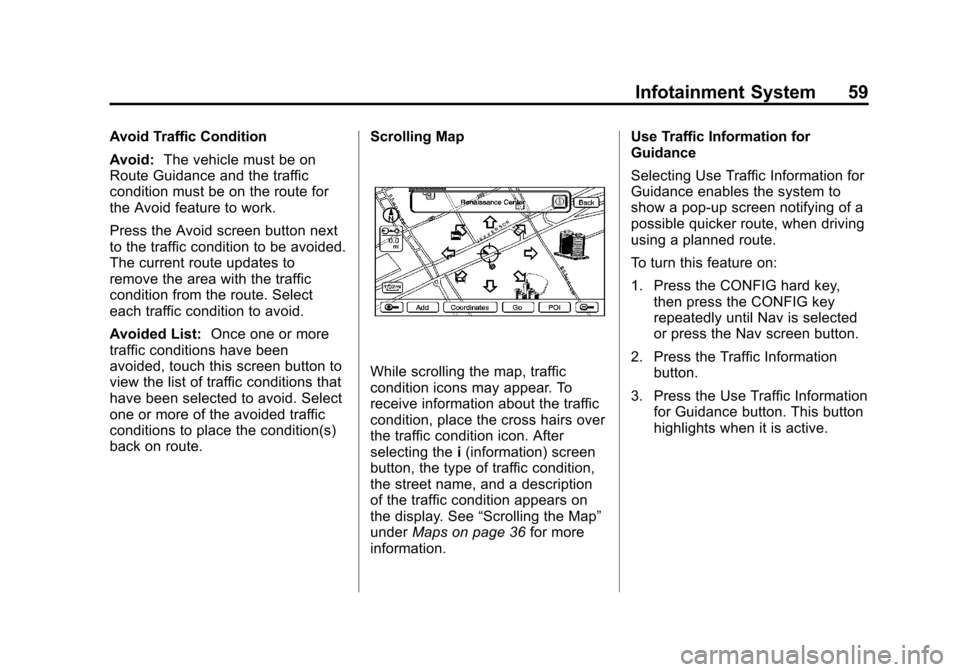
back on route. Scrolling Map
While scrolling the map, traffic
condition icons may appear. To
receive information about the traffic
condition, place the cross hairs over
the traffic condition icon. After
selecting the
i(information) screen
button, the type of traffic condition,
the street name, and a description
of the traffic condition appears on
the display. See “Scrolling the Map”
under Maps on page 36 for more
information. Use Traffic Information for
Guidance
Selecting Use Traffic Information for
Guidance enables the system to
show a pop-up screen notifying of a
possible quicker route, when driving
using a planned route.
To turn this feature on:
1. Press the CONFIG hard key,
then press the CONFIG key
repeatedly until Nav is selected
or press the Nav screen button.
2. Press the Traffic Information button.
3. Press the Use Traffic Information for Guidance button. This button
highlights when it is active.
Page 62 of 76
Black plate (62,1)Cadillac CTS/CTS-V Navigation System (Includes Mex) - 2012
62 Infotainment System
Brightness/Contrast/Mode
Press this screen button to change
the brightness, contrast, and mode
of the display.
](Brightness):Press the + (plus)
or −(minus) screen buttons to
increase or decrease the brightness
of the screen.
_(Contrast): Press the + (plus)
or −(minus) screen buttons to
increase or decrease the contrast of
the screen.
Auto (Automatic): Press to
automatically adjust the screen
background depending on exterior
lighting conditions.
Day: Press to make the map
background brighter.
Night: Press to make the map
background darker.
The dimming change button on the
navigation faceplate is used to
toggle between these dimming
modes.
Setting the Clock
The navigation system time and the
analog clock are separate features.
Changing the time through the
navigation system will not change
the time on the analog clock and
vice versa. See “Analog Clock”in
the Index of the vehicle owner
manual to change the analog
clock time.
To set the time:
1. Press the CONFIG control
button to enter the menu
options, then press the CONFIG
control button repeatedly until
the time is selected or press the
clock screen button located in
the upper right corner of the
screen.
2. Press the Hours and Minutes –(minus) and + (plus)
signs to decrease and to
increase the time. 12/24 HR Format:
Select the
12 HR screen button for standard
time; select the 24 HR screen
button for military time.
DD/MM or MM/DD Format: Press
the + (plus) or −(minus) display
buttons to increase or decrease the
MM, DD, and YYYY date display.
Auto GPS Update: Press either
the On or Off display buttons. If On,
the GPS update feature
automatically updates the date
and time.
Daylight Savings: Press either the
On or Off display buttons. Press On
to jump ahead for daylight savings
time. Press Off to fall back out of
daylight savings time.
Time Zone: Auto GPS Update
must be off before the time zone
can be changed. Select the change
display button to select the desired
time zone.