infotainment CADILLAC CTS 2016 3.G User Guide
[x] Cancel search | Manufacturer: CADILLAC, Model Year: 2016, Model line: CTS, Model: CADILLAC CTS 2016 3.GPages: 354, PDF Size: 3.56 MB
Page 153 of 354

Cadillac CTS/CTS-V Owner Manual (GMNA-Localizing-MidEast-9369309) -
2016 - crc - 7/30/15
152 Instruments and Controls
Remote Lock Feedback
This allows selection of what type of
feedback is given when locking the
vehicle with the RKE transmitter.
Select Off, Lights and Horn, Lights
Only, or Horn Only.
Remote Door Unlock
This allows selection of which doors
will unlock when pressing
Kon the
RKE transmitter.
Select All Doors or Driver Door.
Remote Start Auto Cool Seats
If equipped and turned on, this
feature will turn on the ventilated
seats when using remote start on
warm days.
Select Off or On.
Remote Start Auto Heat Seats
If equipped and turned on, this
feature will turn on the heated seats
when using remote start on
cold days.
Select Off or On. Remote Window Operation
This allows the window to be
opened when pressing
Kon the
RKE transmitter. See Remote
Keyless Entry (RKE) System
Operation 029.
Select Off or On.
Passive Door Unlock
This allows the selection of what
doors will unlock when using the
button on the driver door to unlock
the vehicle.
Select All Doors or Driver Door.
Passive Door Lock
This allows passive locking to be
turned on or off and selects
feedback. See Remote Keyless
Entry (RKE) System Operation 029.
Select Off, On with Horn
Chirp, or On.
Remote Left in Vehicle Alert
This feature sounds an alert when
the RKE transmitter is left in the
vehicle.
Select Off or On.
Bluetooth
Select and the following may
display:
. Pair New Device
. Device Management
. Ringtones
. Voice Mail Numbers
Pair New Device
Select to pair a new device. See
“Pairing” in“Infotainment Controls”
under “Bluetooth” in the infotainment
manual.
Device Management
Select to connect to a different
phone source, disconnect a phone,
or delete a phone.
Ringtones
Press to change the ring tone for
the specific phone. The phone does
not need to be connected to change
the ring.
Page 154 of 354

Cadillac CTS/CTS-V Owner Manual (GMNA-Localizing-MidEast-9369309) -
2016 - crc - 7/30/15
Instruments and Controls 153
Voice Mail Numbers
This feature displays the voice mail
number for all connected phones.
To change the voice mail number,
select EDIT or press the EDIT
button. Type a new number, then
select SAVE or press the SAVE
button.
Apple CarPlay™
Select and the following may
display:
.Apple CarPlay
. Manage Apple CarPlay Devices
Apple CarPlay
This feature allows Apple devices to
be connected to the infotainment
system through a USB port.
Select Off or On.
Manage Apple CarPlay Devices
Select to manage Apple devices.
Apple CarPlay must be on for this
feature to be accessed.
Android Auto
Select and the following may
display: .
Android Auto
. Manage Android Auto Devices
Android Auto
This feature allows Android devices
to be connected to the infotainment
system through a USB port.
Select Off or On.
Manage Android Auto Devices
Select to manage Android devices.
Android Auto must be on for this
feature to be accessed.
Voice
Select and the following may
display:
. Confidence Threshold
. Prompt Length
. Audio Feedback Speed
Confidence Threshold
This feature allows the adjustment
of the sensitivity of the speech
recognition system.
Select Confirm More or
Confirm Less. Prompt Length
This feature adjusts the voice
prompt length.
Select Short or Long.
Audio Feedback Speed
This feature adjusts the audio
feedback speed.
Select Slow, Medium, or Fast.
Display
Select and the following may
display:
.
Mode
. Proximity Sensing
. Calibrate Touchscreen
. Turn Display Off
Mode
Select to change the display screen
for day or night driving.
Select Auto, Day, or Night.
Page 155 of 354
Cadillac CTS/CTS-V Owner Manual (GMNA-Localizing-MidEast-9369309) -
2016 - crc - 7/30/15
154 Instruments and Controls
Proximity Sensing
When on, certain screen buttons
and features will become visible
when a hand approaches the
screen.
Select Off, On, or On - Map Only.
Calibrate Touchscreen
Select to calibrate the touchscreen,
then follow the prompts.
Turn Display Off
Select to turn the display off. Press
anywhere on the display area or any
faceplate button to turn the
display on.
Rear Camera
Select and the following may
display:
.Guidance Lines
. Rear Cross Traffic Alert
. Rear Park Assist Symbols
Guidance Lines
Select to turn Off or On. See
Assistance Systems for Parking or
Backing 0225. Rear Cross Traffic Alert
Select to turn Off or On. See
Assistance Systems for Parking or
Backing
0225.
Rear Park Assist Symbols
Select to turn Off or On. See
Assistance Systems for Parking or
Backing 0225.
Return to Factory Settings
Select and the following may
display:
.
Restore Vehicle Settings
. Clear All Private Data
. Restore Radio Settings
Restore Vehicle Settings
This allows selection of restoring
vehicle settings.
Select Restore or Cancel.
Clear All Private Data
This allows selection to clear all
private information from the vehicle.
Select Delete or Cancel. Restore Radio Settings
This allows selection to restore
radio settings.
Select Restore or Cancel.
Software Information
Select to view the infotainment
system current software information.
Page 164 of 354

Cadillac CTS/CTS-V Owner Manual (GMNA-Localizing-MidEast-9369309) -
2016 - crc - 7/30/15
Infotainment System 163
Infotainment
System
Introduction
Infotainment . . . . . . . . . . . . . . . . . . 163
Performance Data
Recorder (PDR)
Performance DataRecorder (PDR) . . . . . . . . . . . . . 163
Introduction
Infotainment
See the infotainment manual for
information on the radio, audio
players, phone, navigation system,
and voice or speech recognition,
if equipped. It also includes
information on settings.
Performance Data
Recorder (PDR)
If equipped, the PDR icon displays
on the Home screen.
The PDR records video, audio, and
vehicle data. This data is stored on
a removable SD card in the
glove box.
The recorded data is not stored
anywhere else and is only
accessible from the SD card.
To begin, insert a FAT32 formatted
SD card, Class 10 required, into the
glove box SD card reader.
Touch the PDR icon to access the
PDR menu. The options
displayed are:
Page 165 of 354
Cadillac CTS/CTS-V Owner Manual (GMNA-Localizing-MidEast-9369309) -
2016 - crc - 7/30/15
164 Infotainment System
Start Recording
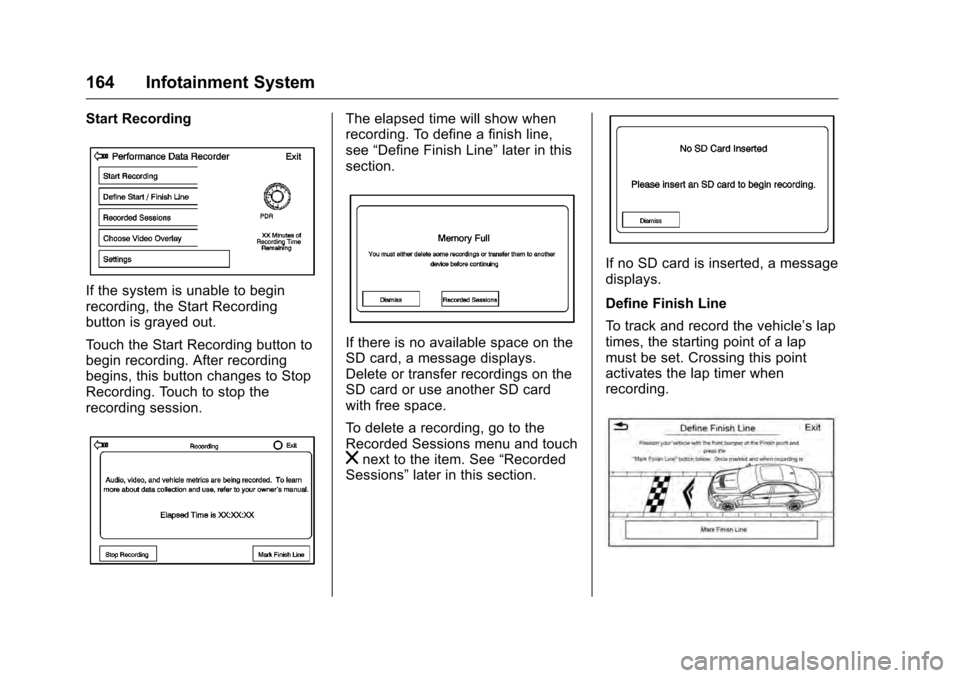
If the system is unable to begin
recording, the Start Recording
button is grayed out.
Touch the Start Recording button to
begin recording. After recording
begins, this button changes to Stop
Recording. Touch to stop the
recording session.
The elapsed time will show when
recording. To define a finish line,
see“Define Finish Line” later in this
section.
If there is no available space on the
SD card, a message displays.
Delete or transfer recordings on the
SD card or use another SD card
with free space.
To delete a recording, go to the
Recorded Sessions menu and touch
znext to the item. See “Recorded
Sessions” later in this section.
If no SD card is inserted, a message
displays.
Define Finish Line
To track and record the vehicle’s lap
times, the starting point of a lap
must be set. Crossing this point
activates the lap timer when
recording.
Page 166 of 354

Cadillac CTS/CTS-V Owner Manual (GMNA-Localizing-MidEast-9369309) -
2016 - crc - 7/30/15
Infotainment System 165
To set the finish line, position the
vehicle with the front bumper at the
start/finish point. From the PDR
menu, touch Define Finish Line and
then touch Mark Finish Line. This
can be done with the vehicle
moving.
Recorded Sessions
To view recorded videos, touch
Recorded Sessions.
A list of recordings displays.
Select the recording to start
playback.
Touch
znext to an item to delete
that recording, Touch Yes to delete
or No to cancel on the confirmation
screen. Touch Dismiss to exit. Video playback is not allowed while
the vehicle is in motion.
Tap on the screen while the video is
playing to display the video controls:
Video Scrubber :
Changes the
position and playback. The length of
the bar corresponds to the time of
the video. Advance or rewind the
video by dragging along the bar.
Delete Recording : Touch to delete
the video. A confirmation screen
displays. Touch Yes to delete or No
to cancel.
Pause/Play : Touch to play or
pause the video. The button will
change when touched.
Back : Touch to display the
previous screen. Exit :
Touch to exit the current
display.
Choose Video Overlay
Touch the Choose Video Overlay
screen button to display the menu
screen.
Select one:
. No Overlay
. Sport
. Track
. Performance Timing
No Overlay:
No vehicle data displays on top of
the recorded video. Vehicle data is
still available with the video when
accessed in the toolbox software.
Page 167 of 354
Cadillac CTS/CTS-V Owner Manual (GMNA-Localizing-MidEast-9369309) -
2016 - crc - 7/30/15
166 Infotainment System
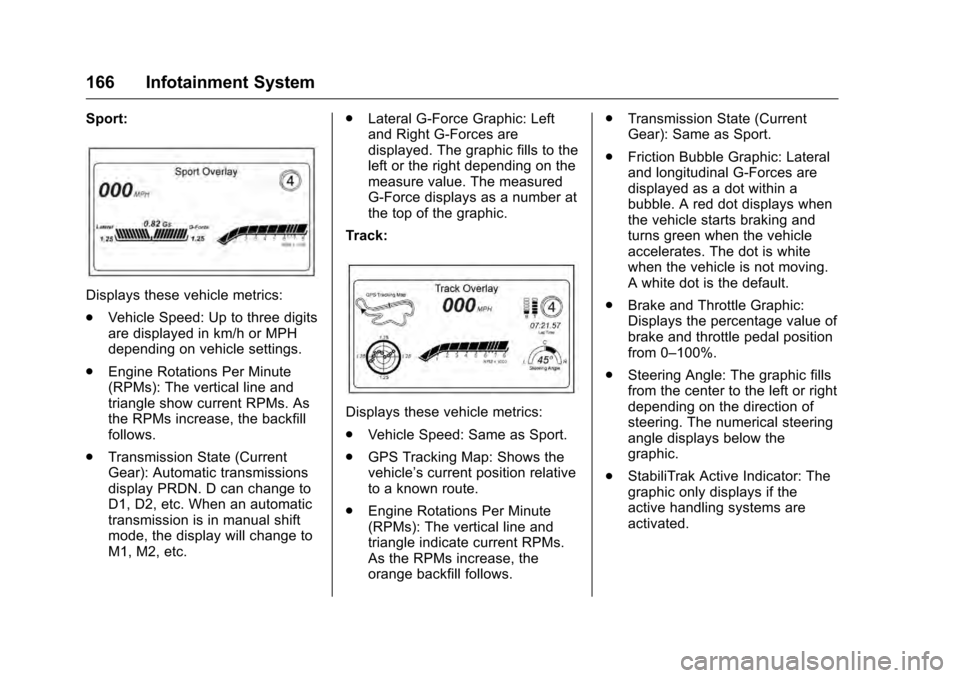
Sport:
Displays these vehicle metrics:
.Vehicle Speed: Up to three digits
are displayed in km/h or MPH
depending on vehicle settings.
. Engine Rotations Per Minute
(RPMs): The vertical line and
triangle show current RPMs. As
the RPMs increase, the backfill
follows.
. Transmission State (Current
Gear): Automatic transmissions
display PRDN. D can change to
D1, D2, etc. When an automatic
transmission is in manual shift
mode, the display will change to
M1, M2, etc. .
Lateral G-Force Graphic: Left
and Right G-Forces are
displayed. The graphic fills to the
left or the right depending on the
measure value. The measured
G-Force displays as a number at
the top of the graphic.
Track:
Displays these vehicle metrics:
. Vehicle Speed: Same as Sport.
. GPS Tracking Map: Shows the
vehicle’s current position relative
to a known route.
. Engine Rotations Per Minute
(RPMs): The vertical line and
triangle indicate current RPMs.
As the RPMs increase, the
orange backfill follows. .
Transmission State (Current
Gear): Same as Sport.
. Friction Bubble Graphic: Lateral
and longitudinal G-Forces are
displayed as a dot within a
bubble. A red dot displays when
the vehicle starts braking and
turns green when the vehicle
accelerates. The dot is white
when the vehicle is not moving.
A white dot is the default.
. Brake and Throttle Graphic:
Displays the percentage value of
brake and throttle pedal position
from 0–100%.
. Steering Angle: The graphic fills
from the center to the left or right
depending on the direction of
steering. The numerical steering
angle displays below the
graphic.
. StabiliTrak Active Indicator: The
graphic only displays if the
active handling systems are
activated.
Page 168 of 354
Cadillac CTS/CTS-V Owner Manual (GMNA-Localizing-MidEast-9369309) -
2016 - crc - 7/30/15
Infotainment System 167
.Performance Traction
Management (PTM) Mode:
Displays the current PTM mode.
The options are Wet, Dry, Sport
1, Sport 2, or Race.
. Current Lap Time: Displays the
elapsed lap time if the finish line
is defined and the vehicle has
crossed the defined finish line at
least once.
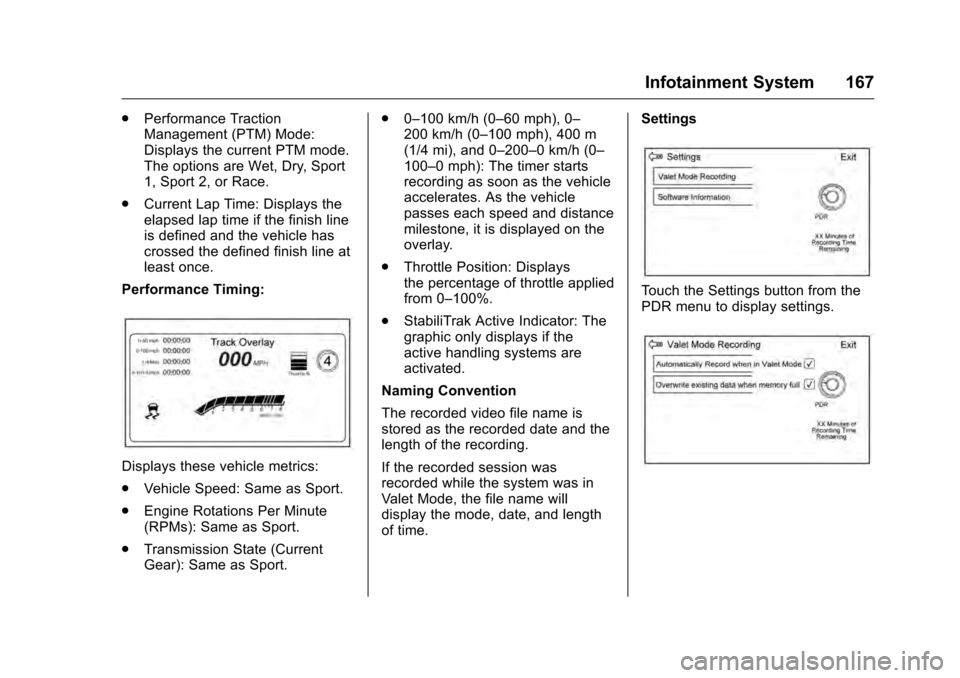
Performance Timing:
Displays these vehicle metrics:
. Vehicle Speed: Same as Sport.
. Engine Rotations Per Minute
(RPMs): Same as Sport.
. Transmission State (Current
Gear): Same as Sport. .
0–100 km/h (0–60 mph), 0–
200 km/h (0–100 mph), 400 m
(1/4 mi), and 0–200–0 km/h (0–
100–0 mph): The timer starts
recording as soon as the vehicle
accelerates. As the vehicle
passes each speed and distance
milestone, it is displayed on the
overlay.
. Throttle Position: Displays
the percentage of throttle applied
from 0–100%.
. StabiliTrak Active Indicator: The
graphic only displays if the
active handling systems are
activated.
Naming Convention
The recorded video file name is
stored as the recorded date and the
length of the recording.
If the recorded session was
recorded while the system was in
Valet Mode, the file name will
display the mode, date, and length
of time. Settings
Touch the Settings button from the
PDR menu to display settings.
Page 169 of 354
Cadillac CTS/CTS-V Owner Manual (GMNA-Localizing-MidEast-9369309) -
2016 - crc - 7/30/15
168 Infotainment System
Valet Mode Recording :Allows
recording preferences to be
selected. It is recommended that a
blank SD card be used. Available
choices are:
. Automatically record when in
Valet Mode: Enables the PDR to
begin recording as soon as the
vehicle is in Valet Mode.
. Overwrite existing data when
memory full: Allows manual
overwriting of previous
recordings, one at a time starting
with the oldest, when the current
recording requires additional
storage to continue.
Audio will not record during
Valet Mode.
Software Information : Displays
PDR software information and
version numbers.
Toolbox Software : Allows for the
evaluation of the driver and the
vehicle performance on a personal
computer after a recorded event.
See www.Cadillac.com to download
the software.
Page 171 of 354
Cadillac CTS/CTS-V Owner Manual (GMNA-Localizing-MidEast-9369309) -
2016 - crc - 7/30/15
170 Climate Controls
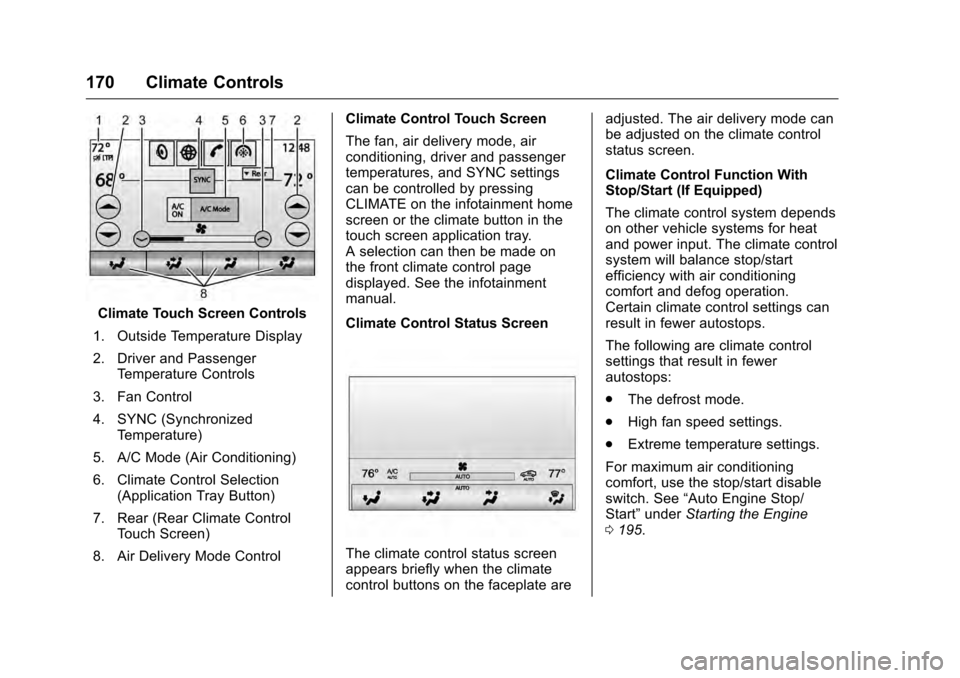
Climate Touch Screen Controls
1. Outside Temperature Display
2. Driver and Passenger Temperature Controls
3. Fan Control
4. SYNC (Synchronized Temperature)
5. A/C Mode (Air Conditioning)
6. Climate Control Selection (Application Tray Button)
7. Rear (Rear Climate Control Touch Screen)
8. Air Delivery Mode Control Climate Control Touch Screen
The fan, air delivery mode, air
conditioning, driver and passenger
temperatures, and SYNC settings
can be controlled by pressing
CLIMATE on the infotainment home
screen or the climate button in the
touch screen application tray.
A selection can then be made on
the front climate control page
displayed. See the infotainment
manual.
Climate Control Status Screen
The climate control status screen
appears briefly when the climate
control buttons on the faceplate are adjusted. The air delivery mode can
be adjusted on the climate control
status screen.
Climate Control Function With
Stop/Start (If Equipped)
The climate control system depends
on other vehicle systems for heat
and power input. The climate control
system will balance stop/start
efficiency with air conditioning
comfort and defog operation.
Certain climate control settings can
result in fewer autostops.
The following are climate control
settings that result in fewer
autostops:
.
The defrost mode.
. High fan speed settings.
. Extreme temperature settings.
For maximum air conditioning
comfort, use the stop/start disable
switch. See “Auto Engine Stop/
Start” under Starting the Engine
0 195.