change wheel CADILLAC CTS 2016 3.G Owners Manual
[x] Cancel search | Manufacturer: CADILLAC, Model Year: 2016, Model line: CTS, Model: CADILLAC CTS 2016 3.GPages: 354, PDF Size: 3.56 MB
Page 4 of 354
Cadillac CTS/CTS-V Owner Manual (GMNA-Localizing-MidEast-9369309) -
2016 - crc - 7/30/15
Introduction 3
A circle with a slash through it is a
safety symbol which means“Do
Not,” “Do not do this,” or“Do not let
this happen.”
Symbols
The vehicle has components and
labels that use symbols instead of
text. Symbols are shown along with
the text describing the operation or
information relating to a specific
component, control, message,
gauge, or indicator.
M: Shown when the owner
manual has additional instructions
or information.
*: Shown when the service
manual has additional instructions
or information.
0: Shown when there is more
information on another page —
“see page.”
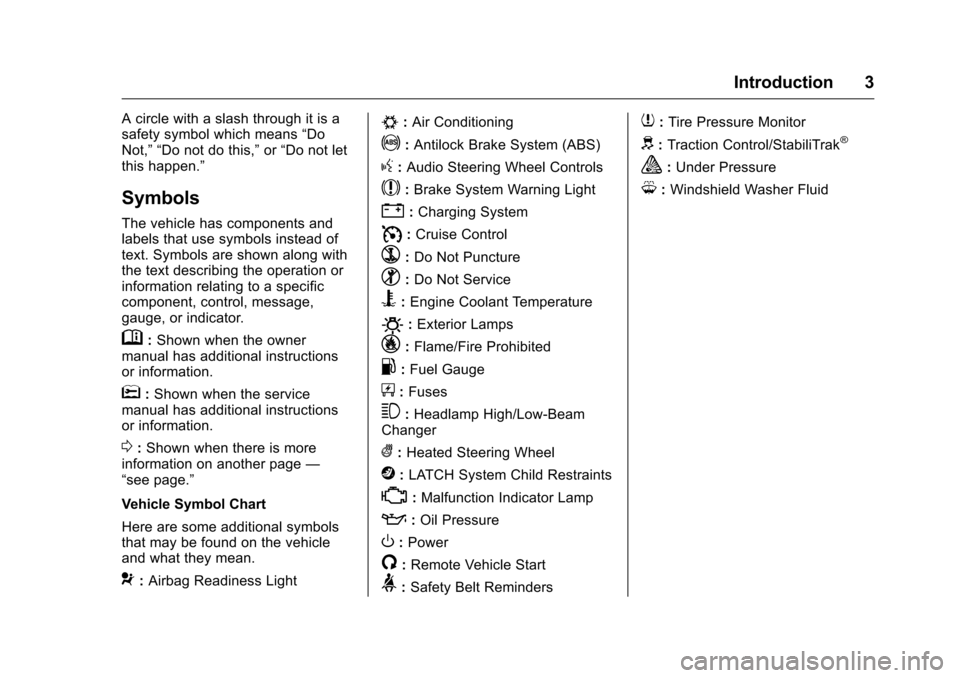
Vehicle Symbol Chart
Here are some additional symbols
that may be found on the vehicle
and what they mean.
9: Airbag Readiness Light
#:Air Conditioning
!:Antilock Brake System (ABS)
g: Audio Steering Wheel Controls
$:Brake System Warning Light
":Charging System
I: Cruise Control
`:Do Not Puncture
^:Do Not Service
B:Engine Coolant Temperature
O:Exterior Lamps
_: Flame/Fire Prohibited
.:Fuel Gauge
+: Fuses
3:Headlamp High/Low-Beam
Changer
(: Heated Steering Wheel
j:LATCH System Child Restraints
*:Malfunction Indicator Lamp
::Oil Pressure
O:Power
/:Remote Vehicle Start
>: Safety Belt Reminders
7:Tire Pressure Monitor
d:Traction Control/StabiliTrak®
a:Under Pressure
M: Windshield Washer Fluid
Page 6 of 354
Cadillac CTS/CTS-V Owner Manual (GMNA-Localizing-MidEast-9369309) -
2016 - crc - 7/30/15
In Brief 5
In Brief
Instrument Panel
Instrument Panel . . . . . . . . . . . . . . . . 6
Initial Drive Information
Initial Drive Information . . . . . . . . . . 8
Stop/Start System . . . . . . . . . . . . . . . 8
Remote Keyless Entry (RKE)System . . . . . . . . . . . . . . . . . . . . . . . . 8
Remote Vehicle Start . . . . . . . . . . . 9
Door Locks . . . . . . . . . . . . . . . . . . . . . 9
Trunk . . . . . . . . . . . . . . . . . . . . . . . . . . 10
Windows . . . . . . . . . . . . . . . . . . . . . . . 10
Seat Adjustment . . . . . . . . . . . . . . . 10
Memory Features . . . . . . . . . . . . . . 13
Heated and Ventilated Seats . . . 14
Head Restraint Adjustment . . . . 14
Safety Belts . . . . . . . . . . . . . . . . . . . . 15
Passenger Sensing System . . . 15
Mirror Adjustment . . . . . . . . . . . . . . 15
Steering Wheel Adjustment . . . . 16
Interior Lighting . . . . . . . . . . . . . . . . 17
Exterior Lighting . . . . . . . . . . . . . . . 17
Windshield Wiper/Washer . . . . . . 18
Climate Controls . . . . . . . . . . . . . . . 18
Transmission . . . . . . . . . . . . . . . . . . 19
Starting the Engine . . . . . . . . . . . . 20
Vehicle Features
Infotainment System . . . . . . . . . . . 20
Steering Wheel Controls . . . . . . . 20
Cruise Control . . . . . . . . . . . . . . . . . 20
Driver Information Center (DIC) . . . . . . . . . . . . . . . . . 21
Forward Collision Alert (FCA) System . . . . . . . . . . . . . . . . . . . . . . . 21
Front Automatic Braking (FAB) System . . . . . . . . . . . . . . . . . . . . . . . 21
Lane Keep Assist (LKA) . . . . . . . 22
Lane Change Alert (LCA) . . . . . . 22
Surround Vision (CTS Only) . . . 22
Curb View Camera (CTS-V Only) . . . . . . . . . . . . . . . . . 22
Rear Vision Camera (RVC) . . . . 23
Rear Cross Traffic Alert (RCTA) System . . . . . . . . . . . . . . . . . . . . . . . 23
Parking Assist . . . . . . . . . . . . . . . . . 23
Automatic Parking Assist (APA) . . . . . . . . . . . . . . . . . . 23
Rear Automatic Braking (RAB) System . . . . . . . . . . . . . . . . . . . . . . . 23
Power Outlets . . . . . . . . . . . . . . . . . 23
Sunroof . . . . . . . . . . . . . . . . . . . . . . . . 24
Performance and Maintenance
Traction Control/Electronic Stability Control . . . . . . . . . . . . . . 25
Tire Pressure Monitor . . . . . . . . . . 25
Engine Oil Life System . . . . . . . . 26 Car Wash Guidelines . . . . . . . . . . 26
Driving for Better Fuel
Economy . . . . . . . . . . . . . . . . . . . . . 26
Page 8 of 354

Cadillac CTS/CTS-V Owner Manual (GMNA-Localizing-MidEast-9369309) -
2016 - crc - 7/30/15
In Brief 7
1.Air Vents 0176.
2. Turn Signal Lever. See Turn
and Lane-Change Signals
0 159.
3. Manual Mode 0202 (If
Equipped).
4. Instrument Cluster 0112.
5. Windshield Wiper/Washer
0105.
6. Hazard Warning Flashers
0159.
Lane Keep Assist (LKA) 0238
(If Equipped).
Start/Stop Disable Switch (If
Equipped). See Starting the
Engine 0195.
7. Light Sensor (If Equipped). See Automatic Headlamp System
0158.
Solar Sensor. See Dual
Automatic Climate Control
System 0169.
8. Infotainment 0163.
9. Glove Box Button. See Glove
Box 0100. Automatic Parking Assist
Button (If Equipped). See
Assistance Systems for
Parking or Backing
0225.
Parking Assist Button. See
Assistance Systems for
Parking or Backing 0225.
10. Heated and Ventilated Front
Seats 060 (If Equipped).
11. Dual Automatic Climate Control
System 0169.
12. Instrument Panel Storage
0100.
Wireless Charging Pad (If
Equipped) (Out of View). See
Wireless Charging 0109
13. Traction Control/Electronic
Stability Control 0206.
14. MODE Switch. See Driver
Mode Control 0208.
15. Shift Lever. See Automatic
Transmission 0200.
Manual Mode Button. See
Automatic Transmission 0200.
16. ENGINE START/STOP Button. SeeIgnition Positions 0193. 17.
Steering Wheel Controls 0105.
Driver Information Center (DIC)
Controls. See Driver
Information Center (DIC) 0129.
18. Horn 0105.
19. Steering Wheel Adjustment
0104.
20. Cruise Control 0214 (If
Equipped).
Adaptive Cruise Control 0217
(If Equipped).
Forward Collision Alert (FCA)
System 0232 (If Equipped).
Heated Steering Wheel 0105
(If Equipped).
21. Instrument Panel Illumination
Control 0160.
22. Head-Up Display (HUD) 0132
(If Equipped).
23. Data Link Connector (DLC) (Out of View). See Malfunction
Indicator Lamp (Check Engine
Light) 0121.
24. Hood Release. See Hood
0 251.
Page 23 of 354

Cadillac CTS/CTS-V Owner Manual (GMNA-Localizing-MidEast-9369309) -
2016 - crc - 7/30/15
22 In Brief
vehicle. This can help avoid or
lessen the severity of crashes when
driving in a forward gear.
SeeFront Automatic Braking (FAB)
System 0234.
Lane Keep Assist (LKA)
If equipped, LKA may help avoid
crashes due to unintentional lane
departures. It may assist by gently
turning the steering wheel if the
vehicle approaches a detected lane
marking without using a turn signal
in that direction. It may also provide
a Lane Departure Warning (LDW)
alert as the lane marking is crossed.
The system will not assist or alert if
it detects that you are actively
steering. Override LKA by turning
the steering wheel. LKA uses a
camera to detect lane markings
between 60 km/h (37 mph) and
180 km/h (112 mph).
See Lane Departure Warning (LDW)
0 238 andLane Keep Assist (LKA)
0 238.
Lane Change Alert (LCA)
If equipped, the LCA system is a
lane-changing aid that assists
drivers with avoiding lane change
crashes that occur with moving
vehicles in the side blind zone (or
spot) areas or with vehicles rapidly
approaching these areas from
behind. The LCA warning display
will light up in the corresponding
outside side mirror and will flash if
the turn signal is on. The Side Blind
Zone Alert (SBZA) system is
included as part of the LCA system.
See Side Blind Zone Alert (SBZA)
0 236 andLane Change Alert (LCA)
0 236.
Surround Vision
(CTS Only)
If equipped, views around the
vehicle display on the center stack
to aid with parking and low-speed
maneuvers.
See “Surround Vision” under
Assistance Systems for Parking or
Backing 0225.
Front Vision Camera
If equipped, a view of the area in
front of the vehicle displays on the
center stack to aid with parking and
low-speed maneuvers.
See “Front Vision Camera” under
Assistance Systems for Parking or
Backing 0225.
Curb View Camera
(CTS-V Only)
If equipped, a view of the area in
front of the vehicle displays on the
center stack to aid with parking and
low-speed maneuvers. The display
shows a front, top down view at the
top of the screen and left and right
front camera images on the bottom.
See “Curb View Camera (CTS-V
Series Only)” underAssistance
Systems for Parking or Backing
0 225.
Page 27 of 354
Cadillac CTS/CTS-V Owner Manual (GMNA-Localizing-MidEast-9369309) -
2016 - crc - 7/30/15
26 In Brief
SeeTire Pressure Monitor System
0 294.
Engine Oil Life System
The engine oil life system calculates
engine oil life based on vehicle use
and displays the CHANGE ENGINE
OIL SOON message when it is time
to change the engine oil and filter.
The oil life system should be reset
to 100% only following an oil
change.
Resetting the Oil Life System
1. Using the DIC controls on the right side of the steering wheel,
display REMAINING OIL LIFE
on the DIC. See Driver
Information Center (DIC) 0129.
When remaining oil life is low,
the CHANGE ENGINE OIL
SOON message will appear on
the display. See Engine Oil
Messages 0138.
2. Press SEL on the DIC controls and hold SEL down for a few
seconds to clear the CHANGE
ENGINE OIL SOON message
and reset the oil life at 100%. Be careful not to reset the oil
life display accidentally at any
time other than after the oil is
changed. It cannot be reset
accurately until the next oil
change.
The oil life system can also be reset
as follows: 1. Turn the ignition on with the engine off.
2. Fully press and release the accelerator pedal three times
within five seconds.
If the CHANGE ENGINE OIL
SOON message is not on, the
system is reset.
See Engine Oil Life System 0261.
Car Wash Guidelines
Caution
Some automatic car washes can
cause damage to the vehicle,
wheels and ground effects.
Automatic car washes are not
(Continued)
Caution (Continued)
recommended, due to lack of
clearance for the undercarriage
and/or wide rear tires and wheels.
See "Washing the Vehicle" under
Exterior Care0318.
Driving for Better Fuel
Economy
Driving habits can affect fuel
mileage. Here are some driving tips
to get the best fuel economy
possible.
.
Avoid fast starts and accelerate
smoothly.
. Brake gradually and avoid
abrupt stops.
. Avoid idling the engine for long
periods of time.
. When road and weather
conditions are appropriate, use
cruise control.
. Always follow posted speed
limits or drive more slowly when
conditions require.
Page 83 of 354

Cadillac CTS/CTS-V Owner Manual (GMNA-Localizing-MidEast-9369309) -
2016 - crc - 7/30/15
82 Seats and Restraints
Adding Equipment to the
Airbag-Equipped Vehicle
Adding accessories that change the
vehicle's frame, bumper system,
height, front end, or side sheet
metal, may keep the airbag system
from working properly. The
operation of the airbag system can
also be affected by changing or
moving any parts of the front seats,
safety belts, the airbag sensing and
diagnostic module, steering wheel,
instrument panel, any of the airbag
modules, ceiling headliner or pillar
garnish trim, overhead console,
front sensors, side impact sensors,
or airbag wiring.
Your dealer and the service manual
have information about the location
of the airbag sensors, sensing and
diagnostic module, and airbag
wiring.
In addition, the vehicle has a
passenger sensing system for the
front outboard passenger position,
which includes sensors that are part
of the passenger seat. The
passenger sensing system may not
operate properly if the original seattrim is replaced with non-GM
covers, upholstery, or trim; or with
GM covers, upholstery, or trim
designed for a different vehicle. Any
object, such as an aftermarket seat
heater or a comfort-enhancing pad
or device, installed under or on top
of the seat fabric, could also
interfere with the operation of the
passenger sensing system. This
could either prevent proper
deployment of the passenger
airbag(s) or prevent the passenger
sensing system from properly
turning off the passenger airbag(s).
See
Passenger Sensing System
0 77.
If the vehicle has rollover roof-rail
airbags, see Different Size Tires
and Wheels 0302 for additional
important information.
If you have to modify your vehicle
because you have a disability and
you have questions about whether
the modifications will affect the
vehicle's airbag system, or if you
have questions about whether the
airbag system will be affected if the
vehicle is modified for any other
reason, see your dealer.
Airbag System Check
The airbag system does not need
regularly scheduled maintenance or
replacement. Make sure the airbag
readiness light is working. See
Airbag Readiness Light 0119.
Caution
If an airbag covering is damaged,
opened, or broken, the airbag
may not work properly. Do not
open or break the airbag
coverings. If there are any
opened or broken airbag
coverings, have the airbag
covering and/or airbag module
replaced. For the location of the
airbags, see Where Are the
Airbags? 073. See your dealer
for service.
Page 115 of 354
Cadillac CTS/CTS-V Owner Manual (GMNA-Localizing-MidEast-9369309) -
2016 - crc - 7/30/15
114 Instruments and Controls
Reconfigurable Instrument
Cluster
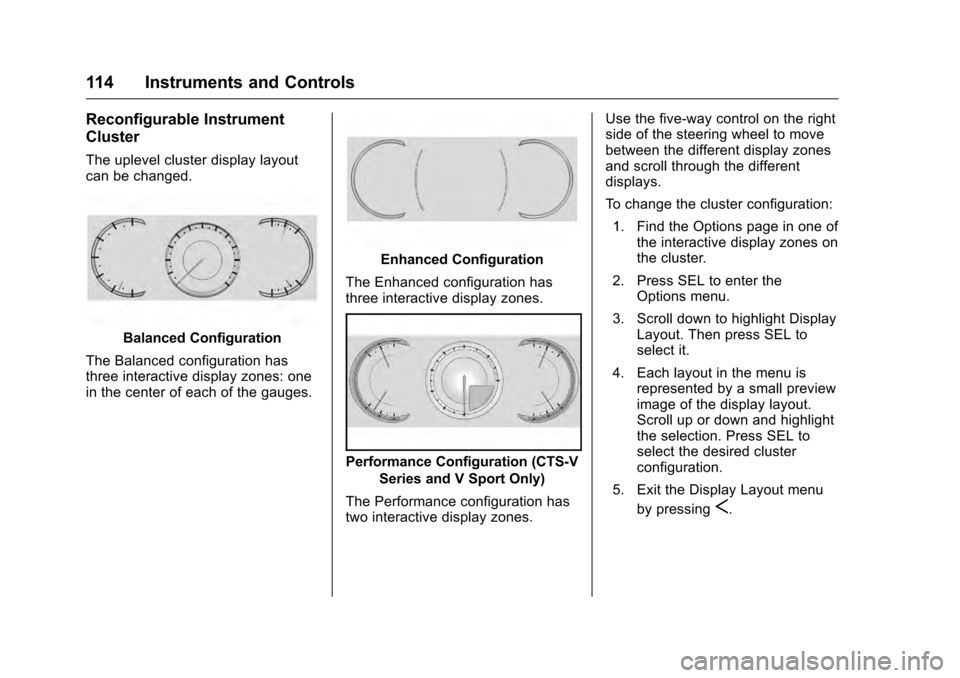
The uplevel cluster display layout
can be changed.
Balanced Configuration
The Balanced configuration has
three interactive display zones: one
in the center of each of the gauges.
Enhanced Configuration
The Enhanced configuration has
three interactive display zones.
Performance Configuration (CTS-V Series and V Sport Only)
The Performance configuration has
two interactive display zones. Use the five-way control on the right
side of the steering wheel to move
between the different display zones
and scroll through the different
displays.
To change the cluster configuration:
1. Find the Options page in one of the interactive display zones on
the cluster.
2. Press SEL to enter the Options menu.
3. Scroll down to highlight Display Layout. Then press SEL to
select it.
4. Each layout in the menu is represented by a small preview
image of the display layout.
Scroll up or down and highlight
the selection. Press SEL to
select the desired cluster
configuration.
5. Exit the Display Layout menu by pressing
S.
Page 116 of 354

Cadillac CTS/CTS-V Owner Manual (GMNA-Localizing-MidEast-9369309) -
2016 - crc - 7/30/15
Instruments and Controls 115
Cluster Application Displays
The cluster can display information
regarding Navigation, Audio, and
Phone. On the base cluster, a
speedometer can also be displayed
in the center zone.
Navigation
If there is no active route, a
compass will be displayed. If there
is an active route, press SEL to end
route guidance (if equipped) or turn
the voice prompts (if equipped) on
or off.
Audio
While the Audio application page is
displayed, press SEL to enter the
Audio menu. In the Audio menu,
search for music, select from
favorites, or change the audio
source.
Phone
While the Phone application page is
displayed, press SEL to enter the
Phone menu. In the Phone menu,
if there is no active phone call, view
recent calls, select from favorites,or scroll through contacts. If there is
an active call, mute the phone or
switch to handset operation.
Cluster Options Menu
To enter the cluster Options menu:
1. Use the five-way control on the right side of the steering wheel
to find the Options page in one
of the interactive display zones
on the cluster.
2. Press SEL on the center of the five-way control to enter the
Options menu.
Units : Press SEL while Units is
highlighted to enter the Unit menu.
Choose English, Imperial, or metric
units by pressing SEL while the
desired item is highlighted.
A checkmark will be displayed next
to the selected item.
Info Pages : Press SEL while Info
Pages is highlighted to select the
items to be displayed in the DIC info
displays. See Driver Information
Center (DIC) 0129. Fav Button Options :
Press SEL
while Fav Button Options is
highlighted to select between FAV
Primary and SEEK Primary. This
selection allows for configuration of
theCandBsteering wheel
controls. When FAV Primary is
selected, pressing
CandBwill go
to the next or previous favorite and
pressing and holding
CandBwill
seek. When SEEK Primary is
selected, pressing
CandBwill
seek and pressing and holding
C
andBwill go to the next or
previous favorite.
Display Layout : Press SEL while
Display Layout is highlighted to
change the configuration of the
uplevel cluster. See “Reconfigurable
Instrument Cluster” earlier in this
section.
Tire Loading : Press SEL while Tire
Loading is highlighted to change the
tire loading setting. Choose Light
(for comfort pressure up to three
people), Eco (for Eco pressure up to
Page 123 of 354
Cadillac CTS/CTS-V Owner Manual (GMNA-Localizing-MidEast-9369309) -
2016 - crc - 7/30/15
122 Instruments and Controls
been removed. See“Filling the
Tank with a Portable Gas Can”
under Filling the Tank 0241.
The diagnostic system can
detect if the adapter has been
left installed in the vehicle,
allowing fuel to evaporate into
the atmosphere. A few driving
trips with the adapter removed
may turn off the light.
. Poor fuel quality can cause
inefficient engine operation and
poor driveability, which may go
away once the engine is warmed
up. If this occurs, change the
fuel brand. It may require at
least one full tank of the proper
fuel to turn the light off. See Fuel
0 240.
If the light remains on, see your
dealer.
Emissions Inspection and
Maintenance Programs
If the vehicle requires an Emissions
Inspection/Maintenance test, the
test equipment will likely connect to
the vehicle's Data Link
Connector (DLC).
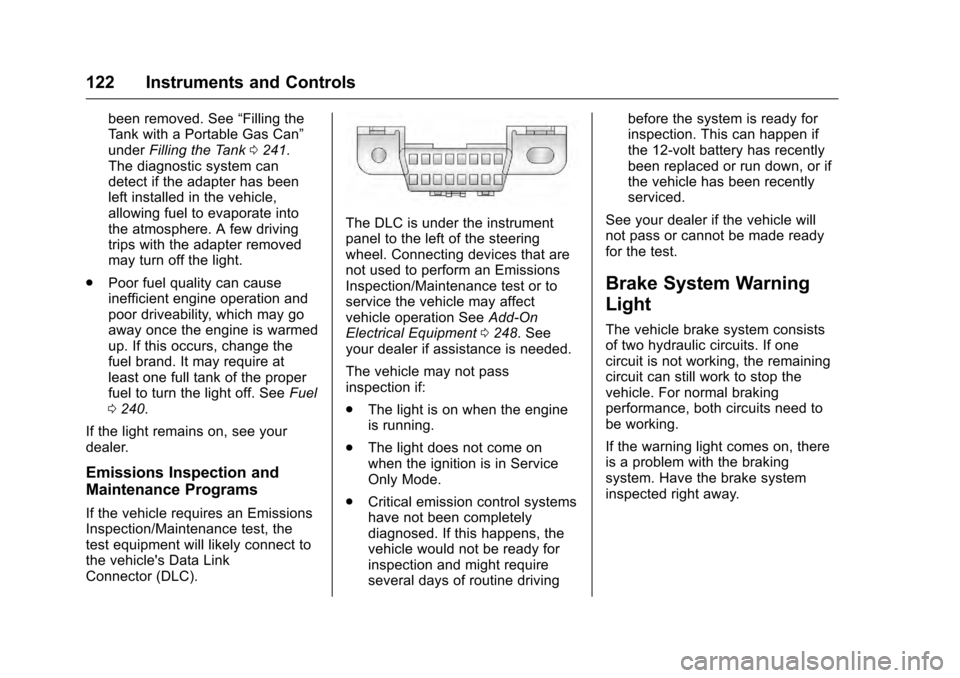
The DLC is under the instrument
panel to the left of the steering
wheel. Connecting devices that are
not used to perform an Emissions
Inspection/Maintenance test or to
service the vehicle may affect
vehicle operation See Add-On
Electrical Equipment 0248. See
your dealer if assistance is needed.
The vehicle may not pass
inspection if:
. The light is on when the engine
is running.
. The light does not come on
when the ignition is in Service
Only Mode.
. Critical emission control systems
have not been completely
diagnosed. If this happens, the
vehicle would not be ready for
inspection and might require
several days of routine driving before the system is ready for
inspection. This can happen if
the 12-volt battery has recently
been replaced or run down, or if
the vehicle has been recently
serviced.
See your dealer if the vehicle will
not pass or cannot be made ready
for the test.
Brake System Warning
Light
The vehicle brake system consists
of two hydraulic circuits. If one
circuit is not working, the remaining
circuit can still work to stop the
vehicle. For normal braking
performance, both circuits need to
be working.
If the warning light comes on, there
is a problem with the braking
system. Have the brake system
inspected right away.
Page 134 of 354
Cadillac CTS/CTS-V Owner Manual (GMNA-Localizing-MidEast-9369309) -
2016 - crc - 7/30/15
Instruments and Controls 133
reading and other numerical values
can be displayed in either English or
metric units.
The language selection is changed
through the radio and the units of
measurement is changed through
the instrument cluster. SeeVehicle
Personalization 0147 and“Cluster
Settings Menu” underInstrument
Cluster 0112.
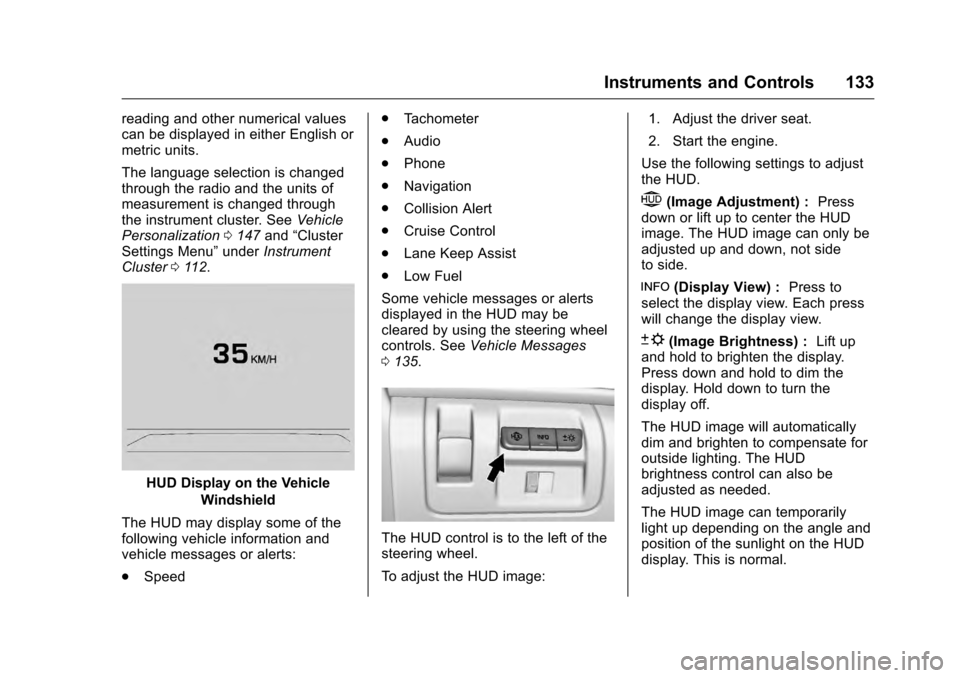
HUD Display on the Vehicle
Windshield
The HUD may display some of the
following vehicle information and
vehicle messages or alerts:
. Speed .
Tachometer
. Audio
. Phone
. Navigation
. Collision Alert
. Cruise Control
. Lane Keep Assist
. Low Fuel
Some vehicle messages or alerts
displayed in the HUD may be
cleared by using the steering wheel
controls. See Vehicle Messages
0 135.
The HUD control is to the left of the
steering wheel.
To adjust the HUD image: 1. Adjust the driver seat.
2. Start the engine.
Use the following settings to adjust
the HUD.
$(Image Adjustment) : Press
down or lift up to center the HUD
image. The HUD image can only be
adjusted up and down, not side
to side.
!(Display View) : Press to
select the display view. Each press
will change the display view.
D(Image Brightness) : Lift up
and hold to brighten the display.
Press down and hold to dim the
display. Hold down to turn the
display off.
The HUD image will automatically
dim and brighten to compensate for
outside lighting. The HUD
brightness control can also be
adjusted as needed.
The HUD image can temporarily
light up depending on the angle and
position of the sunlight on the HUD
display. This is normal.