phone CADILLAC CTS 2017 3.G CUE Manual
[x] Cancel search | Manufacturer: CADILLAC, Model Year: 2017, Model line: CTS, Model: CADILLAC CTS 2017 3.GPages: 109, PDF Size: 0.69 MB
Page 28 of 109
Cadillac CUE Infotainment System (GMNA-Localizing-MidEast-10260791) -
2017 - crc - 1/13/16
28 Rear Seat Infotainment
Select Clear to clear one digit at a
time. Press and hold to clear all
entered digits.
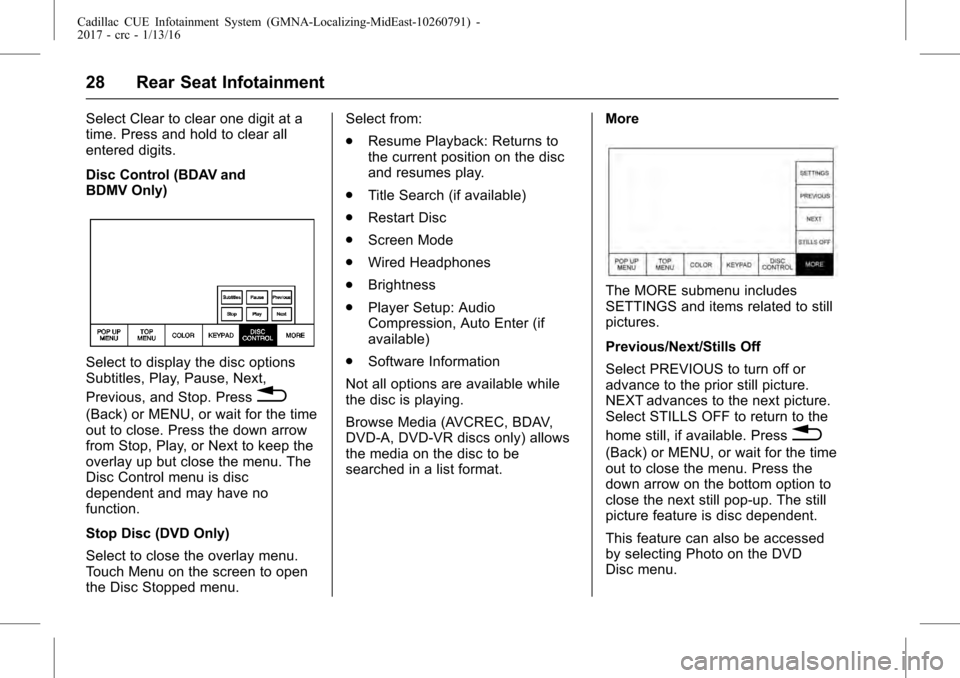
Disc Control (BDAV and
BDMV Only)
Select to display the disc options
Subtitles, Play, Pause, Next,
Previous, and Stop. Press
0
(Back) or MENU, or wait for the time
out to close. Press the down arrow
from Stop, Play, or Next to keep the
overlay up but close the menu. The
Disc Control menu is disc
dependent and may have no
function.
Stop Disc (DVD Only)
Select to close the overlay menu.
Touch Menu on the screen to open
the Disc Stopped menu.Select from:
.
Resume Playback: Returns to
the current position on the disc
and resumes play.
. Title Search (if available)
. Restart Disc
. Screen Mode
. Wired Headphones
. Brightness
. Player Setup: Audio
Compression, Auto Enter (if
available)
. Software Information
Not all options are available while
the disc is playing.
Browse Media (AVCREC, BDAV,
DVD-A, DVD-VR discs only) allows
the media on the disc to be
searched in a list format. More
The MORE submenu includes
SETTINGS and items related to still
pictures.
Previous/Next/Stills Off
Select PREVIOUS to turn off or
advance to the prior still picture.
NEXT advances to the next picture.
Select STILLS OFF to return to the
home still, if available. Press
0
(Back) or MENU, or wait for the time
out to close the menu. Press the
down arrow on the bottom option to
close the next still pop-up. The still
picture feature is disc dependent.
This feature can also be accessed
by selecting Photo on the DVD
Disc menu.
Page 29 of 109
Cadillac CUE Infotainment System (GMNA-Localizing-MidEast-10260791) -
2017 - crc - 1/13/16
Rear Seat Infotainment 29
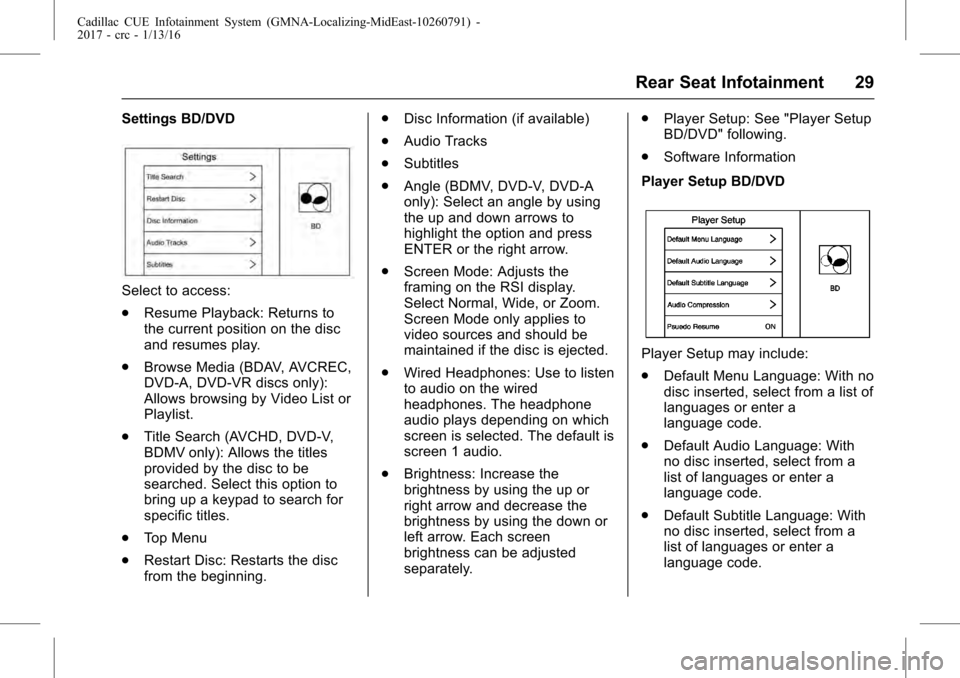
Settings BD/DVD
Select to access:
.Resume Playback: Returns to
the current position on the disc
and resumes play.
. Browse Media (BDAV, AVCREC,
DVD-A, DVD-VR discs only):
Allows browsing by Video List or
Playlist.
. Title Search (AVCHD, DVD-V,
BDMV only): Allows the titles
provided by the disc to be
searched. Select this option to
bring up a keypad to search for
specific titles.
. Top Menu
. Restart Disc: Restarts the disc
from the beginning. .
Disc Information (if available)
. Audio Tracks
. Subtitles
. Angle (BDMV, DVD-V, DVD-A
only): Select an angle by using
the up and down arrows to
highlight the option and press
ENTER or the right arrow.
. Screen Mode: Adjusts the
framing on the RSI display.
Select Normal, Wide, or Zoom.
Screen Mode only applies to
video sources and should be
maintained if the disc is ejected.
. Wired Headphones: Use to listen
to audio on the wired
headphones. The headphone
audio plays depending on which
screen is selected. The default is
screen 1 audio.
. Brightness: Increase the
brightness by using the up or
right arrow and decrease the
brightness by using the down or
left arrow. Each screen
brightness can be adjusted
separately. .
Player Setup: See "Player Setup
BD/DVD" following.
. Software Information
Player Setup BD/DVD
Player Setup may include:
. Default Menu Language: With no
disc inserted, select from a list of
languages or enter a
language code.
. Default Audio Language: With
no disc inserted, select from a
list of languages or enter a
language code.
. Default Subtitle Language: With
no disc inserted, select from a
list of languages or enter a
language code.
Page 32 of 109
Cadillac CUE Infotainment System (GMNA-Localizing-MidEast-10260791) -
2017 - crc - 1/13/16
32 Rear Seat Infotainment
Oromo ORM 7977Oriya ORI 7982
Panjabi PAN 8065
Polish POL 8076
Pashto, Pushto PUS 8083 Portuguese POR 8084
Quechua QUE 8185
Rhaeto-Romance ROH 8277 Kirundi RUN 8278
Romanian RON 8279
Kinyarwanda KIN 8287 SanSkrit SAN 8365Sindhi SND 8368
Sangho SAG 8371
Serbo-Croatian SCR 8372 Singhalese SIN 8373 Slovak SLK 8375
Uzbek UZB 8590
Vietnamese VIE 8673 Volapuk VOL 8679 Wolof WOL 8779
Xhosa XHO 8872
Yoruba YOR 8979
Zulu ZUL 9085
Slovenian SLV 8376 Samoan SMO 8377
Shona SNA 8378
Somali SOM 8379
Albanian SQI 8381 Serbian SRP 8382
Siswaiti SSW 8383
Sesotho SOT 8384
Sundanese SUN 8385 Swedish SWE 8386
Swahili SWA 8387 Tamil TAM 8465
Telugu TEL 8469
Tajik TGK 8471Thai THA 8472
Tigrinya TIR 8473 Turkmen TUK 8475
Tagalog TGL 8476
Setswana TSN 8478
Tonga TON 8479
Turkish TUR 8482
Tsonga TSO 8483 Tatar TAT 8484Twi TWI 8487
Ukrainian UKR 8575 Urdu URD 8582
Wired Headphones
Select from the Settings menu, then
select the headphone audio for the
wired headphone jack based on
screen 1 or screen 2 and press
ENTER or the right arrow. Press
0(Back) to exit.
The headphones are set to screen 1
by default.
Title Search (CD-DA Only)
This displays a list of titles to select
by using the up and down arrows.
Page 33 of 109
Cadillac CUE Infotainment System (GMNA-Localizing-MidEast-10260791) -
2017 - crc - 1/13/16
Rear Seat Infotainment 33
Disc Information (CD-DA Only)
If the inserted disc is BDMV, BDAV,
AVCHD, AVCREC, DVD-Video,
or DVD-VR the disc title should
display. If the inserted disc is
DVD-Audio, DTS-CD, CDDA,
or Mixed-CD the track number will
display.
Software Information
This allows access to Version
information, Save Vehicle Info to
USB, and Open Source Info.
Save Vehicle Info to USB allows the
current version to be saved to a
jump drive, which must be done
before an update can be performed.
Open Source Info shows where
software information can be found.
Changing Between SCREEN 1 and
SCREEN 2
For single overhead screen
systems only:
Although two audio sources can be
listened to at one time, only one
video source can be viewed on the
overhead screen at a time.Press SCREEN 1 or SCREEN 2 on
the remote control to change which
source will display on the overhead
screen.
When SCREEN 1 is displayed and
SCREEN 2 on the remote control is
pressed, the source for SCREEN 2
will display. The audio for SCREEN
1 is available on channel 1 of the
headphones and the audio for
SCREEN 2 is available on channel
2 of the headphones. Change the
channel on the headphones to the
desired screen source.
One user can listen to the audio
from SCREEN 1 and view the
source on the overhead display
while another user can listen to a
separate audio source by changing
the channel on the wireless
headphones or setting their wired
headphones to SCREEN 2 in
the MENU.RSI Controls Available from
the Front Screen
To access the RSI, select Video
from the HOME screen. The Video
app may also be selected from the
applications tray if it has been
stored in one of the five locations.
Sourcing to DVD/BD
This allows for watching a DVD/BD
video on the front screen when the
vehicle is in P (Park).
After a disc is inserted, it will
automatically begin playing. To
resume play of the video where it
left off, Pseudo Resume must be
on. See "Player Setup BD/DVD"
previously in this section.
With the vehicle in P (Park), icons
display along the bottom of the front
screen. When a DVD, VCD, USB,
or HDMI source is inserted:
Page 36 of 109
Cadillac CUE Infotainment System (GMNA-Localizing-MidEast-10260791) -
2017 - crc - 1/13/16
36 Rear Seat Infotainment
.Traffic Announcements: Displays
traffic alerts in the RSI system.
The video will continue to play
and the audio will mute,
depending on the alert.
Closing the Menu (DVD/BD)
Touch Back or Exit to close a menu.
This will return to the previously
viewed screen.
Power
Press the power button on the front
screen to turn the RSI screen on or
off. The front screen will continue to
operate when the overhead
screen(s) are turned off. A red lit
power button indicates the rear
screens are on. A white lit power
button indicates the rear screens
are off.Headphones
1. Power Indicator Light
2. Channel 1 or 2 Switch
3. Volume Control
4. Power Button
5. Battery Cover
RSI includes two or four 2-channel
new digital wireless headphones,
depending on the vehicle model.
The headphones are used to listen
to various multimedia. The wireless
headphones have a power button,
Channel 1 or 2 switch, and a
volume control. The digital
headphones cannot be
interchanged with previous models
of GM headphones. Press the power button to turn on
the headphones. A light on the
headphones comes on. A flashing
light indicates the headphones are
not in range. Move them closer to
the forward overhead screen until
the light stops flashing. If the light
does not come on, check the
batteries. Intermittent sound or static
can also indicate weak batteries.
See
“Battery Replacement” later in
this section.
Turn the headphones off when not
in use.
Press the center of the right side of
the headphone to change the
channel. Channel 1 will provide
audio associated with screen 1 and
channel 2 will provide audio
associated with screen 2.
Infrared transmitters are in front of
the second overhead screen. The
headphones shut off automatically
to save the battery power if the RSI
system is off or if the headphones
are out of range of the transmitters
for more than three minutes. Moving
Page 37 of 109
Cadillac CUE Infotainment System (GMNA-Localizing-MidEast-10260791) -
2017 - crc - 1/13/16
Rear Seat Infotainment 37
too far forward or stepping out of the
vehicle can cause the headphones
to lose the signal or have static.
Use the volume control on the
headphones to adjust the volume.
For best audio performance, wear
the headphones as indicated with
L (Left) and R (Right) on the ear
pads. Do not let anything cover the
ear pads.
Caution
Do not store the headphones in
heat or direct sunlight. This could
damage the headphones and
repairs will not be covered by the
warranty. Storage in extreme cold
can weaken the batteries. Keep
the headphones stored in a cool,
dry place.
If the foam ear pads become worn
or damaged, the pads can be
replaced separately. To purchase
replacement ear pads, contact your
dealer. Battery Replacement
To change the batteries:
1. Loosen the screw to the battery door on the left side of the
headphones.
2. Slide the battery door open.
3. Replace the two AAA batteries.
4. Replace the battery door and tighten the screw.
Remove the batteries if the
headphones will not be used for a
long time.
Rear Seat Infotainment (RSI)
WiFi (If Equipped)
The RSI WiFi allows:
. Miracast™ to display a smart
device directly on the RSI
screen.
. Accessing music, videos, and
pictures that are saved or taken
with a smart device to the RSI
system through Digital Living
Network Alliance (DLNA)
applications. .
Playing games made for your
Android™ device directly on the
RSI screens.
. Only one smart device to be
connected to the RSI at
one time.
Device Support
Android 4.2 or later and Windows
8.1 or later devices will support
Miracast. To operate correctly, the
smart device must support Miracast,
Screen Mirroring, or Android
Wireless Display.
The RSI WiFi complies with the
WiFi Miracast specification to
communicate with other WiFi
Miracast wireless devices. The RSI
WiFi supports High-bandwidth
Digital Content Protection (HDCP)
1.0, 2.0, and 2.1.
HDCP is a form of digital copy
protection developed to prevent
copying of digital audio and video
content as it travels across
connections.
For more information, see your
dealer.
Page 38 of 109
Cadillac CUE Infotainment System (GMNA-Localizing-MidEast-10260791) -
2017 - crc - 1/13/16
38 Rear Seat Infotainment
Placement for Optimal
Performance
The RSI WiFi antenna is near the
RSI disc player. The smart device
connection is stronger when it is
near the WiFi antenna.
If the network is not operating at its
maximum effectiveness, try the
following:
.Disconnect the smart device
from any other connected
network to improve the audio/
video performance.
. Switch the band. While in any
WiFi screen, select Menu, then
select Switch Band to access a
band that is available.
Operation
From the Home Menu, select the
Wireless Display icon to connect to
an Android device through Miracast,
as a DLNA device, or to view the
other screen that is already
connected through WiFi. Miracast™
(If Equipped)
. Make sure the Android smart
device WiFi is enabled.
. From the RSI Wireless Display
menu, select Miracast.
. From the Android smart device,
enter Miracast, Screen Mirroring,
or Android Wireless Display
application.
. Once the Android smart device
attempts to connect, the RSI will
display a “Request to Connect
acceptance” screen. Press OK
to continue.
After the connection has completed,
the screen from the smart device
will be duplicated on the RSI
screen. Any audio associated with
the screen shown will be available
through the RSI headphones.
Once the connection process is
done for the first time, the smart
device should appear on the RSI as
available whenever this device is
near the vehicle and the WiFi is
turned on. From the smart device,
make the connection as before. Accessing the Miracast function
varies from device to device.
Usually this function can be found in
the Settings menu, under Display or
Wireless & Networks.
The other RSI display may connect
to an existing Miracast session. Go
to the Home Menu, select Wireless
Display, then select View Screen
and press Enter to connect.
Digital Living Network Alliance
(DLNA) (If Equipped)
To establish an initial connection:
.
Make sure the device’ s WiFi is
turned on.
. From the smart RSI Wireless
Display menu, select DLNA. The
RSI screen will display a name
such as “DIRECT-xx-CUE” on
the smart device as an available
WiFi network.
. From the smart device, select
the “DIRECT-xx-Rear Seat”
network.
. From the RSI screen, select
Credentials to display a
Passphrase. The displayed
Page 39 of 109
Cadillac CUE Infotainment System (GMNA-Localizing-MidEast-10260791) -
2017 - crc - 1/13/16
Rear Seat Infotainment 39
Passphrase must be entered
into the smart device. Once
entered, the“DIRECT-xx-CUE”
network will display as
connected.
From the smart device’s DLNA
application, select Rear Seat 1 or 2
as the screen to display the desired
video, audio, or picture files on
the RSI.
Once the connection process is
done for the first time, the WiFi
connection will always be made
whenever the device is within WiFi
range or the smart device WiFi is
turned on.
From any Miracast or DLNA screen,
select Menu from the remote
control. The WiFi band can be
switched to access the options to
disconnect from the RSI WiFi, or to
remove all DLNA passwords that
have been saved.
Supported DLNA media types are:
. Video: .mp4 and .mpg
. Audio: .mp3 and .aac
. Picture: .jpeg and .jpg Viewing the Other Display
While the left or right screen is
connected by Miracast or DLNA, the
other screen can access the same
source by selecting View Screen 1
or View Screen 2 in the Wireless
Display menu.
Connecting Wireless Apple™
Devices
Apple does not support the Miracast
standard. Apple will support various
DLNA apps to allow the device to
connect to the RSI wirelessly.
Search the iTunes
®store for DLNA
applications to install on the Apple
device.
Auxiliary Inputs
Rear Media Connections
1. Volume Control for Wired
Headphones
2. Wired Headphone Jack
3. USB Ports
4. HDMI Input
If equipped with RSI, the features
above will be in the rear of the
center console. These ports are for
the primary use of the rear
passengers and not all media is
available to the front passengers.
HDMI Input
An HDMI cable is required to
connect an HDMI device to the RSI
hub. The RSI HDMI input allows
connection to:
. Video games, disc players,
cameras, smartphones, tablets,
and A/V dongles that have HDMI
(version 1.4a) outputs.
. Smart devices that support
Mobile High-Definition Link
(MHL) version 2.0.
. Apple devices. A supporting
HDMI cable from Apple is
required.
Page 40 of 109
Cadillac CUE Infotainment System (GMNA-Localizing-MidEast-10260791) -
2017 - crc - 1/13/16
40 Rear Seat Infotainment
Power for the auxiliary devices is
not supplied by the infotainment
system.
To use the HDMI input of the RSI
system:1. Connect the auxiliary device with an HDMI cable.
2. Power on both the auxiliary device and the RSI video
screen.
3. Press MEDIA on the remote control and use the arrows to
change the source to HDMI.
USB
There are two USB ports to provide
the RSI system audio/video from
supported devices, as well as to
provide device charging.
Audio from these ports can only be
heard and controlled by the rear
seat passengers. Video can be
heard, shown, and controlled by the
rear and front passengers.
To use the USB: 1. Insert the device into one of the two ports. 2. Select the source (USB 1 or
USB 2) via the rear screen
menu with the remote control
MEDIA button.
3. Select the source via the front by touching the VIDEO screen
button.
Audio Output
Audio from a Blu-ray/DVD/CD
player or HDMI inputs can be heard
through:
.Wireless headphones: Available
for any source depending on the
selected channel.
. Vehicle speakers: Touch the
VIDEO screen button. Select
any other source to stop the
speaker audio; rear audio will
continue to play.
. Vehicle wired headphone jack:
See “Wired Headphone Jack”
following.
The RSI system transmits the audio
signal to the wireless headphones if
an audio signal is available. See
“Headphones” earlier in this section. Front seat passengers can listen to
playback from the attached rear
device through the vehicle speakers
by selecting that source from the
Video Application on the front
display Home screen.
Wired Headphone Jack
Select MENU on the remote control,
then select Settings and then Wired
Headphones to listen to audio on
the wired headphones. The
headphone audio plays depending
on which screen is selected. The
default is screen 1 audio.
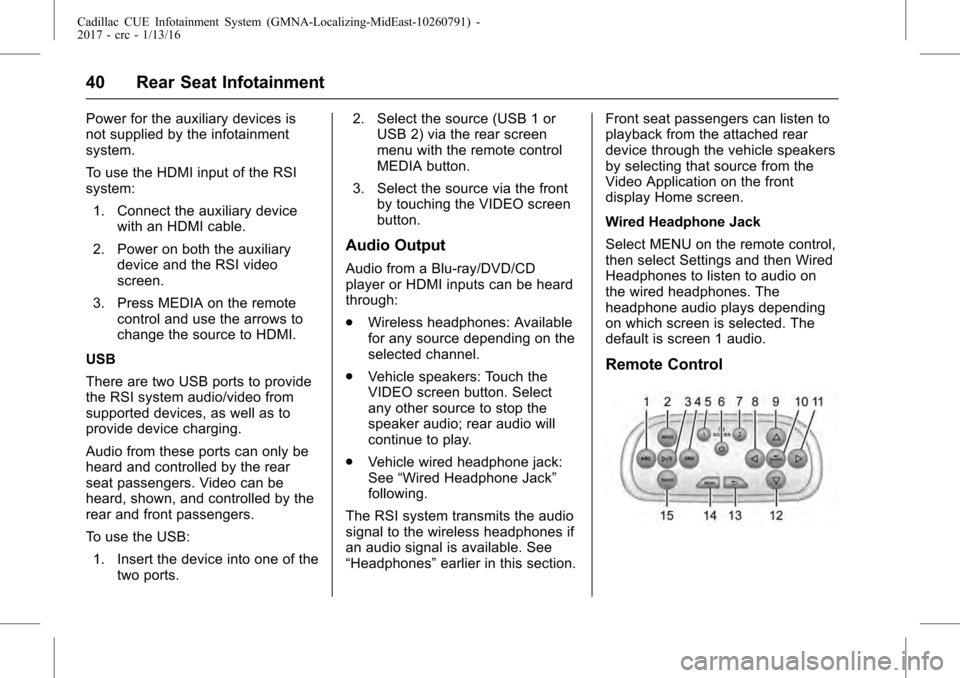
Remote Control
Page 41 of 109

Cadillac CUE Infotainment System (GMNA-Localizing-MidEast-10260791) -
2017 - crc - 1/13/16
Rear Seat Infotainment 41
Remote Control Buttons1.
7(Previous/Reverse)
. Radio: Press to seek the
previous radio station.
. CD: Press to seek the
previous track.
. Blu-ray/DVD: Press to seek
the previous chapter.
. Press and hold for fast
reverse.
2. MEDIA .Press to scroll through the
menus including: BD/DVD/
CD, USB 1, USB 2, HDMI.
3.
J(Play/Pause)
. Press to start playing.
Press to pause. Press
again to continue playing.
4.
6(Next/Fast Forward)
. Radio: Press to seek the
next radio station.
. CD: Press to seek the next
track. .
Blu-ray/DVD: Press to seek
the next chapter.
. Press and hold to fast
forward.
5. SCREEN 1 .For single overhead
screens:
Press to change the source
displayed on the overhead
screen to SCREEN 1
selected source. Select
audio sources. Only one
video can be played on the
screen at a time. Audio for
both sources will continue
on the headphones. Once
pressed, all remote control
commands will correspond
to SCREEN 1.
. For dual overhead screens:
Press to select the second
row overhead screen. Once
pressed, all remote control
commands will correspond
to SCREEN 1. 6.
O(Power)
. Press to turn the video
screens on and off.
7. SCREEN 2 .For single overhead
screens:
Press to change the source
displayed on the overhead
screen to SCREEN 2
selected source. Only one
video can be played on the
screen at a time. Audio for
both sources will continue
on the headphones. Once
pressed, all remote control
commands will correspond
to SCREEN 2.
. For dual overhead screens:
Press to select the optional
third row overhead screen.
Once pressed, all remote
control commands will
correspond to SCREEN 2.