infotainment CADILLAC CTS 2019 Owner's Guide
[x] Cancel search | Manufacturer: CADILLAC, Model Year: 2019, Model line: CTS, Model: CADILLAC CTS 2019Pages: 401, PDF Size: 6.85 MB
Page 170 of 401
Cadillac CTS/CTS-V Owner Manual (GMNA-Localizing-U.S./Canada/Mexico-
12460273) - 2019 - CRC - 5/8/18
CLIMATE CONTROLS 169
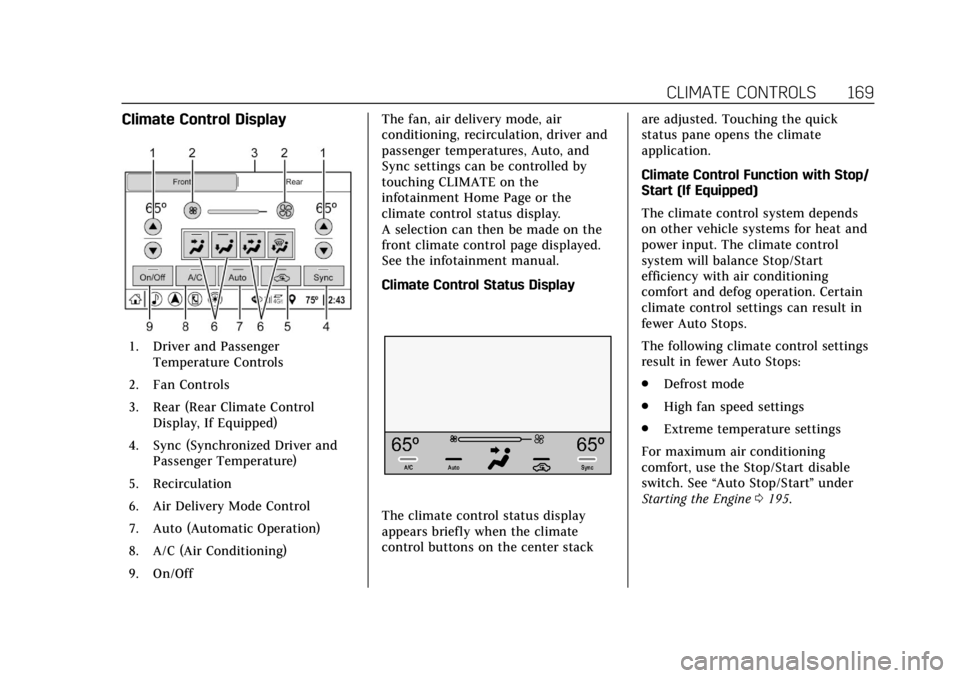
Climate Control Display
1. Driver and PassengerTemperature Controls
2. Fan Controls
3. Rear (Rear Climate Control Display, If Equipped)
4. Sync (Synchronized Driver and Passenger Temperature)
5. Recirculation
6. Air Delivery Mode Control
7. Auto (Automatic Operation)
8. A/C (Air Conditioning)
9. On/Off The fan, air delivery mode, air
conditioning, recirculation, driver and
passenger temperatures, Auto, and
Sync settings can be controlled by
touching CLIMATE on the
infotainment Home Page or the
climate control status display.
A selection can then be made on the
front climate control page displayed.
See the infotainment manual.
Climate Control Status Display
The climate control status display
appears briefly when the climate
control buttons on the center stack
are adjusted. Touching the quick
status pane opens the climate
application.
Climate Control Function with Stop/
Start (If Equipped)
The climate control system depends
on other vehicle systems for heat and
power input. The climate control
system will balance Stop/Start
efficiency with air conditioning
comfort and defog operation. Certain
climate control settings can result in
fewer Auto Stops.
The following climate control settings
result in fewer Auto Stops:
.
Defrost mode
. High fan speed settings
. Extreme temperature settings
For maximum air conditioning
comfort, use the Stop/Start disable
switch. See “Auto Stop/Start ”under
Starting the Engine 0195.
Page 180 of 401
Cadillac CTS/CTS-V Owner Manual (GMNA-Localizing-U.S./Canada/Mexico-
12460273) - 2019 - CRC - 5/16/18
DRIVING AND OPERATING 179
Refer to the infotainment section for
more information on using that
system and the navigation system,
if equipped, including pairing and
using a cell phone.
Defensive Driving
Defensive driving means“always
expect the unexpected.” The first step
in driving defensively is to wear the
seat belt. See Seat Belts068.
. Assume that other road users
(pedestrians, bicyclists, and other
drivers) are going to be careless
and make mistakes. Anticipate
what they might do and be ready.
. Allow enough following distance
between you and the driver in
front of you.
. Focus on the task of driving.
Drunk Driving
Death and injury associated with
drinking and driving is a global
tragedy.
{Warning
Drinking and then driving is very
dangerous. Your reflexes,
perceptions, attentiveness, and
judgment can be affected by even a
small amount of alcohol. You can
have a serious —or even fatal —
collision if you drive after drinking.
Do not drink and drive or ride with
a driver who has been drinking.
Ride home in a cab; or if you are
with a group, designate a driver
who will not drink.
Control of a Vehicle
Braking, steering, and accelerating are
important factors in helping to control
a vehicle while driving.
Braking
Braking action involves perception
time and reaction time. Deciding to
push the brake pedal is perception
time. Actually doing it is
reaction time. Average driver reaction time is about
three-quarters of a second. In that
time, a vehicle moving at 100 km/h
(60 mph) travels 20 m (66 ft), which
could be a lot of distance in an
emergency.
Helpful braking tips to keep in mind
include:
.
Keep enough distance between
you and the vehicle in front
of you.
. Avoid needless heavy braking.
. Keep pace with traffic.
If the engine ever stops while the
vehicle is being driven, brake normally
but do not pump the brakes. Doing so
could make the pedal harder to push
down. If the engine stops, there will
be some power brake assist but it will
be used when the brake is applied.
Once the power assist is used up, it
can take longer to stop and the brake
pedal will be harder to push.
Page 199 of 401

Cadillac CTS/CTS-V Owner Manual (GMNA-Localizing-U.S./Canada/Mexico-
12460273) - 2019 - CRC - 5/16/18
198 DRIVING AND OPERATING
Warning (Continued)
or using a damaged heater or
extension cord, could make it
overheat and cause a fire,
property damage, electric
shock, and injury.
. Do not operate the vehicle
with the heater cord
permanently attached to the
vehicle. Possible heater cord
and thermostat damage could
occur.
. While in use, do not let the
heater cord touch vehicle
parts or sharp edges. Never
close the hood on the
heater cord.
. Before starting the vehicle,
unplug the cord, reattach the
cover to the plug, and
securely fasten the cord. Keep
the cord away from any
moving parts. 4. Before starting the engine, be
sure to unplug and store the cord
as it was before to keep it away
from moving engine parts. If you
do not, it could be damaged.
Contact your dealer for information
on how long to use the heater in your
particular area.
Retained Accessory
Power (RAP)
Some vehicle accessories may be used
after the ignition is turned off.
The power windows and sunroof,
if equipped, will continue to work for
up to 10 minutes or until any door is
opened.
The infotainment system will continue
to work for 10 minutes, until the
driver door is opened, or until the
ignition is turned on or placed in
ACC/ACCESSORY.
Shifting Into Park
To shift into P (Park):
1. Hold the brake pedal down and set the parking brake.
See Electric Parking Brake 0205.
2. Move the shift lever into P (Park) by holding in the button on the
shift lever and pushing the lever
all the way toward the front of
the vehicle.
3. Turn the ignition off.
4. Take the Remote Keyless Entry (RKE) transmitter with you.
Leaving the Vehicle with the
Engine Running
{Warning
It can be dangerous to leave the
vehicle with the engine running.
It could overheat and catch fire.
(Continued)
Page 213 of 401

Cadillac CTS/CTS-V Owner Manual (GMNA-Localizing-U.S./Canada/Mexico-
12460273) - 2019 - CRC - 5/16/18
212 DRIVING AND OPERATING
hold lower gears when not using
paddles. The shifts are also firmer to
increase the quickness of shifting.
Steering (Assist Effort)
Adjusts from a lighter steering feel in
Tour Mode to reduced assist in Sport
and Track Mode for more
steering feel.
Magnetic Ride Control (If Equipped)
Adjusts the shock dampening
firmness from a comfort tune in Tour
Mode to an optimized responsiveness
tune in Sport and Track.
Launch Control (V-Series Only)
Available only in Track Mode for
maximum“off-the-line ”acceleration
when in Competitive or PTM Modes.
Stability Control
. Competitive Mode allows less
computer control to permit some
slide and drift and is selected with
the button –only available in
Track Mode. .
StabiliTrak/Electronic Stability
Control (ESC) can be turned off by
pressing and holding the button
for five seconds.
Driver Mode Customization
The Engine Sound Management,
steering, and suspension drive modes
can be set to the driver’s preference.
See “Driving Mode ”under Vehicle
Personalization 0145.
When in the Track main vehicle mode,
you cannot overwrite the Steering or
Suspension settings. These settings
are designed to interact with the
advanced functions in the Track Mode
and cannot be overwritten.
The selections made in the Driving
Mode menu overwrite the main
vehicle mode selection via the buttons
or switch on the center console. In
order to customize and overwrite,
select one of the three settings by
touching the infotainment display.
When in the customization screen for
each system, select one of the
available options:
. Auto (follows the MODE switch) .
Tour
. Sport
. Track
The default will be to follow the
vehicle MODE switch settings, but the
main vehicle mode selection for the
currently selected system can be
overwritten using this menu. The
settings selected in this menu will set
the vehicle behavior in all selected
vehicle modes, and will be retained
over each ignition cycle. They do not
have to be reset each time the vehicle
is started.
Competitive Driving Mode
(V-Sport Only)
To select this optional handling mode,
press
Yquickly two times and the
DIC will display COMPETITIVE MODE
ON. While in the Competitive Driving
Mode, the traction off light
iand
StabiliTrak/ESC OFF light
gwill come
on in the instrument cluster. TCS does
not limit wheel spin, the Electronic
Limited-Slip Differential (eLSD) allows
increased vehicle agility, and more
Page 229 of 401

Cadillac CTS/CTS-V Owner Manual (GMNA-Localizing-U.S./Canada/Mexico-
12460273) - 2019 - CRC - 5/16/18
228 DRIVING AND OPERATING
Rear Vision Camera (RVC)
When the vehicle is shifted into
R (Reverse), the RVC displays an
image of the area behind the vehicle
in the infotainment display. The
previous screen displays when the
vehicle is shifted out of R (Reverse)
after a short delay. To return to the
previous screen sooner, press any
button on the infotainment system,
shift into P (Park), or reach a vehicle
speed of approximately 12 km/h
(8 mph). Select Front or Rear Camera
on the camera screen to view the front
or rear camera views. Select Guidance
Lines on the camera screen to enable
or disable the guidance lines.
1. View Displayed by theCamera
1. View Displayed by theCamera
2. Corners of the Rear Bumper
Displayed images may be farther or
closer than they appear. The area
displayed is limited and objects that
are close to either corner of the
bumper or under the bumper do not
display.
A warning triangle may display to
show that Rear Park Assist (RPA) has
detected an object. This triangle
changes from amber to red and
increases in size the closer the object.
Surround Vision (CTS Only)
If equipped, Surround Vision displays
an image of the area surrounding the
vehicle, along with the front or rear
camera views in the infotainment
display. The front camera is in the
grille or near the front emblem, the
side cameras are on the bottom of the
outside rearview mirrors, and the rear
camera is above the license plate.
{Warning
The Surround Vision cameras have
blind spots and will not display all
objects near the corners of the
(Continued)
Page 230 of 401
Cadillac CTS/CTS-V Owner Manual (GMNA-Localizing-U.S./Canada/Mexico-
12460273) - 2019 - CRC - 5/16/18
DRIVING AND OPERATING 229
Warning (Continued)
vehicle. Folding outside mirrors that
are out of position may not display
surround view correctly. Always
check around the vehicle when
parking or backing.
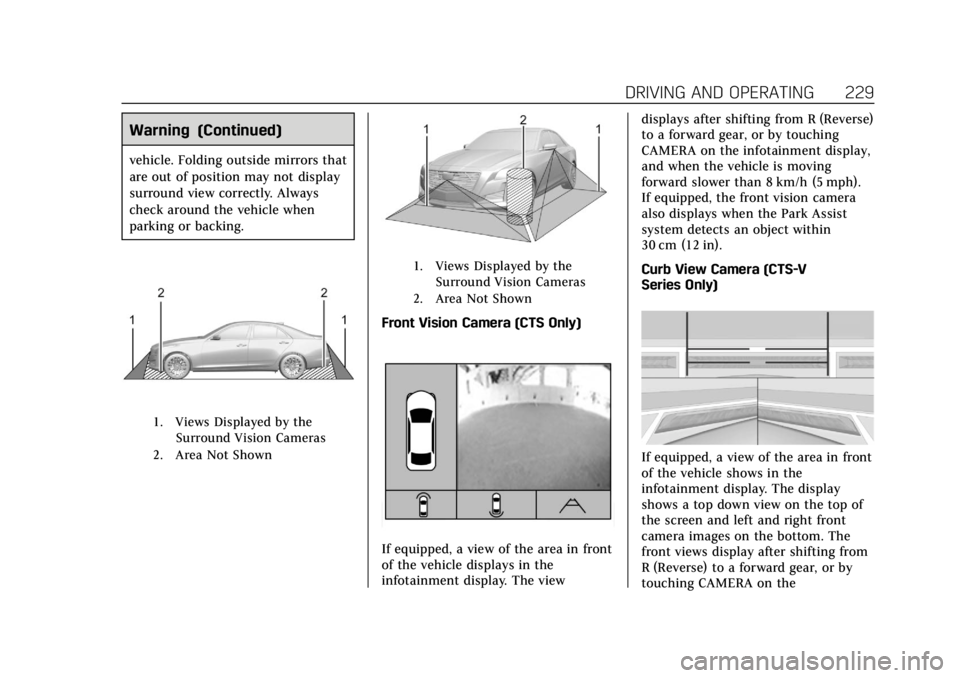
1. Views Displayed by theSurround Vision Cameras
2. Area Not Shown
1. Views Displayed by the Surround Vision Cameras
2. Area Not Shown
Front Vision Camera (CTS Only)
If equipped, a view of the area in front
of the vehicle displays in the
infotainment display. The view displays after shifting from R (Reverse)
to a forward gear, or by touching
CAMERA on the infotainment display,
and when the vehicle is moving
forward slower than 8 km/h (5 mph).
If equipped, the front vision camera
also displays when the Park Assist
system detects an object within
30 cm (12 in).
Curb View Camera (CTS-V
Series Only)
If equipped, a view of the area in front
of the vehicle shows in the
infotainment display. The display
shows a top down view on the top of
the screen and left and right front
camera images on the bottom. The
front views display after shifting from
R (Reverse) to a forward gear, or by
touching CAMERA on the
Page 231 of 401

Cadillac CTS/CTS-V Owner Manual (GMNA-Localizing-U.S./Canada/Mexico-
12460273) - 2019 - CRC - 5/16/18
230 DRIVING AND OPERATING
infotainment display, and when the
vehicle is moving forward slower than
8 km/h (5 mph). If equipped, the front
camera images also display when the
Park Assist system detects an object
within 60 cm (24 in). The front
cameras are on both sides of the front
fascia.
{Warning
The camera(s) do not display
children, pedestrians, bicyclists,
crossing traffic, animals, or any
other object outside of the cameras’
field of view, below the bumper,
or under the vehicle. Shown
distances may be different from
actual distances. Do not drive or
park the vehicle using only these
camera(s). Always check behind and
around the vehicle before driving.
Failure to use proper care may
result in injury, death, or vehicle
damage.Park Assist
With RPA, and if equipped with FPA,
as the vehicle moves at speeds of less
than 8 km/h (5 mph) the sensors on
the bumpers may detect objects up to
2.5 m (8 ft) behind and 1.2 m (4 ft) in
front of the vehicle within a zone
25 cm (10 in) high off the ground and
below bumper level. These detection
distances may be shorter during
warmer or humid weather. Blocked
sensors will not detect objects and
can also cause false detections. Keep
the sensors clean of mud, dirt, snow,
ice, and slush; and clean sensors after
a car wash in freezing temperatures.
{Warning
The Park Assist system does not
detect children, pedestrians,
bicyclists, animals, or objects
located below the bumper or that
are too close or too far from the
vehicle. It is not available at speeds
greater than 8 km/h (5 mph). To
prevent injury, death, or vehicle
(Continued)
Warning (Continued)
damage, even with Park Assist,
always check the area around the
vehicle and check all mirrors before
moving forward or backing.
The instrument cluster may have a
Park Assist display with bars that
show“distance to object ”and object
location information for the Park
Assist system. As the object gets
closer, more bars light up and the bars
change color from yellow to amber
to red.
When an object is first detected in the
rear, one beep will be heard from the
rear, or both sides of the Safety Alert
Seat will pulse two times. When an
Page 233 of 401
Cadillac CTS/CTS-V Owner Manual (GMNA-Localizing-U.S./Canada/Mexico-
12460273) - 2019 - CRC - 5/16/18
232 DRIVING AND OPERATING
accelerator pedal firmly at any time to
override the Reverse Automatic
Braking.
{Warning
There may be instances where
unexpected or undesired automatic
braking occurs. If this happens,
either press the brake pedal or
firmly press the accelerator pedal to
release the brakes from the RAB
system. Before releasing the brakes,
check the RVC and check the area
around the vehicle to make sure it
is safe to proceed.
Rear Cross Traffic Alert (RCTA)
If equipped, RCTA displays a red
warning triangle with a left or right
pointing arrow on the infotainment
display to warn of traffic coming from
the left or right. This system detects
objects coming from up to 20 m (65 ft)
from the left or right side of the
vehicle. When an object is detected,
either three beeps sound from the left
or right or three Safety Alert Seat pulses occur on the left or right side,
depending on the direction of the
detected vehicle.
Use caution while backing up when
towing a trailer, as the RCTA
detection zones that extend out from
the back of the vehicle do not move
further back when a trailer is towed.
Turning the Features On or Off
TheXbutton on the center stack is
used to turn on or off the Front and
Rear Park Assist, Rear Cross Traffic
Alert, Backing Warning, and Reverse
Automatic Braking system at the same
time. The indicator light next to the
button comes on when the features
are on and turns off when the features
have been disabled.
Turn off Park Assist and Reverse
Automatic Braking when towing a
trailer. RCTA can also be turned on or off
through vehicle personalization. See
“Collision/Detection Systems”
under
Vehicle Personalization 0145.
Automatic Parking Assist (APA)
If equipped, APA searches for and
steers the vehicle into parallel and
perpendicular parking spots. When
using APA, you must still shift gears,
and control the brakes and
accelerator. A display and audible
beeps help to guide parking
maneuvers.
{Warning
APA does not apply the brakes. APA
may not detect objects in the
parking space, objects that are soft
or narrow, objects high off the
ground such as flatbed trucks,
or objects below ground level such
as large potholes. Always verify that
the parking space is appropriate for
parking a vehicle. APA does not
respond to changes in the parking
space, such as movement of an
(Continued)
Page 234 of 401

Cadillac CTS/CTS-V Owner Manual (GMNA-Localizing-U.S./Canada/Mexico-
12460273) - 2019 - CRC - 5/16/18
DRIVING AND OPERATING 233
Warning (Continued)
adjacent vehicle, or a person or
object entering the parking space.
APA does not detect or avoid traffic
that is behind or alongside of the
vehicle. Always be prepared to stop
the vehicle during the parking
maneuver.
Press
Oon the center stack to
enable the system to search for a
parking space that is large enough and
within 1.5 m (5 ft) of the vehicle. The
vehicle speed must be below
30 km/h (18 mph). The system cannot:
. Detect whether it is a legal parking
space.
. Park exactly lined up with the
vehicle next to it if the spot is
approached at an angle or if the
parking space is angled.
. Park exactly centered in a spot
that is marked too large.
. Always detect short curbs. When enabled, APA searches for
parallel parking spaces to the right of
the vehicle. To search for a parking
space to the left, turn on the left turn
signal or, if available, change the side
selection in the infotainment display.
To switch the parking mode between
parallel and perpendicular, press and
hold
Oduring the search process or,
if available, change the parking mode
in the infotainment display.
After completely passing a large
enough space, an audible beep occurs
and a red stop symbol is displayed.
If the vehicle is in R (Reverse), but
does not steer into the expected
space, this may be because the system is maneuvering the vehicle into a
previously detected space. The APA
system does not need service.
APA will instruct the vehicle to stop
once a large enough space is found.
Follow the displayed instructions.
When instructed to drive in reverse,
shift to R (Reverse) to engage
automatic steering. The steering wheel
will briefly vibrate as a reminder to
remove hands from the steering
wheel. Check surroundings and
continue braking or accelerating as
needed, and be prepared to stop to
avoid vehicles, pedestrians, or objects.
If the vehicle exceeds 10 km/h
(6 mph), APA is automatically
disengaged and automatic steering
will turn off. A progress arrow displays
Page 364 of 401

Cadillac CTS/CTS-V Owner Manual (GMNA-Localizing-U.S./Canada/Mexico-
12460273) - 2019 - CRC - 5/8/18
CUSTOMER INFORMATION 363
Customer
Information
Customer Information
Customer SatisfactionProcedure . . . . . . . . . . . . . . . . . . . . . . . 363
Customer Assistance Offices . . . . 365
Customer Assistance for Text Telephone (TTY) Users . . . . . . . . . 365
Online Owner Center . . . . . . . . . . . . . 366
GM Mobility Reimbursement Program . . . . . . . . . . . . . . . . . . . . . . . . . 366
Roadside Service . . . . . . . . . . . . . . . . . 367
Scheduling Service Appointments . . . . . . . . . . . . . . . . . . . 369
Courtesy Transportation Program . . . . . . . . . . . . . . . . . . . . . . . . . 369
Collision Damage Repair . . . . . . . . . 370
Publication Ordering Information . . . . . . . . . . . . . . . . . . . . . 372
Radio Frequency Statement . . . . . 373
Reporting Safety Defects
Reporting Safety Defects to the United States Government . . . . . 373
Reporting Safety Defects to the Canadian Government . . . . . . . . . 373 Reporting Safety Defects to
General Motors . . . . . . . . . . . . . . . . . 374
Vehicle Data Recording and
Privacy
Vehicle Data Recording andPrivacy . . . . . . . . . . . . . . . . . . . . . . . . . . . 374
Event Data Recorders . . . . . . . . . . . . 375
OnStar . . . . . . . . . . . . . . . . . . . . . . . . . . . . . 375
Infotainment System . . . . . . . . . . . . . 376
Customer Information
Customer Satisfaction
Procedure
Your satisfaction and goodwill are
important to your dealer and to
Cadillac. Normally, any concerns with
the sales transaction or the operation
of the vehicle will be resolved by your
dealer's sales or service departments.
Sometimes, however, despite the best
intentions of all concerned,
misunderstandings can occur. If your
concern has not been resolved to your
satisfaction, the following steps
should be taken:
STEP ONE : Discuss your concern
with a member of dealership
management. Normally, concerns can
be quickly resolved at that level. If the
matter has already been reviewed with
the sales, service or parts manager,
contact the owner of your dealership
or the general manager.