audio CADILLAC DTS 2011 1.G User Guide
[x] Cancel search | Manufacturer: CADILLAC, Model Year: 2011, Model line: DTS, Model: CADILLAC DTS 2011 1.GPages: 470, PDF Size: 4.72 MB
Page 248 of 470

Black plate (86,1)Cadillac DTS Owner Manual - 2011
DO NOT RESTORE:The customization features will
not be set to their factory default settings.
To select a setting, press the set/reset button while the
desired setting is displayed on the DIC.
Exiting the Feature Settings Menu
The feature settings menu will be exited when any of
the following occurs:
.The vehicle is shifted out of P (Park).
.The vehicle is no longer in ON/RUN.
.The trip/fuel or vehicle information DIC buttons are
pressed.
.The end of the feature settings menu is reached
and exited.
.A 40 second time period has elapsed with no
selection made.
Audio System(s)
Determine which radio the vehicle has and read the
following pages to become familiar with its features.
{WARNING:
Taking your eyes off the road for extended periods
could cause a crash resulting in injury or death to
you or others. Do not give extended attention to
entertainment tasks while driving.
This system provides access to many audio and non
audio listings.
To minimize taking your eyes off the road while driving,
do the following while the vehicle is parked:
.Become familiar with the operation and controls of
the audio system.
.Set up the tone, speaker adjustments, and preset
radio stations.
For more information, see Defensive Driving
on
page 5‑2.
4-86
Page 249 of 470

Black plate (87,1)Cadillac DTS Owner Manual - 2011
Notice:Contact your dealer before adding any
equipment.
Adding audio or communication equipment could
interfere with the operation of the vehicle's engine,
radio, or other systems, and could damage them.
Follow federal rules covering mobile radio and
telephone equipment.
The vehicle has Retained Accessory Power (RAP). With
RAP, the audio system can be played even after the
ignition is turned off. See Retained Accessory Power
(RAP)
on page 3‑24for more information.
Setting the Clock
Radio with a Single CD or a Six-Disc
CD Player
The vehicle has an analog clock as well as the digital
radio clock. At the time of new vehicle delivery, the
digital radio clock display should be disabled. If you
decide to use the digital radio clock as well as the
analog clock, you can change the setting to enable the
radio clock display.
Enabling/Disabling the Digital Radio
Clock
For the Single CD Player
To turn the radio clock display on or off:
1. Turn the radio on.
2. Press the
Hbutton until the clock and date setting
menus appear.
3. Press the pushbutton located under the forward arrow tab until the menu for default clock and date
settings appear.
4. Press the pushbutton located under the currently displayed status of either ON or OFF. The ON
display indicates the radio clock display is disabled
and the OFF display indicates the radio clock
display is enabled. Press this pushbutton to toggle
the radio clock display on or off.
If the radio clock display is turned on, the screen
displays Radio Clock ON for 10 seconds, then
returns to the original clock display menu.
If the radio clock display is turned off, the screen
displays Radio Clock OFF for 10 seconds. The
menus for clock and date settings are removed,
and ON displays as a current status indicating that
the clock display can be turned on, if desired.
4-87
Page 252 of 470
Black plate (90,1)Cadillac DTS Owner Manual - 2011
For the Six-Disc CD Player
To change the time and date default setting:1. Change the time default setting from 12 hour to 24 hour or the date default setting from month/day/
year to day/month/year, by pressing the MENU
button.
2. Once
Hdisplays, press the pushbutton located
under
Huntil the time and date settings display
along with a forward arrow.
3. Press the pushbutton located under the forward arrow tab until the time 12H and 24H, and the date
MM/DD/YYYY (month, day, and year) and DD/MM/
YYYY (day, month, and year) displays.
4. Press the pushbutton located under the desired option, then press the MENU button again to apply
the selected default, or let the screen time out.
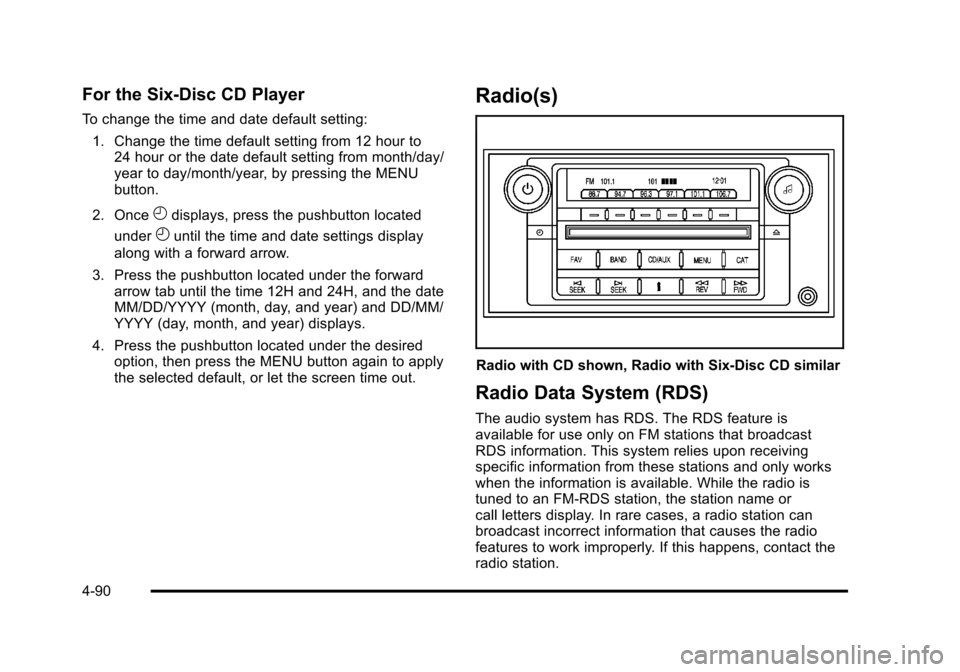
Radio(s)
Radio with CD shown, Radio with Six-Disc CD similar
Radio Data System (RDS)
The audio system has RDS. The RDS feature is
available for use only on FM stations that broadcast
RDS information. This system relies upon receiving
specific information from these stations and only works
when the information is available. While the radio is
tuned to an FM-RDS station, the station name or
call letters display. In rare cases, a radio station can
broadcast incorrect information that causes the radio
features to work improperly. If this happens, contact the
radio station.
4-90
Page 253 of 470
Black plate (91,1)Cadillac DTS Owner Manual - 2011
Playing the Radio
O
(Power/Volume):Press to turn the system on
and off.
Turn to increase or decrease the volume.
Speed Compensated Volume (SCV): Radios with SCV
automatically adjusts the radio volume to compensate
for road and wind noise while driving. That way, the
volume level should sound about the same while
driving. To activate SCV:
1. Set the radio volume to the desired level.
2. Press the MENU button to display the radio setup menu.
3. Press the pushbutton under the AUTO VOLUM (automatic volume) tab on the radio display.
4. Press the pushbutton under the desired Speed Compensated Volume setting (OFF, Low, Med,
or High) to select the level of radio volume
compensation. The display times out after
approximately 10 seconds. Each higher setting
allows for more radio volume compensation at
faster vehicle speeds. AudioPilot
®:
If the vehicle has the Bose®audio
system, it has AudioPilot noise compensation
technology.
To use AudioPilot:
1. Set the radio volume to the desired level.
2. Press the MENU button to display the radio setup menu.
3. Press the pushbutton located under the AUTO VOLUM tab on the radio display.
4. Press the ON or OFF button to turn this feature on or off.
When turned ON, AudioPilot continuously adjusts
the audio system equalization, to compensate for
background noise, so that the music always sounds the
same at the set volume level.
The feature is most effective at lower radio volume
settings where background noise can affect how well
you hear the music being played through the vehicle's
audio system. At high volume settings there might
be little or no adjustments by AudioPilot. For more
information on AudioPilot, visit bose.com/audiopilot.
4-91
Page 256 of 470

Black plate (94,1)Cadillac DTS Owner Manual - 2011
For the Bose amplified radio, perform the following
steps to setup the equalization settings:1. Press the
aknob until the DSP label displays.
2. Press the pushbutton located under the DSP label to get choices of Norm, Driv, Rear, and Surround,
to display.
3. Press the pushbutton located under the desired setting.
To select Surround, press either the fourth or fifth
pushbutton located under the displayed Surround
until Centerpoint displays.
To return to the manual mode, press the tune knob.
Select either BASS, MID, or TREB and start to manually
adjust the settings by turning the
aknob.
Adjusting the Speakers (Balance/Fade)
BAL/FADE (Balance/Fade): To adjust balance or
fade, press the
aknob until the speaker control labels
display. Continue pressing to highlight the desired label,
or press the pushbutton positioned under the desired
label. Turn the
aknob to adjust the highlighted setting.
The highlighted setting can be adjusted by pressing
either SEEK arrow,
\FWD, orsREV buttons until
the desired levels are obtained. To quickly adjust balance or fade to the middle position,
press the pushbutton positioned under the BAL or
FADE label for more than two seconds. A beep sounds
and the level adjusts to the middle position.
To quickly adjust all speaker and tone controls to the
middle position, press the
aknob for more than
two seconds until a beep sounds.
Digital Signal Processing (DSP)
This feature is used to provide a choice of four different
listening experiences. DSP can be used while listening
to the audio system or a CD. To change the DSP mode,
press the
aknob until the DSP control label displays.
Press the pushbutton located under the DSP label until
the control labels display. Continue by pressing the
desired button below the control labels on the display.
For more information on the control label displays, see
the following:
.Norm (Normal): Select this screen button to adjust
the audio for normal mode. This provides the best
sound quality for all seating positions.
.Driv (Driver): Select this screen button to adjust
the audio for the driver to receive the best possible
sound quality.
.Rear: Select this screen button to adjust the audio
for the rear seat passengers to receive the best
possible sound quality.
4-94
Page 257 of 470

Black plate (95,1)Cadillac DTS Owner Manual - 2011
.Surround (Centerpoint®): Select this screen
button to enable Bose®Centerpoint signal
processing circuitry. Centerpoint produces a full
vehicle surround sound listening experience from a
CD, MP3/WMA, or XM stereo digital audio source
and delivers five independent audio channels from
conventional two channel stereo recordings. (Not
available for AM, FM, or auxiliary sources.) For
more details visit www.bose.com/centerpoint.
DSP is only available on vehicles that have the Bose
Premium audio system.
Finding a Category (CAT) Station
CAT (Category): The CAT button is used to find
XM stations while the radio is in the XM mode. To find
XM channels within a desired category, perform the
following:
1. Press the BAND button until the XM frequency displays. Press the CAT button to display the
category tabs. Continue pressing the CAT button
until the desired category name displays. Another
way to select a category is to press the
sREV
or
\FWD button until the desired category is
selected.
2. Press either of the two pushbuttons below the desired category tab to immediately tune to the
first XM station associated with that category. 3. Turn the
aknob, press the pushbuttons below the
displayed right or left arrows, or press either SEEK
arrow to go to the previous or the next XM station
within the selected category.
4. To exit the category search mode, press the FAV button or BAND button to display your favorites
again.
Undesired XM categories can be removed through the
setup menu. To remove an undesired category: 1. Press the MENU button to display the radio setup menu.
2. Press the pushbutton located below the XM CAT tab.
3. Turn the
aknob to display the category to be
removed.
4. Press the pushbutton located under the Remove tab until the category name along with the word
Removed displays.
5. Repeat the steps to remove more categories.
Removed categories can be restored by pressing the
pushbutton under the Add label when a removed
category is displayed or by pressing the pushbutton
under the Restore All label.
The radio does not let you remove or add categories
while the vehicle is moving faster than 5 mph (8 km/h).
4-95
Page 258 of 470

Black plate (96,1)Cadillac DTS Owner Manual - 2011
The CAT button also toggles between compressed and
uncompressed audio when a mixed disc is present. See
“Compressed Audio”later in this section.
Radio Message
Locked:This message displays when the
THEFTLOCK®system has locked up the radio.
Take the vehicle to your dealer for service.
If any error occurs repeatedly or if an error cannot be
corrected, contact your dealer.
XM™ Satellite Radio Service
XM is a satellite radio service that is based in the
48 contiguous United States and 10 Canadian
provinces. XM Satellite Radio has a wide variety
of programming and commercial-free music,
coast-to-coast, and in digital-quality sound. A service
fee is required to receive the XM service. If XM Service
needs to be reactivated, the radio will display “No
Subscription Please Renew” on channel XM1. For more
information, contact XM at www.xmradio.com or call
1-800-929-2100 in the U.S. and www.xmradio.ca or call
1-877-438-9677 in Canada.
Radio Messages for XM™ Only
SeeXM Radio Messageson page 4‑105later in this
section for further detail.
Playing a CD (Single CD Player)
Insert a CD partway into the slot, label side up. The
player pulls it in and the CD should begin playing.
If the ignition or radio is turned off with a CD in the
player, it stays in the player. When the ignition or radio
is turned on, the CD starts playing where it stopped, if it
was the last selected audio source.
When a CD is inserted, the CD symbol displays. As
each new track starts to play the track number displays.
Care of CDs
If playing a CD-R, the sound quality can be reduced
due to CD-R quality, the method of recording, the
quality of the music that has been recorded, and
the way the CD-R has been handled. Handle them
carefully. Store CD-R(s) in their original cases or other
protective cases and away from direct sunlight and
dust. The CD player scans the bottom surface of the
disc. If the surface of a CD is damaged, such as
cracked, broken, or scratched, the CD does not play
properly or not at all. Do not touch the bottom side of a
CD while handling it; this could damage the surface.
Pick up CDs by grasping the outer edges or the edge of
the hole and the outer edge.
4-96
Page 261 of 470

Black plate (99,1)Cadillac DTS Owner Manual - 2011
CD/AUX (CD/Auxiliary):Press to play a CD when
listening to the radio. The CD icon and track number
displays when a CD is in the player. Press again and
the system automatically searches for an auxiliary input
device, such as a portable audio player. If a portable
audio player is not connected, “No Aux Input Device
Found” displays.
Playing an MP3/WMA CD-R or
CD-RW Disc
Radios with the MP3 feature are capable of playing an
MP3/WMA CD-R or CD-RW disc. For more information
on how to play an MP3/WMA CD-R or CD-RW disc, see
Using an MP3
on page 4‑100later in this section.
CD Messages
DISC ERROR: If this message displays and/or the CD
ejects, it could be for one of the following reasons:
.The radio system does not support the playlist
format, the compressed audio format, or the data
file format.
.It is very hot. When the temperature returns to
normal, the CD should play.
.You are driving on a very rough road. When the
road becomes smoother, the CD should play.
.The CD is dirty, scratched, wet, or upside down.
.The air is very humid. If so, wait about an hour and
try again.
.There could have been a problem while burning
the CD.
.The label could be caught in the CD player.
If the CD is not playing correctly, for any other reason,
try a known good CD.
If any error occurs repeatedly or if an error cannot be
corrected, contact your dealer. If the radio displays an
error message, write it down and provide it to your
dealer when reporting the problem.
Using the Auxiliary Input Jack
The radio system has an auxiliary input jack located
on the lower right side of the faceplate. This is not an
audio output; do not plug the headphone set into the
front auxiliary input jack. You can however, connect
an external audio device such as an iPod™, laptop
computer, MP3 player, CD changer, or cassette tape
player, etc. to the auxiliary input jack for use as another
source for audio listening.
Drivers are encouraged to set up any auxiliary device
while the vehicle is in P (Park). See Defensive Driving
on page 5‑2for more information on driver distraction.
4-99
Page 262 of 470

Black plate (100,1)Cadillac DTS Owner Manual - 2011
To use a portable audio player, connect a 3.5 mm
(1/8 inch) cable to the radio's front auxiliary input
jack. When connecting an auxiliary device, the radio
automatically detects the device and“Aux Input Device”
displays. The device begins playing audio over the
vehicle speakers. If an auxiliary device has already
been connected, the device does not begin playing
audio until the radio's CD/AUX button is pressed.
O(Power/Volume): Turn to increase or decrease the
volume of the portable player. You might need to do
additional volume adjustments from the portable device.
BAND: Press to listen to the radio when a portable
audio device is playing. The portable audio device
continues playing, so you might want to stop it or power
it off.
CD/AUX (CD/Auxiliary): Press to play a CD when
a portable audio device is playing. Press again and
the system begins playing audio from the connected
portable audio player. If a portable audio player is not
connected, “No Aux Input Device Found” displays.
Using an MP3
MP3/WMA CD-R or CD-RW Disc
The radio plays MP3 and WMA files that were recorded
on a CD-R or CD-RW disc. The files can be recorded
with the following fixed bit rates: 32 kbps, 40 kbps,
56 kbps, 64 kbps, 80 kbps, 96 kbps, 112 kbps,
128 kbps, 160 kbps, 192 kbps, 224 kbps, 256 kbps, and
320 kbps or a variable bit rate. Song title, artist name,
and album can display when files are recorded using
ID3 tags version 1 and 2.
Compressed Audio
The radio also plays discs that contain both
uncompressed CD audio (.CDA files) and MP3/WMA
files. By default the radio reads only the uncompressed
audio and ignores the MP3/WMA files. Pressing the
CAT button toggles between compressed and
uncompressed audio format.
MP3/WMA Format
If you burn your own MP3/WMA disc on a personal
computer:
.Make sure the MP3/WMA files are recorded on a
CD-R or CD-RW disc.
.Do not mix standard audio and MP3/WMA files on
one disc.
4-100
Page 263 of 470

Black plate (101,1)Cadillac DTS Owner Manual - 2011
.The CD player is able to read and play a maximum
of 50 folders, 50 playlists, and 255 files.
.Create a folder structure that makes it easy to find
songs while driving. Organize songs by albums
using one folder for each album. Each folder or
album should contain 18 songs or less.
.Avoid subfolders. The system can support up to
8 subfolders deep, however, keep the total number
of folders to a minimum in order to reduce the
complexity and confusion in trying to locate a
particular folder during playback.
.Make sure playlists have a .m3u or .wpl extension
(other file extensions might not work).
.Minimize the length of the file, folder or playlist
names. Long file, folder, or playlist names, or a
combination of a large number of files and folders,
or playlists can cause the player to be unable to
play up to the maximum number of files, folders,
playlists, or sessions. If you wish to play a large
number of files, folders, playlists, or sessions,
minimize the length of the file, folder, or playlist
name. Long names also take up more space on
the display, potentially getting cut off.
.Finalize the audio disc before you burn it. Trying to
add music to an existing disc can cause the disc
not to function in the player.Playlists can be changed by using the
S
candc Tfolder buttons, theaknob,
or the SEEK arrows. An MP3/WMA CD-R or CD-RW
that was recorded using no file folders can also be
played. If a CD-R or CD-RW contains more than the
maximum of 50 folders, 50 playlists, and 255 files,
the player lets you access and navigate up to the
maximum, but all items over the maximum cannot be
accessed.
Root Directory
The root directory of the CD-R or CD-RW is treated as a
folder. If the root directory has compressed audio files,
the directory displays as F1 ROOT. All files contained
directly under the root directory are accessed prior to
any root directory folders. However, playlists (Px) are
always accessed before root folders or files.
Empty Directory or Folder
If a root directory or a folder exists somewhere in the
file structure that contains only folders/subfolders and
no compressed files directly beneath them, the player
advances to the next folder in the file structure that
contains compressed audio files. The empty folder does
not display.
4-101