change time CADILLAC DTS 2011 1.G Owner's Manual
[x] Cancel search | Manufacturer: CADILLAC, Model Year: 2011, Model line: DTS, Model: CADILLAC DTS 2011 1.GPages: 470, PDF Size: 4.72 MB
Page 246 of 470

Black plate (84,1)Cadillac DTS Owner Manual - 2011
EASY EXIT RECALL
If your vehicle has this feature, it allows you to select
your preference for the automatic easy exit seat feature.
SeeMemory Seat, Mirrors and Steering Wheel
on
page 2‑6for more information.
Press the customization button until EASY EXIT
RECALL appears on the DIC display. Press the set/
reset button once to access the settings for this feature.
Then press the menu up/down button to scroll through
the following settings:
DOOR BUTTON ONLY: No automatic seat exit recall
will occur. The recall will only occur after pressing the
easy exit seat button.
BUTTON AND KEY OUT (default): If the features are
enabled through the EASY EXIT SETUP menu, the
driver's seat will move back, and if the vehicle has the
power tilt wheel and telescopic steering feature, the
power steering column will move up and forward when
the key is removed from the ignition or after pressing
the easy exit seat button.
The automatic easy exit seat movement will only occur
one time after the key is removed from the ignition.
If the automatic movement has already occurred, and
you put the key back in the ignition and remove it again,
the seat and steering column will stay in the original exit
position, unless a memory recall took place prior to
removing the key again. NO CHANGE:
No change will be made to this feature.
The current setting will remain.
To select a setting, press the set/reset button while the
desired setting is displayed on the DIC.EASY EXIT SETUP
If your vehicle has this feature, it allows you to select
which areas will recall with the automatic easy exit seat
feature. It also allows you to turn off the automatic easy
exit feature. See Memory Seat, Mirrors and Steering
Wheel
on page 2‑6and “EASY EXIT RECALL” earlier
for more information.
Press the customization button until EASY EXIT SETUP
appears on the DIC display. Press the set/reset button
once to access the settings for this feature. Then press
the menu up/down button to scroll through the following
settings:
OFF: No automatic seat exit will recall.
SEAT ONLY: The driver's seat will recall.
TILT ONLY: The steering wheel tilt feature will recall.
TELESCOPE ONLY: The steering column telescope
feature will recall.
SEAT/TILT: The driver's seat and the steering wheel tilt
feature will recall.
SEAT/TELESCOPE: The driver's seat and the steering
column telescope feature will recall.
4-84
Page 249 of 470

Black plate (87,1)Cadillac DTS Owner Manual - 2011
Notice:Contact your dealer before adding any
equipment.
Adding audio or communication equipment could
interfere with the operation of the vehicle's engine,
radio, or other systems, and could damage them.
Follow federal rules covering mobile radio and
telephone equipment.
The vehicle has Retained Accessory Power (RAP). With
RAP, the audio system can be played even after the
ignition is turned off. See Retained Accessory Power
(RAP)
on page 3‑24for more information.
Setting the Clock
Radio with a Single CD or a Six-Disc
CD Player
The vehicle has an analog clock as well as the digital
radio clock. At the time of new vehicle delivery, the
digital radio clock display should be disabled. If you
decide to use the digital radio clock as well as the
analog clock, you can change the setting to enable the
radio clock display.
Enabling/Disabling the Digital Radio
Clock
For the Single CD Player
To turn the radio clock display on or off:
1. Turn the radio on.
2. Press the
Hbutton until the clock and date setting
menus appear.
3. Press the pushbutton located under the forward arrow tab until the menu for default clock and date
settings appear.
4. Press the pushbutton located under the currently displayed status of either ON or OFF. The ON
display indicates the radio clock display is disabled
and the OFF display indicates the radio clock
display is enabled. Press this pushbutton to toggle
the radio clock display on or off.
If the radio clock display is turned on, the screen
displays Radio Clock ON for 10 seconds, then
returns to the original clock display menu.
If the radio clock display is turned off, the screen
displays Radio Clock OFF for 10 seconds. The
menus for clock and date settings are removed,
and ON displays as a current status indicating that
the clock display can be turned on, if desired.
4-87
Page 250 of 470

Black plate (88,1)Cadillac DTS Owner Manual - 2011
The radio clock and analog clock are not synchronized.
Occasionally you might need to set the digital radio
clock using the procedure below to synchronize both
clocks.
For a Six-Disc CD Player
To turn the radio clock display on or off:1. Turn the radio on.
2. Press the MENU button until
His displayed
3. Press the pushbutton located under
Huntil the
clock and date settings appear.
4. Press the pushbutton located under the forward arrow tab until the menu for default clock and date
settings appear.
5. Press the pushbutton located under the currently displayed status of either ON or OFF. The ON
display indicates the radio clock display is disabled
and the OFF display indicates the radio clock
display is enabled. Press this pushbutton to toggle
the radio clock display on or off.
If the radio clock display is turned on, the screen
displays Radio Clock ON for 10 seconds, then
returns to the original clock display menu. If the radio clock display is turned off, the screen
displays Radio Clock OFF for 10 seconds. The
menus for clock and date settings are removed,
and ON displays as a current status indicating that
the clock display can be turned on, if desired.
Setting the Time and Date
For the Single CD Player
This type of radio has aHbutton for setting the time
and date. To set the time and date:
1. Turn the radio on.
2. Press
Hand HR, MIN, MM, DD, YYYY (hour,
minute, month, day, and year) displays.
3. Press the pushbutton located under any one of the tabs that you want to change. Every time the
pushbutton is pressed again, the time or the date if
selected, increases by one.
.Another way to increase the time or date, is to
press the right SEEK arrow or the
\FWD
button.
.To decrease the time or date, press the left
SEEK arrow or the
sREV button. You can
also turn the
aknob, located on the upper
right side of the radio faceplate, to adjust the
selected setting.
4-88
Page 251 of 470

Black plate (89,1)Cadillac DTS Owner Manual - 2011
For a Six-Disc CD Player
This type of radio has a MENU button for setting the
time and date. To set the time and date:1. Turn the radio on.
2. Press the MENU button until
Hoption is displayed.
3. Press the pushbutton located under
Hand the HR,
MIN, MM, DD, YYYY (hour, minute, month, day,
and year) displays.
4. Press the pushbutton located under any one of the tabs that you want to change. Every time the
pushbutton is pressed again, the time or the date if
selected, increases by one.
.Another way to increase the time or date, is to
press the right SEEK arrow or the
\FWD
button.
.To decrease the time or date, press the left
SEEK arrow or the
sREV button. You can
also turn the
aknob, located on the upper
right side of the radio faceplate, to adjust the
selected setting.
Changing the Time and Date Default
Setting
For the Single CD Player
To change the time and date default setting:
1. Change the time default setting from 12 hour to 24 hour or the date default setting from month/day/
year to day/month/year, by pressing the
Hbutton.
2. Once the clock and date settings display along with the forward arrow tab, press the pushbutton
located under the forward arrow tab until the
time 12H and 24H, and the date MM/DD/YYYY
(month, day, and year) and DD/MM/YYYY (day,
month, and year) displays.
3. Press the pushbutton located under the desired option, then press the
Hbutton again to apply the
selected default, or let the screen time out.
4-89
Page 252 of 470
Black plate (90,1)Cadillac DTS Owner Manual - 2011
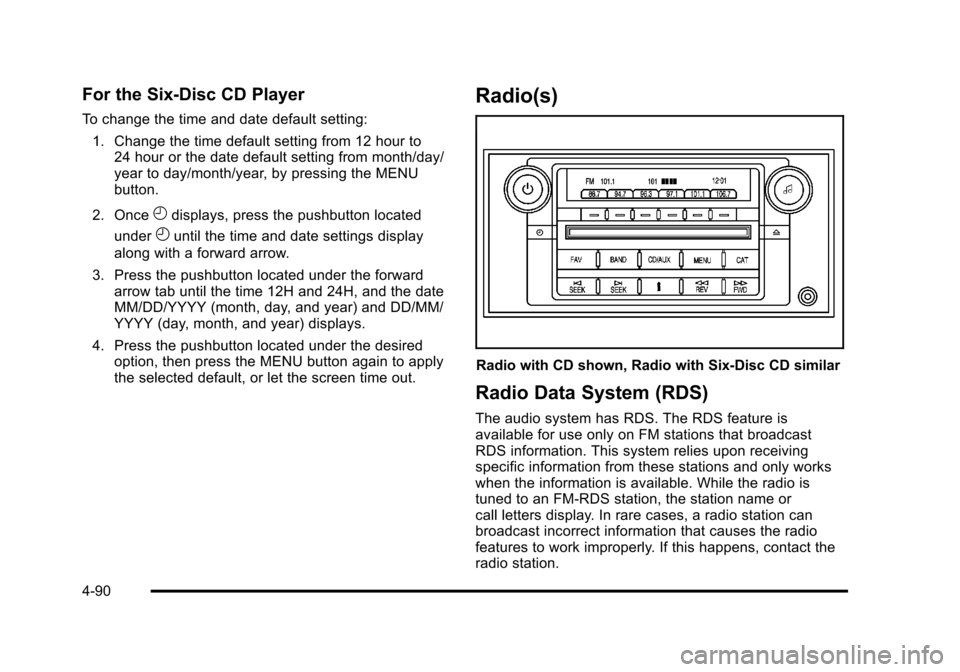
For the Six-Disc CD Player
To change the time and date default setting:1. Change the time default setting from 12 hour to 24 hour or the date default setting from month/day/
year to day/month/year, by pressing the MENU
button.
2. Once
Hdisplays, press the pushbutton located
under
Huntil the time and date settings display
along with a forward arrow.
3. Press the pushbutton located under the forward arrow tab until the time 12H and 24H, and the date
MM/DD/YYYY (month, day, and year) and DD/MM/
YYYY (day, month, and year) displays.
4. Press the pushbutton located under the desired option, then press the MENU button again to apply
the selected default, or let the screen time out.
Radio(s)
Radio with CD shown, Radio with Six-Disc CD similar
Radio Data System (RDS)
The audio system has RDS. The RDS feature is
available for use only on FM stations that broadcast
RDS information. This system relies upon receiving
specific information from these stations and only works
when the information is available. While the radio is
tuned to an FM-RDS station, the station name or
call letters display. In rare cases, a radio station can
broadcast incorrect information that causes the radio
features to work improperly. If this happens, contact the
radio station.
4-90
Page 265 of 470

Black plate (103,1)Cadillac DTS Owner Manual - 2011
Preprogrammed Playlists
Preprogrammed playlists that were created using
WinAmp™, MusicMatch™, or Real Jukebox™software
can be accessed, however, they cannot be edited using
the radio. These playlists are treated as special folders
containing compressed audio song files. Playlists must
have a file extension of PLS, M3U, or WPL.
Playlists can be changed by using the
S candc Tfolder buttons, theaknob,
or the SEEK arrows. Tracks cannot be changed.
Songs are played sequentially; press the
sREV
or
\FWD to reverse or advance through the currently
playing song.
Playing an MP3/WMA
Insert a CD-R or CD-RW partway into the slot
(Single CD Player), or press the load button and wait
for the message to insert disc (Six-Disc CD Player),
label side up. The player pulls it in, and the CD-R or
CD-RW should begin playing.
Z(Eject): Press this button to eject CD-R(s) or
CD-RW(s). To eject the CD-R or CD-RW that is
currently playing, press and release this button. A beep
sounds and Ejecting Disc displays. Once the disc is
ejected, Remove Disc displays. The CD-R or CD-RW
can be removed. If it is not removed, after several
seconds, the CD-R or CD-RW automatically pulls back
into the player and begins playing.
For the Six-Disc CD player, press and hold this button
for two seconds to eject all discs.
a(Tune): Turn this knob to select MP3/WMA files on
the CD-R currently playing.
©SEEK¨: Press the left SEEK arrow to go to the start
of the current MP3/WMA file, if more than ten seconds
have played. Press the right SEEK arrow to go to the
next MP3/WMA file. If either SEEK arrow is held or
pressed multiple times, the player continues moving
backward or forward through MP3/WMA files on the CD.
S c(Previous Folder): Press the pushbutton
positioned under the Folder tab to go to the first track
in the previous folder.
c T(Next Folder): Press the pushbutton positioned
under the Folder tab to go to the first track in the next
folder.
4-103
Page 270 of 470

Black plate (108,1)Cadillac DTS Owner Manual - 2011
Pairing
A Bluetooth cell phone must be paired to the Bluetooth
system and then connected to the vehicle before it can
be used. See your cell phone manufacturers user guide
for Bluetooth functions before pairing the cell phone. If a
Bluetooth phone is not connected, calls will be made
using OnStar
®Hands‐Free Calling, if available. Refer to
the OnStar owner's guide for more information.
Pairing Information
.Up to five cell phones can be paired to the
Bluetooth system.
.The pairing process is disabled when the vehicle is
moving.
.Pairing only needs to be completed once, unless
the pairing information on the cell phone changes
or the cell phone is deleted from the system.
.Only one paired cell phone can be connected to
the Bluetooth system at a time.
.If multiple paired cell phones are within range
of the system, the system connects to the
first available paired cell phone in the order
that they were first paired to the system. To link
to a different paired phone, see “Linking to a
Different Phone” later in this section.
Pairing a Phone
1. Press and holdbgfor two seconds.
2. Say “Bluetooth”.
3. Say “Pair”. The system responds with instructions
and a four‐digit PIN number. The PIN number is
used in Step 5.
4. Start the pairing process on the cell phone that you want to pair. For help with this process, see your
cell phone manufacturers user guide.
5. Locate the device named “Your Vehicle”in the list
on the cell phone. Follow the instructions on the
cell phone to enter the PIN number that was
provided in Step 3. After the PIN number is
successfully entered, the system prompts you to
provide a name for the paired cell phone. This
name will be used to indicate which phones are
paired and connected to the vehicle, see “Listing
All Paired and Connected Phones” later in this
section for more information.
6. Repeat Steps 1 through 5 to pair additional phones.
4-108
Page 271 of 470
Black plate (109,1)Cadillac DTS Owner Manual - 2011
Listing All Paired and Connected Phones
The system can list all cell phones paired to it. If a
paired cell phone is also connected to the vehicle,
the system responds with“is connected”after that
phone name.
1. Press and hold
b gfor two seconds.
2. Say “Bluetooth”.
3. Say “List”.
Deleting a Paired Phone
If the phone name you want to delete is unknown, see
“Listing All Paired and Connected Phones”.
1. Press and hold
b gfor two seconds.
2. Say “Bluetooth”.
3. Say “Delete”. The system asks for which phone to
delete.
4. Say the name of the phone you want to delete.
Connecting to a Different Phone
To connect to a different cell phone, the Bluetooth
system looks for the next available cell phone in the
order in which all the available cell phones were paired.
Depending on which cell phone you want to connect to,
you may have to use this command several times.
1. Press and hold
b gfor two seconds.
2. Say “Bluetooth”.
3. Say “Change phone”.
.If another cell phone is found, the response will
be“
.If another cell phone is not found, the original
phone remains connected.
Storing and Deleting Phone Numbers
The system can store up to 30 phone numbers as name
tags in the Hands Free Directory that is shared between
the Bluetooth and OnStar systems.
The following commands are used delete and store
phone numbers.
Store: This command will store a phone number, or a
group of numbers as a name tag.
Digit Store: This command allows a phone number to
be stored as a name tag by entering the digits one at
a time.
4-109
Page 273 of 470
Black plate (111,1)Cadillac DTS Owner Manual - 2011
Listing Stored Numbers
The list command will list all the stored numbers and
name tags.
Using the“List”Command
1. Press and holdbgfor two seconds.
2. Say “Directory”.
3. Say “Hands Free Calling”.
4. Say “List”.
Making a Call
Calls can be made using the following commands.
Dial or Call: The dial or call command can be used
interchangeably to dial a phone number or a stored
name tag.
Digit Dial: This command allows a phone number to be
dialed by entering the digits one at a time.
Re‐dial: This command is used to dial the last number
used on the cell phone.
Using the “Dial”or“Call” Command
1. Press and holdbgfor two seconds.
2. Say “Dial”or“Call”.
3. Say the entire number without pausing or say the name tag.
Once connected, the person called will be heard
through the audio speakers.
Using the “Digit Dial” Command
The digit dial command allows a phone number to be
dialed by entering the digits one at a time. After each
digit is entered, the system repeats back the digit it
heard followed by a tone.
If an unwanted number is recognized by the system,
say“Clear” at any time to clear the last number.
To hear all of the numbers recognized by the system,
say “Verify” at any time.
1. Press and hold
b gfor two seconds.
2. Say “Digit Dial”.
3. Say each digit, one at a time, that you want to dial. After each digit is entered, the system repeats
back the digit it heard followed by a tone. After the
last digit has been entered, say “Dial”.
Once connected, the person called will be heard
through the audio speakers.
4-111
Page 283 of 470
Black plate (5,1)Cadillac DTS Owner Manual - 2011
ABS can change the brake pressure to each wheel, as
required, faster than any driver could. This can help the
driver steer around the obstacle while braking hard.
As the brakes are applied, the computer keeps
receiving updates on wheel speed and controls braking
pressure accordingly.
Remember: ABS does not change the time needed to
get a foot up to the brake pedal or always decrease
stopping distance. If you get too close to the vehicle in
front of you, there will not be enough time to apply the
brakes if that vehicle suddenly slows or stops. Always
leave enough room up ahead to stop, even with ABS.
Using ABS
Do not pump the brakes. Just hold the brake pedal
down firmly and let antilock work. The antilock pump or
motor operating might be heard and the brake pedal
might be felt to pulsate, but this is normal.
Braking in Emergencies
ABS allows the driver to steer and brake at the same
time. In many emergencies, steering can help more
than even the very best braking.
Brake Assist
This vehicle has a Brake Assist feature designed to
assist the driver in stopping or decreasing vehicle
speed in emergency driving conditions. This feature
uses the stability system hydraulic brake control module
to supplement the power brake system under conditions
where the driver has quickly and forcefully applied the
brake pedal in an attempt to quickly stop or slow down
the vehicle. The stability system hydraulic brake control
module increases brake pressure at each corner of
the vehicle until the ABS activates. Minor brake pedal
pulsations or pedal movement during this time is normal
and the driver should continue to apply the brake pedal
as the driving situation dictates The Brake Assist
feature will automatically disengage when the brake
pedal is released or brake pedal pressure is quickly
decreased.
5-5