ad blue CADILLAC ESCALADE 2009 3.G User Guide
[x] Cancel search | Manufacturer: CADILLAC, Model Year: 2009, Model line: ESCALADE, Model: CADILLAC ESCALADE 2009 3.GPages: 586, PDF Size: 4.47 MB
Page 279 of 586
PROG (Program):Press this button to go to the next
preset radio station or channel set on the main
radio. This function is inactive, with some radios, if the
front seat passengers are listening to the radio.
When a CD or DVD audio disc is playing, press this
button to go to the beginning of the CD or DVD audio.
This function is inactive, with some radios, if the
front seat passengers are listening to the disc.
When a disc is playing in the CD or DVD changer,
press this button to select the next disc, if multiple discs
are loaded. This function is inactive, with some radios,
if the front seat passengers are listening to the disc.
When a DVD video menu is being displayed, press the
PROG button to perform the menu function, enter.
Theft-Deterrent Feature
THEFTLOCK®is designed to discourage theft of the
vehicle’s radio by learning a portion of the Vehicle
Identication Number (VIN). The radio does not operate
if it is stolen or moved to a different vehicle.
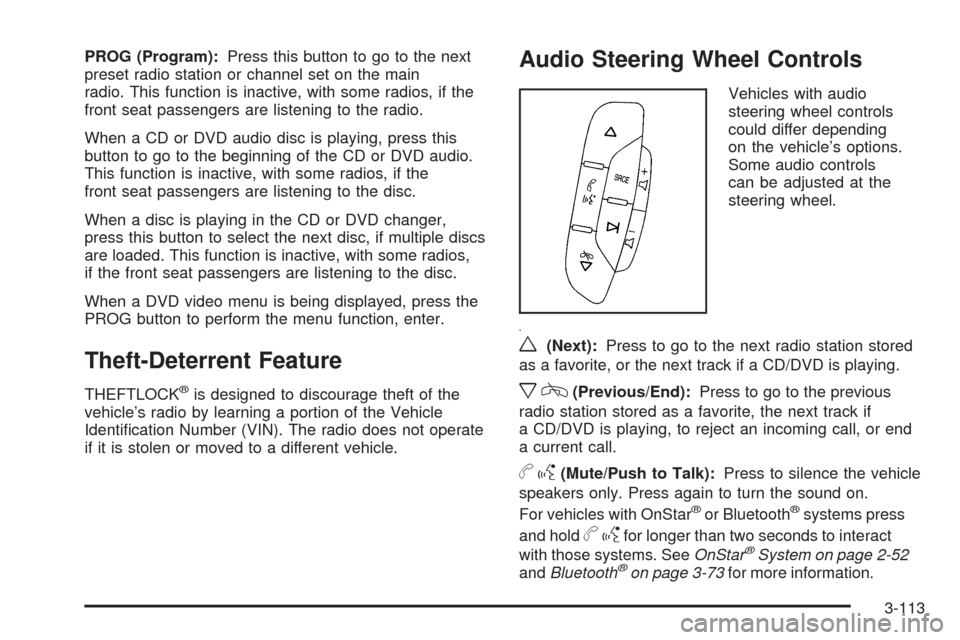
Audio Steering Wheel Controls
Vehicles with audio
steering wheel controls
could differ depending
on the vehicle’s options.
Some audio controls
can be adjusted at the
steering wheel.
w(Next):Press to go to the next radio station stored
as a favorite, or the next track if a CD/DVD is playing.
xc(Previous/End):Press to go to the previous
radio station stored as a favorite, the next track if
a CD/DVD is playing, to reject an incoming call, or end
a current call.
bg(Mute/Push to Talk):Press to silence the vehicle
speakers only. Press again to turn the sound on.
For vehicles with OnStar
®or Bluetooth®systems press
and hold
bgfor longer than two seconds to interact
with those systems. SeeOnStar®System on page 2-52
andBluetooth®on page 3-73for more information.
3-113
Page 285 of 586
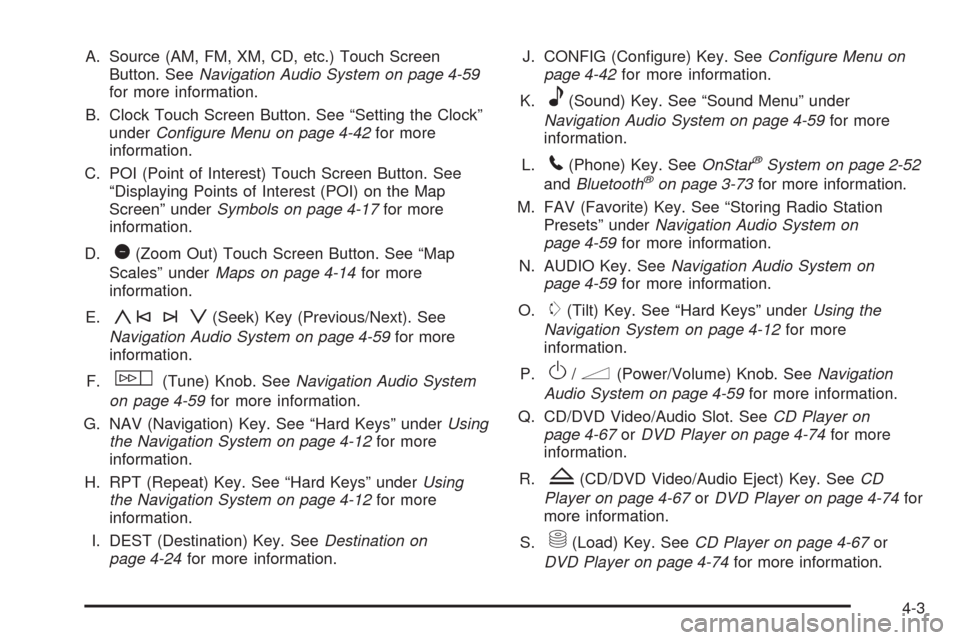
A. Source (AM, FM, XM, CD, etc.) Touch Screen
Button. SeeNavigation Audio System on page 4-59
for more information.
B. Clock Touch Screen Button. See “Setting the Clock”
underConfigure Menu on page 4-42for more
information.
C. POI (Point of Interest) Touch Screen Button. See
“Displaying Points of Interest (POI) on the Map
Screen” underSymbols on page 4-17for more
information.
D.
1(Zoom Out) Touch Screen Button. See “Map
Scales” underMaps on page 4-14for more
information.
E.
y©¨z(Seek) Key (Previous/Next). See
Navigation Audio System on page 4-59for more
information.
F.
w(Tune) Knob. SeeNavigation Audio System
on page 4-59for more information.
G. NAV (Navigation) Key. See “Hard Keys” underUsing
the Navigation System on page 4-12for more
information.
H. RPT (Repeat) Key. See “Hard Keys” underUsing
the Navigation System on page 4-12for more
information.
I. DEST (Destination) Key. SeeDestination on
page 4-24for more information.J. CONFIG (Congure) Key. SeeConfigure Menu on
page 4-42for more information.
K.
e(Sound) Key. See “Sound Menu” under
Navigation Audio System on page 4-59for more
information.
L.
5(Phone) Key. SeeOnStar®System on page 2-52
andBluetooth®on page 3-73for more information.
M. FAV (Favorite) Key. See “Storing Radio Station
Presets” underNavigation Audio System on
page 4-59for more information.
N. AUDIO Key. SeeNavigation Audio System on
page 4-59for more information.
O.
m(Tilt) Key. See “Hard Keys” underUsing the
Navigation System on page 4-12for more
information.
P.
O/n(Power/Volume) Knob. SeeNavigation
Audio System on page 4-59for more information.
Q. CD/DVD Video/Audio Slot. SeeCD Player on
page 4-67orDVD Player on page 4-74for more
information.
R.
Z(CD/DVD Video/Audio Eject) Key. SeeCD
Player on page 4-67orDVD Player on page 4-74for
more information.
S.
M(Load) Key. SeeCD Player on page 4-67or
DVD Player on page 4-74for more information.
4-3
Page 295 of 586
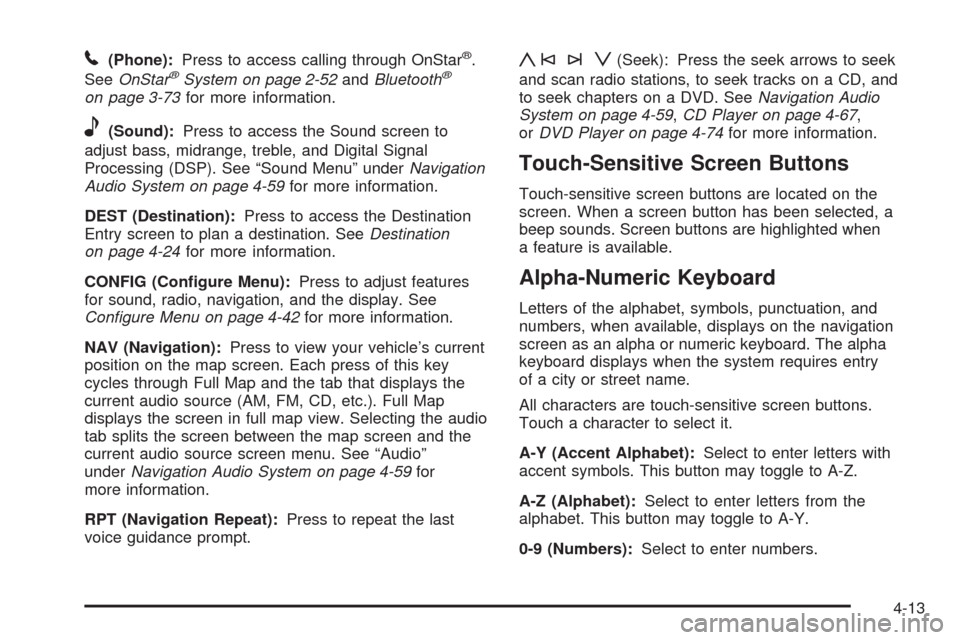
5(Phone):Press to access calling through OnStar®.
SeeOnStar®System on page 2-52andBluetooth®
on page 3-73for more information.
e(Sound):Press to access the Sound screen to
adjust bass, midrange, treble, and Digital Signal
Processing (DSP). See “Sound Menu” underNavigation
Audio System on page 4-59for more information.
DEST (Destination):Press to access the Destination
Entry screen to plan a destination. SeeDestination
on page 4-24for more information.
CONFIG (Congure Menu):Press to adjust features
for sound, radio, navigation, and the display. See
Configure Menu on page 4-42for more information.
NAV (Navigation):Press to view your vehicle’s current
position on the map screen. Each press of this key
cycles through Full Map and the tab that displays the
current audio source (AM, FM, CD, etc.). Full Map
displays the screen in full map view. Selecting the audio
tab splits the screen between the map screen and the
current audio source screen menu. See “Audio”
underNavigation Audio System on page 4-59for
more information.
RPT (Navigation Repeat):Press to repeat the last
voice guidance prompt.
y©¨z(Seek): Press the seek arrows to seek
and scan radio stations, to seek tracks on a CD, and
to seek chapters on a DVD. SeeNavigation Audio
System on page 4-59,CD Player on page 4-67,
orDVD Player on page 4-74for more information.
Touch-Sensitive Screen Buttons
Touch-sensitive screen buttons are located on the
screen. When a screen button has been selected, a
beep sounds. Screen buttons are highlighted when
a feature is available.
Alpha-Numeric Keyboard
Letters of the alphabet, symbols, punctuation, and
numbers, when available, displays on the navigation
screen as an alpha or numeric keyboard. The alpha
keyboard displays when the system requires entry
of a city or street name.
All characters are touch-sensitive screen buttons.
Touch a character to select it.
A-Y (Accent Alphabet):Select to enter letters with
accent symbols. This button may toggle to A-Z.
A-Z (Alphabet):Select to enter letters from the
alphabet. This button may toggle to A-Y.
0-9 (Numbers):Select to enter numbers.
4-13
Page 303 of 586
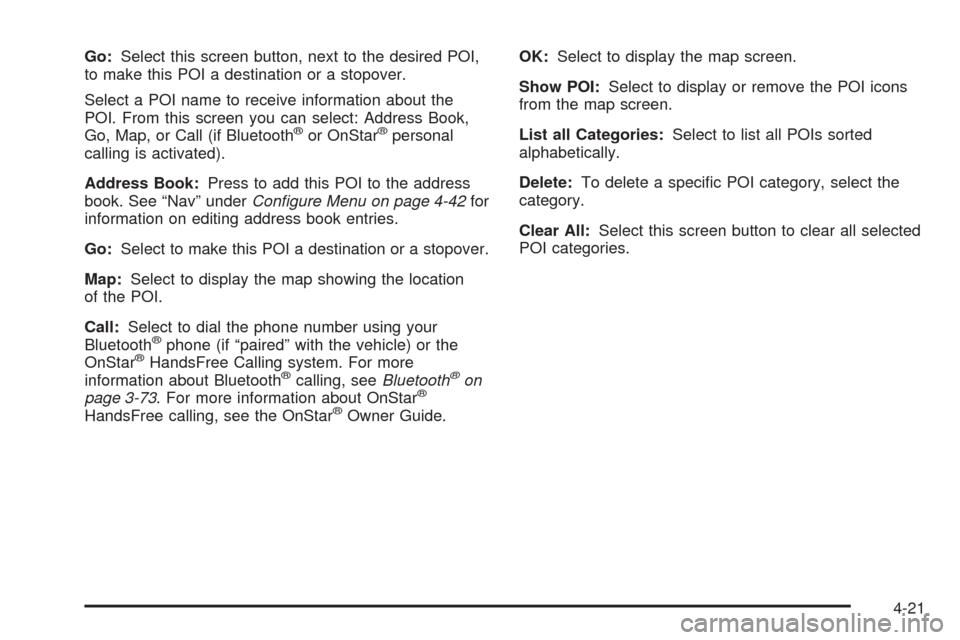
Go:Select this screen button, next to the desired POI,
to make this POI a destination or a stopover.
Select a POI name to receive information about the
POI. From this screen you can select: Address Book,
Go, Map, or Call (if Bluetooth
®or OnStar®personal
calling is activated).
Address Book:Press to add this POI to the address
book. See “Nav” underConfigure Menu on page 4-42for
information on editing address book entries.
Go:Select to make this POI a destination or a stopover.
Map:Select to display the map showing the location
of the POI.
Call:Select to dial the phone number using your
Bluetooth
®phone (if “paired” with the vehicle) or the
OnStar®HandsFree Calling system. For more
information about Bluetooth®calling, seeBluetooth®on
page 3-73. For more information about OnStar®
HandsFree calling, see the OnStar®Owner Guide.OK:Select to display the map screen.
Show POI:Select to display or remove the POI icons
from the map screen.
List all Categories:Select to list all POIs sorted
alphabetically.
Delete:To delete a specic POI category, select the
category.
Clear All:Select this screen button to clear all selected
POI categories.
4-21
Page 316 of 586
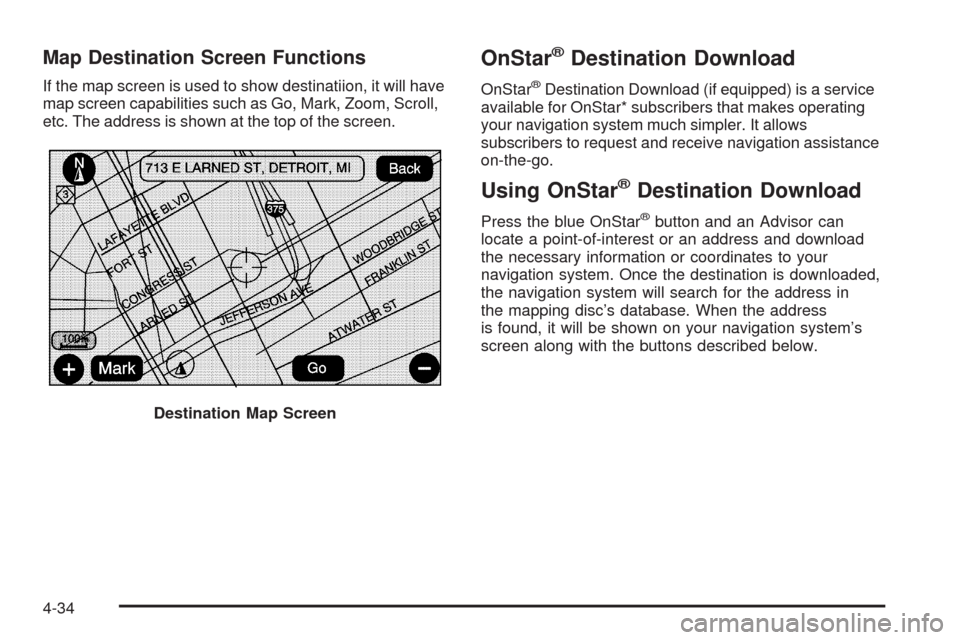
Map Destination Screen Functions
If the map screen is used to show destinatiion, it will have
map screen capabilities such as Go, Mark, Zoom, Scroll,
etc. The address is shown at the top of the screen.
OnStar®Destination Download
OnStar®Destination Download (if equipped) is a service
available for OnStar* subscribers that makes operating
your navigation system much simpler. It allows
subscribers to request and receive navigation assistance
on-the-go.
Using OnStar®Destination Download
Press the blue OnStar®button and an Advisor can
locate a point-of-interest or an address and download
the necessary information or coordinates to your
navigation system. Once the destination is downloaded,
the navigation system will search for the address in
the mapping disc’s database. When the address
is found, it will be shown on your navigation system’s
screen along with the buttons described below.
Destination Map Screen
4-34
Page 317 of 586
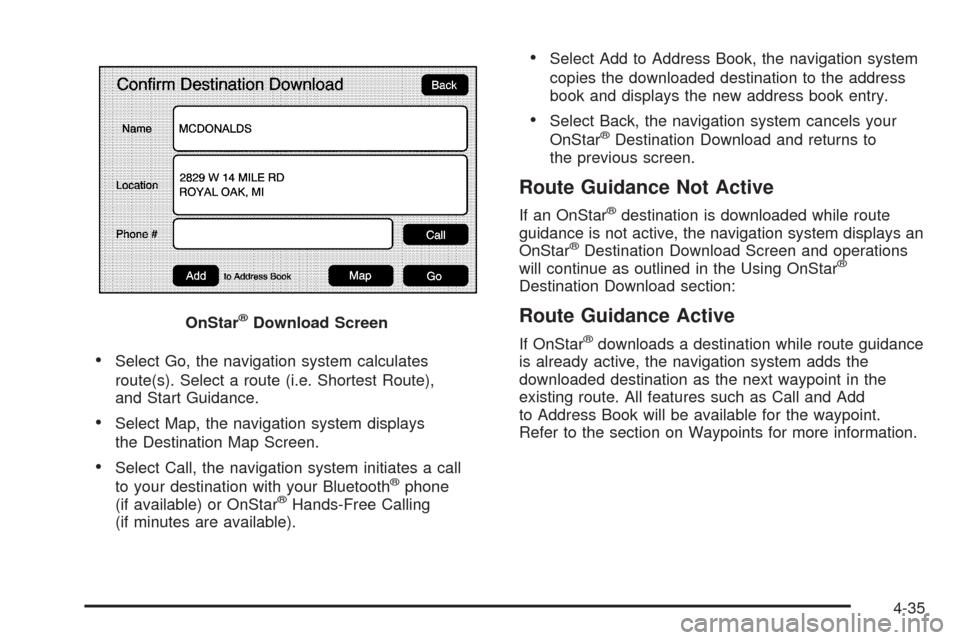
Select Go, the navigation system calculates
route(s). Select a route (i.e. Shortest Route),
and Start Guidance.
Select Map, the navigation system displays
the Destination Map Screen.
Select Call, the navigation system initiates a call
to your destination with your Bluetooth®phone
(if available) or OnStar®Hands-Free Calling
(if minutes are available).
Select Add to Address Book, the navigation system
copies the downloaded destination to the address
book and displays the new address book entry.
Select Back, the navigation system cancels your
OnStar®Destination Download and returns to
the previous screen.
Route Guidance Not Active
If an OnStar®destination is downloaded while route
guidance is not active, the navigation system displays an
OnStar
®Destination Download Screen and operations
will continue as outlined in the Using OnStar®
Destination Download section:
Route Guidance Active
If OnStar®downloads a destination while route guidance
is already active, the navigation system adds the
downloaded destination as the next waypoint in the
existing route. All features such as Call and Add
to Address Book will be available for the waypoint.
Refer to the section on Waypoints for more information. OnStar
®Download Screen
4-35
Page 318 of 586
Previous Destinations
Previous OnStar®Destination Downloads are saved
under Previous Destinations in the navigation
system where they can be accessed or saved
to the address book.
Important Notes regarding OnStar
®Destination
Download:
If the navigation system is turned off when the
destination download is attempted, the navigation
system will automatically turn on and display
the OnStar
®Destination Download Screen. The
radio will remain on after the download occurs.
If OnStar®downloads a destination and the address
is not found in the mapping disc’s database and
routing by coordinates is not available, the Go and
Map buttons gray out and routing will not be
available. Press the blue OnStar
®button for further
assistance.
The Call button grays out when there is no phone
number available for your destination and while
connected to OnStar
®.
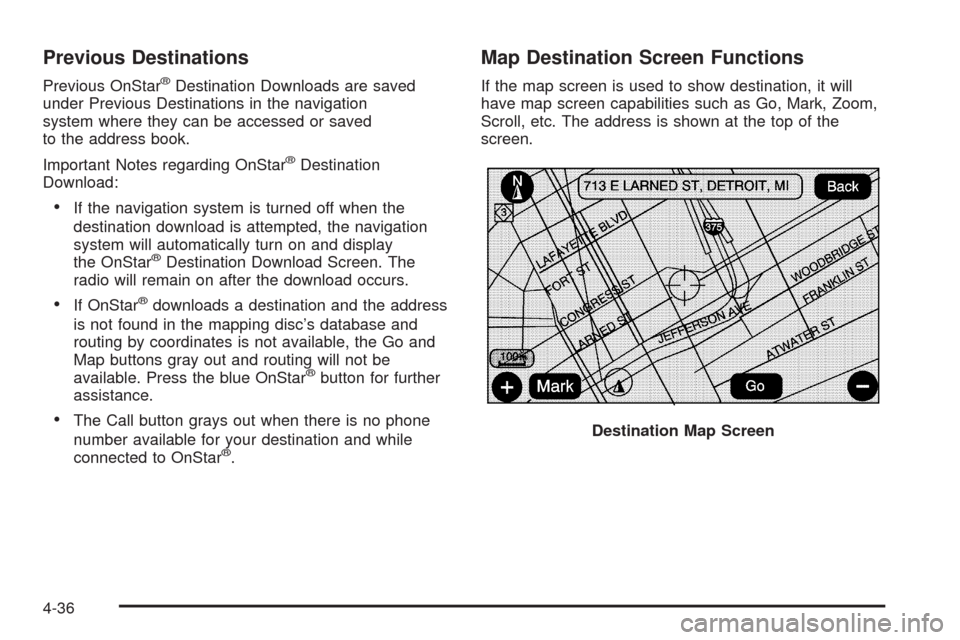
Map Destination Screen Functions
If the map screen is used to show destination, it will
have map screen capabilities such as Go, Mark, Zoom,
Scroll, etc. The address is shown at the top of the
screen.
Destination Map Screen
4-36
Page 422 of 586
Maintenance When Trailer Towing
The vehicle needs service more often when pulling a
trailer. See this manual’s Maintenance Schedule
or Index for more information. Things that are especially
important in trailer operation are automatic transmission
uid, engine oil, axle lubricant, belts, cooling system
and brake system. It is a good idea to inspect
these before and during the trip.
Check periodically to see that all hitch nuts and bolts
are tight.
Trailer Wiring Harness
Heavy-Duty Trailer Wiring Package
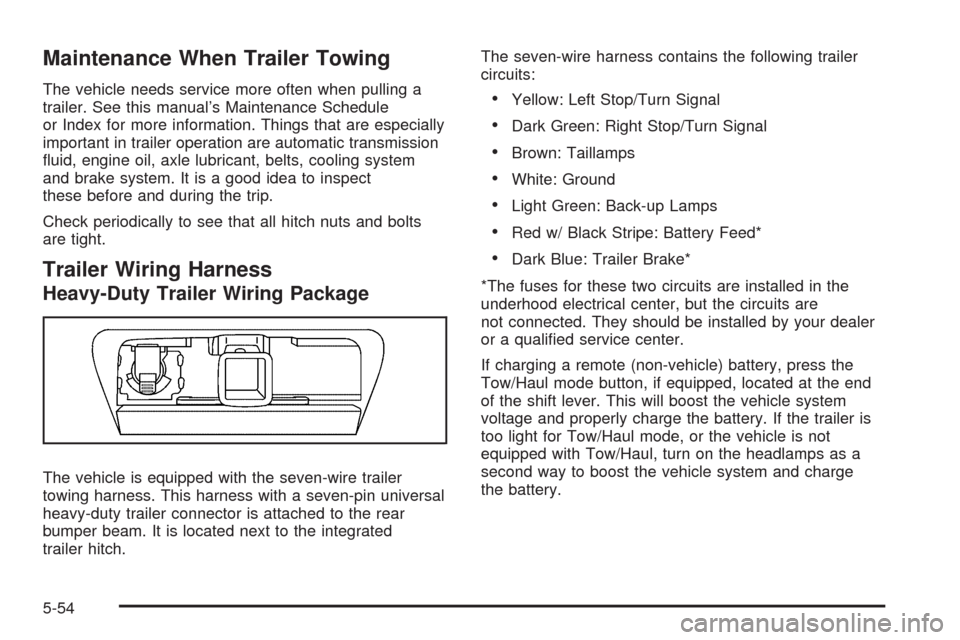
The vehicle is equipped with the seven-wire trailer
towing harness. This harness with a seven-pin universal
heavy-duty trailer connector is attached to the rear
bumper beam. It is located next to the integrated
trailer hitch.The seven-wire harness contains the following trailer
circuits:
Yellow: Left Stop/Turn Signal
Dark Green: Right Stop/Turn Signal
Brown: Taillamps
White: Ground
Light Green: Back-up Lamps
Red w/ Black Stripe: Battery Feed*
Dark Blue: Trailer Brake*
*The fuses for these two circuits are installed in the
underhood electrical center, but the circuits are
not connected. They should be installed by your dealer
or a qualied service center.
If charging a remote (non-vehicle) battery, press the
Tow/Haul mode button, if equipped, located at the end
of the shift lever. This will boost the vehicle system
voltage and properly charge the battery. If the trailer is
too light for Tow/Haul mode, or the vehicle is not
equipped with Tow/Haul, turn on the headlamps as a
second way to boost the vehicle system and charge
the battery.
5-54
Page 423 of 586
Electric Brake Control Wiring
Provisions
These wiring provisions are included with the vehicle as
part of the heavy-duty trailer wiring package. These
provisions are for an electric brake controller. The
red/black stripe power feed will not be connected to the
battery until the ring terminal is unstowed and connected
to the underhood electrical center. The instrument panel
contains blunt cut wires near the data link connector for
the trailer brake controller. The harness contains the
following wires:
Dark Blue: Auxiliary
Red/Black: Battery
Light Blue/White: Brake Switch
White: Ground
The trailer brake controller should be installed by your
dealer/retailer or a qualied service center.
Trailer Recommendations
Subtract the hitch loads from the Cargo Weight Rating
(CWR). CWR is the maximum weight of the load
the vehicle can carry. It does not include the weight of
the people inside, but you can gure about 150 lbs.
(68 kg) for each passenger. The total cargo load must
not be more than the vehicles CWR.
Weigh the vehicle with the trailer attached, so the
GVWR or GAWR are not exceeded. If using a
weight-distributing hitch, weigh the vehicle without the
spring bars in place.
The best performance is obtained by correctly spreading
out the weight of the load and choosing the correct
hitch and trailer brakes.
For more information seeTowing a Trailer on page 5-42.
5-55
Page 574 of 586
Audio System.........................................3-72, 4-59
Audio Steering Wheel Controls....................3-113
Radio Reception........................................3-114
Rear Seat Audio (RSA)...............................3-111
Theft-Deterrent Feature...............................3-113
XM™ Satellite Radio Antenna System...........3-115
Audio System(s)
Rear Side Window Antenna.........................3-115
Automatic Headlamp System............................3-19
Automatic Transmission
Fluid..........................................................6-21
Operation...................................................2-29
Autoride
®.......................................................5-42
B
Battery..........................................................6-39
Electric Power Management..........................3-22
Run-Down Protection...................................3-23
Bench Seat, Split (60/40).................................1-10
Bluetooth
®.....................................................3-73
Brake
Emergencies................................................ 5-6
Brake Fluid....................................................6-36
Brakes..........................................................6-36
System Warning Light..................................3-37
Braking........................................................... 5-4
Braking in Emergencies..................................... 5-6
Break-In, New Vehicle.....................................2-24Bucket Seats, Rear.........................................1-16
Bulb Replacement...........................................6-50
Back-Up Lamps...........................................6-51
Headlamp Aiming........................................6-48
High Intensity Discharge (HID) Lighting...........6-51
License Plate Lamps....................................6-53
Replacement Bulbs......................................6-53
Buying New Tires...........................................6-70
C
Calibration.....................................................3-51
California Fuel.................................................. 6-6
California Perchlorate Materials Requirements....... 6-4
California Proposition 65 Warning....................... 6-4
Canadian Owners................................................ ii
Capacities and Specications..........................6-110
Carbon Monoxide...................2-12, 2-14, 2-38, 5-28
Care of
Safety Belts................................................6-97
Center Console Storage Area...........................2-63
Center Seat...................................................1-10
Chains, Tire...................................................6-75
Charging System Light....................................3-36
Check
Engine Lamp..............................................3-40
Checking Things Under the Hood......................6-12
Chemical Paint Spotting.................................6-101
2