audio CADILLAC ESCALADE 2011 3.G User Guide
[x] Cancel search | Manufacturer: CADILLAC, Model Year: 2011, Model line: ESCALADE, Model: CADILLAC ESCALADE 2011 3.GPages: 558, PDF Size: 7.59 MB
Page 142 of 558
Black plate (4,1)Cadillac Escalade/Escalade ESV Owner Manual - 2011
5-4 Instruments and Controls
Navigating an iPod or USB Device
on the Main Audio Screen
(Vehicles with a Navigation
System)
1. Press and release
worcx
to select the next or previous
track within the selected
category.
2. Press and hold
worc xto
move quickly through the tracks.
3. Press and release
¨to move up
one track within the selected
category. Navigating an iPod or USB Device
on the Music Navigator Screen
(Vehicles with a Navigation
System)
1. Press and release
worc
x
to select the next or previous
track within the selected
category.
2. Press and hold
worc xto
move quickly through the tracks
within the selected category.
3. Press and release
¨to move up
one track within the selected
category.
b g(Mute/Push to Talk): Press to
silence the vehicle speakers only.
Press again to turn the sound on. For vehicles with Bluetooth or
OnStar systems, press and hold
for longer than two seconds to
interact with those systems.
See
Bluetooth on page 7‑102
and the OnStar Owner's Guide
for more information.
c x(End): Press to reject an
incoming call, or end a current call.
SRCE (Source/Voice
Recognition): Press to switch
between the radio and CD, and
for equipped vehicles, the DVD,
front auxiliary, and rear auxiliary.
For vehicles with the navigation
system, press and hold this
button for longer than one second
to initiate voice recognition.
See “Voice Recognition” in the
Navigation System manual for
more information.
Page 169 of 558
Black plate (31,1)Cadillac Escalade/Escalade ESV Owner Manual - 2011
Instruments and Controls 5-31
Vehicle Messages
Messages displayed on the DIC
indicate the status of the vehicle
or some action may be needed
to correct a condition. Multiple
messages may appear one after
another.
The messages that do not
require immediate action can
be acknowledge and cleared
by pressing any DIC button.
The messages that require
immediate action cannot be cleared
until that action is performed.
All messages should be taken
seriously and clearing the message
does not correct the problem.
The following are the possible
messages and some information
about them.
Battery Voltage and
Charging Messages
BATTERY LOW START
VEHICLE
When the vehicle’s battery
is severely discharged, this
message will display and four
chimes will sound. Start the vehicle
immediately. If the vehicle is not
started and the battery continues
to discharge, the climate controls,
heated seats, and audio systems
will shut off and the vehicle may
require a jump start. These systems
will function again after the vehicle
is started.
SERVICE BATTERY
CHARGING SYSTEM
On some vehicles, this message
displays if there is a problem
with the battery charging system.
Under certain conditions, the charging system light may also turn
on in the instrument panel cluster.
See
Charging System Light on
page 5‑18. Driving with this problem
could drain the battery. Turn off all
unnecessary accessories. Have the
electrical system checked as soon
as possible. See your dealer.
Brake System Messages
SERVICE BRAKE SYSTEM
This message displays along with
the brake system warning light if
there is a problem with the brake
system. See Brake System Warning
Light on page 5‑21. If this message
appears, stop as soon as possible
and turn off the vehicle. Restart the
vehicle and check for the message
on the DIC display. If the message
is still displayed or appears again
when you begin driving, the brake
system needs service as soon as
possible. See your dealer.
Page 207 of 558
Black plate (1,1)Cadillac Escalade/Escalade ESV Owner Manual - 2011
Infotainment System 7-1
Infotainment
System
Introduction
Introduction . . . . . . . . . . . . . . . . . . . 7-2
Theft-Deterrent Feature . . . . . . . 7-3
Overview . . . . . . . . . . . . . . . . . . . . . . 7-3
Radio
AM-FM Radio . . . . . . . . . . . . . . . . 7-10
Satellite Radio . . . . . . . . . . . . . . . 7-16
Radio Reception . . . . . . . . . . . . . 7-17
Rear Side WindowAntenna . . . . . . . . . . . . . . . . . . . . 7-18
Satellite Radio Antenna . . . . . . 7-18
Audio Players
CD/DVD Player . . . . . . . . . . . . . . 7-19
MP3 . . . . . . . . . . . . . . . . . . . . . . . . . 7-28
Auxiliary Devices . . . . . . . . . . . . 7-31
Rear Seat Infotainment
Rear Seat Entertainment (RSE) System
(Overhead) . . . . . . . . . . . . . . . . . 7-33
Rear Seat Entertainment (RSE) System
(Headrest DVD) . . . . . . . . . . . . 7-43
Rear Seat Audio (RSA) System . . . . . . . . . . . . . . . . . . . . . 7-58
Navigation
Using the NavigationSystem . . . . . . . . . . . . . . . . . . . . . 7-60
Maps . . . . . . . . . . . . . . . . . . . . . . . . 7-62
Navigation Symbols . . . . . . . . . 7-64
Destination . . . . . . . . . . . . . . . . . . 7-69
Configure Menu . . . . . . . . . . . . . 7-83
Global Positioning System (GPS) . . . . . . . . . . . . . . 7-96
Vehicle Positioning . . . . . . . . . . 7-97
Problems with Route Guidance . . . . . . . . . . . . . . . . . . . 7-97 If the System Needs
Service . . . . . . . . . . . . . . . . . . . . . 7-98
Map Data Updates . . . . . . . . . . . 7-98
Database Coverage Explanations . . . . . . . . . . . . . . . 7-98
Voice Recognition
Voice Recognition . . . . . . . . . . . 7-99
Phone
Bluetooth . . . . . . . . . . . . . . . . . . . 7-102
Page 208 of 558
Black plate (2,1)Cadillac Escalade/Escalade ESV Owner Manual - 2011
7-2 Infotainment System
Introduction
Read this manual thoroughly to
become familiar with how the
navigation system operates.
The navigation system includes
navigation and audio functions.
Keeping your eyes on the road
and your mind on the drive is
important for safe driving. The
navigation system has built-in
features intended to help keep
your eyes on the road and mind on
the drive. A few features may be
disabled while driving. Note that
these functions will be grayed-out.
A grayed-out function indicates it is
not available when the vehicle is
moving.All functions are available when the
vehicle is parked. Do the following
before driving:
.Become familiar with the
navigation system operation,
control buttons on the faceplate,
and touch-sensitive screen
buttons of the navigation
system.
.Set up the audio by presetting
favorite stations, setting the
tone, and adjusting the
speakers.
.Set up the navigation features
before beginning driving, such
as entering an address or a
preset destination.
.Set up your phone numbers
in advance so they can be
called easily with the press
of a single button or a single
voice command (for navigation
systems equipped with phone
capability).
{WARNING
Taking your eyes off the road too
long or too often while using the
navigation system could cause a
crash resulting in injury or death
to you or others. Focus your
attention on driving.
{WARNING
Avoid looking too long or too
often at the moving map on the
navigation screen. This could
cause a crash and you or others
can be injured or killed. Use the
turn-by-turn voice guidance
directions whenever possible.
Page 210 of 558
Black plate (4,1)Cadillac Escalade/Escalade ESV Owner Manual - 2011
7-4 Infotainment System
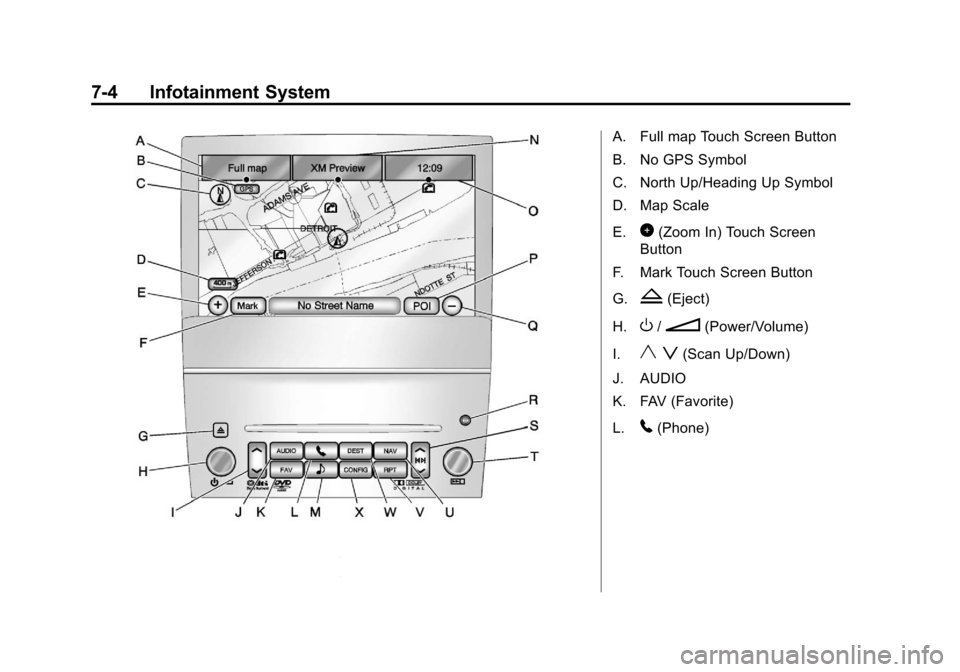
A. Full map Touch Screen Button
B. No GPS Symbol
C. North Up/Heading Up Symbol
D. Map Scale
E.
0(Zoom In) Touch Screen
Button
F. Mark Touch Screen Button
G.
Z(Eject)
H.
O/n(Power/Volume)
I.
y z(Scan Up/Down)
J. AUDIO
K. FAV (Favorite)
L.
5(Phone)
Page 212 of 558
Black plate (6,1)Cadillac Escalade/Escalade ESV Owner Manual - 2011
7-6 Infotainment System
Storing Radio Station Presets
To set preset radio stations, do the
following:
1. Press
Oto turn the system on.
2. Press the AUDIO control button and select the desired band
(AM, FM, or XM (if equipped)).
3. Use the
w(tuning) knob or
the SEEK arrows to tune to the
desired station.
4. Press and hold one of the five preset screen buttons, at the
bottom of the screen, until a
beep is heard.
5. Repeat the steps for each preset.
See “Storing Radio Station Presets”
under AM-FM Radio on page 7‑10
for more information.
Setting the Clock
The navigation system time and the
analog clock operate independently.
Changing the time through the
navigation system does not change
the time on the analog clock.
See Clock on page 5‑8 to
change the analog clock time.
To set the time for the navigation
system:
1. Press the CONFIG control
button to enter the configure
menu options, then press
CONFIG again, repeatedly
until the time is selected or
touch the time screen button.
2. Press the Hours and Minutes −(minus) and + (plus) signs to
decrease or to increase the time.
See “Setting the Clock” under
Configure Menu on page 7‑83
for more information.
Entering an Address and Point
of Interest, and Storing Preset
Destinations
Entering an Address
Enter a destination by inputting the
city name first:
1. Press
Oto turn the system on.
2. A caution may appear. Press OK to proceed.
3. Press the DEST control button.
4. Press
2(Address Entry).
5. Select the state/province screen button, if needed, to change the
current state or province. A list
of all of the available states and
provinces appear. Select the
state or province.
Page 216 of 558
Black plate (10,1)Cadillac Escalade/Escalade ESV Owner Manual - 2011
7-10 Infotainment System
Radio
AM-FM Radio
Notice:Before adding any
sound equipment to the vehicle,
such as an audio system,
CD player, CB radio, mobile
telephone, or two-way radio,
make sure that it can be added
by checking with your dealer.
Also, check federal rules
covering mobile radio and
telephone units. If sound
equipment can be added, it is
very important to do it properly.
Added sound equipment can
interfere with the operation of
the vehicle's engine, radio,
or other systems, and even
damage them. The vehicle's
systems can interfere with the
operation of sound equipment
that has been added. Notice:
The chime signals
related to safety belts, parking
brake, and other functions
of the vehicle operate through
the navigation system. If that
equipment is replaced or
additional equipment is added
to the vehicle, the chimes
may not work. Make sure that
replacement or additional
equipment is compatible with the
vehicle before installing it. See
“Accessories and Modifications”
in the vehicle's owner manual.
Playing the Radio
O/n(Power/Volume):
1. Press to turn the audio system on and off.
2. Turn to increase or to decrease the volume. 3. Press and hold for more than
two seconds to turn off the
navigation system, the Rear
Seat Entertainment (RSE) video
screen, and Rear Seat Audio
(RSA). If the vehicle has not
been turned off, press this knob
to turn RSE and RSA back on
and to continue playback of the
last active source.
w(Tuning Knob): Turn to go to
the next or previous frequency or
disc track or chapter. See CD/DVD
Player on page 7‑19 orMP3 on
page 7‑28 for more information.
AUDIO: Press to display the audio
screen. Press to switch between
AM, FM, or XM, if equipped, Disc,
or AUX (Auxiliary), or touch the
screen button. See CD/DVD Player
on page 7‑19, MP3 on page 7‑28,
and Auxiliary Devices on page 7‑31
for more information.
Page 217 of 558
Black plate (11,1)Cadillac Escalade/Escalade ESV Owner Manual - 2011
Infotainment System 7-11
Finding a Station
AM Source Shown, Other SourcesSimilar
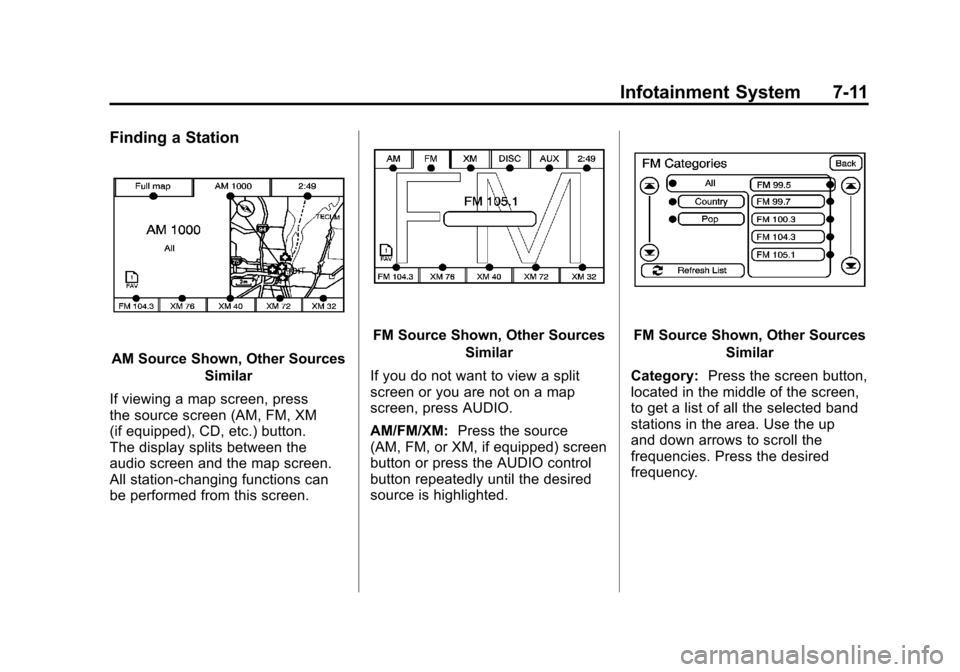
If viewing a map screen, press
the source screen (AM, FM, XM
(if equipped), CD, etc.) button.
The display splits between the
audio screen and the map screen.
All station-changing functions can
be performed from this screen.
FM Source Shown, Other Sources Similar
If you do not want to view a split
screen or you are not on a map
screen, press AUDIO.
AM/FM/XM: Press the source
(AM, FM, or XM, if equipped) screen
button or press the AUDIO control
button repeatedly until the desired
source is highlighted.FM Source Shown, Other Sources
Similar
Category: Press the screen button,
located in the middle of the screen,
to get a list of all the selected band
stations in the area. Use the up
and down arrows to scroll the
frequencies. Press the desired
frequency.
Page 218 of 558
Black plate (12,1)Cadillac Escalade/Escalade ESV Owner Manual - 2011
7-12 Infotainment System
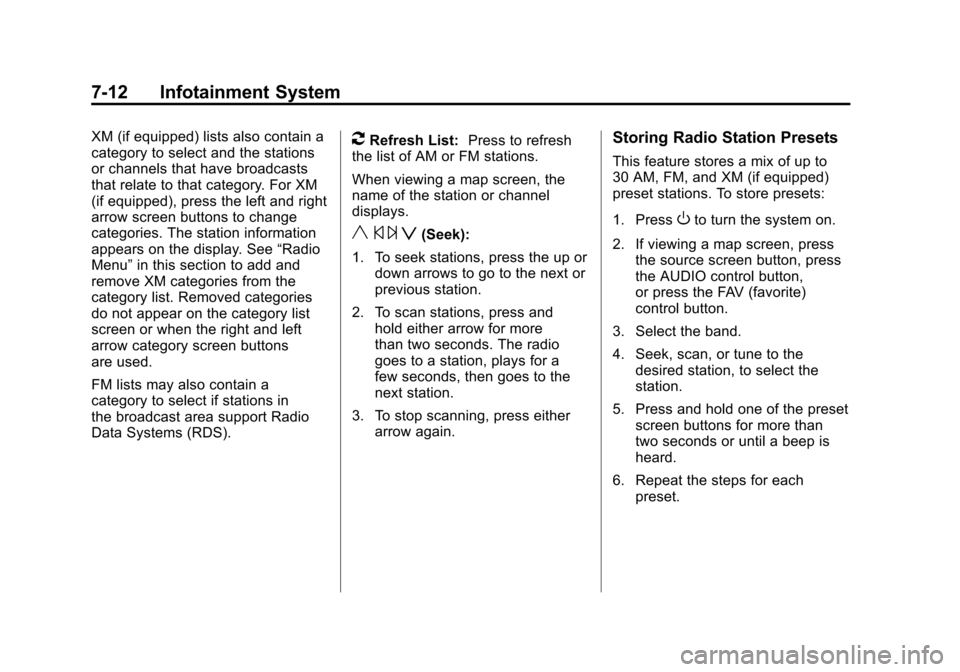
XM (if equipped) lists also contain a
category to select and the stations
or channels that have broadcasts
that relate to that category. For XM
(if equipped), press the left and right
arrow screen buttons to change
categories. The station information
appears on the display. See“Radio
Menu” in this section to add and
remove XM categories from the
category list. Removed categories
do not appear on the category list
screen or when the right and left
arrow category screen buttons
are used.
FM lists may also contain a
category to select if stations in
the broadcast area support Radio
Data Systems (RDS).2Refresh List: Press to refresh
the list of AM or FM stations.
When viewing a map screen, the
name of the station or channel
displays.
y © ¨ z(Seek):
1. To seek stations, press the up or down arrows to go to the next or
previous station.
2. To scan stations, press and hold either arrow for more
than two seconds. The radio
goes to a station, plays for a
few seconds, then goes to the
next station.
3. To stop scanning, press either arrow again.
Storing Radio Station Presets
This feature stores a mix of up to
30 AM, FM, and XM (if equipped)
preset stations. To store presets:
1. Press
Oto turn the system on.
2. If viewing a map screen, press the source screen button, press
the AUDIO control button,
or press the FAV (favorite)
control button.
3. Select the band.
4. Seek, scan, or tune to the desired station, to select the
station.
5. Press and hold one of the preset screen buttons for more than
two seconds or until a beep is
heard.
6. Repeat the steps for each preset.
Page 219 of 558
Black plate (13,1)Cadillac Escalade/Escalade ESV Owner Manual - 2011
Infotainment System 7-13
Sound Menu
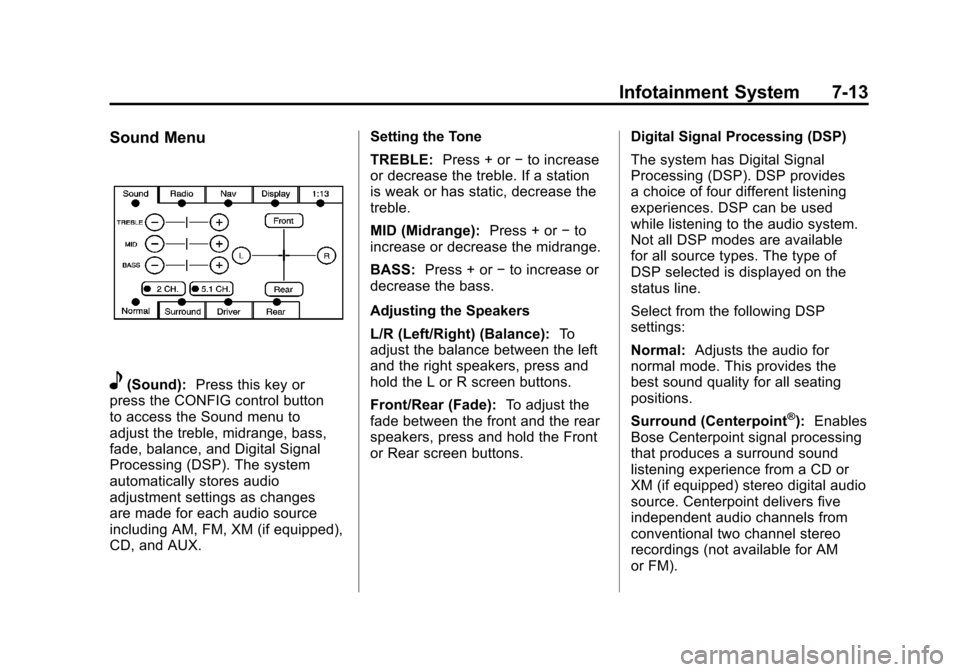
e(Sound):Press this key or
press the CONFIG control button
to access the Sound menu to
adjust the treble, midrange, bass,
fade, balance, and Digital Signal
Processing (DSP). The system
automatically stores audio
adjustment settings as changes
are made for each audio source
including AM, FM, XM (if equipped),
CD, and AUX. Setting the Tone
TREBLE:
Press + or−to increase
or decrease the treble. If a station
is weak or has static, decrease the
treble.
MID (Midrange): Press + or−to
increase or decrease the midrange.
BASS: Press + or −to increase or
decrease the bass.
Adjusting the Speakers
L/R (Left/Right) (Balance): To
adjust the balance between the left
and the right speakers, press and
hold the L or R screen buttons.
Front/Rear (Fade): To adjust the
fade between the front and the rear
speakers, press and hold the Front
or Rear screen buttons. Digital Signal Processing (DSP)
The system has Digital Signal
Processing (DSP). DSP provides
a choice of four different listening
experiences. DSP can be used
while listening to the audio system.
Not all DSP modes are available
for all source types. The type of
DSP selected is displayed on the
status line.
Select from the following DSP
settings:
Normal:
Adjusts the audio for
normal mode. This provides the
best sound quality for all seating
positions.
Surround (Centerpoint
®): Enables
Bose Centerpoint signal processing
that produces a surround sound
listening experience from a CD or
XM (if equipped) stereo digital audio
source. Centerpoint delivers five
independent audio channels from
conventional two channel stereo
recordings (not available for AM
or FM).