buttons CADILLAC ESCALADE 2013 3.G User Guide
[x] Cancel search | Manufacturer: CADILLAC, Model Year: 2013, Model line: ESCALADE, Model: CADILLAC ESCALADE 2013 3.GPages: 532, PDF Size: 7.69 MB
Page 144 of 532
Black plate (24,1)Cadillac Escalade/Escalade ESV Owner Manual - 2013 - CRC 2nd Edition - 10/
9/12
5-24 Instruments and Controls
Operation and Displays
The DIC has different displays
which can be accessed by pressing
the DIC buttons located on the
instrument panel, next to the
steering wheel.
The DIC displays trip, fuel, and
vehicle system information, and
warning messages if a system
problem is detected. A digital
speedometer also appears at the
bottom of the DIC display. The
digital speedometer can be enabled
or disabled. See“DISPLAY DIGITAL
SPEED” underVehicle
Personalization on page 5‑37 for
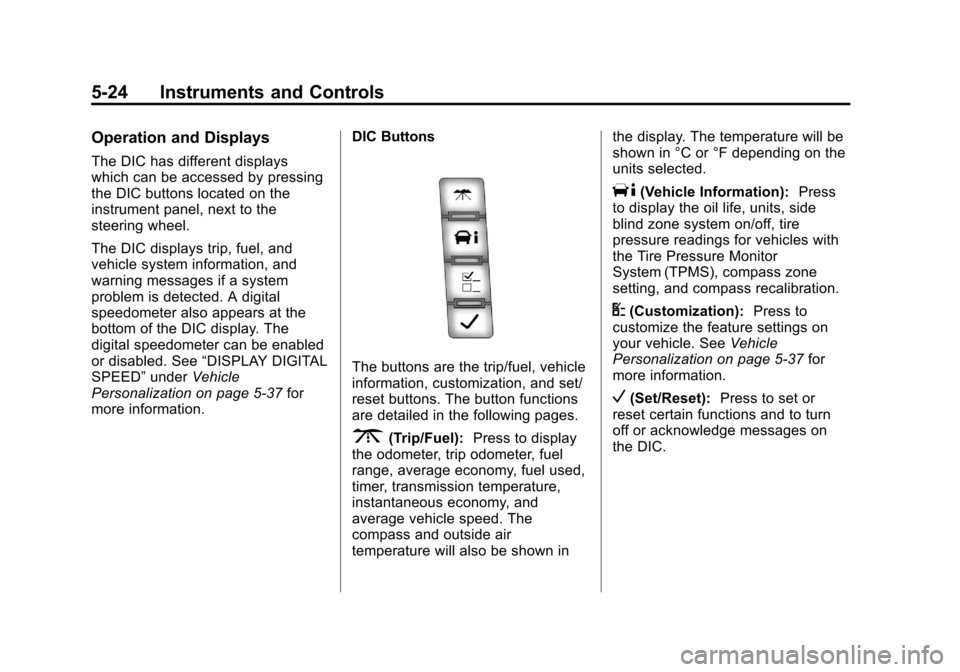
more information. DIC Buttons
The buttons are the trip/fuel, vehicle
information, customization, and set/
reset buttons. The button functions
are detailed in the following pages.
3(Trip/Fuel):
Press to display
the odometer, trip odometer, fuel
range, average economy, fuel used,
timer, transmission temperature,
instantaneous economy, and
average vehicle speed. The
compass and outside air
temperature will also be shown in the display. The temperature will be
shown in °C or °F depending on the
units selected.
T(Vehicle Information):
Press
to display the oil life, units, side
blind zone system on/off, tire
pressure readings for vehicles with
the Tire Pressure Monitor
System (TPMS), compass zone
setting, and compass recalibration.
U(Customization): Press to
customize the feature settings on
your vehicle. See Vehicle
Personalization on page 5‑37 for
more information.
V(Set/Reset): Press to set or
reset certain functions and to turn
off or acknowledge messages on
the DIC.
Page 166 of 532
Black plate (46,1)Cadillac Escalade/Escalade ESV Owner Manual - 2013 - CRC 2nd Edition - 10/
9/12
5-46 Instruments and Controls
DO NOT RESTORE:The
customization features will not be
set to their factory default settings.
To select a setting, press the set/
reset button while the desired
setting is displayed on the DIC.
EXIT FEATURE SETTINGS
This feature allows you to exit the
feature settings menu.
Press the customization button until
PRESS
VTO EXIT FEATURE
SETTINGS appears in the DIC
display. Press the set/reset button
once to exit the menu.
If you do not exit, pressing the
customization button again will
return you to the beginning of the
feature settings menu.
Exiting the Feature
Settings Menu
The feature settings menu will be
exited when any of the following
occurs:
.The vehicle is no longer in
ON/RUN.
.The trip/fuel or vehicle
information DIC buttons are
pressed.
.The end of the feature settings
menu is reached and exited.
.A 40-second time period has
elapsed with no selection made.
Universal Remote
System
See Radio Frequency Statement on
page 13‑21 for information
regarding Part 15 of the Federal
Communications Commission (FCC)
rules and Industry Canada
Standards RSS-GEN/210/220/310.
Universal Remote System
Programming
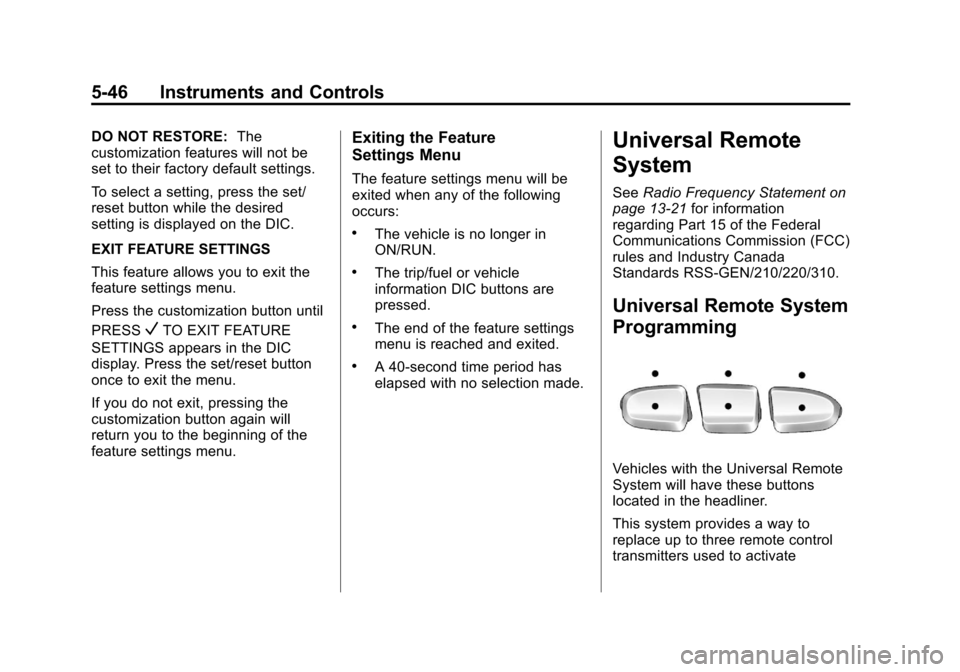
Vehicles with the Universal Remote
System will have these buttons
located in the headliner.
This system provides a way to
replace up to three remote control
transmitters used to activate
Page 167 of 532
Black plate (47,1)Cadillac Escalade/Escalade ESV Owner Manual - 2013 - CRC 2nd Edition - 10/
9/12
Instruments and Controls 5-47
devices such as garage door
openers, security systems, and
home automation devices.
Do not use this system with any
garage door opener that does not
have the stop and reverse feature.
This includes any garage door
opener model manufactured before
April 1, 1982.
Read the instructions completely
before attempting to program the
transmitter. Because of the steps
involved, it may be helpful to have
another person assist with
programming the transmitter.
Be sure to keep the original remote
control transmitter for use in other
vehicles, as well as for future
programming. Only the original
remote control transmitter is needed
for Fixed Code programming. The
programmed buttons should be
erased when the vehicle is sold or
the lease ends. See“Erasing
Universal Home Remote Buttons” in
this section. Park the vehicle outside of the
garage when programming a garage
door. Be sure that people and
objects are clear of the garage door
or gate that is being programmed.
Programming Universal Home
Remote
—Rolling Code
For questions or help programming
the Universal Home Remote
System, call 1-866-572-2728 or go
to www.learcar2u.com.
Most garage door openers sold
after 1996 are Rolling Code units.
Programming a garage door opener
involves time-sensitive actions, so
read the entire procedure before
starting. Otherwise, the device will
time out and the procedure will have
to be repeated.
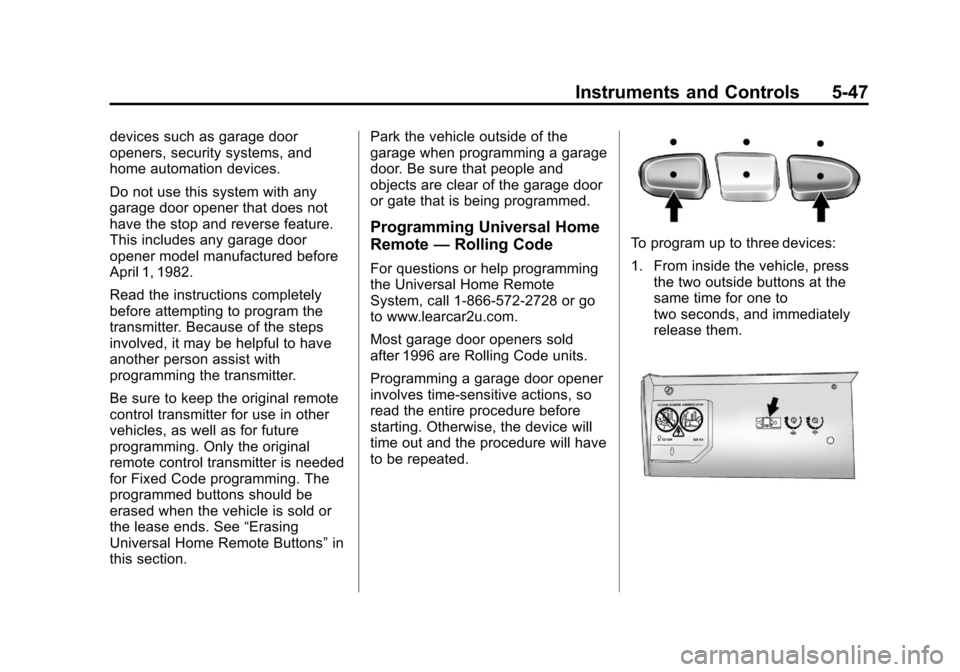
To program up to three devices:
1. From inside the vehicle, press
the two outside buttons at the
same time for one to
two seconds, and immediately
release them.
Page 170 of 532
Black plate (50,1)Cadillac Escalade/Escalade ESV Owner Manual - 2013 - CRC 2nd Edition - 10/
9/12
5-50 Instruments and Controls
2. Write down the 8 to 12 switchsettings from left to right as
follows:
.When a switch is in the up
position, write “Left.”
.When a switch is in the
down position, write “Right.”
.If a switch is set between
the up and down position,
write“Middle.”
The switch settings written
down in Step 2 now
become the button strokes
to be entered into the
Universal Home Remote in
Step 4. Be sure to enter the
switch settings written down
in Step 2, in order from left
to right, into the Universal
Home Remote, when
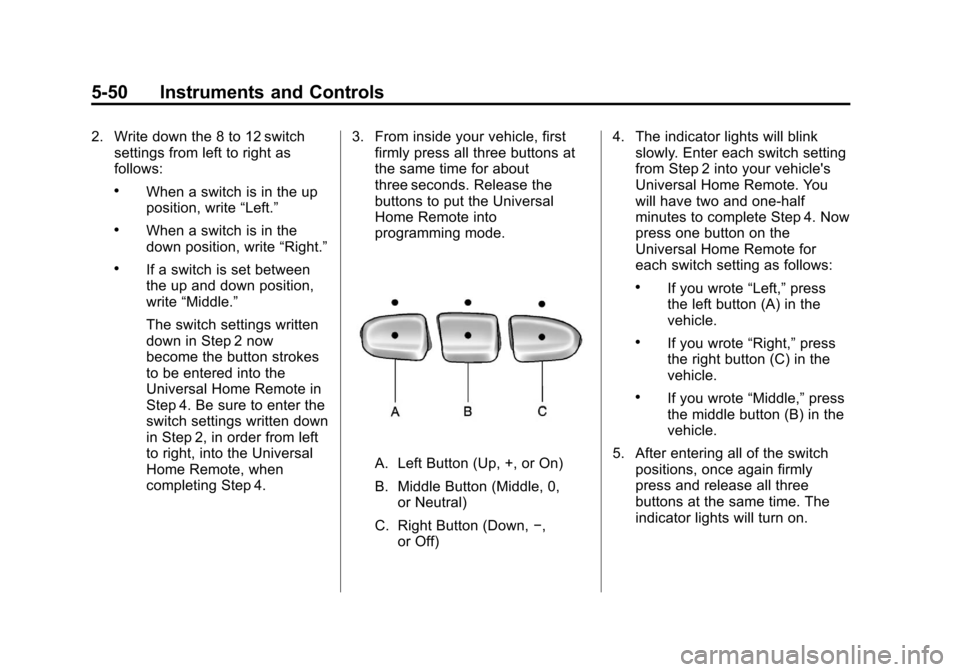
completing Step 4. 3. From inside your vehicle, first
firmly press all three buttons at
the same time for about
three seconds. Release the
buttons to put the Universal
Home Remote into
programming mode.
A. Left Button (Up, +, or On)
B. Middle Button (Middle, 0,
or Neutral)
C. Right Button (Down, −,
or Off) 4. The indicator lights will blink
slowly. Enter each switch setting
from Step 2 into your vehicle's
Universal Home Remote. You
will have two and one-half
minutes to complete Step 4. Now
press one button on the
Universal Home Remote for
each switch setting as follows:
.If you wrote “Left,”press
the left button (A) in the
vehicle.
.If you wrote “Right,”press
the right button (C) in the
vehicle.
.If you wrote “Middle,”press
the middle button (B) in the
vehicle.
5. After entering all of the switch positions, once again firmly
press and release all three
buttons at the same time. The
indicator lights will turn on.
Page 171 of 532
Black plate (51,1)Cadillac Escalade/Escalade ESV Owner Manual - 2013 - CRC 2nd Edition - 10/
9/12
Instruments and Controls 5-51
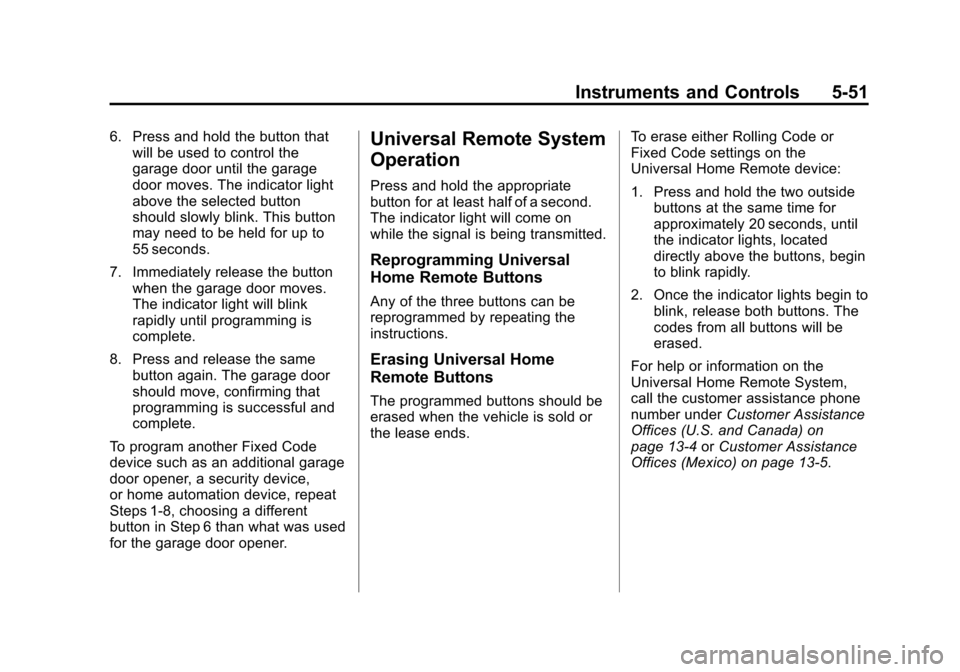
6. Press and hold the button thatwill be used to control the
garage door until the garage
door moves. The indicator light
above the selected button
should slowly blink. This button
may need to be held for up to
55 seconds.
7. Immediately release the button when the garage door moves.
The indicator light will blink
rapidly until programming is
complete.
8. Press and release the same button again. The garage door
should move, confirming that
programming is successful and
complete.
To program another Fixed Code
device such as an additional garage
door opener, a security device,
or home automation device, repeat
Steps 1-8, choosing a different
button in Step 6 than what was used
for the garage door opener.Universal Remote System
Operation
Press and hold the appropriate
button for at least half of a second.
The indicator light will come on
while the signal is being transmitted.
Reprogramming Universal
Home Remote Buttons
Any of the three buttons can be
reprogrammed by repeating the
instructions.
Erasing Universal Home
Remote Buttons
The programmed buttons should be
erased when the vehicle is sold or
the lease ends. To erase either Rolling Code or
Fixed Code settings on the
Universal Home Remote device:
1. Press and hold the two outside
buttons at the same time for
approximately 20 seconds, until
the indicator lights, located
directly above the buttons, begin
to blink rapidly.
2. Once the indicator lights begin to blink, release both buttons. The
codes from all buttons will be
erased.
For help or information on the
Universal Home Remote System,
call the customer assistance phone
number under Customer Assistance
Offices (U.S. and Canada) on
page 13‑4 orCustomer Assistance
Offices (Mexico) on page 13‑5.
Page 184 of 532
Black plate (2,1)Cadillac Escalade/Escalade ESV Owner Manual - 2013 - CRC 2nd Edition - 10/
9/12
7-2 Infotainment System
Introduction
Infotainment
Read this manual thoroughly to
become familiar with how the
navigation system operates.
The navigation system includes
navigation and audio functions.
Keeping your eyes on the road and
your mind on the drive is important
for safe driving. The navigation
system has built-in features
intended to help with this by
disabling some features when
driving. A grayed-out function is not
available when the vehicle is
moving.All functions are available when the
vehicle is parked. Do the following
before driving:.Become familiar with the
navigation system operation,
buttons on the faceplate, and
touch-sensitive screen buttons.
.Set up the audio by presetting
favorite stations, setting the
tone, and adjusting the
speakers.
.Set up the navigation features,
such as entering an address or a
preset destination.
.Set up phone numbers in
advance so they can be called
easily by pressing a single
button or a single voice
command for navigation systems
equipped with phone capability.
{WARNING
Taking your eyes off the road too
long or too often while using the
navigation system could cause a
crash and you or others could be
injured or killed. Focus your
attention on driving and limit
glances at the moving map on the
navigation screen. Use voice
guidance whenever possible.
Use the navigation system to:
.Plan a route.
.Select a destination using
various methods and choices.
.Follow turn-by-turn route and
map guidance with voice
prompts, only if permitted by
traffic laws, controls, and
conditions.
.Receive RDS broadcast
announcements.
Page 185 of 532
Black plate (3,1)Cadillac Escalade/Escalade ESV Owner Manual - 2013 - CRC 2nd Edition - 10/
9/12
Infotainment System 7-3
Always be alert and obey traffic and
roadway laws and instructions,
regardless of the guidance from the
navigation system. Because the
navigation system uses street map
information that does not include all
traffic restrictions or the latest road
changes, it may suggest using a
road that is now closed for
construction or a turn that is
prohibited by signs at the
intersection. Always evaluate
whether following the system's
directions is safe and legal for the
current conditions.
When the navigation system is
turned on, a screen may appear
with information that must be read
and acknowledged before accessing
some navigation features.After acknowledging the start up
information, the NAV (Navigation)
and DEST (Destination) functions
are accessible. Information can now
be entered or deleted, and other
functions accessed. See
instructions later in this section.
Every 50 times the vehicle is started
and the navigation system is turned
on, the Caution screen appears.
After reading the caution, select OK
to load the map DVD information.
If OK is not selected, all control
buttons except for NAV (Navigation)
and DEST (Destination) can be
accessed.
When getting started, set your
preferences or delete information in
the navigation system using various
options.Theft-Deterrent Feature
TheftLock®is designed to
discourage theft of the vehicle's
radio by learning a portion of the
Vehicle Identification Number (VIN).
The radio does not operate if it is
stolen or moved to a different
vehicle.
Page 187 of 532
Black plate (5,1)Cadillac Escalade/Escalade ESV Owner Manual - 2013 - CRC 2nd Edition - 10/
9/12
Infotainment System 7-5
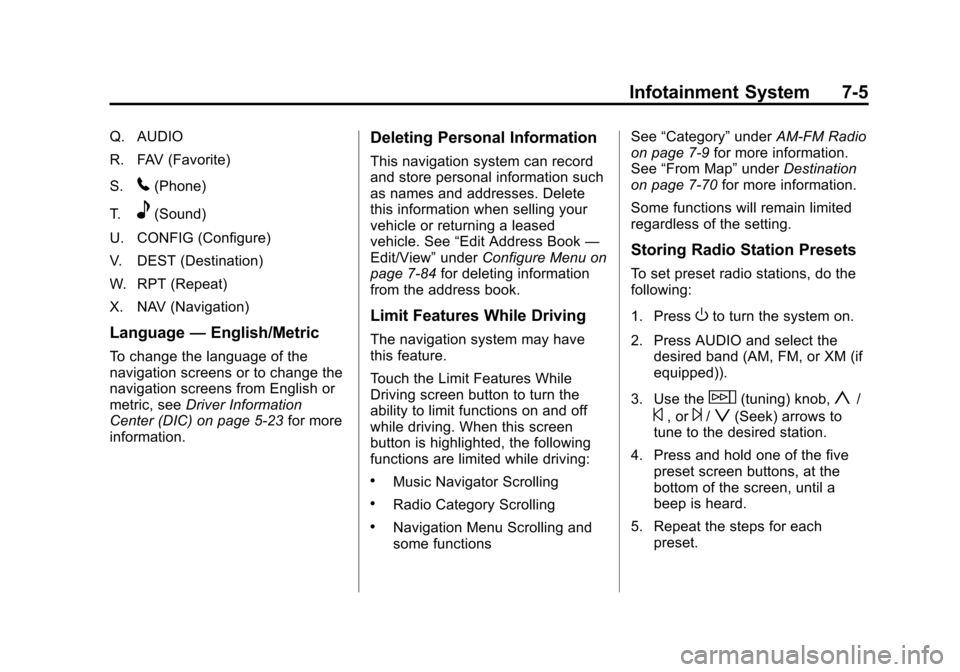
Q. AUDIO
R. FAV (Favorite)
S.
5(Phone)
T.
e(Sound)
U. CONFIG (Configure)
V. DEST (Destination)
W. RPT (Repeat)
X. NAV (Navigation)
Language —English/Metric
To change the language of the
navigation screens or to change the
navigation screens from English or
metric, see Driver Information
Center (DIC) on page 5‑23 for more
information.
Deleting Personal Information
This navigation system can record
and store personal information such
as names and addresses. Delete
this information when selling your
vehicle or returning a leased
vehicle. See “Edit Address Book —
Edit/View” underConfigure Menu on
page 7‑84 for deleting information
from the address book.
Limit Features While Driving
The navigation system may have
this feature.
Touch the Limit Features While
Driving screen button to turn the
ability to limit functions on and off
while driving. When this screen
button is highlighted, the following
functions are limited while driving:
.Music Navigator Scrolling
.Radio Category Scrolling
.Navigation Menu Scrolling and
some functions See
“Category” underAM-FM Radio
on page 7‑9 for more information.
See “From Map” underDestination
on page 7‑70 for more information.
Some functions will remain limited
regardless of the setting.
Storing Radio Station Presets
To set preset radio stations, do the
following:
1. Press
Oto turn the system on.
2. Press AUDIO and select the desired band (AM, FM, or XM (if
equipped)).
3. Use the
w(tuning) knob,y/
©, or¨/z(Seek) arrows to
tune to the desired station.
4. Press and hold one of the five preset screen buttons, at the
bottom of the screen, until a
beep is heard.
5. Repeat the steps for each preset.
Page 190 of 532
Black plate (8,1)Cadillac Escalade/Escalade ESV Owner Manual - 2013 - CRC 2nd Edition - 10/
9/12
7-8 Infotainment System
6. Press and hold one of thescreen buttons at the bottom of
the screen until the name
appears in the screen button on
the display.
The name appears in that preset
destination screen button and is
now available to select from the
Destination Entry screen. See
“Using Your Stored Preset
Destinations” in this section to
select it as a destination.
See Destination on page 7‑70
for more information on how to
add or change preset
destinations.
Using Your Stored Preset
Destinations
These destinations are available for
selection while driving.
1. Press
Oto turn the system on.
2. A caution may appear. Press OK to proceed.
3. Press DEST. 4. Select one of the available
preset destination screen
buttons. A map screen, with the
destination marked appears.
5. Select the route preference for Fastest, Shortest, or Other. The
system calculates and highlights
the route.
6. Press Start Guidance. The route is now ready to be started.
See “Preset Destination” under
Destination on page 7‑70 for more
information.
Canceling Guidance
Guidance is canceled once the final
destination is reached. To cancel
guidance prior to arrival at the final
destination:
1. Press DEST.
2. Press Cancel Guidance.
3. Press OK to confirm.
Guidance Volume
Adjust the volume of voice guidance
prompts:
1. Press CONFIG to enter the
menu options, then press
CONFIG again, repeatedly until
Nav is selected or press the Nav
screen button.
2. Press Voice Prompt.
3. Press + or –screen buttons to
increase or to decrease the
volume of the voice prompts.
The system responds with the
adjusted voice level.
See “Voice Prompt ”under
Configure Menu on page 7‑84 for
more information.
Cleaning the Display Screen
Use a soft clean cotton cloth
dampened with clean water.
Page 192 of 532
Black plate (10,1)Cadillac Escalade/Escalade ESV Owner Manual - 2013 - CRC 2nd Edition - 10/
9/12
7-10 Infotainment System
Finding a Station
AM Source Shown, Other SourcesSimilar
If viewing a map screen, press the
source screen (AM, FM, XM (if
equipped), CD, etc.) button. The
display splits between the audio
screen and the map screen. All
station-changing functions can be
performed from this screen.
FM Source Shown, Other Sources Similar
If you do not want to view a split
screen or you are not on a map
screen, press AUDIO.
AM/FM/XM: Press the source (AM,
FM, or XM, if equipped) screen
button or press AUDIO repeatedly
until the desired source is
highlighted.FM Source Shown, Other Sources
Similar
Category: Press the screen button,
located in the middle of the screen,
to get a list of all the selected band
stations in the area. Use the up and
down arrows to scroll the
frequencies. Press the desired
frequency.
XM (if equipped) lists also contain a
category to select and the stations
or channels that have broadcasts
that relate to that category. For XM
(if equipped), press the left and right
arrow screen buttons to change