change time CADILLAC ESCALADE 2013 3.G Owner's Manual
[x] Cancel search | Manufacturer: CADILLAC, Model Year: 2013, Model line: ESCALADE, Model: CADILLAC ESCALADE 2013 3.GPages: 532, PDF Size: 7.69 MB
Page 226 of 532
Black plate (44,1)Cadillac Escalade/Escalade ESV Owner Manual - 2013 - CRC 2nd Edition - 10/
9/12
7-44 Infotainment System
5. At the Confirm PWD option,confirm the new password by
entering the new password
again.
6. Scroll to the OK button and press ENTER. The message
“Your password has been
changed” displays.
To reset the system back to the
factory default settings:
1. Press the SETUP button on the remote control.
2. Use the left/right and down navigation arrows on the remote
control to select the Default
sub-menu under the Preference
Page and press the ENTER
button to reset the settings. The
parental settings will not be
affected.Vehicle Speakers
Audio from the DVD player or an
auxiliary device can be heard
through the vehicle speakers or the
wireless/wired headphones, while
the radio is tuned to one of the six
frequencies selected on the Sound
Around portion of the system’s
remote control. See “Remote
Control” later in this section.
Only one audio source can be heard
through the vehicle’ s speakers at a
time. The audio source being used
is specified by the A/V (audio/video)
source selected on the driver side
head restraint video display screen.
To turn the RSE system audio
output to the vehicle’s speakers,
press Sound Around ON, on the
system’ s remote control. The audio
from the RSE system can be heard
through the wireless/wired
headphones and the vehicle’s
speakers at the same time. The
volume on the radio can vary when
switching between the radio, CD,
DVD, MP3, or an auxiliary device.
Wireless Headphones
The two wireless headphones
included with the Headrest DVD
RSE system will only work with the
Headrest DVD RSE system and are
marked for channel 3 and 4. The
wireless headphones must be used
within a line of sight of the
transmitter that is located above the
video display screen.
3-4 Channel Selector: This is
located on the right earpiece. Either
Channel 3 or 4 can be selected with
the channel selector. The driver side
monitor is designated as Channel 3,
and the passenger side as Channel
4. Set the channel selector switch
according to the video display
screen being viewed. The message,
“To listen to this monitor tune your
headphones to Channel 3 (or 4)”
displays for five seconds then
disappears when the video display
screen is turned on.
Page 228 of 532

Black plate (46,1)Cadillac Escalade/Escalade ESV Owner Manual - 2013 - CRC 2nd Edition - 10/
9/12
7-46 Infotainment System
SETUP:Press to change the
default settings, see “Using the RSE
On-Screen Display (OSD) Menus”
later in this manual. There are four
main menu screens, each screen
displays a menu to select different
setting options. The screens are:
1. General Setup —adjusts screen
settings.
2. Audio Setup —sets the
language.
3. Preference Screen —sets the
subtitles and parental controls.
4. Password Setup —allows a
password to be set.
Press SETUP again to exit.
EJECT
X: Press to eject or
reload a disc.
DVD-Video Screen 3: Press the
DVD button located under 3 to
transmit IR codes for DVD mode on
Video Screen 3.
TV-Video Screen 3: This button is
not used with the system. DVD-Video Screen 4:
Press the
DVD button located under 4 to
transmit IR codes for DVD mode on
Video Screen 4.
TV-Video Screen 4: This button is
not used with the system.
SOUND AROUND ON/OFF: Press
to turn the FM Transmitter power on
or off.
MUTE
>(For DVD Only): Press to
turn off the headphone sound. Press
again to turn the sound on again.
PIX (Picture Selection): Press to
adjust the picture’s On Screen
Display (OSD). Each time this
button is pressed, the picture
adjustment OSD, cycles through
bars for BRIGHTNESS,
CONTRAST, COLOR, and TINT.
Use the right/left navigation arrows
to adjust the setting. This feature
automatically shuts off id another
button is pressed or adjustments
are not made within six seconds. SOUND AROUND SELECT:
Press
to select an FM transmitter channel.
The SOUND AROUND SELECT
lets the DVD audio play over the
vehicle’s sound system by tuning
the radio to one of the six FM
frequencies listed below.
.CH1 : 88.3MHz
.CH2 : 88.7MHz
.CH3 : 89.1MHz
.CH4 : 89.5MHz
.CH5 : 89.9MHz
.CH6 : 90.3MHz
MENU: Press to enter the DVD
disc menu while the disc is playing.
Q,R,q,r(Navigation Arrows):
Press to navigate through menus.
ENTER: Press to enter a selected
function or to begin playback of
the disc.
Page 229 of 532

Black plate (47,1)Cadillac Escalade/Escalade ESV Owner Manual - 2013 - CRC 2nd Edition - 10/
9/12
Infotainment System 7-47
REPEAT7:Press to repeat part
or all of a chapter, title, track, or the
entire disc after using the A-B
button to setup repeat preset
sections.
RETURN
8: This button is not
used with the system.
A-B: This button is used to setup
repeat preset sections. Press this
button once while the disc is playing
to select the starting position. Press
a second time to select the end
position. Press a third time to turn
the function off. To view the preset
section, press
7.
AUTO MEMORY: This button is not
used with the system.
SEARCH/SKIP: This button is not
used with the system.
ERASE/ADD: This button is not
used with the system.
R-S: This button is not used with
the system. TITLE:
Press to enter the disc title
mode. The title feature is
disc-specific, and may not be
available on all discs.
SUBTITLE: Press to change the
subtitle language to another
available language or to turn
subtitles off.
ANGLE: Press to select a different
viewing angle for discs that are
recorded with different camera
angles.
AUDIO: Press to select a different
language for discs that are recorded
with different languages.
0-9 (Numbers): The numbers
located on the lower left side of the
remote control can be used to enter
numbered menu options, channels,
or track numbers.
GOTO: Press to enter the GOTO
menu to choose a desired title,
chapter, track, or song inside
the disc. DISPLAY:
Press to scroll through
display information on the upper left
corner of the screen, such as title,
chapter/track, time elapsed, and
time remaining, or to turn off the
display
PROGRAM: Press to edit a
playback program containing
desired titles in the DVD or tracks in
the CD-DA.
3D: Press to change between
different 3D audio modes for DVD
or CD.
The options for DVD are: Off, Rock,
Pop, Live, Dance, Techno, Classic,
and Soft.
The options for CD are: Off,
Concert, Living room, Hall,
Bathroom Cave, Arena, and Church.
RANDOM: Press to play titles
randomly.
PLAY/PAUSE
r/j: Press to start
playback of the disc, or to pause
playback.
Page 230 of 532
Black plate (48,1)Cadillac Escalade/Escalade ESV Owner Manual - 2013 - CRC 2nd Edition - 10/
9/12
7-48 Infotainment System
STOPc:Press to stop playback
of a disc.
.To resume disc playback,
press PLAY.
.To start playback from the
beginning of the disc, press
STOP, STOP, then PLAY .
ZOOM: Press to either enlarge the
viewed image by 2X, 3X, and 4X,
or reduce the image by 1/2X, 1/3X,
and 1/4X.
PBC (Playback Control): Press to
turn video CD playback control on
or off.
FR
r(Fast Reverse): Press to
fast reverse the disc. Press multiple
times to choose between 2X, 4X,
8X, 16X, and 32X speeds.
FF
[(Fast Forward): Press to
fast forward the disc. Press multiple
times to choose between 2X, 4X,
8X, 16X, and 32X speeds. PREV
g(Previous):
Press to
play the previous chapter or track.
To return to previous chapters or
tracks one at a time, press and
release multiple times until the
desired chapter or track is reached.
NEXT
l: Press to play the next
chapter or track. To go to the next
chapter or track one at a time, press
and release multiple times until the
desired chapter or track is reached.
Battery Replacement
To change batteries in the remote
control:
1. Turn the remote control face down.
2. Press down on the ridged area of the battery cover and slide
it off.
3. Install two AAA batteries into the battery compartment.
4. Slide the cover back on until it clicks. If the remote control is to be stored
for a long period of time, remove the
batteries and keep it in a cool, dry
place.
Playing Audio CD
When an audio CD is playing, the
display shows the current track and
the amount of time that track has
been playing, the total amount of
time on the disc, and the current
time running on the disc.
DISPLAY:
Press to choose from
the following display options:
1. Press DISPLAY once and Single Elapsed appears along with the
current track playing and the
length of time for that track.
2. Press DISPLAY twice and Single Remain appears along with the
current track playing and the
amount of time left on the track.
3. Press DISPLAY three times and Total Elapsed appears along
with the current track playing
and the total time that has
played on the CD.
Page 231 of 532
Black plate (49,1)Cadillac Escalade/Escalade ESV Owner Manual - 2013 - CRC 2nd Edition - 10/
9/12
Infotainment System 7-49
4. Press DISPLAY four times andTotal Remain appears along with
the current track playing and the
amount of time left on the CD.
REPEAT: Press to toggle between
Track and All. The default for repeat
is OFF.
.Track repeats the track that is
playing.
.All repeats the disc that is
playing.
Playing MP3 CD
MP3 is the format for storing digital
audio. An audio CD quality song
can be compressed into the MP3
format with very little loss of quality,
while taking up much less space.
CD-R/RW discs that have been
encoded in MP3 format can be
played on the DVD player. See MP3
on page 7‑27 for more information.
Selecting Folders and Songs
When an MP3 disc is inserted in the
player, the navigation screen
appears. The folders and songs can be changed by navigating through
the file system. The DVD player
plays the songs in the order they
were burned to the disc.
1. Press STOP if a disc is playing.
Press the up or down navigation
arrows on the remote control to
go through the folder list on the
left side of the screen.
2. Press ENTER when the desired folder is highlighted.
3. Press the up or down navigation arrows to go through the song
list and highlight the desired
song. Press ENTER to begin the
playback of the selected song.
Skipping a Song
NEXT: Press to go to the
next song.
PREV (Previous): Press to return
to the beginning of the song that is
currently playing. Press PREV twice
to go to the previous song. Selecting a Play Mode
The order the songs are played can
be temporarily chosen on a disc.
The FOLDER play mode is the
default. Press the REPEAT button to
access the play mode options.
The play mode options are:
.Single
—Play a selected song.
.Folder —Play the folder in the
order the songs were recorded.
.Shuffle —Play the songs in
random order, from within the
selected folder.
Using the REPEAT Feature
REPEAT: Press to change between
Repeat One and Repeat Folder.
.Repeat One —Repeats the
song that is playing.
.Repeat Folder —Repeats the
folder that is playing.
Page 235 of 532
Black plate (53,1)Cadillac Escalade/Escalade ESV Owner Manual - 2013 - CRC 2nd Edition - 10/
9/12
Infotainment System 7-53
If the headphones are to be stored
for a long period of time, remove the
batteries and keep them in a cool,
dry place.
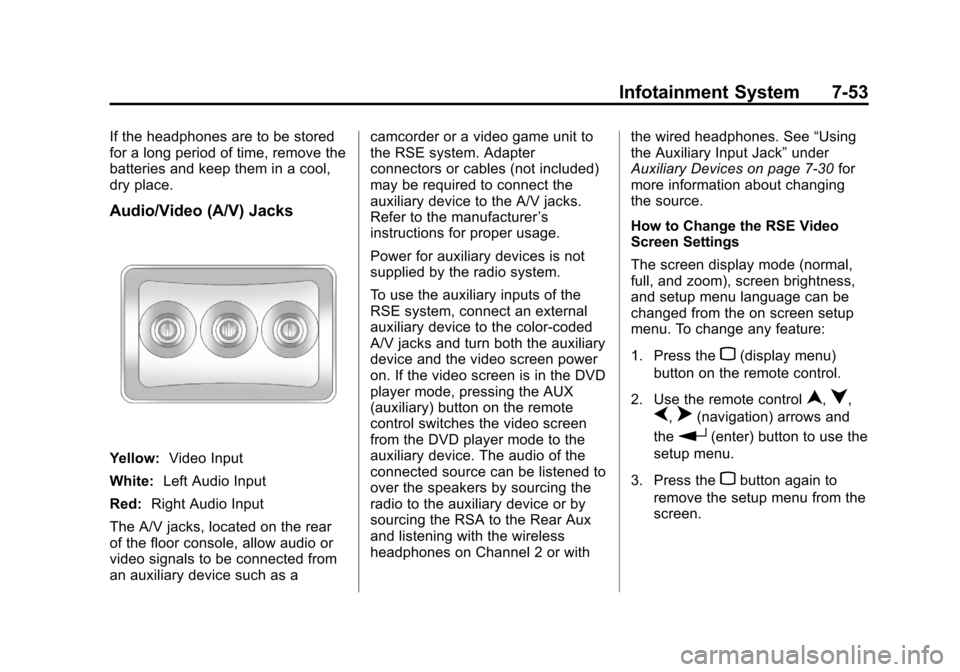
Audio/Video (A/V) Jacks
Yellow:Video Input
White: Left Audio Input
Red: Right Audio Input
The A/V jacks, located on the rear
of the floor console, allow audio or
video signals to be connected from
an auxiliary device such as a camcorder or a video game unit to
the RSE system. Adapter
connectors or cables (not included)
may be required to connect the
auxiliary device to the A/V jacks.
Refer to the manufacturer
’s
instructions for proper usage.
Power for auxiliary devices is not
supplied by the radio system.
To use the auxiliary inputs of the
RSE system, connect an external
auxiliary device to the color-coded
A/V jacks and turn both the auxiliary
device and the video screen power
on. If the video screen is in the DVD
player mode, pressing the AUX
(auxiliary) button on the remote
control switches the video screen
from the DVD player mode to the
auxiliary device. The audio of the
connected source can be listened to
over the speakers by sourcing the
radio to the auxiliary device or by
sourcing the RSA to the Rear Aux
and listening with the wireless
headphones on Channel 2 or with the wired headphones. See
“Using
the Auxiliary Input Jack” under
Auxiliary Devices on page 7‑30 for
more information about changing
the source.
How to Change the RSE Video
Screen Settings
The screen display mode (normal,
full, and zoom), screen brightness,
and setup menu language can be
changed from the on screen setup
menu. To change any feature:
1. Press the
z(display menu)
button on the remote control.
2. Use the remote control
n,q,
p,o(navigation) arrows and
the
r(enter) button to use the
setup menu.
3. Press the
zbutton again to
remove the setup menu from the
screen.
Page 239 of 532
Black plate (57,1)Cadillac Escalade/Escalade ESV Owner Manual - 2013 - CRC 2nd Edition - 10/
9/12
Infotainment System 7-57
{(Subtitles):Press this button to
turn on or off subtitles and to move
through subtitle options when a
DVD is playing. The format and
content of this function vary for
each disc.
AUX (Auxiliary): Press this button
to switch the system between the
DVD player and an auxiliary source.
If the vehicle has a third row video
screen, the AUX button controls the
source display on the second row
video screen, and the third row
video screen as described in the
table below:
Aux
Button Press Second
Row
Screen Third Row
Screen
Default
State (No Press) DVD
Media DVD
Media
First
Press Aux Video
Source Aux Video
Source
Second Press DVD
Media Aux Video
Source Aux
Button Press Second
Row
Screen Third Row
Screen
Third
Press Aux Video
Source DVD
Media
Fourth Press Return to
DefaultState Return to
DefaultState
2(Camera): Press this button to
change camera angles on DVDs
that have this feature while a DVD is
playing. The format and content of
this function vary for each disc.
1 through 0 (Numeric Keypad):
The numeric keypad provides the
capability of direct chapter or track
number selection.
\(Clear): Press this button within
three seconds after entering a
numeric selection, to clear all
numerical inputs.
}10 (Double Digit Entries): Press
this button to select chapter or track
numbers greater than nine. Press
this button before entering the
number.
Battery Replacement
To change the remote control
batteries:
1. Slide the rear cover back on the remote control.
2. Replace the two batteries in the compartment. Make sure they
are installed correctly using the
diagram on the inside of the
remote control.
3. Replace the battery cover.
If the remote control is to be stored
for a long period of time, remove the
batteries and keep them in a cool,
dry place.
Page 242 of 532
Black plate (60,1)Cadillac Escalade/Escalade ESV Owner Manual - 2013 - CRC 2nd Edition - 10/
9/12
7-60 Infotainment System
Cleaning the Video Screen
When cleaning the video screen,
use only a clean cloth dampened
with clean water. Use care when
directly touching or cleaning the
screen, as damage could result.
Rear Seat Audio (RSA)
System
Vehicles with this feature allow the
rear seat passengers to listen to
and control any of the music
sources: radio, CD, DVD, or other
auxiliary sources. The rear seat
passengers can control the same
music sources the front seat
passengers are listening to (dual
control) or a different source. For
example, rear seat passengers can
listen to and control a CD through
the headphones, while the driver
listens to the radio through the
speakers. The rear seat passengers
have control of the volume for each
set of headphones.The radio functionality is controlled
by both the RSA and the front radio,
only one band can be tuned to at
one time. Changing the band on the
RSA or the front radio will change
band on the other system.
RSA functions can be operated
even when the main radio is off.
Audio can be heard through wired
headphones (not included) plugged
into the jacks on the RSA. If the
vehicle has this feature, audio can
also be heard on Channel 2 of the
wireless headphones.
The audio system allows the rear
speakers to continue playing even
when the RSA audio is active
through the headphones.
To listen to an iPod or portable
audio device through the RSA,
attach the iPod or portable audio
device to the auxiliary input (if
available), located below the RSA.
Turn the iPod on, then choose the
auxiliary input with the RSA SRCEbutton. An iPod
®or portable audio
device can be connected to the front
auxiliary jack or the USB port.
P(Power): Press thePbutton to
turn RSA on and off.
Volume: Turn this knob to increase
or to decrease the volume of the
wired headphones. The left knob
controls the left headphones and
the right knob controls the right
headphones.
SRCE (Source): Press this button
to switch between the radio (AM/
FM), XM™ (if equipped), CD, and if
the vehicle has these features,
DVD, USB, auxiliary jack, and rear
auxiliary.
Page 266 of 532
Black plate (84,1)Cadillac Escalade/Escalade ESV Owner Manual - 2013 - CRC 2nd Edition - 10/
9/12
7-84 Infotainment System
To store the current vehicle position
as a preset destination:
1. Press Mark from the map screento add the current vehicle
position to the address book.
The Address Book screen
appears.
2. Press Name. An alpha-keyboard displays. Enter the name. Press
OK then press Back to return to
the address book information
screen.
3. Press and hold one of the buttons at the bottom of the
screen until the name appears in
that preset destination screen
button. It is now available to
select from the Destination Entry
screen.
To store an address book entry as a
preset destination:
1. Press CONFIG.
2. Press the Nav screen button.
3. Press Edit/View. 4. Select the address book entry to
be stored as the preset
destination. Press Name to add
a name, if needed.
5. Press and hold one of the buttons at the bottom of the
screen until the name appears in
that preset destination screen
button. It is now available to
select from the Destination Entry
screen.
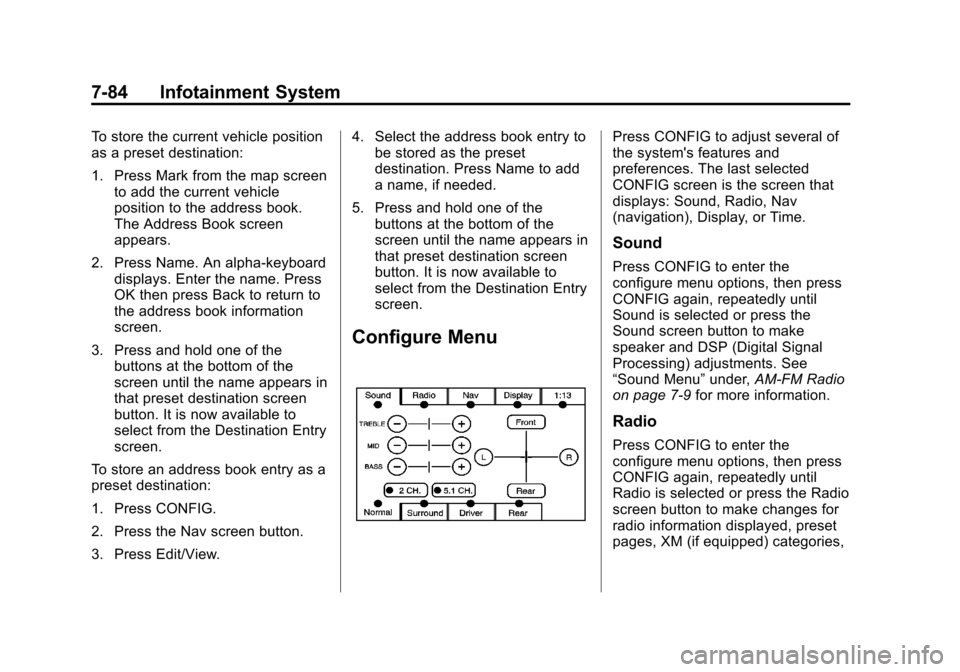
Configure Menu
Press CONFIG to adjust several of
the system's features and
preferences. The last selected
CONFIG screen is the screen that
displays: Sound, Radio, Nav
(navigation), Display, or Time.
Sound
Press CONFIG to enter the
configure menu options, then press
CONFIG again, repeatedly until
Sound is selected or press the
Sound screen button to make
speaker and DSP (Digital Signal
Processing) adjustments. See
“Sound Menu” under,AM-FM Radio
on page 7‑9 for more information.
Radio
Press CONFIG to enter the
configure menu options, then press
CONFIG again, repeatedly until
Radio is selected or press the Radio
screen button to make changes for
radio information displayed, preset
pages, XM (if equipped) categories,
Page 267 of 532
Black plate (85,1)Cadillac Escalade/Escalade ESV Owner Manual - 2013 - CRC 2nd Edition - 10/
9/12
Infotainment System 7-85
and Bose AudioPilot. See“Radio
Menu” under,AM-FM Radio on
page 7‑9 for more information.
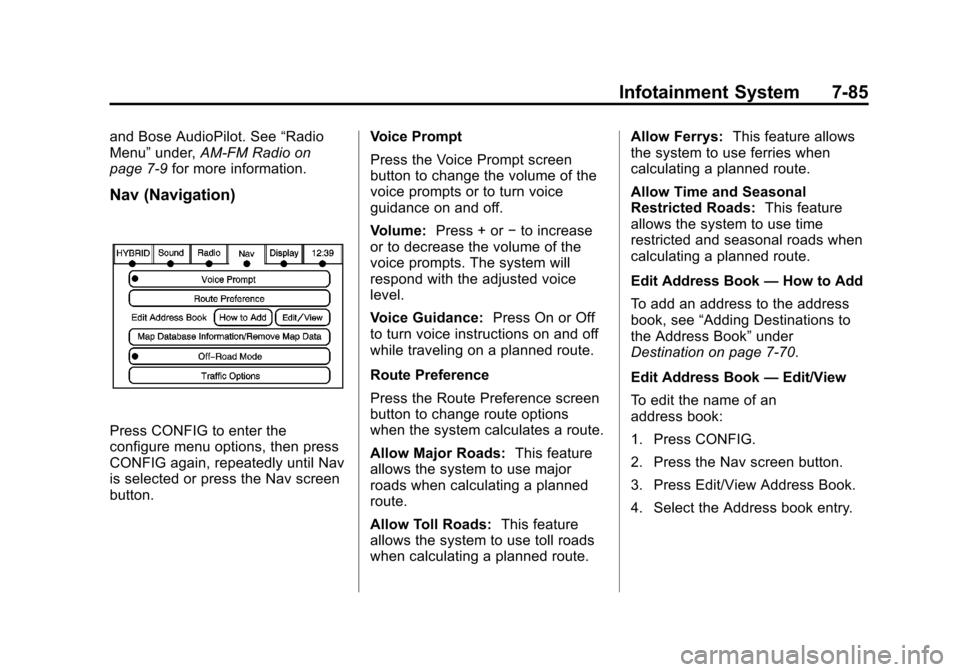
Nav (Navigation)
Press CONFIG to enter the
configure menu options, then press
CONFIG again, repeatedly until Nav
is selected or press the Nav screen
button. Voice Prompt
Press the Voice Prompt screen
button to change the volume of the
voice prompts or to turn voice
guidance on and off.
Volume:
Press + or −to increase
or to decrease the volume of the
voice prompts. The system will
respond with the adjusted voice
level.
Voice Guidance: Press On or Off
to turn voice instructions on and off
while traveling on a planned route.
Route Preference
Press the Route Preference screen
button to change route options
when the system calculates a route.
Allow Major Roads: This feature
allows the system to use major
roads when calculating a planned
route.
Allow Toll Roads: This feature
allows the system to use toll roads
when calculating a planned route. Allow Ferrys:
This feature allows
the system to use ferries when
calculating a planned route.
Allow Time and Seasonal
Restricted Roads: This feature
allows the system to use time
restricted and seasonal roads when
calculating a planned route.
Edit Address Book —How to Add
To add an address to the address
book, see “Adding Destinations to
the Address Book” under
Destination on page 7‑70.
Edit Address Book —Edit/View
To edit the name of an
address book:
1. Press CONFIG.
2. Press the Nav screen button.
3. Press Edit/View Address Book.
4. Select the Address book entry.