key CADILLAC ESCALADE 2013 3.G Workshop Manual
[x] Cancel search | Manufacturer: CADILLAC, Model Year: 2013, Model line: ESCALADE, Model: CADILLAC ESCALADE 2013 3.GPages: 532, PDF Size: 7.69 MB
Page 239 of 532
Black plate (57,1)Cadillac Escalade/Escalade ESV Owner Manual - 2013 - CRC 2nd Edition - 10/
9/12
Infotainment System 7-57
{(Subtitles):Press this button to
turn on or off subtitles and to move
through subtitle options when a
DVD is playing. The format and
content of this function vary for
each disc.
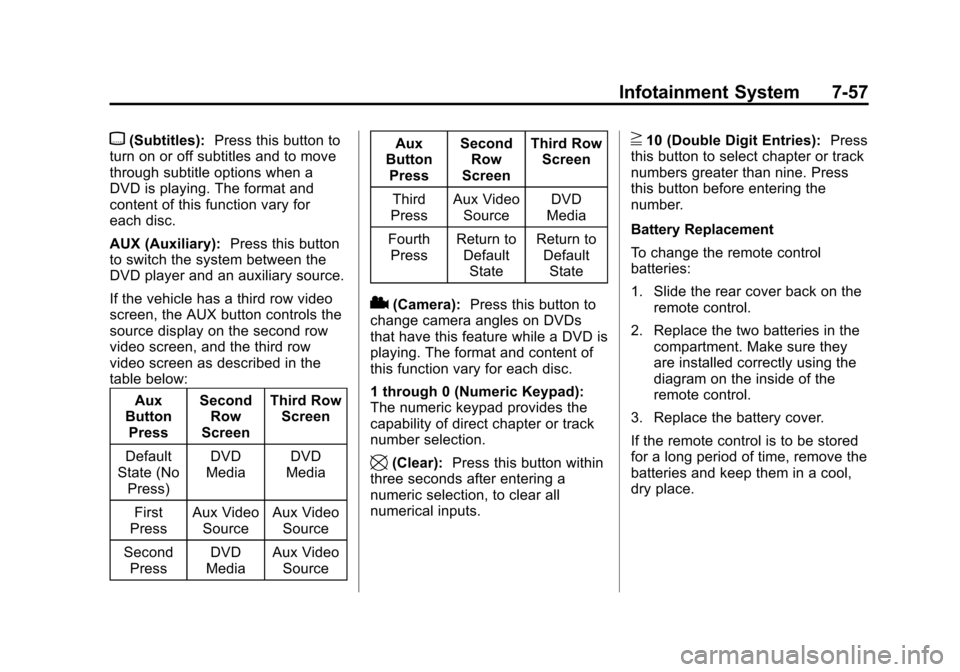
AUX (Auxiliary): Press this button
to switch the system between the
DVD player and an auxiliary source.
If the vehicle has a third row video
screen, the AUX button controls the
source display on the second row
video screen, and the third row
video screen as described in the
table below:
Aux
Button Press Second
Row
Screen Third Row
Screen
Default
State (No Press) DVD
Media DVD
Media
First
Press Aux Video
Source Aux Video
Source
Second Press DVD
Media Aux Video
Source Aux
Button Press Second
Row
Screen Third Row
Screen
Third
Press Aux Video
Source DVD
Media
Fourth Press Return to
DefaultState Return to
DefaultState
2(Camera): Press this button to
change camera angles on DVDs
that have this feature while a DVD is
playing. The format and content of
this function vary for each disc.
1 through 0 (Numeric Keypad):
The numeric keypad provides the
capability of direct chapter or track
number selection.
\(Clear): Press this button within
three seconds after entering a
numeric selection, to clear all
numerical inputs.
}10 (Double Digit Entries): Press
this button to select chapter or track
numbers greater than nine. Press
this button before entering the
number.
Battery Replacement
To change the remote control
batteries:
1. Slide the rear cover back on the remote control.
2. Replace the two batteries in the compartment. Make sure they
are installed correctly using the
diagram on the inside of the
remote control.
3. Replace the battery cover.
If the remote control is to be stored
for a long period of time, remove the
batteries and keep them in a cool,
dry place.
Page 245 of 532
Black plate (63,1)Cadillac Escalade/Escalade ESV Owner Manual - 2013 - CRC 2nd Edition - 10/
9/12
Infotainment System 7-63
NAV (Navigation):Press to view
the vehicle's current position on the
map screen. Each press of this
button cycles through Full Map and
the tab that displays the current
audio source (AM, FM, XM (if
equipped), CD, etc.). Full Map
displays the screen in full map view.
Selecting the audio tab splits the
screen between the map screen and
the current audio source
screen menu.
RPT (Repeat): Press to repeat the
last voice guidance prompt.
DEST (Destination): Press to
access the Destination Entry
screen. From this screen, you can
select from several options to plan a
route by entering destination points.
CONFIG (Configure): Press to
adjust several of the system's
features and preferences.Touch-Sensitive Screen
Buttons
Touch-sensitive screen buttons are
located on the screen. When a
screen button has been selected, a
beep sounds. Screen buttons are
highlighted when a feature is
available.
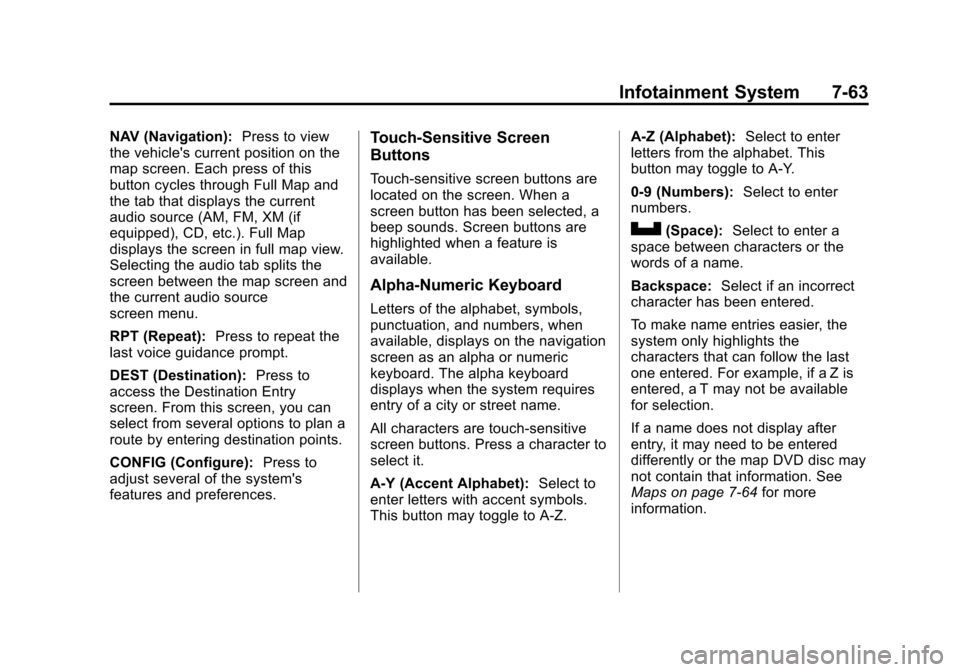
Alpha-Numeric Keyboard
Letters of the alphabet, symbols,
punctuation, and numbers, when
available, displays on the navigation
screen as an alpha or numeric
keyboard. The alpha keyboard
displays when the system requires
entry of a city or street name.
All characters are touch-sensitive
screen buttons. Press a character to
select it.
A-Y (Accent Alphabet): Select to
enter letters with accent symbols.
This button may toggle to A-Z. A-Z (Alphabet):
Select to enter
letters from the alphabet. This
button may toggle to A-Y.
0-9 (Numbers): Select to enter
numbers.
U(Space): Select to enter a
space between characters or the
words of a name.
Backspace: Select if an incorrect
character has been entered.
To make name entries easier, the
system only highlights the
characters that can follow the last
one entered. For example, if a Z is
entered, a T may not be available
for selection.
If a name does not display after
entry, it may need to be entered
differently or the map DVD disc may
not contain that information. See
Maps on page 7‑64 for more
information.
Page 253 of 532
Black plate (71,1)Cadillac Escalade/Escalade ESV Owner Manual - 2013 - CRC 2nd Edition - 10/
9/12
Infotainment System 7-71
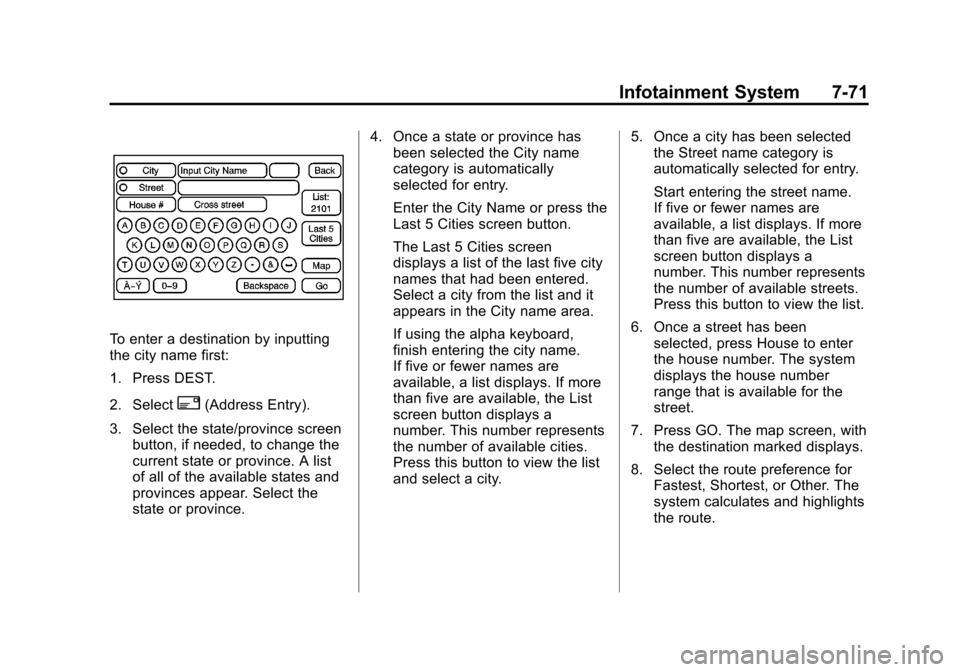
To enter a destination by inputting
the city name first:
1. Press DEST.
2. Select
2(Address Entry).
3. Select the state/province screen button, if needed, to change the
current state or province. A list
of all of the available states and
provinces appear. Select the
state or province. 4. Once a state or province has
been selected the City name
category is automatically
selected for entry.
Enter the City Name or press the
Last 5 Cities screen button.
The Last 5 Cities screen
displays a list of the last five city
names that had been entered.
Select a city from the list and it
appears in the City name area.
If using the alpha keyboard,
finish entering the city name.
If five or fewer names are
available, a list displays. If more
than five are available, the List
screen button displays a
number. This number represents
the number of available cities.
Press this button to view the list
and select a city. 5. Once a city has been selected
the Street name category is
automatically selected for entry.
Start entering the street name.
If five or fewer names are
available, a list displays. If more
than five are available, the List
screen button displays a
number. This number represents
the number of available streets.
Press this button to view the list.
6. Once a street has been selected, press House to enter
the house number. The system
displays the house number
range that is available for the
street.
7. Press GO. The map screen, with the destination marked displays.
8. Select the route preference for Fastest, Shortest, or Other. The
system calculates and highlights
the route.
Page 254 of 532
Black plate (72,1)Cadillac Escalade/Escalade ESV Owner Manual - 2013 - CRC 2nd Edition - 10/
9/12
7-72 Infotainment System
9. Press Start Guidance. The routeis now ready to be started.
See “Getting Started on Your
Route” in this section for more
information.
To enter a destination by entering
the street name first:
1. Press DEST.
2. Select
2.
3. Select the state/province screen button, if needed, to change the
current state or province. A list
of all of the available states and
provinces appear. Select the
state or province.
4. Select Street and start entering the street name or press the
Last 5 Streets screen button.
If the street name is common,
the city might need to be entered
first. The Last 5 Streets screen
displays a list of the last five
street names that had been
entered. Select a street from the
list and it appears in the Street
name area.
If using the alpha keyboard,
finish entering the street name.
If five or fewer names are
available, a list displays. If more
than five are available, the List
screen button displays a
number. This number represents
the number of available streets.
Press this button to view the list
and select a street.
5. Once a street has been selected, select House to enter
the house number. The system
displays the house number
range that is available for the
street. 6. Once the house number is
selected, the city name
automatically populates. If there
is more than one city available
for selection, a list of cities
display. Select the city.
7. Press GO. The map screen, with the destination marked displays.
8. Select the route preference for Fastest, Shortest, or Other. The
system calculates and highlights
the route.
9. Press Start Guidance. The route is now ready to be started.
See “Getting Started on Your
Route” in this section for more
information.
To enter a destination by entering a
cross street:
1. Press DEST.
2. Press
2.
Page 255 of 532
Black plate (73,1)Cadillac Escalade/Escalade ESV Owner Manual - 2013 - CRC 2nd Edition - 10/
9/12
Infotainment System 7-73
3. Select the state/province screenbutton, if needed, to change the
current state or province. A list
of all of the available states and
provinces appear. Select the
state or province.
4. Select Street and start entering the street name or press the
Last 5 Streets screen button.
If the street name is common,
the city might need to be entered
first.
The Last 5 Streets screen
displays a list of the last five
street names that had been
entered. Select a street from the
list and it appears in the Street
name area.
If using the alpha keyboard,
finish entering the street name.
If five or fewer names are
available, a list displays. If more
than five are available, the List
screen button displays a
number. This number represents the number of available streets.
Press this button to view the list
and select a street.
5. Once a street has been selected, select Cross Street
and start entering the cross
street name. If five or fewer
names are available, a list
displays. If more than five are
available, the List screen button
displays a number. This number
represents the number of
available streets. Press this
button to view the list and select
a street.
6. Press GO. The map screen, with the destination marked displays.
7. Select the route preference for Fastest, Shortest, or Other. The
system calculates and highlights
the route.
8. Press Start Guidance. The route is now ready to be started.
See “Getting Started on Your
Route” in this section for more
information. Point of Interest (POI)
The Point of Interest (POI)
destination entry method lets you
select a destination from the
POI list.
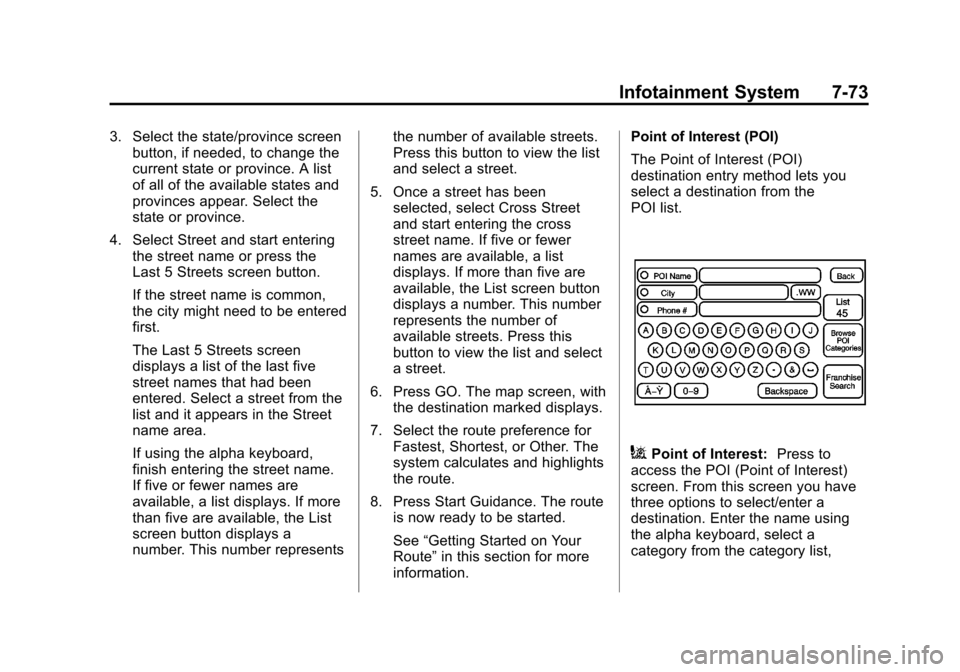
iPoint of Interest:
Press to
access the POI (Point of Interest)
screen. From this screen you have
three options to select/enter a
destination. Enter the name using
the alpha keyboard, select a
category from the category list,
Page 266 of 532
Black plate (84,1)Cadillac Escalade/Escalade ESV Owner Manual - 2013 - CRC 2nd Edition - 10/
9/12
7-84 Infotainment System
To store the current vehicle position
as a preset destination:
1. Press Mark from the map screento add the current vehicle
position to the address book.
The Address Book screen
appears.
2. Press Name. An alpha-keyboard displays. Enter the name. Press
OK then press Back to return to
the address book information
screen.
3. Press and hold one of the buttons at the bottom of the
screen until the name appears in
that preset destination screen
button. It is now available to
select from the Destination Entry
screen.
To store an address book entry as a
preset destination:
1. Press CONFIG.
2. Press the Nav screen button.
3. Press Edit/View. 4. Select the address book entry to
be stored as the preset
destination. Press Name to add
a name, if needed.
5. Press and hold one of the buttons at the bottom of the
screen until the name appears in
that preset destination screen
button. It is now available to
select from the Destination Entry
screen.
Configure Menu
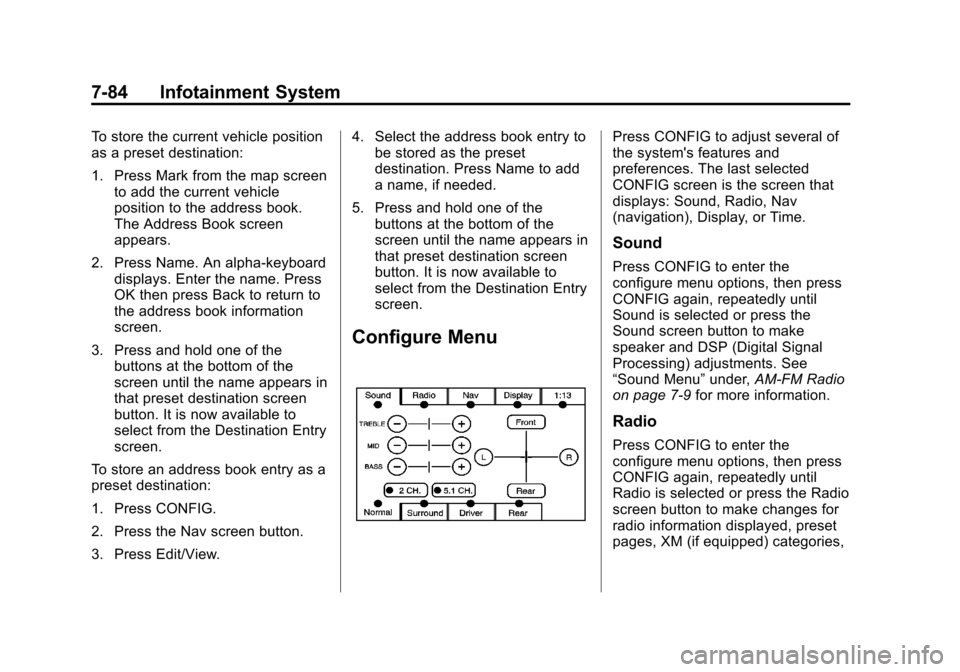
Press CONFIG to adjust several of
the system's features and
preferences. The last selected
CONFIG screen is the screen that
displays: Sound, Radio, Nav
(navigation), Display, or Time.
Sound
Press CONFIG to enter the
configure menu options, then press
CONFIG again, repeatedly until
Sound is selected or press the
Sound screen button to make
speaker and DSP (Digital Signal
Processing) adjustments. See
“Sound Menu” under,AM-FM Radio
on page 7‑9 for more information.
Radio
Press CONFIG to enter the
configure menu options, then press
CONFIG again, repeatedly until
Radio is selected or press the Radio
screen button to make changes for
radio information displayed, preset
pages, XM (if equipped) categories,
Page 268 of 532
Black plate (86,1)Cadillac Escalade/Escalade ESV Owner Manual - 2013 - CRC 2nd Edition - 10/
9/12
7-86 Infotainment System
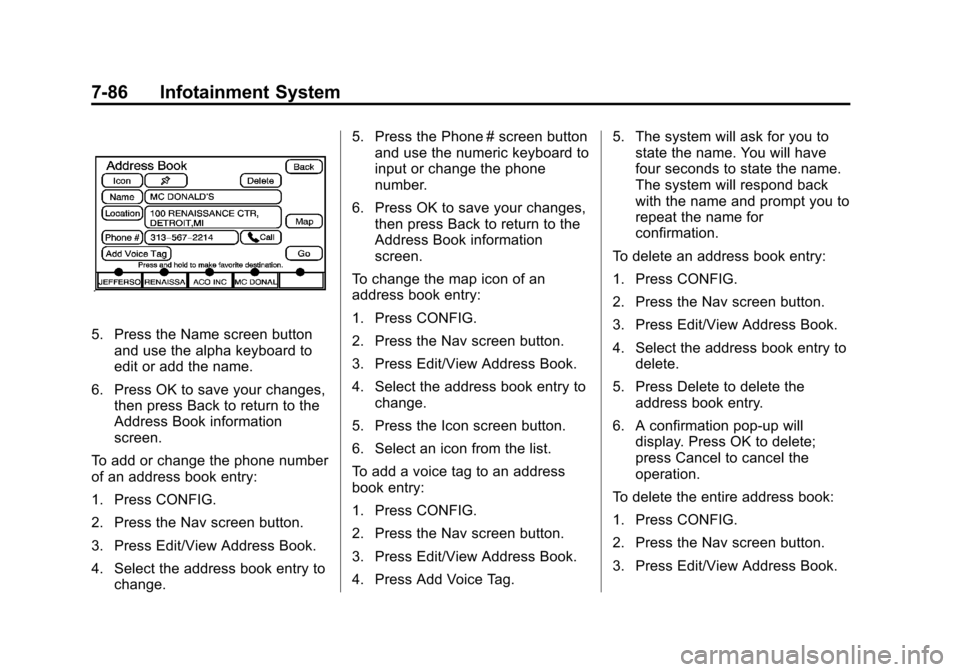
5. Press the Name screen buttonand use the alpha keyboard to
edit or add the name.
6. Press OK to save your changes, then press Back to return to the
Address Book information
screen.
To add or change the phone number
of an address book entry:
1. Press CONFIG.
2. Press the Nav screen button.
3. Press Edit/View Address Book.
4. Select the address book entry to change. 5. Press the Phone # screen button
and use the numeric keyboard to
input or change the phone
number.
6. Press OK to save your changes, then press Back to return to the
Address Book information
screen.
To change the map icon of an
address book entry:
1. Press CONFIG.
2. Press the Nav screen button.
3. Press Edit/View Address Book.
4. Select the address book entry to change.
5. Press the Icon screen button.
6. Select an icon from the list.
To add a voice tag to an address
book entry:
1. Press CONFIG.
2. Press the Nav screen button.
3. Press Edit/View Address Book.
4. Press Add Voice Tag. 5. The system will ask for you to
state the name. You will have
four seconds to state the name.
The system will respond back
with the name and prompt you to
repeat the name for
confirmation.
To delete an address book entry:
1. Press CONFIG.
2. Press the Nav screen button.
3. Press Edit/View Address Book.
4. Select the address book entry to delete.
5. Press Delete to delete the address book entry.
6. A confirmation pop-up will display. Press OK to delete;
press Cancel to cancel the
operation.
To delete the entire address book:
1. Press CONFIG.
2. Press the Nav screen button.
3. Press Edit/View Address Book.
Page 286 of 532
Black plate (104,1)Cadillac Escalade/Escalade ESV Owner Manual - 2013 - CRC 2nd Edition - 10/
9/12
7-104 Infotainment System
A Bluetooth system can use a
Bluetooth-capable cell phone with a
Hands-Free Profile to make and
receive phone calls. The system
can be used while the key is in the
ON/RUN or ACC/ACCESSORY
position. The range of the Bluetooth
system can be up to 9.1 m (30 ft).
Not all phones support all functions,
and not all phones work with the
in-vehicle Bluetooth system. See
www.gm.com/bluetooth for more
information on compatible phones.
Voice Recognition
The Bluetooth system uses voice
recognition to interpret voice
commands to dial phone numbers
and name tags.
For additional information, say
“Help”while you are in a voice
recognition menu.
Noise: Keep interior noise levels to
a minimum. The system may not
recognize voice commands if there
is too much background noise. When to Speak:
A short tone
sounds after the system responds
indicating when it is waiting for a
voice command. Wait until the tone
and then speak.
How to Speak: Speak clearly in a
calm and natural voice.
Audio System
When using the in-vehicle Bluetooth
system, sound comes through the
vehicle's front audio system
speakers and overrides the audio
system. Use the audio system
volume knob, during a call, to
change the volume level. The
adjusted volume level remains in
memory for later calls. To prevent
missed calls, a minimum volume
level is used if the volume is turned
down too low.
Bluetooth Controls
Use the buttons on the steering
wheel to operate the in-vehicle
Bluetooth system. See Steering
Wheel Controls on page 5‑2.
b/g(Push to Talk): Press to
answer incoming calls, confirm
system information, and start
speech recognition.
c/x(End): Press to end a call,
reject a call, or cancel an operation.
Pairing
A Bluetooth-enabled cell phone
must be paired to the Bluetooth
system and then connected to the
vehicle before it can be used. See
the cell phone manufacturer's user
guide for Bluetooth functions before
pairing the cell phone. If a Bluetooth
phone is not connected, calls will be
made using OnStar Hands-Free
Calling, if equipped. See OnStar
Overview on page 14‑1.
Pairing Information
.A Bluetooth phone with MP3
capability cannot be paired to
the vehicle as a phone and an
MP3 player at the same time.
.Up to five cell phones can be
paired to the Bluetooth system.
Page 306 of 532
Black plate (6,1)Cadillac Escalade/Escalade ESV Owner Manual - 2013 - CRC 2nd Edition - 10/
9/12
9-6 Driving and Operating
Remember: Antilock brakes help
avoid only the braking skid.
Off-Road Driving
Four-wheel-drive and all-wheel-drive
vehicles can be used for off-road
driving. Vehicles without four-wheel
drive, all-wheel-drive and vehicles
not equipped with All Terrain (AT) or
On-Off Road (OOR) tires must not
be driven off-road except on a level,
solid surface. To contact the tire
manufacturer for more information
about the original equipment tires,
see the Limited Warranty and
Owner Assistance Information
manual.
Controlling the vehicle is the key to
successful off-road driving. One of
the best ways to control the vehicle
is to control the speed.
{WARNING
When driving off-road, bouncing
and quick changes in direction
can easily throw you out of
position. This could cause you to
lose control and crash. You and
your passengers should always
wear safety belts.
Before Driving Off-Road
.Have all necessary maintenance
and service work completed.
.Fuel the vehicle, fill fluid levels,
and check inflation pressure in
all tires, including the spare,
if equipped.
.Read all the information about
four-wheel-drive and
all-wheel-drive vehicles in this
manual.
.Make sure all underbody
shields, if equipped, are properly
attached.
.Know the local laws that apply to
off-road driving.
To gain more ground clearance if
needed, it may be necessary to
remove the front fascia lower
air dam.
Notice: Operating the vehicle for
extended periods without the
front fascia lower air dam
installed can cause improper air
flow to the engine. Re‐attach the
front fascia air dam after off-road
driving.
Loading the Vehicle for
Off-Road Driving
{WARNING
.Unsecured cargo on the load
floor can be tossed about
when driving over rough
terrain. You or your
passengers can be struck by
flying objects. Secure the
cargo properly.
(Continued)
Page 320 of 532
Black plate (20,1)Cadillac Escalade/Escalade ESV Owner Manual - 2013 - CRC 2nd Edition - 10/
9/12
9-20 Driving and Operating
{WARNING
Things you put inside the
vehicle can strike and injure
people in a sudden stop or
turn, or in a crash.
.Put things in the cargo
area of the vehicle. Try to
spread the weight evenly.
.Never stack heavier
things, like suitcases,
inside the vehicle so that
some of them are above
the tops of the seats.
.Do not leave an
unsecured child restraint
in the vehicle.
.When you carry something
inside the vehicle, secure
it whenever you can.
.Do not leave a seat folded
down unless you need to. There is also important loading
information for off-road driving in
this manual. See
“Loading Your
Vehicle for Off-Road Driving”
under Off-Road Driving on
page 9‑6.
Add-On Equipment
When you carry removable
items, you may need to put a
limit on how many people you
can carry inside your vehicle. Be
sure to weigh your vehicle
before you buy and install the
new equipment.
Notice: Overloading the
vehicle may cause damage.
Repairs would not be covered
by the vehicle warranty. Do
not overload the vehicle.
Remember not to exceed the
Gross Axle Weight
Rating (GAWR) of the front or
rear axle. Automatic Level Control
The automatic level control rear
suspension comes as a part of
the Road Sensing Suspension.
See
Road Sensing Suspension
on page 9‑40.
This type of level control is fully
automatic and will provide a
better leveled riding position as
well as better handling under a
variety of passenger and loading
conditions. An air compressor
connected to the rear shocks
will raise or lower the rear of the
vehicle to maintain proper
vehicle height. The system is
activated when the ignition key
is turned to RUN and will
automatically adjust vehicle
height thereafter. The system
may exhaust (lower vehicle
height) for up to 10 minutes after
the ignition key has been turned