display CADILLAC ESCALADE 2013 3.G Repair Manual
[x] Cancel search | Manufacturer: CADILLAC, Model Year: 2013, Model line: ESCALADE, Model: CADILLAC ESCALADE 2013 3.GPages: 532, PDF Size: 7.69 MB
Page 207 of 532
Black plate (25,1)Cadillac Escalade/Escalade ESV Owner Manual - 2013 - CRC 2nd Edition - 10/
9/12
Infotainment System 7-25
If the CD/DVD is not playing
correctly, for any other reason, try a
known good CD/DVD.
If any error occurs repeatedly or if
an error cannot be corrected,
contact your dealer.
Connecting a USB Storage
Device or iPod®
The USB Port, located on the
instrument panel or in the center
console, can be used to control an
iPod or a USB storage device.
To avoid connection problems,
extension cords are not
recommended. Use only the cable
that came with the device.
To connect a USB storage device,
connect the device to the USB port
located on the instrument panel or
in the center console.
To connect an iPod, connect one
end of the USB cable that came
with the iPod to the iPod’s dock
connector and connect the other
end to the USB port. If the vehicle is
on and the USB connection works,“OK to disconnect”
and a GM logo
may appear on the iPod and iPod
appears on the radio's display. The
iPod music appears on the radio’s
display and begins playing.
The iPod charges while it is
connected to the vehicle if the
vehicle is in the ACC/ACCESSORY
or ON/RUN position. When the
vehicle is turned off, the iPod
automatically powers off and will not
charge or draw power from the
vehicle's battery.
USB Supported File and Folder
Structure
The guidelines that must be met
while using USB supported files and
folders are:
.Up to 700 folders.
.Up to 8 folders in depth.
.Up to 65,535 files.
.Folder and file names up to
64 bytes.
.Files with an .mp3 or .wma file
extension.
.AAC files stored on an iPod.
.FAT16
.FAT32
Using the Navigation Audio
System to Control a USB
Storage Device or iPod
®
The navigation audio system can
control a USB storage device or an
iPod by using the radio touch
screens and steering wheel
controls.
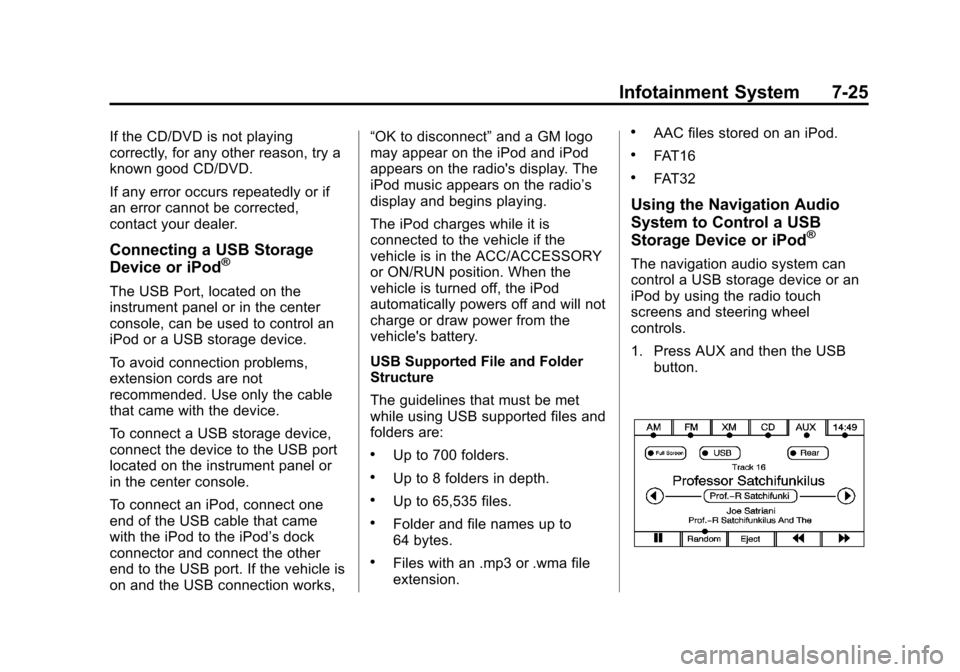
1. Press AUX and then the USB
button.
Page 208 of 532
Black plate (26,1)Cadillac Escalade/Escalade ESV Owner Manual - 2013 - CRC 2nd Edition - 10/
9/12
7-26 Infotainment System
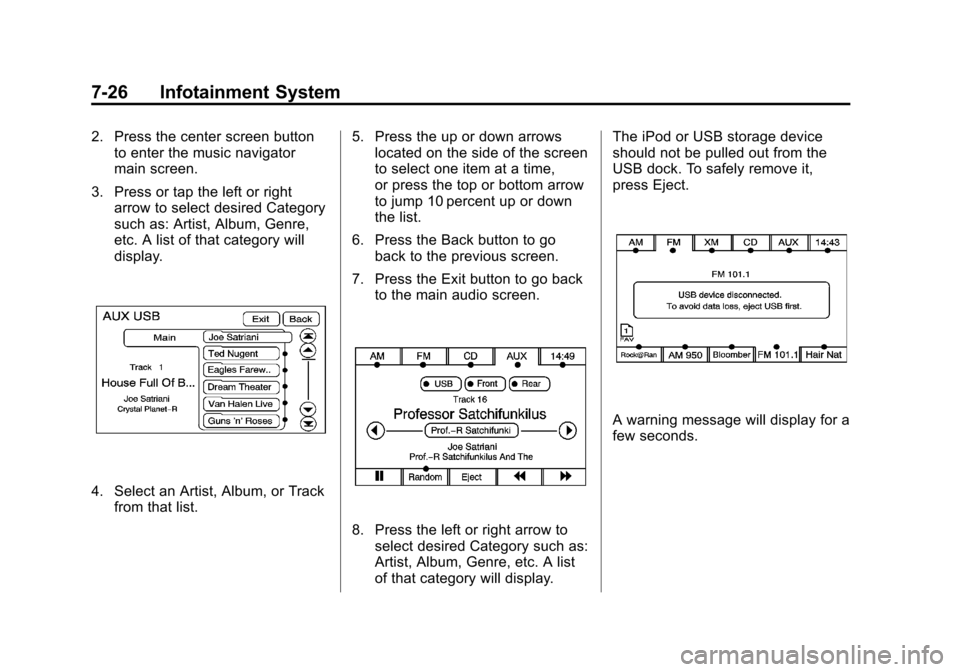
2. Press the center screen buttonto enter the music navigator
main screen.
3. Press or tap the left or right arrow to select desired Category
such as: Artist, Album, Genre,
etc. A list of that category will
display.
4. Select an Artist, Album, or Trackfrom that list. 5. Press the up or down arrows
located on the side of the screen
to select one item at a time,
or press the top or bottom arrow
to jump 10 percent up or down
the list.
6. Press the Back button to go back to the previous screen.
7. Press the Exit button to go back to the main audio screen.
8. Press the left or right arrow toselect desired Category such as:
Artist, Album, Genre, etc. A list
of that category will display. The iPod or USB storage device
should not be pulled out from the
USB dock. To safely remove it,
press Eject.
A warning message will display for a
few seconds.
Page 209 of 532
Black plate (27,1)Cadillac Escalade/Escalade ESV Owner Manual - 2013 - CRC 2nd Edition - 10/
9/12
Infotainment System 7-27
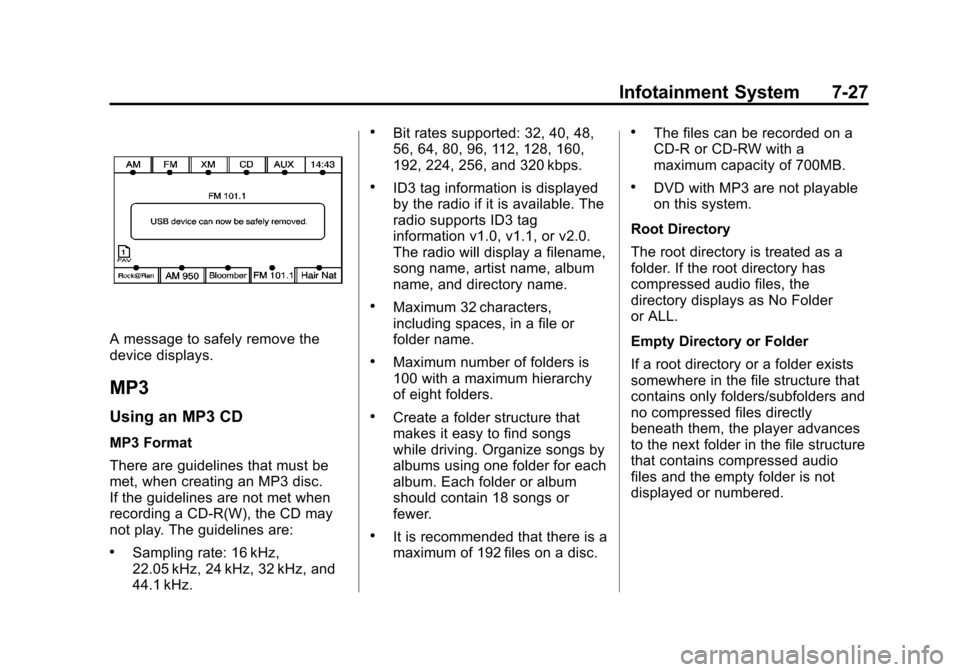
A message to safely remove the
device displays.
MP3
Using an MP3 CD
MP3 Format
There are guidelines that must be
met, when creating an MP3 disc.
If the guidelines are not met when
recording a CD-R(W), the CD may
not play. The guidelines are:
.Sampling rate: 16 kHz,
22.05 kHz, 24 kHz, 32 kHz, and
44.1 kHz.
.Bit rates supported: 32, 40, 48,
56, 64, 80, 96, 112, 128, 160,
192, 224, 256, and 320 kbps.
.ID3 tag information is displayed
by the radio if it is available. The
radio supports ID3 tag
information v1.0, v1.1, or v2.0.
The radio will display a filename,
song name, artist name, album
name, and directory name.
.Maximum 32 characters,
including spaces, in a file or
folder name.
.Maximum number of folders is
100 with a maximum hierarchy
of eight folders.
.Create a folder structure that
makes it easy to find songs
while driving. Organize songs by
albums using one folder for each
album. Each folder or album
should contain 18 songs or
fewer.
.It is recommended that there is a
maximum of 192 files on a disc.
.The files can be recorded on a
CD-R or CD-RW with a
maximum capacity of 700MB.
.DVD with MP3 are not playable
on this system.
Root Directory
The root directory is treated as a
folder. If the root directory has
compressed audio files, the
directory displays as No Folder
or ALL.
Empty Directory or Folder
If a root directory or a folder exists
somewhere in the file structure that
contains only folders/subfolders and
no compressed files directly
beneath them, the player advances
to the next folder in the file structure
that contains compressed audio
files and the empty folder is not
displayed or numbered.
Page 210 of 532
Black plate (28,1)Cadillac Escalade/Escalade ESV Owner Manual - 2013 - CRC 2nd Edition - 10/
9/12
7-28 Infotainment System
No Folder
When the CD contains only
compressed files, the files are
located under the root folder. The
next and previous folder functions
will have no function on a CD that
was recorded without folders or
playlists. When displaying the name
of the folder the radio will display No
Folder.
Order of Play
Play begins from the first track
under the root directory. When all
tracks from the root directory have
been played, play continues from
files according to their numerical
listing. After playing the last track
from the last folder, play begins
again at the first track of the first
folder or root directory.
When play enters a new folder, the
display does not automatically show
the new folder name. The new track
name appears on the display.File System and Naming
The song name that displays is the
song name that is contained in the
ID3 tag. If the song name is not
present in the ID3 tag, then the
radio displays the file name without
the extension (such as .mp3) as the
track name.
Track names longer than 32
characters or four pages are
shortened. The display does not
show parts of words on the last
page of text and the extension of
the filename does not display.
Playing an MP3
While playing a CD, the navigation
system is available.
When you insert a CD, the CD tab
displays. If a DSP setting is
selected for the CD, it will be
activated each time you play a CD.
If you turn off the ignition or radio
with a CD in the player, it stays in
the player. When you turn on theignition or radio, the CD starts
playing where it stopped, if it was
the last selected audio source.
As each new track starts to play, the
track number appears on the
display.
If an error appears on the display,
see
“CD/DVD Messages” in this
section.
If viewing a map screen, press the
CD screen button. The display splits
between the audio screen and the
map screen. If you do not want to
view a split screen or you are not on
a map screen, press AUDIO, then
press AUDIO again, repeatedly until
CD is selected or press the CD
screen button.
Page 211 of 532
Black plate (29,1)Cadillac Escalade/Escalade ESV Owner Manual - 2013 - CRC 2nd Edition - 10/
9/12
Infotainment System 7-29
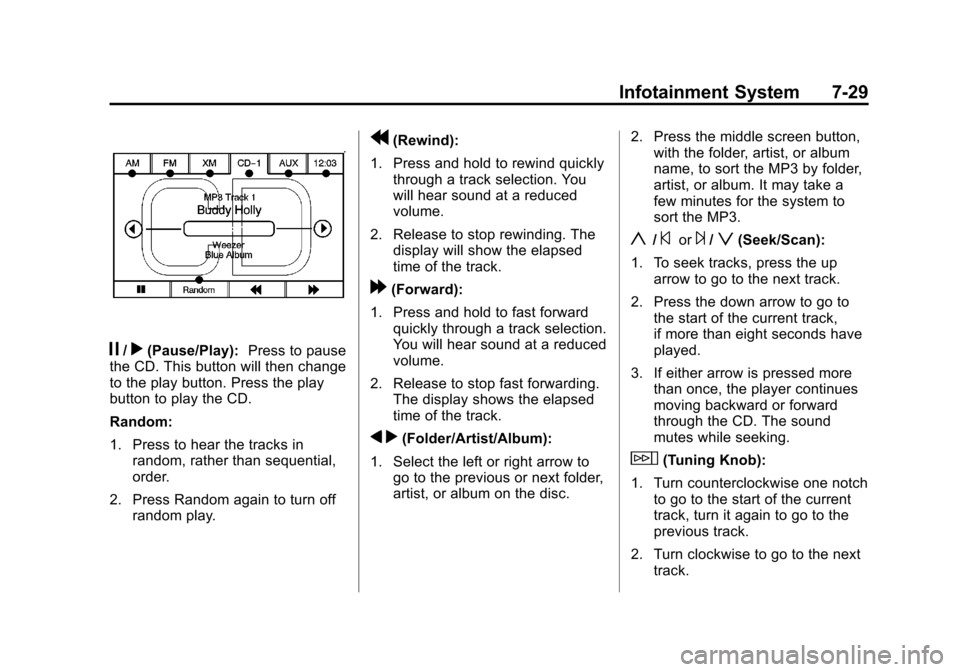
j/r(Pause/Play):Press to pause
the CD. This button will then change
to the play button. Press the play
button to play the CD.
Random:
1. Press to hear the tracks in random, rather than sequential,
order.
2. Press Random again to turn off random play.
r(Rewind):
1. Press and hold to rewind quickly through a track selection. You
will hear sound at a reduced
volume.
2. Release to stop rewinding. The display will show the elapsed
time of the track.
[(Forward):
1. Press and hold to fast forward quickly through a track selection.
You will hear sound at a reduced
volume.
2. Release to stop fast forwarding. The display shows the elapsed
time of the track.
q r(Folder/Artist/Album):
1. Select the left or right arrow to go to the previous or next folder,
artist, or album on the disc. 2. Press the middle screen button,
with the folder, artist, or album
name, to sort the MP3 by folder,
artist, or album. It may take a
few minutes for the system to
sort the MP3.
y/©or¨/z(Seek/Scan):
1. To seek tracks, press the up arrow to go to the next track.
2. Press the down arrow to go to the start of the current track,
if more than eight seconds have
played.
3. If either arrow is pressed more than once, the player continues
moving backward or forward
through the CD. The sound
mutes while seeking.
w(Tuning Knob):
1. Turn counterclockwise one notch to go to the start of the current
track, turn it again to go to the
previous track.
2. Turn clockwise to go to the next track.
Page 213 of 532
Black plate (31,1)Cadillac Escalade/Escalade ESV Owner Manual - 2013 - CRC 2nd Edition - 10/
9/12
Infotainment System 7-31
2. Press AUDIO then press AUDIOagain, repeatedly until AUX
(auxiliary) is selected or press
the AUX screen button. An
auxiliary device must be
connected for the AUX screen
button to appear as an option to
select.
3. For the second row display select the Rear AUX screen
button next to Rear Display
1 and for the third row display
select the Rear AUX screen
button next to Rear Display 2.
Each screen works
independently of the other. The
second row screen can watch a
DVD while the third row screen
can use the auxiliary device.
The rear seat passengers can also
use the remote control to change
the functions of the RSE. See the
Rear Seat Infotainment user guide
for more information.Rear Seat
Infotainment
Rear Seat Entertainment
(RSE) System
(Headrest DVD)
Vehicles with an RSE system
include two head restraint video
display screens with integrated DVD
players, auxiliary inputs, two
wireless headphones, and a remote
control. This system works
independently from the vehicle's
Overhead DVD RSE system. See
Rear Seat Entertainment (RSE)
System (Headrest DVD) on
page 7‑31 orRear Seat
Entertainment (RSE) System
(Overhead) on page 7‑50 for
information about the Overhead
DVD RSE system.
The vehicle has a feature called
Retained Accessory Power (RAP).
With RAP, the RSE system can be
played even after the ignition is turned off. See
Retained Accessory
Power (RAP) on page 9‑26 for more
information.
Video Display Screens
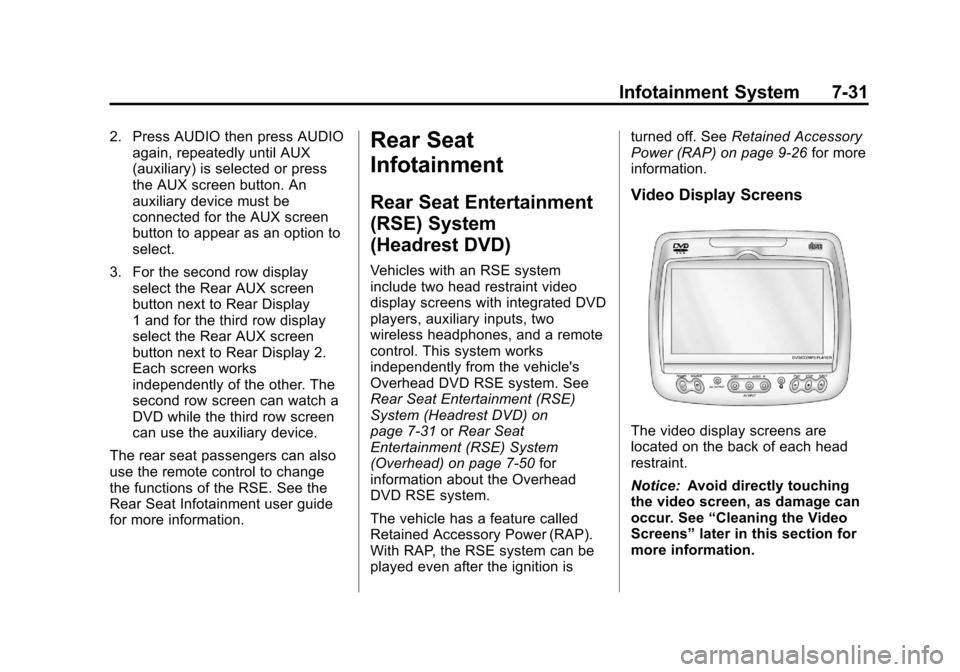
The video display screens are
located on the back of each head
restraint.
Notice: Avoid directly touching
the video screen, as damage can
occur. See “Cleaning the Video
Screens” later in this section for
more information.
Page 214 of 532
Black plate (32,1)Cadillac Escalade/Escalade ESV Owner Manual - 2013 - CRC 2nd Edition - 10/
9/12
7-32 Infotainment System
Overview RSE Base System
Some DVDs do not allow fast
forwarding or skipping of the
copyright information or previews.
If the DVD does not begin playing at
the main title, refer to the on-screen
instructions.
The DVD player can be controlled
by using the buttons located below
the video display screen or by using
the buttons on the system’s remote
control. See “Remote Control” later
for more information.
The following discs are compatible
with the DVD player:
.DVD-Video: A DVD that has
video.
.CD-DA: A CD that has music or
sound content only.
.CD-Video: A CD that has a
movie.
.CD-R/RW: A disc that has audio
files such as CD-R with
downloaded MP3 files, MPEG,
or JPEG files.
The DVD player and discs are
coded by global region. The DVD
players are set to Region 1. Discs
with other region codes will not work
in the players.
If an error message displays on the
video screen, see “DVD Messages”
later in this section.
While the vehicle is moving,
passengers should not unfasten
their safety belts to make
adjustments to the video screen
control buttons. See Safety Belts on
page 3‑16. Use the remote control
for any necessary adjustments. See
“Remote Control” later in this
section.
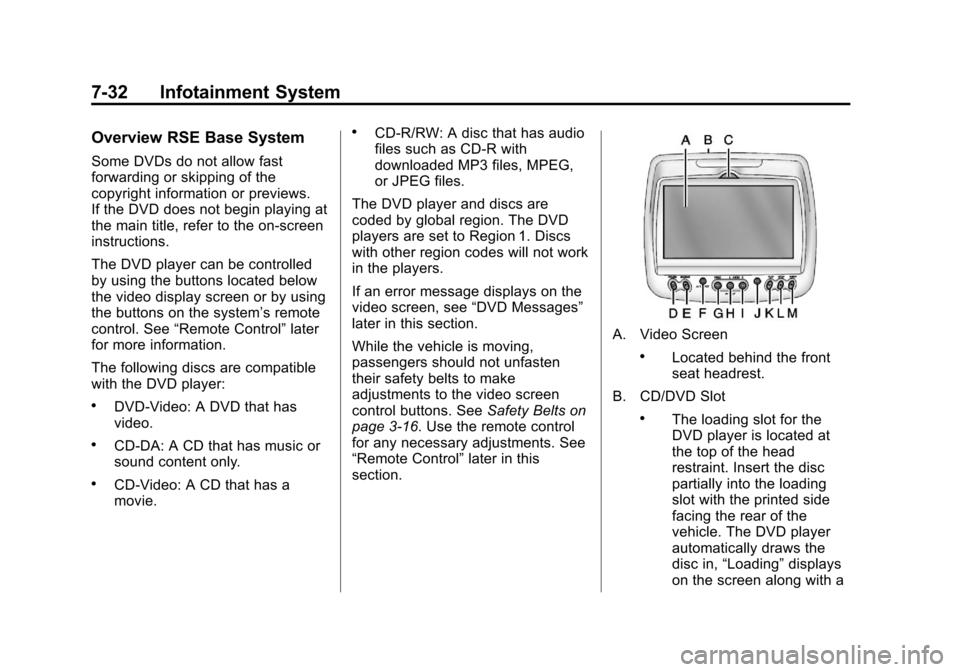
A. Video Screen
.Located behind the front
seat headrest.
B. CD/DVD Slot
.The loading slot for the
DVD player is located at
the top of the head
restraint. Insert the disc
partially into the loading
slot with the printed side
facing the rear of the
vehicle. The DVD player
automatically draws the
disc in, “Loading” displays
on the screen along with a
Page 215 of 532

Black plate (33,1)Cadillac Escalade/Escalade ESV Owner Manual - 2013 - CRC 2nd Edition - 10/
9/12
Infotainment System 7-33
disc indicator, and
playback starts. If the disc
is inserted incorrectly, the
DVD player ejects the disc
and No Disc displays.
C. Level Lock and Release Latch
.The viewing angle of the
video screen can be
adjusted by releasing the
latch and gently moving
the screen. Then lock it
into a secure position.
D. POWER
O
.Press to turn the power on
or off. Each video screen
can be powered on or off
independently.
E. SOURCE
.Press to select between
Monitor 3, Monitor 4, or the
AV INPUT.
Each video display screen
can be adjusted
independently, as well as display information from
both DVD players and both
A/V inputs.
F. AV OUTPUT (Audio/Video Output Jack)
.Wired headphones or
video output can be
plugged in with a 3.5 mm
(1/8 in) jack to listen to
music or show the video
on another device.
G. Video Input
.The yellow connector is
used for video input.
H. Left Audio Input
.The white connector is
used for the left side audio.
I. Right Audio Input
.The red connector is used
for the right side audio.
J. 3.5 mm (1/8 in) Output Jack
.Wired headphones can be
plugged in with a 3.5 mm
(1/8 in) jack. K. PLAY
r
.Press this button located
below the video display
screen to start playback of
a disc. On DVDs and video
CDs with playback
control (PBC), menu
screens can display
automatically. It might be
necessary to press the
play button again to
begin play.
There is a play position
memory feature for DVD
and video CD only. If the
DVD player is turned off
and then turned back on,
the DVD player resumes
playback where the disc
stopped. The play position
memory is erased if the
disc is removed.
Page 216 of 532
Black plate (34,1)Cadillac Escalade/Escalade ESV Owner Manual - 2013 - CRC 2nd Edition - 10/
9/12
7-34 Infotainment System
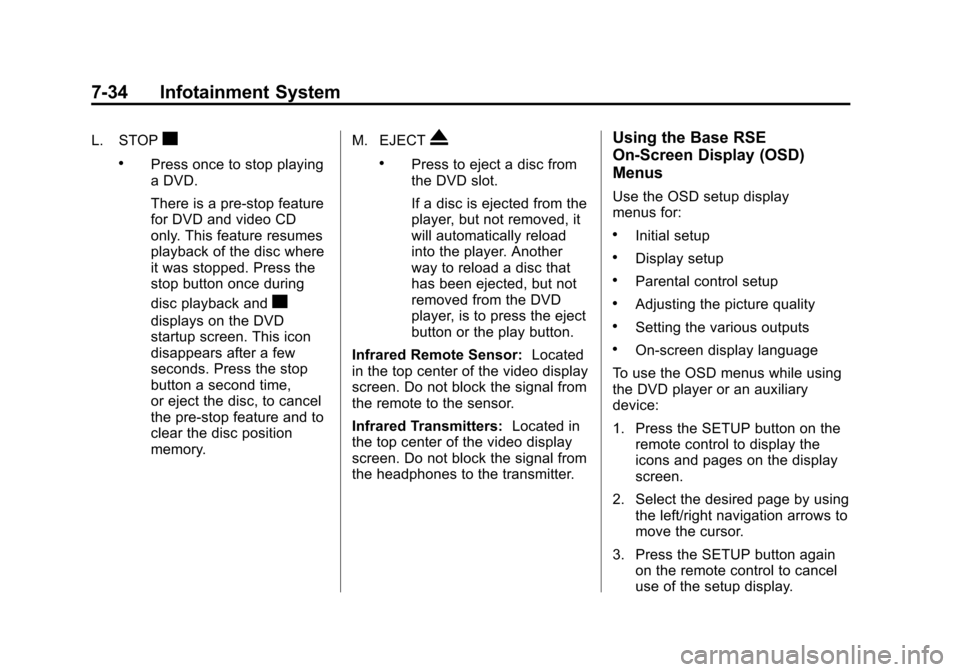
L. STOPc
.Press once to stop playing
a DVD.
There is a pre-stop feature
for DVD and video CD
only. This feature resumes
playback of the disc where
it was stopped. Press the
stop button once during
disc playback and
c
displays on the DVD
startup screen. This icon
disappears after a few
seconds. Press the stop
button a second time,
or eject the disc, to cancel
the pre-stop feature and to
clear the disc position
memory.M. EJECT
X
.Press to eject a disc from
the DVD slot.
If a disc is ejected from the
player, but not removed, it
will automatically reload
into the player. Another
way to reload a disc that
has been ejected, but not
removed from the DVD
player, is to press the eject
button or the play button.
Infrared Remote Sensor: Located
in the top center of the video display
screen. Do not block the signal from
the remote to the sensor.
Infrared Transmitters: Located in
the top center of the video display
screen. Do not block the signal from
the headphones to the transmitter.
Using the Base RSE
On-Screen Display (OSD)
Menus
Use the OSD setup display
menus for:
.Initial setup
.Display setup
.Parental control setup
.Adjusting the picture quality
.Setting the various outputs
.On-screen display language
To use the OSD menus while using
the DVD player or an auxiliary
device:
1. Press the SETUP button on the remote control to display the
icons and pages on the display
screen.
2. Select the desired page by using the left/right navigation arrows to
move the cursor.
3. Press the SETUP button again on the remote control to cancel
use of the setup display.
Page 217 of 532
Black plate (35,1)Cadillac Escalade/Escalade ESV Owner Manual - 2013 - CRC 2nd Edition - 10/
9/12
Infotainment System 7-35
Not all DVDs support all of the
feature defaults in the setup menus.
If a feature is not supported, the
defaults are provided by the DVD
media.
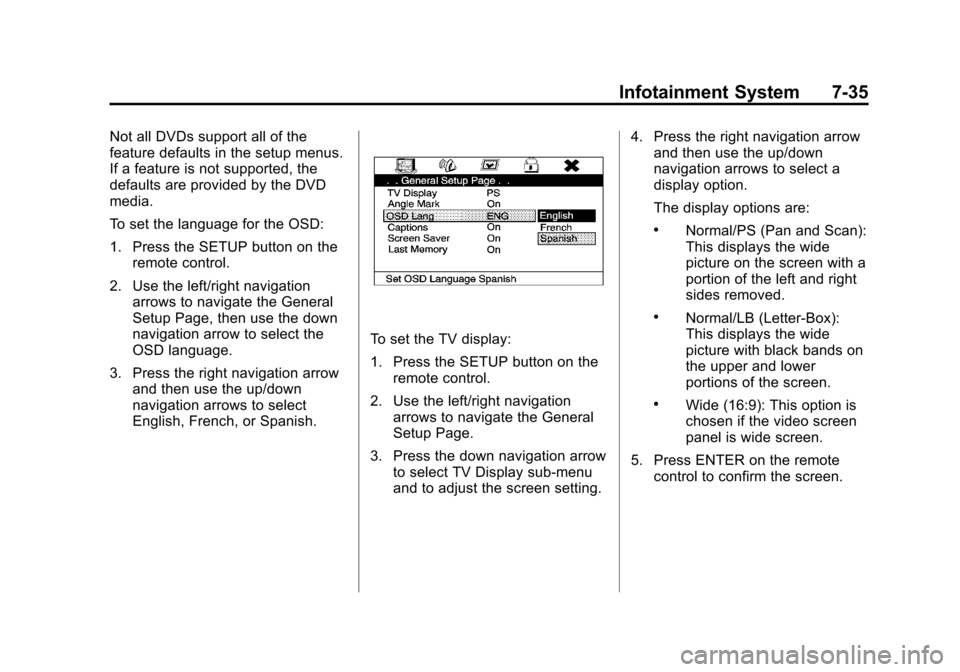
To set the language for the OSD:
1. Press the SETUP button on theremote control.
2. Use the left/right navigation arrows to navigate the General
Setup Page, then use the down
navigation arrow to select the
OSD language.
3. Press the right navigation arrow and then use the up/down
navigation arrows to select
English, French, or Spanish.
To set the TV display:
1. Press the SETUP button on theremote control.
2. Use the left/right navigation arrows to navigate the General
Setup Page.
3. Press the down navigation arrow to select TV Display sub-menu
and to adjust the screen setting. 4. Press the right navigation arrow
and then use the up/down
navigation arrows to select a
display option.
The display options are:
.Normal/PS (Pan and Scan):
This displays the wide
picture on the screen with a
portion of the left and right
sides removed.
.Normal/LB (Letter-Box):
This displays the wide
picture with black bands on
the upper and lower
portions of the screen.
.Wide (16:9): This option is
chosen if the video screen
panel is wide screen.
5. Press ENTER on the remote control to confirm the screen.