radio controls CADILLAC ESCALADE 2021 User Guide
[x] Cancel search | Manufacturer: CADILLAC, Model Year: 2021, Model line: ESCALADE, Model: CADILLAC ESCALADE 2021Pages: 492, PDF Size: 7.92 MB
Page 161 of 492
Cadillac Escalade Owner Manual (GMNA-Localizing-U.S./Canada/Mexico-
13690472) - 2021 - CRC - 8/10/21
160 INFOTAINMENT SYSTEM
There will always be 10 icons per page
except on the last page. If an icon is
moved from the first page to the
second, then that icon from the
second page will replace the one
removed from the first.
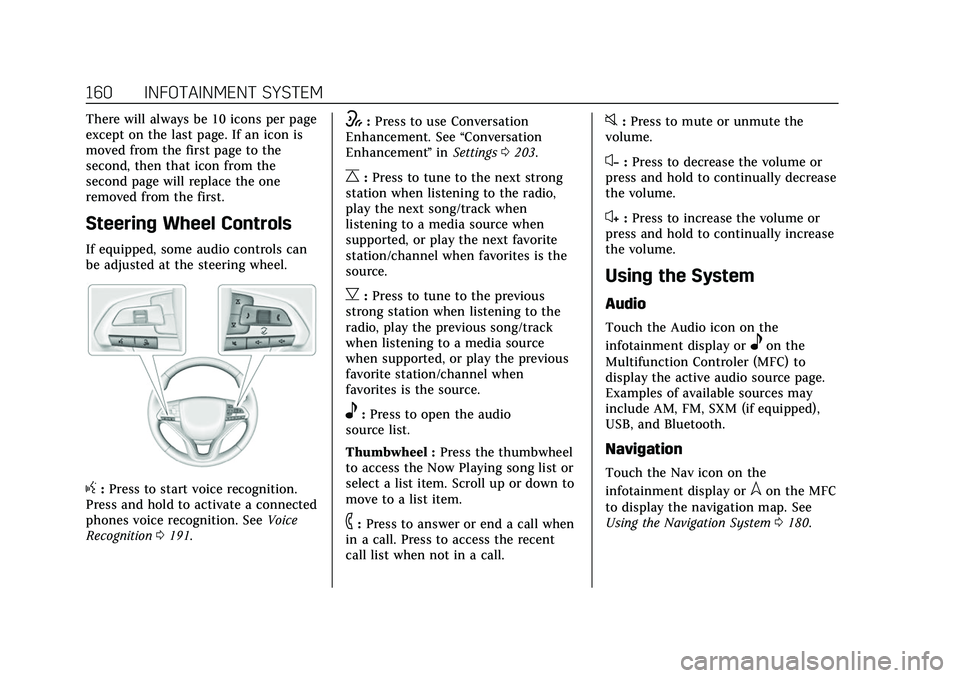
Steering Wheel Controls
If equipped, some audio controls can
be adjusted at the steering wheel.
g:Press to start voice recognition.
Press and hold to activate a connected
phones voice recognition. See Voice
Recognition 0191.
w:Press to use Conversation
Enhancement. See “Conversation
Enhancement ”in Settings 0203.
C:Press to tune to the next strong
station when listening to the radio,
play the next song/track when
listening to a media source when
supported, or play the next favorite
station/channel when favorites is the
source.
B: Press to tune to the previous
strong station when listening to the
radio, play the previous song/track
when listening to a media source
when supported, or play the previous
favorite station/channel when
favorites is the source.
e: Press to open the audio
source list.
Thumbwheel : Press the thumbwheel
to access the Now Playing song list or
select a list item. Scroll up or down to
move to a list item.
6: Press to answer or end a call when
in a call. Press to access the recent
call list when not in a call.
0: Press to mute or unmute the
volume.
x− :Press to decrease the volume or
press and hold to continually decrease
the volume.
x+ : Press to increase the volume or
press and hold to continually increase
the volume.
Using the System
Audio
Touch the Audio icon on the
infotainment display or
eon the
Multifunction Controler (MFC) to
display the active audio source page.
Examples of available sources may
include AM, FM, SXM (if equipped),
USB, and Bluetooth.
Navigation
Touch the Nav icon on the
infotainment display or
lon the MFC
to display the navigation map. See
Using the Navigation System 0180.
Page 165 of 492
Cadillac Escalade Owner Manual (GMNA-Localizing-U.S./Canada/Mexico-
13690472) - 2021 - CRC - 8/10/21
164 INFOTAINMENT SYSTEM
Finding a Station
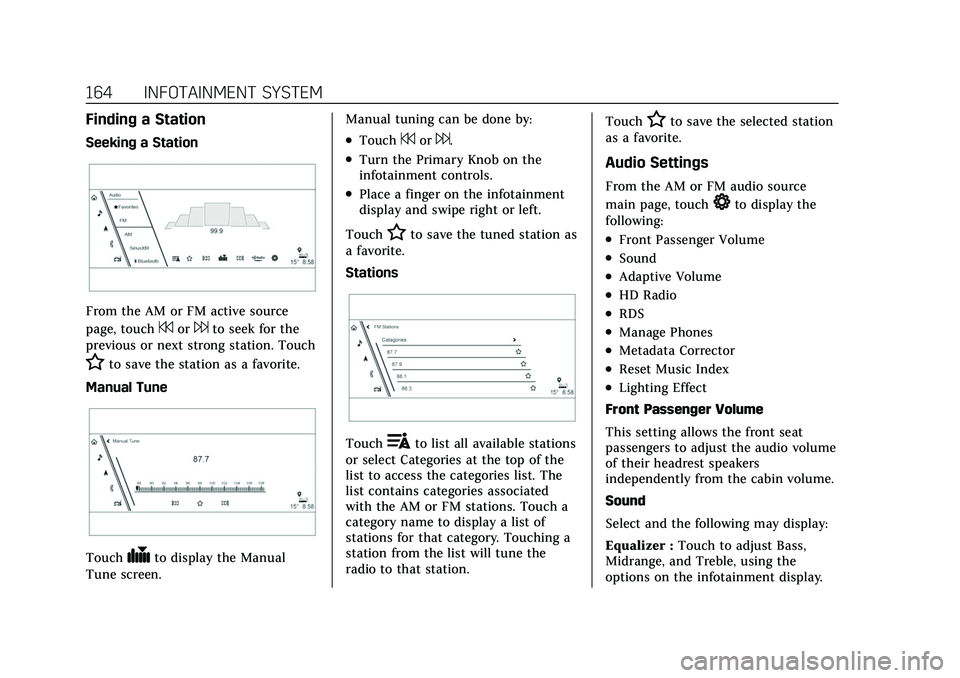
Seeking a Station
From the AM or FM active source
page, touch
7or6to seek for the
previous or next strong station. Touch
Hto save the station as a favorite.
Manual Tune
Touch#to display the Manual
Tune screen. Manual tuning can be done by:
.Touch7or6.
.Turn the Primary Knob on the
infotainment controls.
.Place a finger on the infotainment
display and swipe right or left.
Touch
Hto save the tuned station as
a favorite.
Stations
Touch!to list all available stations
or select Categories at the top of the
list to access the categories list. The
list contains categories associated
with the AM or FM stations. Touch a
category name to display a list of
stations for that category. Touching a
station from the list will tune the
radio to that station. Touch
Hto save the selected station
as a favorite.
Audio Settings
From the AM or FM audio source
main page, touch
*to display the
following:
.Front Passenger Volume
.Sound
.Adaptive Volume
.HD Radio
.RDS
.Manage Phones
.Metadata Corrector
.Reset Music Index
.Lighting Effect
Front Passenger Volume
This setting allows the front seat
passengers to adjust the audio volume
of their headrest speakers
independently from the cabin volume.
Sound
Select and the following may display:
Equalizer : Touch to adjust Bass,
Midrange, and Treble, using the
options on the infotainment display.
Page 166 of 492
Cadillac Escalade Owner Manual (GMNA-Localizing-U.S./Canada/Mexico-
13690472) - 2021 - CRC - 8/10/21
INFOTAINMENT SYSTEM 165
Fade/Balance :Touch to adjust by
using the controls on the
infotainment display.
Sound Mode : Touch to select Front
or Rear and to adjust Surround or
Surround 3D.
Adaptive Volume
This feature will automatically adjust
the audio volume based on vehicle
speed and road noise.
Touch Off or On.
HD Radio
Enhances AM and FM radio with
digital channels for better sound
quality and information.
Touch Off or On.
RDS
Radio Data System (RDS) displays
information about the currently
playing radio content such as song or
program name.
Touch Off or On. Manage Phones
Select to manage the vehicles phone
connections such as Near Field
Communication (NFC) pairing or
Bluetooth pairing.
Metadata Corrector
This feature, when on, will add and
correct information associated with
the media files on connected devices.
Touch Off or On.
Reset Music Index
Select to clear the metadata from the
connected USB devices.
Lighting Effect
This feature animates the radio
background in the color associated
with the currently playing content.
Touch Off or On.
Favorites
From the active audio source page,
choose
qFavorites from the list at
the left side to display a list of audio
favorites. Favorites are stored by touching
H.
This will highlight indicating that it is
now saved as a favorite.
HD Radio Technology
If equipped, HD Radio is a free service
with features such as digital quality
sound, more stations available on a
single frequency such as HD2 and
HD3, and display information such as
artist and song title.
From the Now Playing display, touch
the HD Radio icon to turn HD on
or off.
Station Access
To access HD Radio stations:
1. Tune the radio to the station. If HD Radio is turned on and the station
is broadcasting in HD Radio, the
radio will automatically tune to the
HD version of the current channel
(HD1) after several seconds. The
radio will also display icons
representing additional channels
(HD2, ...HD8), that may be
available. When the radio
Page 172 of 492
Cadillac Escalade Owner Manual (GMNA-Localizing-U.S./Canada/Mexico-
13690472) - 2021 - CRC - 8/10/21
INFOTAINMENT SYSTEM 171
Composers:1. Touch to view the composers on the USB.
2. Touch a Composer to view a list of albums by that composer.
3. Touch an album or All Songs to view a list of songs.
4. Touch a song from the list to begin playback.
Folders: 1. Touch to view the directories on the USB.
2. Touch a folder to view a list of all files.
3. Touch a file from the list to begin playback.
Podcasts : Touch to view the podcasts
on the connected Apple device and
get a list of podcast episodes.
Audiobooks:
1. Touch to view the audiobooks stored on the Apple device.
2. Touch an audiobook to get a list of chapters.
3. Touch the chapter from the list to begin playback. File System and Naming
File systems supported by the USB
may include:
.FAT32
.NTFS
.HFS+
The songs, artists, albums, and genres
are taken from the file’s song
information and are only displayed if
present. The radio displays the file
name as the track name if the song
information is not available.
Supported Apple Devices
To view supported devices, see
my.cadillac.com/learn.
Media Playback and Mute
USB playback will be paused if the
system is muted. If the steering wheel
mute control is pressed again,
playback will resume.
If the source is changed while in
mute, playback resumes and audio
will unmute.
Bluetooth Audio
Music may be played from a paired
Bluetooth device. See Bluetooth
(Pairing and Using a Phone) 0197 or
Bluetooth (Overview) 0196 for help
pairing a device.
Volume and song selection may be
controlled by using the infotainment
controls or the mobile device.
If Bluetooth is selected and no volume
is present, check the volume setting
on both your mobile device and the
infotainment system.
Music can be launched by touching
Bluetooth from the recent sources list
on the left of the display or by
touching the More option and then
touching the Bluetooth device.
To play music via Bluetooth:
1. Power on the device, and pair to connect the device.
2. Once paired, touch Audio from the Home Page, then touch Bluetooth
from the recent sources list on the
left of the display.
Page 173 of 492
Cadillac Escalade Owner Manual (GMNA-Localizing-U.S./Canada/Mexico-
13690472) - 2021 - CRC - 8/10/21
172 INFOTAINMENT SYSTEM
Bluetooth Sound Menu
See“Infotainment System Sound
Menu ”under AM-FM Radio 0163.
Manage Bluetooth Devices
From the Home Page: 1. Touch Audio.
2. Touch Bluetooth.
3. Touch Devices to add or delete devices.
When touching Bluetooth, the radio
may not be able to launch the audio
player on the connected device to
start playing. When the vehicle is not
moving, use the mobile device to
begin playback.
All devices launch audio differently.
When selecting Bluetooth as a source,
the radio may show as paused on the
display. Press play on the device or
touch
pon the display to begin
playback.
Browse functionality will be provided
where supported by the Bluetooth
device. This media content will not be
part of the MyMedia source mode. Some smartphones support sending
Bluetooth music information to
display on the radio. When the radio
receives this information, it will check
to see if any is available and display it.
For more information about supported
Bluetooth features, see
my.cadillac.com/learn.
OnStar System
4G LTE
If equipped with 4G LTE, up to seven
devices, such as smartphones, tablets,
and laptops, can be connected to
high-speed Internet through the
vehicle’s built-in Wi-Fi hotspot.
Call 1-888-4ONSTAR (1-888-466-7827)
to connect to an OnStar Advisor for
assistance. See www.onstar.com for
vehicle availability, details, and system
limitations. Service and connectivity
may vary by make, model, year,
carrier, availability, and conditions. 4G
LTE service is available in select
markets. 4G LTE performance is based
on industry averages and vehicle
systems design. Some services require
a data plan.
The OnStar App
If equipped, the infotainment system
has OnStar controls in the embedded
OnStar app on the Home Page. Most
OnStar functions that can be
performed with the buttons can be
done using the app. To open the app,
touch the OnStar icon on the Home
Page. App updates require a
corresponding service plan. Features
vary by region and model. Features
are subject to change. For more
information, see my.cadillac.com/learn
or press
Q.
Services
The Services tab displays the default
view for the app. Use this page to
launch the available OnStar services.
Touch a service to open its display.
Touch Wi-Fi to launch the
connections manager. Advisor Call,
Account, and Help are the other tiled
options.
Advisor Call
Selecting Advisor Call is the same as
pressing
Qor calling 1-888-4ONSTAR
(1-888-466-7827). The X option in the
Page 193 of 492

Cadillac Escalade Owner Manual (GMNA-Localizing-U.S./Canada/Mexico-
13690472) - 2021 - CRC - 8/10/21
192 INFOTAINMENT SYSTEM
and visual dialog content. These
displays can be turned on or off in the
Tutorial Mode underSettings0203.
There are three voice prompt modes
supported:
.Informative verbal prompts: This
type of prompt will provide more
information regarding the supported
actions.
.Short prompts: This type of prompt
will provide simple instructions
about what can be stated.
.Auto informative prompts: This type
of prompt plays during the first few
speech sessions, then automatically
switches to the short prompt after
some experience has been gained
through using the system.
If a command is not spoken, the voice
recognition system says a help
prompt.
Prompts and Infotainment Displays
While a voice recognition session is
active, there may be corresponding
options showing on the displays.
A selection can be made by manually
touching the option, or by speaking
the number for the option to select. Manual interaction in the voice
recognition session is permitted.
Interaction during a voice session may
be completed entirely using voice
commands while some manual
commands may expedite a task. If a
selection is made using a manual
control, the voice recognition dialog
will progress in the same way as if the
selection were made using a voice
command. Once the system completes
the task, or the session is terminated,
the voice recognition dialog stops.
An example of this type of manual
intervention is touching an entry of a
displayed number list instead of
speaking the number associated with
the entry desired.
Canceling Voice Recognition
.Touch or say
“Cancel”or“Exit ”to
terminate the voice recognition
session and show the display where
voice recognition was initiated.
.Press any MFC button or pressg,
C,B,e,6,0, or the thumbwheel
on the steering wheel controls to terminate the voice recognition
session and show the display where
voice recognition was initiated.
Natural Language Commands
Most languages do not support
natural language commands in
sentence form. For those languages,
use direct commands like the
examples shown on the display.
Helpful Hints for Speaking
Commands
Voice recognition can understand
commands that are naturally stated in
sentence form or direct commands
that state the application and
the task.
For best results:
.Listen for the prompt before saying
a command or reply.
.Speak the command naturally, not
too fast, not too slow.
.Use direct commands without a lot
of extra words. For example, “Call
the artist or song name, or “Tune”
followed by the radio station
number.
Page 197 of 492
Cadillac Escalade Owner Manual (GMNA-Localizing-U.S./Canada/Mexico-
13690472) - 2021 - CRC - 8/10/21
196 INFOTAINMENT SYSTEM
“Navigation Commands”:Begin a
dialog to enter specific destination
information.
“Address” :Begin a dialog to enter a
specific destination address, which
includes the entire address consisting
of the house number, street name,
city, state/province, and country. Do
not include the ZIP code.
“Place of Interest” :Begin a dialog to
enter a destination Place of Interest
category or major brand name.
The name must be precisely spoken.
Nicknames or short names for the
businesses will not likely be found.
Lesser known businesses might have
to be located by category, such as fast
food, hotels, or banks.
“Navigate to Contact” :Begin a
dialog to enter a specific destination
contact name.
“Cancel Route ”:End route guidance.
“Take Me Home ”:Create a route to a
stored home location.Voice Recognition for the Phone
“Call
to a stored contact. The command
may include location if the contact
has location numbers stored.
“Call
Work,” “On Mobile,” or“On
Other” :Initiate a call to a stored
contact and location at home, at work,
on mobile device, or on another
phone.
“Call
a call to a cell phone number of seven
digits, 10 digits, or three digit
emergency numbers.
“Pair Phone ”:Begin the Bluetooth
pairing process. Follow the
instructions on the infotainment
display.
“Redial” :Initiate a call to the last
dialed number.
“Switch Phone ”:Select a different
connected cell phone for outgoing
calls.
“Voice Keypad” :Begin a dialog to
enter special numbers like
international numbers. The numbers can be entered in groups of digits with
each group of digits being repeated
back by the system. If the group of
digits is not correct, the command
“Delete
”will remove the last group of
digits and allow them to be re-entered.
Once the entire number has been
entered, the command “Call”will start
dialing the number.
Phone Assistant Voice
Recognition
Press and holdgon the steering
wheel controls to pass through and
launch Google phone assistant or Siri.
For the low radio, whether connected
by Bluetooth or phone projection, the
only available voice recognition is
either Siri (iPhone) or the Google
Assistant (Android).
Phone
Bluetooth (Overview)
The Bluetooth-capable system can
interact with many mobile devices,
allowing:
Page 206 of 492
Cadillac Escalade Owner Manual (GMNA-Localizing-U.S./Canada/Mexico-
13690472) - 2021 - CRC - 8/10/21
INFOTAINMENT SYSTEM 205
.Allow Prompt Interruptions: Select
if voice commands can be spoken
before voice prompts finish.
.Friendly Prompts: Select to adjust
the formality of the voice
recognition system.
Conversation Enhancement
Touch and the following may display:
.Conversation Enhancement: This
system uses in-vehicle microphones
to make it easier for passengers to
communicate with each other.
Select from Off, Normal, High,
or Rear Microphone Off.
Time, Date, and Unit
Touch and the following may display:
.Time/Date: Select On to use GPS,
RDS, and cellular network signals to
keep the system time and date
current. Select Off to manually set
time and date using the
infotainment display controls.
.Select Time Zone: Select the time
zone for the time display or select
Auto to use the time zone based on
the vehicle location.
.Use 24-hour Format: Select to
change the time display to a
24-hour clock format.
.Unit: Select US or Metric.
Phone Projection
Touch and the following may display:
Android Auto
.Android Auto: Select Off or On to
allow interaction directly with the
phone on the radio screen.
.Select Phone: Select an available
phone from the list or press Add
Phone to pair a new phone.
Apple CarPlay
.Apple CarPlay: Select Off or On to
allow interaction directly with the
phone on the radio screen.
.Select Phone: Select an available
phone from the list or press Add
Phone to pair a new phone.
Phones
Touch and the following may display:
Add Phone
.Pair NFC Phone: Follow the
on-screen instructions or select
NFC Help.
.Pair Bluetooth Phone: Follow the
on-screen instructions or select
Bluetooth Help.
Connected
Shows connected phones.
Not Connected
Shows not connected phones.
Wi-Fi Hotspot
Touch and the following may display:
.Share Hotspot Data: Select On to
allow devices to use the vehicle
hotspot and its data.
.Wi-Fi Name: Select to change the
vehicle’s Wi-Fi network name.
.Wi-Fi Password: Select to change
the vehicle’s Wi-Fi network
password.
.Connected Phones: Select to show a
list of the vehicle’s currently
connected phones.
.Data Updating: Select to show the
data plan details including the
amount of data remaining.
Page 224 of 492
Cadillac Escalade Owner Manual (GMNA-Localizing-U.S./Canada/Mexico-
13690472) - 2021 - CRC - 8/10/21
CLIMATE CONTROLS 223
started in cold weather and turns off
when the vehicle is warmed. To turn
Auto Rear Defog on or off, see
“Climate and Air Quality”under
Vehicle Personalization 0138.
The heated outside rearview mirrors
turn on when the rear window
defogger button is on and help to
clear fog or frost from the surface of
the mirrors.
Caution
Do not try to clear frost or other
material from the inside of the
front windshield and rear window
with a razor blade or anything else
that is sharp. This may damage the
rear window defogger grid and
affect the radio's ability to pick up
stations clearly. The repairs would
not be covered by the vehicle
warranty.
Driver and Passenger Heated and
Cooled Seats : Press
Ior+to heat
the driver or passenger seatback only.
Press
Jorzto heat the driver or
passenger seat cushion and seatback. Press
Cor{to cool the driver or
passenger seat.
There are also auto heated and cooled
seats, for more information see Heated
and Ventilated Front Seats 048.
Remote Start Climate Control
Operation : The climate control
system may run when the vehicle is
started remotely. The system uses the
driver’s previous settings to heat or
cool the inside of the vehicle. The rear
defog may come on during remote
start based on cold ambient
conditions. The rear defog indicator
light does not come on during a
remote start. If equipped with heated
or cooled seats, they may come on
during a remote start. See Remote
Vehicle Start 014 and
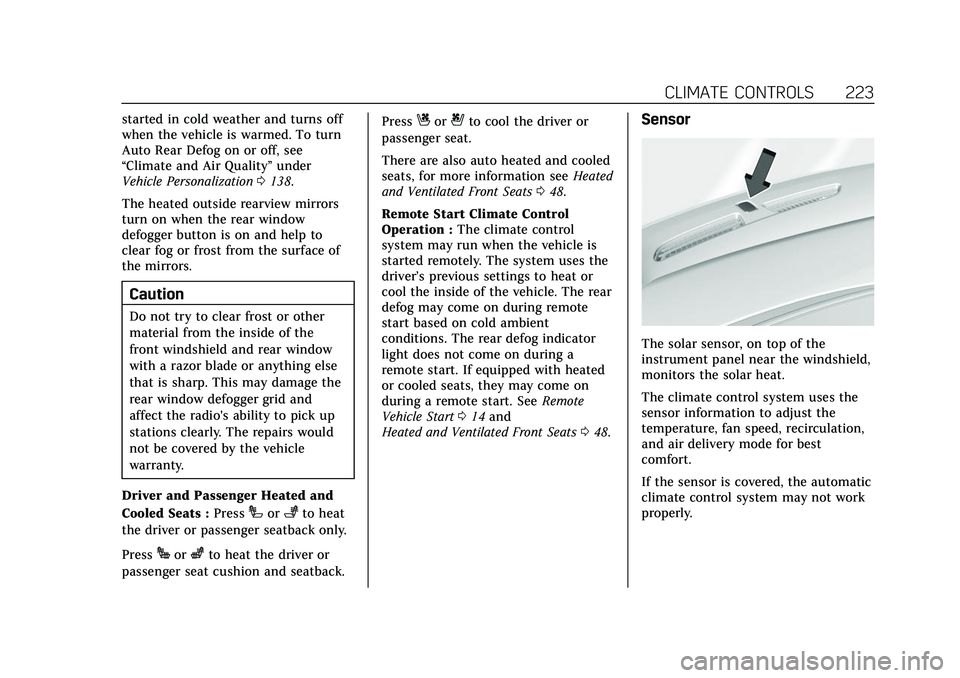
Heated and Ventilated Front Seats 048.Sensor
The solar sensor, on top of the
instrument panel near the windshield,
monitors the solar heat.
The climate control system uses the
sensor information to adjust the
temperature, fan speed, recirculation,
and air delivery mode for best
comfort.
If the sensor is covered, the automatic
climate control system may not work
properly.
Page 470 of 492
Cadillac Escalade Owner Manual (GMNA-Localizing-U.S./Canada/Mexico-
13690472) - 2021 - CRC - 8/10/21
CUSTOMER INFORMATION 469
In other Central America and
Caribbean Countries, call
52-555-901-2369.
Vehicle Data Recording
and Privacy
The vehicle has a number of
computers that record information
about the vehicle’s performance and
how it is driven or used. For example,
the vehicle uses computer modules to
monitor and control engine and
transmission performance, to monitor
the conditions for airbag deployment
and deploy them in a crash, and,
if equipped, to provide antilock
braking to help the driver control the
vehicle. These modules may store data
to help the dealer technician service
the vehicle or to help GM improve
safety or features. Some modules may
also store data about how the vehicle
is operated, such as rate of fuel
consumption or average speed. These
modules may retain personal
preferences, such as radio presets, seat
positions, and temperature settings.
Cybersecurity
GM collects information about the use
of your vehicle including operational
and safety related information. We
collect this information to provide,
evaluate, improve, and troubleshoot
our products and services and to
develop new products and services.
The protection of vehicle electronics
systems and customer data from
unauthorized outside electronic access
or control is important to GM. GM
maintains appropriate security
standards, practices, guidelines and
controls aimed at defending the
vehicle and the vehicle service
ecosystem against unauthorized
electronic access, detecting possible
malicious activity in related networks,
and responding to suspected
cybersecurity incidents in a timely,
coordinated and effective manner.
Security incidents could impact your
safety or compromise your private
data. To minimize security risks,
please do not connect your vehicle
electronic systems to unauthorized
devices or connect your vehicle to any
unknown or untrusted networks (such
as Bluetooth, WIFI or similartechnology). In the event you suspect
any security incident impacting your
data or the safe operation of your
vehicle, please stop operating your
vehicle and contact your dealer.
Event Data Recorders
This vehicle is equipped with an event
data recorder (EDR). The main
purpose of an EDR is to record, in
certain crash or near crash-like
situations, such as an air bag
deployment or hitting a road obstacle,
data that will assist in understanding
how a vehicle’s systems performed.
The EDR is designed to record data
related to vehicle dynamics and safety
systems for a short period of time,
typically 30 seconds or less. The EDR
in this vehicle is designed to record
such data as:
.How various systems in your
vehicle were operating;
.Whether or not the driver and
passenger safety belts were buckled/
fastened;
.How far (if at all) the driver was
depressing the accelerator and/or
brake pedal; and,