audio CADILLAC ESCALADE 2023 User Guide
[x] Cancel search | Manufacturer: CADILLAC, Model Year: 2023, Model line: ESCALADE, Model: CADILLAC ESCALADE 2023Pages: 461, PDF Size: 7.99 MB
Page 156 of 461
Cadillac Escalade Owner Manual (GMNA-Localizing-U.S./Canada/Mexico-
16417396) - 2023 - CRC - 5/9/22
154 Infotainment System
Listener Settings :Touch to hide explicit
language channels and content, start songs
at the beginning when tuning a music
channel, or reset the listening history.
Account Information
Select to show the XM account information.
Radio Reception
Unplug electronic devices from the accessory
power outlets if there is interference or
static in the radio.
FM
FM signals only reach about 16 to 65 km (10
to 40 mi). Although the radio has a built-in
electronic circuit that automatically works to
reduce interference, some static can occur,
especially around tall buildings or hills,
causing the sound to fade in and out.
AM
The range for most AM stations is greater
than for FM, especially at night. The longer
range can cause station frequencies to
interfere with each other. Static can also
occur when things like storms and power
lines interfere with radio reception. When
this happens, try reducing the treble on the
radio.
SiriusXM Satellite Radio Service
If equipped, SiriusXM Satellite Radio Service
provides digital radio reception. Tall
buildings or hills can interfere with satellite
radio signals, causing the sound to fade in
and out. In addition, traveling or standing
under heavy foliage, bridges, garages,
or tunnels may cause loss of the SiriusXM
signal for a period of time. Some cellular
services may interfere with SXM reception
causing loss of signal.
Mobile Device Usage
Mobile device usage, such as making or
receiving calls, charging, or just having the
mobile device on may cause static
interference in the radio. Unplug the mobile
device or turn it off if this happens.
Multi-Band Antenna
The roof antenna may be used for radio,
navigation, and OnStar, depending on the
equipped options. Keep clear of obstructions
for clear reception. If the vehicle has a
sunroof, and it is open, reception can also
be affected.
Audio Players
Avoiding Untrusted Media Devices
When using media devices such as USB and
mobile devices, consider the source.
Untrusted media devices could contain files
that affect system operation or performance
and should be avoided.
USB Port
Audio stored on a USB device may be
listened to.
The vehicle may be equipped with two USB
ports in the center console under the
armrest and another two on the center
stack. These ports are for data and charging.
There may also be two USB ports at the
rear of the center console and a USB port on
each side of the third row seats for
charging only.
Caution
To avoid vehicle damage, unplug all
accessories and disconnect all accessory
cables from the vehicle when not in use.
Accessory cables left plugged into the
vehicle, unconnected to a device, could be
(Continued)
Page 157 of 461
Cadillac Escalade Owner Manual (GMNA-Localizing-U.S./Canada/Mexico-
16417396) - 2023 - CRC - 5/9/22
Infotainment System 155
Caution (Continued)
damaged or cause an electrical short if
the unconnected end comes in contact
with liquids or another power source such
as the accessory power outlet.
Playing from a USB
A USB mass storage device can be connected
to the USB port.
Audio extensions supported by the USB may
include:
.MP3
.AAC
.OGG
.3GP
My Media Library
MyMedia is only available when more than
one indexed device is connected. It allows
access to content from all indexed media
sources. MyMedia will show as an available
source in the Source page.
USB MP3 Player and USB Devices
The USB MP3 players and USB devices
connected must comply with the USB Mass
Storage Class specification (USB MSC). To play a USB device:
1. Connect the USB.
2. Touch Audio from the Home Page.
3. Touch the More option and then touch the USB device.
Use the following when playing an active
USB source:
p: Touch to play the current media source.
j: Touch to pause playback of the current
media source.
7:
.Touch to seek the beginning of the
current or previous track.
.Touch and hold to reverse quickly
through playback. Release to return to
playing speed. Elapsed time displays.
6:
.Touch to seek the next track.
.Touch and hold to advance quickly
through playback. Release to return to
playing speed. Elapsed time displays.
Shuffle : Touch the shuffle icon to play
music in random order. USB Sound Menu
See
“Infotainment System Sound Menu”
under AM-FM Radio 0150.
USB Browse Menu
When a list of songs, albums, artists,
or other types of media displays, the up and
down arrows and A-Z appear on the left
side. Select A-Z to view a display that will
show all letters of the alphabet and select
the letter to go to.
Touch the up and down arrows to move the
list up and down.
Touch Browse and the following may
display:
Playlists: 1. Touch to view the playlists stored on the USB.
2. Touch a playlist to view the list of all songs in that playlist.
3. Touch a song from the list to begin playback.
Supported playlist extensions are m3u
and pls.
Artists: 1. Touch to view the list of artists stored on the USB.
Page 158 of 461
Cadillac Escalade Owner Manual (GMNA-Localizing-U.S./Canada/Mexico-
16417396) - 2023 - CRC - 5/9/22
156 Infotainment System
2. Touch an artist name to view a list of allalbums by the artist.
3. To select a song, touch All Songs or touch an album and then touch a song
from the list.
Songs: 1. Touch to display a list of all songs on the USB.
2. To begin playback, touch a song from the list.
Albums: 1. Touch to view the albums on the USB.
2. Touch the album to view a list of all songs on the album.
3. Touch a song from the list to begin playback.
Genres: 1. Touch to view the genres on the USB.
2. Touch a genre to view a list of artists.
3. Touch an artist to view albums by that artist.
4. Touch an album to view songs on the album.
5. Touch a song to start playback. Composers:
1. Touch to view the composers on the USB.
2. Touch a Composer to view a list of albums by that composer.
3. Touch an album or All Songs to view a list of songs.
4. Touch a song from the list to begin playback.
Folders: 1. Touch to view the directories on the USB.
2. Touch a folder to view a list of all files.
3. Touch a file from the list to begin playback.
Podcasts : Touch to view the podcasts on
the connected Apple device and get a list of
podcast episodes.
Audiobooks:
1. Touch to view the audiobooks stored on the Apple device.
2. Touch an audiobook to get a list of chapters.
3. Touch the chapter from the list to begin playback. File System and Naming
File systems supported by the USB may
include:
.FAT32
.NTFS
.HFS+
The songs, artists, albums, and genres are
taken from the file’s song information and
are only displayed if present. The radio
displays the file name as the track name if
the song information is not available.
Supported Apple Devices
To view supported devices, see
my.cadillac.com/learn.
Media Playback and Mute
USB playback will be paused if the system is
muted. If the steering wheel mute control is
pressed again, playback will resume.
If the source is changed while in mute,
playback resumes and audio will unmute.
Bluetooth Audio
Music may be played from a paired
Bluetooth device. See Bluetooth (Overview)
0 178 orBluetooth (Pairing and Using a
Phone) 0179 for help pairing a device.
Page 159 of 461
Cadillac Escalade Owner Manual (GMNA-Localizing-U.S./Canada/Mexico-
16417396) - 2023 - CRC - 5/9/22
Infotainment System 157
Volume and song selection may be
controlled by using the infotainment
controls or the mobile device. If Bluetooth is
selected and no volume is present, check the
volume setting on the infotainment system.
Music can be launched by touching
Bluetooth from the recent sources list on
the left of the display or by touching the
More option and then touching the
Bluetooth device.
To play music via Bluetooth:1. Power on the device, and pair to connect the device.
2. Once paired, touch Audio from the Home Page, then touch Bluetooth from the
recent sources list on the left of the
display.
Bluetooth Sound Menu
See “Infotainment System Sound Menu”
under AM-FM Radio 0150.
Manage Bluetooth Devices
From the Home Page: 1. Touch Audio.
2. Touch Devices to add or delete devices. When touching Bluetooth, the radio may
not be able to launch the audio player on
the connected device to start playing. When
the vehicle is not moving, use the mobile
device to begin playback.
All devices launch audio differently. When
selecting Bluetooth as a source, the radio
may show as paused on the display. Press
play on the device or touch
pon the
vehicle display to begin playback.
Browse functionality will be provided where
supported by the Bluetooth device. This
media content will not be part of the
MyMedia source mode.
Some smartphones support sending
Bluetooth music information to display on
the radio. When the radio receives this
information, it will check to see if any is
available and display it. For more
information about supported Bluetooth
features, visit your brand website. See
Online Account 0429 for details.
See Radio Frequency Statement 0435.
Rear Seat Infotainment
Rear Seat Infotainment (RSI)
System
If equipped, the system includes two HDMI
ports, two Bluetooth headphones, and video
touchscreen displays in back of the driver
and passenger seats.
The RSI system may not operate properly
until the temperature is above −20 °C (−4 °F)
and below 55 °C (131 °F).
System Operation
To use:
1. Double-tap anywhere on either screen to power on and view the Home screen.
2. Touch
}on the status bar to turn the
screen off.
The screens can be turned on and off
through each individual touchscreen,
independently from the other, and through
front seat control.
Playback of any media playing through that
specific screen is paused when the screen is
turned off.
Page 160 of 461
Cadillac Escalade Owner Manual (GMNA-Localizing-U.S./Canada/Mexico-
16417396) - 2023 - CRC - 5/9/22
158 Infotainment System
Screens can be locked via the front seat
control.
Sources
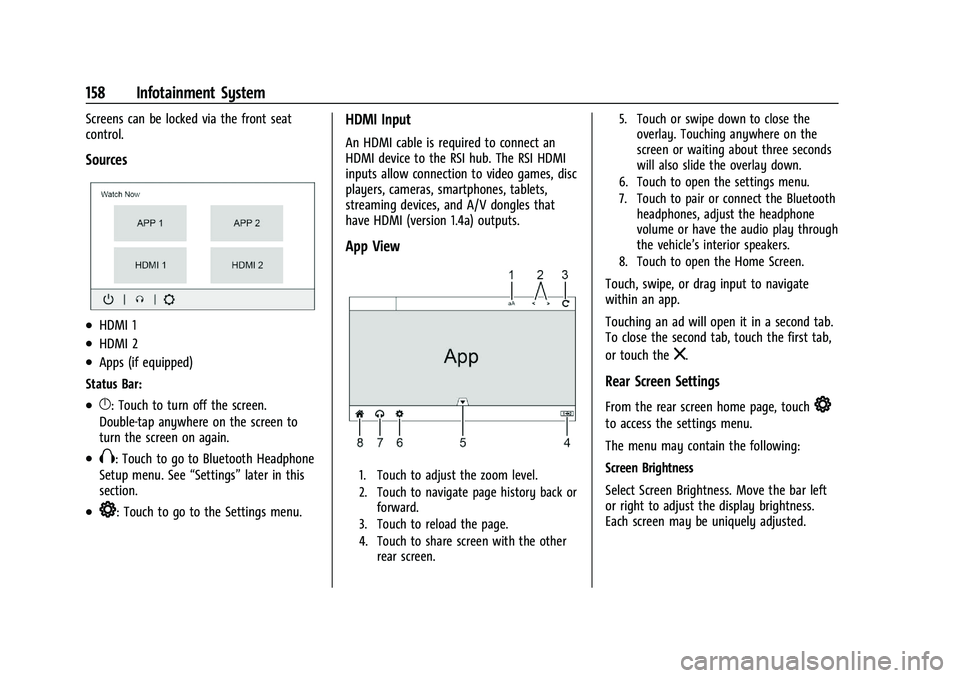
.HDMI 1
.HDMI 2
.Apps (if equipped)
Status Bar:
.}: Touch to turn off the screen.
Double-tap anywhere on the screen to
turn the screen on again.
.X: Touch to go to Bluetooth Headphone
Setup menu. See “Settings”later in this
section.
.*: Touch to go to the Settings menu.
HDMI Input
An HDMI cable is required to connect an
HDMI device to the RSI hub. The RSI HDMI
inputs allow connection to video games, disc
players, cameras, smartphones, tablets,
streaming devices, and A/V dongles that
have HDMI (version 1.4a) outputs.
App View
1. Touch to adjust the zoom level.
2. Touch to navigate page history back or forward.
3. Touch to reload the page.
4. Touch to share screen with the other rear screen. 5. Touch or swipe down to close the
overlay. Touching anywhere on the
screen or waiting about three seconds
will also slide the overlay down.
6. Touch to open the settings menu.
7. Touch to pair or connect the Bluetooth headphones, adjust the headphone
volume or have the audio play through
the vehicle’s interior speakers.
8. Touch to open the Home Screen.
Touch, swipe, or drag input to navigate
within an app.
Touching an ad will open it in a second tab.
To close the second tab, touch the first tab,
or touch the
z.
Rear Screen Settings
From the rear screen home page, touch*
to access the settings menu.
The menu may contain the following:
Screen Brightness
Select Screen Brightness. Move the bar left
or right to adjust the display brightness.
Each screen may be uniquely adjusted.
Page 162 of 461
Cadillac Escalade Owner Manual (GMNA-Localizing-U.S./Canada/Mexico-
16417396) - 2023 - CRC - 5/9/22
160 Infotainment System
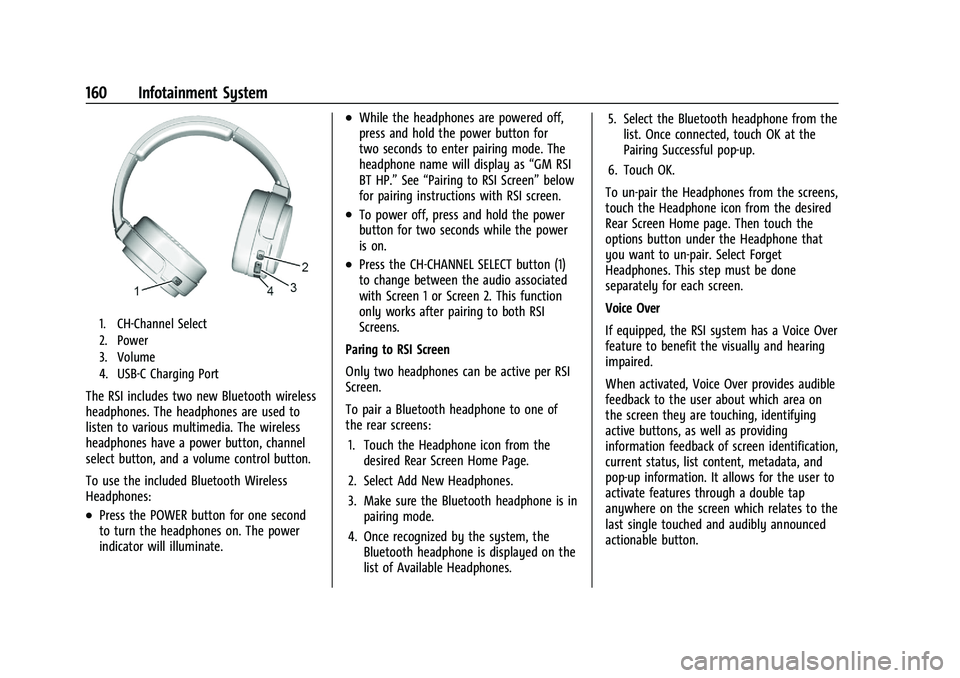
1. CH-Channel Select
2. Power
3. Volume
4. USB-C Charging Port
The RSI includes two new Bluetooth wireless
headphones. The headphones are used to
listen to various multimedia. The wireless
headphones have a power button, channel
select button, and a volume control button.
To use the included Bluetooth Wireless
Headphones:
.Press the POWER button for one second
to turn the headphones on. The power
indicator will illuminate.
.While the headphones are powered off,
press and hold the power button for
two seconds to enter pairing mode. The
headphone name will display as“GM RSI
BT HP.” See“Pairing to RSI Screen” below
for pairing instructions with RSI screen.
.To power off, press and hold the power
button for two seconds while the power
is on.
.Press the CH-CHANNEL SELECT button (1)
to change between the audio associated
with Screen 1 or Screen 2. This function
only works after pairing to both RSI
Screens.
Paring to RSI Screen
Only two headphones can be active per RSI
Screen.
To pair a Bluetooth headphone to one of
the rear screens: 1. Touch the Headphone icon from the desired Rear Screen Home Page.
2. Select Add New Headphones.
3. Make sure the Bluetooth headphone is in pairing mode.
4. Once recognized by the system, the Bluetooth headphone is displayed on the
list of Available Headphones. 5. Select the Bluetooth headphone from the
list. Once connected, touch OK at the
Pairing Successful pop-up.
6. Touch OK.
To un-pair the Headphones from the screens,
touch the Headphone icon from the desired
Rear Screen Home page. Then touch the
options button under the Headphone that
you want to un-pair. Select Forget
Headphones. This step must be done
separately for each screen.
Voice Over
If equipped, the RSI system has a Voice Over
feature to benefit the visually and hearing
impaired.
When activated, Voice Over provides audible
feedback to the user about which area on
the screen they are touching, identifying
active buttons, as well as providing
information feedback of screen identification,
current status, list content, metadata, and
pop-up information. It allows for the user to
activate features through a double tap
anywhere on the screen which relates to the
last single touched and audibly announced
actionable button.
Page 164 of 461
Cadillac Escalade Owner Manual (GMNA-Localizing-U.S./Canada/Mexico-
16417396) - 2023 - CRC - 5/9/22
162 Infotainment System
The Rear Screens may be powered on or off
from the Rear Media App. Touch Screen 1 or
Screen 2 to select a screen. Touch summary
to view both Rear Screens together.
Touching the Power icon next to the
highlighted screen icon turns that screen on
or off.
The audio for the rear users can be muted
by the front user by pressing the mute icon
associated with the left or right rear screen
on the Rear Media App screen, or both rear
screens by pressing the MUTE ALL button.
The current source from the desired Rear
Screen can also be shown on the other Rear
Screen by pressing the Share button on the
lower right side of the RSI screens.
Source Selecting from the Rear Media App
Sources may be selected for the highlighted
Rear Screen. Select Sources from the Rear
Media App screen, then select from the list
of available sources shown on the RSI
Sources screen.Summary View
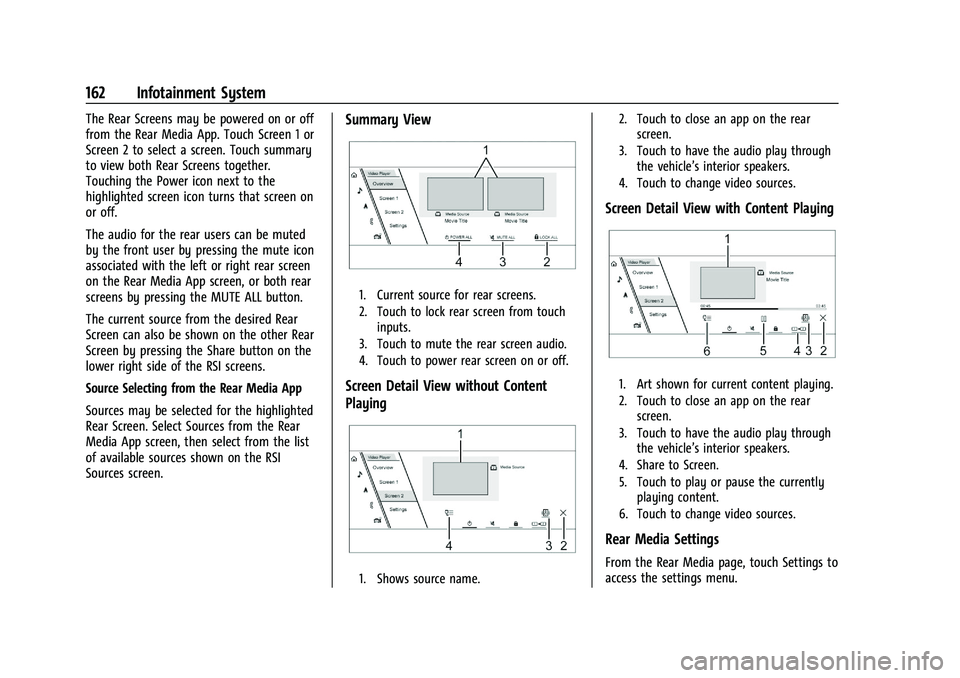
1. Current source for rear screens.
2. Touch to lock rear screen from touchinputs.
3. Touch to mute the rear screen audio.
4. Touch to power rear screen on or off.
Screen Detail View without Content
Playing
1. Shows source name. 2. Touch to close an app on the rear
screen.
3. Touch to have the audio play through the vehicle’s interior speakers.
4. Touch to change video sources.
Screen Detail View with Content Playing
1. Art shown for current content playing.
2. Touch to close an app on the rear screen.
3. Touch to have the audio play through the vehicle’s interior speakers.
4. Share to Screen.
5. Touch to play or pause the currently playing content.
6. Touch to change video sources.
Rear Media Settings
From the Rear Media page, touch Settings to
access the settings menu.
Page 171 of 461
Cadillac Escalade Owner Manual (GMNA-Localizing-U.S./Canada/Mexico-
16417396) - 2023 - CRC - 5/9/22
Infotainment System 169
.Pinch to zoom in or out.
.Pan the map.
.Use two fingers to tilt down and change
from 2D to 3D. Tilt up to change back
to 2D.
.Rotate the map.
The MFC can also shift up, down, left,
or right to pan the map.
See Using the System 0147.
Mute
When in active guidance, the audio prompts
while using navigation can be muted. Touch
Mute in the Active Menu. A slash will
appear on the speaker to indicate voice
guidance is muted.
Active Guidance View
When a destination is chosen and a
navigation session is active, the navigation
system enters into an Active Guidance
View (AGV).
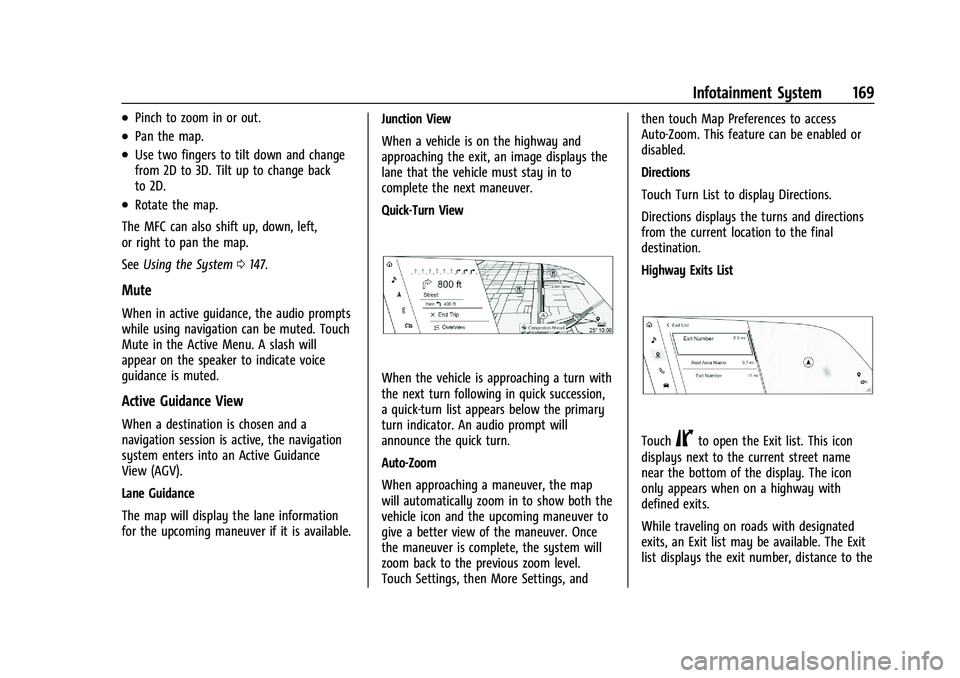
Lane Guidance
The map will display the lane information
for the upcoming maneuver if it is available. Junction View
When a vehicle is on the highway and
approaching the exit, an image displays the
lane that the vehicle must stay in to
complete the next maneuver.
Quick-Turn View
When the vehicle is approaching a turn with
the next turn following in quick succession,
a quick-turn list appears below the primary
turn indicator. An audio prompt will
announce the quick turn.
Auto-Zoom
When approaching a maneuver, the map
will automatically zoom in to show both the
vehicle icon and the upcoming maneuver to
give a better view of the maneuver. Once
the maneuver is complete, the system will
zoom back to the previous zoom level.
Touch Settings, then More Settings, andthen touch Map Preferences to access
Auto-Zoom. This feature can be enabled or
disabled.
Directions
Touch Turn List to display Directions.
Directions displays the turns and directions
from the current location to the final
destination.
Highway Exits List
TouchCto open the Exit list. This icon
displays next to the current street name
near the bottom of the display. The icon
only appears when on a highway with
defined exits.
While traveling on roads with designated
exits, an Exit list may be available. The Exit
list displays the exit number, distance to the
Page 175 of 461
Cadillac Escalade Owner Manual (GMNA-Localizing-U.S./Canada/Mexico-
16417396) - 2023 - CRC - 5/9/22
Infotainment System 173
a location that is safe and has a clear view
of the sky and away from large
obstructions.
If the System Needs Service
If the navigation system needs service, see
your dealer.
Map Data Updates
The map data in the vehicle is the most
up-to-date information available when the
vehicle was produced.
See www.gmnavdisc.com for details on
ordering, purchasing, and installing a new or
replacement SD card. Features are subject to
change. For more information on this
feature, see my.cadillac.com/learn.
Database Coverage Explanations
Coverage areas vary with respect to the
level of map detail available for any given
area. Some areas feature greater levels of
detail than others. If this happens, it does
not mean there is a problem with the
system. As the map data is updated, more
detail can become available for areas that
previously had limited detail. SeeMap Data
Updates 0173.
Voice Recognition
If equipped, voice recognition allows for
hands-free operation within the navigation,
audio, and phone. This feature can be
started by pressing
gon the steering
wheel.
However, not all features within these areas
are supported by voice commands.
Generally, only complex tasks that require
multiple manual interactions to complete
are supported by voice commands.
For example, tasks that take more than one
or two touches, such as a song or artist to
play from a media device, would be
supported by voice commands. Other tasks,
like adjusting the volume or seeking up or
down, are audio features that are easily
performed by touching one or two options,
and are not supported by voice commands.
In general there are flexible ways to speak
commands for completing the tasks.
If your language supports it, try stating a
one-shot command, such as “Directions to
address
while stating the address during the
command. Another example of a one-shot Destination Entry command is,
“Directions to
Place of Interest at
commands do not work, try saying, “Take
me to Place of Interest” or“Find address”
and the system will walk you through by
asking additional questions.
Hybrid Speech Recognition
If equipped, this feature helps distinguish
words by using Internet-based information
along with the system’s voice recognition
database. This allows you to speak more
naturally when using voice recognition.
Using Voice Recognition
Voice recognition becomes available once
the system has been initialized. This begins
when the ignition is turned on. Initialization
may take a few moments.
1. Press
gon the steering wheel controls
to activate voice recognition.
2. The audio system mutes and the system plays a prompt.
3. Clearly speak one of the commands described in this section.
A voice recognition system prompt can
be interrupted while it is playing by
pressing
gagain.
Page 177 of 461
Cadillac Escalade Owner Manual (GMNA-Localizing-U.S./Canada/Mexico-
16417396) - 2023 - CRC - 5/9/22
Infotainment System 175
The system responds by requesting more
details. For other POIs, say the name of a
category like“Restaurants,” “Shopping
Malls,” or“Hospitals.”
.Navigating to a destination outside of the
current country takes more than one
command. The first command is to tell
the system where the navigation will take
place, such as an Address, Intersection,
POI, or Contact. If Address or Intersection
is selected, the second command is to
say, “Change Country.” Once the system
responds, say the country before saying
the rest of the address and/or
intersection.
If POI is asked for, say “Change Location,”
then “Change Country.”
Direct commands might be more clearly
understood by the system. An example of a
direct command would be “Call
Examples of these direct commands are
displayed on most of the screens while a
voice session is active. If “Phone”or“Phone
Commands,” is spoken, the system
understands that a phone call is requested
and will respond with questions until
enough details are gathered to make a call. If a cell phone number has been saved with
a name and a place, the direct command
should include both, for example
“Call
When a list is displayed, a voice prompt will
ask to confirm or select an option from
that list.
When a display contains a list, there may be
options that are available but not displayed.
The list on a voice recognition screen
functions the same as a list on other
displays. Scrolling or flinging can be used to
help display other entries from the list.
Manually scrolling or paging the list on a
display during a voice recognition session
suspends the current voice recognition event
and plays the prompt “Please select
manually or touch the Back icon on the
infotainment display to try again.”
If manual selection takes more than
15 seconds, the session terminates and
prompts that it has timed out. The display
returns to the display where voice
recognition was initiated. The Back Command
Say
“Back” or touch the Back icon on the
infotainment display to go to the
previous menu.
If in voice recognition, and “Back”is spoken
all the way back to the starting display, and
then “Back” is spoken one more time, the
voice recognition session will cancel.
Help
Say “Help” on any voice recognition display
and the help prompt for the display is
played.
Voice Recognition for the Radio
If browsing the audio sources when voice is
touched, the voice recognition commands
for AM, FM, and SiriusXM (if equipped) are
available.
“Switch to AM” :Switch bands to AM and
tune to the last AM radio station.
“Switch to FM” :Switch bands to FM and
tune to the last FM radio station.
“Switch to SXM” :Switch bands to SiriusXM
and tune to the last SiriusXM channel.
“Tune to
the radio station whose frequency is
identified in the command (like “nine fifty”).