change time CADILLAC ESCALADE 2023 User Guide
[x] Cancel search | Manufacturer: CADILLAC, Model Year: 2023, Model line: ESCALADE, Model: CADILLAC ESCALADE 2023Pages: 461, PDF Size: 7.99 MB
Page 140 of 461

Cadillac Escalade Owner Manual (GMNA-Localizing-U.S./Canada/Mexico-
16417396) - 2023 - CRC - 5/9/22
138 Lighting
There is a delay in the transition between
the daytime and nighttime operation of the
automatic headlamp system so that driving
under bridges or bright overhead street
lights does not affect the system. The
automatic headlamp system is only affected
when the light sensor detects a change in
lighting lasting longer than the delay.
If the vehicle is started in a dark garage, the
automatic headlamp system will come on
immediately. Once the vehicle leaves the
garage, there is a slight delay for the
automatic headlamp system to change if it
is bright enough outside. During that delay,
the instrument cluster may not be as bright
as usual. Make sure the instrument panel
brightness control is in the full bright
position. SeeInstrument Panel Illumination
Control 0140.
To idle the vehicle with the automatic
headlamp system off, turn the control to
the off position.
The headlamps will also stay on after you
exit the vehicle.
The regular headlamp system can be turned
on when needed.Lights On with Wipers
If the windshield wipers are activated in
daylight with the engine on, and the
exterior lamp control is in AUTO, the
headlamps, parking lamps, and other
exterior lamps come on. The transition time
for the lamps coming on varies based on
wiper speed. When the wipers are not
operating, these lamps turn off. Move the
exterior lamp control to
Por;to
disable this feature.
Adaptive Forward Lighting (AFL)
If equipped with the AFL system, the
high-beam headlamps move horizontally
while turning the steering wheel to provide
greater road illumination around curves.
To activate AFL, set the exterior lamp
control to the Auto or
2position, and
Adaptive Headlight system is active. See
Exterior Lamp Controls 0134. To adjust the AFL setting, go to the
infotainment home screen and select
Settings > Vehicle > Lighting.
Moving the exterior lamp controls out of the
Auto or
2position will deactivate the
system. The high-beam headlamps can move
horizontally when the vehicle speed is
greater than 3 km/h (2 mph). Headlamps will
not move horizontally when the
transmission is in R (Reverse).
If equipped, the AFL system automatically
modifies the low-beam lighting patterns to
the situation to enable optimal light
performance for the driver. Light distribution
and intensity of low-beam light are
controlled based on exterior lighting
conditions, vehicle location, and driving
situations.
Town Light
If equipped, the town light activates
automatically at a speed of 30 km/h
(18 mph) up to 55 km/h (34 mph).
Page 142 of 461
Cadillac Escalade Owner Manual (GMNA-Localizing-U.S./Canada/Mexico-
16417396) - 2023 - CRC - 5/9/22
140 Lighting
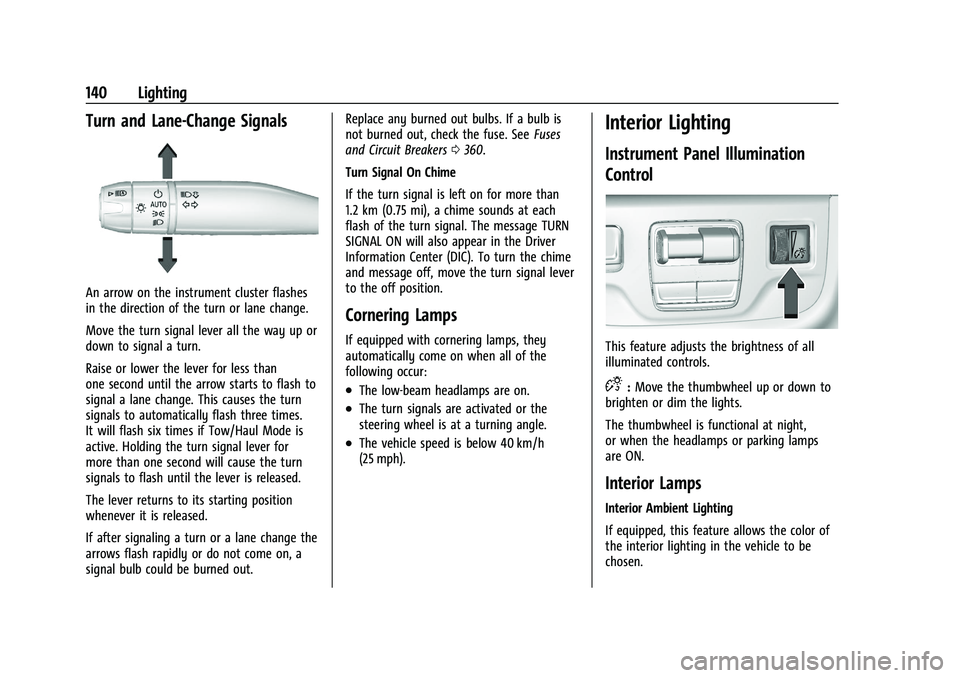
Turn and Lane-Change Signals
An arrow on the instrument cluster flashes
in the direction of the turn or lane change.
Move the turn signal lever all the way up or
down to signal a turn.
Raise or lower the lever for less than
one second until the arrow starts to flash to
signal a lane change. This causes the turn
signals to automatically flash three times.
It will flash six times if Tow/Haul Mode is
active. Holding the turn signal lever for
more than one second will cause the turn
signals to flash until the lever is released.
The lever returns to its starting position
whenever it is released.
If after signaling a turn or a lane change the
arrows flash rapidly or do not come on, a
signal bulb could be burned out.Replace any burned out bulbs. If a bulb is
not burned out, check the fuse. See
Fuses
and Circuit Breakers 0360.
Turn Signal On Chime
If the turn signal is left on for more than
1.2 km (0.75 mi), a chime sounds at each
flash of the turn signal. The message TURN
SIGNAL ON will also appear in the Driver
Information Center (DIC). To turn the chime
and message off, move the turn signal lever
to the off position.
Cornering Lamps
If equipped with cornering lamps, they
automatically come on when all of the
following occur:
.The low-beam headlamps are on.
.The turn signals are activated or the
steering wheel is at a turning angle.
.The vehicle speed is below 40 km/h
(25 mph).
Interior Lighting
Instrument Panel Illumination
Control
This feature adjusts the brightness of all
illuminated controls.
D: Move the thumbwheel up or down to
brighten or dim the lights.
The thumbwheel is functional at night,
or when the headlamps or parking lamps
are ON.
Interior Lamps
Interior Ambient Lighting
If equipped, this feature allows the color of
the interior lighting in the vehicle to be
chosen.
Page 144 of 461
Cadillac Escalade Owner Manual (GMNA-Localizing-U.S./Canada/Mexico-
16417396) - 2023 - CRC - 5/9/22
142 Lighting
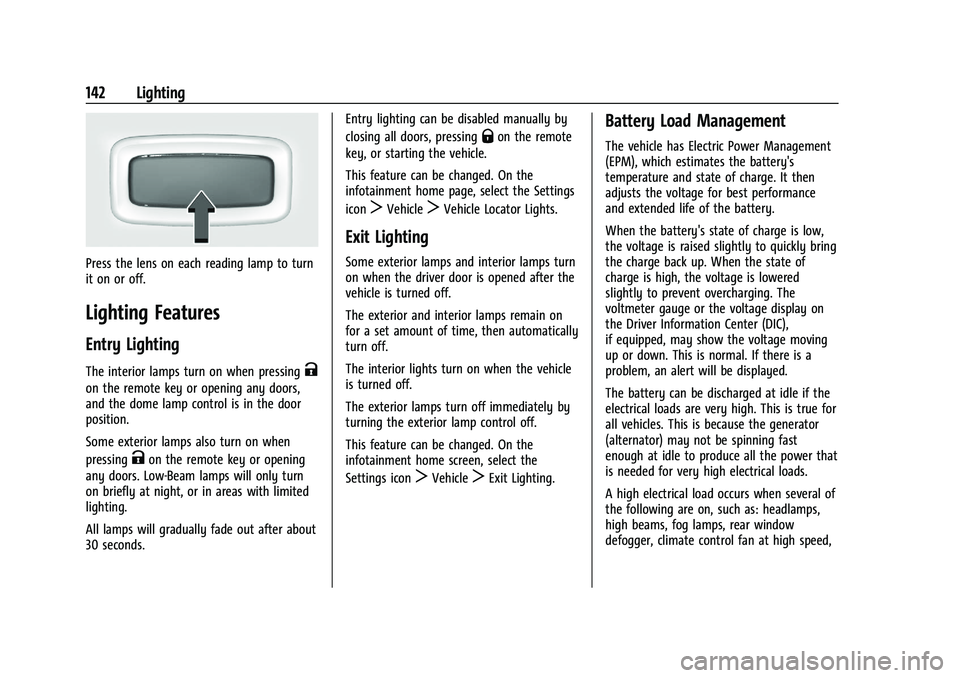
Press the lens on each reading lamp to turn
it on or off.
Lighting Features
Entry Lighting
The interior lamps turn on when pressingK
on the remote key or opening any doors,
and the dome lamp control is in the door
position.
Some exterior lamps also turn on when
pressing
Kon the remote key or opening
any doors. Low-Beam lamps will only turn
on briefly at night, or in areas with limited
lighting.
All lamps will gradually fade out after about
30 seconds. Entry lighting can be disabled manually by
closing all doors, pressing
Qon the remote
key, or starting the vehicle.
This feature can be changed. On the
infotainment home page, select the Settings
icon
TVehicleTVehicle Locator Lights.
Exit Lighting
Some exterior lamps and interior lamps turn
on when the driver door is opened after the
vehicle is turned off.
The exterior and interior lamps remain on
for a set amount of time, then automatically
turn off.
The interior lights turn on when the vehicle
is turned off.
The exterior lamps turn off immediately by
turning the exterior lamp control off.
This feature can be changed. On the
infotainment home screen, select the
Settings icon
TVehicleTExit Lighting.
Battery Load Management
The vehicle has Electric Power Management
(EPM), which estimates the battery's
temperature and state of charge. It then
adjusts the voltage for best performance
and extended life of the battery.
When the battery's state of charge is low,
the voltage is raised slightly to quickly bring
the charge back up. When the state of
charge is high, the voltage is lowered
slightly to prevent overcharging. The
voltmeter gauge or the voltage display on
the Driver Information Center (DIC),
if equipped, may show the voltage moving
up or down. This is normal. If there is a
problem, an alert will be displayed.
The battery can be discharged at idle if the
electrical loads are very high. This is true for
all vehicles. This is because the generator
(alternator) may not be spinning fast
enough at idle to produce all the power that
is needed for very high electrical loads.
A high electrical load occurs when several of
the following are on, such as: headlamps,
high beams, fog lamps, rear window
defogger, climate control fan at high speed,
Page 147 of 461
Cadillac Escalade Owner Manual (GMNA-Localizing-U.S./Canada/Mexico-
16417396) - 2023 - CRC - 5/9/22
Infotainment System 145
.Set up the audio by presetting favorite
stations, setting the tone, and adjusting
the speakers.
.Set up phone numbers in advance so they
can be called easily by pressing a single
control or by using a single voice
command.
See Distracted Driving 0206.
Overview
Infotainment System
The infotainment system is controlled by
using the infotainment display, controls on
the center console, steering wheel controls,
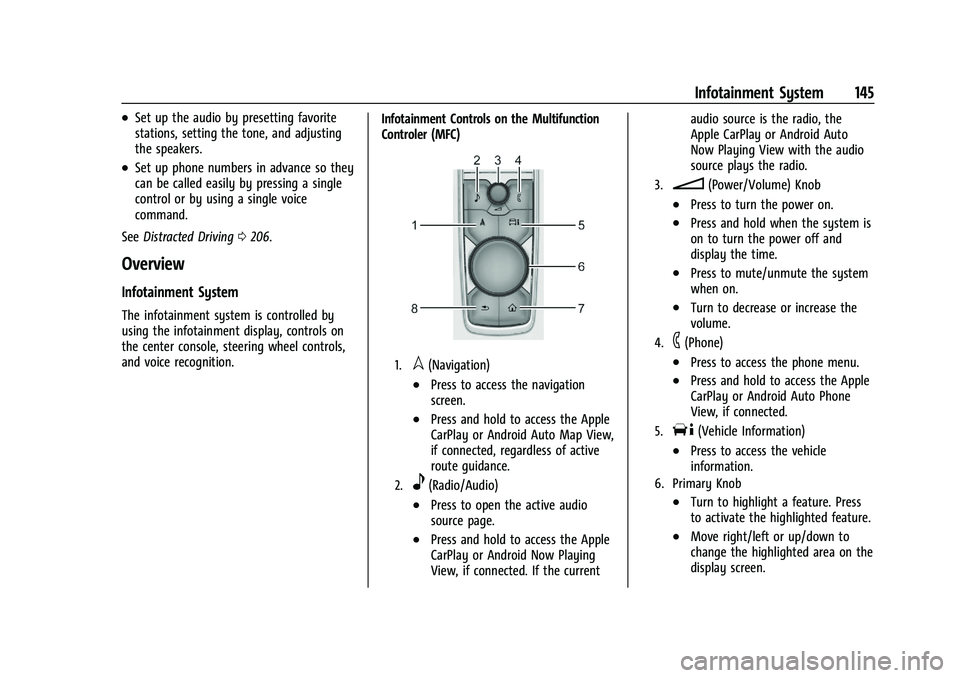
and voice recognition. Infotainment Controls on the Multifunction
Controler (MFC)
1.l(Navigation)
.Press to access the navigation
screen.
.Press and hold to access the Apple
CarPlay or Android Auto Map View,
if connected, regardless of active
route guidance.
2.e(Radio/Audio)
.Press to open the active audio
source page.
.Press and hold to access the Apple
CarPlay or Android Now Playing
View, if connected. If the currentaudio source is the radio, the
Apple CarPlay or Android Auto
Now Playing View with the audio
source plays the radio.
3.n(Power/Volume) Knob
.Press to turn the power on.
.Press and hold when the system is
on to turn the power off and
display the time.
.Press to mute/unmute the system
when on.
.Turn to decrease or increase the
volume.
4.6(Phone)
.Press to access the phone menu.
.Press and hold to access the Apple
CarPlay or Android Auto Phone
View, if connected.
5.T(Vehicle Information)
.Press to access the vehicle
information.
6. Primary Knob
.Turn to highlight a feature. Press
to activate the highlighted feature.
.Move right/left or up/down to
change the highlighted area on the
display screen.
Page 162 of 461
Cadillac Escalade Owner Manual (GMNA-Localizing-U.S./Canada/Mexico-
16417396) - 2023 - CRC - 5/9/22
160 Infotainment System
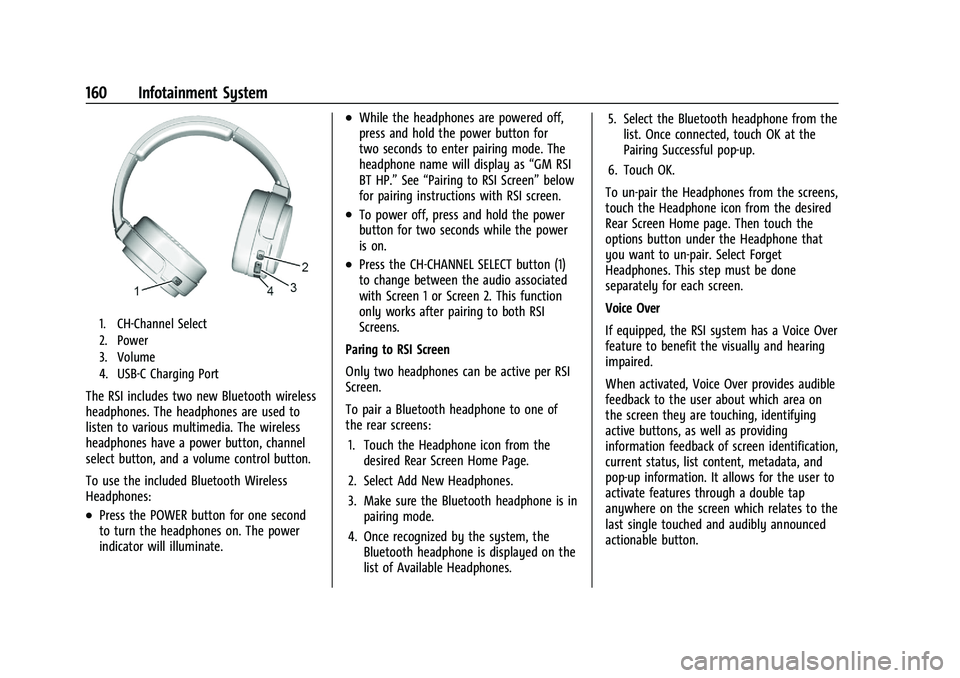
1. CH-Channel Select
2. Power
3. Volume
4. USB-C Charging Port
The RSI includes two new Bluetooth wireless
headphones. The headphones are used to
listen to various multimedia. The wireless
headphones have a power button, channel
select button, and a volume control button.
To use the included Bluetooth Wireless
Headphones:
.Press the POWER button for one second
to turn the headphones on. The power
indicator will illuminate.
.While the headphones are powered off,
press and hold the power button for
two seconds to enter pairing mode. The
headphone name will display as“GM RSI
BT HP.” See“Pairing to RSI Screen” below
for pairing instructions with RSI screen.
.To power off, press and hold the power
button for two seconds while the power
is on.
.Press the CH-CHANNEL SELECT button (1)
to change between the audio associated
with Screen 1 or Screen 2. This function
only works after pairing to both RSI
Screens.
Paring to RSI Screen
Only two headphones can be active per RSI
Screen.
To pair a Bluetooth headphone to one of
the rear screens: 1. Touch the Headphone icon from the desired Rear Screen Home Page.
2. Select Add New Headphones.
3. Make sure the Bluetooth headphone is in pairing mode.
4. Once recognized by the system, the Bluetooth headphone is displayed on the
list of Available Headphones. 5. Select the Bluetooth headphone from the
list. Once connected, touch OK at the
Pairing Successful pop-up.
6. Touch OK.
To un-pair the Headphones from the screens,
touch the Headphone icon from the desired
Rear Screen Home page. Then touch the
options button under the Headphone that
you want to un-pair. Select Forget
Headphones. This step must be done
separately for each screen.
Voice Over
If equipped, the RSI system has a Voice Over
feature to benefit the visually and hearing
impaired.
When activated, Voice Over provides audible
feedback to the user about which area on
the screen they are touching, identifying
active buttons, as well as providing
information feedback of screen identification,
current status, list content, metadata, and
pop-up information. It allows for the user to
activate features through a double tap
anywhere on the screen which relates to the
last single touched and audibly announced
actionable button.
Page 166 of 461
Cadillac Escalade Owner Manual (GMNA-Localizing-U.S./Canada/Mexico-
16417396) - 2023 - CRC - 5/9/22
164 Infotainment System
.Local map content updating.
Personalized Navigation can also be enabled
or disabled at a later time. Select Settings,
then Navigation Privacy, and then change
setting for Collect Data with Profile
Information. See Settings0184.
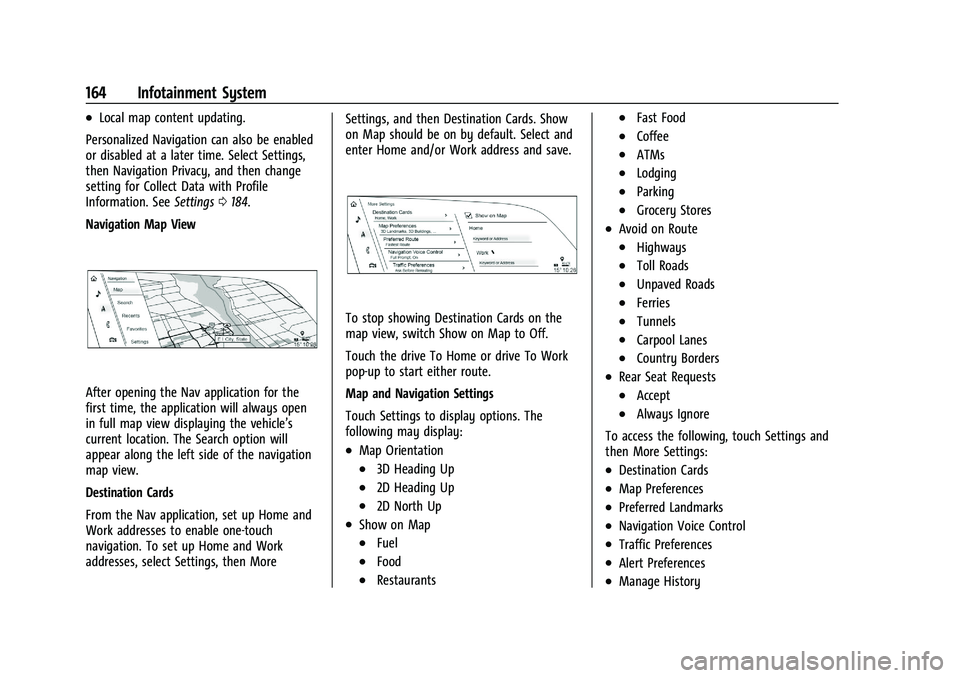
Navigation Map View
After opening the Nav application for the
first time, the application will always open
in full map view displaying the vehicle’s
current location. The Search option will
appear along the left side of the navigation
map view.
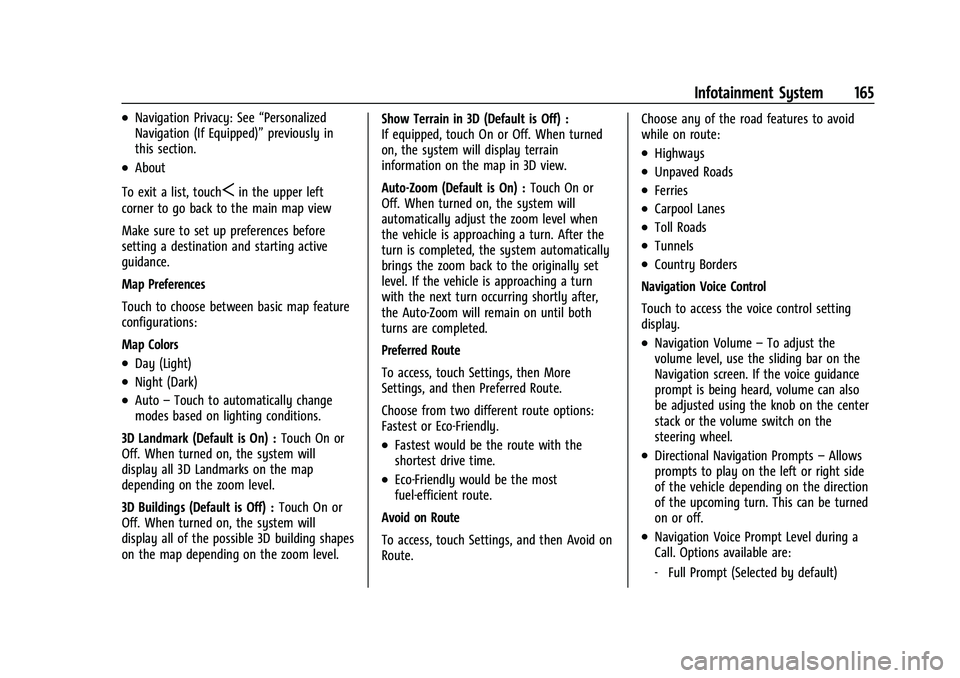
Destination Cards
From the Nav application, set up Home and
Work addresses to enable one-touch
navigation. To set up Home and Work
addresses, select Settings, then More Settings, and then Destination Cards. Show
on Map should be on by default. Select and
enter Home and/or Work address and save.
To stop showing Destination Cards on the
map view, switch Show on Map to Off.
Touch the drive To Home or drive To Work
pop-up to start either route.
Map and Navigation Settings
Touch Settings to display options. The
following may display:
.Map Orientation
.3D Heading Up
.2D Heading Up
.2D North Up
.Show on Map
.Fuel
.Food
.Restaurants
.Fast Food
.Coffee
.ATMs
.Lodging
.Parking
.Grocery Stores
.Avoid on Route
.Highways
.Toll Roads
.Unpaved Roads
.Ferries
.Tunnels
.Carpool Lanes
.Country Borders
.Rear Seat Requests
.Accept
.Always Ignore
To access the following, touch Settings and
then More Settings:
.Destination Cards
.Map Preferences
.Preferred Landmarks
.Navigation Voice Control
.Traffic Preferences
.Alert Preferences
.Manage History
Page 167 of 461
Cadillac Escalade Owner Manual (GMNA-Localizing-U.S./Canada/Mexico-
16417396) - 2023 - CRC - 5/9/22
Infotainment System 165
.Navigation Privacy: See“Personalized
Navigation (If Equipped)” previously in
this section.
.About
To exit a list, touch
Sin the upper left
corner to go back to the main map view
Make sure to set up preferences before
setting a destination and starting active
guidance.
Map Preferences
Touch to choose between basic map feature
configurations:
Map Colors
.Day (Light)
.Night (Dark)
.Auto –Touch to automatically change
modes based on lighting conditions.
3D Landmark (Default is On) : Touch On or
Off. When turned on, the system will
display all 3D Landmarks on the map
depending on the zoom level.
3D Buildings (Default is Off) : Touch On or
Off. When turned on, the system will
display all of the possible 3D building shapes
on the map depending on the zoom level. Show Terrain in 3D (Default is Off) :
If equipped, touch On or Off. When turned
on, the system will display terrain
information on the map in 3D view.
Auto-Zoom (Default is On) :
Touch On or
Off. When turned on, the system will
automatically adjust the zoom level when
the vehicle is approaching a turn. After the
turn is completed, the system automatically
brings the zoom back to the originally set
level. If the vehicle is approaching a turn
with the next turn occurring shortly after,
the Auto-Zoom will remain on until both
turns are completed.
Preferred Route
To access, touch Settings, then More
Settings, and then Preferred Route.
Choose from two different route options:
Fastest or Eco-Friendly.
.Fastest would be the route with the
shortest drive time.
.Eco-Friendly would be the most
fuel-efficient route.
Avoid on Route
To access, touch Settings, and then Avoid on
Route. Choose any of the road features to avoid
while on route:
.Highways
.Unpaved Roads
.Ferries
.Carpool Lanes
.Toll Roads
.Tunnels
.Country Borders
Navigation Voice Control
Touch to access the voice control setting
display.
.Navigation Volume –To adjust the
volume level, use the sliding bar on the
Navigation screen. If the voice guidance
prompt is being heard, volume can also
be adjusted using the knob on the center
stack or the volume switch on the
steering wheel.
.Directional Navigation Prompts –Allows
prompts to play on the left or right side
of the vehicle depending on the direction
of the upcoming turn. This can be turned
on or off.
.Navigation Voice Prompt Level during a
Call. Options available are:
‐ Full Prompt (Selected by default)
Page 168 of 461
Cadillac Escalade Owner Manual (GMNA-Localizing-U.S./Canada/Mexico-
16417396) - 2023 - CRC - 5/9/22
166 Infotainment System
‐Tone Only
‐ None
Traffic Preferences (If Equipped)
While in Map View, select Settings, then
More Settings, and then Traffic Preferences.
When Show Traffic on Map is turned on, the
feature provides an overview of the traffic
flow using different coded colors. The
following options are available for rerouting:
.Show Traffic Flow on Map –Toggles
whether or not the flow of traffic is
shown on the map.
.Auto Reroute –The system will
automatically reroute if the system
detects there is a traffic issue ahead.
.Ask Before Rerouting (Default) –If the
system detects there is a traffic issue
ahead, it will display a pop-up with
details about the issue. Choose to reroute
or cancel the alert.
.Never Check –The system will not check
for a better route until one of the above
options is selected.
Alert Preferences
Set alerts on or off during both inactive and
active guidance views. The following alerts
may be available:
.Road Safety Alerts –Touch to display
upcoming School Zones.
.Traffic Camera Alerts
Manage History
Touch Manage History to access the History
options:
.Clear Recent Destinations –Touch\to
clear the recent destinations.
.Clear Search History –Touch\to clear
the search history.
Navigation Privacy
Touch to change the navigation privacy
settings. The Navigation Privacy settings are:
.Collect Data with Profile Information –
Turn this on to enable Personalized
Navigation. See “Personalized Navigation”
earlier in this section.
.Collect Anonymized Data –Turn this on
to enable improvement in Nav product
quality.
About
Touch to display software information,
such as:
.Telenav Terms and Conditions
.Telenav Privacy Statement
.Navigation Version
Maps
The Nav application requires a map database
to run. It is stored on an SD card that is
connected to the infotainment system. If the
map database is not available, a missing SD
card error message will be displayed.
SD Card Error Messages
The SD card only works for one unique
vehicle. The SD card must pass
authentication verification to be used for
that specific vehicle. Potential error scenarios
and messages include:
.The SD card has initialized for the first
time: “Once initialized, this SD card can
only be used for navigation in this
vehicle.”
.The SD card is not working properly: “SD
card is not functioning properly.
(Error Code).”
.The SD card is not paired with the
existing system: “This SD card is not valid
for navigation in this vehicle. See Owner’s
Manual for more detail or visit your
dealer.”
.The SD card has been removed from the
slot: “SD card has been removed.
(Error Code).”
Page 169 of 461
Cadillac Escalade Owner Manual (GMNA-Localizing-U.S./Canada/Mexico-
16417396) - 2023 - CRC - 5/9/22
Infotainment System 167
Selecting "Confirm" after initialization
message will start initializing. For the other
messages, touch OK to return to the
Home Page.
Navigation Symbols
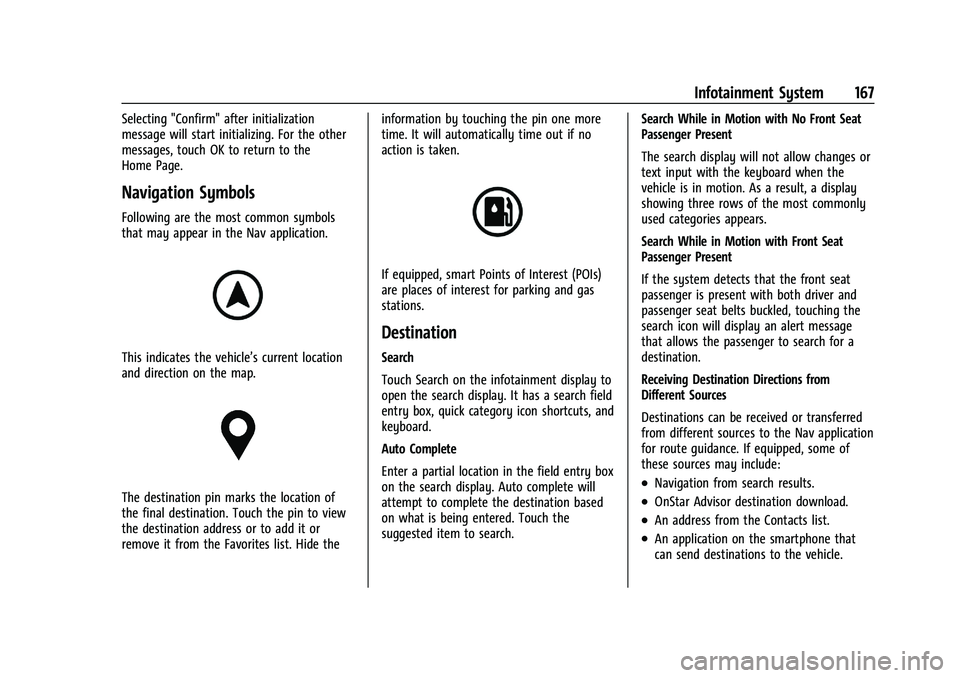
Following are the most common symbols
that may appear in the Nav application.
This indicates the vehicle’s current location
and direction on the map.
The destination pin marks the location of
the final destination. Touch the pin to view
the destination address or to add it or
remove it from the Favorites list. Hide theinformation by touching the pin one more
time. It will automatically time out if no
action is taken.
If equipped, smart Points of Interest (POIs)
are places of interest for parking and gas
stations.
Destination
Search
Touch Search on the infotainment display to
open the search display. It has a search field
entry box, quick category icon shortcuts, and
keyboard.
Auto Complete
Enter a partial location in the field entry box
on the search display. Auto complete will
attempt to complete the destination based
on what is being entered. Touch the
suggested item to search.
Search While in Motion with No Front Seat
Passenger Present
The search display will not allow changes or
text input with the keyboard when the
vehicle is in motion. As a result, a display
showing three rows of the most commonly
used categories appears.
Search While in Motion with Front Seat
Passenger Present
If the system detects that the front seat
passenger is present with both driver and
passenger seat belts buckled, touching the
search icon will display an alert message
that allows the passenger to search for a
destination.
Receiving Destination Directions from
Different Sources
Destinations can be received or transferred
from different sources to the Nav application
for route guidance. If equipped, some of
these sources may include:
.Navigation from search results.
.OnStar Advisor destination download.
.An address from the Contacts list.
.An application on the smartphone that
can send destinations to the vehicle.
Page 174 of 461
Cadillac Escalade Owner Manual (GMNA-Localizing-U.S./Canada/Mexico-
16417396) - 2023 - CRC - 5/9/22
172 Infotainment System
This system might not be available or
interference can occur if any of the
following are true:
.Signals are obstructed by tall buildings,
trees, large trucks, or a tunnel.
.Satellites are being repaired or improved.
For more information if the GPS is not
functioning properly, see Problems with
Route Guidance 0172 and
If the System Needs Service 0173.
Vehicle Positioning
At times, the position of the vehicle on the
map could be inaccurate due to one or more
of the following reasons:
.The road system has changed.
.The vehicle is driving on slippery road
surfaces such as sand, gravel, or snow.
.The vehicle is traveling on winding roads
or long, straight roads.
.The vehicle is approaching a tall building
or a large vehicle.
.The surface streets run parallel to a
freeway.
.The vehicle has been transferred by a
vehicle carrier or a ferry.
.The current position calibration is set
incorrectly.
.The vehicle is traveling at high speed.
.The vehicle changes directions more than
once, or the vehicle is turning on a turn
table in a parking lot.
.The vehicle is entering and/or exiting a
parking lot, garage, or a lot with a roof.
.The GPS signal is not received.
.A roof carrier is installed on the vehicle.
.Tire chains are installed on the vehicle.
.The tires are replaced or worn.
.The tire pressure for the tires is incorrect.
.This is the first navigation use after the
map data is updated.
.The 12-volt battery has been disconnected
for several days.
.The vehicle is driving in heavy traffic
where driving is at low speeds, and the
vehicle is stopped and started repeatedly.
Problems with Route Guidance
Inappropriate route guidance can occur
under one or more of the following
conditions:
.The turn was not made on the road
indicated.
.Route guidance might not be available
when using automatic rerouting for the
next right or left turn.
.The route might not be changed when
using automatic rerouting.
.There is no route guidance when turning
at an intersection.
.Plural names of places might be
announced occasionally.
.It could take a long time to operate
automatic rerouting during high-speed
driving.
.Automatic rerouting might display a route
returning to the set waypoint if heading
for a destination without passing through
a set waypoint.
.The route prohibits the entry of a vehicle
due to a regulation by time or season or
any other regulation which may be given.
.Some routes might not be searched.
.The route to the destination might not be
shown if there are new roads, if roads
have recently changed, or if certain roads
are not listed in the map data. See Maps
0 166.
To recalibrate the vehicle's position on the
map, park with the vehicle running for two
to five minutes, until the vehicle position
updates. Make sure the vehicle is parked in