fuel CADILLAC ESCALADE EXT 2005 2.G User Guide
[x] Cancel search | Manufacturer: CADILLAC, Model Year: 2005, Model line: ESCALADE EXT, Model: CADILLAC ESCALADE EXT 2005 2.GPages: 460, PDF Size: 2.95 MB
Page 182 of 460
Driver Information Center (DIC)
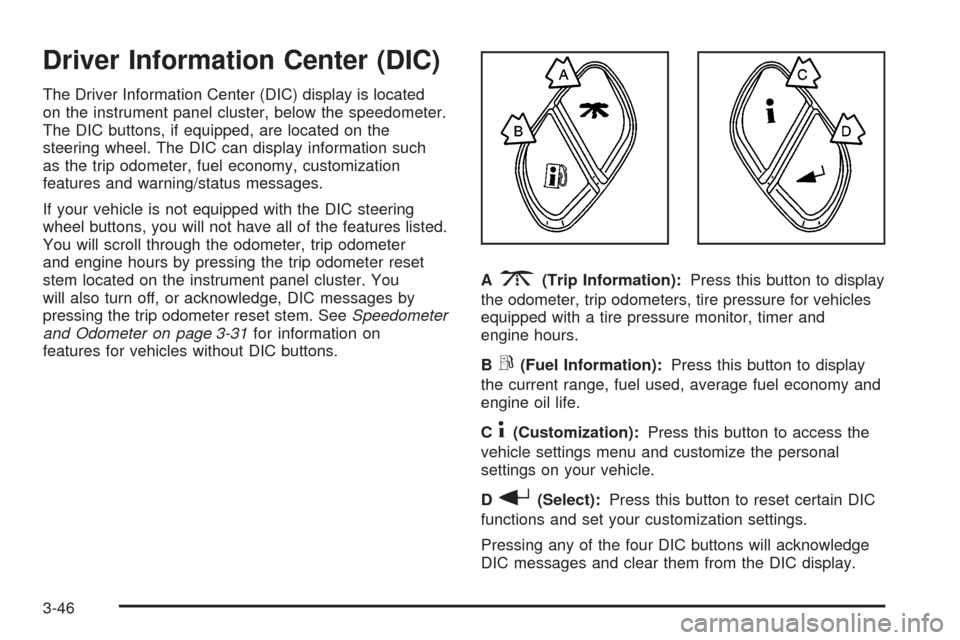
The Driver Information Center (DIC) display is located
on the instrument panel cluster, below the speedometer.
The DIC buttons, if equipped, are located on the
steering wheel. The DIC can display information such
as the trip odometer, fuel economy, customization
features and warning/status messages.
If your vehicle is not equipped with the DIC steering
wheel buttons, you will not have all of the features listed.
You will scroll through the odometer, trip odometer
and engine hours by pressing the trip odometer reset
stem located on the instrument panel cluster. You
will also turn off, or acknowledge, DIC messages by
pressing the trip odometer reset stem. SeeSpeedometer
and Odometer on page 3-31for information on
features for vehicles without DIC buttons.A
3(Trip Information):Press this button to display
the odometer, trip odometers, tire pressure for vehicles
equipped with a tire pressure monitor, timer and
engine hours.
B
r(Fuel Information):Press this button to display
the current range, fuel used, average fuel economy and
engine oil life.
C
4(Customization):Press this button to access the
vehicle settings menu and customize the personal
settings on your vehicle.
D
r(Select):Press this button to reset certain DIC
functions and set your customization settings.
Pressing any of the four DIC buttons will acknowledge
DIC messages and clear them from the DIC display.
3-46
Page 183 of 460

DIC Operation and Displays
The Driver Information Center (DIC) comes on when the
ignition is on. After a short delay, the DIC will display
the information that was last displayed before the engine
was turned off.
The DIC has different modes which can be accessed by
pressing the four DIC buttons located on the steering
wheel. These buttons are trip information, fuel
information, customization and select. The button
functions are detailed in the following pages.
Trip Information Button
3
(Trip Information):Press the trip information
button to scroll through the ODOMETER, TRIP A,
TRIP B, TIRE PRESSURES, TIMER and ENGINE
HOURS.
Odometer:Press the trip information button until
ODOMETER appears on the display. This mode shows
the total distance the vehicle has been driven in
either miles or kilometers. Pressing the reset stem
located on the instrument cluster with the vehicle off will
also display the odometer.
Trip A:Press the trip information button until TRIP A
appears on the display. This mode shows the current
distance traveled since the last reset for TRIP A in either
miles or kilometers.Trip B:Press the trip information button until TRIP B
appears on the display. This mode shows the current
distance traveled since the last reset for TRIP B in either
miles or kilometers.
To reset TRIP A or TRIP B information, press and hold
the select button for one second while in one of the
trip modes. This will reset the information for TRIP A
or TRIP B.
You can also reset TRIP A or TRIP B while they are
displayed by pressing the reset stem on the cluster. If you
press and hold the reset stem or the select button for four
seconds, the display will show the distance traveled since
the last ignition cycle for TRIP A or TRIP B.
Tire Pressures:The tire pressure mode is available
only on vehicles equipped with a tire pressure monitor.
Press the trip information button until TIRE
PRESSURES appears on the display. This mode shows
the tire pressure in pounds per square inch (psi) or
kilopascals (kPa). Press the select button to scroll
through the following information:
LF TIRE shows the tire pressure for the left front tire.
RF TIRE shows the tire pressure for the right
front tire.
LR TIRE shows the tire pressure for the left rear tire.
RR TIRE shows the tire pressure for the right
rear tire.
3-47
Page 184 of 460
Timer:The DIC can be used as a timer. Press the
select button while TIMER is displayed to start the timer.
The display will show the amount of time that has
passed since the timer was last reset, not including time
the ignition is off. Time will continue to be counted as
long as the ignition is on, even if another display is being
shown on the DIC. The timer will record up to 99 hours,
59 minutes and 59 seconds (99:59:59) after which
the display will roll back to zero.
To stop the counting of time, press the select button
briey while TIMER is displayed.
To reset the timer to zero, press and hold the select
button while TIMER is displayed.
Engine Hours:Press the trip information button until
ENGINE HOURS appears on the display. This
mode shows the total number of hours the engine has
run. Pressing and holding the reset stem located on
the instrument cluster for about four seconds will also
display the engine hour information after the odometer is
displayed when the vehicle is off.Fuel Information Button
t
(Fuel Information):Press the fuel information
button to scroll through the range, fuel used, average
fuel economy and the engine oil life system.
Fuel Range:Press the fuel information button until
RANGE appears on the display. This mode shows the
remaining distance you can drive without refueling. It is
based on fuel economy and the fuel remaining in the
tank. The display will show LOW if the fuel level is low.
The fuel economy data used to determine fuel range is an
average of recent driving conditions. As your driving
conditions change, this data is gradually updated. Fuel
range cannot be reset.
Fuel Used:Press the fuel information button until
FUEL USED appears on the display. This mode shows
the number of gallons or liters of fuel used since the
last reset of this menu item. To reset the fuel used
information, press and hold the select button for one
second while FUEL USED is displayed.
Average Fuel Economy:Press the fuel information
button until AVG ECON appears on the display.
This mode shows how many miles per gallon (MPG) or
liters per 100 kilometers (L/100 km) your vehicle is
getting based on current and past driving conditions.
3-48
Page 185 of 460
Press and hold the select button for one second while
AVG ECON is displayed to reset the average fuel
economy. Average fuel economy will then be calculated
starting from that point. If the average fuel economy
is not reset, it will be continually updated each time
you drive.
Engine Oil Life System:Press the fuel information
button until ENGINE OIL LIFE appears on the display.
The engine oil life system shows an estimate of the
oil’s remaining useful life. It will show 100% when the
system is reset after an oil change. It will alert you
to change your oil on a schedule consistent with your
driving conditions.
Always reset the engine oil life system after an oil
change. To reset the engine oil life system, use the fuel
button to reach the ENGINE OIL LIFE screen and
then press and hold the select button for ve seconds
while ENGINE OIL LIFE is displayed. OIL LIFE
RESET will appear on the display for 10 seconds to let
you know the system is reset. SeeEngine Oil Life
System on page 5-16for more information.In addition to the engine oil life system monitoring the
oil life, additional maintenance is recommended in
the Maintenance Schedule in this manual. SeeEngine
Oil on page 5-13andScheduled Maintenance on
page 6-4.
Customization Button
4
(Customization):Press the customization button to
access the VEHICLE SETTINGS menu and customize
the settings to your vehicle. SeeDIC Vehicle
Customization on page 3-60for more information.
Select Button
r
(Select):Press the select button to reset certain
DIC functions and set your customization settings.
For example, this button will reset the trip odometers
and scroll through the languages in which you can select
the DIC to display information.
3-49
Page 189 of 460
DRIVER DOOR AJAR
If the driver’s door is not fully closed and the vehicle is
in a drive gear, this message will appear on the
display and you will hear a chime. Stop and turn off the
vehicle, check the door for obstacles and close the
door again. Check to see if the message still appears
on the DIC. Pressing any of the four DIC buttons,
if equipped, will clear the message from the DIC display.
If your vehicle is not equipped with the four DIC
buttons, pressing the trip odometer reset stem will
clear the message from the DIC display.
ENGINE COOLANT HOT
If the cooling system temperature gets hot, this message
will appear in the DIC. Stop the vehicle and let the
engine idle in PARK (P) to allow the coolant to reach a
safe temperature. This message will clear when the
coolant temperature drops to a safe operating
temperature. Pressing any of the four DIC buttons, if
equipped, will clear the message from the DIC display.
If your vehicle is not equipped with the four DIC
buttons, pressing the trip odometer reset stem will clear
the message from the DIC display.
ENGINE OVERHEATED
If the engine cooling system reaches unsafe
temperatures for operation, this message will appear in
the DIC and you will hear a chime. Stop and turn off
the vehicle as soon as it is safe to do so to avoid severe
damage. This message will clear when the engine
has cooled to a safe operating temperature.
Notice:If you drive your vehicle while the engine
is overheating, severe engine damage may occur.
If an overheat warning appears on the instrument
panel cluster and/or DIC, stop the vehicle as soon as
possible. Do not increase the engine speed above
normal idling speed. SeeEngine Overheating
on page 5-26for more information.
FUEL LEVEL LOW
If the fuel level is low, this message will appear on the
DIC and you will hear a chime. Refuel as soon as
possible. Pressing any of the four DIC buttons, if
equipped, will clear the message from the DIC display.
If your vehicle is not equipped with the four DIC buttons,
pressing the trip odometer reset stem will clear the
message from the DIC display. It will also clear itself after
10 seconds until the next ignition cycle. The low fuel light
near the fuel gage will still remain on in either case. See
Low Fuel Warning Light on page 3-45,Fuel Gage on
page 3-45andFuel on page 5-5.
3-53
Page 192 of 460
SERVICE 4WD
If a problem occurs with the all-wheel-drive system, this
message will appear on the DIC. If this message
appears, stop as soon as possible and turn off the
vehicle. Restart the vehicle and check for the message
on the DIC display. If the message is still displayed
or appears again when you begin driving, the
four-wheel-drive system needs service. See your
GM dealer. Pressing any of the four DIC buttons, if
equipped, will clear the message from the DIC display.
If your vehicle is not equipped with the four DIC
buttons, pressing the trip odometer reset stem will clear
the message from the DIC display.
SERVICE AIR BAG
If there is a problem with the airbag system, this
message will be displayed on the DIC. Have your
GM dealer inspect the system for problems. SeeAirbag
Readiness Light on page 3-32andAirbag System on
page 1-46for more information. Pressing any of the
four DIC buttons, if equipped, will clear the message
from the DIC display. If your vehicle is not equipped with
the four DIC buttons, pressing the trip odometer reset
stem will clear the message from the DIC display.
SERVICE BRAKE SYSTEM
If a problem occurs with the brake system, this message
will appear on the DIC. If this message appears, stop
as soon as possible and turn off the vehicle. Restart the
vehicle and check for the message on the DIC display.
If the message is still displayed or appears again
when you begin driving, the brake system needs service.
See your GM dealer. Pressing any of the four DIC
buttons, if equipped, will clear the message from the
DIC display. If your vehicle is not equipped with the
four DIC buttons, pressing the trip odometer reset stem
will clear the message from the DIC display.
SERVICE CHARGING SYSTEM
On some vehicles, if there is a problem with the battery
charging system, this message will appear on the
DIC. Under certain conditions, the charging system light
may also turn on in the instrument panel cluster. See
Charging System Light on page 3-34. The battery
will not be charging at an optimal rate and the vehicle
will lose the ability to enter the fuel economy mode. The
vehicle is safe to drive, however you should have the
electrical system checked by your GM dealer. Pressing
any of the four DIC buttons, if equipped, will clear
the message from the DIC display. If your vehicle is not
equipped with the four DIC buttons, pressing the trip
odometer reset stem will clear the message from
the DIC display.
3-56
Page 194 of 460
STABILITY SYS DISABLED
The STABILITY SYS DISABLED message will turn on
when you press the StabiliTrak®button or when the
stability control has been automatically disabled. There
are four conditions that can cause this message to
appear.
One condition is overheating, which could occur if
StabiliTrak®activates continuously for an extended
period of time.
The message will also be displayed if the brake
system warning light is on. SeeBrake System
Warning Light on page 3-35.
The message could be displayed if the stability
system takes longer than usual to complete its
diagnostic checks due to driving conditions.
Also, if an engine or vehicle related problem has
been detected, and the vehicle needs service,
the message will appear.
The message will turn off as soon as the conditions that
caused the message to be displayed are no longer
present.
For more information on the StabiliTrak
®system, see
StabiliTrak®System on page 4-8.
TIGHTEN FUEL CAP
If the vehicle’s fuel cap is not tightened properly this
message may appear along with the check engine light
on the instrument panel. SeeMalfunction Indicator
Lamp on page 3-40. Reinstall the fuel cap, making sure
to fully install the cap. SeeFilling Your Tank on
page 5-8. The diagnostic system can determine if the
fuel cap has been left off or improperly installed. A loose
or missing fuel cap will allow fuel to evaporate into
the atmosphere. A few driving trips with the cap properly
installed should turn the light and message off.
TRACTION ACTIVE
When the traction control system has detected that
any of the vehicle’s wheels are slipping, the traction
control system will activate and this message will appear
on the DIC. For more information on traction control
and the StabiliTrak
®system, seeStabiliTrak®System
on page 4-8.
TRACTION SYS LIMITED
If the brake traction control system activates constantly
or if the brakes have heated up due to high-speed
braking, brake traction control will be disabled and the
TRACTION SYS LIMITED message will be displayed.
For more information on the StabiliTrak
®system and
traction control, seeStabiliTrak®System on page 4-8.
3-58
Page 201 of 460
Language
To select your preference for display language, press
the select button while LANGUAGE is displayed on the
DIC. Pressing the select button will scroll through the
following languages:
ENGLISH
FRANCAIS (French)
ESPANOL (Spanish)
Choose one of the available options and press the
customization button while it is displayed on the DIC to
select it.
If you accidentally choose a language that you do not
want or understand, press and hold the customization
button and the trip information button at the same
time. The DIC will begin scrolling through the languages
in their particular language. English will be in English,
Francais will be in French and Espanol will be in
Spanish. When you see the language that you would
like, release both buttons. The DIC will then display the
information in the language you chose.
You can also scroll through the different languages by
pressing and holding the trip reset stem for four seconds,
as long as you are in the odometer mode.
Display Units
Press the customization button until DISPLAY UNITS
appears in the display. To select English or metric, press
the select button while DISPLAY UNITS is displayed
on the DIC. Pressing the select button will scroll through
the following choices:
DISPLAY UNITS: ENGLISH
DISPLAY UNITS: METRIC
If you choose English, all information will be displayed
in English units. For example, distance in miles and fuel
economy in miles per gallon.
Choose one of the available options and press the
customization button while it is displayed on the DIC
to select it and end out of the customizable options.
3-65
Page 253 of 460
Before You Go Off-Roading
There are some things to do before you go out. For
example, be sure to have all necessary maintenance
and service work done. Check to make sure all
underbody shields (if equipped) are properly attached.
Is there enough fuel? Is the spare tire fully inated?
Are the uid levels up where they should be? What
are the local laws that apply to off-roading where
you will be driving? If you do not know, you should
check with law enforcement people in the area. Will
you be on someone’s private land? If so, be sure to
get the necessary permission.
Loading Your Vehicle for Off-Road
Driving
There are some important things to remember about
how to load your vehicle.
The heaviest things should be on the load oor and
forward of your rear axle. Put heavier items as far
forward as you can.
Be sure the load is secured properly, so driving on
the off-road terrain does not toss things around.
{CAUTION:
Cargo on the load oor piled higher than
the seatbacks can be thrown forward
during a sudden stop. You or your
passengers could be injured. Keep cargo
below the top of the seatbacks.
Unsecured cargo on the load oor can be
tossed about when driving over rough
terrain. You or your passengers can be
struck by ying objects. Secure the cargo
properly.
Heavy loads on the roof raise the vehicle’s
center of gravity, making it more likely to
roll over. You can be seriously or fatally
injured if the vehicle rolls over. Put heavy
loads inside the cargo area, not on the
roof. Keep cargo in the cargo area as far
forward and low as possible.
You will nd other important information in this manual.
SeeLoading Your Vehicle on page 4-44andTires
on page 5-60.
4-17
Page 264 of 460
Driving in Water
Heavy rain can mean ash ooding, and ood waters
demand extreme caution.
Find out how deep the water is before you drive through
it. If it is deep enough to cover your wheel hubs,
axles or exhaust pipe, do not try it — you probably will
not get through. Also, water that deep can damage
your axle and other vehicle parts.
If the water is not too deep, drive slowly through it. At
faster speeds, water splashes on your ignition system
and your vehicle can stall. Stalling can also occur if you
get your tailpipe under water. And, as long as your
tailpipe is under water, you will never be able to start your
engine. When you go through water, remember that when
your brakes get wet, it may take you longer to stop.{CAUTION:
Driving through rushing water can be
dangerous. Deep water can sweep your vehicle
downstream and you and your passengers
could drown. If it is only shallow water, it can
still wash away the ground from under your
tires, and you could lose traction and roll the
vehicle over. Do not drive through rushing
water.
SeeDriving in Rain and on Wet Roads on page 4-30for
more information on driving through water.
After Off-Road Driving
Remove any brush or debris that has collected on the
underbody, chassis or under the hood. These
accumulations can be a re hazard.
After operation in mud or sand, have the brake linings
cleaned and checked. These substances can cause
glazing and uneven braking. Check the body structure,
steering, suspension, wheels, tires and exhaust
system for damage. Also, check the fuel lines and
cooling system for any leakage.
4-28