tire pressure reset CADILLAC ESCALADE EXT 2005 2.G Owners Manual
[x] Cancel search | Manufacturer: CADILLAC, Model Year: 2005, Model line: ESCALADE EXT, Model: CADILLAC ESCALADE EXT 2005 2.GPages: 460, PDF Size: 2.95 MB
Page 182 of 460
Driver Information Center (DIC)
The Driver Information Center (DIC) display is located
on the instrument panel cluster, below the speedometer.
The DIC buttons, if equipped, are located on the
steering wheel. The DIC can display information such
as the trip odometer, fuel economy, customization
features and warning/status messages.
If your vehicle is not equipped with the DIC steering
wheel buttons, you will not have all of the features listed.
You will scroll through the odometer, trip odometer
and engine hours by pressing the trip odometer reset
stem located on the instrument panel cluster. You
will also turn off, or acknowledge, DIC messages by
pressing the trip odometer reset stem. SeeSpeedometer
and Odometer on page 3-31for information on
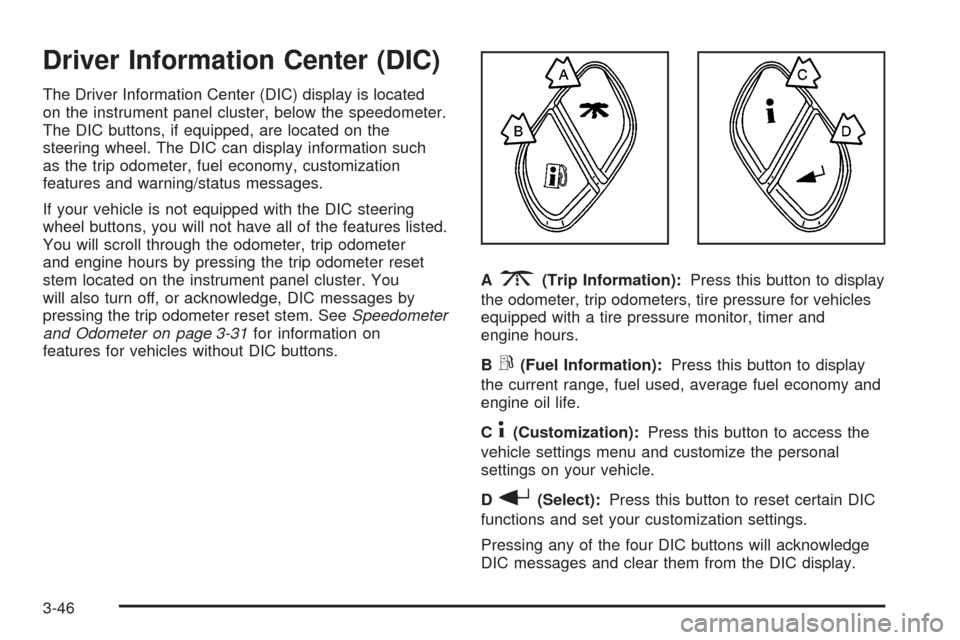
features for vehicles without DIC buttons.A
3(Trip Information):Press this button to display
the odometer, trip odometers, tire pressure for vehicles
equipped with a tire pressure monitor, timer and
engine hours.
B
r(Fuel Information):Press this button to display
the current range, fuel used, average fuel economy and
engine oil life.
C
4(Customization):Press this button to access the
vehicle settings menu and customize the personal
settings on your vehicle.
D
r(Select):Press this button to reset certain DIC
functions and set your customization settings.
Pressing any of the four DIC buttons will acknowledge
DIC messages and clear them from the DIC display.
3-46
Page 183 of 460

DIC Operation and Displays
The Driver Information Center (DIC) comes on when the
ignition is on. After a short delay, the DIC will display
the information that was last displayed before the engine
was turned off.
The DIC has different modes which can be accessed by
pressing the four DIC buttons located on the steering
wheel. These buttons are trip information, fuel
information, customization and select. The button
functions are detailed in the following pages.
Trip Information Button
3
(Trip Information):Press the trip information
button to scroll through the ODOMETER, TRIP A,
TRIP B, TIRE PRESSURES, TIMER and ENGINE
HOURS.
Odometer:Press the trip information button until
ODOMETER appears on the display. This mode shows
the total distance the vehicle has been driven in
either miles or kilometers. Pressing the reset stem
located on the instrument cluster with the vehicle off will
also display the odometer.
Trip A:Press the trip information button until TRIP A
appears on the display. This mode shows the current
distance traveled since the last reset for TRIP A in either
miles or kilometers.Trip B:Press the trip information button until TRIP B
appears on the display. This mode shows the current
distance traveled since the last reset for TRIP B in either
miles or kilometers.
To reset TRIP A or TRIP B information, press and hold
the select button for one second while in one of the
trip modes. This will reset the information for TRIP A
or TRIP B.
You can also reset TRIP A or TRIP B while they are
displayed by pressing the reset stem on the cluster. If you
press and hold the reset stem or the select button for four
seconds, the display will show the distance traveled since
the last ignition cycle for TRIP A or TRIP B.
Tire Pressures:The tire pressure mode is available
only on vehicles equipped with a tire pressure monitor.
Press the trip information button until TIRE
PRESSURES appears on the display. This mode shows
the tire pressure in pounds per square inch (psi) or
kilopascals (kPa). Press the select button to scroll
through the following information:
LF TIRE shows the tire pressure for the left front tire.
RF TIRE shows the tire pressure for the right
front tire.
LR TIRE shows the tire pressure for the left rear tire.
RR TIRE shows the tire pressure for the right
rear tire.
3-47
Page 188 of 460
CHARGING SYSTEM FAILURE
On some vehicles, if there is a problem with the
generator and battery charging system, this message
will appear on the DIC, a chime will sound and the
charging system light on the instrument panel cluster
will come on. SeeCharging System Light on page 3-34
andVoltmeter Gage on page 3-35for more information.
Driving with this problem could drain your battery.
Turn off all unnecessary accessories. Stop and turn off
the vehicle as soon as it is safe to do so. Have the
electrical system checked by your GM dealer
immediately.
CHECK OIL LEVEL
If the oil level in the vehicle is low, this message will
appear on the DIC. Check the oil level and correct it as
necessary. You may need to let the vehicle cool or
warm up and cycle the ignition to be sure this message
will clear. Once the problem is corrected, pressing
any of the four DIC buttons, if equipped, will clear the
message from the DIC display. If your vehicle is
not equipped with the four DIC buttons, pressing the trip
odometer reset stem will clear the message from the
DIC display. This message will clear itself after
10 seconds until the next ignition cycle.
CHECK TIRE PRESSURE
If low tire pressure is detected in any of the vehicle’s
tires, this message will appear on the DIC. Pressing any
of the four DIC buttons, if equipped, will clear the
message from the DIC display. If your vehicle is not
equipped with the four DIC buttons, pressing the
trip odometer reset stem will clear the message from
the DIC display. It will appear at each ignition cycle until
the tires are inated to the correct ination pressure.
SeeTires on page 5-60for more information on
tires and the correct ination pressures.
CHECK WASHER FLUID
If the washer uid level is low, this message will appear
on the DIC. Adding washer uid will clear the message.
SeeWindshield Washer Fluid on page 5-36. Pressing
any of the four DIC buttons, if equipped, will clear
the message from the DIC display. If your vehicle is not
equipped with the four DIC buttons, pressing the trip
odometer reset stem will clear the message from
the DIC display. This message will clear itself after
10 seconds until the next ignition cycle.
3-52
Page 193 of 460
SERVICE RIDE CONTROL
If a problem occurs with the suspension system, this
message will appear on the DIC. If this message
appears, stop and turn off the vehicle. Restart the
vehicle and check for the message on the DIC display.
If the message is still displayed or appears again
when you begin driving, the suspension system needs
service. See your GM dealer. Pressing any of the
four DIC buttons, if equipped, will clear the message
from the DIC display. If your vehicle is not equipped with
the four DIC buttons, pressing the trip odometer reset
stem will clear the message from the DIC display.
SERVICE STABILITY
If you ever see the SERVICE STABILITY message, it
means there may be a problem with your StabiliTrak®
system. If you see this message, try to reset the system.
Stop; turn off the engine; then start the engine again.
If the SERVICE STABILITY message still comes
on, it means there is a problem. You should see your
GM dealer for service. The vehicle is safe to drive,
however, you do not have the benet of StabiliTrak
®,
so reduce your speed and drive accordingly.
For more information on the StabiliTrak
®system,
seeStabiliTrak®System on page 4-8.
SERVICE TIRE MONITOR
This message will be displayed if any of the tire monitor
sensors have malfunctioned, if the tire monitor sensors
have not been programmed or if the recommended
tire pressures are not programmed. See your GM dealer.
Pressing any of the four DIC buttons, if equipped, will
clear the message from the DIC display. If your vehicle
is not equipped with the four DIC buttons, pressing
the trip odometer reset stem will clear the message from
the DIC display.
STABILITY SYS ACTIVE
You may see the STABILITY SYS ACTIVE message on
the DIC. It means that an advanced computer-controlled
system has come on to help your vehicle continue to
go in the direction in which you are steering.
For more information on the StabiliTrak
®system,
seeStabiliTrak®System on page 4-8.
3-57
Page 419 of 460
Scheduled Maintenance
Service MaintenanceIMaintenanceII
Change engine oil and lter. SeeEngine Oil on page 5-13. Reset oil life
system. SeeEngine Oil Life System on page 5-16.An Emission Control
Service.••
Lubricate chassis components.See footnote #.••
Visually check for any leaks or damage.See footnote (j).••
Inspect engine air cleaner lter or change indicator (if equipped).
If necessary, replace lter. SeeEngine Air Cleaner/Filter on page 5-18.
An Emission Control Service. See footnotes † and (k).•
Rotate tires and check ination pressures and wear. SeeTires on page 5-60.••
Inspect brake system.See footnote (a).••
Check engine coolant and windshield washer uid levels and add uid
as needed.••
Perform any needed additional services. See “Additional Required Services”
in this section.••
Inspect suspension and steering components.See footnote (b).•
Inspect engine cooling system.See footnote (c).•
Inspect wiper blades.See footnote (d).•
Inspect restraint system components.See footnote (e).•
Lubricate body components.See footnote (f).•
Check transmission uid level and add uid as needed.•
6-5