audio CADILLAC ESCALADE EXT 2009 3.G Owner's Manual
[x] Cancel search | Manufacturer: CADILLAC, Model Year: 2009, Model line: ESCALADE EXT, Model: CADILLAC ESCALADE EXT 2009 3.GPages: 546, PDF Size: 4.43 MB
Page 246 of 546
Audio can be heard through wired headphones (not
included) plugged into the jacks on the RSA. If
your vehicle has this feature, audio can also be heard
on Channel 2 of the wireless headphones.
The front audio system allows the rear speakers to
continue playing even when the RSA audio is active
through the headphones.
To listen to an iPod or portable audio device through
the RSA, attach the iPod or portable audio device to the
auxiliary input (if available), located below the RSA
system. Turn the iPod on, then choose the front auxiliary
input with the RSA SRCE button.
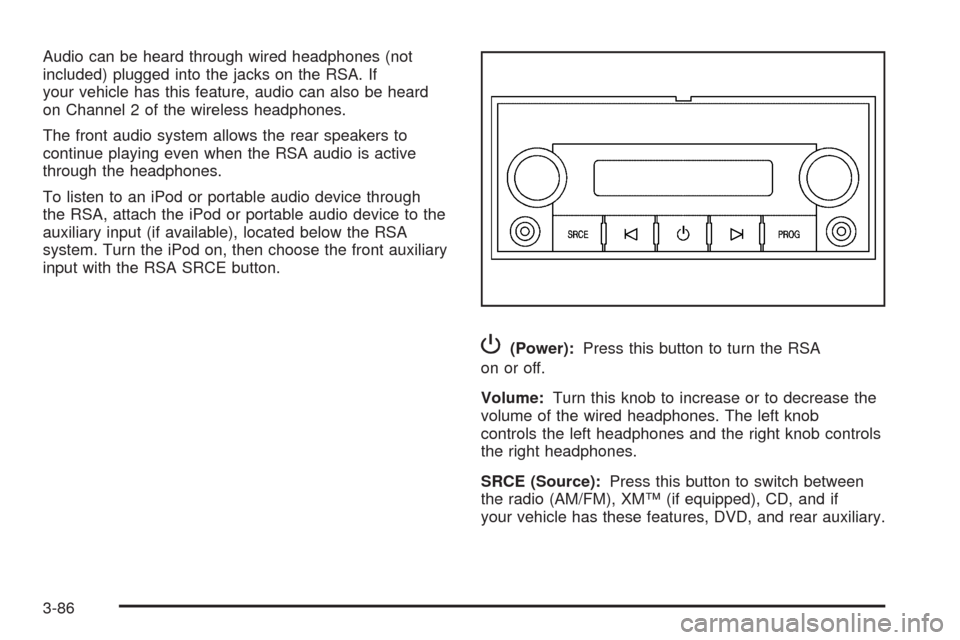
P(Power):Press this button to turn the RSA
on or off.
Volume:Turn this knob to increase or to decrease the
volume of the wired headphones. The left knob
controls the left headphones and the right knob controls
the right headphones.
SRCE (Source):Press this button to switch between
the radio (AM/FM), XM™ (if equipped), CD, and if
your vehicle has these features, DVD, and rear auxiliary.
3-86
Page 247 of 546

©¨(Seek):When listening to FM, AM, or XM (if
equipped), press the seek arrows to go to the previous
or to the next station or channels and stay there.
This function is inactive, with some radios, if the front
seat passengers are listening to the radio.
Press and hold either seek arrow until the display
ashes, to tune to an individual station. The display
stops ashing after the buttons have not been pushed
for more than two seconds. This function is inactive, with
some radios, if the front seat passengers are listening
to the radio.
While listening to a disc, press the right seek arrow to
go to the next track or chapter on the disc. Press the left
seek arrow to go back to the start of the current track
or chapter (if more than 10 seconds have played).
This function is inactive, with some radios, if the front
seat passengers are listening to the disc.
When a DVD video menu is being displayed, press the
left or right seek arrow to perform a cursor up or
down on the menu. Hold the left or right seek arrow to
perform a cursor left or right on the menu.PROG (Program):Press this button to go to the next
preset radio station or channel set on the main
radio. This function is inactive, with some radios, if the
front seat passengers are listening to the radio.
When a CD or DVD audio disc is playing, press this
button to go to the beginning of the CD or DVD audio.
This function is inactive, with some radios, if the
front seat passengers are listening to the disc.
When a disc is playing in the CD or DVD changer,
press this button to select the next disc, if multiple discs
are loaded. This function is inactive, with some radios,
if the front seat passengers are listening to the disc.
When a DVD video menu is being displayed, press the
PROG button to perform the enter menu function.
Theft-Deterrent Feature
THEFTLOCK®is designed to discourage theft of the
vehicle’s radio by learning a portion of the Vehicle
Identication Number (VIN). The radio does not operate
if it is stolen or moved to a different vehicle.
3-87
Page 248 of 546

Audio Steering Wheel Controls
Vehicles with audio
steering wheel controls
could differ depending on
the vehicle’s options.
Some audio controls can
be adjusted at the steering
wheel.
w(Next):Press to go to the next radio station stored
as a favorite, or the next track if a CD/DVD is playing.
xc(Previous/End):Press to go to the previous
radio station stored as a favorite, the next track if
a CD/DVD is playing, to reject an incoming call, or end
a current call.
bg(Mute/Push to Talk):Press to silence the vehicle
speakers only. Press again to turn the sound on.
For vehicles with OnStar
®or Bluetooth systems press
and hold
bgfor longer than two seconds to
interact with those systems. SeeOnStar®System on
page 2-56andBluetooth®on page 3-66for more
information.
SRCE (Source/Voice Recognition):Press to switch
between the radio (AM, FM, XM), CD, and for vehicles
with, DVD, and rear auxiliary.
Press and hold this button for longer than one second
to initiate voice recognition. SeeVoice Recognition
on page 4-78for more information.
+
e−e(Volume): Press to increase or to decrease
the radio volume.
¨(Seek):Press to go to the next radio station while
in AM, FM, or XM™. Press
¨to go to the next
track or chapter while sourced to the CD or DVD slot.
Press the
¨if multiple discs are loaded to go to
the next disc while sourced to a CD player.
3-88
Page 251 of 546

Overview.........................................................4-2
Navigation System Overview............................4-2
Getting Started...............................................4-4
Cleaning the Display.....................................4-11
Features and Controls....................................4-11
Using the Navigation System..........................4-11
Maps ..........................................................4-14
Symbols......................................................4-16
Destination..................................................4-23
Congure Menu............................................4-40
Global Positioning System (GPS)....................4-54Vehicle Positioning........................................4-54
Problems with Route Guidance.......................4-55
If the System Needs Service..........................4-56
Ordering Map DVDs......................................4-56
Database Coverage Explanations....................4-56
Navigation Audio System................................4-57
CD Player...................................................4-64
DVD Player.................................................4-71
Care of Your CDs and DVDs.........................4-77
Auxiliary Devices..........................................4-78
Voice Recognition..........................................4-78
Section 4 Navigation System
4-1
Page 253 of 546

A. Source (AM, FM, XM, CD, etc.) Touch Screen
Button. SeeNavigation Audio System on page 4-57
for more information.
B. Clock Touch Screen Button. See “Setting the Clock”
underCongure Menu on page 4-40for more
information.
C. POI (Point of Interest) Touch Screen Button. See
“Displaying Points of Interest (POI) on the Map
Screen” underSymbols on page 4-16for more
information.
D.
1(Zoom Out) Touch Screen Button. See “Map
Scales” underMaps on page 4-14for more
information.
E.
y©¨z(Seek) Key (Previous/Next). See
Navigation Audio System on page 4-57for more
information.
F.
w(Tune) Knob. SeeNavigation Audio System
on page 4-57for more information.
G. NAV (Navigation) Key. See “Hard Keys” underUsing
the Navigation System on page 4-11for more
information.
H. RPT (Repeat) Key. See “Hard Keys” underUsing
the Navigation System on page 4-11for more
information.
I. DEST (Destination) Key. SeeDestination on
page 4-23for more information.J. CONFIG (Congure) Key. SeeCongure Menu on
page 4-40for more information.
K.
e(Sound) Key. See “Sound Menu” under
Navigation Audio System on page 4-57for more
information.
L.
5(Phone) Key. SeeOnStar®System on page 2-56
andBluetooth®on page 3-66for more information.
M. FAV (Favorite) Key. See “Storing Radio Station
Presets” underNavigation Audio System on
page 4-57for more information.
N. AUDIO Key. SeeNavigation Audio System on
page 4-57for more information.
O.
m(Tilt) Key. See “Hard Keys” underUsing the
Navigation System on page 4-11for more
information.
P.
O/n(Power/Volume) Knob. SeeNavigation
Audio System on page 4-57for more information.
Q. CD/DVD Video/Audio Slot. SeeCD Player on
page 4-64orDVD Player on page 4-71for more
information.
R.
Z(CD/DVD Video/Audio Eject) Key. SeeCD
Player on page 4-64orDVD Player on page 4-71for
more information.
S.
M(Load) Key. SeeCD Player on page 4-64or
DVD Player on page 4-71for more information.
4-3
Page 254 of 546

T. Map DVD Slot. See “Installing the Map DVD” under
Maps on page 4-14for information on how to
install and eject a map DVD.
U.
Z(DVD Map Disc Eject) Key. SeeMaps on
page 4-14for more information.
V. Mark Touch Screen Button. See “Adding
Destinations to the Address Book” underDestination
on page 4-23for more information.
W.
0(Zoom In) Touch Screen Button. See “Map
Scales” underMaps on page 4-14for more
information.
X. Map Scale. See “Map Scales” underMaps on
page 4-14for more information.
Y. North Up/Heading Up Symbol. SeeSymbols on
page 4-16for more information.
Z. No GPS Symbol. SeeSymbols on page 4-16for
more information.
AA. FULL MAP Touch Screen Button. See “NAV” under
“Hard Keys” underUsing the Navigation System
on page 4-11for more information.
Getting Started
Read this manual thoroughly to become familiar with
how the navigation system operates.
The navigation system includes navigation and audio
functions.
While entering the vehicle or when turning the vehicle
off, some DVD Map Disc noise is normal.
Keeping your eyes on the road and your mind on the
drive is important for safe driving. The navigation system
has built-in features intended to help keep your eyes
on the road and mind on the drive. Some features may
be disabled while driving. Note that these functions
will be grayed-out. A grayed-out function indicates it is
not available when the vehicle is moving.
All functions are available when the vehicle is parked.
Do the following before driving:
Become familiar with the navigation system
operation, hard keys on the faceplate, and
touch-sensitive screen buttons of the navigation
system.
Set up the audio by presetting favorite stations,
setting the tone, and adjusting the speakers.
4-4
Page 257 of 546

Language — English/Metric
To change the language of the navigation screens, see
Driver Information Center (DIC) on page 3-41for
more information.
To change the navigation screens from English or
metric, seeDIC Operation and Displays on page 3-42
for more information.
Deleting Personal Information
This navigation system can record and store personal
information such as names and addresses. Delete
this information when selling your vehicle or returning a
leased vehicle. See “Edit Address Book — Edit/View”
underCongure Menu on page 4-40for deleting
information from the address book.
Limit Features While Driving
The navigation system may have this feature.
Touch the Limit Features While Driving screen button to
turn the ability to limit functions on and off while
driving. When this screen button is highlighted, the
following functions are limited while driving:
Music Navigator Scrolling
Radio Category Scrolling
Navigation Menu Scrolling and some functionsSee “Category” underNavigation Audio System on
page 4-57for more information. See “From Map” under
Destination on page 4-23for more information.
Some functions will remain limited regardless of the
setting.
Storing Radio Station Presets
To set preset radio stations, do the following:
1. Press
Oto turn the system on.
2. Press the AUDIO hard key and select the desired
band (AM, FM, or XM (if equipped)).
3. Use the
w(tuning) knob or the SEEK arrows to
tune to the desired station.
4. Press and hold one of the ve preset screen
buttons, at the bottom of the screen, until a beep is
heard or if the station displays on the selected
preset button.
5. Repeat the steps for each preset.
See “Storing Radio Station Presets” underNavigation
Audio System on page 4-57for more information.
4-7
Page 262 of 546
Hard Keys
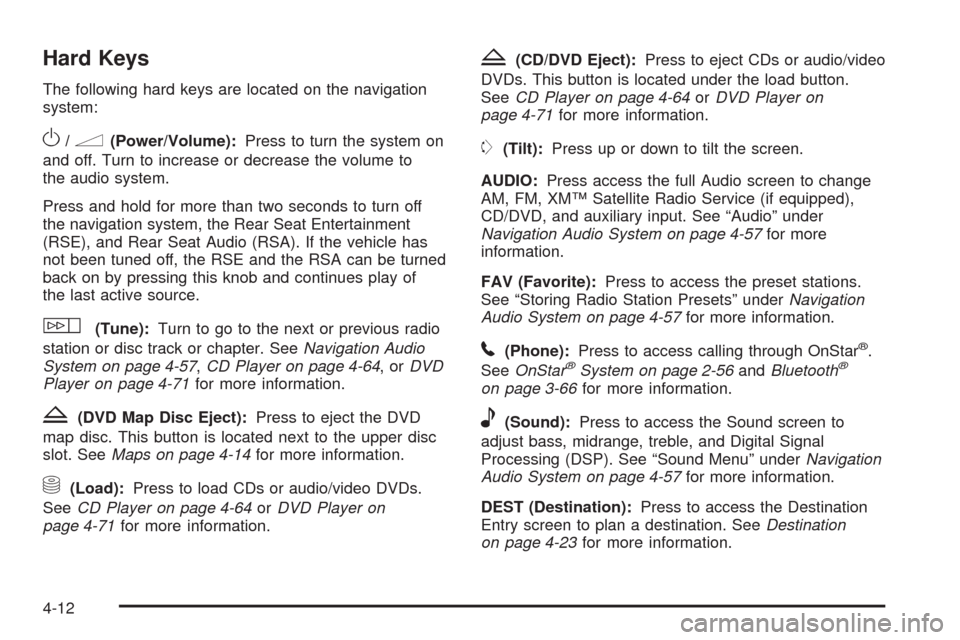
The following hard keys are located on the navigation
system:
O/n(Power/Volume):Press to turn the system on
and off. Turn to increase or decrease the volume to
the audio system.
Press and hold for more than two seconds to turn off
the navigation system, the Rear Seat Entertainment
(RSE), and Rear Seat Audio (RSA). If the vehicle has
not been tuned off, the RSE and the RSA can be turned
back on by pressing this knob and continues play of
the last active source.
w(Tune):Turn to go to the next or previous radio
station or disc track or chapter. SeeNavigation Audio
System on page 4-57,CD Player on page 4-64,orDVD
Player on page 4-71for more information.
Z(DVD Map Disc Eject):Press to eject the DVD
map disc. This button is located next to the upper disc
slot. SeeMaps on page 4-14for more information.
M(Load):Press to load CDs or audio/video DVDs.
SeeCD Player on page 4-64orDVD Player on
page 4-71for more information.
Z(CD/DVD Eject):Press to eject CDs or audio/video
DVDs. This button is located under the load button.
SeeCD Player on page 4-64orDVD Player on
page 4-71for more information.
m(Tilt):Press up or down to tilt the screen.
AUDIO:Press access the full Audio screen to change
AM, FM, XM™ Satellite Radio Service (if equipped),
CD/DVD, and auxiliary input. See “Audio” under
Navigation Audio System on page 4-57for more
information.
FAV (Favorite):Press to access the preset stations.
See “Storing Radio Station Presets” underNavigation
Audio System on page 4-57for more information.
5(Phone):Press to access calling through OnStar®.
SeeOnStar®System on page 2-56andBluetooth®
on page 3-66for more information.
e(Sound):Press to access the Sound screen to
adjust bass, midrange, treble, and Digital Signal
Processing (DSP). See “Sound Menu” underNavigation
Audio System on page 4-57for more information.
DEST (Destination):Press to access the Destination
Entry screen to plan a destination. SeeDestination
on page 4-23for more information.
4-12
Page 263 of 546

CONFIG (Congure Menu):Press to adjust features
for sound, radio, navigation, and the display. See
Congure Menu on page 4-40for more information.
NAV (Navigation):Press to view your vehicle’s current
position on the map screen. Each press of this key
cycles through Full Map and the tab that displays the
current audio source (AM, FM, CD, etc.). Full Map
displays the screen in full map view. Selecting the audio
tab splits the screen between the map screen and the
current audio source screen menu. See “Audio”
underNavigation Audio System on page 4-57for more
information.
RPT (Navigation Repeat):Press to repeat the last
voice guidance prompt.
y©¨z(Seek):Press the seek arrows to seek
and scan radio stations, to seek tracks on a CD, and to
seek chapters on a DVD. SeeNavigation Audio
System on page 4-57,CD Player on page 4-64,orDVD
Player on page 4-71for more information.
Touch-Sensitive Screen Buttons
Touch-sensitive screen buttons are located on the
screen. When a screen button has been selected, a
beep sounds. Screen buttons are highlighted when
a feature is available.
Alpha-Numeric Keyboard
Letters of the alphabet, symbols, punctuation, and
numbers, when available, displays on the navigation
screen as an alpha or numeric keyboard. The alpha
keyboard displays when the system requires entry of a
city or street name.
All characters are touch-sensitive screen buttons. Touch
a character to select it.
A-Y (Accent Alphabet):Select to enter letters with
accent symbols. This button may toggle to A-Z.
A-Z (Alphabet):Select to enter letters from the
alphabet. This button may toggle to A-Y.
0-9 (Numbers):Select to enter numbers.
U(Space):Select to enter a space between
characters or the words of a name.
Backspace:Select if an incorrect character has been
entered.
To make name entries easier, the system only highlights
the characters that can follow the last one entered.
For example, if a Z is entered, a T may not be available
for selection.
If a name does not display after entry, it may need to be
entered differently or the map DVD disc may not
contain that information. SeeDatabase Coverage
Explanations on page 4-56for more information.
4-13
Page 290 of 546

Congure Menu
Press the CONFIG (Congure) hard key to adjust
several of the system’s features and preferences.
The last selected CONFIG screen is the screen that
displays: Sound, Radio, Nav (navigation), Display,
or Time.
Sound
Press the CONFIG key to enter the congure menu
options, then press the CONFIG key repeatedly
until Sound is selected or touch the Sound screen
button to make speaker and DSP (Digital Signal
Processing) adjustments. See “Sound Menu” under,
Navigation Audio System on page 4-57for more
information.
Radio
Press the CONFIG key to enter the congure menu
options, then press the CONFIG key repeatedly
until Radio is selected or touch the Radio screen button
to make changes for radio information displayed,
preset pages, XM™ categories, and Bose
®AudioPilot®.
See “Radio Menu” under,Navigation Audio System
on page 4-57for more information.
4-40