radio controls CADILLAC ESCALADE EXT 2011 3.G User Guide
[x] Cancel search | Manufacturer: CADILLAC, Model Year: 2011, Model line: ESCALADE EXT, Model: CADILLAC ESCALADE EXT 2011 3.GPages: 508, PDF Size: 7.6 MB
Page 145 of 508
Black plate (15,1)Cadillac Escalade EXT Owner Manual - 2011
Instruments and Controls 5-15
{WARNING
If the airbag readiness light ever
comes on and stays on, it means
that something may be wrong
with the airbag system. To help
avoid injury to yourself or others,
have the vehicle serviced right
away. SeeAirbag Readiness
Light on page 5‑13 for more
information, including important
safety information.
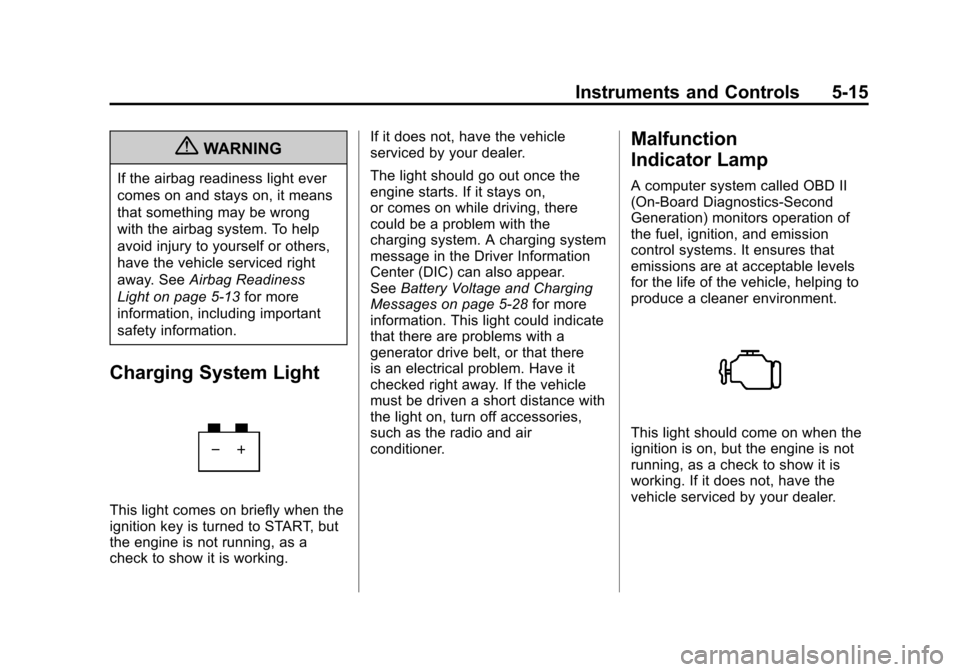
Charging System Light
This light comes on briefly when the
ignition key is turned to START, but
the engine is not running, as a
check to show it is working. If it does not, have the vehicle
serviced by your dealer.
The light should go out once the
engine starts. If it stays on,
or comes on while driving, there
could be a problem with the
charging system. A charging system
message in the Driver Information
Center (DIC) can also appear.
See
Battery Voltage and Charging
Messages on page 5‑28 for more
information. This light could indicate
that there are problems with a
generator drive belt, or that there
is an electrical problem. Have it
checked right away. If the vehicle
must be driven a short distance with
the light on, turn off accessories,
such as the radio and air
conditioner.
Malfunction
Indicator Lamp
A computer system called OBD II
(On-Board Diagnostics-Second
Generation) monitors operation of
the fuel, ignition, and emission
control systems. It ensures that
emissions are at acceptable levels
for the life of the vehicle, helping to
produce a cleaner environment.
This light should come on when the
ignition is on, but the engine is not
running, as a check to show it is
working. If it does not, have the
vehicle serviced by your dealer.
Page 174 of 508

Black plate (44,1)Cadillac Escalade EXT Owner Manual - 2011
5-44 Instruments and Controls
To select a setting, press the
set/reset button while the desired
setting is displayed on the DIC.
EXIT FEATURE SETTINGS
This feature allows you to exit the
feature settings menu.
Press the customization button until
PRESS
VTO EXIT FEATURE
SETTINGS appears in the DIC
display. Press the set/reset button
once to exit the menu.
If you do not exit, pressing the
customization button again will
return you to the beginning of the
feature settings menu.
Exiting the Feature
Settings Menu
The feature settings menu will be
exited when any of the following
occurs:
.The vehicle is no longer in
ON/RUN.
.The trip/fuel or vehicle
information DIC buttons are
pressed.
.The end of the feature settings
menu is reached and exited.
.A 40 second time period has
elapsed with no selection made.
Universal Remote
System
See Radio Frequency Statement on
page 13‑20 for information
regarding Part 15 of the Federal
Communications Commission (FCC)
rules and Industry Canada
Standards RSS-210/220/310.
Universal Remote System
Programming
Vehicles with the Universal Remote
System will have these buttons
located in the headliner.
Page 215 of 508

Black plate (25,1)Cadillac Escalade EXT Owner Manual - 2011
Infotainment System 7-25
Using the Navigation Audio
System to Control a USB
Storage Device or iPod
®
The navigation audio system can
control a USB storage device or
an iPod by using the radio touch
screens and steering wheel
controls.
1. Press the AUX button and thenthe USB button.
2. Press center screen button toenter the music navigator main
screen. 3. Press or tap the left or right
arrow to select desired Category
such as: Artist, Album, Genre,
etc. A list of that category will
display.
4. Select an Artist, Album, or Track
from that list.
5. Press the up or down arrows located on the side of the screen
to select one item at a time,
or press the top or bottom arrow
to jump 10 percent up or down
the list. 6. Press the Back button to go
back to the previous screen.
7. Press the Exit button to go back to the main audio screen.8. Press the left or right arrow toselect desired Category such as:
Artist, Album, Genre, etc. A list
of that category will display.
The iPod or USB storage device
should not be pulled out from the
USB dock. To safely remove it,
press Eject.
Page 231 of 508

Black plate (41,1)Cadillac Escalade EXT Owner Manual - 2011
Infotainment System 7-41
To listen to an iPod or portable
audio device through the RSA,
attach the iPod or portable audio
device to the auxiliary input
(if available), located below the
RSA system, USB port, or AUX
jack. Turn the iPod on, then choose
the front auxiliary input with the RSA
SRCE button. The iPod or portable
audio device can also be connected
to the front auxiliary jack or the
USB port.
P(Power):Press this button to
turn the RSA on or off.
Volume: Turn this knob to increase
or to decrease the volume of the
wired headphones. The left knob
controls the left headphones and
the right knob controls the right
headphones. SRCE (Source):
Press this
button to switch between the radio
(AM/FM), XM™ (if equipped),
CD, and if the vehicle has these
features, DVD, front auxiliary Jack,
USB port, and rear auxiliary.
© ¨(Seek): When listening to FM,
AM, or XM (if equipped), press the
seek arrows to go to the previous or
to the next station or channels and
stay there. This function is inactive,
with some radios, if the front seat
passengers are listening to the
radio.
Press and hold either seek arrow
until the display flashes, to tune to
an individual station. The display
stops flashing after the buttons have
not been pushed for more than
2 seconds. This function is inactive,
with some radios, if the front seat
passengers are listening to the
radio. While listening to a disc, press the
right seek arrow to go to the next
track or chapter on the disc. Press
the left seek arrow to go back to the
start of the current track or chapter
(if more than 10 seconds have
played). This function is inactive,
with some radios, if the front seat
passengers are listening to the disc.
When a DVD video menu is being
displayed, press the left or right
seek arrow to perform a cursor up
or down on the menu. Hold the left
or right seek arrow to perform a
cursor left or right on the menu.
When a USB device is playing, the
right or left seek button can be used
to control the device.