manual radio set CADILLAC ESCALADE EXT 2011 3.G Owners Manual
[x] Cancel search | Manufacturer: CADILLAC, Model Year: 2011, Model line: ESCALADE EXT, Model: CADILLAC ESCALADE EXT 2011 3.GPages: 508, PDF Size: 7.6 MB
Page 47 of 508
Black plate (17,1)Cadillac Escalade EXT Owner Manual - 2011
Keys, Doors and Windows 2-17
If you set off the alarm by accident,
press unlock on the RKE transmitter
or place the key in the ignition and
turn it to START to turn off the
alarm. The alarm will not stop if you
try to unlock a door any other way.
Testing the Alarm
To test the alarm:
1. From inside the vehicle, lowerthe driver window and open the
driver door.
2. Activate the system by locking the doors with the power door
lock switch while the door is
open, or with the RKE
transmitter.
3. Get out of the vehicle, close the door and wait for the security
light to go out.
4. Then reach in through the window, unlock the door with the
manual door lock and open the
door. This should set off the
alarm. While the alarm is set, the power
door unlock switch will not work.
If the alarm does not sound when it
should but the headlamps flash,
check to see if the horn works. The
horn fuse may be blown. To replace
the fuse, see
Instrument Panel Fuse
Block on page 10‑46 andEngine
Compartment Fuse Block on
page 10‑41.
If the alarm does not sound or the
headlamps do not flash, the vehicle
should be serviced by your dealer.
Immobilizer
See Radio Frequency Statement on
page 13‑20 for information
regarding Part 15 of the Federal
Communications Commission (FCC)
rules and Industry Canada
Standards RSS-210/220/310.
Immobilizer Operation
This vehicle has PASS-Key®III+
(Personalized Automotive Security
System) theft-deterrent system.
PASS-Key III+ is a passive
theft-deterrent system.
The system is automatically armed
when the key is removed from the
ignition.
The system is automatically
disarmed when the key is turned
to ON/RUN, ACC/ACCESSORY,
or START from the LOCK/OFF
position.
You do not have to manually arm or
disarm the system.
The security light will come on if
there is a problem with arming or
disarming the theft-deterrent
system.
Page 132 of 508
Black plate (2,1)Cadillac Escalade EXT Owner Manual - 2011
5-2 Instruments and Controls
Transmission Messages . . . . . 5-34
Vehicle ReminderMessages . . . . . . . . . . . . . . . . . . 5-35
Washer Fluid Messages . . . . . 5-35
Vehicle Personalization
Vehicle Personalization . . . . . . 5-35
Universal Remote System
Universal Remote System . . . 5-44
Universal Remote System Programming . . . . . . . . . . . . . . . 5-44
Universal Remote System Operation . . . . . . . . . . . . . . . . . . 5-49
Controls
Steering Wheel
Adjustment
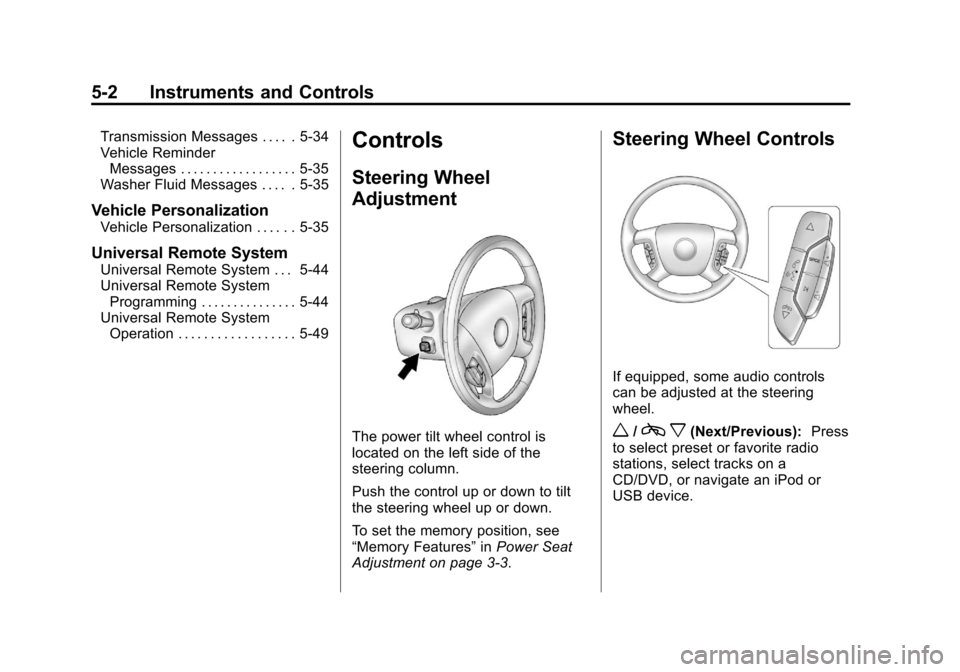
The power tilt wheel control is
located on the left side of the
steering column.
Push the control up or down to tilt
the steering wheel up or down.
To set the memory position, see
“Memory Features” inPower Seat
Adjustment on page 3‑3.
Steering Wheel Controls
If equipped, some audio controls
can be adjusted at the steering
wheel.
w/c x(Next/Previous): Press
to select preset or favorite radio
stations, select tracks on a
CD/DVD, or navigate an iPod or
USB device.
Page 133 of 508

Black plate (3,1)Cadillac Escalade EXT Owner Manual - 2011
Instruments and Controls 5-3
Radio
To select preset or favorite radio
stations:
Press and release
worcxto
go to the next or previous radio
station stored as a preset or
favorite.
CD/DVD
To select tracks on a CD/DVD:
Press and release
worc xto
go to the next or previous track.
Selecting Tracks on an iPod or
USB Device (Vehicles without a
Navigation System)
1. Press and hold
worc x
while listening to a song until the
contents of the current folder
display on the radio display.
2. Press and release
worc x
to scroll up or down the list, then
press and hold
w, or press¨to
play the highlighted track. Navigating Folders on an iPod or
USB Device (Vehicles without a
Navigation System):
1. Press and hold
worc
x
while listening to a song until the
contents of the current folder
display on the radio display.
2. Press and hold
c xto go
back to the previous folder list.
3. Press and release
worc x
to scroll up or down the list.
.To select a folder,
press and hold
w, or
press
¨when the folder
is highlighted.
.To go back further in
the folder list, press and
hold
c x. Navigating an iPod or USB Device
on the Main Audio Screen
(Vehicles with a Navigation
System)
1. Press and release
worc
x
to select the next or previous
track within the selected
category.
2. Press and hold
worc xto
move quickly through the tracks.
3. Press and release
¨to move up
one track within the selected
category.
Navigating an iPod or USB Device
on the Music Navigator Screen
(Vehicles with a Navigation
System)
1. Press and release
worc x
to select the next or previous
track within the selected
category.
2. Press and hold
worc xto
move quickly through the tracks
within the selected category.
Page 137 of 508
Black plate (7,1)Cadillac Escalade EXT Owner Manual - 2011
Instruments and Controls 5-7
note pad holder, or any other
magnetic item. Turn off the vehicle,
move the magnetic item, then turn
on the vehicle and calibrate the
compass.
To calibrate the compass, use the
following procedure:
Compass Calibration Procedure
1. Before calibrating the compass,make sure the compass zone
is set to the variance zone in
which the vehicle is located. See
“Compass Variance (Zone)
Procedure” earlier in this
section.
Do not operate any switches
such as window, sunroof,
climate controls, seats, etc.
during the calibration procedure.
2. Press the vehicle information button until PRESS
VTO
CALIBRATE COMPASS
displays.
3. Press the set/reset button to start the compass calibration. 4. The DIC will display
CALIBRATING: DRIVE IN
CIRCLES. Drive the vehicle
in tight circles at less than
8 km/h (5 mph) to complete the
calibration. The DIC will display
CALIBRATION COMPLETE
for a few seconds when the
calibration is complete. The DIC
display will then return to the
previous menu.
Clock
The analog clock is located on the
instrument panel above the radio.
The clock is not connected with any
other vehicle system and runs by
itself. To adjust the clock:
1. The adjustment button is locatedin the lower left corner of the
clock.
2. Push and hold the adjustment button to advance the clock
hands. Holding the button down
will cause the clock to advance
faster. Release the button before
reaching the desired time. 3. Push and release the button to
increase the time by one minute
increments until the desired time
is reached.
Power Outlets
Accessory power outlets can be
used to plug in electrical equipment,
such as a cell phone or MP3 player.
One accessory power outlet is
located inside the center floor
console. Lift up on the lower latch
located at the front of the console lid
to access the accessory power
outlet.
There may also be an accessory
power outlet located on the rear of
the center floor console above the
cupholder.
Remove the cover to access and
replace when not in use.
Page 174 of 508

Black plate (44,1)Cadillac Escalade EXT Owner Manual - 2011
5-44 Instruments and Controls
To select a setting, press the
set/reset button while the desired
setting is displayed on the DIC.
EXIT FEATURE SETTINGS
This feature allows you to exit the
feature settings menu.
Press the customization button until
PRESS
VTO EXIT FEATURE
SETTINGS appears in the DIC
display. Press the set/reset button
once to exit the menu.
If you do not exit, pressing the
customization button again will
return you to the beginning of the
feature settings menu.
Exiting the Feature
Settings Menu
The feature settings menu will be
exited when any of the following
occurs:
.The vehicle is no longer in
ON/RUN.
.The trip/fuel or vehicle
information DIC buttons are
pressed.
.The end of the feature settings
menu is reached and exited.
.A 40 second time period has
elapsed with no selection made.
Universal Remote
System
See Radio Frequency Statement on
page 13‑20 for information
regarding Part 15 of the Federal
Communications Commission (FCC)
rules and Industry Canada
Standards RSS-210/220/310.
Universal Remote System
Programming
Vehicles with the Universal Remote
System will have these buttons
located in the headliner.
Page 193 of 508

Black plate (3,1)Cadillac Escalade EXT Owner Manual - 2011
Infotainment System 7-3
Theft-Deterrent Feature
TheftLock®is designed to
discourage theft of the vehicle's
radio by learning a portion of the
Vehicle Identification Number (VIN).
The radio does not operate if it is
stolen or moved to a different
vehicle.
Overview
When the navigation system is
turned on, a screen may appear
with the information below, and you
must read and acknowledge the
information it contains. After you acknowledge the start
up information you will be able to
access the NAV (navigation) and
DEST (destination) functions.
Once accessed, you can enter or
delete information in the navigation
system or access other functions.
See instructions later in this section.
Every fifty times the vehicle is
started and the navigation system
is turned on, the Caution screenappears. After reading the
caution, select OK to load the
map information. If OK is not
selected, all control buttons
except for NAV and DEST can be
accessed. You can also press the
NAV control button to have this
Caution screen appear.
When getting started, set the
navigation system to your
preference or delete information
you may have entered using various
options.
Page 195 of 508

Black plate (5,1)Cadillac Escalade EXT Owner Manual - 2011
Infotainment System 7-5
R. Auxiliary Jack
S.
y © ¨ z(Seek) Key
(Previous/Next)
T.
w(Tune) Knob
U. NAV (Navigation)
V. RPT (Repeat)
W. DEST (Destination)
X. CONFIG (Configure)
Language —English/Metric
To change the language of the
navigation screens or to change
the navigation screens from English
or metric, see Driver Information
Center (DIC) on page 5‑23 for more
information.
Deleting Personal Information
This navigation system can record
and store personal information
such as names and addresses.
Delete this information when
selling your vehicle or returning a leased vehicle. See
“Edit Address
Book —Edit/View” underConfigure
Menu on page 7‑64 for deleting
information from the address book.
Limit Features While Driving
The navigation system may have
this feature.
Touch the Limit Features While
Driving screen button to turn the
ability to limit functions on and off
while driving. When this screen
button is highlighted, the following
functions are limited while driving:
.Music Navigator Scrolling
.Radio Category Scrolling
.Navigation Menu Scrolling and
some functions
See “Category” underAM-FM Radio
on page 7‑9 for more information.
See “From Map” underDestination
on page 7‑51 for more information.
Some functions will remain limited
regardless of the setting.
Storing Radio Station Presets
To set preset radio stations, do the
following:
1. Press
Oto turn the system on.
2. Press the AUDIO control button and select the desired band
(AM, FM, or XM (if equipped)).
3. Use the
w(tuning) knob or the
SEEK arrows to tune to the
desired station.
4. Press and hold one of the five preset screen buttons,
at the bottom of the screen,
until a beep is heard.
5. Repeat the steps for each preset.
See “Storing Radio Station Presets”
under AM-FM Radio on page 7‑9 for
more information.
Page 201 of 508

Black plate (11,1)Cadillac Escalade EXT Owner Manual - 2011
Infotainment System 7-11
FM Source Shown, Other SourcesSimilar
Category: Press the screen button,
located in the middle of the screen,
to get a list of all the selected band
stations in the area. Use the up
and down arrows to scroll the
frequencies. Press the desired
frequency. XM (if equipped) lists also contain a
category to select and the stations
or channels that have broadcasts
that relate to that category. For XM
(if equipped), press the left and right
arrow screen buttons to change
categories. The station information
appears on the display. See
“Radio
Menu” in this section to add and
remove XM categories from the
category list. Removed categories
do not appear on the category list
screen or when the right and left
arrow category screen buttons
are used.
FM lists may also contain a
category to select if stations in the
broadcast area support Radio Data
Systems (RDS).
2Refresh List: Press to refresh
the list of AM or FM stations.
When viewing a map screen, the
name of the station or channel
displays.
y © ¨ z(Seek):
1. To seek stations, press the up or down arrows to go to the next or
previous station.
2. To scan stations, press and hold either arrow for more than
two seconds. The radio goes
to a station, plays for a few
seconds, then goes to the next
station.
3. To stop scanning, press either arrow again.
Storing Radio Station Presets
This feature stores a mix of up
to 30 AM, FM, and XM (if equipped)
preset stations. To store presets:
1. Press
Oto turn the system on.
2. If viewing a map screen, press the source screen button, press
the AUDIO control button,
or press the FAV (favorite)
control button.
3. Select the band.
Page 203 of 508

Black plate (13,1)Cadillac Escalade EXT Owner Manual - 2011
Infotainment System 7-13
Surround (Centerpoint®):Enables
Bose Centerpoint signal processing
that produces a surround sound
listening experience from a CD or
XM (if equipped) stereo digital
audio source. Centerpoint delivers
five independent audio channels
from conventional two channel
stereo recordings (not available for
AM or FM).
Driver: Adjusts the audio to give
the driver the best possible sound
quality.
Rear: Adjusts the audio to give
the rear seat occupants the best
possible sound quality.
2 CH. (Channel): Enhances
surround sound.
5.1 CH. (Channel): Gives a full
affect of surround sound listening.
This button is only available when
playing DVD video discs that
support 5.1 audio and if the RSA
is off.Radio Menu
Press the CONFIG control button to
enter the configure menu screen,
then press CONFIG repeatedly until
Radio is selected or press the Radio
screen button to make changes for
radio information displayed or to
limit features while driving, number
of preset pages, XM (if equipped)
categories, and Bose
®AudioPilot®. Limit Features While Driving
Press the Limit Features While
Driving screen button to turn on and
off the ability to limit functions while
driving. When this screen button is
highlighted, the following functions
are limited while driving:
.Music Navigator Scrolling
.Radio Category Scrolling
.Navigation Menu Scrolling and
some functions
Number of Preset Pages
Press the Number of Preset Pages
screen button to change the number
of preset pages, 1 through 6. Each
preset page can contain five preset
stations. Press the desired
numbered screen button.
Page 204 of 508
Black plate (14,1)Cadillac Escalade EXT Owner Manual - 2011
7-14 Infotainment System
Bose®AudioPilot®
AudioPilot:The Bose AudioPilot
noise compensation technology.
To use AudioPilot
®:
1. Press the CONFIG control button to enter the menu screen,
then press CONFIG repeatedly
until Radio is selected or press
the Radio screen button
2. Press Automatic Volume Control to access the AudioPilot menu.
3. Press ON.
To turn it off, press OFF. When on,
AudioPilot
®continuously adjusts
the audio system equalization,
to compensate for background
noise, so that the music sound is
consistent at the set volume level.
This feature is most effective at
lower volume settings where
background noise can affect how
well the music being played is heard through the vehicle's audio
system. At higher volume settings,
where the music is much louder
than the background noise, there
may be little or no adjustments
by AudioPilot
®. For more
information on AudioPilot®,
visit www.bose.com/audiopilot.
Remove/Add XM Categories
(US and Canada)
Press the Remove/Add XM
Categories screen button to
remove or add XM categories when
selecting XM categories from the
category list screen. The list of XM
categories appear on the screen.
Use the arrow screen buttons
to scroll through the list. The
categories to remove are highlighted
and the categories to add are dark
in color. Press the category to be
added or removed. Press the
Restore All Categories screen
button to add all categories that
have been removed.
Radio Data System (RDS)
The audio system has a Radio
Data System (RDS). RDS features
are available for use only on FM
stations that broadcast RDS
information. With RDS, the radio
can do the following:
.Receive announcements
concerning local and national
emergencies
.Display messages from radio
stations
This system relies on receiving
specific information from these
stations and only works when the
information is available. In rare
cases, a radio station may
broadcast incorrect information that
causes the radio features to work
improperly. If this happens, contact
the radio station.
The RDS system is always on.
When information is broadcast from
the FM station that is playing, the
station name or call letters displays
on the audio screen.