buttons CADILLAC SRX 2009 1.G User Guide
[x] Cancel search | Manufacturer: CADILLAC, Model Year: 2009, Model line: SRX, Model: CADILLAC SRX 2009 1.GPages: 442, PDF Size: 2.42 MB
Page 151 of 442
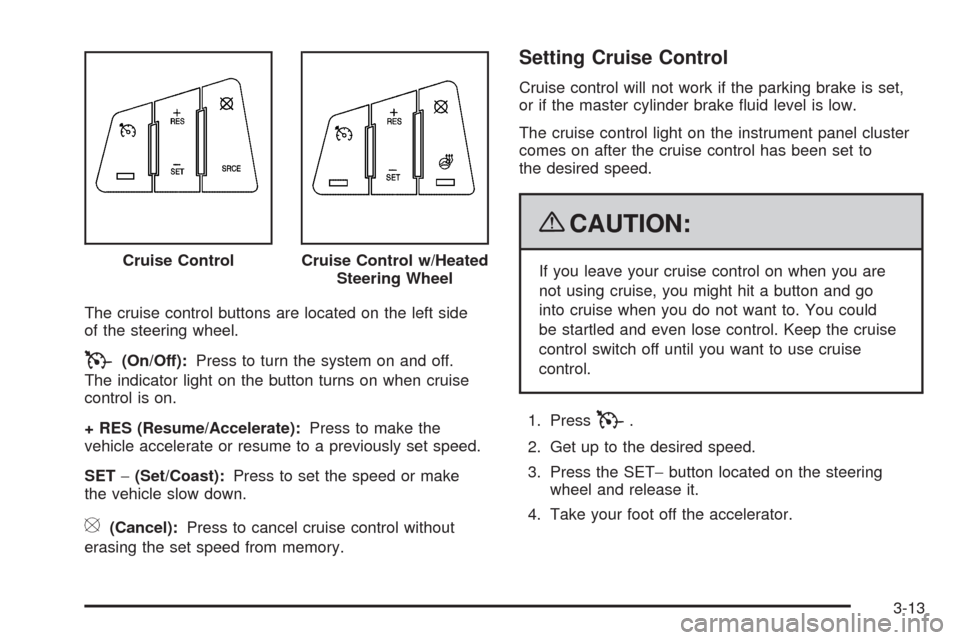
The cruise control buttons are located on the left side
of the steering wheel.
T(On/Off):Press to turn the system on and off.
The indicator light on the button turns on when cruise
control is on.
+ RES (Resume/Accelerate):Press to make the
vehicle accelerate or resume to a previously set speed.
SET−(Set/Coast):Press to set the speed or make
the vehicle slow down.
[(Cancel):Press to cancel cruise control without
erasing the set speed from memory.
Setting Cruise Control
Cruise control will not work if the parking brake is set,
or if the master cylinder brake uid level is low.
The cruise control light on the instrument panel cluster
comes on after the cruise control has been set to
the desired speed.
{CAUTION:
If you leave your cruise control on when you are
not using cruise, you might hit a button and go
into cruise when you do not want to. You could
be startled and even lose control. Keep the cruise
control switch off until you want to use cruise
control.
1. Press
T.
2. Get up to the desired speed.
3. Press the SET−button located on the steering
wheel and release it.
4. Take your foot off the accelerator. Cruise Control
Cruise Control w/Heated
Steering Wheel
3-13
Page 161 of 442
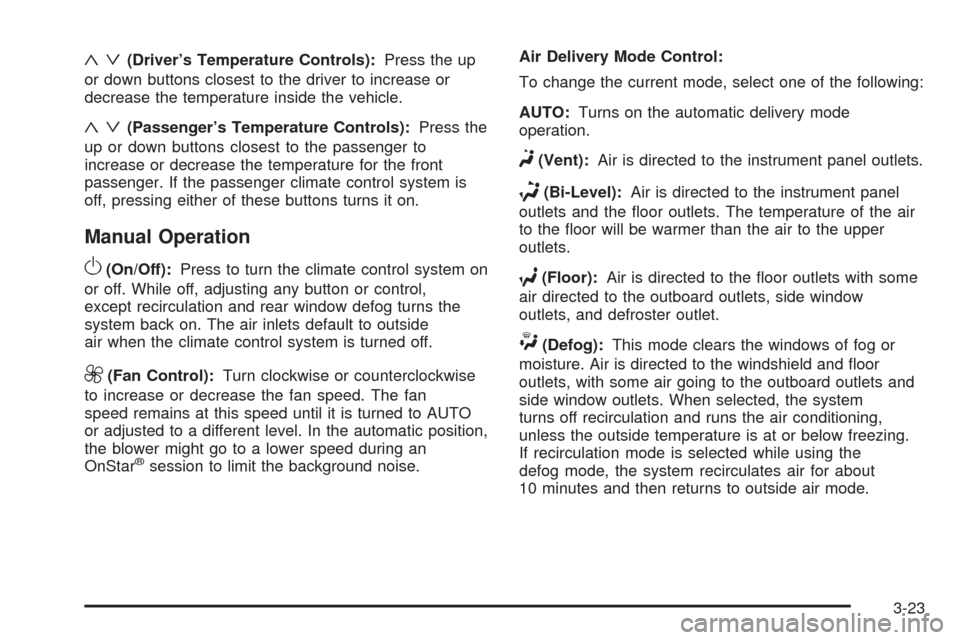
«ª(Driver’s Temperature Controls):Press the up
or down buttons closest to the driver to increase or
decrease the temperature inside the vehicle.
«ª(Passenger’s Temperature Controls):Press the
up or down buttons closest to the passenger to
increase or decrease the temperature for the front
passenger. If the passenger climate control system is
off, pressing either of these buttons turns it on.
Manual Operation
O(On/Off):Press to turn the climate control system on
or off. While off, adjusting any button or control,
except recirculation and rear window defog turns the
system back on. The air inlets default to outside
air when the climate control system is turned off.
9(Fan Control):Turn clockwise or counterclockwise
to increase or decrease the fan speed. The fan
speed remains at this speed until it is turned to AUTO
or adjusted to a different level. In the automatic position,
the blower might go to a lower speed during an
OnStar
®session to limit the background noise.Air Delivery Mode Control:
To change the current mode, select one of the following:
AUTO:Turns on the automatic delivery mode
operation.
F(Vent):Air is directed to the instrument panel outlets.
*(Bi-Level):Air is directed to the instrument panel
outlets and the oor outlets. The temperature of the air
to the oor will be warmer than the air to the upper
outlets.
7(Floor):Air is directed to the oor outlets with some
air directed to the outboard outlets, side window
outlets, and defroster outlet.
W(Defog):This mode clears the windows of fog or
moisture. Air is directed to the windshield and oor
outlets, with some air going to the outboard outlets and
side window outlets. When selected, the system
turns off recirculation and runs the air conditioning,
unless the outside temperature is at or below freezing.
If recirculation mode is selected while using the
defog mode, the system recirculates air for about
10 minutes and then returns to outside air mode.
3-23
Page 162 of 442
0(Defrost):This mode clears the windshield of fog or
frost more quickly. Air is directed to the windshield
with some air going to the side window outlets. When
selected, the system turns off recirculation and runs the
air conditioning compressor, unless the outside
temperature is at or below freezing.
Do not drive the vehicle until all the windows are clear.
PASS (Passenger’s Climate Control):Press to
turn the passenger climate control system on or off.
Then press the passenger
«orªbuttons to adjust
the temperature. Pressing PASS again automatically
sets the passengers temperature to the drivers setting.
Turning off the passenger temperature display does
not turn off the passenger climate control system.
Air Inlet Modes
There are three options for bringing air into the climate
control system. They are controlled by pressing the
outside air button on the climate control panel.The climate control display indicates one of the
following three modes:
9(Auto Air Inlet):This mode lets the automatic
climate control system choose the best air inlet position
for cooling or warming the vehicle. To have full
automatic climate control, the fan and mode controls
must be set to the AUTO position. On hot days,
the recirculation mode may be selected automatically.
?(Recirculation):This mode recirculates and helps
to quickly cool the air inside the vehicle. It can be used to
prevent outside air and odors from entering the vehicle.
The recirculation mode cannot be used with oor, defog,
or defrosting modes. Using recirculation for long periods
of time can cause the air inside the vehicle to become
too dry or stuffy. To prevent this from happening, after the
air in the vehicle has cooled, select auto air inlet or
outside air.
F(Outside Air):Air is pulled from outside the
vehicle. Outside air is always selected in defrost mode
to prevent fogging.
3-24
Page 183 of 442
If the fuel supply gets low, the FUEL LEVEL LOW
message will appear on the Driver Information Center
(DIC) and a single chime will sound. SeeDIC Warnings
and Messages on page 3-51for more information.
All of the following situations are normal and do
not indicate that anything is wrong with the fuel gage:
At the gas station the gas pump shuts off before
the gage reads full.
The gage may change when you turn, stop quickly
or accelerate quickly.
It takes a little more or less fuel to ll the tank than
the gage indicated. For example, the gage may
have indicated that the tank was half full, but
it actually took a little more or less than half the
tank’s capacity to ll the tank.
Driver Information Center (DIC)
The Driver Information Center (DIC) gives you the status
of many of your vehicle’s systems. The DIC is also used
to display warning/status messages. All messages will
appear in the DIC display located at the bottom of the
instrument panel cluster, below the tachometer and
speedometer. The DIC buttons are located on the
instrument panel, to the left of the steering wheel.
The DIC comes on when the ignition is on. After a short
delay, the DIC will display the information that was
last displayed before the engine was turned off.
The top line of the DIC display shows the vehicle
system information and the warning/status messages.
The bottom line of the DIC display shows the odometer
on the left side, the outside air temperature on the
right side, and the shift position indicator in the center.
For more information on the shift position indicator,
seeAutomatic Transmission Operation on page 2-27.
When the sport mode is active, an S will appear next to
the shift position indicator on the center of the DIC
display. When the manual mode is active, an M will
appear on the DIC display. When the normal mode
is active, only the shift position indicator will appear.
3-45
Page 184 of 442

While the Driver Shift Control (DSC) feature is active,
the DIC will change to show the selected gear.
See “Driver Shift Control (DSC)” underAutomatic
Transmission Operation on page 2-27for more
information.
If a problem is detected, a warning message will appear
on the display. Be sure to take any message that
appears on the display seriously and remember that
clearing the message will only make the message
disappear, not correct the problem.
DIC Operation and Displays
The Driver Information
Center (DIC) has different
displays which can be
accessed by pressing the
DIC buttons located on
the instrument panel, to the
left of the steering wheel.
3Trip/Fuel:Press this button to scroll through the
trip and fuel displays. See “Trip/Fuel Display Menu
Items” following for more information on these displays.
TVehicle Information:Press this button to scroll
through the vehicle information displays. See “Vehicle
Information Display Menu Items” following for more
information on these displays.
UCustomization:Press this button to scroll through
each of the customization features. SeeDIC Vehicle
Customization on page 3-60for more information on the
customization features.
VSet/Reset:Press this button to reset certain DIC
features and to acknowledge DIC warning messages
and clear them from the DIC display.
yzMenu Up/Down:Press this button to scroll up
and down the menu items.
3-46
Page 188 of 442
FRONT TIRES or REAR TIRES
The pressure for each tire can be viewed in the DIC.
The tire pressure will be shown in either pounds
per square inch (psi) or kilopascals (kPa). Press the
vehicle information button until the DIC shows the tire
pressure for the front tires. Press the vehicle information
button again to view the pressure for the rear tires.
If a low or high tire pressure condition is detected by
the system while driving, a message advising you to
check the pressure in a specic tire will appear in the
display. SeeInflation - Tire Pressure on page 5-56
andDIC Warnings and Messages on page 3-51for
more information.
RELEARN REMOTE KEY
This display allows you to match Remote Keyless
Entry (RKE) transmitters to the vehicle. To match an
RKE transmitter to the vehicle:
1. Press the vehicle information button until PRESS
V
TO RELEARN REMOTE KEY displays.
2. Press the set/reset button until REMOTE KEY
LEARNING ACTIVE is displayed.3. Press and hold the lock and unlock buttons on the
rst transmitter at the same time for about
15 seconds.
On vehicles with memory recall seats, the rst
transmitter learned will match driver 1 and
the second will match driver 2.
A chime will sound indicating that the transmitter
is matched.
4. To match additional transmitters at this time,
repeat Step 3.
Each vehicle can have a maximum of
eight transmitters matched to it.
5. To exit the programming mode, you must cycle the
key to LOCK/OFF.
SPEEDOMETER
This display shows a digital speedometer in the DIC.
The speed will be displayed in either miles per hour
(mph) or kilometers per hour (km/h). Press the vehicle
information button until the DIC shows the digital
speedometer. To change the units from English to
metric, see “UNITS” earlier in this section.
Blank Display
This display shows no information.
3-50
Page 206 of 442
FACTORY SETTINGS
This feature allows you to set all of the customization
features back to their factory default settings.
Press the customization button until FACTORY
SETTINGS appears on the DIC display. Press the
set/reset button to access the settings for this feature.
Then press the menu up/down button to scroll through
the following settings:
RESTORE ALL (default):The customization features
will be set to their factory default settings.
DO NOT RESTORE:The customization features will
not be set to their factory default settings.
To select a setting, press the set/reset button while the
desired setting is displayed on the DIC.
Exiting the Feature Settings Menu
The feature settings menu will be exited when any of
the following occurs:
The vehicle is shifted out of P (Park).
The ignition is no longer in ON/RUN.
The trip/fuel or vehicle information DIC buttons
are pressed.
The end of the feature settings menu is reached.
A 40 second time period has elapsed with no
selection made.
Audio System(s)
Determine which radio the vehicle has and read the
following pages to become familiar with its features.
{CAUTION:
Taking your eyes off the road for extended periods
could cause a crash resulting in injury or death to
you or others. Do not give extended attention to
entertainment tasks while driving.
This system provides access to many audio and non
audio listings.
To minimize taking your eyes off the road while driving,
do the following while the vehicle is parked:
Become familiar with the operation and controls of
the audio system.
Set up the tone, speaker adjustments, and preset
radio stations.
For more information, seeDefensive Driving on
page 4-2.
3-68
Page 212 of 442
Storing a Radio Station as a Favorite
Drivers are encouraged to set up their radio station
favorites while the vehicle is stopped. Tune to your
favorite stations using the presets, favorites button, and
steering wheel controls, if your vehicle has this
feature. SeeDefensive Driving on page 4-2.
FAV (Favorites):A maximum of 36 stations can be
programmed as favorites using the six pushbuttons
positioned below the radio station frequency labels and
by using the radio favorites page button. Press the
FAV button to go through up to six pages of favorites,
each having six favorite stations available per page.
Each page of favorites can contain any combination of
AM, FM, or XM stations. To store a station as a
favorite, perform the following steps:
1. Tune to the desired radio station.
2. Press the FAV button to display the page where
you want the station stored.
3. Press and hold one of the six pushbuttons until a
beep sounds. When that pushbutton is pressed
and released, the station that was set, returns.
4. Repeat the steps for each pushbutton radio station
you want stored as a favorite.The number of favorites pages can be setup using
the MENU button. To setup the number of favorites
pages:
1. Press the MENU button to display the radio
setup menu.
2. Press the pushbutton located below the
FAV 1-6 label.
3. Select the desired number of favorites pages by
pressing the pushbutton located below the
displayed page numbers.
4. Press the FAV button, or let the menu time out, to
return to the original main radio screen showing the
radio station frequency labels and to begin the
process of programming your favorites for the
chosen amount of numbered pages.
3-74
Page 213 of 442

Setting the Tone
(Bass/Midrange/Treble)
BASS/MID/TREB (Bass, Midrange, or Treble):
To adjust bass, midrange, or treble, press the
aknob
until the tone control labels display. Continue pressing to
highlight the desired label, or press the pushbutton
positioned under the desired label. Turn this knob
clockwise or counterclockwise to adjust the highlighted
setting. The highlighted setting can also be adjusted
by pressing either SEEK arrow,
\FWD, orsREV
button until the desired levels are obtained. If a
station’s frequency is weak, or if there is static, decrease
the treble.
To quickly adjust bass, midrange, or treble to the middle
position, press the
aknob for more than two seconds.
A beep sounds and the level adjusts to the middle
position. Pressing this knob for more than two seconds
also centers the fade and balance settings to the
factory default positions.
Finding a Category (CAT) Station
CAT (Category):The CAT button is used to nd
XM stations when the radio is in the XM mode.
To nd XM channels within a desired category:
1. Press the BAND button until the XM frequency
displays. Press the CAT button to display the
category labels on the radio display. Continue
pressing the CAT button until the desired category
name displays.
2. Press either of the two buttons below the desired
category label to immediately tune to the rst
XM station associated with that category.
3. Turn the
aknob, press the buttons below the right
or left arrows displayed, or press either SEEK arrow
to go to the previous or to the next XM station
within the selected category.
4. To exit the category search mode, press the
FAV button or BAND button to display your
favorites again.
3-75
Page 220 of 442
MP3/WMA Format
If you burn your own MP3/WMA disc on a personal
computer:
Make sure the MP3/WMA les are recorded on a
CD-R or CD-RW disc.
Do not mix standard audio and MP3/WMA les on
one disc.
The CD player is able to read and play a maximum
of 50 folders, 50 playlists, and 255 les.
Create a folder structure that makes it easy to nd
songs while driving. Organize songs by albums
using one folder for each album. Each folder
or album should contain 18 songs or less.
Avoid subfolders. The system can support up to
8 subfolders deep, however, keep the total
number of folders to a minimum in order to reduce
the complexity and confusion in trying to locate
a particular folder during playback.
Make sure playlists have a .mp3 or .wpl extension
(other le extensions might not work).
Minimize the length of the le, folder or playlist
names. Long le, folder, or playlist names, or a
combination of a large number of les and folders,
or playlists can cause the player to be unable to
play up to the maximum number of les, folders,
playlists, or sessions. If you wish to play a
large number of les, folders, playlists, or sessions,
minimize the length of the le, folder, or playlist
name. Long names also take up more space on the
display, potentially getting cut off.
Finalize the audio disc before you burn it. Trying to
add music to an existing disc can cause the disc
not to function in the player.
Playlists can be changed by using the
ScandcT
folder buttons, theaknob, or the SEEK arrows.
An MP3/WMA CD-R or CD-RW that was recorded
using no le folders can also be played. If a CD-R or
CD-RW contains more than the maximum of 50 folders,
50 playlists, and 255 les, the player lets you access
and navigate up to the maximum, but all items over the
maximum cannot be accessed.
3-82