change time CADILLAC SRX 2009 1.G User Guide
[x] Cancel search | Manufacturer: CADILLAC, Model Year: 2009, Model line: SRX, Model: CADILLAC SRX 2009 1.GPages: 442, PDF Size: 2.42 MB
Page 198 of 442
TURN SIGNAL ON
This message displays as a reminder to turn off the turn
signal if you drive your vehicle for more than about
1 mile (1.6 km) with a turn signal on. A multiple chime
sounds when this message is displayed.
WASHER FLUID LOW ADD FLUID
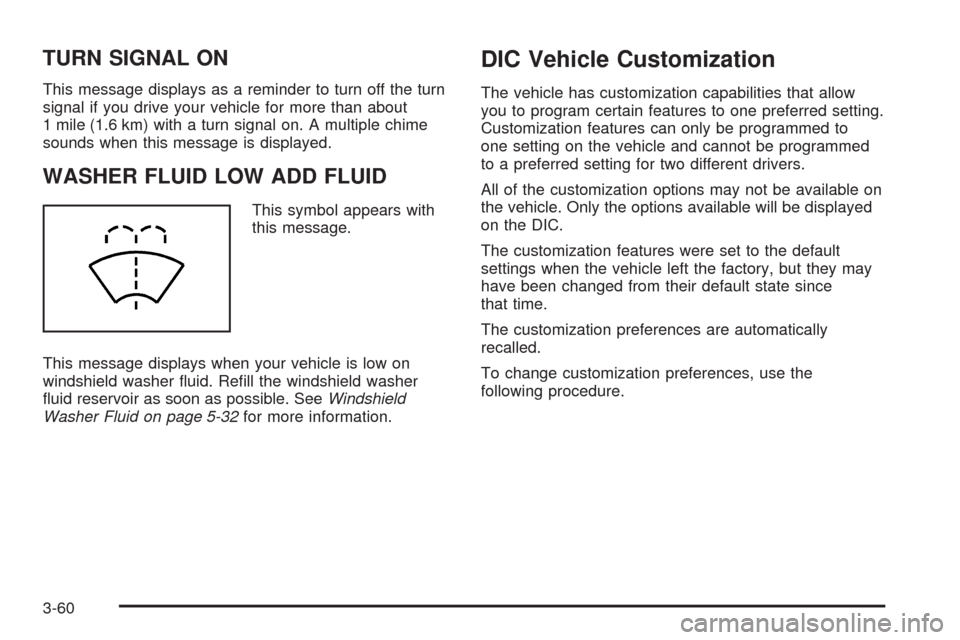
This symbol appears with
this message.
This message displays when your vehicle is low on
windshield washer uid. Rell the windshield washer
uid reservoir as soon as possible. SeeWindshield
Washer Fluid on page 5-32for more information.
DIC Vehicle Customization
The vehicle has customization capabilities that allow
you to program certain features to one preferred setting.
Customization features can only be programmed to
one setting on the vehicle and cannot be programmed
to a preferred setting for two different drivers.
All of the customization options may not be available on
the vehicle. Only the options available will be displayed
on the DIC.
The customization features were set to the default
settings when the vehicle left the factory, but they may
have been changed from their default state since
that time.
The customization preferences are automatically
recalled.
To change customization preferences, use the
following procedure.
3-60
Page 202 of 442
DELAY DOOR LOCK
This feature allows you to select whether or not the
locking of the vehicle’s doors and liftgate will be delayed.
When locking the doors and liftgate with the power
door lock switch and a door or the liftgate is open, this
feature will delay locking the doors and liftgate until
ve seconds after the last door is closed. You will hear
three chimes to signal that the delayed locking feature
is in use. The key must be out of the ignition for
this feature to work. You can temporarily override
delayed locking by pressing the power door lock switch
twice or the lock button on the RKE transmitter twice.
SeeDelayed Locking on page 2-10for more information.
Press the customization button until DELAY DOOR
LOCK appears on the DIC display. Press the set/reset
button to access the settings for this feature. Then
press the menu up/down button to scroll through the
following settings:
OFF:There will be no delayed locking of the vehicle’s
doors.
ON (default):The doors will not lock until ve seconds
after the last door or the liftgate is closed.
NO CHANGE:No change will be made to this feature.
The current setting will remain.
To select a setting, press the set/reset button while the
desired setting is displayed on the DIC.
EXIT LIGHTING
This feature allows you to select the amount of time you
want the exterior lamps to remain on when it is dark
enough outside. This happens after the key is turned
from ON/RUN to LOCK/OFF.
Press the customization button until EXIT LIGHTING
appears on the DIC display. Press the set/reset button
to access the settings for this feature. Then press
the menu up/down button to scroll through the following
settings:
OFF:The exterior lamps will not turn on.
30 SECONDS (default):The exterior lamps will
stay on for 30 seconds.
1 MINUTE:The exterior lamps will stay on for
one minute.
2 MINUTES:The exterior lamps will stay on for
two minutes.
NO CHANGE:No change will be made to this feature.
The current setting will remain.
To select a setting, press the set/reset button while the
desired setting is displayed on the DIC.
3-64
Page 204 of 442
PARK TILT MIRRORS
If the vehicle has this feature, it allows you to select
whether or not the outside mirror(s) will automatically tilt
down when the vehicle is shifted into R (Reverse).
SeePark Tilt Mirrors on page 2-40for more information.
Press the customization button until PARK TILT
MIRRORS appears on the DIC display. Press the
set/reset button to access the settings for this feature.
Then press the menu up/down button to scroll through
the following settings:
OFF (default):Neither outside mirror will be tilted down
when the vehicle is shifted into R (Reverse).
DRIVER MIRROR:The driver’s outside mirror will be
tilted down when the vehicle is shifted into R (Reverse).
PASSENGER MIRROR:The passenger’s outside
mirror will be tilted down when the vehicle is shifted into
R (Reverse).
BOTH MIRRORS:The driver’s and passenger’s outside
mirrors will be tilted down when the vehicle is shifted
into R (Reverse).
NO CHANGE:No change will be made to this feature.
The current setting will remain.
To select a setting, press the set/reset button while the
desired setting is displayed on the DIC.
EASY EXIT SEAT
If the vehicle has this feature, it allows you to select
your preference for the automatic easy exit seat feature.
SeeMemory Seat and Mirrors on page 1-5for more
information.
Press the customization button until EASY EXIT SEAT
appears in the display. Press the set/reset button to
access the settings for this feature. Then press the
menu up/down button to scroll through the following
settings:
OFF (default):No automatic seat exit recall will occur.
ON:The driver’s seat will move back when the key
is removed from the ignition.
The automatic easy exit seat movement will only occur
one time after the key is removed from the ignition. If the
automatic movement has already occurred, and you put
the key back in the ignition and remove it again, the seat
will stay in the original exit position, unless a memory
recall took place prior to removing the key again.
NO CHANGE:No change will be made to this feature.
The current setting will remain.
To select a setting, press the set/reset button while the
desired setting is displayed on the DIC.
3-66
Page 207 of 442

Notice:Contact your dealer/retailer before adding
any equipment.
Adding audio or communication equipment could
interfere with the operation of the vehicle’s engine,
radio, or other systems, and could damage them.
Follow federal rules covering mobile radio and
telephone equipment.
The vehicle has Retained Accessory Power (RAP).
With RAP, the audio system can be played even after
the ignition is turned off. SeeRetained Accessory
Power (RAP) on page 2-24for more information.
Setting the Clock
Radio with a Single CD or a Six-Disc
CD Player
Vehicles equipped with a Bose®sound system,
have an analog clock as well as the digital radio clock.
At the time of new vehicle delivery, the digital radio
clock display should be disabled. If you decide to
use the digital radio clock as well as the analog
clock, you can change the setting to enable the
radio clock display.
Enabling/Disabling the Digital
Radio Clock
For the Single CD Player
To turn the radio clock display on or off:
1. Turn the radio on.
2. Press the
Hbutton until the clock and date setting
menus appear.
3. Press the pushbutton located under the forward
arrow label until the menu for default clock and
date settings appear.
4. Press the pushbutton located under the currently
displayed status of either ON or OFF. The ON
display indicates the radio clock display is disabled
and the OFF display indicates the radio clock
display is enabled. Press this pushbutton to toggle
the radio clock display on or off.
If the radio clock display is turned on, the screen
displays Radio Clock ON for 10 seconds, then
returns to the original clock display menu.
If the radio clock display is turned off, the screen
displays Radio Clock OFF for 10 seconds.
The menus for clock and date settings are removed,
and ON displays as a current status indicating
that the clock display can be turned on, if desired.
The radio clock and analog clock are not synchronized.
Occasionally you might need to set the digital radio clock
using the procedure below to synchronize both clocks.
3-69
Page 208 of 442
For a Six-Disc CD Player
To turn the radio clock display on or off:
1. Turn the radio on.
2. Press the MENU button until the
Hlabel option
is displayed.
3. Press the pushbutton located under the
Hlabel
until the clock and date settings appear.
4. Press the pushbutton located under the forward
arrow label until the menu for default clock and
date settings appear.
5. Press the pushbutton located under the currently
displayed status of either ON or OFF. The ON
display indicates the radio clock display is disabled
and the OFF display indicates the radio clock
display is enabled. Press this pushbutton to toggle
the radio clock display on or off.
If the radio clock display is turned on, the screen
displays Radio Clock ON for 10 seconds, then
returns to the original clock display menu.
If the radio clock display is turned off, the screen
displays Radio Clock OFF for 10 seconds.
The menus for clock and date settings are removed,
and ON displays as a current status indicating
that the clock display can be turned on, if desired.
Setting the Time and Date
For the Single CD Player
This type of radio has aHbutton for setting the time
and date. To set the time and date:
1. Turn the radio on.
2. Press the
Hbutton and HR, MIN, MM, DD, YYYY
(hour, minute, month, day, and year) displays.
3. Press the pushbutton located under any one of the
labels that you want to change. Every time the
pushbutton is pressed again, the time or the date if
selected, increases by one.
Another way to increase the time or date,
is to press the right SEEK arrow or the
\FWD button.
To decrease the time or date, press the
left SEEK arrow or the
sREV button.
You can also turn the
aknob, located on the
upper right side of the radio faceplate, to adjust
the selected setting.
3-70
Page 209 of 442

For a Six-Disc CD Player
This type of radio has a MENU button for setting the
time and date. To set the time and date:
1. Turn the radio on.
2. Press the MENU button until the
Hlabel option is
displayed.
3. Press the pushbutton located under the
Hlabel
and the HR, MIN, MM, DD, YYYY (hour, minute,
month, day, and year) displays.
4. Press the pushbutton located under any one of the
labels that you want to change. Every time the
pushbutton is pressed again, the time or the date if
selected, increases by one.
Another way to increase the time or date,
is to press the right SEEK arrow or the
\FWD button.
To decrease the time or date, press the
left SEEK arrow or the
sREV button. You can
also turn the
a(tune) knob, located on the
upper right side of the radio faceplate, to adjust
the selected setting.
Changing the Time and Date
Default Setting
For the Single CD Player
To change the time and date default setting:
1. Change the time default setting from 12 hour
to 24 hour or the date default setting from
month/day/year to day/month/year, by pressing
the
Hbutton.
2. Once the clock and date settings display along with
the forward arrow, press the pushbutton located
under the forward arrow until the time 12H and 24H,
and the date MM/DD/YYYY (month, day, and
year) and DD/MM/YYYY (day, month, and year)
displays.
3. Press the pushbutton located under the desired
option, then press the
Hbutton again to apply
the selected default, or let the screen time out.
3-71
Page 210 of 442
For the Six-Disc CD Player
To change the time and date default setting:
1. Change the time default setting from 12 hour
to 24 hour or the date default setting from
month/day/year to day/month/year, by pressing
the MENU button.
2. Once the
Hlabel displays, press the pushbutton
located under that label until the time and date
settings display along with a forward arrow.
3. Press the pushbutton located under the forward
arrow until the time 12H and 24H, and the date
MM/DD/YYYY (month, day, and year) and
DD/MM/YYYY (day, month, and year) displays.
4. Press the pushbutton located under the desired
option, then press the MENU button again to
apply the selected default, or let the screen
time out.
Radio(s)
Radio Data System (RDS)
The audio system has a Radio Data System (RDS).
The RDS feature is available for use only on FM stations
that broadcast RDS information. This system relies
upon receiving specic information from these stations
and only works when the information is available.
While the radio is tuned to an FM-RDS station, the
station name or call letters display. In rare cases, a radio
station could broadcast incorrect information that
causes the radio features to work improperly. If this
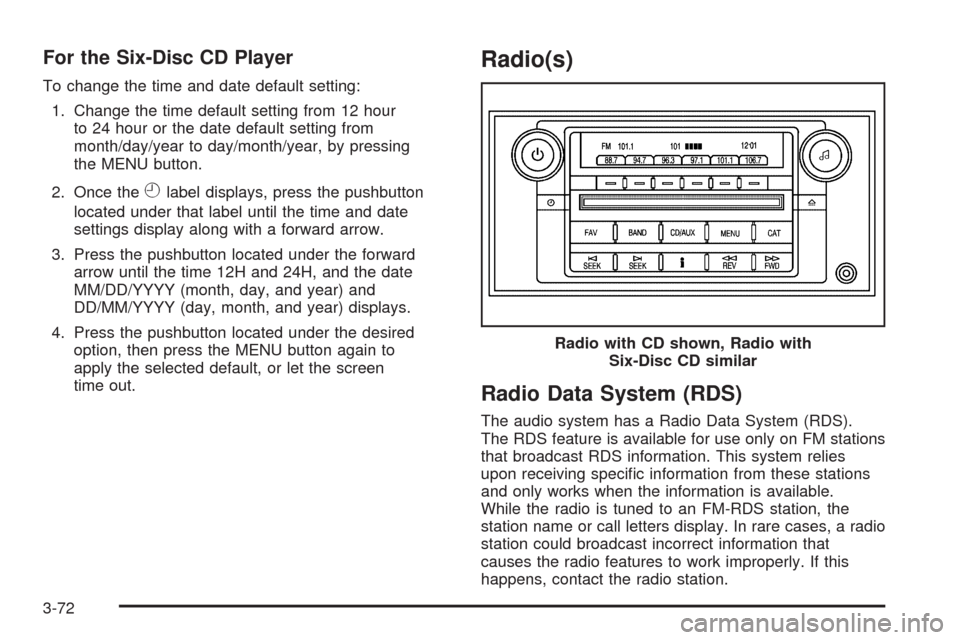
happens, contact the radio station.Radio with CD shown, Radio with
Six-Disc CD similar
3-72
Page 211 of 442

Playing the Radio
O
(Power/Volume):Press to turn the system on
and off.
Turn clockwise or counterclockwise to increase or
decrease the volume.
Speed Compensated Volume (SCV):Radios with
Speed Compensated Volume (SCV) automatically
adjusts radio volume to compensate for road and wind
noise as driving speed changes. That way, the
volume level should sound about the same as you
drive. To activate SCV:
1. Set the radio volume to the desired level.
2. Press the MENU button to display the radio
setup menu.
3. Press the pushbutton under the AUTO VOLUM
(volume) label on the radio display.
4. Press the pushbutton under the desired Speed
Compensated Volume setting (OFF, Low, Med
(medium), or High) to select the level of radio
volume compensation. The display times out after
approximately 10 seconds. Each higher setting
allows for more radio volume compensation at faster
vehicle speeds.
Finding a Station
BAND:Press to switch between AM, FM, or XM™.
The display shows the selection.
a(Tune):Turn to select radio stations.
©SEEK¨:Press the arrows to go to the previous or
to the next station and stay there.
To scan stations, press and hold either arrow for
three seconds until a beep sounds. The radio goes to a
station, plays for a few seconds, then goes to the
next station. Press either arrow again to stop scanning.
The radio only seeks and scan stations with a strong
signal that are in the selected band.
4(Information) (XM Satellite Radio Service,
MP3/WMA, and RDS Features):Press to
simultaneously display the Channel Number, Song Title,
and Artist information while in XM mode. Press to
display additional text information related to the current
FM-RDS, or MP3/WMA song, if available.
When information is not available, No Info displays.
3-73
Page 235 of 442
ABS can change the brake pressure to each wheel, as
required, faster than any driver could. This can help
you steer around the obstacle while braking hard.
As you brake, the computer keeps receiving updates on
wheel speed and controls braking pressure accordingly.
Remember: ABS does not change the time you need to
get your foot up to the brake pedal or always decrease
stopping distance. If you get too close to the vehicle in
front of you, you will not have time to apply the brakes
if that vehicle suddenly slows or stops. Always leave
enough room up ahead to stop, even though you
have ABS.
Using ABS
Do not pump the brakes. Just hold the brake pedal down
rmly and let antilock work for you. You might feel the
brakes vibrate or notice some noise, but this is normal.
Braking in Emergencies
With ABS, you can steer and brake at the same time.
In many emergencies, steering can help more than even
the very best braking.
Brake Assist
This vehicle has a Brake Assist feature designed to
assist the driver in stopping or decreasing vehicle speed
in emergency driving conditions. This feature uses the
stability system hydraulic brake control module to
supplement the power brake system under conditions
where the driver has quickly and forcefully applied the
brake pedal in an attempt to quickly stop or slow down
the vehicle. The stability system hydraulic brake control
module increases brake pressure at each corner of
the vehicle until the ABS activates. Minor brake pedal
pulsations or pedal movement during this time is normal
and the driver should continue to apply the brake pedal
as the driving situation dictates The Brake Assist feature
will automatically disengage when the brake pedal is
released or brake pedal pressure is quickly decreased.
4-5
Page 245 of 442
Getting Familiar with Off-Road Driving
It is a good idea to practice in an area that is safe
and close to home before you go into the wilderness.
Off-roading requires some new and different skills.
Tune your senses to different kinds of signals. Your
eyes need to constantly sweep the terrain for unexpected
obstacles. Your ears need to listen for unusual tire or
engine sounds. Use your arms, hands, feet, and body to
respond to vibrations and vehicle bounce.
Controlling the vehicle is the key to successful off-road
driving. One of the best ways to control the vehicle
is to control the speed. At higher speeds:
You approach things faster and have less time
to react.
There is less time to scan the terrain for obstacles.
The vehicle has more bounce when driving over
obstacles.
More braking distance is needed, especially on an
unpaved surface.
{CAUTION:
When you are driving off-road, bouncing and
quick changes in direction can easily throw you
out of position. This could cause you to lose
control and crash. So, whether you are driving
on or off the road, you and your passengers
should wear safety belts.
4-15