audio CADILLAC SRX 2009 1.G Owner's Manual
[x] Cancel search | Manufacturer: CADILLAC, Model Year: 2009, Model line: SRX, Model: CADILLAC SRX 2009 1.GPages: 442, PDF Size: 2.42 MB
Page 228 of 442
PROG (Program):Press this button to go to the next
preset radio station or channel set on the main
radio. This function is inactive, with some radios, if the
front seat passengers are listening to the radio.
When a CD or DVD audio disc is playing, press this
button to go to the beginning of the CD or DVD audio.
This function is inactive, with some radios, if the
front seat passengers are listening to the CD or
DVD audio.
When a disc is playing in the CD or DVD changer,
press this button to select the next disc, if multiple discs
are loaded. This function is inactive, with some radios,
if the front seat passengers are listening to the disc.
When a DVD video menu is being displayed, press the
PROG button to perform the menu function, enter.
Theft-Deterrent Feature
THEFTLOCK®is designed to discourage theft of the
vehicle’s radio by learning a portion of the Vehicle
Identication Number (VIN). The radio does not operate
if it is stolen or moved to a different vehicle.
Audio Steering Wheel Controls
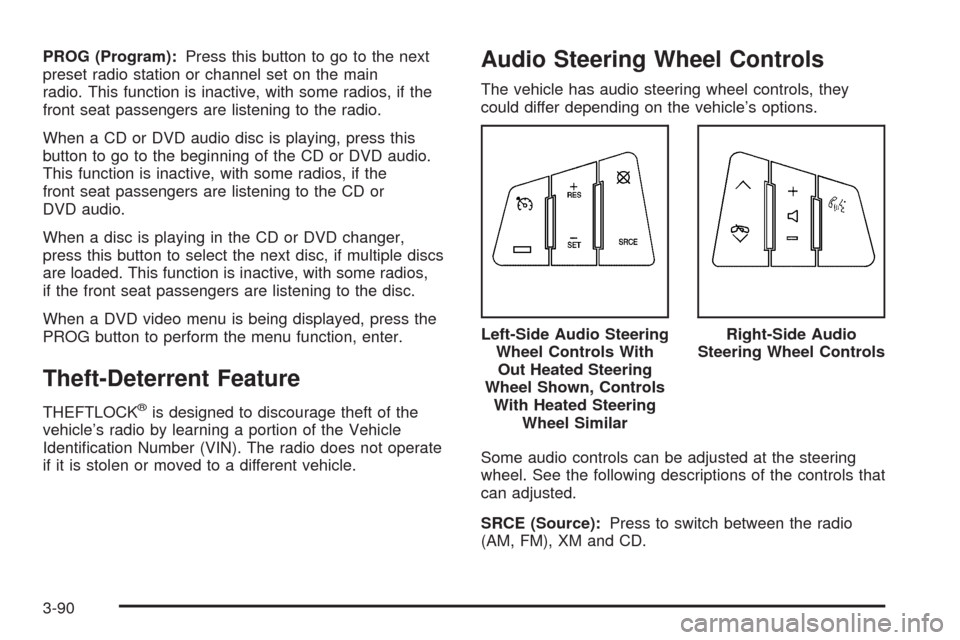
The vehicle has audio steering wheel controls, they
could differ depending on the vehicle’s options.
Some audio controls can be adjusted at the steering
wheel. See the following descriptions of the controls that
can adjusted.
SRCE (Source):Press to switch between the radio
(AM, FM), XM and CD.Left-Side Audio Steering
Wheel Controls With
Out Heated Steering
Wheel Shown, Controls
With Heated Steering
Wheel Similar
Right-Side Audio
Steering Wheel Controls
3-90
Page 229 of 442
y/cz(Previous/Next):Press to go to the
previous or the next radio station stored as a favorite.
When a CD is playing, press either arrow to go to
the previous or to the next track.
Press
czto end an OnStar Hands-Free Call.
+
e−e(Volume):Press to increase or to decrease
the radio volume.
bg(Mute/Voice Recognition):Press and release to
silence the vehicle speakers only. The audio of the
wireless and wired headphones, if the vehicle has these
features, does not mute. Press and release this button
again, to turn the sound on.
If the vehicle has the navigation system, press and hold
this button for longer than one second to initiate
voice recognition. See “Voice Recognition” in the
Navigation System manual for more information.
If the vehicle has OnStar
®, press and hold this button
for longer than one second to interact with the OnStar®
system. If your vehicle also has the navigation system,
press and hold this button for longer than one second to
initiate voice recognition and say “OnStar” to enter
OnStar
®mode. See theOnStar®System on page 2-43.
Radio Reception
Frequency interference and static can occur during
normal radio reception if items such as cell phone
chargers, vehicle convenience accessories, and external
electronic devices are plugged into the accessory
power outlet. If there is interference or static, unplug the
item from the accessory power outlet.
AM
The range for most AM stations is greater than for FM,
especially at night. The longer range can cause
station frequencies to interfere with each other.
For better radio reception, most AM radio stations
boost the power levels during the day, and then reduce
these levels during the night. Static can also occur
when things like storms and power lines interfere with
radio reception. When this happens, try reducing the
treble on the radio.
FM Stereo
FM signals only reach about 10 to 40 miles
(16 to 65 km). Although the radio has a built-in electronic
circuit that automatically works to reduce interference,
some static can occur, especially around tall buildings or
hills, causing the sound to fade in and out.
3-91
Page 385 of 442
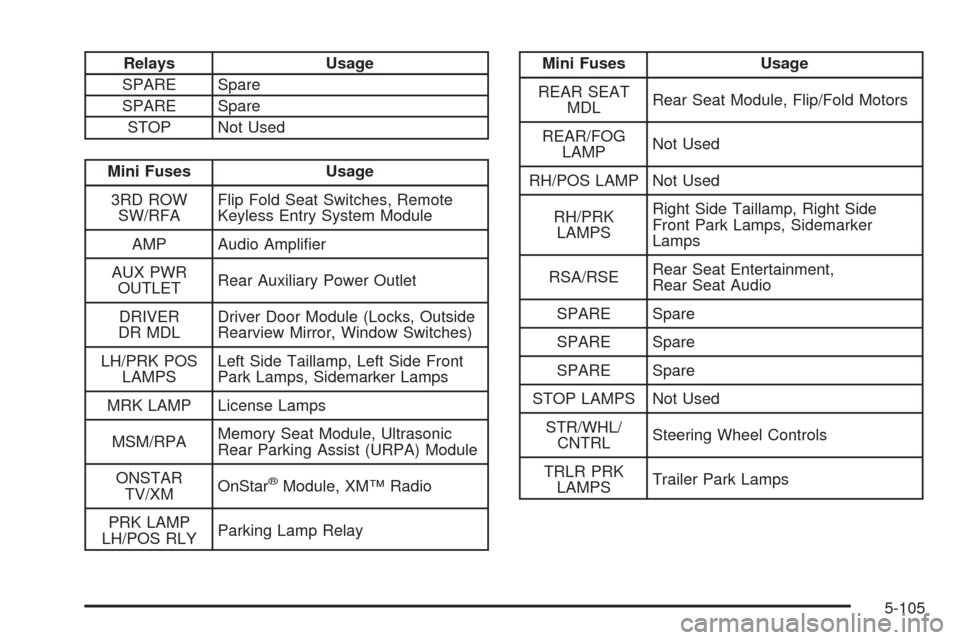
Relays Usage
SPARE Spare
SPARE Spare
STOP Not Used
Mini Fuses Usage
3RD ROW
SW/RFAFlip Fold Seat Switches, Remote
Keyless Entry System Module
AMP Audio Amplier
AUX PWR
OUTLETRear Auxiliary Power Outlet
DRIVER
DR MDLDriver Door Module (Locks, Outside
Rearview Mirror, Window Switches)
LH/PRK POS
LAMPSLeft Side Taillamp, Left Side Front
Park Lamps, Sidemarker Lamps
MRK LAMP License Lamps
MSM/RPAMemory Seat Module, Ultrasonic
Rear Parking Assist (URPA) Module
ONSTAR
TV/XMOnStar
®Module, XM™ Radio
PRK LAMP
LH/POS RLYParking Lamp Relay
Mini Fuses Usage
REAR SEAT
MDLRear Seat Module, Flip/Fold Motors
REAR/FOG
LAMPNot Used
RH/POS LAMP Not Used
RH/PRK
LAMPSRight Side Taillamp, Right Side
Front Park Lamps, Sidemarker
Lamps
RSA/RSERear Seat Entertainment,
Rear Seat Audio
SPARE Spare
SPARE Spare
SPARE Spare
STOP LAMPS Not Used
STR/WHL/
CNTRLSteering Wheel Controls
TRLR PRK
LAMPSTrailer Park Lamps
5-105
Page 430 of 442
Audio System.................................................3-68
Audio Steering Wheel Controls......................3-90
Navigation/Radio System,
see Navigation Manual..............................3-88
Radio Reception..........................................3-91
Rear Seat Audio (RSA)................................3-88
Setting the Clock.........................................3-69
Theft-Deterrent Feature................................3-90
XM™ Satellite Radio Antenna System............3-92
Audio System(s).............................................3-72
Rear Side Window Antenna..........................3-92
Automatic Transmission
Fluid..........................................................5-22
Operation...................................................2-27
B
Battery..........................................................5-37
Electric Power Management..........................3-19
Exterior Lighting Battery Saver......................3-18
Brake
Emergencies................................................ 4-5
Brake Fluid....................................................5-34
Brakes..........................................................5-34
System Warning Light..................................3-36
Braking........................................................... 4-3
Braking in Emergencies..................................... 4-5Break-In, New Vehicle.....................................2-22
Bulb Replacement...........................................5-45
Halogen Bulbs............................................5-46
Headlamp Aiming........................................5-45
High Intensity Discharge (HID) Lighting...........5-46
Buying New Tires...........................................5-66
C
Calibration.....................................................2-38
California Fuel.................................................. 5-6
California Perchlorate Materials Requirements....... 5-4
California Proposition 65 Warning....................... 5-4
Canadian Owners............................................... iii
Capacities and Specications..........................5-109
Carbon Monoxide...........................2-12, 2-36, 4-27
Care of
Safety Belts................................................5-92
Cargo Cover..................................................2-55
Cargo Management System.............................2-55
CD, MP3 .......................................................3-81
Center Console Storage Area...........................2-54
Chains, Tire...................................................5-72
Charging System Light....................................3-35
Check
Engine Lamp..............................................3-39
Checking Things Under the Hood......................5-10
2
Page 438 of 442
Power (cont.)
Lumbar Controls........................................... 1-4
Retained Accessory.....................................2-24
Seat ............................................................ 1-3
Steering Fluid.............................................5-31
Windows....................................................2-16
Privacy..........................................................7-16
Event Data Recorders..................................7-17
Navigation System.......................................7-18
OnStar .......................................................7-18
Radio Frequency Identication.......................7-18
Programmable Automatic Door Locks.................2-10
R
Radio Frequency Identication (RFID),
Privacy......................................................7-18
Radio(s)........................................................3-72
Radios
Navigation/Radio System,
see Navigation Manual..............................3-88
Rear Seat Audio..........................................3-88
Reception...................................................3-91
Setting the Clock.........................................3-69
Theft-Deterrent............................................3-90
Reading Lamps..............................................3-19
Rear Air Conditioning System...........................3-27Rear Axle......................................................5-43
Limited-Slip.................................................. 4-8
Rear Door Security Locks................................2-11
Rear Seat Audio (RSA)....................................3-88
Rear Seat Entertainment System.......................3-88
Rear Seat Operation.......................................1-11
Rear Side Window Antenna..............................3-92
Rear Windshield Washer/Wiper.........................3-11
Rearview Mirror, Automatic Dimming..................2-38
Reclining Seatbacks.......................................... 1-6
Recommended Fluids and Lubricants.................6-13
Recreational Vehicle Towing.............................4-36
Remote Keyless Entry (RKE) System.................. 2-4
Remote Keyless Entry (RKE) System,
Operation..................................................... 2-4
Remote Vehicle Start........................................ 2-7
Removing the Flat Tire and Installing the
Spare Tire..................................................5-78
Removing the Spare Tire and Tools...................5-75
Replacement Parts, Maintenance......................6-15
Reporting Safety Defects
Canadian Government..................................7-15
General Motors...........................................7-15
United States Government............................7-14
Restraint System Check
Checking the Restraint Systems....................1-72
Replacing Restraint System Parts
After a Crash..........................................1-73
10
Page 440 of 442
Stabilitrak®System........................................... 4-6
Start Vehicle, Remote....................................... 2-7
Starting the Engine.........................................2-24
Steering.......................................................... 4-8
Steering Wheel Controls, Audio.........................3-90
Steering Wheel, Heated..................................... 3-7
Steering Wheel, Tilt Wheel................................. 3-6
Storage Areas
Cargo Management System..........................2-55
Center Console Storage Area........................2-54
Cupholders.................................................2-54
Glove Box..................................................2-54
Instrument Panel Storage Area......................2-54
Luggage Carrier..........................................2-54
Stowable Seat................................................1-12
Stuck in Sand, Mud, Ice, or Snow.....................4-29
Sun Visors.....................................................2-18
Sunroof.........................................................2-56
T
Tachometer....................................................3-31
TCS Warning Light..........................................3-37
Theft - Deterrent System..................................2-19
Theft-Deterrent, Radio.....................................3-90
Theft-Deterrent Systems...................................2-19
PASS-Key
®III+ Electronic Immobilizer............2-20
PASS-Key®III+ Electronic Immobilizer
Operation................................................2-21Tilt Wheel........................................................ 3-6
Time, Setting..................................................3-69
Tire
Pressure Light.............................................3-39
Tires.............................................................5-48
Aluminum or Chrome-Plated Wheels,
Cleaning.................................................5-95
Buying New Tires........................................5-66
Chains.......................................................5-72
Changing a Flat Tire....................................5-74
Cleaning....................................................5-96
Compact Spare Tire.....................................5-88
Different Size..............................................5-68
High-Speed Operation..................................5-58
If a Tire Goes Flat.......................................5-73
Ination - Tire Pressure................................5-56
Inspection and Rotation................................5-64
Installing the Spare Tire................................5-78
Pressure Monitor Operation...........................5-60
Pressure Monitor System..............................5-59
Removing the Flat Tire.................................5-78
Removing the Spare Tire and Tools...............5-75
Secondary Latch System..............................5-82
Storing a Flat or Spare Tire and Tools............5-85
Tire Sidewall Labeling..................................5-50
Tire Terminology and Denitions....................5-53
Uniform Tire Quality Grading.........................5-68
Wheel Alignment and Tire Balance.................5-70
12