remote control CADILLAC SRX 2012 2.G Owner's Manual
[x] Cancel search | Manufacturer: CADILLAC, Model Year: 2012, Model line: SRX, Model: CADILLAC SRX 2012 2.GPages: 502, PDF Size: 6.23 MB
Page 178 of 502
Black plate (48,1)Cadillac SRX Owner Manual (Include Mex) - 2012
5-48 Instruments and Controls
It may be helpful to have
another person assist with
the remaining Steps 4
through 6.
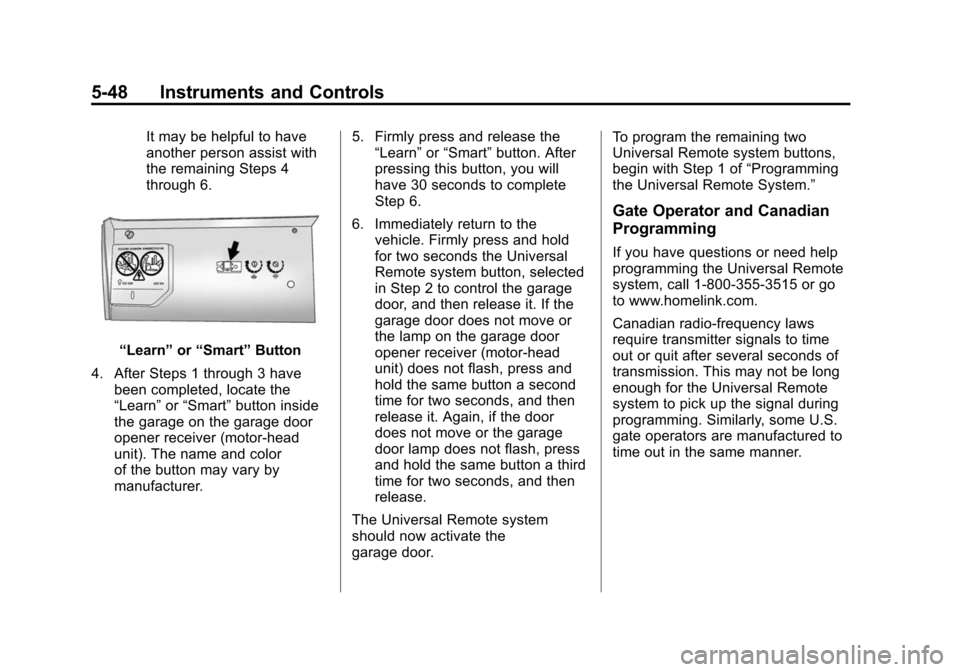
“Learn”or“Smart” Button
4. After Steps 1 through 3 have been completed, locate the
“Learn” or“Smart” button inside
the garage on the garage door
opener receiver (motor-head
unit). The name and color
of the button may vary by
manufacturer. 5. Firmly press and release the
“Learn” or“Smart” button. After
pressing this button, you will
have 30 seconds to complete
Step 6.
6. Immediately return to the vehicle. Firmly press and hold
for two seconds the Universal
Remote system button, selected
in Step 2 to control the garage
door, and then release it. If the
garage door does not move or
the lamp on the garage door
opener receiver (motor-head
unit) does not flash, press and
hold the same button a second
time for two seconds, and then
release it. Again, if the door
does not move or the garage
door lamp does not flash, press
and hold the same button a third
time for two seconds, and then
release.
The Universal Remote system
should now activate the
garage door. To program the remaining two
Universal Remote system buttons,
begin with Step 1 of
“Programming
the Universal Remote System.”
Gate Operator and Canadian
Programming
If you have questions or need help
programming the Universal Remote
system, call 1‐800‐355‐3515 or go
to www.homelink.com.
Canadian radio-frequency laws
require transmitter signals to time
out or quit after several seconds of
transmission. This may not be long
enough for the Universal Remote
system to pick up the signal during
programming. Similarly, some U.S.
gate operators are manufactured to
time out in the same manner.
Page 179 of 502
Black plate (49,1)Cadillac SRX Owner Manual (Include Mex) - 2012
Instruments and Controls 5-49
If you live in Canada, or you are
having difficulty programming a
gate operator or garage door opener
by using the“Programming the
Universal Remote System”
procedures, regardless of where
you live, replace Step 2 under
“Programming the Universal
Remote System” with the following:
Continue to press and hold the
Universal Remote system button
while you press and release every
two seconds (cycle) the hand-held
transmitter button until the
frequency signal has been
successfully accepted by the
Universal Remote system. The
Universal Remote system indicator
light will flash slowly at first and then
rapidly. Proceed with Step 3 under
“Programming the Universal Remote
System” to complete.Universal Remote System
Operation
Using the Universal Remote
System
Press and hold the appropriate
Universal Remote system button for
at least half of a second. The
indicator light will come on while the
signal is being transmitted.
Erasing Universal Remote
System Buttons
All programmed buttons should be
erased when the vehicle is sold or
the lease ends.
To erase all programmed buttons on
the Universal Remote system
device:
1. Press and hold down the
two outside buttons until the
indicator light begins to flash.
This should take about
10 seconds.
2. Release both buttons.
Reprogramming a Single
Universal Remote System
Button
To reprogram any of the three
Universal Remote system buttons:
1. Press and hold the desired Universal Remote system
button. Do not release the
button.
2. The indicator light will begin to flash after 20 seconds. Without
releasing the button, proceed
with Step 1 of the section
“Programming the Universal
Remote System.”
If you have questions or need help
programming the Universal Remote
system, call 1‐800‐355‐3515 or go
to www.homelink.com. You may
also call the customer assistance
phone number under Customer
Assistance Offices (U.S. and
Canada) on page 13‑4 orCustomer
Assistance Offices (Mexico) on
page 13‑5.
Page 188 of 502
Black plate (8,1)Cadillac SRX Owner Manual (Include Mex) - 2012
6-8 Lighting
Lighting Features
Entry Lighting
The headlamps, taillamps, license
plate lamps, back‐up lamps, dome
lamps, and most of the interior lights
turn on briefly, when
Kis pressed
on the Remote Keyless Entry (RKE)
transmitter, or when the door handle
is pulled. After about 30 seconds
the exterior lamps turn off, and then
the dome and remaining interior
lights dim to off. The entry lighting
can be manually turned off by
changing the ignition out of the off
position, or by pressing
Qon the
RKE transmitter.
This feature can be changed.
See Vehicle Personalization on
page 5‑40.
Exit Lighting
The headlamps, taillamps, parking
lamps, back‐up lamps, and license
plate lamps come on at night, or in
areas with limited lighting, when a
door is opened after the ignition is
turned off. The dome lamps also
come on when a door is opened
after the ignition is changed to the
off position.
The exterior lights and dome lamp
remain on after the door is closed
for a set amount of time, then
automatically turn off.
The exterior lights turn off
immediately by turning the exterior
lamps control to off.
This feature can be changed.
See Vehicle Personalization on
page 5‑40.
Battery Load
Management
The vehicle has Electric Power
Management (EPM) that estimates
the battery's temperature and state
of charge. It then adjusts the voltage
for best performance and extended
life of the battery.
When the battery's state of charge
is low, the voltage is raised slightly
to quickly bring the charge back up.
When the state of charge is high,
the voltage is lowered slightly to
prevent overcharging. If the vehicle
has a voltmeter gauge or a voltage
display on the Driver Information
Center (DIC), you may see the
voltage move up or down. This is
normal. If there is a problem, an
alert will be displayed.
Page 213 of 502
Black plate (23,1)Cadillac SRX Owner Manual (Include Mex) - 2012
Infotainment System 7-23
Searching for MP3s on a CD
or DVD
It is normal for the search feature to
take some time to display the
information after reading the disc
due to the amount of information
stored on the disc. The infotainment
system automatically switches to
FM while the disc is being read.
Files that do not have any meta
data stored in the ID3 tag display
as Unknown.
Tracks can be searched for by:
.Playlists
.Artists
.Albums
.Song Titles
.GenresThe number of objects in each
category is shown in parentheses
after the category.
To search for tracks:
1. Turn the MENU/SELECT knob.
2. Select Search.
3. Select: Playlists, Artists, Albums,
Song Titles, or Genres.
4. Select the track. The search rate increases if the MENU/SELECT
knob is continuously turned
while searching in a list.
Playing MP3 Tracks in Random
Order
Turn the MENU/SELECT knob and
set Shuffle Songs to On.Recording an Audio or
MP3 CD to MEM
See Mass Storage Media (MEM) on
page 7‑24 for more information.
Playing a DVD‐V
SeeRear Seat Entertainment (RSE)
System on page 7‑35 for information
about how to control a Video DVD
using the wireless remote control.
Selecting a Chapter
Using the control buttons:
.PressgSEEK orlSEEK to
select the previous or next
chapter.
.Turn the TUNE knob.
Using the DVD Menu:
1. Turn the MENU/SELECT knob.
2. Select Chapter List.
3. Select the chapter.
Selecting a Title
1. Turn the MENU/SELECT knob.
2. Select Title List.
3. Select the title.
Page 223 of 502
Black plate (33,1)Cadillac SRX Owner Manual (Include Mex) - 2012
Infotainment System 7-33
Controlling a Bluetooth®
Device
Bluetooth devices that support
AVRCP (Audio/Video Remote
Control Profile) version 1.0 may
be able to be controlled by the
infotainment system.
Press and release
gSEEK /
lSEEK to skip tracks.
Other Information
The Bluetooth®word mark and
logos are owned by the Bluetooth®
SIG, Inc. and any use of such marks
by General Motors is under license.
Other trademarks and trade names
are those of their respective owners.
See Radio Frequency Statement on
page 13‑21 for FCC information.
Auxiliary Devices
(Radio with CD/DVD
and MEM)
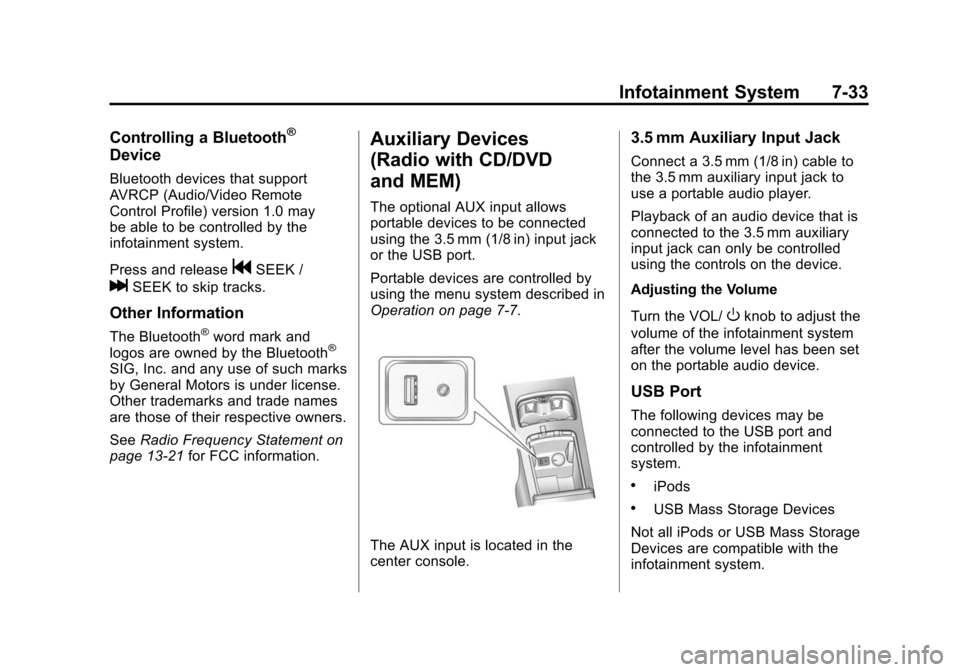
The optional AUX input allows
portable devices to be connected
using the 3.5 mm (1/8 in) input jack
or the USB port.
Portable devices are controlled by
using the menu system described in
Operation on page 7‑7.
The AUX input is located in the
center console.
3.5 mm Auxiliary Input Jack
Connect a 3.5 mm (1/8 in) cable to
the 3.5 mm auxiliary input jack to
use a portable audio player.
Playback of an audio device that is
connected to the 3.5 mm auxiliary
input jack can only be controlled
using the controls on the device.
Adjusting the Volume
Turn the VOL/
Oknob to adjust the
volume of the infotainment system
after the volume level has been set
on the portable audio device.
USB Port
The following devices may be
connected to the USB port and
controlled by the infotainment
system.
.iPods
.USB Mass Storage Devices
Not all iPods or USB Mass Storage
Devices are compatible with the
infotainment system.
Page 225 of 502
Black plate (35,1)Cadillac SRX Owner Manual (Include Mex) - 2012
Infotainment System 7-35
Selecting a Track
Using the control buttons:
.PressgSEEK orlSEEK to
select the previous or next track.
.Turn the TUNE knob to select a
track in the current submenu.
The track will start to play.
Selecting a track in a different
folder:
1. Turn the MENU/SELECT knob.
2. Select Folder List.
3. Select the folder.
4. Select the track.
Searching for Tracks
It is normal for the search feature
to take some time to display the
information after reading the device
due to the amount of information
stored.
Files that do not have any meta
data stored in the ID3 tag display
as Unknown. Tracks can be searched by:
.Playlists
.Artists
.Albums
.Song Titles
.Genres
The number of objects in each
category is shown in parentheses
after the category.
To search for tracks:
1. Turn the MENU/SELECT knob.
2. Select Search.
3. Select: Playlists, Artists, Albums, Song Titles, or Genres.
4. Select the track. The search rate increases if the MENU/SELECT
knob is continuously turned
while searching in a list.
Recording Tracks to MEM
See Mass Storage Media (MEM) on
page 7‑24 for more information.
Rear Seat
Infotainment
Rear Seat Entertainment
(RSE) System
The vehicle may have a DVD Rear
Seat Entertainment (RSE) system.
The RSE system works with the
vehicle's infotainment system. The
DVD player is part of the front radio.
The RSE system includes a radio
with a DVD player, two rear seat
video display screens, audio/video
jacks, two wireless headphones,
and a remote control. See CD/DVD
Player on page 7‑21 or the separate
navigation manual for more
information on the vehicle's DVD
system.
Page 226 of 502
Black plate (36,1)Cadillac SRX Owner Manual (Include Mex) - 2012
7-36 Infotainment System
Before Driving
The RSE is for rear seat
passengers only. The driver cannot
safely view the video screen while
driving.
In severe or extreme weather
conditions the RSE system may not
work until the temperature is within
the operating range. The operating
range is above−20°C (−4°F)
and below 60°C (140°F). If the
temperature is outside of this range,
heat or cool the vehicle until it is
within the operating range.
Global Off
Depending on the infotainment
system, the RSE system may have
a Global Off feature. The Global Off
feature disables all RSE system
features. Press and hold the radio
power button for more than
three seconds for Global Off to
disable the RSE features. A padlock icon may display on the
infotainment screen when the
Global Off feature is on. On some
infotainment systems, the Global Off
feature can be turned off by
performing one of the following:
.Press and hold the radio power
button for more than
three seconds.
.Insert or eject any disc.
.Insert a DVD video disc.
.Press the Remote Control power
button.
.Press the MEM/CD/AUX button
or the
kbutton when a DVD
video disc is in the player.
.Press the SRC button on the
steering wheel when a DVD
video disc is in the player.
.Cycle the ignition.
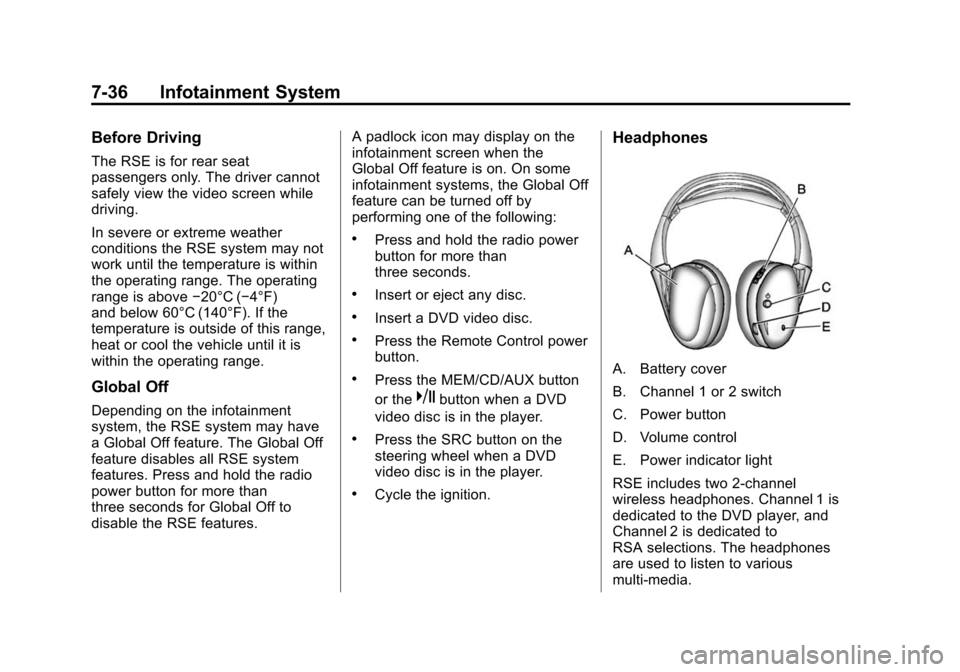
Headphones
A. Battery cover
B. Channel 1 or 2 switch
C. Power button
D. Volume control
E. Power indicator light
RSE includes two 2-channel
wireless headphones. Channel 1 is
dedicated to the DVD player, and
Channel 2 is dedicated to
RSA selections. The headphones
are used to listen to various
multi‐media.
Page 228 of 502
Black plate (38,1)Cadillac SRX Owner Manual (Include Mex) - 2012
7-38 Infotainment System
Power for auxiliary devices is not
supplied by the radio system.
To use the auxiliary inputs of the
RSE system:
1. Connect the auxiliary devicecables to the A/V jacks.
2. Power on both the auxiliary device and the RSE video
screen.
Changing the Source on the Video
Display Screens
The image from the auxiliary device
can be switched between the video
display screens.
To change the display:
1. Press the AUX button on the remote control to change the
source of both video screens
from the DVD player to the
auxiliary device.
2. Press the AUX button a second time to change the left video
screen source to the DVD player
and the right video screen to the
auxiliary device. 3. Press the AUX button a third
time to change the left video
screen source to the auxiliary
device and the right video
screen to the DVD player.
4. Press the AUX button a fourth time to change the source of
both video screens to the DVD
player.
Changing the RSE Video Screen
Settings
The screen display mode,
brightness, and language can be
changed from the setup menu using
the remote control. To change a
setting:
1. Press
z.
2. Use
n,q,p,o, andrto
select the settings.
3. Press
zagain to exit the
setup menu.
Audio Output
Audio from the DVD player or
auxiliary inputs can be heard
through the following:
.Wireless headphones
.Vehicle speakers
.Vehicle wired headphone jacks
on the rear seat audio system,
if the vehicle has this feature.
The RSE system transmits the
audio signal to the wireless
headphones if an audio signal is
available. See “Headphones” earlier
in this section for more information.
Audio can be heard from the wired
headphone jacks on the RSA
system by selecting the desired
source from the RSA system, if the
vehicle has this feature.
The front seat passengers are able
to listen to playback from the A/V
jacks through the vehicle speakers
by selecting Rear A/V as the source
on the radio.
Page 229 of 502
Black plate (39,1)Cadillac SRX Owner Manual (Include Mex) - 2012
Infotainment System 7-39
Video Screens
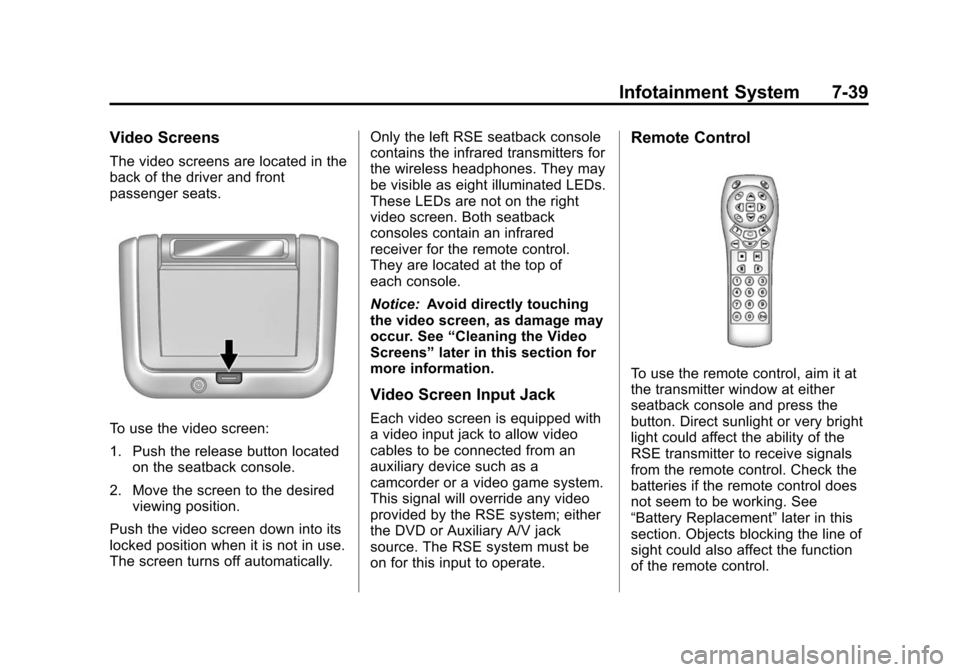
The video screens are located in the
back of the driver and front
passenger seats.
To use the video screen:
1. Push the release button locatedon the seatback console.
2. Move the screen to the desired viewing position.
Push the video screen down into its
locked position when it is not in use.
The screen turns off automatically. Only the left RSE seatback console
contains the infrared transmitters for
the wireless headphones. They may
be visible as eight illuminated LEDs.
These LEDs are not on the right
video screen. Both seatback
consoles contain an infrared
receiver for the remote control.
They are located at the top of
each console.
Notice:
Avoid directly touching
the video screen, as damage may
occur. See “Cleaning the Video
Screens” later in this section for
more information.
Video Screen Input Jack
Each video screen is equipped with
a video input jack to allow video
cables to be connected from an
auxiliary device such as a
camcorder or a video game system.
This signal will override any video
provided by the RSE system; either
the DVD or Auxiliary A/V jack
source. The RSE system must be
on for this input to operate.
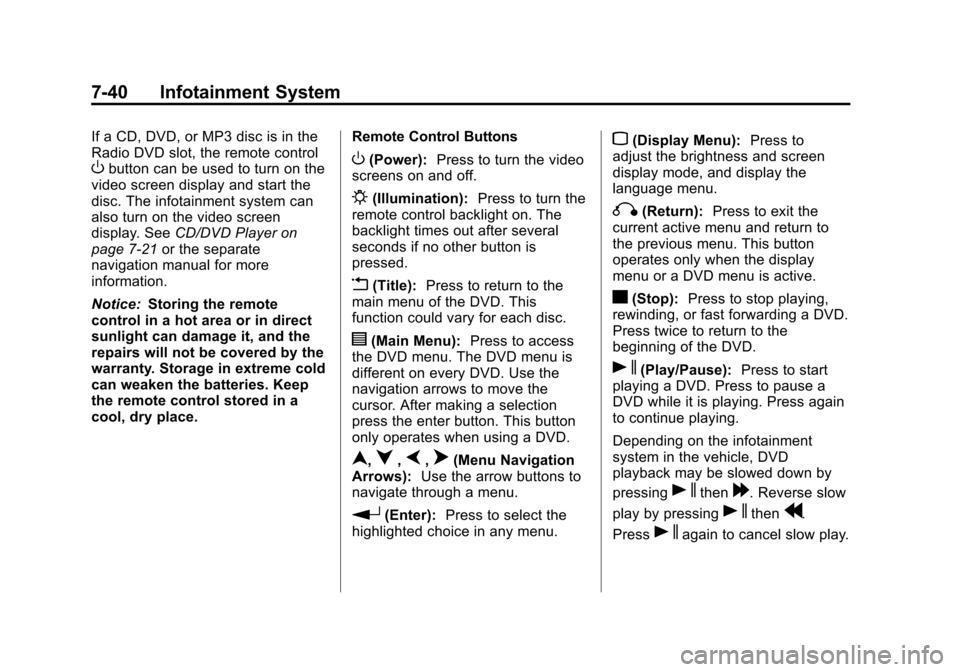
Remote Control
To use the remote control, aim it at
the transmitter window at either
seatback console and press the
button. Direct sunlight or very bright
light could affect the ability of the
RSE transmitter to receive signals
from the remote control. Check the
batteries if the remote control does
not seem to be working. See
“Battery Replacement” later in this
section. Objects blocking the line of
sight could also affect the function
of the remote control.
Page 230 of 502
Black plate (40,1)Cadillac SRX Owner Manual (Include Mex) - 2012
7-40 Infotainment System
If a CD, DVD, or MP3 disc is in the
Radio DVD slot, the remote control
Obutton can be used to turn on the
video screen display and start the
disc. The infotainment system can
also turn on the video screen
display. See CD/DVD Player on
page 7‑21 or the separate
navigation manual for more
information.
Notice: Storing the remote
control in a hot area or in direct
sunlight can damage it, and the
repairs will not be covered by the
warranty. Storage in extreme cold
can weaken the batteries. Keep
the remote control stored in a
cool, dry place. Remote Control ButtonsO(Power):
Press to turn the video
screens on and off.
P(Illumination): Press to turn the
remote control backlight on. The
backlight times out after several
seconds if no other button is
pressed.
v(Title): Press to return to the
main menu of the DVD. This
function could vary for each disc.
y(Main Menu): Press to access
the DVD menu. The DVD menu is
different on every DVD. Use the
navigation arrows to move the
cursor. After making a selection
press the enter button. This button
only operates when using a DVD.
n,q,p,o(Menu Navigation
Arrows): Use the arrow buttons to
navigate through a menu.
r(Enter): Press to select the
highlighted choice in any menu.
z(Display Menu): Press to
adjust the brightness and screen
display mode, and display the
language menu.
q(Return): Press to exit the
current active menu and return to
the previous menu. This button
operates only when the display
menu or a DVD menu is active.
c(Stop): Press to stop playing,
rewinding, or fast forwarding a DVD.
Press twice to return to the
beginning of the DVD.
s(Play/Pause): Press to start
playing a DVD. Press to pause a
DVD while it is playing. Press again
to continue playing.
Depending on the infotainment
system in the vehicle, DVD
playback may be slowed down by
pressing
sthen[. Reverse slow
play by pressing
sthenr.
Press
sagain to cancel slow play.