screen CADILLAC SRX 2013 2.G User Guide
[x] Cancel search | Manufacturer: CADILLAC, Model Year: 2013, Model line: SRX, Model: CADILLAC SRX 2013 2.GPages: 432, PDF Size: 7.13 MB
Page 193 of 432
Black plate (7,1)Cadillac SRX Owner Manual - 2013 - CRC - 11/9/12
Climate Controls 8-7
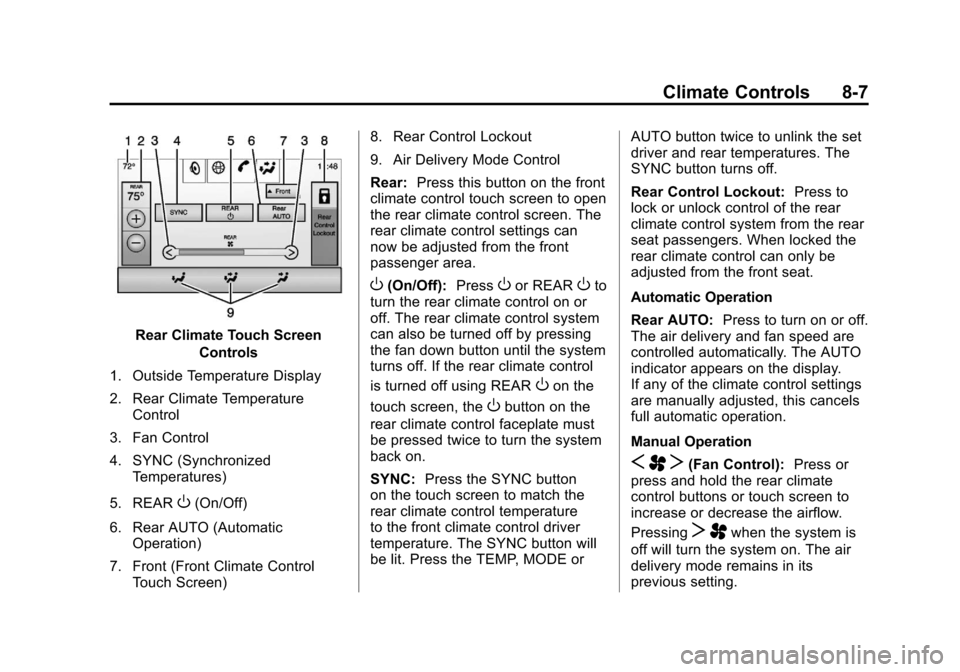
Rear Climate Touch ScreenControls
1. Outside Temperature Display
2. Rear Climate Temperature Control
3. Fan Control
4. SYNC (Synchronized Temperatures)
5. REAR
O(On/Off)
6. Rear AUTO (Automatic Operation)
7. Front (Front Climate Control Touch Screen) 8. Rear Control Lockout
9. Air Delivery Mode Control
Rear:
Press this button on the front
climate control touch screen to open
the rear climate control screen. The
rear climate control settings can
now be adjusted from the front
passenger area.
O(On/Off): PressOor REAROto
turn the rear climate control on or
off. The rear climate control system
can also be turned off by pressing
the fan down button until the system
turns off. If the rear climate control
is turned off using REAR
Oon the
touch screen, the
Obutton on the
rear climate control faceplate must
be pressed twice to turn the system
back on.
SYNC: Press the SYNC button
on the touch screen to match the
rear climate control temperature
to the front climate control driver
temperature. The SYNC button will
be lit. Press the TEMP, MODE or AUTO button twice to unlink the set
driver and rear temperatures. The
SYNC button turns off.
Rear Control Lockout:
Press to
lock or unlock control of the rear
climate control system from the rear
seat passengers. When locked the
rear climate control can only be
adjusted from the front seat.
Automatic Operation
Rear AUTO: Press to turn on or off.
The air delivery and fan speed are
controlled automatically. The AUTO
indicator appears on the display.
If any of the climate control settings
are manually adjusted, this cancels
full automatic operation.
Manual Operation
S A T(Fan Control): Press or
press and hold the rear climate
control buttons or touch screen to
increase or decrease the airflow.
Pressing
T Awhen the system is
off will turn the system on. The air
delivery mode remains in its
previous setting.
Page 194 of 432
Black plate (8,1)Cadillac SRX Owner Manual - 2013 - CRC - 11/9/12
8-8 Climate Controls
+/−(Temperature Control): Press
or press and hold the rear
temperature control buttons or touch
screen to adjust the rear passenger
temperature. Press + for warmer air
and press −for cooler air.
Y/\/Y(Air Delivery Mode
Control): Press the desired mode
button on the touch screen or the
mode button on the rear faceplate to
change the direction of the airflow in
the rear seating area.
MorL(Heated Rear Seats, If
Equipped): Press
MorLto heat
the left or right outboard seat
cushion and seatback. See Heated
Rear Seats on page 3‑12.
Air Vents
Move the sliding knob on the air
outlets up and down or left and
right to direct the airflow. Use the
thumbwheels near the air outlets to
open or close off the airflow.
Operation Tips
.Clear away any ice, snow,
or leaves from air inlets at the
base of the windshield that could
block the flow of air into the
vehicle.
.Keep the path under the front
seats clear of objects to help
circulate the air inside the
vehicle more effectively.
.Use of non‐GM approved hood
deflectors can adversely affect
the performance of the system.
Check with your dealer before
adding equipment to the outside
of the vehicle.
.Do not insert any objects in
the outlets, as failure of the
mechanism may occur.
Maintenance
Passenger Compartment
Air Filter
The filter removes dust, pollen, and
other airborne irritants from outside
air that is pulled into the vehicle.
The filter should be replaced as part
of routine scheduled maintenance,
see Maintenance Schedule on
page 11‑4. To find out what type of
filter to use, see Maintenance
Replacement Parts on page 11‑15.
1. Open the glove box completely
and remove the four screws
along the upper portion of the
glove box.
2. When released, lower the upper portion of the glove box.
3. Locate the service door for the passenger compartment air filter.
Page 243 of 432
Black plate (47,1)Cadillac SRX Owner Manual - 2013 - CRC - 11/9/12
Driving and Operating 9-47
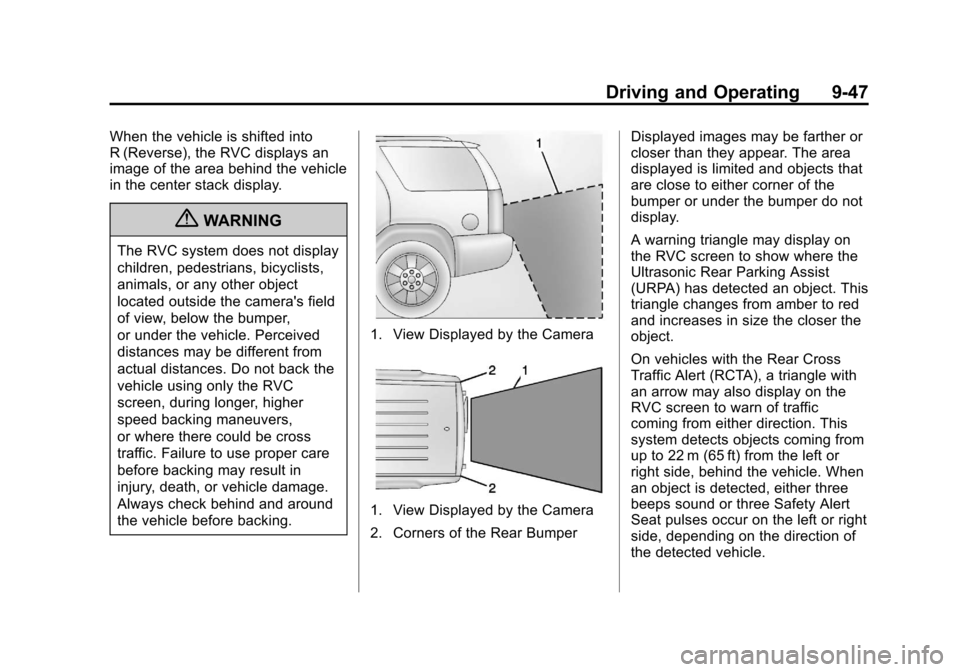
When the vehicle is shifted into
R (Reverse), the RVC displays an
image of the area behind the vehicle
in the center stack display.
{WARNING
The RVC system does not display
children, pedestrians, bicyclists,
animals, or any other object
located outside the camera's field
of view, below the bumper,
or under the vehicle. Perceived
distances may be different from
actual distances. Do not back the
vehicle using only the RVC
screen, during longer, higher
speed backing maneuvers,
or where there could be cross
traffic. Failure to use proper care
before backing may result in
injury, death, or vehicle damage.
Always check behind and around
the vehicle before backing.
1. View Displayed by the Camera
1. View Displayed by the Camera
2. Corners of the Rear BumperDisplayed images may be farther or
closer than they appear. The area
displayed is limited and objects that
are close to either corner of the
bumper or under the bumper do not
display.
A warning triangle may display on
the RVC screen to show where the
Ultrasonic Rear Parking Assist
(URPA) has detected an object. This
triangle changes from amber to red
and increases in size the closer the
object.
On vehicles with the Rear Cross
Traffic Alert (RCTA), a triangle with
an arrow may also display on the
RVC screen to warn of traffic
coming from either direction. This
system detects objects coming from
up to 22 m (65 ft) from the left or
right side, behind the vehicle. When
an object is detected, either three
beeps sound or three Safety Alert
Seat pulses occur on the left or right
side, depending on the direction of
the detected vehicle.
Page 245 of 432
Black plate (49,1)Cadillac SRX Owner Manual - 2013 - CRC - 11/9/12
Driving and Operating 9-49
{WARNING
The Backing Warning System
only operates at speeds greater
than 8 km/h (5 mph). It does not
detect children, pedestrians,
bicyclists, animals, or objects
below the bumper or that are too
close or too far from the vehicle.
In some situations, such as at
higher backing speeds, there may
not be enough time for the short,
sharp application of the vehicle
brake system to occur. To prevent
injury, death, or vehicle damage,
even with the Backing Warning
System, always check the area
around the vehicle and check all
mirrors before backing.
Vehicles with Adaptive Cruise
Control (ACC) have the Rear
Automatic Braking system, which is
designed to help avoid or reduce
the harm caused by backing
crashes. If the system detects the vehicle is backing too fast to avoid a
crash with a detected object, it may
automatically brake hard to a stop.
{WARNING
Rear Automatic Braking may not
avoid many types of backing
crashes. Do not wait for the
automatic braking to apply. This
system is not designed to replace
driver braking, but only acts when
the vehicle may not stop in time.
The system, in some situations or
environments, may not brake or
may not brake in time to avoid a
crash. It does not detect children,
pedestrians, bicyclists, animals,
or objects below the bumper or
that are too close or too far from
the vehicle. To prevent injury,
death, or vehicle damage, even
with Rear Automatic Braking,
always check the area around the
vehicle before and while backing.
Pressing the brake pedal after the
vehicle comes to a stop will release
the Rear Automatic Braking. If the
brake pedal is not pressed within
two seconds after the stop, the
electric parking brake is set. See
Parking Brake on page 9‑28
to
release the electric parking brake.
When it is safe, pressing the
accelerator pedal firmly at any time
will override the Rear Automatic
Braking.
{WARNING
There may be instances where
unexpected or undesired
automatic braking occurs. If this
happens, either press the brake
pedal or firmly press the
accelerator pedal to release the
brakes from the Rear Automatic
Braking system. Check the RVC
screen and check the area
around the vehicle before
proceeding.
Page 246 of 432
Black plate (50,1)Cadillac SRX Owner Manual - 2013 - CRC - 11/9/12
9-50 Driving and Operating
Turn off parking assist and Rear
Automatic Braking when towing a
trailer.
Turning the Features On or Off
TheXbutton near the shift lever
is used to turn on or off the Front
and Rear Parking Assist, Rear
Automatic Braking, and Backing
Warning System at the same time.
The indicator light next to the button
comes on when the features are on
and turns off when the features
have been disabled. The Rear Vision Camera (RVC),
parking assist symbols, guidance
lines, and Rear Cross Traffic Alert
(RCTA) can be turned on or off
through the Settings menu on the
infotainment system. To turn the
RVC system, symbols, guidance
lines, or RCTA on or off:
1. On the infotainment system,
press the Settings screen
button, or turn the MENU knob
to highlight Settings and
press MENU.
2. Select Rear Camera.
3. Press Rear Camera Display, Park Assist Symbols, Guidance
Lines, or Rear Cross Traffic Alert
and then select OFF or ON.
Assistance Systems for
Driving
If equipped, when driving the
vehicle, Forward Collision Alert
(FCA), Lane Departure Warning
(LDW), Side Blind Zone Alert
(SBZA), and/or the Active
Emergency Braking System can
help to avoid a crash or reduce
crash damage.
Forward Collision Alert
(FCA) System
The FCA system may help to avoid
or reduce the harm caused by
front-end crashes. FCA provides a
flashing alert on the windshield, and
beeps or pulses the Safety Alert
Seat when approaching a vehicle
directly ahead too quickly. FCA also
provides a visual alert if following
another vehicle much too closely.
Page 324 of 432
Black plate (56,1)Cadillac SRX Owner Manual - 2013 - CRC - 11/9/12
10-56 Vehicle Care
.Operating electronic devices or
being near facilities using radio
wave frequencies similar to the
TPMS could cause the TPMS
sensors to malfunction.
If the TPMS is not functioning
properly it cannot detect or signal a
low tire condition. See your dealer
for service if the TPMS malfunction
light and DIC message comes on
and stays on.
TPMS Sensor Matching
Process
Each TPMS sensor has a unique
identification code. The identification
code needs to be matched to a new
tire/wheel position after rotating the
vehicle’s tires or replacing one or
more of the TPMS sensors. The
TPMS sensor matching process
should also be performed after
replacing a spare tire with a road
tire containing the TPMS sensor.
The malfunction light and the DIC
message should go off at the next
ignition cycle. The sensors are
matched to the tire/wheel positions, using a TPMS relearn tool, in the
following order: driver side front tire,
passenger side front tire, passenger
side rear tire, and driver side rear.
See your dealer for service or to
purchase a relearn tool.
There are two minutes to match
the first tire/wheel position, and
five minutes overall to match all
four tire/wheel positions. If it takes
longer, the matching process stops
and must be restarted.
The TPMS sensor matching
process is:
1. Set the parking brake.
2. Place the vehicle power mode in
ON/RUN/START. See Ignition
Positions on page 9‑16.
3. Make sure the Tire Pressure info display option is turned on. The
info displays on the DIC can be
turned on and off through the
Settings menu. See Driver
Information Center (DIC) on
page 5‑27. 4. Use the five-way DIC control on
the right side of the steering
wheel to scroll to the Tire
Pressure screen under the
DIC info page. See Driver
Information Center (DIC) on
page 5‑27.
5. Press and hold the SEL button located in the center of the
five-way DIC control.
The horn sounds twice to signal
the receiver is in relearn mode
and the TIRE LEARNING
ACTIVE message displays on
the DIC screen.
6. Start with the driver side front tire.
7. Place the relearn tool against the tire sidewall, near the valve
stem. Then press the button to
activate the TPMS sensor.
A horn chirp confirms that the
sensor identification code has
been matched to this tire and
wheel position.
Page 325 of 432
Black plate (57,1)Cadillac SRX Owner Manual - 2013 - CRC - 11/9/12
Vehicle Care 10-57
8. Proceed to the passenger sidefront tire, and repeat the
procedure in Step 7.
9. Proceed to the passenger side rear tire, and repeat the
procedure in Step 7.
10. Proceed to the driver side rear tire, and repeat the procedure
in Step 7. The horn sounds two
times to indicate the sensor
identification code has been
matched to the driver side rear
tire, and the TPMS sensor
matching process is no longer
active. The TIRE LEARNING
ACTIVE message on the DIC
display screen goes off.
11. Press STOP to turn the ignition off.
12. Set all four tires to the recommended air pressure
level as indicated on the Tire
and Loading Information label.Tire Inspection
We recommend that the tires,
including the spare tire, if the
vehicle has one, be inspected
for signs of wear or damage at
least once a month.
Replace the tire if:
.The indicators at three or
more places around the tire
can be seen.
.There is cord or fabric
showing through the tire's
rubber.
.The tread or sidewall is
cracked, cut, or snagged
deep enough to show cord or
fabric.
.The tire has a bump, bulge,
or split.
.The tire has a puncture, cut,
or other damage that cannot
be repaired well because of
the size or location of the
damage.
Tire Rotation
Tires should be rotated every
12 000 km (7,500 mi). See
Maintenance Schedule on
page 11‑4.
Tires are rotated to achieve a
uniform wear for all tires. The
first rotation is the most
important.
Page 360 of 432
Black plate (92,1)Cadillac SRX Owner Manual - 2013 - CRC - 11/9/12
10-92 Vehicle Care
Underbody Maintenance
Use plain water to flush dirt and
debris from the vehicle's underbody.
Your dealer or an underbody car
washing system can do this. If not
removed, rust and corrosion can
develop.
Sheet Metal Damage
If the vehicle is damaged and
requires sheet metal repair or
replacement, make sure the body
repair shop applies anti-corrosion
material to parts repaired or
replaced to restore corrosion
protection.
Original manufacturer replacement
parts will provide the corrosion
protection while maintaining the
vehicle warranty.
Finish Damage
Quickly repair minor chips and
scratches with touch-up materials
available from your dealer to avoid
corrosion. Larger areas of finish
damage can be corrected in your
dealer's body and paint shop.
Chemical Paint Spotting
Airborne pollutants can fall upon
and attack painted vehicle surfaces
causing blotchy, ring-shaped
discolorations, and small, irregular
dark spots etched into the paint
surface.
Interior Care
To prevent dirt particle abrasions,
regularly clean the vehicle's interior.
Immediately remove any soils. Note
that newspapers or dark garments
that can transfer color to home
furnishings can also permanently
transfer color to the vehicle's
interior.Use a soft bristle brush to remove
dust from knobs and crevices on the
instrument cluster. Using a mild
soap solution, immediately remove
hand lotions, sunscreen, and insect
repellent from all interior surfaces or
permanent damage may result.
Your dealer may have products for
cleaning the interior. Use cleaners
specifically designed for the
surfaces being cleaned to prevent
permanent damage. Apply all
cleaners directly to the cleaning
cloth. Do not spray cleaners directly
on any switches or controls.
Cleaners should be removed
quickly. Never allow cleaners to
remain on the surface being
cleaned for extended periods
of time.
Cleaners may contain solvents that
can become concentrated in the
interior. Before using cleaners, read
and adhere to all safety instructions
on the label. While cleaning the
interior, maintain adequate
ventilation by opening the doors and
windows.
Page 410 of 432
Black plate (2,1)Cadillac SRX Owner Manual - 2013 - CRC - 11/9/12
14-2 OnStar
Press the OnStar Emergency
button
>to get a priority
connection to an Emergency
Advisor available 24/7 to:
.Get help for an emergency.
.Be a Good Samaritan or
respond to an AMBER Alert.
.Get crisis assistance and
evacuation routes.
OnStar Services
Emergency
With Automatic Crash Response,
the built-in system can automatically
connect to help in most crashes,
even if help cannot be requested.
Press
>to connect to an
Emergency Advisor. GPS
technology is used to identify the
vehicle location and can provide
critical information to emergency
personnel. The Advisor is also
trained to offer critical assistance in
emergency situations before first
responders arrive.
Security
OnStar provides services like Stolen
Vehicle Assistance, Remote Ignition
Block, and Roadside Assistance,
if the vehicle is equipped. OnStar
can unlock the vehicle doors
remotely, if it is equipped with
automatic door locks, and can help
police locate the vehicle if it is
stolen.
Navigation
OnStar navigation requires the
Directions and Connections
service plan.
Press
Qto receive directions or
have them sent to the vehicle
navigation screen, if equipped.
Destinations can also be forwarded
to the vehicle from MapQuest.com.
The OnStar mapping database is
continuously updated. For coverage
maps, see www.onstar.com (U.S.)
www.onstar.ca (Canada).
Page 411 of 432
Black plate (3,1)Cadillac SRX Owner Manual - 2013 - CRC - 11/9/12
OnStar 14-3
Turn-by-Turn Navigation
1. PressQto connect to a live
Advisor.
2. Request directions.
3. Directions are downloaded to the vehicle.
4. Follow the voice-guided commands.
Using Voice Commands
During a Planned Route
Cancel Route
1. Press
=. System responds:
“OnStar ready,” then a tone.
Say “Cancel route.” System
responds: “Do you want to
cancel directions?”
2. Say “Yes.”System responds:
“OK, request completed, thank
you, goodbye.” Route Preview
1. Press
=. System responds:
“OnStar ready,” then a tone.
2. Say “Route preview.” System
responds with the next three
maneuvers.
3. Say “Goodbye.” Exits voice
commands.
Repeat
1. Press
=. System responds:
“OnStar ready,” then a tone.
2. Say “Repeat.” System responds
with the last direction given, then
responds with “OnStar ready,”
then a tone.
3. Say “Goodbye.” Exits voice
commands. Get My Destination
1. Press
=. System responds:
“OnStar ready,” then a tone.
2. Say “Get my destination.”
System responds with address
and the distance to the
destination, then responds with
“OnStar ready,” then a tone.
3. Say “Goodbye.” Exits voice
commands.
Other Navigation Services
Available from OnStar
OnStar eNav: Allows subscribers
to send destinations from
MapQuest.com to their Turn-by-Turn
Navigation or screen-based
navigation system. When ready, the
directions will be downloaded to the
vehicle.