change time CADILLAC STS 2005 1.G User Guide
[x] Cancel search | Manufacturer: CADILLAC, Model Year: 2005, Model line: STS, Model: CADILLAC STS 2005 1.GPages: 446, PDF Size: 2.58 MB
Page 174 of 446

Twilight Sentinel®
Twilight Sentinel®can turn your lamps on and off for you.
A light sensor on top of the instrument panel makes the
Twilight Sentinel
®work, so be sure it is not covered.
With Twilight Sentinel
®you will see the following
happen:
When it is dark enough outside, the front turn signal
lamps (DRL) will go off, and the headlamps and
parking lamps will come on. The other lamps
that come on with headlamps will also come on.
When it is bright enough outside, the headlamps
will go off, and the front turn signal lamps (DRL)
will come on, as long as the exterior lamp switch is
in the off position.
If you start your vehicle in a dark garage, the automatic
headlamp system will come on immediately. Once
you leave the garage, it will take approximately
one minute for the automatic headlamp system to
change to DRL if it is light outside. During that delay,
your instrument panel cluster may not be as bright
as usual. Make sure your instrument panel brightness
control is in full bright position. SeeInstrument Panel
Brightness on page 3-41for more information.
You can idle the vehicle with the lamps off, even when
it is dark outside. First set the parking brake while
the ignition is in OFF/ACC. Then start the vehicle. The
lamps will stay off until you release the parking
brake.
Twilight Sentinel
®also provides exterior illumination as
you leave the vehicle. If Twilight Sentinel®has turned
on the lamps when you turn off the ignition, your lamps
will remain on until:
The exterior lamp switch is moved from off to the
parking lamp position, or
a delay time that you select has elapsed.
3-40
Page 177 of 446
If the battery continues to discharge, even with the
engine idling at a higher rpm setting, some electrical
loads will automatically be reduced. When this occurs,
the rear window defogger may take slightly longer
to clear the glass and the fan may cut back to a lower
speed. For more battery saving information, see “Battery
Saver Active Message” underDIC Warnings and
Messages on page 3-78.
Inadvertent Power Battery Saver
This feature is designed to protect your vehicle’s battery
against drainage from the interior lamps, trunk lamp,
glove box lamp, or the garage door opener. When the
ignition is turned off, the power to these features will
automatically turn off after 10 minutes (three minutes if
a new car has 15 miles (24 km) or less). Power will
be restored for an additional 10 minutes if any door is
opened, the trunk is opened or the courtesy lamp switch
is turned on.
Head-Up Display (HUD)
{CAUTION:
If the HUD image is too bright, or too high in
your eld of view, it may take you more time to
see things you need to see when it is dark
outside. Be sure to keep the HUD image dim
and placed low in your eld of view.
The Head-Up Display (HUD) allows you to see some of
the driver information that appears on your instrument
panel cluster on the windshield.
The information may be displayed in English or metric
units and appears as an image focused out toward
the front of your vehicle. To change from English
to metric units, seeDIC Controls and Displays on
page 3-74.
3-43
Page 185 of 446

AUTO will appear on the display next to the fan, mode
indicators, and recirculation indicator if your vehicle
is equipped with the optional air quality sensor.
1. Press the AUTO button.
2. Adjust the temperature to a comfortable setting,
generally, between 70°F (21°C) and 80°F (27°C).
Choosing the coldest or warmest temperature
setting will not cause the system to heat or cool any
faster. If you set the system at the warmest
temperature setting, the system will try to
continuously heat the vehicle and will not adjust the
system down as the vehicle warms up.
In cold weather, the system may start at reduced
fan speeds to avoid blowing cold air into your
vehicle until warmer air is available. The system will
start out blowing air at the oor but may change
modes, automatically, as the vehicle warms
up to maintain the chosen temperature setting. The
length of time needed for warm up will depend
on the outside temperature and the length of time
that has elapsed since your vehicle was last driven.
3. Wait for the system to regulate. This may take from
10 to 30 minutes. Then adjust the temperature, if
necessary.
You can switch from English to metric units through the
Driver Information Center (DIC). SeeDIC Controls
and Displays on page 3-74.The air-conditioning system removes moisture from the
air, so you may notice water dripping underneath
your vehicle while idling or after turning off the engine.
This is normal.
Manual Operation
yNz(Mode):Pressing the mode switch and
changing the mode cancels automatic operation and
allows the operator to manually select the air delivery
location. Press AUTO to return to automatic operation.
The outboard air outlets will always receive airow
regardless of the mode selected. SeeOutlet Adjustment
on page 3-56to change this airow from the outboard
outlets.
To change the current mode, select one of the following:
Y(Vent):This mode directs air to the instrument
panel outlets.
\(Bi-Level):This mode directs approximately half of
the air to the instrument panel outlets, and then
directs most of the remaining air to the oor outlets. In
automatic operation, cooler air is directed to the
upper outlets and warmer air to the oor outlets.
[(Floor):This mode directs most of the air to the
oor outlets with some air directed to the outboard
outlets, and a little air directed to the windshield and
side windows.
3-51
Page 187 of 446
Under some conditions, the air quality sensor system
will not operate. In cold weather, the system may not be
active (even if the AUTO indication is displayed)
because of concerns of fogging your windows, which
may occur by activating recirculation mode. Also, the air
quality sensor system will not remain in recirculation
mode for extended periods of time that could cause
stuffy or very dry conditions in the vehicle. Following a
poorly running vehicle for an extended period of
time may not keep recirculation active indenitely.
The air quality sensor will not activate due to organic
odors, like skunk, and may not activate on many
chemical-related odors. If you wish to limit these types
of odors, you may choose to manually select
recirculation. Your vehicle may also be equipped with
a charcoal lter that can limit many odors from
being pulled into your vehicle. This lter, like your
engines air cleaner lter, will need to be changed
periodically. SeeScheduled Maintenance on page 6-4.
The air quality sensor system does not protect
against carbon monoxide (CO), which you cannot see
or smell. SeeEngine Exhaust on page 2-33.
O(Power Driver’s Temperature):Press the power
button located on the driver’s side of the climate control
panel to turn the entire climate control system on or
off. Turn the knob to increase or decrease the
temperature inside your vehicle.
O(Power Passenger’s Temperature):Press the
power button located on the passenger’s side of
the climate control panel to turn the passenger’s climate
control system on if they wish to have a different
setting than the driver. Turn the knob to increase or
decrease the temperature for the front passenger.
Turning the passenger’s side power button off will not
shut off the climate control system for the passenger.
The system will be set to the same setting as the driver.
{(Ventilated Seat):Press this button (if equipped)
to turn on the ventilated seat for the driver’s or
passenger’s side. SeeHeated and Ventilated Seats
on page 1-4.
J(Heated Seat):Press this button (if equipped) to
turn on the heated seat and seatback for the driver’s or
passenger’s side. SeeHeated and Ventilated Seats
on page 1-4.
^(Air Conditioning):Press this button to manually
turn off the air conditioning compressor. Press AUTO
to return to automatic operation or press the A/C
OFF button again. To limit fogging on the windshield,
the air conditioning compressor cannot be in off in
defrost mode.
3-53
Page 208 of 446
DIC Controls and Displays
The Driver Information Center (DIC) has different
modes which can be accessed by pressing the four
DIC buttons located on the instrument panel, to the
left of the steering wheel.
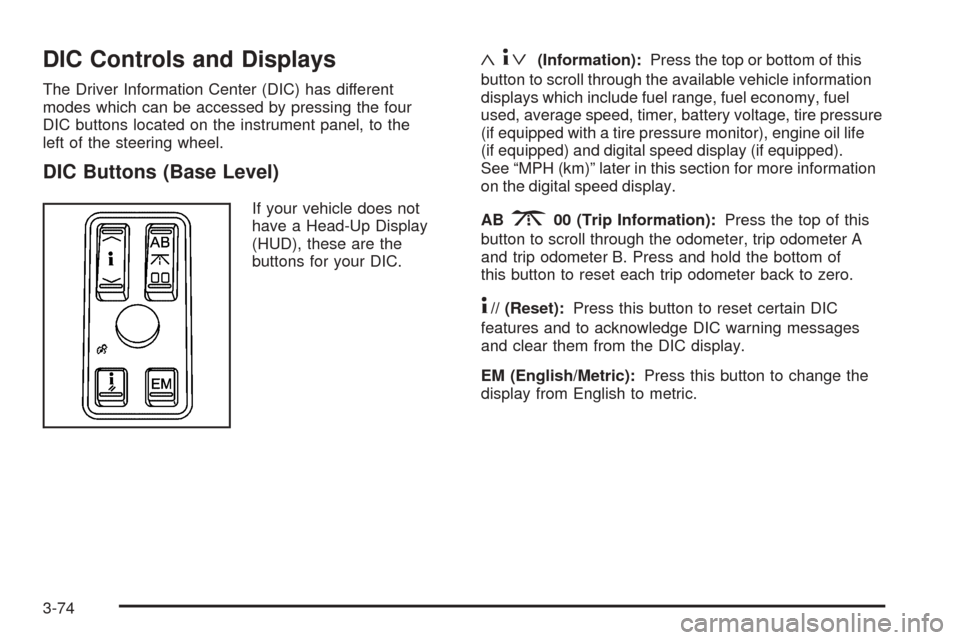
DIC Buttons (Base Level)
If your vehicle does not
have a Head-Up Display
(HUD), these are the
buttons for your DIC.
«4ª(Information):Press the top or bottom of this
button to scroll through the available vehicle information
displays which include fuel range, fuel economy, fuel
used, average speed, timer, battery voltage, tire pressure
(if equipped with a tire pressure monitor), engine oil life
(if equipped) and digital speed display (if equipped).
See “MPH (km)” later in this section for more information
on the digital speed display.
AB
300 (Trip Information):Press the top of this
button to scroll through the odometer, trip odometer A
and trip odometer B. Press and hold the bottom of
this button to reset each trip odometer back to zero.
4// (Reset):Press this button to reset certain DIC
features and to acknowledge DIC warning messages
and clear them from the DIC display.
EM (English/Metric):Press this button to change the
display from English to metric.
3-74
Page 209 of 446
DIC Buttons (Uplevel)
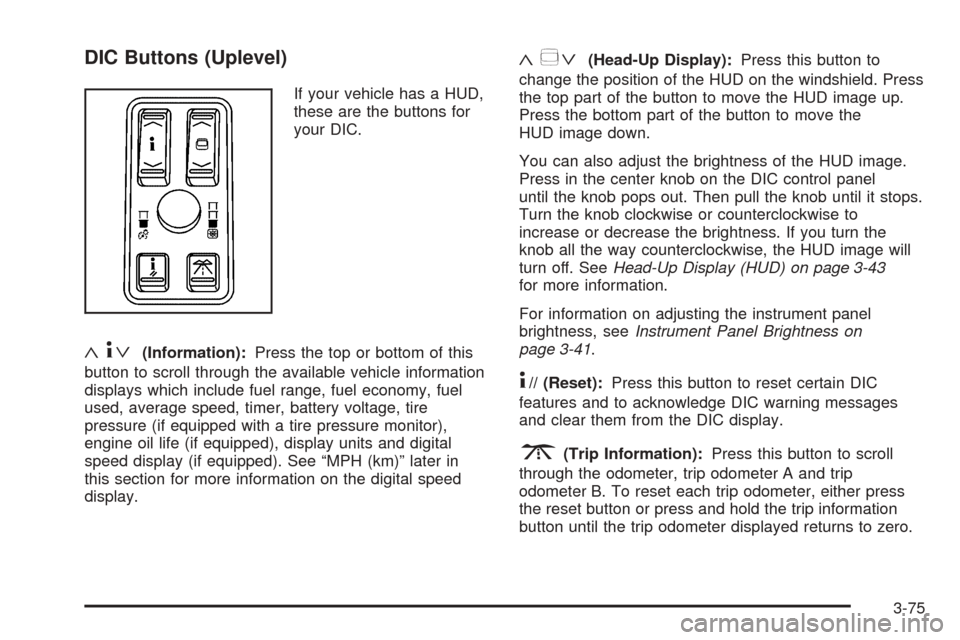
If your vehicle has a HUD,
these are the buttons for
your DIC.
«4ª(Information):Press the top or bottom of this
button to scroll through the available vehicle information
displays which include fuel range, fuel economy, fuel
used, average speed, timer, battery voltage, tire
pressure (if equipped with a tire pressure monitor),
engine oil life (if equipped), display units and digital
speed display (if equipped). See “MPH (km)” later in
this section for more information on the digital speed
display.
«~ª(Head-Up Display):Press this button to
change the position of the HUD on the windshield. Press
the top part of the button to move the HUD image up.
Press the bottom part of the button to move the
HUD image down.
You can also adjust the brightness of the HUD image.
Press in the center knob on the DIC control panel
until the knob pops out. Then pull the knob until it stops.
Turn the knob clockwise or counterclockwise to
increase or decrease the brightness. If you turn the
knob all the way counterclockwise, the HUD image will
turn off. SeeHead-Up Display (HUD) on page 3-43
for more information.
For information on adjusting the instrument panel
brightness, seeInstrument Panel Brightness on
page 3-41.
4// (Reset):Press this button to reset certain DIC
features and to acknowledge DIC warning messages
and clear them from the DIC display.
3(Trip Information):Press this button to scroll
through the odometer, trip odometer A and trip
odometer B. To reset each trip odometer, either press
the reset button or press and hold the trip information
button until the trip odometer displayed returns to zero.
3-75
Page 211 of 446
Your vehicle’s charging system regulates voltage based
on the state of the battery. The battery voltage may
uctuate when viewing this information on the DIC. This
is normal. SeeCharging System Light on page 3-64for
more information.
If there is a problem with the battery charging system,
the DIC may display a message. SeeDIC Warnings and
Messages on page 3-78for more information.
TIMER OFF
This display can be used like a stopwatch. You can
record the time it takes to travel from one point to
another. To access the timer, press the information
button until 00:00:00 TIMER OFF displays. To turn on
the timer, press the reset button until TIMER ON
displays. The timer will then start. To turn off the timer,
press the reset button again until TIMER OFF
displays. The timer will stop and display the end timing
value. To reset the timer, press and hold the reset
button after the timer has been stopped. The display
will return to zero.
AVG MPH (AVG km/h)
This display shows the average speed of the vehicle in
miles per hour (mph) or kilometers per hour (km/h).
This average is calculated based on the various vehicle
speeds recorded since the last reset of this display.
To reset AVG MPH, press the reset button. The display
will return to zero.
GAL FUEL USED (L FUEL USED)
This display shows the number of gallons or liters of
fuel used since the last reset of this display. To
reset GAL FUEL USED, press the reset button. The
display will return to zero.
MPG INST (L/100 km INST)
This display shows the current fuel economy. This
number reects only the fuel economy that the vehicle
has right now and will change frequently as driving
conditions change. Unlike average fuel economy, this
display cannot be reset.
MPG AVG (L/100 km AVG)
This display shows the approximate average miles per
gallon (mpg) or liters per 100 kilometers (L/100 km).
This number is calculated based on the number of
mpg (L/100 km) recorded since the last time this display
was reset. To reset MPG AVG, press the reset button.
The display will return to zero.
MILES RANGE (km RANGE)
This display shows the approximate number of
remaining miles or kilometers you can drive
without relling your fuel tank. This estimate is
based on the current driving conditions and will
change if the driving conditions change.
3-77
Page 212 of 446
For example, if you are driving in traffic making frequent
stops, the display may read one number, but if you
enter the freeway, the number may change even though
you still have the same amount of fuel in the fuel
tank. This is because different driving conditions produce
different fuel economies. Generally, freeway driving
produces better fuel economy than city driving.
Once the range drops below 40 miles (64 km) remaining,
the display will show LOW RANGE.
If your vehicle is low on fuel, the Fuel Level Low
message will be displayed. See “Fuel Level Low” under
DIC Warnings and Messages on page 3-78for more
information.
MPH (km/h)
This display, if equipped, shows the vehicle’s speed
digitally in either miles per hour (mph) or kilometers
per hour (km/h).
Trip Information Display Menu Items
The following display menu items can be displayed by
pressing the trip Information button.
Odometer
Press the trip information button until the odometer
appears on the DIC display. The odometer shows the
total distance the vehicle has been driven in either
miles or kilometers.
Trip Odometer
Press the trip information button until trip odometer A or B
appears on the DIC display. The trip odometer shows the
current distance traveled since the last reset for each trip
odometer in either miles or kilometers. Both odometers
can be used at the same time.
For base level vehicles, each trip odometer can be reset
to zero separately by pressing and holding the bottom
of the trip information button while the desired trip
odometer is displayed. For uplevel vehicles, reset each
trip odometer by pressing the reset button or by
pressing and holding the trip information button while
the desired trip odometer is displayed.
DIC Warnings and Messages
These messages will appear if there is a problem
sensed in one of your vehicle’s systems. The text
messages are the same for both the base audio and
Navigation systems unless otherwise indicated.
You must acknowledge a message to clear it from the
screen for further use. To clear a message, press
the reset button.
Be sure to take any message that appears on the
screen seriously and remember that clearing the
message will only make the message disappear, not
the problem.
3-78
Page 229 of 446
4(Information):Press this button while in XM mode to
retrieve three different categories of information related to
the current song or channel: Artist, Song Title, Category
or PTY. To view this information, perform the following:
1. Press the tune/select knob to enter the main menu.
2. Turn the tune/select knob until INFO appears on
the display.
3. Press the tune/select knob to select INFO. The
display will change to show the additional XM
information.
4. Press the BACK (F6) button to exit the display. To
return to the original display, repeatedly press the
BACK (F6) button or wait for the display to time out.
Playing the Radio
O
(Power):Press this knob to turn the system on
and off.
n(Volume):Turn this knob to increase or to
decrease the volume.
SRCE (Source):Press this button to select a source,
either radio or CD. The CD must be loaded to select the
source and to play. CD will appear on the display if a
CD is loaded. If a CD is not loaded, the display will not
change from the radio source.
Finding a Station
BAND:Press this button to select FM1, FM2, or XM1
or XM2 (if equipped).
w(Tune):Turn this knob to select radio stations.
©¨(Seek):Press the left single arrow button
to go to the previous station and stay there. Press the
right single arrow button to go to the next station
and stay there. The sound will mute while seeking.
The radio will only seek stations with a strong signal that
are in the selected band.
©¨(Scan):Press the double arrow scan button to
enter scan mode. SCAN will appear on the display.
Press this button to scan to the next station. The radio
will go to a station, play for 5 seconds, then go on
to the next station. Press this button again to stop
scanning.
To scan preset stations, press and hold the double
arrow scan button for more than two seconds until you
hear a beep and PSCAN appears on the display.
The radio will go to the rst preset station, play for
5 seconds, then go on to the next preset station. Press
this button again to stop scanning presets.
The radio will only scan stations with a strong signal
that are in the selected band.
3-95
Page 238 of 446

F6 DISP (Display):Press this pushbutton to display
the time of the track. Press this pushbutton again
to remove the time of the track from the display.
©¨(Seek):Press the left single arrow button to go
to the previous or press the right single arrow button
to go to the next track on the CD.
©¨(Scan):Press the double arrow button to listen
to each track for 10 seconds. The CD will go to a
track, play for 10 seconds, then go on to the next track.
Press this button again to stop scanning.
SRCE (Source):Press this button to select a source,
either radio or CD. The CD must be loaded to select the
source and to play. CD will appear on the display if a
CD is loaded. If a CD is not loaded, the display will not
change from the radio source.
Z(Eject):Press this button to stop a CD when it is
playing or to eject a CD when it is not playing. Eject
may be activated with the ignition and the radio off.
Using the Six-Disc CD Changer
The CD player can play the smaller 3 inch (8 cm) single
CDs with an adapter ring. Full-size CDs and the
smaller CDs are loaded in the same manner.If playing a CD-R the sound quality may be reduced
due to CD-R quality, the method of recording, the quality
of the music that has been recorded, and the way the
CD-R has been handled. There may be an increase
in skipping, difficulty in nding tracks, and/or difficulty in
loading and ejecting. If these problems occur try a
known good CD.
Do not add paper labels to CDs, they could get caught
in the CD player.
If an error appears on the display, see “CD Messages”
later in this section.
When a CD is inserted, the CD functions will appear on
the display above the pushbuttons, in place of the
preset stations (if programmed).
M(Load):Press this button to load CDs into the CD
player. This CD player will hold up to six CDs.
To insert one CD, do the following:
1. The ignition and the radio can be on or off.
2. Press and release the load button. Please Wait will
appear on the display.
3. Load the CD, when INSERT appears on the
display, insert a CD partway into the slot, label side
up. The player will pull the CD in.
3-104