reset CADILLAC STS 2005 1.G Owner's Guide
[x] Cancel search | Manufacturer: CADILLAC, Model Year: 2005, Model line: STS, Model: CADILLAC STS 2005 1.GPages: 446, PDF Size: 2.58 MB
Page 238 of 446

F6 DISP (Display):Press this pushbutton to display
the time of the track. Press this pushbutton again
to remove the time of the track from the display.
©¨(Seek):Press the left single arrow button to go
to the previous or press the right single arrow button
to go to the next track on the CD.
©¨(Scan):Press the double arrow button to listen
to each track for 10 seconds. The CD will go to a
track, play for 10 seconds, then go on to the next track.
Press this button again to stop scanning.
SRCE (Source):Press this button to select a source,
either radio or CD. The CD must be loaded to select the
source and to play. CD will appear on the display if a
CD is loaded. If a CD is not loaded, the display will not
change from the radio source.
Z(Eject):Press this button to stop a CD when it is
playing or to eject a CD when it is not playing. Eject
may be activated with the ignition and the radio off.
Using the Six-Disc CD Changer
The CD player can play the smaller 3 inch (8 cm) single
CDs with an adapter ring. Full-size CDs and the
smaller CDs are loaded in the same manner.If playing a CD-R the sound quality may be reduced
due to CD-R quality, the method of recording, the quality
of the music that has been recorded, and the way the
CD-R has been handled. There may be an increase
in skipping, difficulty in nding tracks, and/or difficulty in
loading and ejecting. If these problems occur try a
known good CD.
Do not add paper labels to CDs, they could get caught
in the CD player.
If an error appears on the display, see “CD Messages”
later in this section.
When a CD is inserted, the CD functions will appear on
the display above the pushbuttons, in place of the
preset stations (if programmed).
M(Load):Press this button to load CDs into the CD
player. This CD player will hold up to six CDs.
To insert one CD, do the following:
1. The ignition and the radio can be on or off.
2. Press and release the load button. Please Wait will
appear on the display.
3. Load the CD, when INSERT appears on the
display, insert a CD partway into the slot, label side
up. The player will pull the CD in.
3-104
Page 246 of 446
Radio Personalization
Accessing the Radio’s Main Menu
(Base Audio System)
There are two different procedures for accessing the
radio’s main menu depending upon whether or not your
vehicle has the Navigation system.
To access the main menu of the radio, do one of the
following:
Using the Base audio system, press the CNFG
button located on the radio or press the tune/select
knob located on the right side of the radio. Then
turn the tune/select knob clockwise or
counterclockwise to scroll through the menu items.
If your vehicle has the Navigation system, see the
Navigation System manual supplied with your
vehicle for more information on accessing the main
menu and for descriptions of the menu items for
the Navigation system.The main menu for the Base audio system consists of
the following menu items:
eBASS - MID - TREBLE
xBALANCE - FADER
eEQ EQUALIZER
H/A (HOME/AWAY) PRESETS
AUTOSTORE PRESETS
CAT CATEGORY
TA TRAFFIC ANNOUNCE
RECALL RDS (Radio Data System) MESSAGE
AF ALTERNATE FREQ. (Frequency)
ASEEK LOCAL/DISTANT
8SET CLOCK
BSET DATE
4INFO (Information)
LANG LANGUAGE
SETUP
3-112
Page 247 of 446
Radio Main Menu Item Descriptions
(Base Audio System)
The following descriptions are for the Base audio system.
For information pertaining to the Navigation audio
system, see “Audio System” in the Index of the
Navigation System manual supplied with your vehicle.
eBASS - MID (Midrange) - TREBLE:This menu item
allows you to adjust the levels for the bass, midrange
and treble features of the audio system. See “Setting the
Tone (Bass/Treble)” underRadio with CD on page 3-94
for more information.
xBALANCE - FADER:This menu item allows you to
adjust the levels for the balance and fader features
of the audio system. See “Adjusting the Speakers
(Balance/Fade)” underRadio with CD on page 3-94for
more information.
eEQ (Equalizer):This menu item allows you to
choose among ve preset equalizations for the audio
system. See “Audio Equalizer” underRadio with CD on
page 3-94for more information.
H/A (Home/Away) PRESETS:This menu item allows
you to switch back and forth between your home
and away preset radio stations. See “Presets
Home/Away” underRadio with CD on page 3-94for
more information.AUTOSTORE PRESETS:This menu item allows you to
automatically store radio stations with the strongest
signals as presets. See “Autostore Presets” underRadio
with CD on page 3-94for more information.
CAT (Category):This menu item allows you to select
radio stations based on preset categories. See
“Activating Program Type (PTY) Stations” underRadio
with CD on page 3-94for more information.
TA (Traffic Announcement):This menu item allows
you to turn the TA feature on and off. See “TA
(Traffic Announcement)” underRadio with CD on
page 3-94for more information.
RECALL RDS MESSAGE:This menu item allows you
to view an RDS radio station message broadcast by
a radio station. See “MSG (Message)” underRadio with
CD on page 3-94for more information.
AF (Alternate Frequency):This menu item allows you
to turn the AF feature on and off. See “Activating
Program Type (PTY) Stations (RDS and XM™)” under
Radio with CD on page 3-94for more information.
3-113
Page 250 of 446
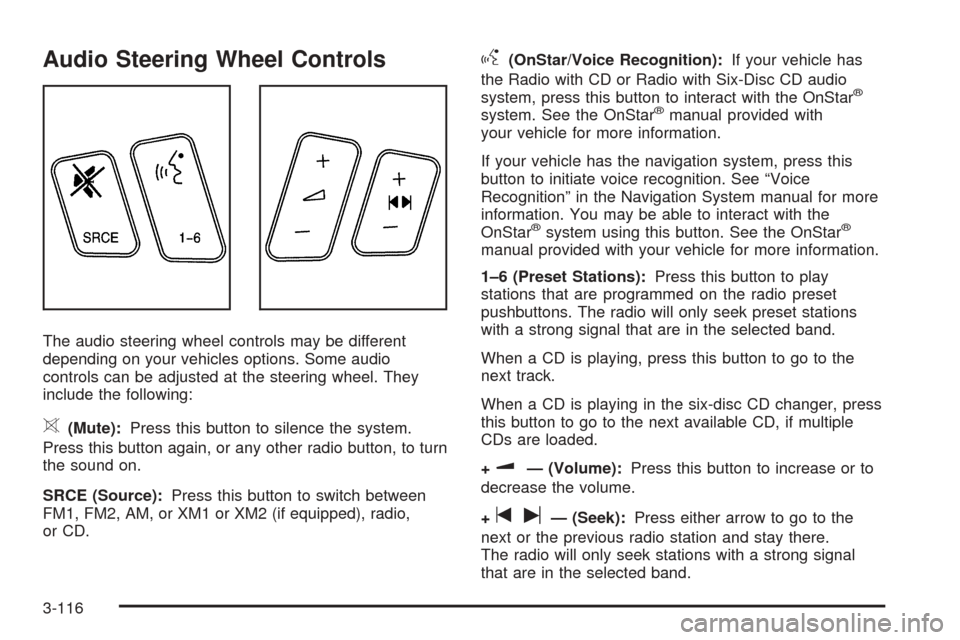
Audio Steering Wheel Controls
The audio steering wheel controls may be different
depending on your vehicles options. Some audio
controls can be adjusted at the steering wheel. They
include the following:
>(Mute):Press this button to silence the system.
Press this button again, or any other radio button, to turn
the sound on.
SRCE (Source):Press this button to switch between
FM1, FM2, AM, or XM1 or XM2 (if equipped), radio,
or CD.
g(OnStar/Voice Recognition):If your vehicle has
the Radio with CD or Radio with Six-Disc CD audio
system, press this button to interact with the OnStar
®
system. See the OnStar®manual provided with
your vehicle for more information.
If your vehicle has the navigation system, press this
button to initiate voice recognition. See “Voice
Recognition” in the Navigation System manual for more
information. You may be able to interact with the
OnStar
®system using this button. See the OnStar®
manual provided with your vehicle for more information.
1–6 (Preset Stations):Press this button to play
stations that are programmed on the radio preset
pushbuttons. The radio will only seek preset stations
with a strong signal that are in the selected band.
When a CD is playing, press this button to go to the
next track.
When a CD is playing in the six-disc CD changer, press
this button to go to the next available CD, if multiple
CDs are loaded.
+
u— (Volume):Press this button to increase or to
decrease the volume.
+
tu— (Seek):Press either arrow to go to the
next or the previous radio station and stay there.
The radio will only seek stations with a strong signal
that are in the selected band.
3-116
Page 314 of 446

Your vehicle’s engine is lled at the factory with a
Mobil 1®synthetic oil, which meets all requirements for
your vehicle.
Substitute Engine Oil: When adding oil to maintain
engine oil level, oil meeting GM Standard GM4718M
may not be available. You can add substitute oil
designated SAE 5W-30 with the starburst symbol at all
temperatures. Substitute oil not meeting GM Standard
GM4718M should not be used for an oil change.
Engine Oil Additives
Do not add anything to your oil. The recommended oils
with the starburst symbol that meet GM Standard
GM4718M are all you will need for good performance
and engine protection.
Engine Oil Life System
When to Change Engine Oil
Your vehicle has a computer system that lets you know
when to change the engine oil and lter. This is based on
engine revolutions and engine temperature, and not on
mileage. Based on driving conditions, the mileage at
which an oil change will be indicated can vary
considerably. For the oil life system to work properly, you
must reset the system every time the oil is changed.When the system has calculated that oil life has been
diminished, it will indicate that an oil change is
necessary. A CHANGE ENGINE OIL SOON message in
the DIC will come on. SeeDIC Warnings and Messages
on page 3-78. Change your oil as soon as possible
within the next 600 miles (1 000 km). It is possible that,
if you are driving under the best conditions, the oil
life system may not indicate that an oil change is
necessary for over a year. However, your engine oil and
lter must be changed at least once a year and at
this time the system must be reset. Your dealer has
GM-trained service people who will perform this
work using genuine GM parts and reset the system. It is
also important to check your oil regularly and keep it
at the proper level.
If the system is ever reset accidentally, you must
change your oil at 3,000 miles (5 000 km) since your
last oil change. Remember to reset the oil life system
whenever the oil is changed.
5-18
Page 315 of 446
How to Reset the Engine Oil Life
System
The Engine Oil Life System calculates when to change
your engine oil and lter based on vehicle use.
Anytime your oil is changed, reset the system so it can
calculate when the next oil change is required. If a
situation occurs where you change your oil prior to a
CHANGE ENGINE OIL SOON message in the DIC
being turned on, reset the system.
After the oil has been changed, the CHANGE ENGINE
OIL SOON message must be reset. To reset the
message use the following procedure:
1. Press the up or down arrow to scroll the DIC to
show OIL LIFE.
2. Once the XXX% ENGINE OIL LIFE menu item is
highlighted, press and hold the RESET button until
the percentage shows 100%.
If the percentage does not return to 100% or if the
CHANGE ENGINE OIL SOON message comes
back on when you start your vehicle, the engine oil
life system has not reset. Repeat the procedure.
What to Do with Used Oil
Used engine oil contains certain elements that may be
unhealthy for your skin and could even cause cancer.
Do not let used oil stay on your skin for very long. Clean
your skin and nails with soap and water, or a good
hand cleaner. Wash or properly dispose of clothing or
rags containing used engine oil. See the manufacturer’s
warnings about the use and disposal of oil products.
Used oil can be a threat to the environment. If you
change your own oil, be sure to drain all the oil from the
lter before disposal. Never dispose of oil by putting it in
the trash, pouring it on the ground, into sewers, or into
streams or bodies of water. Instead, recycle it by taking it
to a place that collects used oil. If you have a problem
properly disposing of your used oil, ask your dealer, a
service station or a local recycling center for help.
5-19
Page 342 of 446
Headlamp Aiming
The vehicle has a visual optical headlamp aiming
system. The aim has been preset at the factory and
should need no further adjustment.
However, if the vehicle is damaged in an accident, the
headlamp aim may be affected and adjustment may
be necessary.
If oncoming vehicles ash their high beams at you, this
may also mean the vertical aim needs to be adjusted.
It is recommended that the vehicle is taken to your
dealer for service if the headlamps need to be re-aimed.
It is possible however, to re-aim the headlamps as
described in the following procedure.
The vehicle should be properly prepared as follows:
The vehicle should be placed so the headlamps are
25 ft. (7.6 m) from a light colored wall or other at
surface.
The vehicle must have all four tires on a level
surface which is level all the way to the wall or other
at surface.
The vehicle should be placed so it is perpendicular
to the wall or other at surface.
The vehicle should not have any snow, ice, or
mud on it.
The vehicle should be fully assembled and all other
work stopped while headlamp aiming is being
performed.
The vehicle should be normally loaded with a full
tank of fuel and one person or 160 lbs (75 kg)
sitting on the driver’s seat.
Tires should be properly inated.
The spare tire is in its original location in the
vehicle.
Headlamp aiming is done with the vehicle’s low-beam
headlamps. The high-beam headlamps will be correctly
aimed if the low-beam headlamps are aimed properly.
5-46
Page 362 of 446

Any time you notice unusual wear, rotate your tires as
soon as possible and check wheel alignment. Also
check for damaged tires or wheels. SeeWhen It Is Time
for New Tires on page 5-67andWheel Replacement
on page 5-71for more information.
The purpose of regular rotation is to achieve more
uniform wear for all tires on the vehicle. The rst rotation
is the most important. SeeScheduled Maintenance
on page 6-4.
When rotating P235/50R17 or 255/45ZR18 size tires,
always use the correct rotation pattern shown here.Do not include the compact spare tire in your tire
rotation.
After the tires have been rotated, adjust the front and
rear ination pressures as shown on the Tire and
Loading Information label.
Vehicles equipped with the Tire Pressure Monitor (TPM)
system will need to have the sensors reset after a tire
rotation, seeTire Pressure Monitor System on
page 5-62.
Make certain that all wheel nuts are properly tightened.
See “Wheel Nut Torque” underCapacities and
Specications on page 5-106.
5-66
Page 406 of 446

Scheduled Maintenance
When the CHANGE ENGINE OIL SOON message in
the Driver Information Center (DIC) comes on, it means
that service is required for your vehicle. Have your
vehicle serviced as soon as possible within the next
600 miles (1 000 km). It is possible that, if you are
driving under the best conditions, the engine oil life
system may not indicate that vehicle service is
necessary for over a year. However, your engine oil
and lter must be changed at least once a year and
at this time the system must be reset. Your GM
Goodwrench
®dealer has GM-trained service technicians
who will perform this work using genuine GM parts
and reset the system.
If the engine oil life system is ever reset accidentally,
you must service your vehicle within 3,000 miles
(5 000 km) since your last service. Remember to reset
the oil life system whenever the oil is changed. See
Engine Oil Life System on page 5-18for information on
the Engine Oil Life System and resetting the system.When the CHANGE ENGINE OIL SOON message
appears, certain services, checks, and inspections are
required. Required services are described in the
following for “MaintenanceI” and “MaintenanceII.”
Generally, it is recommended that your rst service be
MaintenanceI, your second service be MaintenanceII,
and that you alternate MaintenanceIand MaintenanceII
thereafter. However, in some cases, MaintenanceII
may be required more often.
MaintenanceI— Use MaintenanceIif the CHANGE
ENGINE OIL SOON message comes on within
10 months since the vehicle was purchased or
MaintenanceIIwas performed.
MaintenanceII— Use MaintenanceIIif the previous
service performed was MaintenanceI. Always use
MaintenanceIIwhenever the message comes on
10 months or more since the last service or if the
message has not come on at all for one year.
6-4
Page 407 of 446

Scheduled Maintenance
Service MaintenanceIMaintenanceII
Change engine oil and lter. SeeEngine Oil on page 5-15. Reset oil life system.
SeeEngine Oil Life System on page 5-18.An Emission Control Service.••
Visually check for any leaks or damage.See footnote (k).••
Inspect engine air cleaner lter. If necessary, replace lter. SeeEngine Air
Cleaner/Filter on page 5-20.See footnote (m).•
Check tires for ination pressures and wear. SeeTires on page 5-53. If tire
rotation is recommended for your vehicle, rotate tires. SeeTire Inspection and
Rotation on page 5-65and “Tire Wear Inspection” inAt Least Once a Month
on page 6-9.••
Inspect brake system.See footnote (a).••
Check engine coolant and windshield washer uid levels and add uid as
needed.••
Perform any needed additional services. See “Additional Required Services”
in this section.••
Inspect suspension and steering components.See footnote (b).•
Inspect engine cooling system.See footnote (c).•
Inspect wiper blades.See footnote (d).•
Inspect restraint system components.See footnote (e).•
Lubricate body components.See footnote (f).•
Check transmission uid level and add uid as needed.•
Replace passenger compartment air lter.See footnote (g).•
6-5