steering CADILLAC STS 2005 1.G Owner's Guide
[x] Cancel search | Manufacturer: CADILLAC, Model Year: 2005, Model line: STS, Model: CADILLAC STS 2005 1.GPages: 446, PDF Size: 2.58 MB
Page 208 of 446
DIC Controls and Displays
The Driver Information Center (DIC) has different
modes which can be accessed by pressing the four
DIC buttons located on the instrument panel, to the
left of the steering wheel.
DIC Buttons (Base Level)
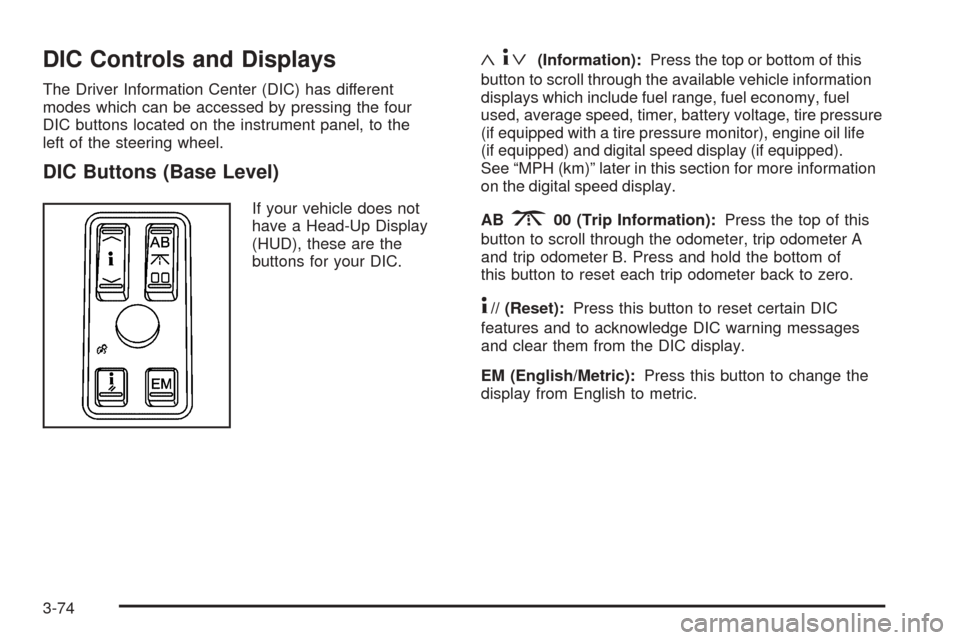
If your vehicle does not
have a Head-Up Display
(HUD), these are the
buttons for your DIC.
«4ª(Information):Press the top or bottom of this
button to scroll through the available vehicle information
displays which include fuel range, fuel economy, fuel
used, average speed, timer, battery voltage, tire pressure
(if equipped with a tire pressure monitor), engine oil life
(if equipped) and digital speed display (if equipped).
See “MPH (km)” later in this section for more information
on the digital speed display.
AB
300 (Trip Information):Press the top of this
button to scroll through the odometer, trip odometer A
and trip odometer B. Press and hold the bottom of
this button to reset each trip odometer back to zero.
4// (Reset):Press this button to reset certain DIC
features and to acknowledge DIC warning messages
and clear them from the DIC display.
EM (English/Metric):Press this button to change the
display from English to metric.
3-74
Page 222 of 446
SERVICE AIR BAG
This message will display when there is a problem with
the airbag system. Have your vehicle serviced by
your GM dealer immediately. SeeAirbag Readiness
Light on page 3-63for more information.
SERVICE RADAR CRUISE
When this message displays, it means that the Adaptive
Cruise Control system is disabled and needs service.
See your GM dealer.
SERVICE STABILITY SYS (System)
Your vehicle may be equipped with a vehicle stability
enhancement system called StabiliTrak®.
SeeStabiliTrak
®System on page 4-10. The SERVICE
STABILITY SYS message will display if there has
been a problem detected with StabiliTrak
®.
If the SERVICE STABILITY SYS message comes on
while you are driving, pull off the road as soon as
possible and stop carefully. Try resetting the system by
turning the ignition off then back on. If the SERVICE
STABILITY SYS message still stays on or comes back
on again while you are driving, your vehicle needs
service. Have the StabiliTrak
®System inspected by your
GM dealer as soon as possible.
SERVICE STEERING SYS (System)
Your vehicle may be equipped with a speed variable
assist steering system. SeeSteering on page 4-11.
The SERVICE STEERING SYS message will display if
a problem is detected with the speed variable assist
steering system. When this message is displayed, you
may notice that the effort required to steer the vehicle
increases or feels “heavier,” but you will still be able to
steer the vehicle.
SERVICE SUSPENSION SYS (System)
This message will display when the suspension
system is not operating properly. Have your vehicle
serviced by your GM dealer.
SERVICE TIRE MONITOR
This message will display if the Tire Pressure
Monitor (TPM) system, if equipped, is not working
properly. Have your vehicle serviced by your GM dealer
as soon as possible.
3-88
Page 249 of 446
PERSONAL SETTINGS MENU
This item turns the entire list of personalization features
on or off. This item allows you to program certain
features to a preferred setting for up to two people. The
number of available features varies depending upon
which options are purchased. When this item is
on, a check mark will appear after it. For more
information on the PERSONAL SETTINGS MENU item,
seeVehicle Personalization on page 2-47.
DRIVER SELECTION
When you select this item, the following submenu
appears:
DRIVER 1
DRIVER 2
RECALL DRIVER SETTINGS
STORE DRIVER SETTINGS
For more information on the DRIVER SELECTION
submenu item, see “Recalling Driver Settings”
and “Storing Driver Settings” underMemory Seat,
Mirrors and Steering Wheel on page 2-65.
DRIVER EXIT SETTINGS
When you select this item, the following submenu
appears:
RECALL EXIT SETTINGS
STORE EXIT SETTINGSFor more information on the DRIVER EXIT SETTINGS
submenu item, see “Recalling Exit Settings” and
“Storing Exit Settings” underMemory Seat, Mirrors and
Steering Wheel on page 2-65.
CONFIGURE DISPLAY KEYS
(Base Audio System)
This item allows you to customize the functions of the
four congurable keys located to the left and right of the
audio display. See “Congurable Radio Display Keys”
underRadio with CD on page 3-94for programming
information.
Theft-Deterrent Feature
THEFTLOCK®is designed to discourage theft of your
vehicle’s radio. The feature works automatically by
learning a portion of the Vehicle Identication Number
(VIN). If the radio is moved to a different vehicle, it
will not operate. If the radio is removed from your
vehicle, the original VIN in the radio can be used to
trace the radio back to your vehicle.
With THEFTLOCK
®activated, the radio will not
operate if stolen.
3-115
Page 250 of 446
Audio Steering Wheel Controls
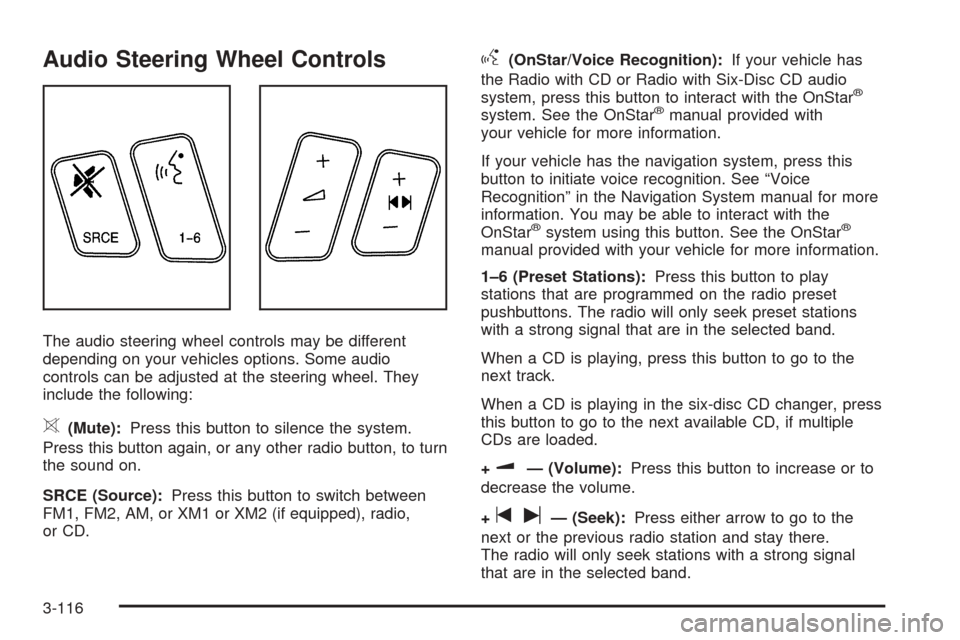
The audio steering wheel controls may be different
depending on your vehicles options. Some audio
controls can be adjusted at the steering wheel. They
include the following:
>(Mute):Press this button to silence the system.
Press this button again, or any other radio button, to turn
the sound on.
SRCE (Source):Press this button to switch between
FM1, FM2, AM, or XM1 or XM2 (if equipped), radio,
or CD.
g(OnStar/Voice Recognition):If your vehicle has
the Radio with CD or Radio with Six-Disc CD audio
system, press this button to interact with the OnStar
®
system. See the OnStar®manual provided with
your vehicle for more information.
If your vehicle has the navigation system, press this
button to initiate voice recognition. See “Voice
Recognition” in the Navigation System manual for more
information. You may be able to interact with the
OnStar
®system using this button. See the OnStar®
manual provided with your vehicle for more information.
1–6 (Preset Stations):Press this button to play
stations that are programmed on the radio preset
pushbuttons. The radio will only seek preset stations
with a strong signal that are in the selected band.
When a CD is playing, press this button to go to the
next track.
When a CD is playing in the six-disc CD changer, press
this button to go to the next available CD, if multiple
CDs are loaded.
+
u— (Volume):Press this button to increase or to
decrease the volume.
+
tu— (Seek):Press either arrow to go to the
next or the previous radio station and stay there.
The radio will only seek stations with a strong signal
that are in the selected band.
3-116
Page 251 of 446
When a CD is playing, press the minus sign to go to the
start of the current track, if more than 10 seconds
have played. Press the plus sign to go to the next track.
If either the minus or the plus button are pressed
more than once, the player will continue moving
backward or forward through the CD.
Press and hold the SEEK plus or minus button, until
you hear a beep. The CD will fast forward or fast reverse
through the CD. Press either button again to play the
passage.
If you have the navigation system, some of the audio
steering wheel controls work when a DVD is playing in
the navigation radio. See the Navigation System
manual for more information.
Radio Reception
AM
The range for most AM stations is greater than for FM,
especially at night. The longer range can cause
station frequencies to interfere with each other. Static
can occur on AM stations caused by things like
storms and power lines. Try reducing the treble to
reduce this noise.
FM Stereo
FM stereo will give the best sound, but FM signals will
reach only about 10 to 40 miles (16 to 65 km). Tall
buildings or hills can interfere with FM signals, causing
the sound to fade in and out.
XM™ Satellite Radio Service
XM™ Satellite Radio Service gives digital radio
reception from coast to coast. Just as with FM, tall
buildings or hills can interfere with satellite radio signals,
causing the sound to fade in and out. The radio may
display NO XM SIGNAL to indicate interference.
Cellular Phone Usage
Cellular phone usage may cause interference with your
vehicle’s radio. This interference may occur when
making or receiving phone calls, charging the phone’s
battery, or simply having the phone on. This interference
is an increased level of static while listening to the
radio. If static is received while listening to the radio,
unplug the cellular phone and turn it off.
3-117
Page 253 of 446
Your Driving, the Road, and Your Vehicle..........4-2
Defensive Driving...........................................4-2
Drunken Driving.............................................4-2
Control of a Vehicle........................................4-5
Braking.........................................................4-5
Anti-Lock Brake System (ABS).........................4-6
Braking in Emergencies...................................4-8
Traction Control System (TCS).........................4-8
Magnetic Ride Control.....................................4-9
Limited-Slip Rear Axle.....................................4-9
StabiliTrak
®System......................................4-10
Panic Brake Assist........................................4-10
Steering......................................................4-11
Off-Road Recovery.......................................4-13
Passing.......................................................4-13
Loss of Control.............................................4-14
Driving at Night............................................4-16Driving in Rain and on Wet Roads..................4-17
City Driving..................................................4-20
Freeway Driving...........................................4-21
Before Leaving on a Long Trip.......................4-22
Highway Hypnosis........................................4-23
Hill and Mountain Roads................................4-23
Winter Driving..............................................4-25
If Your Vehicle is Stuck in Sand, Mud,
Ice or Snow..............................................4-29
Rocking Your Vehicle to Get It Out.................4-30
Loading Your Vehicle....................................4-30
Towing..........................................................4-35
Towing Your Vehicle.....................................4-35
Recreational Vehicle Towing...........................4-35
Towing a Trailer...........................................4-37
Section 4 Driving Your Vehicle
4-1
Page 257 of 446
{CAUTION:
Drinking and then driving is very dangerous.
Your reexes, perceptions, attentiveness, and
judgment can be affected by even a small
amount of alcohol. You can have a serious — or
even fatal — collision if you drive after drinking.
Please do not drink and drive or ride with a
driver who has been drinking. Ride home in a
cab; or if you are with a group, designate a
driver who will not drink.
Control of a Vehicle
You have three systems that make your vehicle go where
you want it to go. They are the brakes, the steering, and
the accelerator. All three systems have to do their work at
the places where the tires meet the road.
Sometimes, as when you are driving on snow or ice, it is
easy to ask more of those control systems than the tires
and road can provide. That means you can lose control of
your vehicle. SeeTraction Control System (TCS) on
page 4-8andStabiliTrak
®System on page 4-10.
Braking
Braking action involves perception time and
reaction time.
First, you have to decide to push on the brake pedal.
That is perception time. Then you have to bring up your
foot and do it. That is reaction time.
Average reaction time is about three-fourths of a
second. But that is only an average. It might be less
with one driver and as long as two or three seconds or
more with another. Age, physical condition, alertness,
coordination, and eyesight all play a part. So do alcohol,
drugs, and frustration. But even in three-fourths of a
second, a vehicle moving at 60 mph (100 km/h) travels
66 feet (20 m). That could be a lot of distance in an
emergency, so keeping enough space between
your vehicle and others is important.
And, of course, actual stopping distances vary greatly
with the surface of the road, whether it is pavement
or gravel; the condition of the road, whether it is
wet, dry, or icy; tire tread; the condition of your brakes;
the weight of the vehicle; and the amount of brake
force applied.
4-5
Page 260 of 446
Remember: Anti-lock does not change the time you
need to get your foot up to the brake pedal or always
decrease stopping distance. If you get too close to
the vehicle in front of you, you will not have time to apply
your brakes if that vehicle suddenly slows or stops.
Always leave enough room up ahead to stop, even
though you have anti-lock brakes.
Using Anti-Lock
Do not pump the brakes. Just hold the brake pedal
down rmly and let anti-lock work for you. You may hear
the anti-lock pump or motor operate, and feel the
brake pedal pulsate, but this is normal.
Braking in Emergencies
With anti-lock brakes, you can steer and brake at the
same time. In many emergencies, steering can help you
more than even the very best braking.
Traction Control System (TCS)
Your vehicle has a traction control system that limits
wheel spin. This is especially useful in slippery
road conditions. On a rear-wheel-drive vehicle, the
system operates if it senses that one or both of the rear
wheels are spinning or beginning to lose traction. On
an All-Wheel-Drive (AWD) vehicle the system will
operate if it senses that any of the wheels are spinning
or beginning to lose traction. When this happens,
the system brakes the spinning wheel(s) and/or reduces
engine power to limit wheel spin.
You may feel or hear the system working, but this is
normal.
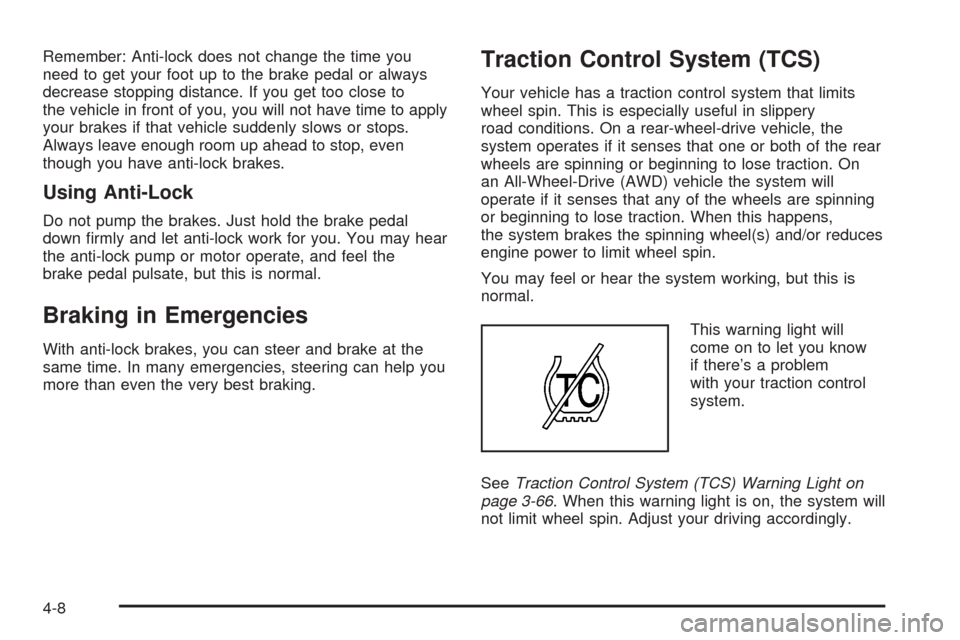
This warning light will
come on to let you know
if there’s a problem
with your traction control
system.
SeeTraction Control System (TCS) Warning Light on
page 3-66. When this warning light is on, the system will
not limit wheel spin. Adjust your driving accordingly.
4-8
Page 262 of 446

StabiliTrak®System
Your vehicle may be equipped with a vehicle stability
enhancement system called StabiliTrak®.Itisan
advanced computer controlled system that assists you
with directional control of the vehicle in difficult
driving conditions.
StabiliTrak
®activates when the computer senses a
discrepancy between your intended path and the
direction the vehicle is actually traveling. StabiliTrak
®
selectively applies braking pressure at any one of
the vehicle’s brakes to help steer the vehicle in the
direction which you are steering.
When the system activates, a STABILITY SYS ACTIVE
message will be displayed on the Driver Information
Center. SeeDIC Warnings and Messages on page 3-78.
You may also hear a noise or feel vibration in the
brake pedal. This is normal. Continue to steer the
vehicle in the direction you want it to go.
If there is a problem detected with StabiliTrak
®,a
SERVICE STABILITY SYS message will be displayed
on the Driver Information Center. SeeDIC Warnings and
Messages on page 3-78. When this message is
displayed, the system is not operational. Driving should
be adjusted accordingly.StabiliTrak
®comes on automatically whenever you start
your vehicle. To help assist you with directional
control of the vehicle, you should always leave the
system on. You can turn StabiliTrak
®off if you ever need
to through the TC (traction control) on/off button. See
Traction Control System (TCS) on page 4-8.
If your vehicle is in cruise control when the StabiliTrak
®
activates, the cruise control will automatically
disengage. When road conditions allow you to safely
use it again, you may reengage the cruise control. See
Cruise Control on page 3-16for more information.
Panic Brake Assist
Your vehicle has a panic brake assist system that
monitors the intention of the driver while braking. If the
system senses that the driver has applied hard/fast
pressure to the brake pedal, the system will generate
additional pressure, making it easier for the driver
to maintain brake application. When this happens the
brake pedal will feel easier to push. Just hold the brake
pedal down rmly and let the system work for you.
You may feel the brakes vibrate, or you may notice
some noise but this is normal. The brakes will return to
normal operation after the brake pedal has been
released.
4-10
Page 263 of 446
Steering
Power Steering
If you lose power steering assist because the engine
stops or the system is not functioning, you can steer but
it will take much more effort.
Speed Variable Assist Steering
Your vehicle has a steering system that continuously
adjusts the effort you feel when steering at all vehicle
speeds. It provides ease when parking, yet a rm, solid
feel at highway speeds.
Steering Tips
Driving on Curves
It is important to take curves at a reasonable speed.
A lot of the “driver lost control” accidents mentioned on
the news happen on curves. Here is why:
Experienced driver or beginner, each of us is subject to
the same laws of physics when driving on curves.
The traction of the tires against the road surface makes
it possible for the vehicle to change its path when
you turn the front wheels. If there is no traction, inertia
will keep the vehicle going in the same direction. If
you have ever tried to steer a vehicle on wet ice, you
will understand this.The traction you can get in a curve depends on the
condition of your tires and the road surface, the angle at
which the curve is banked, and your speed. While
you are in a curve, speed is the one factor you
can control.
Suppose you are steering through a sharp curve.
Then you suddenly accelerate. Both control
systems — steering and acceleration — have to do
their work where the tires meet the road. Adding
the sudden acceleration can demand too much of those
places. You can lose control. SeeTraction Control
System (TCS) on page 4-8.
What should you do if this ever happens? Ease up on
the accelerator pedal, steer the vehicle the way you
want it to go, and slow down.
Since your vehicle is equipped with StabiliTrak
®you
may see the STABILITY SYS ACTIVE message on the
Driver Information Center. SeeDIC Warnings and
Messages on page 3-78.
Speed limit signs near curves warn that you should
adjust your speed. Of course, the posted speeds
are based on good weather and road conditions. Under
less favorable conditions you will want to go slower.
If you need to reduce your speed as you approach
a curve, do it before you enter the curve, while your front
wheels are straight ahead.
4-11