phone CADILLAC STS 2009 1.G Owner's Manual
[x] Cancel search | Manufacturer: CADILLAC, Model Year: 2009, Model line: STS, Model: CADILLAC STS 2009 1.GPages: 514, PDF Size: 2.73 MB
Page 279 of 514
To Transfer Audio to the In-Vehicle
Bluetooth System
The cellular phone must be paired and connected with
the Bluetooth system before a call can be transferred.
The connection process can take up to two minutes after
the key is turned to the ON/RUN or ACC/ACCESSORY
position.
During a call with the audio on the cell phone,
press
bgfor more than two seconds. The audio
switches from the cell phone to the vehicle.
Voice Pass-Thru
Voice Pass-Thru allows access to the voice recognition
commands on the cell phone. See the cell phone
manufacturers user guide to see if the cell phone
supports this feature. This feature can be used to
verbally access contacts stored in the cell phone.
1. Press and hold
bgfor two seconds. The system
responds with “Ready” followed by a tone.
2. Say “Bluetooth”. The system responds with
“Bluetooth ready” followed by a tone.
3. Say “Voice”. The system responds with
“OK, accessing
The cell phone’s normal prompt messages will
go through its cycle according to the phone’s
operating instructions.
Dual Tone Multi-Frequency (DTMF)
Tones
The in-vehicle Bluetooth system can send numbers and
numbers stored as name tags during a call. This is used
when calling a menu driven phone system. Account
numbers can be programmed into the phonebook for
retrieval during menu driven calls.
Sending a Number During a Call
1. Pressbg. The system responds with “Ready”
followed by a tone.
2. Say “Dial”. The system responds with
“Say a number to send tones” followed by
a tone.
3. Say the number to send.
If the system clearly recognizes the number it
responds with “OK, Sending Number” and the
dial tones are sent and the call continues.
If the system is not sure it recognized the
number properly, it responds “Dial Number,
Please say yes or no?” followed by a tone.
If the number is correct, say “Yes”. The system
responds with “OK, Sending Number” and
the dial tones are sent and the call continues.
3-125
Page 280 of 514
Sending a Stored Name Tag During a Call
1. Pressbg. The system responds with “Ready”
followed by a tone.
2. Say “Send name tag.” The system responds
with “Say a name tag to send tones” followed
by a tone.
3. Say the name tag to send.
If the system clearly recognizes the name tag it
responds with “OK, Sending
the dial tones are sent and the call continues.
If the system is not sure it recognized the
name tag properly, it responds “Dial
Please say yes or no?” followed by a tone.
If the name tag is correct, say “Yes”. The system
responds with “OK, Sending
the dial tones are sent and the call continues.
Clearing the System
Unless information is deleted out of the in-vehicle
Bluetooth system, it will be retained indenitely.
This includes all saved name tags in the phonebook
and phone pairing information. For information on
how to delete this information, see the above sections
on Deleting a Paired Phone and Deleting Name Tags.
Other Information
The Bluetooth®word mark and logos are owned by the
Bluetooth®SIG, Inc. and any use of such marks by
General Motors is under license. Other trademarks
and trade names are those of their respective owners.
This device complies with Part 15 of the FCC Rules.
Operation is subject to the following two conditions:
1. This device may not cause harmful interference.
2. This device must accept any interference received,
including interference that may cause undesired
operation.
This device complies with RSS-210 of Industry Canada.
Operation is subject to the following two conditions:
1. This device may not cause interference.
2. This device must accept any interference received,
including interference that may cause undesired
operation of the device.
Changes or modications to this system by other than
an authorized service facility could void authorization to
use this equipment.
Radio Personalization
For vehicles with a Navigation System, see the
Navigation System manual supplied with the vehicle for
more information on accessing the main menu and for
descriptions of the menu items for the Navigation system.
3-126
Page 286 of 514
Press¨or©to go to the next or previous track while
a CD is playing,
SRCE (Source):Press to select between AM, FM, XM,
or CD.
SCAN:Press and hold for a few seconds to scan radio
stations, the radio goes to the next strongest station
in the selected band, plays for a few seconds, then goes
to the next station. Press SCAN again to stop scanning.
yz(Previous/Next):Press to go to the next or
previous radio station stored as a favorite while listening
to the radio.
Press
yorzto go to the next or previous track while
a CD is playing.
+
e−(Volume):Press to increase or to decrease the
volume.
bg(Mute/Voice Recognition):Press and release
to silence the vehicle speakers only. The audio of
the wireless and wired headphones, if the vehicle has
these features, does not mute. Press and release
this button again, to turn the sound on.
For vehicles with a navigation system, press and
hold
bgfor two seconds to initiate speech
recognition. See “Voice Recognition” in the
Navigation System manual for more information.
For vehicles with a navigation system and OnStar®,
press and hold
bgfor two seconds and then
say “OnStar” to interact with the OnStar system.
SeeOnStar
®System on page 2-50in this manual
for more information.
For vehicles with a navigation system and
Bluetooth®, see the Navigation System manual
for more information.
For vehicles without a navigation system, and
with Bluetooth or OnStar, press and hold
bgfor
two seconds to interact with the OnStar®or
Bluetooth system. SeeOnStar®System on
page 2-50,orBluetooth®on page 3-116for
more information about these features.
3-132
Page 287 of 514
Radio Reception
Frequency interference and static can occur during
normal radio reception if items such as cell phone
chargers, vehicle convenience accessories, and external
electronic devices are plugged into the accessory power
outlet. If there is interference or static, unplug the item
from the accessory power outlet.
AM
The range for most AM stations is greater than for FM,
especially at night. The longer range can cause station
frequencies to interfere with each other. For better radio
reception, most AM radio stations boost the power levels
during the day, and then reduce these levels during the
night. Static can also occur when things like storms and
power lines interfere with radio reception. When this
happens, try reducing the treble on the radio.
FM Stereo
FM signals only reach about 10 to 40 miles
(16 to 65 km). Although the radio has a built-in electronic
circuit that automatically works to reduce interference,
some static can occur, especially around tall buildings
or hills, causing the sound to fade in and out.
XM Satellite Radio Service
XM Satellite Radio Service gives digital radio reception
from coast-to-coast in the 48 contiguous United States,
and in Canada. Just as with FM, tall buildings or hills can
interfere with satellite radio signals, causing the sound to
fade in and out. In addition, traveling or standing under
heavy foliage, bridges, garages, or tunnels may cause
loss of the XM signal for a period of time.
Cellular Phone Usage
Cellular phone usage may cause interference with the
vehicle’s radio. This interference may occur when making
or receiving phone calls, charging the phone’s battery,
or simply having the phone on. This interference causes
an increased level of static while listening to the radio.
If static is received while listening to the radio, unplug
the cellular phone and turn it off.
3-133
Page 288 of 514
Backglass Antenna
The AM-FM antenna is integrated with the rear window
defogger, located in the rear window. Make sure that
the inside surface of the rear window is not scratched
and that the lines on the glass are not damaged.
If the inside surface is damaged, it could interfere with
radio reception. For proper radio reception, the antenna
connector needs to be properly attached to the post
on the glass.
If a cellular telephone antenna needs to be attached to
the glass, make sure that the grid lines for the AM-FM
antenna are not damaged. There is enough space
between the grid lines to attach a cellular telephone
antenna without interfering with radio reception.
Notice:Using a razor blade or sharp object to
clear the inside rear window may damage the rear
window antenna and/or the rear window defogger.
Repairs would not be covered by your warranty.
Do not clear the inside rear window with sharp
objects.Notice:Do not apply aftermarket glass tinting
with metallic lm. The metallic lm in some tinting
materials will interfere with or distort the incoming
radio reception. Any damage caused to your
backglass antenna due to metallic tinting materials
will not be covered by your warranty.
XM™ Satellite Radio Antenna
System
The XM Satellite Radio antenna is located on the roof
or the rear of the vehicle. Keep the antenna clear
of obstructions for clear radio reception.
3-134
Page 334 of 514
Filling the Tank
{CAUTION:
Fuel vapor burns violently and a fuel re can
cause bad injuries. To help avoid injuries to you
and others, read and follow all the instructions on
the pump island. Turn off the engine when you are
refueling. Do not smoke if you are near fuel or
refueling the vehicle. Do not use cellular phones.
Keep sparks, ames, and smoking materials away
from fuel. Do not leave the fuel pump unattended
when refueling the vehicle. This is against the law
in some places. Do not re-enter the vehicle while
pumping fuel. Keep children away from the fuel
pump; never let children pump fuel.The tethered fuel cap is
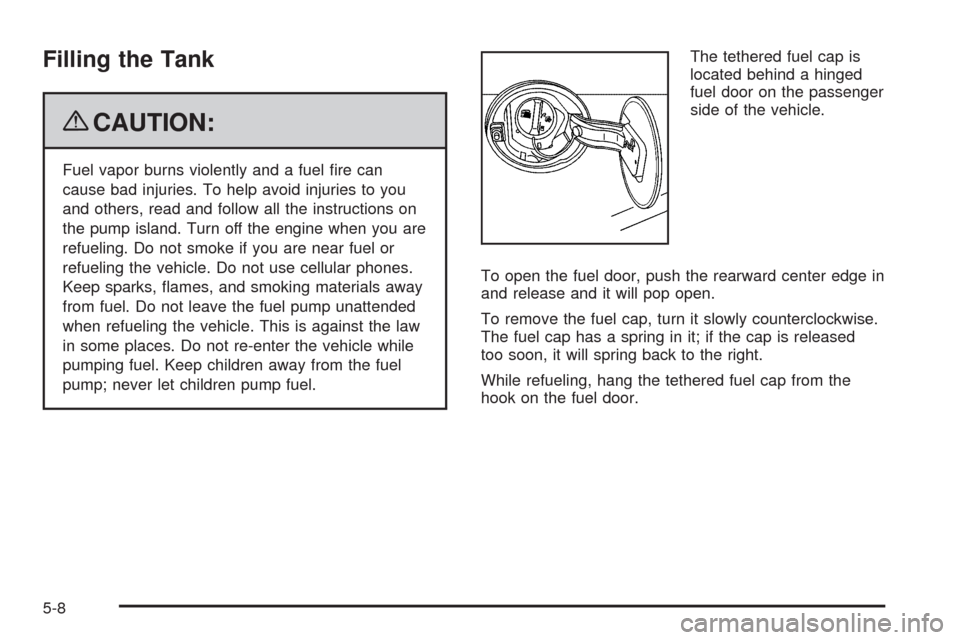
located behind a hinged
fuel door on the passenger
side of the vehicle.
To open the fuel door, push the rearward center edge in
and release and it will pop open.
To remove the fuel cap, turn it slowly counterclockwise.
The fuel cap has a spring in it; if the cap is released
too soon, it will spring back to the right.
While refueling, hang the tethered fuel cap from the
hook on the fuel door.
5-8
Page 336 of 514
Filling a Portable Fuel Container
{CAUTION:
Never ll a portable fuel container while it is in
the vehicle. Static electricity discharge from the
container can ignite the fuel vapor. You can be
badly burned and the vehicle damaged if this
occurs. To help avoid injury to you and others:
Dispense fuel only into approved containers.
Do not ll a container while it is inside a
vehicle, in a vehicle’s trunk, pickup bed,
or on any surface other than the ground.
Bring the ll nozzle in contact with the inside
of the ll opening before operating the nozzle.
Contact should be maintained until the lling
is complete.
Do not smoke while pumping fuel.
Do not use a cellular phone while
pumping fuel.
Checking Things Under
the Hood
{CAUTION:
An electric fan under the hood can start up and
injure you even when the engine is not running.
Keep hands, clothing, and tools away from any
underhood electric fan.
{CAUTION:
Things that burn can get on hot engine parts and
start a re. These include liquids like fuel, oil,
coolant, brake uid, windshield washer and other
uids, and plastic or rubber. You or others could
be burned. Be careful not to drop or spill things
that will burn onto a hot engine.
5-10
Page 483 of 514
Customer Assistance and Information...............7-2
Customer Satisfaction Procedure......................7-2
Online Owner Center......................................7-5
Customer Assistance for Text Telephone
(TTY) Users...............................................7-6
Customer Assistance Offices............................7-6
GM Mobility Reimbursement Program................7-7
Roadside Service...........................................7-7
Scheduling Service Appointments....................7-10
Courtesy Transportation.................................7-10
Collision Damage Repair................................7-11Reporting Safety Defects................................7-14
Reporting Safety Defects to the
United States Government..........................7-14
Reporting Safety Defects to the
Canadian Government................................7-15
Reporting Safety Defects to
General Motors.........................................7-15
Service Publications Ordering Information.........7-15
Vehicle Data Recording and Privacy................7-16
Event Data Recorders...................................7-17
OnStar
®......................................................7-18
Navigation System........................................7-18
Radio Frequency
Identication (RFID)...................................7-18
Section 7 Customer Assistance Information
7-1
Page 485 of 514
STEP THREE (U.S. Owners):Both General Motors
and your dealer are committed to making sure you are
completely satised with your new vehicle. However, if
you continue to remain unsatised after following the
procedure outlined in Steps One and Two, you can le
with the Better Business Bureau (BBB) Auto Line
Program to enforce your rights.
The BBB Auto Line Program is an out of court program
administered by the Council of Better Business Bureaus
to settle automotive disputes regarding vehicle repairs or
the interpretation of the New Vehicle Limited Warranty.
Although you may be required to resort to this informal
dispute resolution program prior to ling a court action,
use of the program is free of charge and your case will
generally be heard within 40 days. If you do not agree
with the decision given in your case, you may reject it and
proceed with any other venue for relief available to you.You may contact the BBB Auto Line Program using the
toll-free telephone number or write them at the following
address:
BBB Auto Line Program
Council of Better Business Bureaus, Inc.
4200 Wilson Boulevard
Suite 800
Arlington, VA 22203-1838
Telephone: 1-800-955-5100
dr.bbb.org/goauto
This program is available in all 50 states and the
District of Columbia. Eligibility is limited by vehicle age,
mileage and other factors. General Motors reserves
the right to change eligibility limitations and/or
discontinue its participation in this program.
7-3
Page 487 of 514
Online Owner Center
(United States only)
The Owner Center is a resource for your GM ownership
needs. Specic vehicle information can be found in
one place.
The Online Owner Center allows you to:
Get e-mail service reminders.
Access information about your specic vehicle,
including tips and videos and an electronic
version of this owner manual.
Keep track of your vehicle’s service history and
maintenance schedule.
Find GM dealers/retailers for service nationwide.
Receive special promotions and privileges only
available to members.
Refer to MyGMLink.com on the web for updated
information and to register your vehicle.
My GM Canada (Canada only)
My GM Canada is a password-protected section of
gmcanada.com where you can save information on
GM vehicles, get personalized offers, and use handy
tools and forms with greater ease.
Here are a few of the valuable tools and services you
will have access to:
My Showroom: Find and save information on
vehicles and current offers in your area.
My Dealers/Retailers: Save details such as address
and phone number for each of your preferred
GM Dealers or Retailers.
My Driveway: Receive service reminders and
helpful advice on owning and maintaining your
vehicle.
My Preferences: Manage your prole, subscribe to
E-News and use tools and forms with greater ease.
To sign up to My GM Canada, visit the My GM Canada
section within gmcanada.com.
7-5