ESP CADILLAC STS 2011 1.G User Guide
[x] Cancel search | Manufacturer: CADILLAC, Model Year: 2011, Model line: STS, Model: CADILLAC STS 2011 1.GPages: 528, PDF Size: 4.96 MB
Page 152 of 528
Black plate (46,1)Cadillac STS Owner Manual - 2011
SBZA does not operate when the left or right corners of
the rear bumper are covered with mud, dirt, snow, ice,
slush, or in heavy rainstorms. For cleaning instructions,
seeWashing Your Vehicle
on page 6‑109. If the DIC
still displays the SIDE BLIND ZONE SYSTEM
UNAVAILABLE message after cleaning the bumper,
see your dealer.
The SBZA displays may remain on if a trailer is
attached to the vehicle, or a bicycle or object is
extending out to either side of the vehicle.
When SBZA is disabled for any reason other than the
driver turning it off, the driver will not be able to turn
SBZA back on using the DIC. The SIDE BLIND ZONE
ALERT ON option will not be selectable if the conditions
for normal system operation are not met. Until normal
operating conditions for SBZA are met, you should not
rely upon SBZA while driving.
SBZA Error Messages
The following messages may appear in the DIC:
SIDE BLIND ZONE ALERT SYSTEM OFF: This
message indicates that the system has been turned off.
SIDE BLIND ZONE SYSTEM UNAVAILABLE: This
message indicates that the SBZA system is disabled
because the sensor is blocked and cannot detect
vehicles in the blind zone. The sensor may be blocked by mud, dirt, snow, ice, slush, or even heavy
rainstorms. This message may also activate during
heavy rain or due to road spray. The vehicle does not
need service. For cleaning, see
Washing Your Vehicle
on page 6‑109.
SERVICE SIDE BLIND ZONE ALERT SYSTEM: If this
message appears, both SBZA displays will remain on
indicating there is a problem with the SBZA system.
If these displays remain on after continued driving, the
system needs service. Take the vehicle to your dealer.
FCC Information
See Radio Frequency Statementon page 8‑20for
information regarding Part 15 of the Federal
Communications Commission (FCC) rules and
Industry Canada Standards RSS-210/220/310.
Frequency of operation: 24.05GHz –24.25GHz
Field Strength: Not greater than 2.5V/m peak
(0.25V/m average) at a distance of 3m
The manufacturer is not responsible for any radio or TV
interference caused by unauthorized modifications to
this equipment. Such modifications could void the user's
authority to operate the equipment.
3-46
Page 166 of 528
Black plate (60,1)Cadillac STS Owner Manual - 2011
3. Turn on the radio by pressing the power/volume knob.
4. Press the CNFG radio button or the tune/select knob located on the right side of the radio to enter
the radio's main menu.
5. Turn the tune/select knob and scroll to SETUP.
6. Press the tune/select knob to enter the SETUP menu.
7. Turn the tune/select knob and scroll to PERSONAL SETTINGS MENU, then press the tune/select knob
to turn the feature on. A check mark appears after
this selection when it is turned on and the entire
list of personalization features will appear.
8. Turn the tune/select knob and scroll to the feature you want to change, then press the tune/select
knob to turn the feature on or off. If the feature is
turned on, a check mark will appear next to the
feature name.
Some features have submenus that show
additional features that can be turned on or off.
After entering a submenu, turn the tune/select
knob and scroll to the feature you want to change,
then press the tune/select knob to turn the feature
on or off.Personal Settings Menu Items
The PERSONAL SETTINGS MENU must be selected
with a check mark to program the personalization
features. If it is not selected, press the tune/select knob
until the check mark appears. If it is selected, the entire
list of features will be available to program.
DRIVER GREETING
This feature allows you to type in a customized name or
greeting that will appear on the display whenever the
corresponding keyless access transmitter, 1 or 2, is used
or Driver 1 or Driver 2 is selected on the radio display.
If a customized name or greeting is not programmed,
the system will show Driver 1 or Driver 2 to correspond
with the numbers on the back of the keyless access
transmitters. In this case, the customized driver greeting
feature is factory shipped as off.
To turn the driver greeting feature on and to program a
customized name or greeting:
1. Enter the PERSONAL SETTINGS MENU by following the instructions listed previously under
“Entering the Personal Settings Menu.”
2. Turn the tune/select knob until DRIVER GREETING is highlighted.
3-60
Page 177 of 528
Black plate (71,1)Cadillac STS Owner Manual - 2011
KEYLESS FT (Front) DOOR UNLOCK
This feature automatically unlocks the appropriate front
door when you approach the vehicle with the keyless
access transmitter and pull the respective door handle.
SeeDoor Locks
on page 3‑12for more information.
Programmable Modes
Mode 1: ON
Mode 2: OFF (default)
To program the vehicle to a different mode: 1. Enter the PERSONAL SETTINGS MENU by following the instructions listed previously under
“Entering the Personal Settings Menu.”
2. Turn the tune/select knob until KEYLESS FT DOOR UNLOCK is highlighted.
3. Press the tune/select knob to switch back and forth between on and off.
When the mode is turned on, a check mark will
appear next to the feature name.
The mode you selected is now set. You can either exit
the programming mode by following the instructions
later in this section or program the next feature
available on your vehicle.
KEYLESS DOORS UNLOCK
This feature automatically unlocks all of the doors when
you approach the vehicle with the keyless access
transmitter and pull either front door handle. See Door
Locks
on page 3‑12for more information.
Programmable Modes
Mode 1: ON (default)
Mode 2: OFF
To program the vehicle to a different mode: 1. Enter the PERSONAL SETTINGS MENU by following the instructions listed previously under
“Entering the Personal Settings Menu.”
2. Turn the tune/select knob until KEYLESS DOORS UNLOCK is highlighted.
3. Press the tune/select knob to switch back and forth between on and off.
When the mode is turned on, a check mark will
appear next to the feature name.
The mode you selected is now set. You can either exit
the programming mode by following the instructions
later in this section or program the next feature
available on your vehicle.
3-71
Page 183 of 528
Black plate (77,1)Cadillac STS Owner Manual - 2011
Driver Selection Submenu Items
DRIVER 1/DRIVER 2
The numbers on the back of each keyless access
transmitter correspond to DRIVER 1 and DRIVER 2.
If you would like to recall or store driver settings for the
driver that does not correspond to the number on the
back of the keyless access transmitter that you are
using:1. Enter the memory programming mode for your driver settings by following the instructions listed
previously under “Entering the Driver Selection
Submenu.”
2. From the DRIVER SELECTION submenu, turn the tune/select knob to highlight the driver number that
you want, either DRIVER 1 or DRIVER 2.
3. Set your choice by pressing in the tune/ select knob.
If you would like to recall or store driver settings for the
selected driver, see “RECALL DRIVER SETTINGS” or
“STORE DRIVER SETTINGS” later in this section.
If you would like to recall or store exit settings for the
selected driver, see “RECALL EXIT SETTINGS” or
“STORE EXIT SETTINGS” later in this section.
RECALL DRIVER SETTINGS
To recall driver settings:
1. Enter the memory programming mode for your driver settings by following the instructions listed
previously under “Entering the Driver Selection
Submenu.”
2. From the DRIVER SELECTION submenu, turn the tune/select knob to scroll to RECALL DRIVER
SETTINGS and press in the knob.
If the vehicle is in P (Park), one beep will sound
and your previously saved driving position will then
be recalled.
If the vehicle is not in P (Park), three beeps will
sound and your previously saved driving position
will not be recalled.
A memory recall can be stopped by pressing any
memory seat or mirror position button.
If you would like the stored driving positions to be
recalled when unlocking your vehicle with the keyless
access transmitter or when starting your vehicle, see
“REMOTE RECALL MEMORY” or“START BUTTON
RECALL” underVehicle Personalization on page 3‑59.
3-77
Page 194 of 528
Black plate (8,1)Cadillac STS Owner Manual - 2011
Warning the Driver
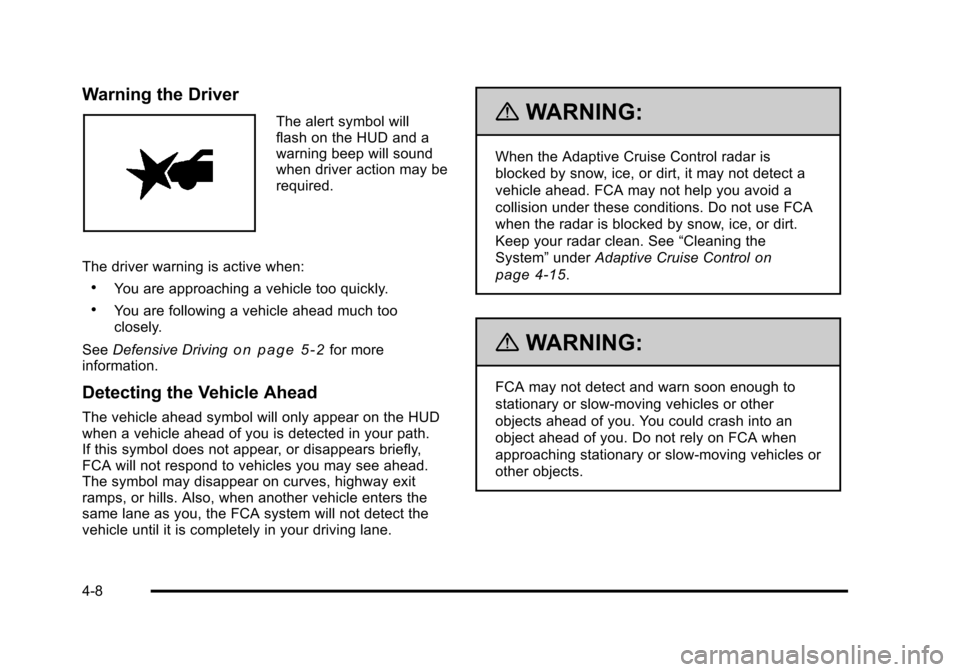
The alert symbol will
flash on the HUD and a
warning beep will sound
when driver action may be
required.
The driver warning is active when:
.You are approaching a vehicle too quickly.
.You are following a vehicle ahead much too
closely.
See Defensive Driving
on page 5‑2for more
information.
Detecting the Vehicle Ahead
The vehicle ahead symbol will only appear on the HUD
when a vehicle ahead of you is detected in your path.
If this symbol does not appear, or disappears briefly,
FCA will not respond to vehicles you may see ahead.
The symbol may disappear on curves, highway exit
ramps, or hills. Also, when another vehicle enters the
same lane as you, the FCA system will not detect the
vehicle until it is completely in your driving lane.
{WARNING:
When the Adaptive Cruise Control radar is
blocked by snow, ice, or dirt, it may not detect a
vehicle ahead. FCA may not help you avoid a
collision under these conditions. Do not use FCA
when the radar is blocked by snow, ice, or dirt.
Keep your radar clean. See “Cleaning the
System” underAdaptive Cruise Control
on
page 4‑15
.
{WARNING:
FCA may not detect and warn soon enough to
stationary or slow-moving vehicles or other
objects ahead of you. You could crash into an
object ahead of you. Do not rely on FCA when
approaching stationary or slow-moving vehicles or
other objects.
4-8
Page 202 of 528
Black plate (16,1)Cadillac STS Owner Manual - 2011
The vehicle's braking during Adaptive Cruise Control is
comparable to a person applying moderate pressure to
the vehicle's brake pedal. To disengage Adaptive Cruise
Control, apply the brake. If no vehicle is in your path,
your vehicle will react like traditional cruise control.
{WARNING:
Adaptive Cruise Control will not apply hard
braking or bring the vehicle to a complete
stop. It will not respond to stopped vehicles,
pedestrians or animals. When you are
approaching a vehicle or object, Adaptive
Cruise Control may not have time to slow your
vehicle enough to avoid a collision. Your complete
attention is always required while driving and
you should be ready to take action and apply the
brakes. For more information, seeDefensive
Driving on page 5‑2.
{WARNING:
.On winding roads, Adaptive Cruise Control
may not detect a vehicle ahead. You could
crash into a vehicle ahead of you. Do not use
Adaptive Cruise Control on winding roads.
.Adaptive Cruise Control may not have time to
slow your vehicle enough to avoid a crash
when you are driving in conditions where
vehicles may suddenly slow or stop ahead of
you, enter your lane, or cross your vehicle's
path. If you are driving in these conditions, do
not use Adaptive Cruise Control. The warning
beep and alert symbol may indicate that you
are driving in conditions where Adaptive
Cruise Control should not be used. See
“Alerting the Driver” in this section.
(Continued)
4-16
Page 204 of 528
Black plate (18,1)Cadillac STS Owner Manual - 2011
Engaging Adaptive Cruise Control With the
Set Button
{WARNING:
If you operate Adaptive Cruise Control without
your Head-up Display (HUD) properly adjusted,
your Adaptive Cruise Control settings may not be
visible. You could forget your settings and be
startled by Adaptive Cruise Control response
and even lose control. Keep your HUD on and
properly adjusted when using Adaptive Cruise
Control.
If the cruise button is on when not in use, it could get
bumped and go into cruise when not desired. Keep the
cruise control switch off when cruise is not being used.
The set speed is selected by the driver. This is the
speed you will travel if there is no vehicle detected in
your path. To set Adaptive Cruise Control, do the following:
1. Make sure the Head-Up Display (HUD) is on and properly adjusted. You cannot engage Adaptive
Cruise Control unless the HUD is on. See Head-Up
Display (HUD)
on page 4‑38for more information.
2. Move the switch to on.
3. Get up to the desired speed.
4. Press
Tat the end of the lever and release it.
5. Take your foot off the accelerator pedal.
Once Adaptive Cruise Control is set, it might
immediately apply the brakes if it detects a vehicle
ahead that is too close or moving slower than your
vehicle.
4-18
Page 208 of 528
Black plate (22,1)Cadillac STS Owner Manual - 2011
Approaching and Following a Vehicle
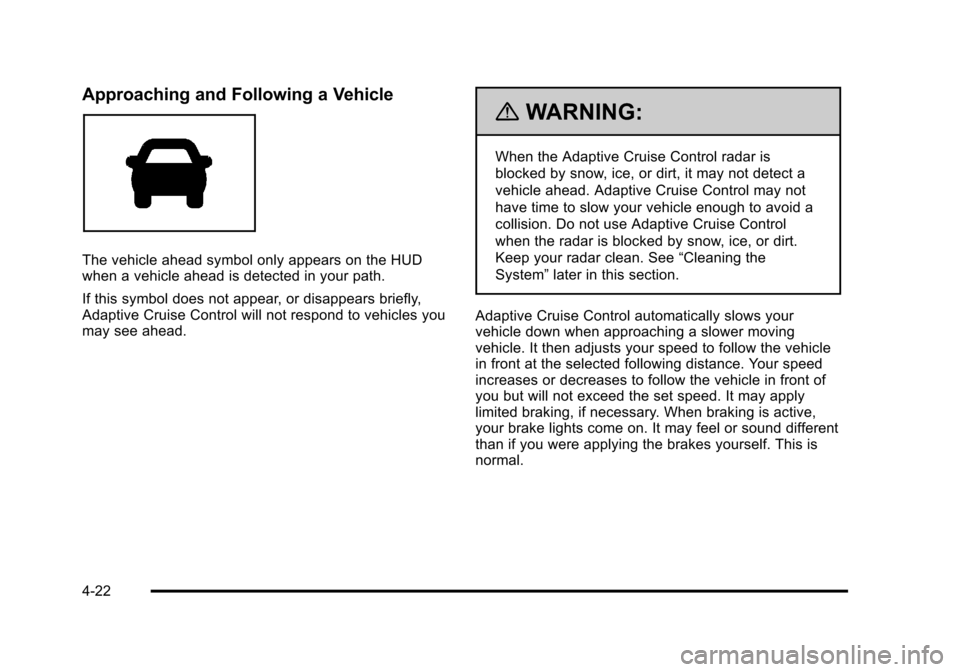
The vehicle ahead symbol only appears on the HUD
when a vehicle ahead is detected in your path.
If this symbol does not appear, or disappears briefly,
Adaptive Cruise Control will not respond to vehicles you
may see ahead.
{WARNING:
When the Adaptive Cruise Control radar is
blocked by snow, ice, or dirt, it may not detect a
vehicle ahead. Adaptive Cruise Control may not
have time to slow your vehicle enough to avoid a
collision. Do not use Adaptive Cruise Control
when the radar is blocked by snow, ice, or dirt.
Keep your radar clean. See“Cleaning the
System” later in this section.
Adaptive Cruise Control automatically slows your
vehicle down when approaching a slower moving
vehicle. It then adjusts your speed to follow the vehicle
in front at the selected following distance. Your speed
increases or decreases to follow the vehicle in front of
you but will not exceed the set speed. It may apply
limited braking, if necessary. When braking is active,
your brake lights come on. It may feel or sound different
than if you were applying the brakes yourself. This is
normal.
4-22
Page 210 of 528
Black plate (24,1)Cadillac STS Owner Manual - 2011
Passing a Vehicle/Adaptive Cruise Control
Override
To increase speed to pass a vehicle, use the
accelerator pedal. While you are doing this, the system
will not automatically apply the brakes. A PEDAL
APPLIED ACC OVERRIDE message will appear on the
HUD. SeeHead-Up Display (HUD)
on page 4‑38for
additional information. Once you pass the vehicle and
remove your foot from the accelerator pedal, Adaptive
Cruise Control returns to normal operation and the
brakes can be applied, if needed.
{WARNING:
If you rest your foot on the accelerator pedal, the
system will not automatically apply the brakes.
You could crash into a vehicle ahead of you. Do
not rest your foot on the accelerator pedal when
using Adaptive Cruise Control.
Curves in the Road
{WARNING:
Due to Adaptive Cruise Control limitations in
curves, it may respond to a vehicle in another
lane, or may not have time to react to a vehicle in
your lane. You could crash into a vehicle ahead of
you, or lose control of your vehicle. Give extra
attention in curves and be ready to use the brakes
if necessary. Select an appropriate speed while
driving in curves.
Adaptive Cruise Control might operate differently in a
sharp curve. It might reduce your speed if the curve is
too sharp.
4-24
Page 211 of 528
Black plate (25,1)Cadillac STS Owner Manual - 2011
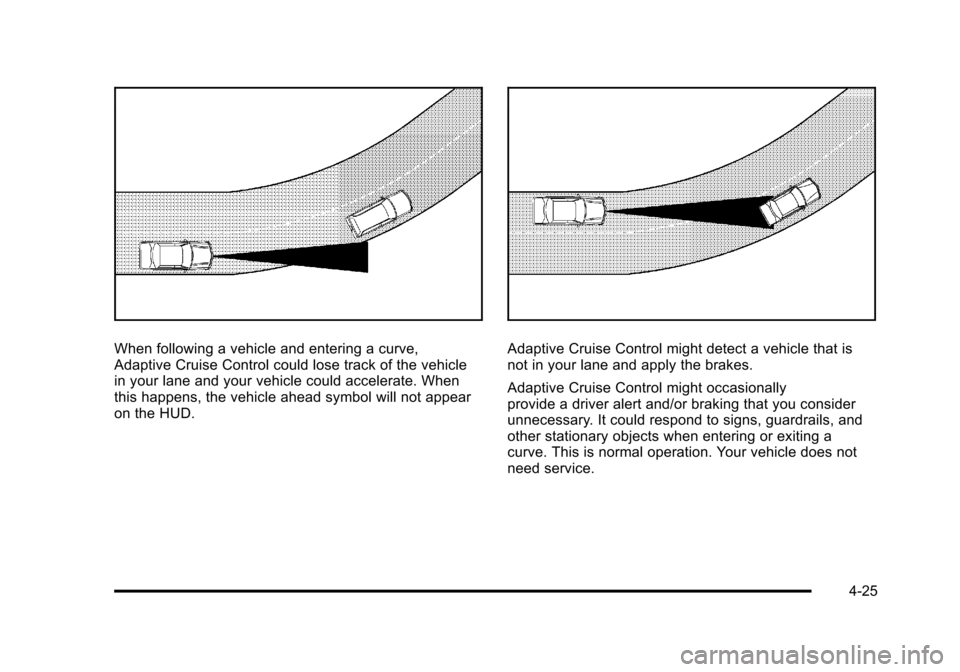
When following a vehicle and entering a curve,
Adaptive Cruise Control could lose track of the vehicle
in your lane and your vehicle could accelerate. When
this happens, the vehicle ahead symbol will not appear
on the HUD.Adaptive Cruise Control might detect a vehicle that is
not in your lane and apply the brakes.
Adaptive Cruise Control might occasionally
provide a driver alert and/or braking that you consider
unnecessary. It could respond to signs, guardrails, and
other stationary objects when entering or exiting a
curve. This is normal operation. Your vehicle does not
need service.
4-25