audio CADILLAC XLR 2007 1.G Owner's Manual
[x] Cancel search | Manufacturer: CADILLAC, Model Year: 2007, Model line: XLR, Model: CADILLAC XLR 2007 1.GPages: 512, PDF Size: 3.84 MB
Page 272 of 512

4. Load the map DVD into the slot by inserting it
partway. The system will pull it in.
5. Press and release the TILT key to close the
faceplate.
Notice:Shifting out of PARK (P) with the
system’s faceplate open will cause the
faceplate to close automatically. This could
cause damage to a CD, DVD or the system if it
is partially loaded. Before shifting out of
PARK (P), make sure that the DVD or CD is
loaded properly. The vehicle must be shifted
back into PARK (P) to close the faceplate.
Once the map DVD is inserted correctly, you will
have the following two choices:
LANGUAGE
I AGREE
You can change the language at this time. See
“Language” underNavigation Audio System
on page 285for more information on choosing a
language. Once a language has been selected,
touch I AGREE to plan a route. The map will
appear showing your current vehicle position.
Ejecting the DVD Map Disc
When the DVD map disc is not loaded, you will
not be able to use the navigation portion of
the system.
1. Turn the ignition on.
2. With the vehicle in PARK (P), press and hold
the TILT key until a beep is heard. The
system’s faceplate will open.
3. The map DVD will eject from the slot. Pull the
disc out.
4. Press and release the TILT key to close the
faceplate.
Notice:Shifting out of PARK (P) with the
system’s faceplate open will cause the
faceplate to close automatically. This could
cause damage to a CD, DVD or the system if it
is partially loaded. Before shifting out of
PARK (P), make sure that the DVD or CD is
loaded properly. The vehicle must be shifted
back into PARK (P) to close the faceplate.
272
Page 281 of 512
OnStar®System
When using the OnStar®system, the audio
system will be muted and the navigation voice
prompts will be disabled during the call. The
volume of the OnStar
®call can be adjusted by
using the steering wheel volume controls.
SeeOnStar
®System on page 107for more
information.
Global Positioning System (GPS)
The Navigation System determines the position of
your vehicle by using satellite signals, various
vehicle signals, and map data.
At times, other interferences such as the satellite
condition, road conguration, the condition of
the vehicle and/or other circumstances can
interfere with the Navigation’s ability to determine
the accurate position of the vehicle.
The GPS shows the current position of your
vehicle using signals sent by the GPS Satellites of
the United States Department of Defense.
When your vehicle is not receiving signals from
the satellites, a symbol will appear on the
map screen. Refer toSymbols on page 275.This system may not be available or interference
may occur if the following happens:
Signal obstructions caused by tall buildings,
large trucks, tunnels,
objects located on top of the instrument panel,
satellites will not send signals if they are
being repaired or improved,
after-market glass tinting has been applied to
the vehicle’s windows.
Notice:Do not apply after-market glass tinting
to the vehicle’s windows. Glass tinting will
interfere with the system’s ability to receive
GPS signals and cause the system to
malfunction. You might have to replace the
window to correct the problem. This would not
be covered by your warranty.
For more information if you are experiencing a
problem, seeIf the System Needs Service
on page 283andProblems with Route Guidance
on page 283.
281
Page 285 of 512
Navigation Audio System
Notice:Before adding any sound equipment
to your vehicle, such as an audio system,
CD player, CB radio, mobile telephone,
or two-way radio, make sure that it can be
added by checking with your dealer. Also,
check federal rules covering mobile radio and
telephone units. If sound equipment can be
added, it is very important to do it properly.
Added sound equipment may interfere with the
operation of your vehicle’s engine, radio, or
other systems, and even damage them.
Your vehicle’s systems may interfere with the
operation of sound equipment that has
been added.
Your vehicle has a feature called Retained
Accessory Power (RAP). With RAP, the audio
system can be played even after the ignition
is turned off. SeeRetained Accessory Power
(RAP) on page 89for more information.
The audio system is operated using navigation
system menus. The audio menus are explained in
this section.
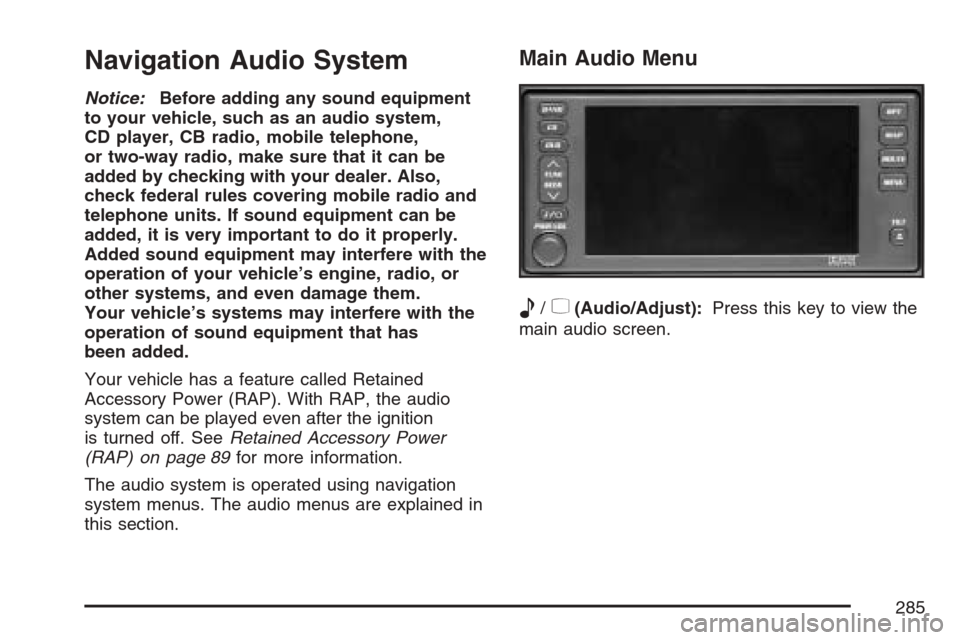
Main Audio Menu
e
/z(Audio/Adjust):Press this key to view the
main audio screen.
285
Page 286 of 512

Preset Selection:Here you can program the
audio system’s presets to recall your home
settings by touching HOME. You can also recall
the presets you use when traveling to another area
by touching AWAY. See “Preset Station Menu”
later in this section for more information on how to
store preset stations.
The Home and Away feature is not available for
the XM™ Satellite Radio source, if equipped.Display Presets on the Map:With this feature
on, your audio system presets for the current audio
source will be displayed on the left of the map
screen. Touch ON to turn this feature on. You may
also choose to turn this feature off.
With this feature on, you can recall your preset
radio stations from the map screen. You cannot
store preset stations from the map screen.
You must do this from the audio screen. See
“Preset Station Menu” later in this section for more
information on storing presets.
Automatic Volume Control (AVC):The system
has Bose AudioPilot
®noise compensation
technology. AudioPilot®monitors the level of noise
in the vehicle and automatically increases or
decreases the level of audio to keep it audible
above the noise.
To use AudioPilot
®, press the ON screen button.
To turn it off, press the OFF screen button.
286
Page 287 of 512
This feature is most effective at lower volume
settings where background noise can affect how
well you hear the music being played through your
vehicle’s audio system. At higher volume
settings, where the music is much louder than the
background noise, there may be little or no
adjustments by AudioPilot
®. For additional
information on AudioPilot®, please visit
www.bose.com.
8(Clock):Touch this screen button to get to the
CLOCK ADJUST menu. See “Clock Adjust
Menu” later in this section for more information.
SCREEN ADJUST:To adjust the brightness
or contrast of the screen, touch SCREEN ADJUST
to display the screen adjust menu. See “Screen
Adjust Menu” later in this section for more
information.
SOUND:Touch this screen button to access the
Sound menu. See “Sound Menu” later in this
section for more information.
DSP (Digital Signal Processing):Touch this
screen button to access the DSP menu. See
“Adjusting the Speakers” later in this section for
more information.
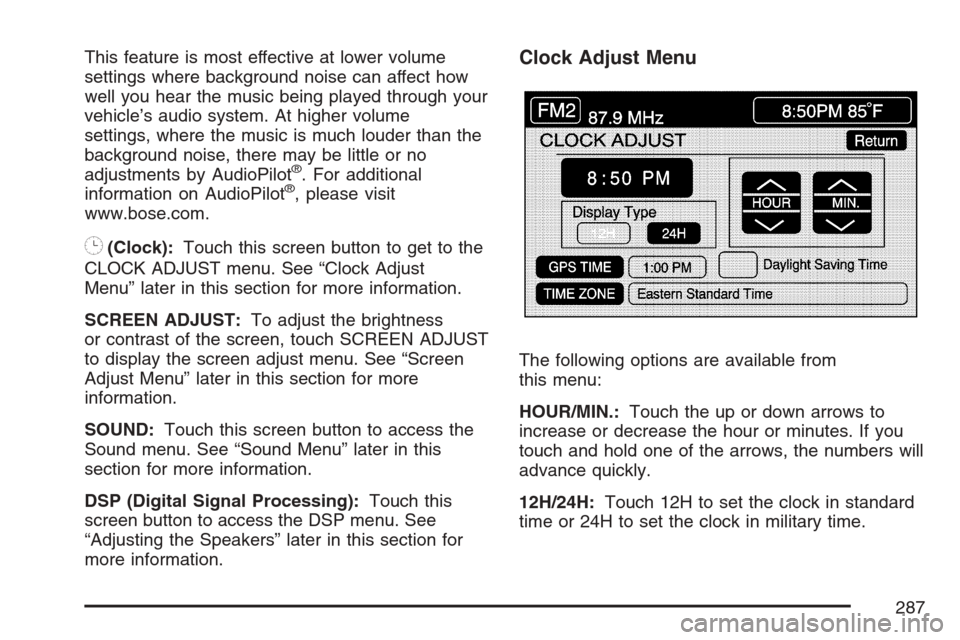
Clock Adjust Menu
The following options are available from
this menu:
HOUR/MIN.:Touch the up or down arrows to
increase or decrease the hour or minutes. If you
touch and hold one of the arrows, the numbers will
advance quickly.
12H/24H:Touch 12H to set the clock in standard
time or 24H to set the clock in military time.
287
Page 289 of 512
AUTO:This setting automatically adjusts the
contrast and brightness of the screen depending
on exterior lighting conditions.
DAY:This setting leaves the screen in day mode.
Day mode is best suited for daylight conditions.
NIGHT:This setting leaves the screen in
night mode. Night mode is best suited for nighttime
conditions.
SCREEN OFF:Touch SCREEN OFF to turn off
the screen. Press any hard key to turn the
screen back on.
SET:Touch SET to save your choices and exit
the CLOCK ADJUST menu.
Language
Your vehicle has been set for the English
language. If you wish to change the language, you
must do so through the Driver Information
Center (DIC). SeeDriver Information Center (DIC)
on page 203for more information.If the language is changed from English, a
majority of the voice guidance prompts and screen
text will change to the selected language.
Remember, the menu screens will not match
word-for-word as they appear in this manual.
Playing the Radio
PWR-VOL (Power-Volume):Press this knob to
turn the audio and navigation systems on and
off. Turn the knob to increase or decrease
the volume to the audio system.
«TUNE/SEEKª:Press the up or down arrow
to go to the next or previous station and stay
there.
BAND:Press this key to switch between AM,
FM1, FM2, XM1, XM 2, or WX, if equipped. If you
are on a map screen and press this key, the
screen will not change but the audio source will.
289
Page 290 of 512
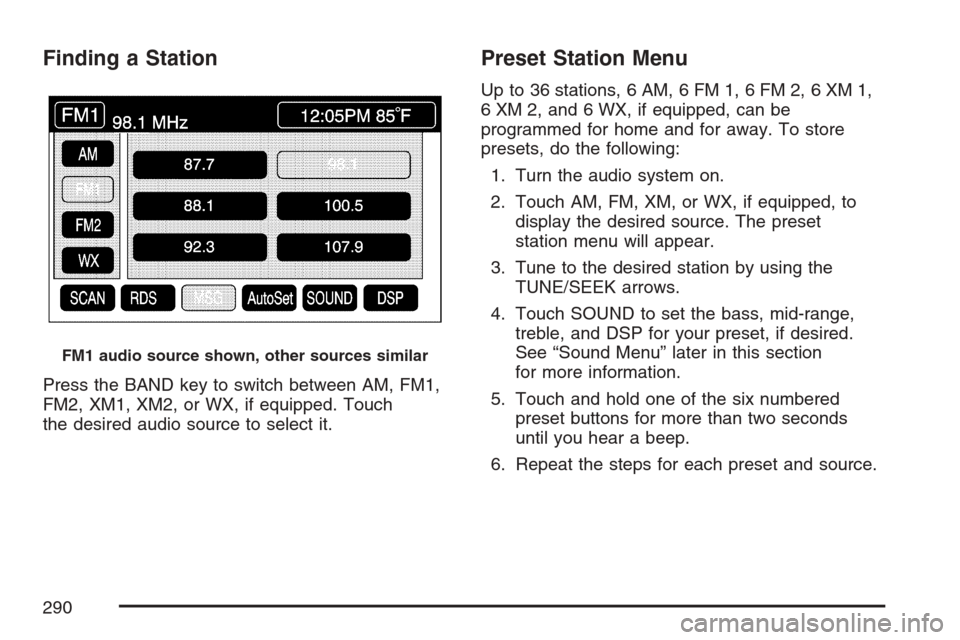
Finding a Station
Press the BAND key to switch between AM, FM1,
FM2, XM1, XM2, or WX, if equipped. Touch
the desired audio source to select it.
Preset Station Menu
Up to 36 stations, 6 AM, 6 FM 1, 6 FM 2, 6 XM 1,
6 XM 2, and 6 WX, if equipped, can be
programmed for home and for away. To store
presets, do the following:
1. Turn the audio system on.
2. Touch AM, FM, XM, or WX, if equipped, to
display the desired source. The preset
station menu will appear.
3. Tune to the desired station by using the
TUNE/SEEK arrows.
4. Touch SOUND to set the bass, mid-range,
treble, and DSP for your preset, if desired.
See “Sound Menu” later in this section
for more information.
5. Touch and hold one of the six numbered
preset buttons for more than two seconds
until you hear a beep.
6. Repeat the steps for each preset and source.
FM1 audio source shown, other sources similar
290
Page 291 of 512
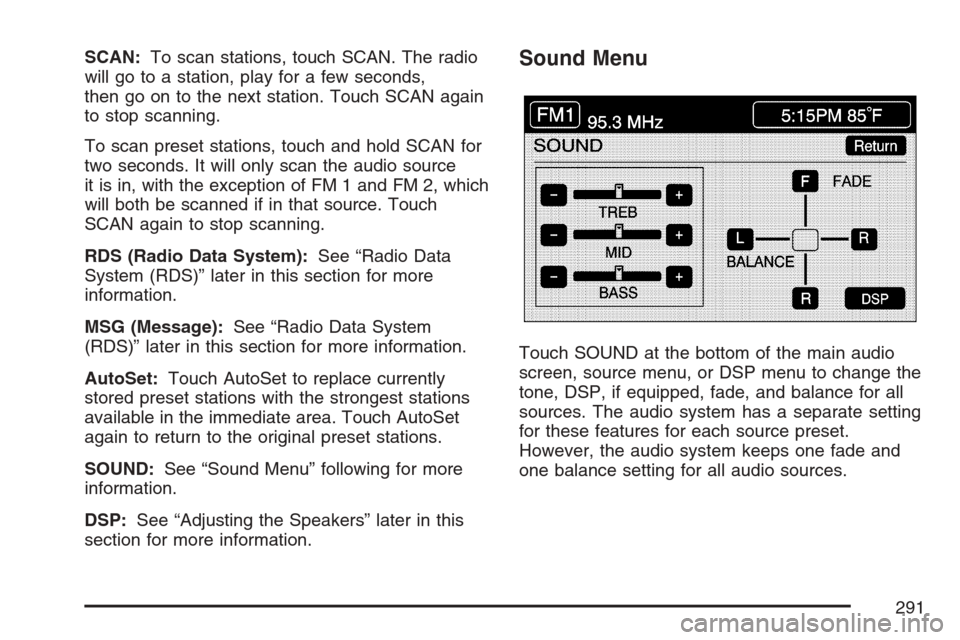
SCAN:To scan stations, touch SCAN. The radio
will go to a station, play for a few seconds,
then go on to the next station. Touch SCAN again
to stop scanning.
To scan preset stations, touch and hold SCAN for
two seconds. It will only scan the audio source
it is in, with the exception of FM 1 and FM 2, which
will both be scanned if in that source. Touch
SCAN again to stop scanning.
RDS (Radio Data System):See “Radio Data
System (RDS)” later in this section for more
information.
MSG (Message):See “Radio Data System
(RDS)” later in this section for more information.
AutoSet:Touch AutoSet to replace currently
stored preset stations with the strongest stations
available in the immediate area. Touch AutoSet
again to return to the original preset stations.
SOUND:See “Sound Menu” following for more
information.
DSP:See “Adjusting the Speakers” later in this
section for more information.Sound Menu
Touch SOUND at the bottom of the main audio
screen, source menu, or DSP menu to change the
tone, DSP, if equipped, fade, and balance for all
sources. The audio system has a separate setting
for these features for each source preset.
However, the audio system keeps one fade and
one balance setting for all audio sources.
291
Page 293 of 512

Adjusting the Speakers
DSP (Digital Signal Processing):The DSP
feature is used to provide a choice of four different
listening experiences. DSP can be used while
listening to the audio system or the CD player. The
audio system can store separate DSP settings
for each source and preset station, except
WX, which is always set to TALK.To save DSP settings for your preset stations, use
the SOUND menu or touch DSP from the preset
station menu to access the DSP menu. See
“Sound Menu” listed previously in this section for
more information.
Touch DSP to change the following options:
ON/OFF:Touch ON/OFF to turn DSP on and off.
DRIVER SEAT:Touch this button to adjust
the audio to give the driver the best possible sound
quality.
TALK:TALK makes spoken words sound very
clear. Touch this button when listening to
non-musical material such as news, talk shows,
and sports broadcasts.
SPACIOUS:Touch this button to make the
listening space seem larger.
SOUND:Touch SOUND to access the Sound
menu. See “Sound Menu” listed previously in this
section for more information.
293
Page 294 of 512
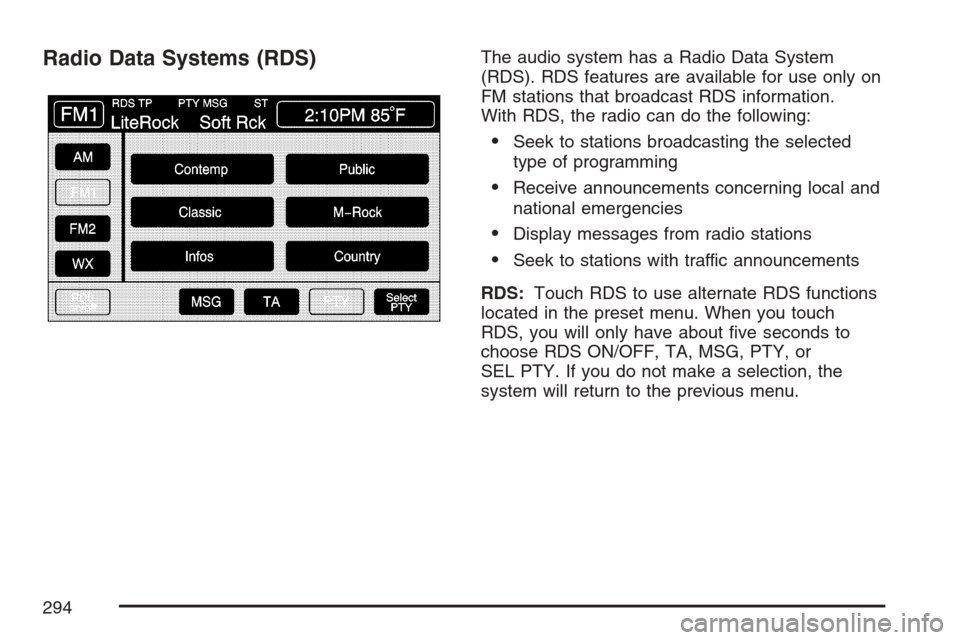
Radio Data Systems (RDS)The audio system has a Radio Data System
(RDS). RDS features are available for use only on
FM stations that broadcast RDS information.
With RDS, the radio can do the following:
Seek to stations broadcasting the selected
type of programming
Receive announcements concerning local and
national emergencies
Display messages from radio stations
Seek to stations with traffic announcements
RDS:Touch RDS to use alternate RDS functions
located in the preset menu. When you touch
RDS, you will only have about ve seconds to
choose RDS ON/OFF, TA, MSG, PTY, or
SEL PTY. If you do not make a selection, the
system will return to the previous menu.
294