service CADILLAC XT4 2024 Owner's Manual
[x] Cancel search | Manufacturer: CADILLAC, Model Year: 2024, Model line: XT4, Model: CADILLAC XT4 2024Pages: 373, PDF Size: 8.01 MB
Page 106 of 373

Cadillac XT4 Owner Manual (GMNA-Localizing-U.S./Canada/Mexico-
17180837) - 2024 - CRC - 2/28/23
Instruments and Controls 105
This light should come on briefly when the
vehicle is turned on. If it does not come on,
have it fixed so it will be ready to warn if
there is a problem.
If this light stays on or comes on while
driving, there is a problem with the Electric
Parking Brake (EPB). Take the vehicle to a
dealer as soon as possible. In addition to the
parking brake, other safety functions that
utilize the EPB may also be degraded.
A message may also display in the Driver
Information Center (DIC). SeeElectric Parking
Brake 0187.
Antilock Brake System (ABS)
Warning Light
This light comes on briefly when the vehicle
is turned on to show that the light is
working. If it does not come on then, have
it fixed so it will be ready to warn you if
there is a problem. If the ABS warning light stays on, or comes
on again while driving, the vehicle needs
service. A chime may also sound when the
light stays on.
If the ABS warning light is the only light on,
the vehicle has regular brakes, but ABS is
not functioning.
If both the ABS warning light and the brake
system warning light are on, ABS is not
functioning and there is a problem with the
regular brakes. See your dealer for service.
See
Brake System Warning Light 0104.
Gear Shifting Light
If equipped, this light comes on when a gear
shift is recommended for best fuel economy.
When the arrow is pointed up, an upshift is
recommended. When the arrow is pointed
down, a downshift is recommended. The
number displayed with the arrow indicates
the recommended gear.
Performance Shifting Light
If equipped, this light may display green
when Sport Mode is activated and certain
driving conditions are met. Sport Mode
detects when the vehicle is being driven in a
sporty manner, and adjusts the shifting of
the gears accordingly. See Driver Mode
Control 0190.
All-Wheel-Drive Light
All-Wheel-Drive LightFront-Wheel-Drive
Light
If equipped, the corresponding light comes
on when an All-Wheel Drive (AWD) mode or
Front-Wheel-Drive mode is selected. See
All-Wheel Drive 0186.
Page 109 of 373

Cadillac XT4 Owner Manual (GMNA-Localizing-U.S./Canada/Mexico-
17180837) - 2024 - CRC - 2/28/23
108 Instruments and Controls
Engine Coolant Temperature
Warning Light
On some vehicles this light comes on briefly
while starting the vehicle. If it does not,
have the vehicle serviced by the dealer.
If the system is working normally the
indicator light goes off. For vehicles with the
reconfigurable cluster, this light may not
come on when starting the vehicle.
Caution
The engine coolant temperature warning
light indicates that the vehicle has
overheated. Driving with this light on can
damage the engine and it may not be
covered by the vehicle warranty. See
Engine Overheating0271.
The engine coolant temperature warning
light comes on when the engine has
overheated. If this happens pull over and turn off the
engine as soon as possible. See
Engine
Overheating 0271.
Driver Mode Control Light
This light comes on when Normal Mode is
selected.
This light comes on when Sport Mode is
selected.
This light comes on when Snow/Ice Mode is
selected.
This light comes on when Off-Road Mode is
selected.
This light comes on when My Mode is
selected. See Driver Mode Control 0190.
Tire Pressure Light
Page 110 of 373
Cadillac XT4 Owner Manual (GMNA-Localizing-U.S./Canada/Mexico-
17180837) - 2024 - CRC - 2/28/23
Instruments and Controls 109
If equipped with the Tire Pressure Monitor
System (TPMS), this light comes on briefly
when the vehicle is started. It provides
information about tire pressures and
the TPMS.
When the Light Is On Steady
This indicates that one or more of the tires
are significantly underinflated.
A Driver Information Center (DIC) tire
pressure message may also display. Stop as
soon as possible, and inflate the tires to the
pressure value shown on the Tire and
Loading Information label. SeeTire Pressure
0 292.
When the Light Flashes First and Then Is On
Steady
If the light flashes for about a minute and
then stays on, there may be a problem with
the TPMS. If the problem is not corrected,
the light will come on every time the
vehicle is started. See Tire Pressure Monitor
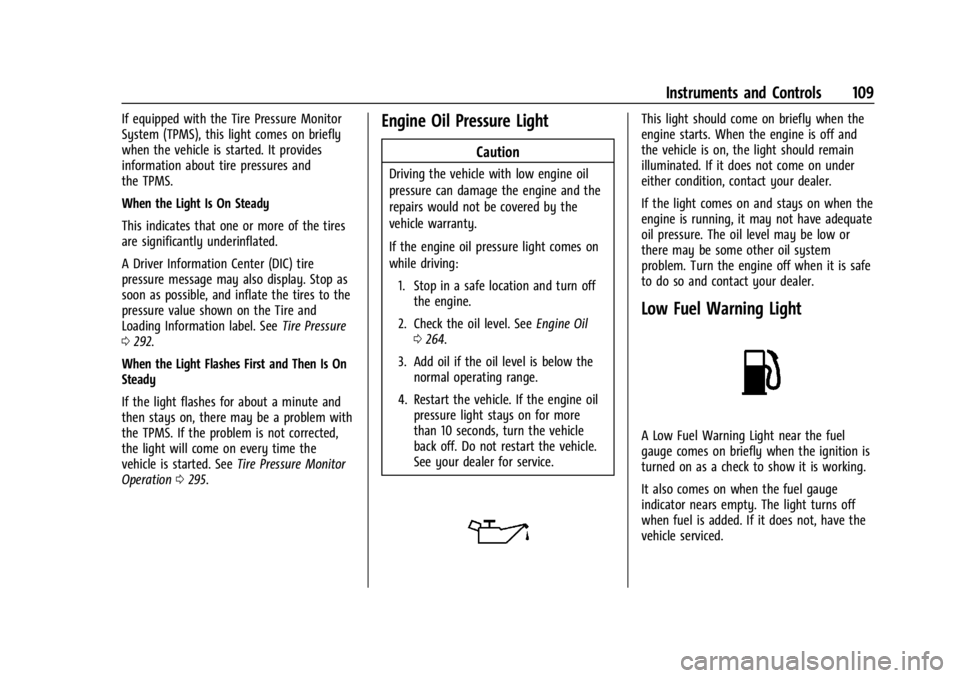
Operation 0295.Engine Oil Pressure Light
Caution
Driving the vehicle with low engine oil
pressure can damage the engine and the
repairs would not be covered by the
vehicle warranty.
If the engine oil pressure light comes on
while driving:
1. Stop in a safe location and turn off the engine.
2. Check the oil level. See Engine Oil
0 264.
3. Add oil if the oil level is below the normal operating range.
4. Restart the vehicle. If the engine oil pressure light stays on for more
than 10 seconds, turn the vehicle
back off. Do not restart the vehicle.
See your dealer for service.
This light should come on briefly when the
engine starts. When the engine is off and
the vehicle is on, the light should remain
illuminated. If it does not come on under
either condition, contact your dealer.
If the light comes on and stays on when the
engine is running, it may not have adequate
oil pressure. The oil level may be low or
there may be some other oil system
problem. Turn the engine off when it is safe
to do so and contact your dealer.
Low Fuel Warning Light
A Low Fuel Warning Light near the fuel
gauge comes on briefly when the ignition is
turned on as a check to show it is working.
It also comes on when the fuel gauge
indicator nears empty. The light turns off
when fuel is added. If it does not, have the
vehicle serviced.
Page 111 of 373

Cadillac XT4 Owner Manual (GMNA-Localizing-U.S./Canada/Mexico-
17180837) - 2024 - CRC - 2/28/23
110 Instruments and Controls
Auto Stop Indicator
This light comes on when the engine is in
an Auto Stop.
SeeStop/Start System 0176.
Security Light
The security light should come on briefly as
the vehicle is started. If it does not come
on, have the vehicle serviced by your dealer.
If the system is working normally, the
indicator light turns off.
If the light stays on and the vehicle does
not start, there could be a problem with the
theft-deterrent system.
High-Beam On Light
This light comes on when the high-beam
headlamps are in use.
See Headlamp High/Low-Beam Changer
0 124.
See Exterior Lamp Controls 0122.
Automatic High-Beam Light
If equipped, this light comes on when the
IntelliBeam system or Adaptive Headlight
system is enabled.
See Exterior Lamp Controls 0122.
Adaptive Forward Lighting (AFL)
Light
If equipped, this light comes on solid when
there is a problem with the AFL system or
Adaptive Headlight system.
See Adaptive Forward Lighting (AFL) 0125.
See Exterior Lamp Controls 0122.
Lamps On Reminder
This light comes on when the exterior lamps
are in use, except when only the Daytime
Running Lamps (DRL) are active. See Exterior
Lamp Controls 0122.
Page 119 of 373
Cadillac XT4 Owner Manual (GMNA-Localizing-U.S./Canada/Mexico-
17180837) - 2024 - CRC - 2/28/23
118 Instruments and Controls
If the HUD image is not correct, contact
your dealer.
The windshield is part of the HUD system.
SeeWindshield Replacement 0276.
Vehicle Messages
Messages displayed on the Driver
Information Center (DIC) indicate the status
of the vehicle or some action that may be
needed to correct a condition. Multiple
messages may appear one after another.
Vehicle status notifications are also sent to
the infotainment display. Touching
Uon
the infotainment display opens the
notification drawer where all the active
vehicle messages can be viewed. Depending
on the message, you can schedule a service
or find the nearest dealer. When there are
active messages that can be viewed, a red
dot appears on top of the notification icon
on the infotainment display.
The messages that do not require
immediate action can be acknowledged and
cleared by pressing the thumbwheel. The
messages that require immediate action
cannot be cleared until that action is
performed. All messages should be taken seriously;
clearing the message does not correct the
problem.
If a SERVICE message appears, see your
dealer.
Follow the instructions given in the
messages. The system displays messages
regarding the following topics:
.Service Messages
.Fluid Levels
.Vehicle Security
.Brakes
.Ride Control Systems
.Advanced Driver Assistance Systems
.Cruise Control
.Lighting and Bulb Replacement
.Wiper/Washer Systems
.Doors and Windows
.Seat Belts
.Airbag Systems
.Propulsion
.Tire Pressure
.Battery
.Steering
Engine Power Messages
REDUCED ACCELERATION DRIVE
WITH CARE
This message displays when the vehicle's
propulsion power is reduced. A reduction in
propulsion power can affect the vehicle's
ability to accelerate. If this message is on,
but there is no observed reduction in
performance, proceed to your destination.
Under certain conditions the performance
may be reduced the next time the vehicle is
driven. The vehicle may be driven while this
message is on, but maximum acceleration
and speed may be reduced. Anytime this
message stays on, or displays repeatedly,
the vehicle should be taken to your dealer
for service as soon as possible.
Under certain operating conditions,
propulsion will be disabled. Try restarting
after the ignition has been off for
two minutes.
Vehicle Speed Messages
SPEED LIMITED TO XXX KM/H (MPH)
This message shows that the vehicle speed
has been limited to the speed displayed. The
limited speed is a protection for various
Page 134 of 373
Cadillac XT4 Owner Manual (GMNA-Localizing-U.S./Canada/Mexico-
17180837) - 2024 - CRC - 2/28/23
Infotainment System 133
yorz:Use the thumbwheel to scroll to
the previous or next selection.
V: Press the thumbwheel to open a menu
or select a menu item. Press and hold to
reset certain displays.
x+ orx− :Press to increase or decrease
the volume.
Using the System
Audio
Touch the Audio icon on the infotainment
display or
eon the Multifunction Controler
(MFC) to display the active audio source
page. Examples of available sources may
include AM, FM, SXM (if equipped), USB, and
Bluetooth.
Phone
Touch the Phone icon on the infotainment
display or
6on the MFC to display the
Phone menu. See Bluetooth (Overview)
0 144 orBluetooth (Pairing and Using a
Phone) 0145.
Maps
Touch the Maps icon to display the Google
Maps screen. See Using the Navigation
System 0139.
Google Assistant
Touch the Google Assistant icon to open the
Google Assistant app. See Voice Recognition
0 142.
Google Play
Touch to download some of your favorite
apps in your vehicle. Downloading apps on
Google Play require you to sign into a
Google Account with an active service plan
with data. Some third-party apps require a
separate account and, in some cases, a paid
subscription for in-vehicle access.
Apple CarPlay
Touch the Apple CarPlay icon to activate
Apple CarPlay (if equipped) after a
supported device is connected. See Apple
CarPlay and Android Auto 0148.
Android Auto
Touch the Android Auto icon to activate
Android Auto (if equipped) after a supported
device is connected. See Apple CarPlay and
Android Auto 0148.
Settings
Touch the Settings icon to display the
Settings menu. See Settings0150.
Controls
Touch the Controls icon to display the
Controls menu.
Application Tray
The Application Tray is along the bottom of
the display. It shows up to six applications.
Infotainment Gestures
Use the following finger gestures to control
the infotainment system.
Page 138 of 373
Cadillac XT4 Owner Manual (GMNA-Localizing-U.S./Canada/Mexico-
17180837) - 2024 - CRC - 2/28/23
Infotainment System 137
RDS features
.Display radio station call letters
.Display messages from radio stations
.Provide radio station category information
(when available)
Satellite Radio
SiriusXM Radio Service
If equipped, vehicles with a valid SiriusXM
radio subscription can receive SiriusXM
programming.
SiriusXM radio has a wide variety of
programming and commercial-free music,
coast to coast, in digital-quality sound. In
the U.S., see www.siriusxm.com or call
1-888-601-6296. In Canada, see
www.siriusxm.ca or call 1-877-438-9677.
When SiriusXM is active, the channel name,
number, song title, and artist appear on the
display.
SiriusXM with 360L
SiriusXM with 360L interface has enhanced
in-vehicle listening experience for
subscribers. The experience now offers more
categories and system learned
recommendations toward discovering more
personalized content.To use the full SiriusXM 360L program,
including streaming content and listening
recommendations, OnStar Connected Access
is required and Terms and Conditions
accepted. Connected vehicle services vary by
model and require a complete working
electrical system, cell reception, and GPS
signal.
Reference the SiriusXM user guide for use
and subscription information.
Playing SiriusXM Content
Touchr,j,ror[on the now playing
screen to rewind, pause, play, or fast
forward content.
Finding a Channel
From the SiriusXM now playing screen,
touch
oCH or CHpto open the SXM tuner
channel list.
To directly tune to a channel, touch the
Tune icon to enter a channel number using
the keypad.
Browsing Content
Touch(to view different browsing
content. Browse will include Channels, Music, On
Demand shows and episodes, Sports and
News content.
SiriusXM Settings
From the SiriusXM now playing screen,
touch the user settings icon in the upper
right to display the SiriusXM settings
The settings include subscription
information, help and support, and listener
preferences.
Radio Reception
Unplug electronic devices from the accessory
power outlets if there is interference or
static in the radio.
FM
FM signals only reach about 16 to 65 km (10
to 40 mi). Although the radio has a built-in
electronic circuit that automatically works to
reduce interference, some static can occur,
especially around tall buildings or hills,
causing the sound to fade in and out.
AM
The range for most AM stations is greater
than for FM, especially at night. The longer
range can cause station frequencies to
Page 139 of 373
Cadillac XT4 Owner Manual (GMNA-Localizing-U.S./Canada/Mexico-
17180837) - 2024 - CRC - 2/28/23
138 Infotainment System
interfere with each other. Static can also
occur when things like storms and power
lines interfere with radio reception. When
this happens, try reducing the treble on the
radio.
SiriusXM Satellite Radio Service
If equipped, SiriusXM Satellite Radio Service
provides digital radio reception. Tall
buildings or hills can interfere with satellite
radio signals, causing the sound to fade in
and out. In addition, traveling or standing
under heavy foliage, bridges, garages,
or tunnels may cause loss of the SiriusXM
signal for a period of time. Some cellular
services may interfere with SXM reception
causing loss of signal.
Mobile Device Usage
Mobile device usage, such as making or
receiving calls, charging, or just having the
mobile device on may cause static
interference in the radio. Unplug the mobile
device or turn it off if this happens.
Multi-Band Antenna
The multi-band roof antenna may be used
for radio, navigation, and other
communication systems, depending on the
equipped options. To ensure clear reception,keep the antenna clear of obstructions, such
as snow and ice. If the vehicle has a
sunroof, and it is open, or a roof loaded
with cargo, reception may be affected.
Audio Players
Avoiding Untrusted Media Devices
When using media devices such as USB and
mobile devices, consider the source.
Untrusted media devices could contain files
that affect system operation or performance
and should be avoided.
USB Port
The vehicle may be equipped with multiple
USB ports. Ports may also be used for
charging. Music may be played from a
connected USB device.
Caution
To avoid vehicle damage, unplug all
accessories and disconnect all accessory
cables from the vehicle when not in use.
Accessory cables left plugged into the
vehicle, unconnected to a device, could be
damaged or cause an electrical short if
(Continued)
Caution (Continued)
the unconnected end comes in contact
with liquids or another power source such
as the accessory power outlet.
USB Audio
To play music via USB:
1. On the audio now playing page, touch source and select USB.
2. If there is no device connected, follow the screen prompts to connect the
device.
3. Supported media content will appear on the display.
Bluetooth Audio
Music may be played from a connected
Bluetooth device.
Volume and song selection may be
controlled by using the infotainment
controls. If Bluetooth is selected and no
volume is present, check the volume setting
on the infotainment system or the
connected phone.
Page 140 of 373
Cadillac XT4 Owner Manual (GMNA-Localizing-U.S./Canada/Mexico-
17180837) - 2024 - CRC - 2/28/23
Infotainment System 139
To play music via Bluetooth:1. On the audio now playing page, touch source and select the desired Bluetooth
device.
2. If there is no device connected, follow the screen prompts to pair the device.
3. Supported media content will appear on the display.
Manage Bluetooth Devices
Managing Bluetooth devices allows you to
add, delete, or select another paired device.
Only one Bluetooth device can be active at
a time.
Some smartphones support sending
Bluetooth music information to display on
the radio. When the radio receives this
information, it will check to see if any is
available and display it. For more
information about supported Bluetooth
features, visit your brand website. See
Online Account 0342 for details.
See Radio Frequency Statement 0348.Navigation
Using the Navigation System
The Navigation software is provided by
Google Maps. The information provided in
this section is a general overview and is
subject to change. For the latest functional
information, see g.co/mapsincar.
Accept the Terms and Conditions to use.
Internet Connectivity
Google Maps relies on a subscription data
plan for full functionality, including
availability of offline maps. With an
applicable connected services plan, Google
Maps can be used offline when driving
through connectivity dead zones by
auto-downloading offline maps prior to
going offline.
Profiles
Sign in to a Google Account for personalized
service. Information available in the Google
Account will be shown.
To log into a profile, see Accounts under
Settings 0150. Voice Assistant
If equipped, Google Maps can be controlled
by voice commands, see Google Assistant
under
Voice Recognition 0142.
Language and Units
To change the language and units, see
Settings 0150.
Mute Settings
During active route guidance, Google Maps
can give audible voice directions, traffic
alerts, or can be muted. In the Google Maps
app, touch Settings, then Mute settings to
access the options. Alternatively, audible
voice directions and traffic alerts can be
muted by touching the sound icon on the
turn card during active navigation.
Compass
The Google Maps orientation can be
changed between the direction currently
traveling, north, and route overview. Touch
the compass to switch between these
options.
To recenter the map to the current location,
touch the location icon.
Page 141 of 373
Cadillac XT4 Owner Manual (GMNA-Localizing-U.S./Canada/Mexico-
17180837) - 2024 - CRC - 2/28/23
140 Infotainment System
Super Cruise
If equipped, Super Cruise highlights routes in
a specific outline, seeSuper Cruise0206.
Maps
Auto-downloaded Maps
Google Maps downloads maps automatically
for use when not connected to the Internet.
Offline maps make map data available to
vehicle features regardless of connectivity.
These offline maps are only available with
an applicable connected services plan.
To turn on auto-download:
1. Open Google Maps.
2. Touch the settings icon.
3. Touch Privacy center, then select Offline maps.
4. Select Auto-download offline maps.
5. Check the Internet connection and wait for the download to finish.
Downloading Offline Maps 1. Open Google Maps.
2. Touch Settings, then Offline maps.
3. Touch the Select your own map square icon. 4. Adjust the map to cover the desired area
to download.
5. Touch Download.
Navigation Symbols
The following are the most common
symbols that may appear in Google Maps.
This indicates the vehicle’s current location
and direction on the map.
The destination pin marks the location of
the final destination. Touch the pin to view
the destination address or to add it or
remove it from the Favorites list. Hide the
information by touching the pin one more
time. It will automatically time out if no
action is taken. A second pin in the menu is the route
overview. Touch this pin to show more
details of the destination or to remove the
destination.
Destination
Searching for a Destination
A destination can be searched using Google
Assistant.
To search for a destination without Google
Assistant:
1. Open Google Maps.
2. Touch the Search field.
3. Enter the destination.
4. Touch the navigation icon.
Alternate Routes
Alternate routes are displayed as separate
lines. While in either turn-by-turn navigation
or on the route overview, touch the
suggested alternate route.
Adding a Stop on Route by Voice 1. While in turn-by-turn navigation, touch the Search icon at the bottom.
2. Touch the Google Assistant mic icon and say the destination to search by voice.