instrument cluster CADILLAC XT5 2017 1.G User Guide
[x] Cancel search | Manufacturer: CADILLAC, Model Year: 2017, Model line: XT5, Model: CADILLAC XT5 2017 1.GPages: 339, PDF Size: 2.75 MB
Page 119 of 339

Cadillac XT5 Owner Manual (GMNA-Localizing-MidEast-10260744) - 2017 -
crc - 1/14/16
Instruments and Controls 119
Instrument Cluster (Uplevel Cluster)
Page 120 of 339
Cadillac XT5 Owner Manual (GMNA-Localizing-MidEast-10260744) - 2017 -
crc - 1/14/16
120 Instruments and Controls
Cluster Menu
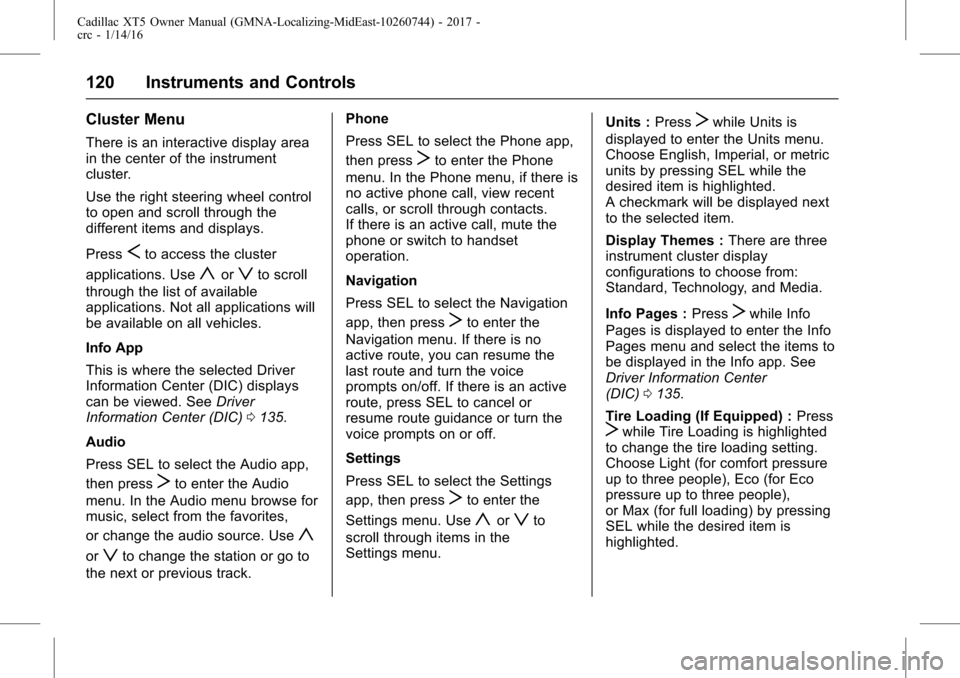
There is an interactive display area
in the center of the instrument
cluster.
Use the right steering wheel control
to open and scroll through the
different items and displays.
Press
Sto access the cluster
applications. Use
yorzto scroll
through the list of available
applications. Not all applications will
be available on all vehicles.
Info App
This is where the selected Driver
Information Center (DIC) displays
can be viewed. See Driver
Information Center (DIC) 0135.
Audio
Press SEL to select the Audio app,
then press
Tto enter the Audio
menu. In the Audio menu browse for
music, select from the favorites,
or change the audio source. Use
y
orzto change the station or go to
the next or previous track. Phone
Press SEL to select the Phone app,
then press
Tto enter the Phone
menu. In the Phone menu, if there is
no active phone call, view recent
calls, or scroll through contacts.
If there is an active call, mute the
phone or switch to handset
operation.
Navigation
Press SEL to select the Navigation
app, then press
Tto enter the
Navigation menu. If there is no
active route, you can resume the
last route and turn the voice
prompts on/off. If there is an active
route, press SEL to cancel or
resume route guidance or turn the
voice prompts on or off.
Settings
Press SEL to select the Settings
app, then press
Tto enter the
Settings menu. Use
yorzto
scroll through items in the
Settings menu. Units :
Press
Twhile Units is
displayed to enter the Units menu.
Choose English, Imperial, or metric
units by pressing SEL while the
desired item is highlighted.
A checkmark will be displayed next
to the selected item.
Display Themes : There are three
instrument cluster display
configurations to choose from:
Standard, Technology, and Media.
Info Pages : Press
Twhile Info
Pages is displayed to enter the Info
Pages menu and select the items to
be displayed in the Info app. See
Driver Information Center
(DIC) 0135.
Tire Loading (If Equipped) : Press
Twhile Tire Loading is highlighted
to change the tire loading setting.
Choose Light (for comfort pressure
up to three people), Eco (for Eco
pressure up to three people),
or Max (for full loading) by pressing
SEL while the desired item is
highlighted.
Page 124 of 339
Cadillac XT5 Owner Manual (GMNA-Localizing-MidEast-10260744) - 2017 -
crc - 1/14/16
124 Instruments and Controls
.Stop and go driving in heavy
traffic.
. High speed operation in warm
weather.
. Uphill driving.
. Trailer towing or hauling a
heavy load.
It is normal for the reading to
fluctuate.
If the gauge pointer reaches the
warning area or the shaded
thermostat symbol at the far end of
the gauge and remains there for
more than 30 seconds, the engine
coolant has overheated.
If the engine coolant has
overheated, pull over and stop the
vehicle as soon as it is safe to do
so. Then, turn the engine off
immediately.
See Engine Overheating 0260.Voltmeter Gauge (Uplevel
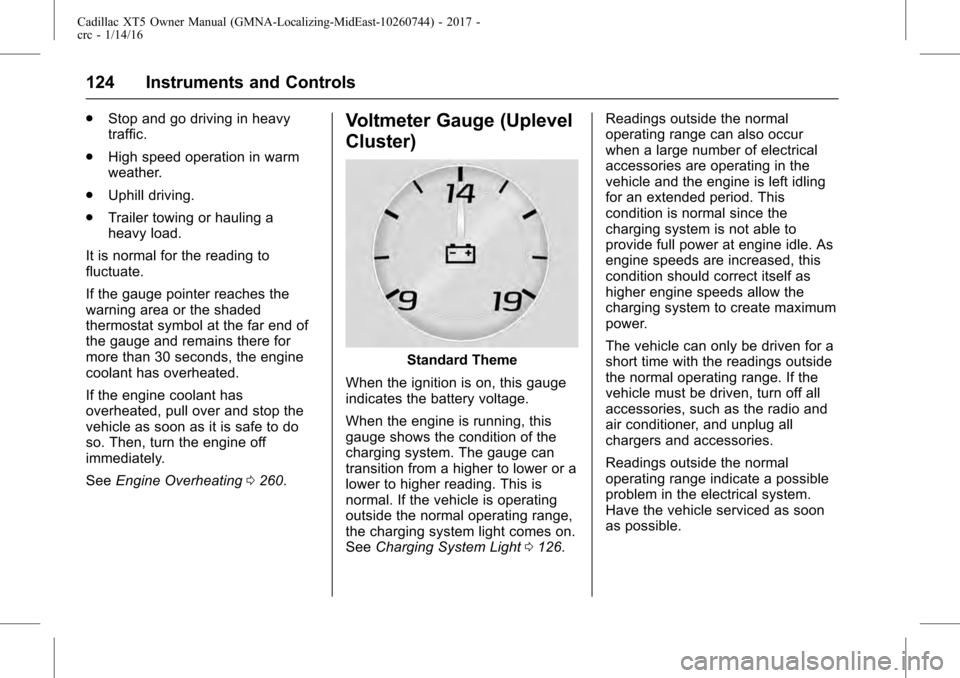
Cluster)
Standard Theme
When the ignition is on, this gauge
indicates the battery voltage.
When the engine is running, this
gauge shows the condition of the
charging system. The gauge can
transition from a higher to lower or a
lower to higher reading. This is
normal. If the vehicle is operating
outside the normal operating range,
the charging system light comes on.
See Charging System Light 0126. Readings outside the normal
operating range can also occur
when a large number of electrical
accessories are operating in the
vehicle and the engine is left idling
for an extended period. This
condition is normal since the
charging system is not able to
provide full power at engine idle. As
engine speeds are increased, this
condition should correct itself as
higher engine speeds allow the
charging system to create maximum
power.
The vehicle can only be driven for a
short time with the readings outside
the normal operating range. If the
vehicle must be driven, turn off all
accessories, such as the radio and
air conditioner, and unplug all
chargers and accessories.
Readings outside the normal
operating range indicate a possible
problem in the electrical system.
Have the vehicle serviced as soon
as possible.
Page 125 of 339
Cadillac XT5 Owner Manual (GMNA-Localizing-MidEast-10260744) - 2017 -
crc - 1/14/16
Instruments and Controls 125
Safety Belt Reminders
Driver Safety Belt Reminder
Light
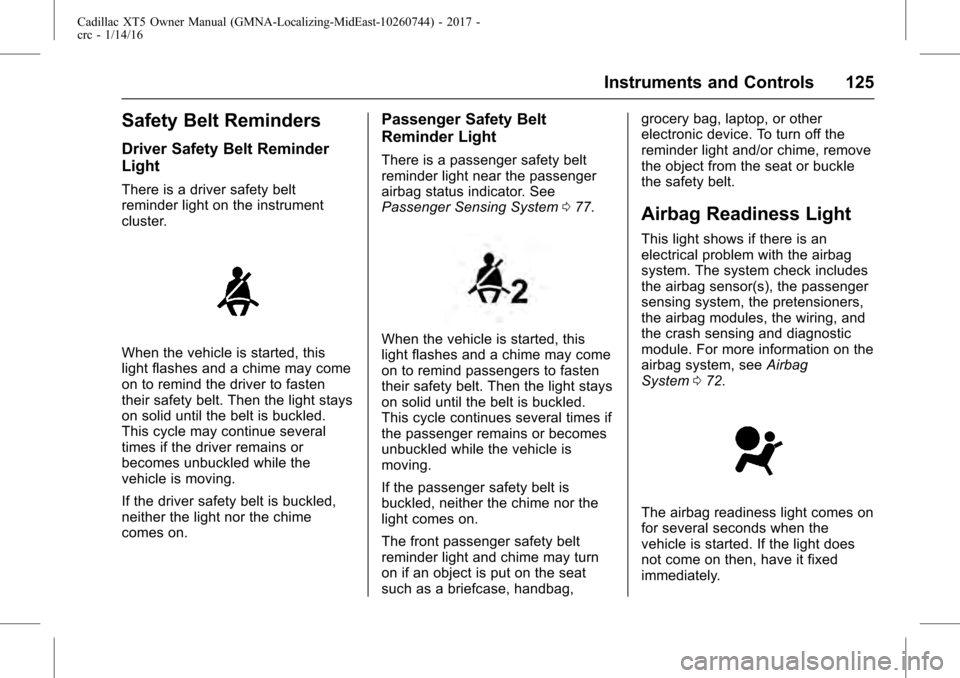
There is a driver safety belt
reminder light on the instrument
cluster.
When the vehicle is started, this
light flashes and a chime may come
on to remind the driver to fasten
their safety belt. Then the light stays
on solid until the belt is buckled.
This cycle may continue several
times if the driver remains or
becomes unbuckled while the
vehicle is moving.
If the driver safety belt is buckled,
neither the light nor the chime
comes on.
Passenger Safety Belt
Reminder Light
There is a passenger safety belt
reminder light near the passenger
airbag status indicator. See
Passenger Sensing System077.
When the vehicle is started, this
light flashes and a chime may come
on to remind passengers to fasten
their safety belt. Then the light stays
on solid until the belt is buckled.
This cycle continues several times if
the passenger remains or becomes
unbuckled while the vehicle is
moving.
If the passenger safety belt is
buckled, neither the chime nor the
light comes on.
The front passenger safety belt
reminder light and chime may turn
on if an object is put on the seat
such as a briefcase, handbag, grocery bag, laptop, or other
electronic device. To turn off the
reminder light and/or chime, remove
the object from the seat or buckle
the safety belt.
Airbag Readiness Light
This light shows if there is an
electrical problem with the airbag
system. The system check includes
the airbag sensor(s), the passenger
sensing system, the pretensioners,
the airbag modules, the wiring, and
the crash sensing and diagnostic
module. For more information on the
airbag system, see
Airbag
System 072.
The airbag readiness light comes on
for several seconds when the
vehicle is started. If the light does
not come on then, have it fixed
immediately.
Page 129 of 339
Cadillac XT5 Owner Manual (GMNA-Localizing-MidEast-10260744) - 2017 -
crc - 1/14/16
Instruments and Controls 129
Brake System Warning
Light
The vehicle brake system consists
of two hydraulic circuits. If one
circuit is not working, the remaining
circuit can still work to stop the
vehicle. For normal braking
performance, both circuits need to
be working.
If the warning light comes on, there
is a problem with the braking
system. Have the brake system
inspected right away.
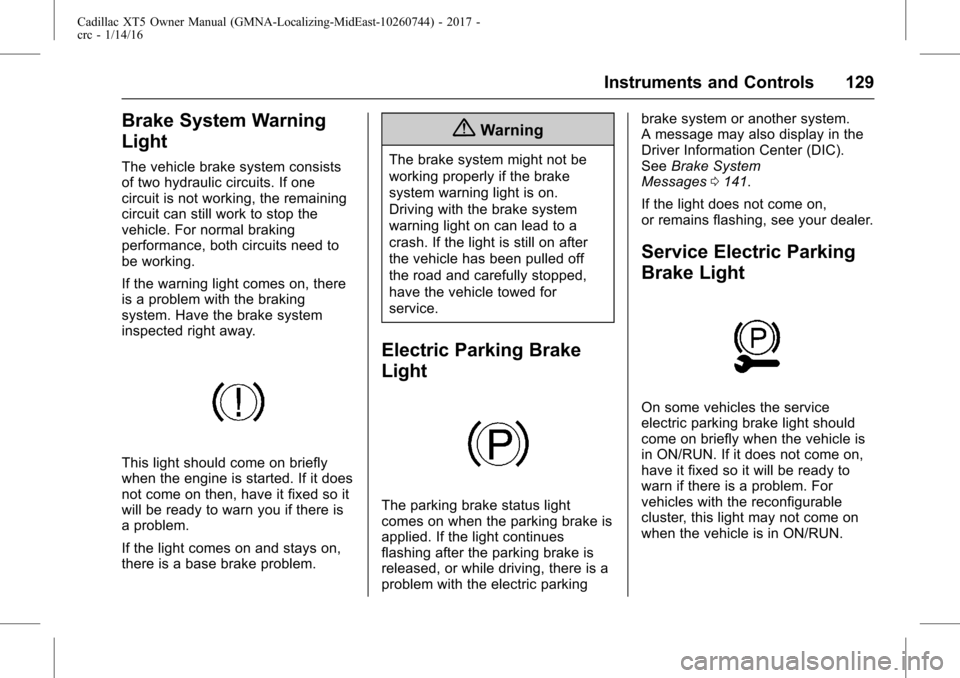
This light should come on briefly
when the engine is started. If it does
not come on then, have it fixed so it
will be ready to warn you if there is
a problem.
If the light comes on and stays on,
there is a base brake problem.
{Warning
The brake system might not be
working properly if the brake
system warning light is on.
Driving with the brake system
warning light on can lead to a
crash. If the light is still on after
the vehicle has been pulled off
the road and carefully stopped,
have the vehicle towed for
service.
Electric Parking Brake
Light
The parking brake status light
comes on when the parking brake is
applied. If the light continues
flashing after the parking brake is
released, or while driving, there is a
problem with the electric parkingbrake system or another system.
A message may also display in the
Driver Information Center (DIC).
See
Brake System
Messages 0141.
If the light does not come on,
or remains flashing, see your dealer.
Service Electric Parking
Brake Light
On some vehicles the service
electric parking brake light should
come on briefly when the vehicle is
in ON/RUN. If it does not come on,
have it fixed so it will be ready to
warn if there is a problem. For
vehicles with the reconfigurable
cluster, this light may not come on
when the vehicle is in ON/RUN.
Page 130 of 339
Cadillac XT5 Owner Manual (GMNA-Localizing-MidEast-10260744) - 2017 -
crc - 1/14/16
130 Instruments and Controls
If this light stays on, the vehicle
should be taken to a dealer as soon
as possible. SeeElectric Parking
Brake 0204. If a message displays
in the Driver Information Center
(DIC), see Brake System
Messages 0141.
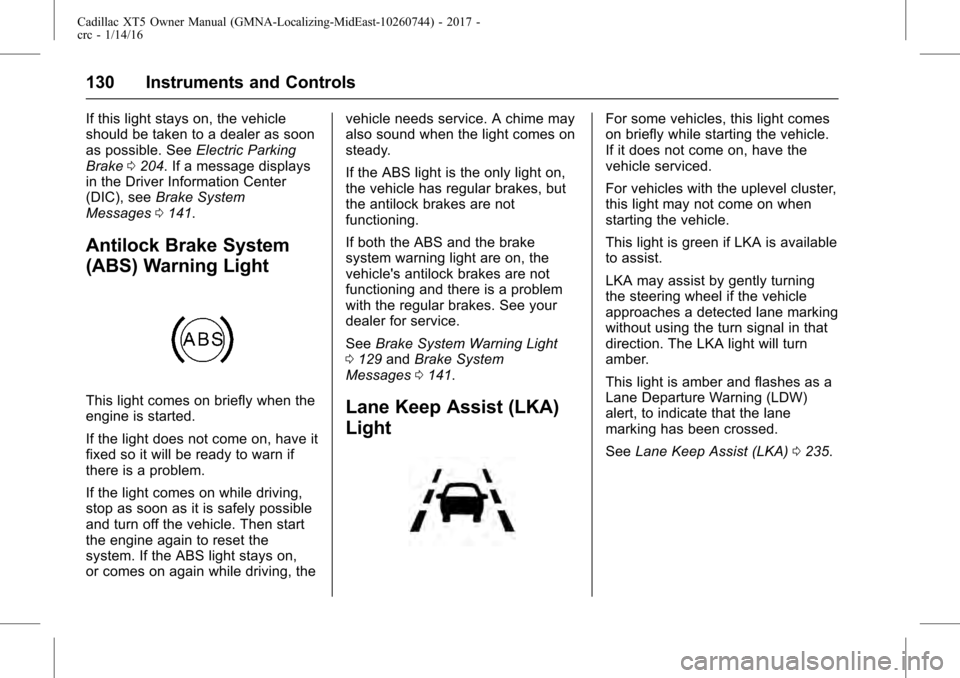
Antilock Brake System
(ABS) Warning Light
This light comes on briefly when the
engine is started.
If the light does not come on, have it
fixed so it will be ready to warn if
there is a problem.
If the light comes on while driving,
stop as soon as it is safely possible
and turn off the vehicle. Then start
the engine again to reset the
system. If the ABS light stays on,
or comes on again while driving, the vehicle needs service. A chime may
also sound when the light comes on
steady.
If the ABS light is the only light on,
the vehicle has regular brakes, but
the antilock brakes are not
functioning.
If both the ABS and the brake
system warning light are on, the
vehicle's antilock brakes are not
functioning and there is a problem
with the regular brakes. See your
dealer for service.
See
Brake System Warning Light
0 129 andBrake System
Messages 0141.Lane Keep Assist (LKA)
Light
For some vehicles, this light comes
on briefly while starting the vehicle.
If it does not come on, have the
vehicle serviced.
For vehicles with the uplevel cluster,
this light may not come on when
starting the vehicle.
This light is green if LKA is available
to assist.
LKA may assist by gently turning
the steering wheel if the vehicle
approaches a detected lane marking
without using the turn signal in that
direction. The LKA light will turn
amber.
This light is amber and flashes as a
Lane Departure Warning (LDW)
alert, to indicate that the lane
marking has been crossed.
See Lane Keep Assist (LKA) 0235.
Page 135 of 339
Cadillac XT5 Owner Manual (GMNA-Localizing-MidEast-10260744) - 2017 -
crc - 1/14/16
Instruments and Controls 135
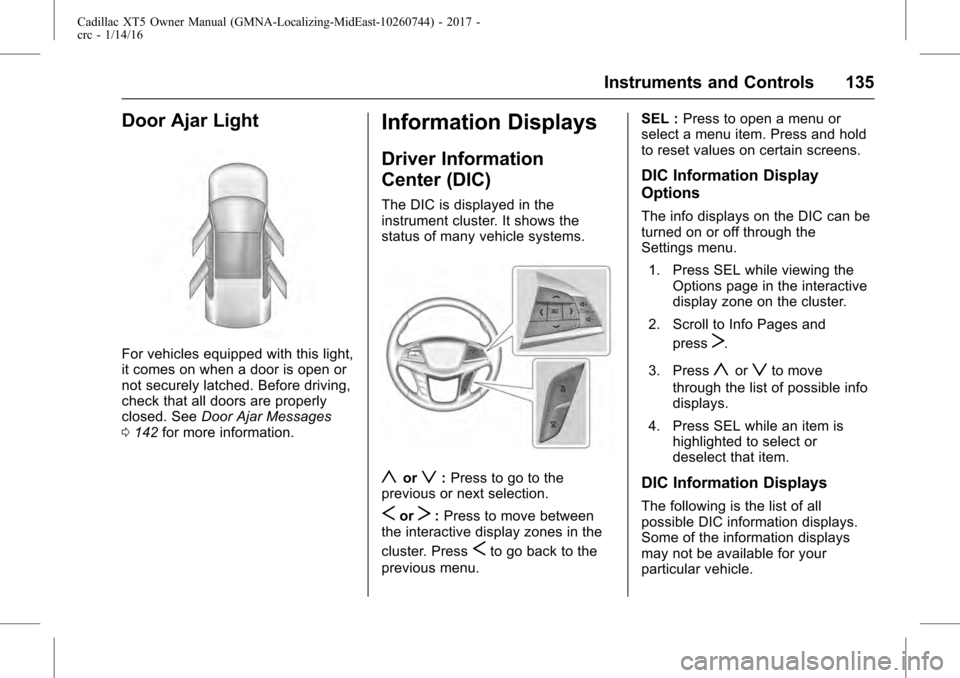
Door Ajar Light
For vehicles equipped with this light,
it comes on when a door is open or
not securely latched. Before driving,
check that all doors are properly
closed. SeeDoor Ajar Messages
0 142 for more information.
Information Displays
Driver Information
Center (DIC)
The DIC is displayed in the
instrument cluster. It shows the
status of many vehicle systems.
yorz:Press to go to the
previous or next selection.
SorT: Press to move between
the interactive display zones in the
cluster. Press
Sto go back to the
previous menu. SEL :
Press to open a menu or
select a menu item. Press and hold
to reset values on certain screens.
DIC Information Display
Options
The info displays on the DIC can be
turned on or off through the
Settings menu.
1. Press SEL while viewing the Options page in the interactive
display zone on the cluster.
2. Scroll to Info Pages and press
T.
3. Press
yorzto move
through the list of possible info
displays.
4. Press SEL while an item is highlighted to select or
deselect that item.
DIC Information Displays
The following is the list of all
possible DIC information displays.
Some of the information displays
may not be available for your
particular vehicle.
Page 137 of 339
Cadillac XT5 Owner Manual (GMNA-Localizing-MidEast-10260744) - 2017 -
crc - 1/14/16
Instruments and Controls 137
Oil Life :Shows an estimate of the
oil's remaining useful life.
If REMAINING OIL LIFE 99% is
displayed, that means 99% of the
current oil life remains.
When the remaining oil life is low,
the CHANGE ENGINE OIL SOON
message will appear on the display.
See Engine Oil Messages 0143.
The oil should be changed as soon
as possible. See Engine Oil0253.
In addition to the engine oil life
system monitoring the oil life,
additional maintenance is
recommended. See Maintenance
Schedule 0316.
The Oil Life display must be reset
after each oil change. It will not
reset itself. Do not reset the Oil Life
display accidentally at any time
other than when the oil has just
been changed. It cannot be reset
accurately until the next oil change.
To reset the engine oil life system,
press and hold SEL for several
seconds while the Oil Life display is
active. See Engine Oil Life
System 0255. Oil Temperature (Uplevel
Cluster) :
Shows the current oil
temperature in either degrees
Celsius (°C) or degrees
Fahrenheit (°F).
Oil Pressure : Shows the current oil
pressure in either kilopascal (kPa) or
in pounds per square inch (psi).
Tire Pressure : Shows the
approximate pressures of all four
tires. Tire pressure is displayed in
either kilopascal (kPa) or in pounds
per square inch (psi). If the pressure
is low, the value for that tire is
shown in amber. See Tire Pressure
Monitor System 0283 andTire
Pressure Monitor Operation 0284.
Blank Page : Allows for no
information to be displayed in the
cluster info display areas.Head-Up Display (HUD)
{Warning
If the HUD image is too bright or
too high in your field of view, it
may take you more time to see
things you need to see when it is
dark outside. Be sure to keep the
HUD image dim and placed low in
your field of view.
If equipped with HUD, some
information concerning the
operation of the vehicle is projected
onto the windshield. The image is
projected through the HUD lens on
top of the instrument panel. The
information appears as an image
focused out toward the front of the
vehicle.
Page 138 of 339
Cadillac XT5 Owner Manual (GMNA-Localizing-MidEast-10260744) - 2017 -
crc - 1/14/16
138 Instruments and Controls
Caution
If you try to use the HUD image
as a parking aid, you may
misjudge the distance and
damage your vehicle. Do not use
the HUD image as a parking aid.
The HUD information can be
displayed in various languages in
some vehicles. The speedometer
reading and other numerical values
can be displayed in either English or
metric units.
The language selection is changed
through the radio and the units of
measurement is changed through
the instrument cluster. See Vehicle
Personalization 0151 and“Cluster
Application Displays” under
Instrument Cluster (Uplevel Cluster)
0 119 orInstrument Cluster (Base
Cluster) 0117.
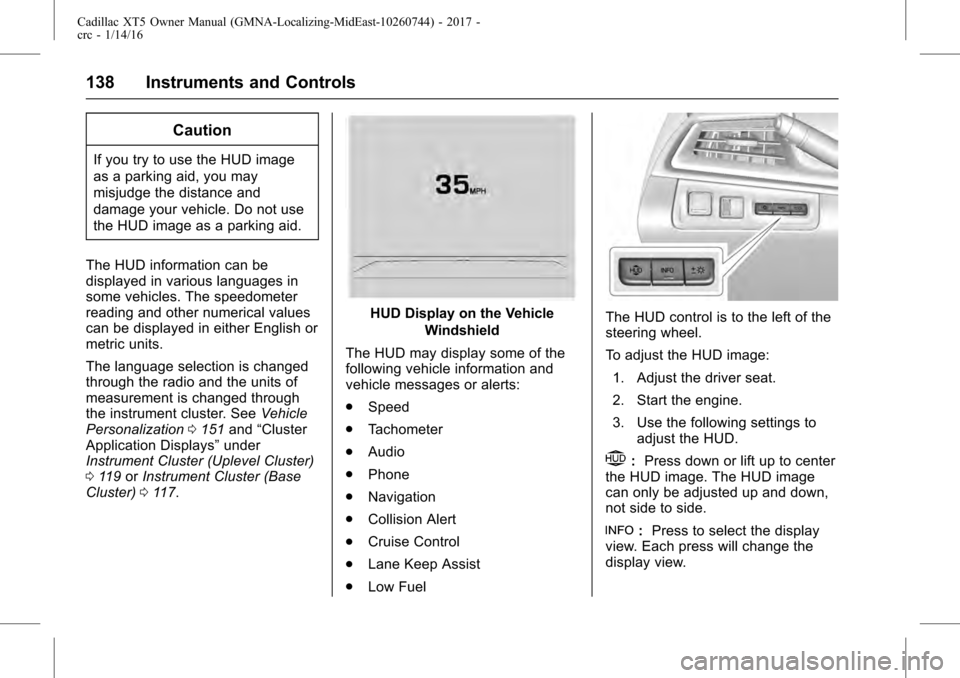
HUD Display on the Vehicle
Windshield
The HUD may display some of the
following vehicle information and
vehicle messages or alerts:
. Speed
. Tachometer
. Audio
. Phone
. Navigation
. Collision Alert
. Cruise Control
. Lane Keep Assist
. Low FuelThe HUD control is to the left of the
steering wheel.
To adjust the HUD image:
1. Adjust the driver seat.
2. Start the engine.
3. Use the following settings to adjust the HUD.
$:Press down or lift up to center
the HUD image. The HUD image
can only be adjusted up and down,
not side to side.
!: Press to select the display
view. Each press will change the
display view.
Page 139 of 339
Cadillac XT5 Owner Manual (GMNA-Localizing-MidEast-10260744) - 2017 -
crc - 1/14/16
Instruments and Controls 139
D:Lift up and hold to brighten
the display. Press down and hold to
dim the display. Hold down to turn
the display off.
The HUD image will automatically
dim and brighten to compensate for
outside lighting. The HUD
brightness control can also be
adjusted as needed.
The HUD image can temporarily
light up depending on the angle and
position of the sunlight on the HUD
display. This is normal.
Polarized sunglasses could make
the HUD image harder to see.
HUD Views
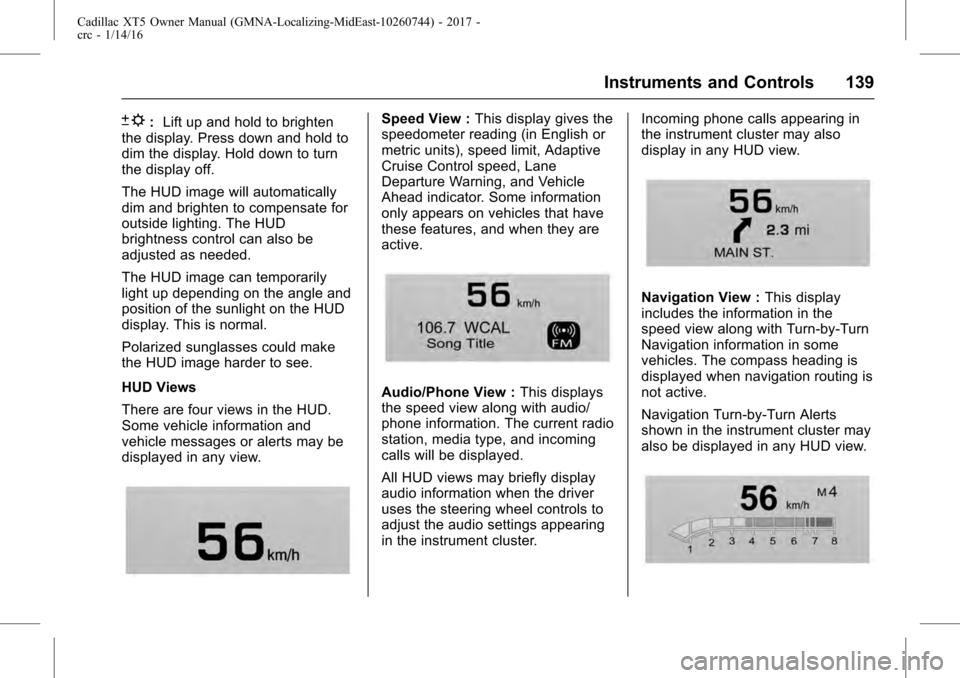
There are four views in the HUD.
Some vehicle information and
vehicle messages or alerts may be
displayed in any view.Speed View : This display gives the
speedometer reading (in English or
metric units), speed limit, Adaptive
Cruise Control speed, Lane
Departure Warning, and Vehicle
Ahead indicator. Some information
only appears on vehicles that have
these features, and when they are
active.
Audio/Phone View : This displays
the speed view along with audio/
phone information. The current radio
station, media type, and incoming
calls will be displayed.
All HUD views may briefly display
audio information when the driver
uses the steering wheel controls to
adjust the audio settings appearing
in the instrument cluster. Incoming phone calls appearing in
the instrument cluster may also
display in any HUD view.
Navigation View :
This display
includes the information in the
speed view along with Turn-by-Turn
Navigation information in some
vehicles. The compass heading is
displayed when navigation routing is
not active.
Navigation Turn-by-Turn Alerts
shown in the instrument cluster may
also be displayed in any HUD view.