brake CADILLAC XT5 2020 Workshop Manual
[x] Cancel search | Manufacturer: CADILLAC, Model Year: 2020, Model line: XT5, Model: CADILLAC XT5 2020Pages: 384, PDF Size: 6.52 MB
Page 207 of 384
206 DRIVING AND OPERATING
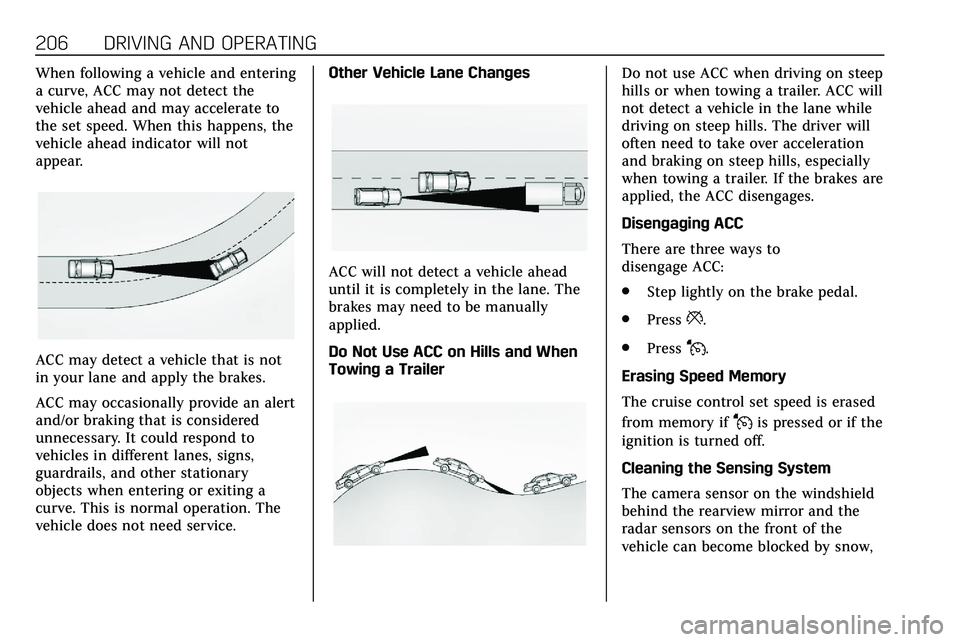
When following a vehicle and entering
a curve, ACC may not detect the
vehicle ahead and may accelerate to
the set speed. When this happens, the
vehicle ahead indicator will not
appear.
ACC may detect a vehicle that is not
in your lane and apply the brakes.
ACC may occasionally provide an alert
and/or braking that is considered
unnecessary. It could respond to
vehicles in different lanes, signs,
guardrails, and other stationary
objects when entering or exiting a
curve. This is normal operation. The
vehicle does not need service.Other Vehicle Lane Changes
ACC will not detect a vehicle ahead
until it is completely in the lane. The
brakes may need to be manually
applied.
Do Not Use ACC on Hills and When
Towing a Trailer
Do not use ACC when driving on steep
hills or when towing a trailer. ACC will
not detect a vehicle in the lane while
driving on steep hills. The driver will
often need to take over acceleration
and braking on steep hills, especially
when towing a trailer. If the brakes are
applied, the ACC disengages.
Disengaging ACC
There are three ways to
disengage ACC:
.
Step lightly on the brake pedal.
. Press
*.
. Press
J.
Erasing Speed Memory
The cruise control set speed is erased
from memory if
Jis pressed or if the
ignition is turned off.
Cleaning the Sensing System
The camera sensor on the windshield
behind the rearview mirror and the
radar sensors on the front of the
vehicle can become blocked by snow,
Page 208 of 384
DRIVING AND OPERATING 207
ice, dirt, or mud. These areas need to
be cleaned for ACC to operate
properly.
For cleaning instructions, see
“Washing the Vehicle”under Exterior
Care 0323.
System operation may also be limited
under snow, heavy rain, or road spray
conditions.Driver Assistance
Systems
This vehicle may have features that
work together to help avoid crashes or
reduce crash damage while driving,
backing, and parking. Read this entire
section before using these systems.
{Warning
Do not rely on the Driver
Assistance Systems. These systems
do not replace the need for paying
attention and driving safely. You
may not hear or feel alerts or
warnings provided by these
systems. Failure to use proper care
when driving may result in injury,
death, or vehicle damage. See
Defensive Driving 0160.
Under many conditions, these
systems will not: . Detect children, pedestrians,
bicyclists, or animals.
(Continued)
Warning (Continued)
.Detect vehicles or objects
outside the area monitored by
the system.
. Work at all driving speeds.
. Warn you or provide you with
enough time to avoid a crash.
. Work under poor visibility or
bad weather conditions.
. Work if the detection sensor
is not cleaned or is covered
by ice, snow, mud, or dirt.
. Work if the detection sensor
is covered up, such as with a
sticker, magnet, or metal
plate.
. Work if the area surrounding
the detection sensor is
damaged or not properly
repaired.
Complete attention is always
required while driving, and you
should be ready to take action and
apply the brakes and/or steer the
vehicle to avoid crashes.
Page 212 of 384
DRIVING AND OPERATING 211
Front/Rear Junction View :Displays
a front or rear cross traffic view that
shows objects directly to the left and
right of the front or back of the
vehicle. Touch Junction View on the
infotainment display when a camera
view is active. Touching the button
multiple times will toggle between
front and rear camera views.
Front/Rear Overhead View : Displays
a front or rear overhead view of the
vehicle. Touching the button will
toggle between the two views.
Front/Rear Bowl View : Displays a
view of the vehicle from either the
front or the back of the vehicle. Touch
Bowl View on the infotainment
display when a camera view is active.
Touching the button multiple times
will toggle between forward and
rearward views. Park Assist and RCTA
overlays are not available when Bowl
View is active.
Side Forward/Rearward View :
Displays a view that shows objects
next to the front or rear sides of the
vehicle. Touch Side Forward/Rearward
View on the infotainment display
when a camera view is active. Touching the button multiple times
will toggle between forward and
rearward views. Park Assist and RCTA
overlays are not available when Side
Forward/Rearward view is active.
Hitch View :
If equipped, assists while
connecting to a trailer. Displays a
zoomed-in view of the hitch to help
align the vehicle’s hitch ball with the
trailer coupler. Shifting into P (Park)
while in this view will automatically
engage the Electronic Parking
Brake (EPB).
Guidance Lines : Displays available
guidelines.
Top Down View : Displays an image
of the area surrounding the vehicle,
along with the rear camera view in the
infotainment display. The rear camera
view will be replaced by the front
camera view after shifting from
R (Reverse) to a forward gear or when
the vehicle is moving forward slower
than 12 km/h (8 mph). This view can
only be enabled in Front/Rear
Standard View by touching the Top
Down View button when the CAMERA
view is active. Hitch Guidance
If equipped, this feature displays a
single, centered guideline on the
camera display to assist with aligning
a vehicle’s hitch ball with a trailer
coupler. Select the trailer guidance
line button, then align the trailer
guidance line over the trailer coupler.
Continuously steer the vehicle to keep
the guidance line centered on the
coupler when backing. RVC Park
Assist overlays will not display when
the trailer guidance line is active.
Hitch Guidance is only available in
Standard View.
To check the trailer when in a forward
gear above 12 km/h (8 mph), touch
CAMERA on the infotainment display
to view the rear camera. Touch X to
exit the view or it will be removed
automatically after eight seconds.
{Warning
Use Hitch Guidance only to help
back the vehicle to a trailer hitch
or, when traveling above 12 km/h
(Continued)
Page 214 of 384
DRIVING AND OPERATING 213
than 8 km/h (5 mph), and RAB may
automatically brake hard at speeds
between 1–32 km/h (0.5–20 mph).
The Backing Warning System will
beep once from the rear when an
object is first detected, or pulse twice
on both sides of the Safety Alert Seat.
When the system detects a potential
crash, beeps will be heard from the
rear, or five pulses will be felt on both
sides of the Safety Alert Seat. There
may also be a brief, sharp application
of the brakes.
{Warning
The Backing Warning System only
operates at speeds greater than
8 km/h (5 mph). It does not detect
children, pedestrians, bicyclists,
animals, or objects below the
bumper or that are too close or too
far from the vehicle. In some
situations, such as at higher
backing speeds, there may not be
enough time for the short, sharp
application of the vehicle brake(Continued)
Warning (Continued)
system to occur. To prevent injury,
death, or vehicle damage, even with
the Backing Warning System,
always check the area around the
vehicle and check all mirrors before
backing.
When the vehicle is in R (Reverse),
if the system detects the vehicle is
backing too fast to avoid a crash with
a detected object behind your vehicle
in your path, it may automatically
brake hard to a stop to help avoid or
reduce the harm caused by a backing
crash.
{Warning
RAB may not avoid many types of
backing crashes. Do not wait for the
automatic braking to apply. This
system is not designed to replace
driver braking and only works in
R (Reverse) when an object is
detected directly behind the vehicle. (Continued)
Warning (Continued)
It may not brake or stop in time to
avoid a crash. It will not brake for
objects when the vehicle is moving
at very low speeds. It does not
detect children, pedestrians,
bicyclists, animals, or objects below
the bumper or that are too close or
too far from the vehicle. To prevent
injury, death, or vehicle damage,
even with RAB, always check the
area around the vehicle before and
while backing.
Pressing the brake pedal after the
vehicle comes to a stop will release
RAB. If the brake pedal is not pressed
soon after the stop, the Electric
Parking Brake (EPB) may be set. When
it is safe, press the accelerator pedal
firmly at any time to override RAB.
Page 215 of 384
214 DRIVING AND OPERATING
{Warning
There may be instances where
unexpected or undesired automatic
braking occurs. If this happens,
either press the brake pedal or
firmly press the accelerator pedal to
release the brakes from the RAB
system. Before releasing the brakes,
check the RVC and check the area
around the vehicle to make sure it
is safe to proceed.
Rear Cross Traffic Alert (RCTA)
If equipped, RCTA displays a red
warning triangle with a left or right
pointing arrow on the infotainment
display to warn of traffic coming from
the left or right. This system detects
objects coming from up to 20 m (65 ft)
from the left or right side of the
vehicle. When an object is detected,
either three beeps sound from the left
or right or three Safety Alert Seat
pulses occur on the left or right side,
depending on the direction of the
detected vehicle. Use caution while backing up when
towing a trailer, as the RCTA
detection zones that extend out from
the back of the vehicle do not move
further back when a trailer is towed.
See
Radio Frequency Statement 0358.
Turning the Features On or Off
PressXon the center stack to turn
on or off the Front and Rear Park
Assist, Reverse Automatic Braking
(RAB), and the Backing Warning
System at the same time. The
indicator light next to the button
comes on when the features are on
and turns off when the features have
been disabled.
Turn off Park Assist, RCTA, and RAB
when towing a trailer.
RCTA can be turned on or off through
vehicle personalization. See “Collision/
Detection Systems” underVehicle
Personalization 0131.
Automatic Parking Assist (APA)
with Braking
If equipped, APA searches for and
steers the vehicle into parallel and
perpendicular parking spots. When
using APA, you must still shift gears,
while the system applies the brakes
and accelerator. A display and audible
beeps help to guide parking
maneuvers.
Do not use APA when towing a trailer.
{Warning
APA may not detect objects in the
parking space, objects that are soft
or narrow, objects high off the
ground such as flatbed trucks,
objects below ground level such as
large potholes, or moving objects
(e.g. pedestrians). Always verify that
the parking space is appropriate for
parking a vehicle. APA does not
respond to changes in the parking
space, such as movement of an
adjacent vehicle, or a person or
object entering the parking space.
(Continued)
Page 216 of 384
DRIVING AND OPERATING 215
Warning (Continued)
APA does not detect or avoid traffic
that is behind or alongside of the
vehicle. Always be prepared to stop
the vehicle during the parking
maneuver.
Press
Oon the center stack to enable
the system to search for a parking
space that is large enough and within
1.5 m (5 ft) of the vehicle. The vehicle
speed must be below
30 km/h (18 mph). The system cannot:
. Detect whether it is a legal parking
space.
. Park exactly lined up with the
vehicle next to it if the spot is
approached at an angle or if the
parking space is angled.
. Park exactly centered in a spot
that is marked too large.
. Always detect short curbs.
When enabled, APA searches for
parallel parking spaces to the right of
the vehicle. To search for a parking
space to the left, turn on the left turn signal or, if available, change the side
selection in the infotainment display.
To switch the parking mode between
parallel and perpendicular, press and
hold
Oduring the search process or,
if available, change the parking mode
in the infotainment display.
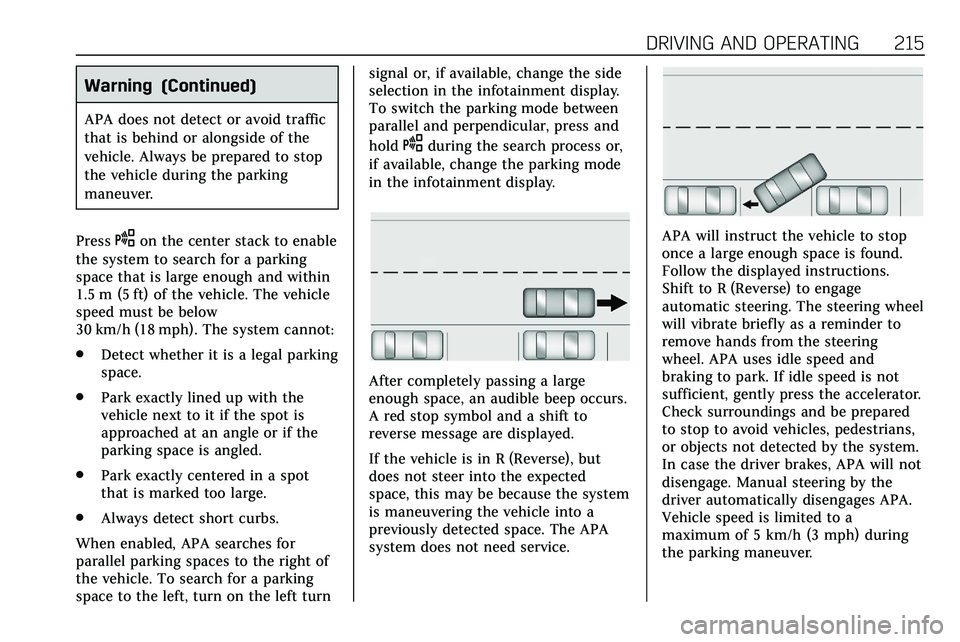
After completely passing a large
enough space, an audible beep occurs.
A red stop symbol and a shift to
reverse message are displayed.
If the vehicle is in R (Reverse), but
does not steer into the expected
space, this may be because the system
is maneuvering the vehicle into a
previously detected space. The APA
system does not need service.
APA will instruct the vehicle to stop
once a large enough space is found.
Follow the displayed instructions.
Shift to R (Reverse) to engage
automatic steering. The steering wheel
will vibrate briefly as a reminder to
remove hands from the steering
wheel. APA uses idle speed and
braking to park. If idle speed is not
sufficient, gently press the accelerator.
Check surroundings and be prepared
to stop to avoid vehicles, pedestrians,
or objects not detected by the system.
In case the driver brakes, APA will not
disengage. Manual steering by the
driver automatically disengages APA.
Vehicle speed is limited to a
maximum of 5 km/h (3 mph) during
the parking maneuver.
Page 217 of 384
216 DRIVING AND OPERATING
A progress arrow displays the status
of the parking maneuver. Depending
on the space size, additional
maneuvers may be required, and there
will be additional instructions. When
changing gears, allow the automatic
steering to complete before continuing
the parking maneuver. APA will beep
and display a PARKING COMPLETE
message. Apply the brakes and place
the vehicle in P (Park).
APA may automatically disengage if:
.The steering wheel is used by the
driver.
. The maximum allowed speed is
exceeded.
. The parking brake is applied or the
vehicle is shifted into P (Park).
. There is a failure with the APA
system.
. Electronic stability control or
antilock brakes are activated.
. A high priority vehicle message is
displayed in the DIC.
. The driver opens the door with an
unbuckled seat belt. The brake holds the vehicle until the
parking brake or brake is applied,
or the vehicle is shifted into P (Park).
To cancel APA, press
Oagain.
When the System Does Not Seem to
Work Properly
The APA system may require a short
period of driving along curves to
calibrate.
Rear Pedestrian Alert
Under certain conditions, this feature
can provide alerts for a pedestrian
within the system’s range directly
behind the vehicle. This feature only
works in R (Reverse) below 12 km/h
(8 mph), and detects pedestrians up to
8 m (26 ft) away during daytime
driving. During nighttime driving,
feature performance is very limited.
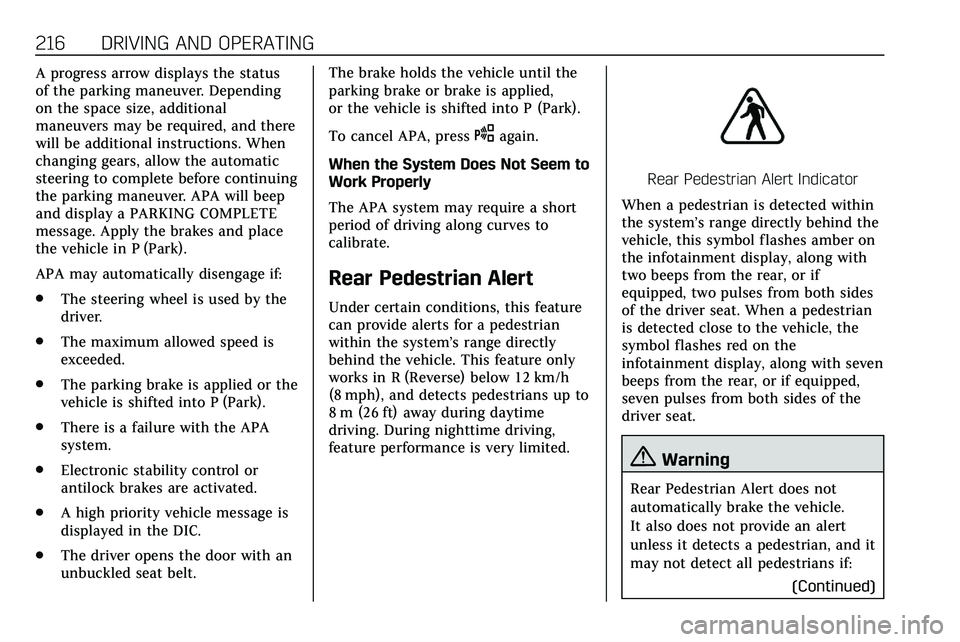
Rear Pedestrian Alert Indicator
When a pedestrian is detected within
the system’s range directly behind the
vehicle, this symbol flashes amber on
the infotainment display, along with
two beeps from the rear, or if
equipped, two pulses from both sides
of the driver seat. When a pedestrian
is detected close to the vehicle, the
symbol flashes red on the
infotainment display, along with seven
beeps from the rear, or if equipped,
seven pulses from both sides of the
driver seat.
{Warning
Rear Pedestrian Alert does not
automatically brake the vehicle.
It also does not provide an alert
unless it detects a pedestrian, and it
may not detect all pedestrians if: (Continued)
Page 218 of 384
DRIVING AND OPERATING 217
Warning (Continued)
.The pedestrian is not directly
behind the vehicle, fully
visible to the Rear Vision
Camera (RVC), or standing
upright.
. The pedestrian is part of a
group.
. The pedestrian is a child.
. Visibility is poor, including
nighttime conditions, fog,
rain, or snow.
. The RVC is blocked by dirt,
snow, or ice.
. The RVC, taillamps,
or back-up lamps are not
cleaned or in proper working
condition.
. The vehicle is not in
R (Reverse).
To help avoid death or injury,
always check for pedestrians
around the vehicle before backing
up. Be ready to take action and (Continued)
Warning (Continued)
apply the brakes. SeeDefensive
Driving 0160. Keep the RVC,
taillamps, and back-up lamps clean
and in good repair.
Rear Pedestrian Alert can be set to Off
or Alert. See “Rear Pedestrian
Detection ”in “Collision/Detection
Systems” underVehicle Personalization
0 131. If equipped, alerts can be set to
beeps or seat pulses. See “Alert Type”
in “Collision/Detection Systems” under
Vehicle Personalization 0131.
Assistance Systems for
Driving
If equipped, when driving the vehicle
in a forward gear, Forward Collision
Alert (FCA), Lane Departure Warning
(LDW), Lane Keep Assist (LKA), Side
Blind Zone Alert (SBZA), Lane Change
Alert (LCA), Automatic Emergency
Braking (AEB), and/or the Front
Pedestrian Braking (FPB) System can
help to avoid a crash or reduce crash
damage.
Forward Collision Alert
(FCA) System
If equipped, the FCA system may help
to avoid or reduce the harm caused by
front-end crashes. When approaching
a vehicle ahead too quickly, FCA
provides a red flashing alert on the
windshield and rapidly beeps or pulses
the driver seat. FCA also lights an
amber visual alert if following another
vehicle too closely.
FCA detects vehicles within a distance
of approximately 60 m (197 ft) and
operates at speeds above 8 km/h
(5 mph). If the vehicle has Adaptive
Cruise Control (ACC), it can detect
vehicles to distances of approximately
110 m (360 ft) and operates at all
speeds. See Adaptive Cruise Control
0 198.
{Warning
FCA is a warning system and does
not apply the brakes. When
approaching a slower-moving or
stopped vehicle ahead too rapidly,
(Continued)
Page 219 of 384
218 DRIVING AND OPERATING
Warning (Continued)
or when following a vehicle too
closely, FCA may not provide a
warning with enough time to help
avoid a crash. It also may not
provide any warning at all. FCA
does not warn of pedestrians,
animals, signs, guardrails, bridges,
construction barrels, or other
objects. Be ready to take action and
apply the brakes. SeeDefensive
Driving 0160.
FCA can be disabled with either the
FCA steering wheel control or,
if equipped, through vehicle
personalization. See “Collision/
Detection Systems” underVehicle
Personalization 0131.
Detecting the Vehicle Ahead
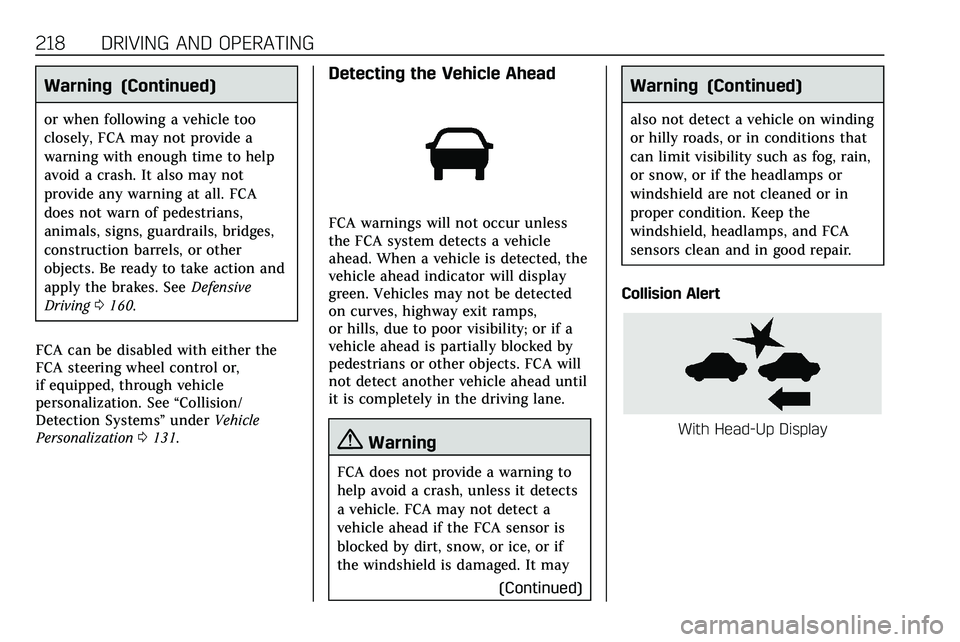
FCA warnings will not occur unless
the FCA system detects a vehicle
ahead. When a vehicle is detected, the
vehicle ahead indicator will display
green. Vehicles may not be detected
on curves, highway exit ramps,
or hills, due to poor visibility; or if a
vehicle ahead is partially blocked by
pedestrians or other objects. FCA will
not detect another vehicle ahead until
it is completely in the driving lane.
{Warning
FCA does not provide a warning to
help avoid a crash, unless it detects
a vehicle. FCA may not detect a
vehicle ahead if the FCA sensor is
blocked by dirt, snow, or ice, or if
the windshield is damaged. It may
(Continued)
Warning (Continued)
also not detect a vehicle on winding
or hilly roads, or in conditions that
can limit visibility such as fog, rain,
or snow, or if the headlamps or
windshield are not cleaned or in
proper condition. Keep the
windshield, headlamps, and FCA
sensors clean and in good repair.
Collision Alert
With Head-Up Display
Page 220 of 384
DRIVING AND OPERATING 219
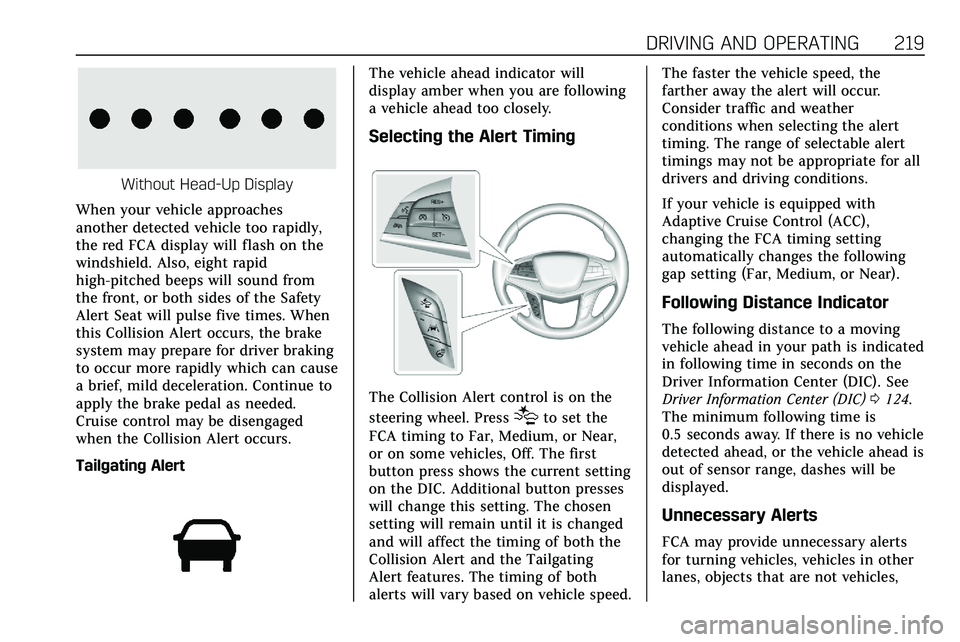
Without Head-Up Display
When your vehicle approaches
another detected vehicle too rapidly,
the red FCA display will flash on the
windshield. Also, eight rapid
high-pitched beeps will sound from
the front, or both sides of the Safety
Alert Seat will pulse five times. When
this Collision Alert occurs, the brake
system may prepare for driver braking
to occur more rapidly which can cause
a brief, mild deceleration. Continue to
apply the brake pedal as needed.
Cruise control may be disengaged
when the Collision Alert occurs.
Tailgating Alert
The vehicle ahead indicator will
display amber when you are following
a vehicle ahead too closely.
Selecting the Alert Timing
The Collision Alert control is on the
steering wheel. Press
[to set the
FCA timing to Far, Medium, or Near,
or on some vehicles, Off. The first
button press shows the current setting
on the DIC. Additional button presses
will change this setting. The chosen
setting will remain until it is changed
and will affect the timing of both the
Collision Alert and the Tailgating
Alert features. The timing of both
alerts will vary based on vehicle speed. The faster the vehicle speed, the
farther away the alert will occur.
Consider traffic and weather
conditions when selecting the alert
timing. The range of selectable alert
timings may not be appropriate for all
drivers and driving conditions.
If your vehicle is equipped with
Adaptive Cruise Control (ACC),
changing the FCA timing setting
automatically changes the following
gap setting (Far, Medium, or Near).
Following Distance Indicator
The following distance to a moving
vehicle ahead in your path is indicated
in following time in seconds on the
Driver Information Center (DIC). See
Driver Information Center (DIC)
0124.
The minimum following time is
0.5 seconds away. If there is no vehicle
detected ahead, or the vehicle ahead is
out of sensor range, dashes will be
displayed.
Unnecessary Alerts
FCA may provide unnecessary alerts
for turning vehicles, vehicles in other
lanes, objects that are not vehicles,