ad blue CADILLAC XT5 2022 Owners Manual
[x] Cancel search | Manufacturer: CADILLAC, Model Year: 2022, Model line: XT5, Model: CADILLAC XT5 2022Pages: 432, PDF Size: 8.72 MB
Page 35 of 432
Cadillac XT5 Owner Manual (GMNA-Localizing-U.S./Canada/Mexico-
15227431) - 2022 - CRC - 8/11/21
34 KEYS, DOORS, AND WINDOWS
{Warning
The Rear Camera Mirror (RCM) has
a limited view. Portions of the road,
vehicles, and other objects may not
be seen. Do not drive or park the
vehicle using only this camera.
Objects may appear closer than
they are. Check the outside mirrors
or glance over your shoulder when
making lane changes or merging.
Failure to use proper care may
result in injury, death, or vehicle
damage.
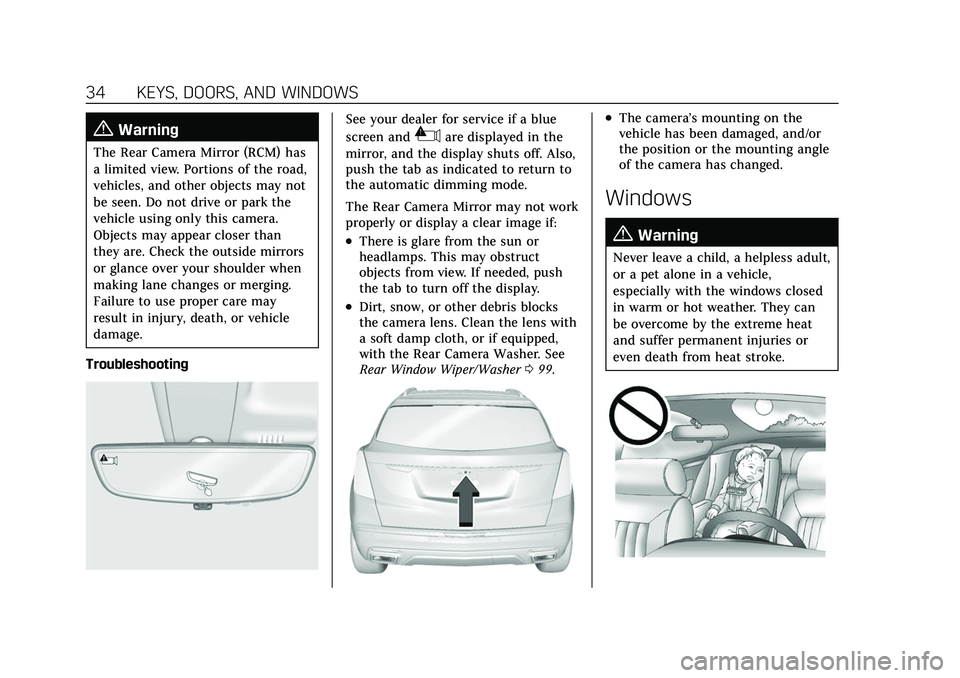
Troubleshooting
See your dealer for service if a blue
screen and
3are displayed in the
mirror, and the display shuts off. Also,
push the tab as indicated to return to
the automatic dimming mode.
The Rear Camera Mirror may not work
properly or display a clear image if:
.There is glare from the sun or
headlamps. This may obstruct
objects from view. If needed, push
the tab to turn off the display.
.Dirt, snow, or other debris blocks
the camera lens. Clean the lens with
a soft damp cloth, or if equipped,
with the Rear Camera Washer. See
Rear Window Wiper/Washer 099.
.The camera’s mounting on the
vehicle has been damaged, and/or
the position or the mounting angle
of the camera has changed.
Windows
{
Warning
Never leave a child, a helpless adult,
or a pet alone in a vehicle,
especially with the windows closed
in warm or hot weather. They can
be overcome by the extreme heat
and suffer permanent injuries or
even death from heat stroke.
Page 47 of 432
Cadillac XT5 Owner Manual (GMNA-Localizing-U.S./Canada/Mexico-
15227431) - 2022 - CRC - 8/11/21
46 SEATS AND RESTRAINTS
Press SET, 1, 2, orBmemory
buttons
.During Auto Seat Exit Memory
Recall:
Press SET, 1, 2, or
Bmemory
buttons
Obstructions
If something has blocked the seat
while recalling a memory position, the
recall may stop. Remove the
obstruction and try the recall again.
If the memory position still does not
recall, see your dealer.
Heated and Ventilated
Front Seats
{Warning
If temperature change or pain to
the skin cannot be felt, the seat
heater may cause burns. To reduce
the risk of burns, use care when
using the seat heater, especially for
long periods of time. Do not place
anything on the seat that insulates
against heat, such as a blanket, (Continued)
Warning (Continued)
cushion, cover, or similar item. This
may cause the seat heater to
overheat. An overheated seat heater
may cause a burn or may damage
the seat.
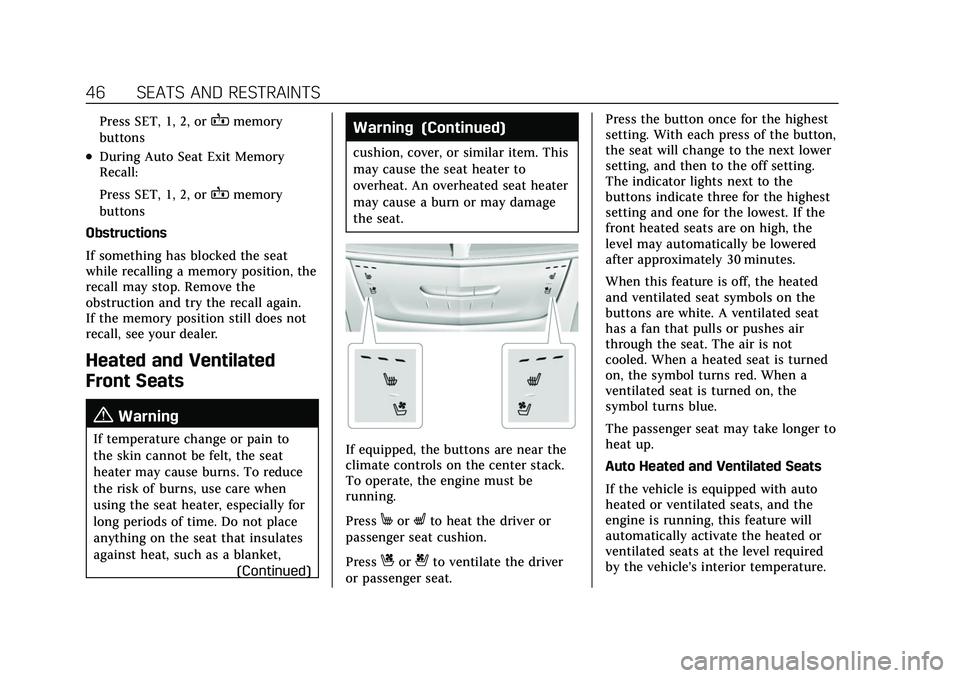
If equipped, the buttons are near the
climate controls on the center stack.
To operate, the engine must be
running.
Press
MorLto heat the driver or
passenger seat cushion.
Press
Cor{to ventilate the driver
or passenger seat. Press the button once for the highest
setting. With each press of the button,
the seat will change to the next lower
setting, and then to the off setting.
The indicator lights next to the
buttons indicate three for the highest
setting and one for the lowest. If the
front heated seats are on high, the
level may automatically be lowered
after approximately 30 minutes.
When this feature is off, the heated
and ventilated seat symbols on the
buttons are white. A ventilated seat
has a fan that pulls or pushes air
through the seat. The air is not
cooled. When a heated seat is turned
on, the symbol turns red. When a
ventilated seat is turned on, the
symbol turns blue.
The passenger seat may take longer to
heat up.
Auto Heated and Ventilated Seats
If the vehicle is equipped with auto
heated or ventilated seats, and the
engine is running, this feature will
automatically activate the heated or
ventilated seats at the level required
by the vehicle's interior temperature.
Page 102 of 432
Cadillac XT5 Owner Manual (GMNA-Localizing-U.S./Canada/Mexico-
15227431) - 2022 - CRC - 8/11/21
INSTRUMENTS AND CONTROLS 101
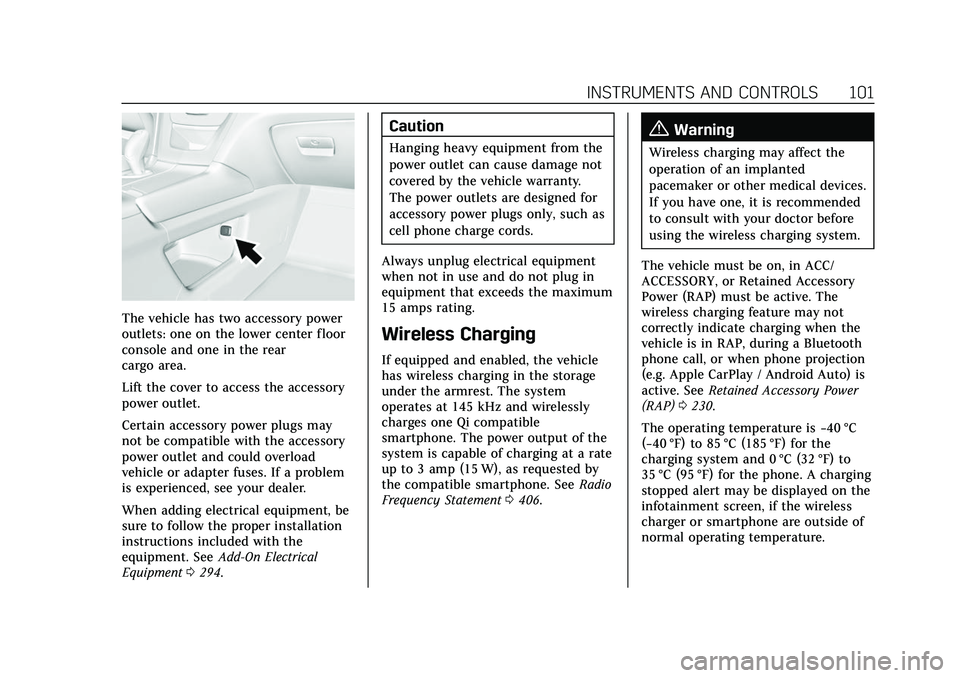
The vehicle has two accessory power
outlets: one on the lower center floor
console and one in the rear
cargo area.
Lift the cover to access the accessory
power outlet.
Certain accessory power plugs may
not be compatible with the accessory
power outlet and could overload
vehicle or adapter fuses. If a problem
is experienced, see your dealer.
When adding electrical equipment, be
sure to follow the proper installation
instructions included with the
equipment. SeeAdd-On Electrical
Equipment 0294.
Caution
Hanging heavy equipment from the
power outlet can cause damage not
covered by the vehicle warranty.
The power outlets are designed for
accessory power plugs only, such as
cell phone charge cords.
Always unplug electrical equipment
when not in use and do not plug in
equipment that exceeds the maximum
15 amps rating.
Wireless Charging
If equipped and enabled, the vehicle
has wireless charging in the storage
under the armrest. The system
operates at 145 kHz and wirelessly
charges one Qi compatible
smartphone. The power output of the
system is capable of charging at a rate
up to 3 amp (15 W), as requested by
the compatible smartphone. See Radio
Frequency Statement 0406.
{Warning
Wireless charging may affect the
operation of an implanted
pacemaker or other medical devices.
If you have one, it is recommended
to consult with your doctor before
using the wireless charging system.
The vehicle must be on, in ACC/
ACCESSORY, or Retained Accessory
Power (RAP) must be active. The
wireless charging feature may not
correctly indicate charging when the
vehicle is in RAP, during a Bluetooth
phone call, or when phone projection
(e.g. Apple CarPlay / Android Auto) is
active. See Retained Accessory Power
(RAP) 0230.
The operating temperature is −40 °C
(−40 °F) to 85 °C (185 °F) for the
charging system and 0 °C (32 °F) to
35 °C (95 °F) for the phone. A charging
stopped alert may be displayed on the
infotainment screen, if the wireless
charger or smartphone are outside of
normal operating temperature.
Page 136 of 432

Cadillac XT5 Owner Manual (GMNA-Localizing-U.S./Canada/Mexico-
15227431) - 2022 - CRC - 8/11/21
LIGHTING 135
Turning On and Enabling IntelliBeam
To enable the IntelliBeam system,
press the button on the end of the
turn signal lever when the exterior
lamp control is in the AUTO or
2
position.
Driving with IntelliBeam
The system only activates the high
beams when driving over 40 km/h
(25 mph).
The blue high-beam on light appears
on the instrument cluster when the
high beams are on.
There is a sensor near the top center
of the windshield that automatically
controls the system. Keep this area of
the windshield clear of debris to allow
for best system performance.The high-beam headlamps remain on,
under the automatic control, until one
of the following situations occurs:
.The system detects an approaching
vehicle's headlamps.
.The system detects a preceding
vehicle's taillamps.
.The outside light is bright enough
that high-beam headlamps are not
required.
.The vehicle's speed drops below
20 km/h (12 mph).
.The IntelliBeam system is disabled
by the button on the turn signal
lever. If this happens, press the
button on the end of the turn signal
lever when the exterior lamp
control is in the AUTO or
2
position to reactivate the
IntelliBeam system. The instrument
cluster light will come on to
indicate the IntelliBeam is
reactivated.
The high beams may not turn off
automatically if the system cannot
detect another vehicle's lamps because
of any of the following:
.The other vehicle's lamps are
missing, damaged, obstructed from
view, or otherwise undetected.
.The other vehicle's lamps are
covered with dirt, snow, and/or road
spray.
.The other vehicle's lamps cannot be
detected due to dense exhaust,
smoke, fog, snow, road spray, mist,
or other airborne obstructions.
.The vehicle's windshield is dirty,
cracked, or obstructed by something
that blocks the view of the light
sensor.
.The vehicle is loaded such that the
front end points upward, causing
the light sensor to aim high and not
detect headlamps and taillamps.
.The vehicle is being driven on
winding or hilly roads.
The automatic high-beam headlamps
may need to be disabled if any of the
above conditions exist.
Page 142 of 432
Cadillac XT5 Owner Manual (GMNA-Localizing-U.S./Canada/Mexico-
15227431) - 2022 - CRC - 8/11/21
INFOTAINMENT SYSTEM 141
Infotainment System
Introduction
Introduction . . . . . . . . . . . . . . . . . . . . . . 141
Overview . . . . . . . . . . . . . . . . . . . . . . . . . . 142
Steering Wheel Controls . . . . . . . . . 144
Using the System . . . . . . . . . . . . . . . . . 144
Software Updates . . . . . . . . . . . . . . . . . 147
Radio
AM-FM Radio . . . . . . . . . . . . . . . . . . . . . 147
HD Radio Technology . . . . . . . . . . . . 149
Radio Data System (RDS) . . . . . . . . 150
Satellite Radio . . . . . . . . . . . . . . . . . . . . 150
Radio Reception . . . . . . . . . . . . . . . . . . 151
Multi-Band Antenna . . . . . . . . . . . . . 151
Audio Players
Avoiding Untrusted MediaDevices . . . . . . . . . . . . . . . . . . . . . . . . . . 152
USB Port . . . . . . . . . . . . . . . . . . . . . . . . . . 152
Bluetooth Audio . . . . . . . . . . . . . . . . . . 155
Navigation
Using the Navigation System . . . . 156
Maps . . . . . . . . . . . . . . . . . . . . . . . . . . . . . . 159
Navigation Symbols . . . . . . . . . . . . . . 159
Destination . . . . . . . . . . . . . . . . . . . . . . . 160
OnStar System . . . . . . . . . . . . . . . . . . . . 166
Global Positioning System (GPS) . . . . . . . . . . . . . . . . . . . 167 Vehicle Positioning . . . . . . . . . . . . . . . 167
Problems with Route
Guidance . . . . . . . . . . . . . . . . . . . . . . . . 168
If the System Needs Service . . . . . 168
Map Data Updates . . . . . . . . . . . . . . . 168
Database Coverage Explanations . . . . . . . . . . . . . . . . . . . . 169
Voice Recognition
Voice Recognition . . . . . . . . . . . . . . . . 169
Phone
Bluetooth (Overview) . . . . . . . . . . . . . 174
Bluetooth (Pairing and Using aPhone) . . . . . . . . . . . . . . . . . . . . . . . . . . . 175
Apple CarPlay and Android Auto . . . . . . . . . . . . . . . . . . . 179
Settings
Settings . . . . . . . . . . . . . . . . . . . . . . . . . . . 181
Teen Driver . . . . . . . . . . . . . . . . . . . . . . . 188
Trademarks and License
Agreements
Trademarks and LicenseAgreements . . . . . . . . . . . . . . . . . . . . . 192
Introduction
Read the following pages to become
familiar with the features.
{Warning
Taking your eyes off the road for
too long or too often while using
any infotainment feature can cause
a crash. You or others could be
injured or killed. Do not give
extended attention to infotainment
tasks while driving. Limit your
glances at the vehicle displays and
focus your attention on driving. Use
voice commands whenever possible.
The infotainment system has built-in
features intended to help avoid
distraction by disabling some features
when driving. These features may gray
out when they are unavailable. Many
infotainment features are also
available through the instrument
cluster and steering wheel controls.
Before driving:
.Become familiar with the operation,
center stack controls, steering wheel
controls, and infotainment display.
Page 144 of 432
Cadillac XT5 Owner Manual (GMNA-Localizing-U.S./Canada/Mexico-
15227431) - 2022 - CRC - 8/11/21
INFOTAINMENT SYSTEM 143
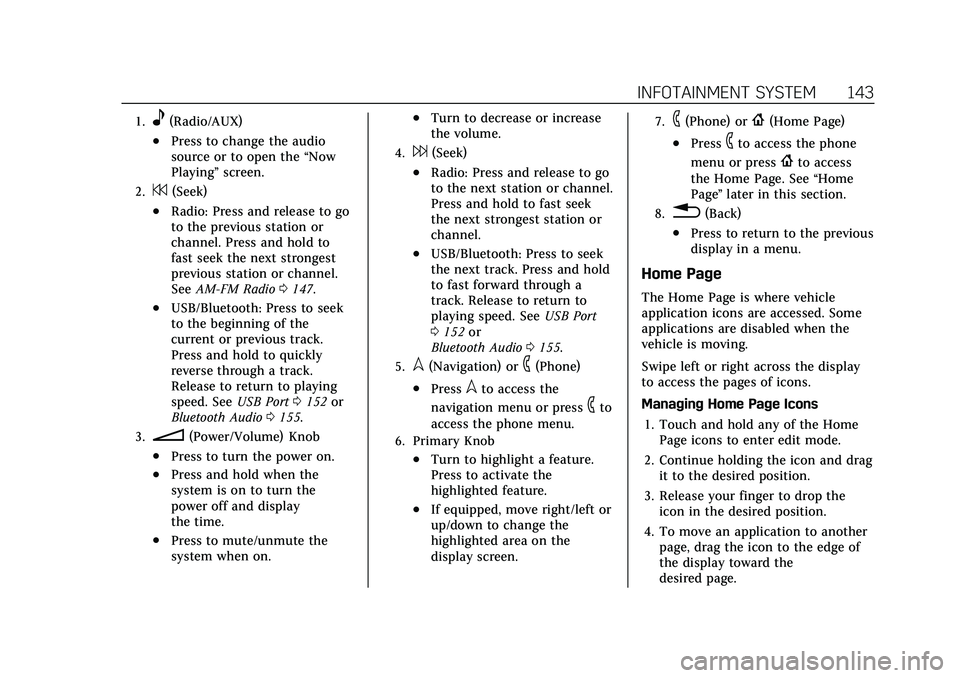
1.e(Radio/AUX)
.Press to change the audio
source or to open the“Now
Playing” screen.
2.7(Seek)
.Radio: Press and release to go
to the previous station or
channel. Press and hold to
fast seek the next strongest
previous station or channel.
SeeAM-FM Radio 0147.
.USB/Bluetooth: Press to seek
to the beginning of the
current or previous track.
Press and hold to quickly
reverse through a track.
Release to return to playing
speed. See USB Port0152 or
Bluetooth Audio 0155.
3.n(Power/Volume) Knob
.Press to turn the power on.
.Press and hold when the
system is on to turn the
power off and display
the time.
.Press to mute/unmute the
system when on.
.Turn to decrease or increase
the volume.
4.6(Seek)
.Radio: Press and release to go
to the next station or channel.
Press and hold to fast seek
the next strongest station or
channel.
.USB/Bluetooth: Press to seek
the next track. Press and hold
to fast forward through a
track. Release to return to
playing speed. See USB Port
0 152 or
Bluetooth Audio 0155.
5.l(Navigation) or6(Phone)
.Presslto access the
navigation menu or press
6to
access the phone menu.
6. Primary Knob
.Turn to highlight a feature.
Press to activate the
highlighted feature.
.If equipped, move right/left or
up/down to change the
highlighted area on the
display screen.
7.6(Phone) or{(Home Page)
.Press6to access the phone
menu or press
{to access
the Home Page. See “Home
Page ”later in this section.
8.0(Back)
.Press to return to the previous
display in a menu.
Home Page
The Home Page is where vehicle
application icons are accessed. Some
applications are disabled when the
vehicle is moving.
Swipe left or right across the display
to access the pages of icons.
Managing Home Page Icons
1. Touch and hold any of the Home Page icons to enter edit mode.
2. Continue holding the icon and drag it to the desired position.
3. Release your finger to drop the icon in the desired position.
4. To move an application to another page, drag the icon to the edge of
the display toward the
desired page.
Page 145 of 432
Cadillac XT5 Owner Manual (GMNA-Localizing-U.S./Canada/Mexico-
15227431) - 2022 - CRC - 8/11/21
144 INFOTAINMENT SYSTEM
5. Continue dragging and droppingapplication icons as desired.
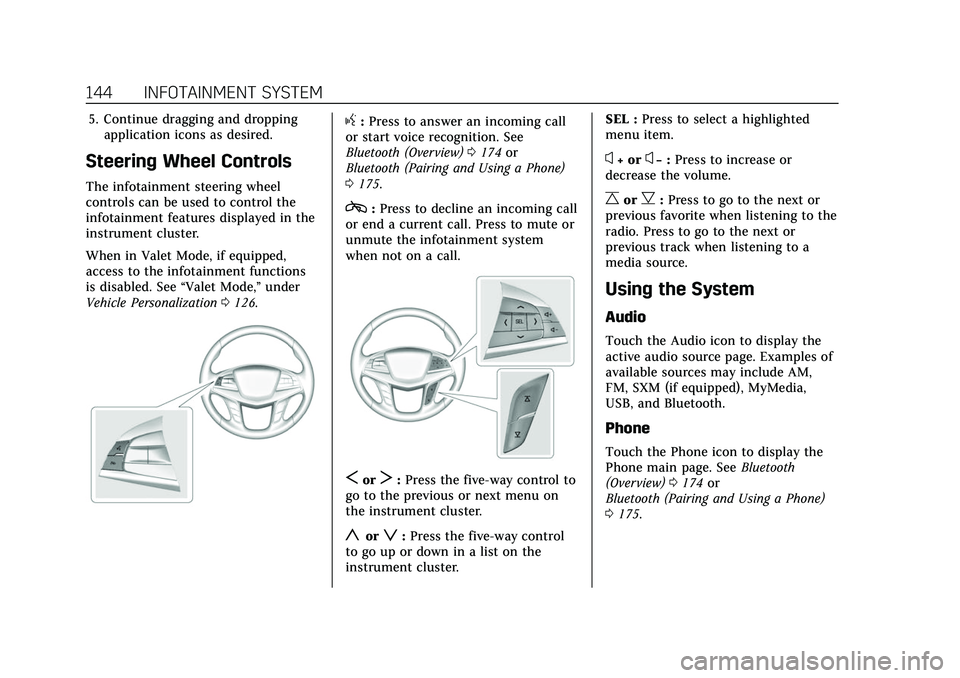
Steering Wheel Controls
The infotainment steering wheel
controls can be used to control the
infotainment features displayed in the
instrument cluster.
When in Valet Mode, if equipped,
access to the infotainment functions
is disabled. See “Valet Mode,”under
Vehicle Personalization 0126.
g:Press to answer an incoming call
or start voice recognition. See
Bluetooth (Overview) 0174 or
Bluetooth (Pairing and Using a Phone)
0 175.
c:Press to decline an incoming call
or end a current call. Press to mute or
unmute the infotainment system
when not on a call.
SorT: Press the five-way control to
go to the previous or next menu on
the instrument cluster.
yorz: Press the five-way control
to go up or down in a list on the
instrument cluster. SEL :
Press to select a highlighted
menu item.
x+ orx− :Press to increase or
decrease the volume.
CorB: Press to go to the next or
previous favorite when listening to the
radio. Press to go to the next or
previous track when listening to a
media source.
Using the System
Audio
Touch the Audio icon to display the
active audio source page. Examples of
available sources may include AM,
FM, SXM (if equipped), MyMedia,
USB, and Bluetooth.
Phone
Touch the Phone icon to display the
Phone main page. See Bluetooth
(Overview) 0174 or
Bluetooth (Pairing and Using a Phone)
0 175.
Page 148 of 432
Cadillac XT5 Owner Manual (GMNA-Localizing-U.S./Canada/Mexico-
15227431) - 2022 - CRC - 8/11/21
INFOTAINMENT SYSTEM 147
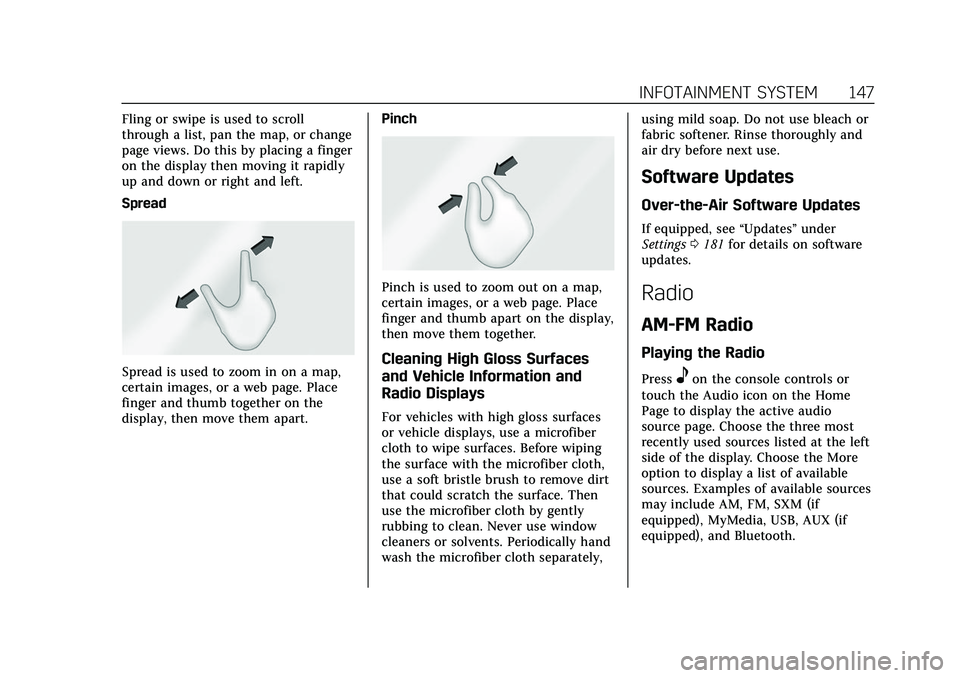
Fling or swipe is used to scroll
through a list, pan the map, or change
page views. Do this by placing a finger
on the display then moving it rapidly
up and down or right and left.
Spread
Spread is used to zoom in on a map,
certain images, or a web page. Place
finger and thumb together on the
display, then move them apart.Pinch
Pinch is used to zoom out on a map,
certain images, or a web page. Place
finger and thumb apart on the display,
then move them together.
Cleaning High Gloss Surfaces
and Vehicle Information and
Radio Displays
For vehicles with high gloss surfaces
or vehicle displays, use a microfiber
cloth to wipe surfaces. Before wiping
the surface with the microfiber cloth,
use a soft bristle brush to remove dirt
that could scratch the surface. Then
use the microfiber cloth by gently
rubbing to clean. Never use window
cleaners or solvents. Periodically hand
wash the microfiber cloth separately,using mild soap. Do not use bleach or
fabric softener. Rinse thoroughly and
air dry before next use.
Software Updates
Over-the-Air Software Updates
If equipped, see
“Updates”under
Settings 0181 for details on software
updates.
Radio
AM-FM Radio
Playing the Radio
Presseon the console controls or
touch the Audio icon on the Home
Page to display the active audio
source page. Choose the three most
recently used sources listed at the left
side of the display. Choose the More
option to display a list of available
sources. Examples of available sources
may include AM, FM, SXM (if
equipped), MyMedia, USB, AUX (if
equipped), and Bluetooth.
Page 156 of 432
Cadillac XT5 Owner Manual (GMNA-Localizing-U.S./Canada/Mexico-
15227431) - 2022 - CRC - 8/11/21
INFOTAINMENT SYSTEM 155
recall a favorite audiobook. The first
chapter in the audiobook begins
to play.
Media Playback and Mute
USB playback will be paused if the
system is muted. If the steering wheel
mute control is pressed again,
playback will resume.
If the source is changed while in
mute, playback resumes and audio
will unmute.
Bluetooth Audio
Music may be played from a paired
Bluetooth device. SeeBluetooth
(Overview) 0174 or
Bluetooth (Pairing and Using a Phone)
0 175 for help pairing a device.
Volume and song selection may be
controlled by using the infotainment
controls or the mobile device.
If Bluetooth is selected and no volume
is present, check the volume setting
on both your mobile device and the
infotainment system. Music can be launched by touching
Bluetooth from the recent sources list
on the left of the display or by
touching the More option and then
touching the Bluetooth device.
To play music via Bluetooth:
1. Power on the device, and pair to connect the device.
2. Once paired, touch Audio from the Home Page, then touch Bluetooth
from the recent sources list on the
left of the display.
Bluetooth Sound Menu
See “Infotainment System Sound
Menu ”under AM-FM Radio 0147.
Manage Bluetooth Devices
From the Home Page: 1. Touch Audio.
2. Touch More.
3. Touch Bluetooth.
4. Touch Devices to add or delete devices.
When touching Bluetooth, the radio
may not be able to launch the audio
player on the connected device to start playing. When the vehicle is not
moving, use the mobile device to
begin playback.
All devices launch audio differently.
When selecting Bluetooth as a source,
the radio may show as paused on the
display. Press play on the device or
touch
pon the display to begin
playback.
Browse functionality will be provided
where supported by the Bluetooth
device. This media content will not be
part of the MyMedia source mode.
Some smartphones support sending
Bluetooth music information to
display on the radio. When the radio
receives this information, it will check
to see if any is available and display it.
For more information about supported
Bluetooth features, see
my.cadillac.com/learn.
Page 175 of 432
Cadillac XT5 Owner Manual (GMNA-Localizing-U.S./Canada/Mexico-
15227431) - 2022 - CRC - 8/11/21
174 INFOTAINMENT SYSTEM
“Navigation Commands”:Begin a
dialog to enter specific destination
information.
“Address” :Begin a dialog to enter a
specific destination address, which
includes the entire address consisting
of the house number, street name,
city, state/province, and country. Do
not include the ZIP code.
“Place of Interest” :Begin a dialog to
enter a destination Place of Interest
category or major brand name.
The name must be precisely spoken.
Nicknames or short names for the
businesses will not likely be found.
Lesser known businesses might have
to be located by category, such as fast
food, hotels, or banks.
“Navigate to Contact” :Begin a
dialog to enter a specific destination
contact name.
“Cancel Route ”:End route guidance.
“Take Me Home ”:Create a route to a
stored home location.Voice Recognition for the Phone
“Call
to a stored contact. The command
may include location if the contact
has location numbers stored.
“Call
Work,” “On Mobile,” or“On
Other” :Initiate a call to a stored
contact and location at home, at work,
on mobile device, or on another
phone.
“Call
a call to a cell phone number of seven
digits, 10 digits, or three digit
emergency numbers.
“Pair Phone ”:Begin the Bluetooth
pairing process. Follow the
instructions on the infotainment
display.
“Redial” :Initiate a call to the last
dialed number.
“Switch Phone ”:Select a different
connected cell phone for outgoing
calls.
“Voice Keypad” :Begin a dialog to
enter special numbers like
international numbers. The numbers can be entered in groups of digits with
each group of digits being repeated
back by the system. If the group of
digits is not correct, the command
“Delete
”will remove the last group of
digits and allow them to be re-entered.
Once the entire number has been
entered, the command “Call”will start
dialing the number.
Phone Assistant Voice
Recognition
Press and holdgon the steering
wheel controls to pass through and
launch Google phone assistant or Siri.
For the low radio, whether connected
by Bluetooth or phone projection, the
only available voice recognition is
either Siri (iPhone) or the Google
Assistant (Android).
Phone
Bluetooth (Overview)
The Bluetooth-capable system can
interact with many mobile devices,
allowing: