infotainment CADILLAC XT5 2023 User Guide
[x] Cancel search | Manufacturer: CADILLAC, Model Year: 2023, Model line: XT5, Model: CADILLAC XT5 2023Pages: 482, PDF Size: 7.1 MB
Page 39 of 482
Cadillac XT5 Owner Manual (GMNA-Localizing-U.S./Canada/Mexico-
16406251) - 2023 - CRC - 3/25/22
38 Keys, Doors, and Windows
Folding Mirrors
Manual Folding Mirrors
If equipped, manually fold the
mirrors inward toward the
vehicle to prevent damage
when going through an
automatic car wash. Push the
mirror outward to return it to
the original position.
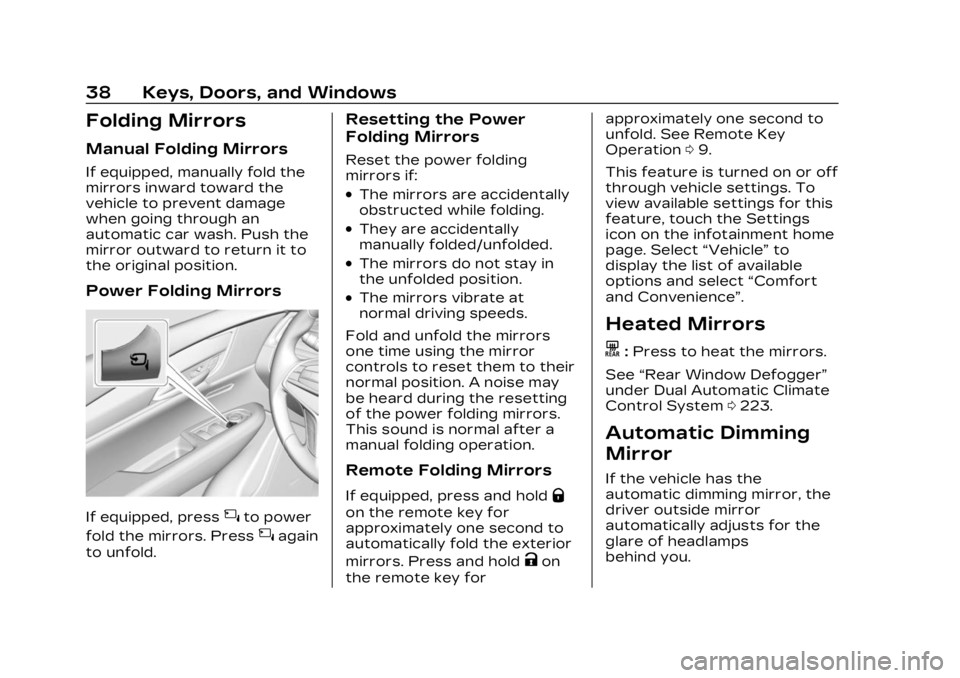
Power Folding Mirrors
If equipped, press{to power
fold the mirrors. Press
{again
to unfold.
Resetting the Power
Folding Mirrors
Reset the power folding
mirrors if:
.The mirrors are accidentally
obstructed while folding.
.They are accidentally
manually folded/unfolded.
.The mirrors do not stay in
the unfolded position.
.The mirrors vibrate at
normal driving speeds.
Fold and unfold the mirrors
one time using the mirror
controls to reset them to their
normal position. A noise may
be heard during the resetting
of the power folding mirrors.
This sound is normal after a
manual folding operation.
Remote Folding Mirrors
If equipped, press and holdQ
on the remote key for
approximately one second to
automatically fold the exterior
mirrors. Press and hold
Kon
the remote key for approximately one second to
unfold. See Remote Key
Operation
09.
This feature is turned on or off
through vehicle settings. To
view available settings for this
feature, touch the Settings
icon on the infotainment home
page. Select “Vehicle”to
display the list of available
options and select “Comfort
and Convenience”.
Heated Mirrors
K: Press to heat the mirrors.
See “Rear Window Defogger”
under Dual Automatic Climate
Control System 0223.
Automatic Dimming
Mirror
If the vehicle has the
automatic dimming mirror, the
driver outside mirror
automatically adjusts for the
glare of headlamps
behind you.
Page 40 of 482

Cadillac XT5 Owner Manual (GMNA-Localizing-U.S./Canada/Mexico-
16406251) - 2023 - CRC - 3/25/22
Keys, Doors, and Windows 39
Reverse Tilt Mirrors
If equipped with reverse tilt
mirrors and memory seats, the
passenger and/or driver
mirror tilts to a preselected
position when the vehicle is in
R (Reverse). This allows the
curb to be seen when parallel
parking.
The mirror(s) may move from
their tilted position when:
.The vehicle is shifted out of
R (Reverse), or remains in
R (Reverse) for about
30 seconds.
.The vehicle is turned off.
.The vehicle is driven in
R (Reverse) above a set
speed.
To view available settings
from the infotainment screen,
touch Settings > Vehicle >
Comfort and Convenience.
Interior Mirrors
Interior Rearview
Mirrors
Adjust the rearview mirror for
a clear view of the area behind
the vehicle.
Do not spray glass cleaner
directly on the mirror. Use a
soft towel dampened with
water.
Manual Rearview
Mirror
If equipped, push the tab
forward for daytime use and
pull it rearward for nighttime
use to avoid glare of the
headlamps from behind.
Automatic Dimming
Rearview Mirror
If equipped, automatic
dimming reduces the glare of
headlamps from behind. The
dimming feature comes on
when the vehicle is started.
Rear Camera Mirror
If equipped, this automatic
dimming mirror provides a
wide angle camera view of the
area behind the vehicle.
Pull the tab to turn on the
display. Push the tab to turn it
off. When off the mirror is
automatic dimming. Adjust the
mirror for a clear view of the
area behind the vehicle while
the display is off.
Page 45 of 482

Cadillac XT5 Owner Manual (GMNA-Localizing-U.S./Canada/Mexico-
16406251) - 2023 - CRC - 3/25/22
44 Keys, Doors, and Windows
If the window is unable to
express-up, program each
express-close window:1. Close all doors.
2. Turn the ignition on or to accessory mode.
3. Partially open the window to be programmed. Then
close it and continue to pull
the switch briefly after the
window has fully closed.
4. Open the window and continue to press the
switch briefly after the
window has fully opened.
Remote Window
Operation
If equipped, this feature allows
all windows to be opened
remotely. If enabled in vehicle
settings, press and hold
Kon
the remote key. To view
available settings for this
feature, touch the Settings
icon on the infotainment home
page. Select “Vehicle”to display the list of available
options and select
“Remote
Lock, Unlock, Start”.
Sun Visors
Pull the sun visor down to
block glare. Detach the sun
visor from the center mount to
pivot to the side window and,
if equipped, extend along
the rod.
Roof
Sunroof
If equipped, the ignition must
be on or in accessory mode,
or Retained Accessory Power
(RAP) must be active to operate the sunroof. See
Ignition Positions
0252 and
Retained Accessory Power
(RAP) 0258.
1. Sunroof Switch
2. Sunshade Switch
Sunroof Express Operation :
Press and release
e(1) to
vent. Press and release again
to move to the partially
opened comfort stop position.
Press and release again to
express-open to the fully
opened position. Press and
release
e(1) at any time to
stop movement. Press and
Page 119 of 482
Cadillac XT5 Owner Manual (GMNA-Localizing-U.S./Canada/Mexico-
16406251) - 2023 - CRC - 3/25/22
118 Instruments and Controls
Clock
Set the time and date using
the infotainment system. See
"Time/Date" under Settings
0205.
Power Outlets
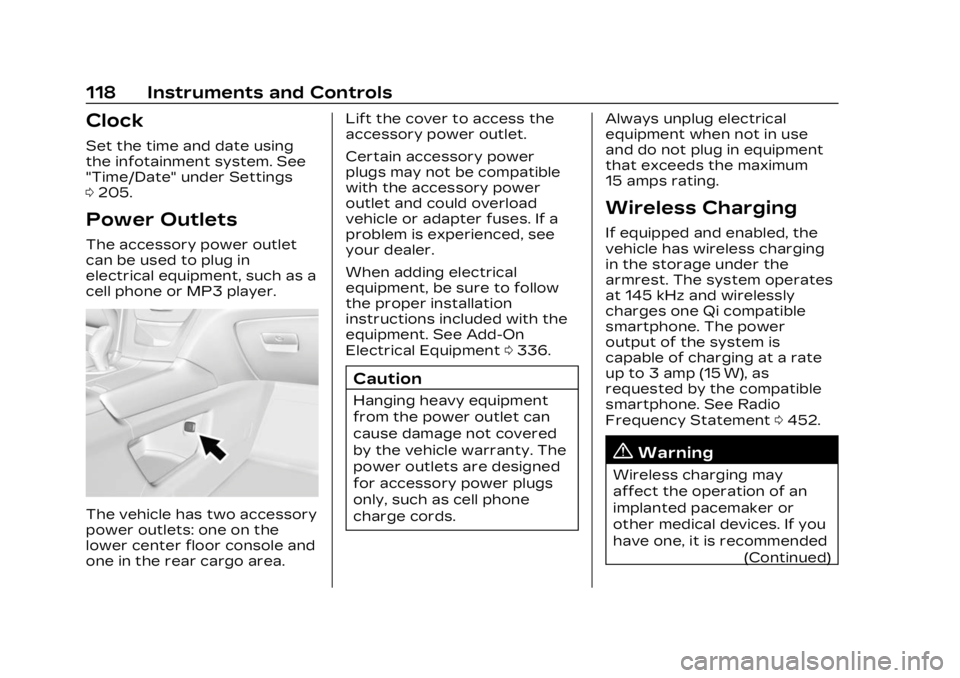
The accessory power outlet
can be used to plug in
electrical equipment, such as a
cell phone or MP3 player.
The vehicle has two accessory
power outlets: one on the
lower center floor console and
one in the rear cargo area. Lift the cover to access the
accessory power outlet.
Certain accessory power
plugs may not be compatible
with the accessory power
outlet and could overload
vehicle or adapter fuses. If a
problem is experienced, see
your dealer.
When adding electrical
equipment, be sure to follow
the proper installation
instructions included with the
equipment. See Add-On
Electrical Equipment
0336.
Caution
Hanging heavy equipment
from the power outlet can
cause damage not covered
by the vehicle warranty. The
power outlets are designed
for accessory power plugs
only, such as cell phone
charge cords. Always unplug electrical
equipment when not in use
and do not plug in equipment
that exceeds the maximum
15 amps rating.
Wireless Charging
If equipped and enabled, the
vehicle has wireless charging
in the storage under the
armrest. The system operates
at 145 kHz and wirelessly
charges one Qi compatible
smartphone. The power
output of the system is
capable of charging at a rate
up to 3 amp (15 W), as
requested by the compatible
smartphone. See Radio
Frequency Statement
0452.
{Warning
Wireless charging may
affect the operation of an
implanted pacemaker or
other medical devices. If you
have one, it is recommended
(Continued)
Page 120 of 482
Cadillac XT5 Owner Manual (GMNA-Localizing-U.S./Canada/Mexico-
16406251) - 2023 - CRC - 3/25/22
Instruments and Controls 119
Warning (Continued)
to consult with your doctor
before using the wireless
charging system.
The vehicle must be on, in
accessory mode, or Retained
Accessory Power (RAP) must
be active. The wireless
charging feature may not
correctly indicate charging
when the vehicle is in RAP,
during a Bluetooth phone call,
or when phone projection (e.g.
Apple CarPlay / Android Auto)
is active. See Retained
Accessory Power (RAP) 0258.
The operating temperature is
−40 °C (−40 °F) to 85 °C
(185 °F) for the charging
system and 0 °C (32 °F) to
35 °C (95 °F) for the phone.
A charging stopped alert may
be displayed on the
infotainment screen, if the
wireless charger or
smartphone are outside of
normal operating temperature.
Charging will automatically resume when a normal
operating temperature is
reached.
{Warning
Remove all objects from the
charger before charging
your compatible
smartphone. Objects, such
as coins, keys, rings, paper
clips, or cards, between the
smartphone and charger
may become very hot.
On the rare occasion that
the charging system does
not detect an object, and
the object gets wedged
between the smartphone
and charger, remove the
smartphone and allow the
object to cool before
removing it from the
charger, to prevent burns.
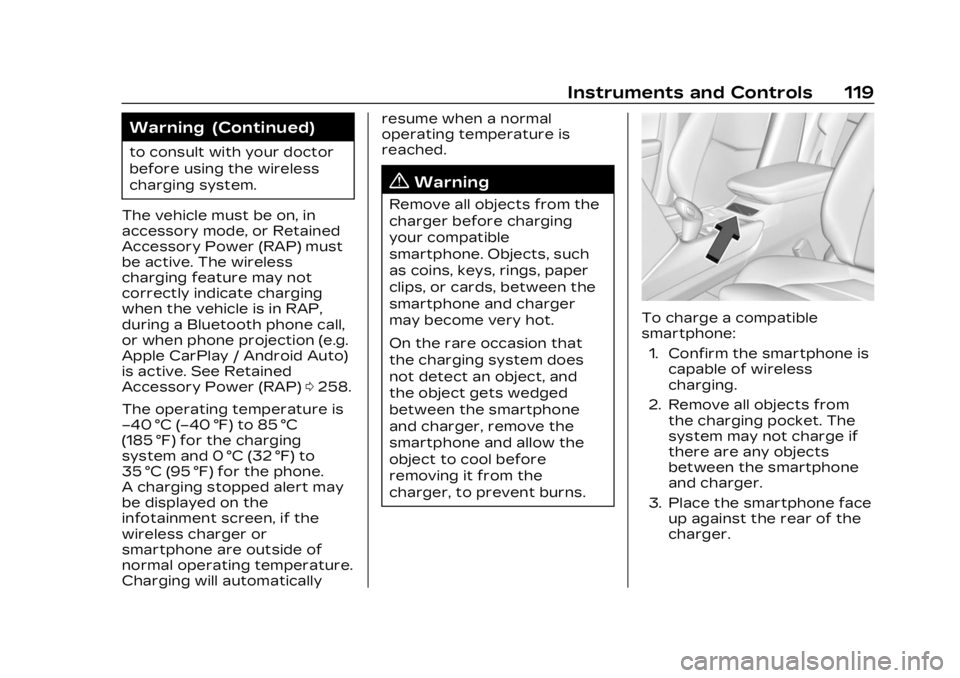
To charge a compatible
smartphone:
1. Confirm the smartphone is capable of wireless
charging.
2. Remove all objects from the charging pocket. The
system may not charge if
there are any objects
between the smartphone
and charger.
3. Place the smartphone face up against the rear of the
charger.
Page 121 of 482
Cadillac XT5 Owner Manual (GMNA-Localizing-U.S./Canada/Mexico-
16406251) - 2023 - CRC - 3/25/22
120 Instruments and Controls
To maximize the charge
rate, ensure the
smartphone is fully seated
and centered in the holder
with nothing under it.
A thick smartphone case
may prevent the charger
from working, or reduce
the charging performance.
See your dealer for
additional information.
4. A green
]will appear on
the infotainment display,
next to the phone icon.
This indicates that the
smartphone is detected.
5. If a smartphone is placed on the charger and
]
turns off or turns yellow,
remove the smartphone
and any objects from the
pocket. Turn the
smartphone 180 degrees
and wait a few seconds
before placing/aligning it
on the pocket again.
6. If a smartphone is placed on the charger and
]
turns red, the charger and/ or the smartphone is
overheated. Remove the
smartphone and any
objects from the charger in
order to cool the system.
The smartphone may become
warm during charging. This is
normal. In warmer
temperatures, the speed of
charging may be reduced.
For vehicles with wireless
phone projection, the
smartphone may overheat
during wireless charging. The
smartphone may slow down,
stop charging, or shut down to
protect the battery. The
phone may need to be
removed from its case to
prevent overheating. The
]
may flash while the phone is
cooling down enough for
wireless charging to
automatically resume. This is
normal. Individual phone
performance may vary. Software Acknowledgements
Certain Wireless Charging
Module product from LG
Electronics, Inc. ("LGE")
contains the open source
software detailed below. Refer
to the indicated open source
licenses (as are included
following this notice) for the
terms and conditions of
their use.
OSS Notice Information
To obtain the source code
that is contained in this
product, please visit
https://opensource.lge.com. In
addition to the source code, all
referred license terms,
warranty disclaimers and
copyright notices are available
for download. LG Electronics
will also provide open source
code to you on CD-ROM for a
charge covering the cost of
performing such distribution
(such as the cost of media,
shipping, and handling) upon
email request to
[email protected]. This
Page 158 of 482

Cadillac XT5 Owner Manual (GMNA-Localizing-U.S./Canada/Mexico-
16406251) - 2023 - CRC - 3/25/22
Lighting 157
Press the lamp lenses to turn
the front reading lamps on
or off.
Rear Reading Lamps
The rear reading lamps are
over the rear seats.
Press the lamp lens to turn
the rear reading lamps on
or off.
Lighting Features
Entry Lighting
The interior lamps turn on
when pressing
Kon the
remote key or opening any
doors, and the dome lamp
control is in the door position.
Some exterior lamps also turn
on when pressing
Kon the
remote key or opening any
doors. Low-Beam lamps will
only turn on briefly at night,
or in areas with limited lighting.
All lamps will gradually fade
out after about 30 seconds.
Entry lighting can be disabled
manually by closing all doors,
pressing
Qon the remote key,
or starting the vehicle. This feature can be changed.
On the infotainment home
page, select the Settings icon
TVehicleTVehicle Locator
Lights.
Exit Lighting
Some exterior lamps and
interior lamps turn on when
the driver door is opened after
the vehicle is turned off.
The exterior and interior lamps
remain on for a set amount of
time, then automatically
turn off.
The interior lights turn on
when the vehicle is turned off.
The exterior lamps turn off
immediately by turning the
exterior lamp control off.
This feature can be changed.
On the infotainment home
screen, select the Settings
icon
TVehicleTExit Lighting.
Page 160 of 482
Cadillac XT5 Owner Manual (GMNA-Localizing-U.S./Canada/Mexico-
16406251) - 2023 - CRC - 3/25/22
Infotainment System 159
Infotainment
System
Introduction
Introduction . . . . . . . . . . . . . . . . . 159
Overview . . . . . . . . . . . . . . . . . . . . . 160
Steering WheelControls . . . . . . . . . . . . . . . . . . . . . 162
Using the System . . . . . . . . . . 163
Software Updates . . . . . . . . . 166
Radio
AM-FM Radio . . . . . . . . . . . . . . . 166
Radio Data System (RDS) . . . . . . . . . . . . . . 169
Satellite Radio . . . . . . . . . . . . . . 169
Radio Reception . . . . . . . . . . . . 170
Multi-Band Antenna . . . . . . . . 171
Audio Players
Avoiding Untrusted Media Devices . . . . . . . . . . . . . . . . . . . . . . . 171
USB Port . . . . . . . . . . . . . . . . . . . . . . 171
Bluetooth Audio . . . . . . . . . . . . 174
Navigation
Using the Navigation System . . . . . . . . . . . . . . . . . . . . . . 175
Maps . . . . . . . . . . . . . . . . . . . . . . . . . . . 179
Navigation Symbols . . . . . . . 179 Destination . . . . . . . . . . . . . . . . . . 180
Global Positioning
System (GPS) . . . . . . . . . . . . . . 187
Vehicle Positioning . . . . . . . . 188
Problems with Route Guidance . . . . . . . . . . . . . . . . . . . . 188
If the System Needs Service . . . . . . . . . . . . . . . . . . . . . . 189
Map Data Updates . . . . . . . . 189
Database Coverage Explanations . . . . . . . . . . . . . . . 189
Voice Recognition
Voice Recognition . . . . . . . . . 190
Phone
Bluetooth (Overview) . . . . . 197
Bluetooth (Pairing andUsing a Phone) . . . . . . . . . . . . 198
Apple CarPlay and Android Auto . . . . . . . . . . . . . . 203
Settings
Settings . . . . . . . . . . . . . . . . . . . . . . 205
Teen Driver . . . . . . . . . . . . . . . . . 209
Trademarks and License
Agreements
Trademarks and LicenseAgreements . . . . . . . . . . . . . . . . 214
Introduction
Read the following pages to
become familiar with the
features.
{Warning
Taking your eyes off the
road for too long or too
often while using any
infotainment feature can
cause a crash. You or others
could be injured or killed. Do
not give extended attention
to infotainment tasks while
driving. Limit your glances at
the vehicle displays and
focus your attention on
driving. Use voice commands
whenever possible.
The infotainment system has
built-in features intended to
help avoid distraction by
disabling some features when
driving. These features may
gray out when they are
unavailable. Many infotainment
Page 161 of 482
Cadillac XT5 Owner Manual (GMNA-Localizing-U.S./Canada/Mexico-
16406251) - 2023 - CRC - 3/25/22
160 Infotainment System
features are also available
through the instrument cluster
and steering wheel controls.
Before driving:
.Become familiar with the
operation, center stack
controls, steering wheel
controls, and infotainment
display.
.Set up the audio by
presetting favorite stations,
setting the tone, and
adjusting the speakers.
.Set up phone numbers in
advance so they can be
called easily by pressing a
single control or by using a
single voice command.
See Distracted Driving 0235.
Active Noise
Cancellation (ANC)
If equipped, ANC reduces
engine noise in the vehicle’s
interior. ANC requires the
factory-installed audio system,
radio, speakers, amplifier (if
equipped), induction system,
and exhaust system to work properly. Deactivation is
required by your dealer if
related aftermarket equipment
is installed.
Overview
Infotainment System
The infotainment system is
controlled by using the
infotainment display, controls
on the center console,
steering wheel controls, and
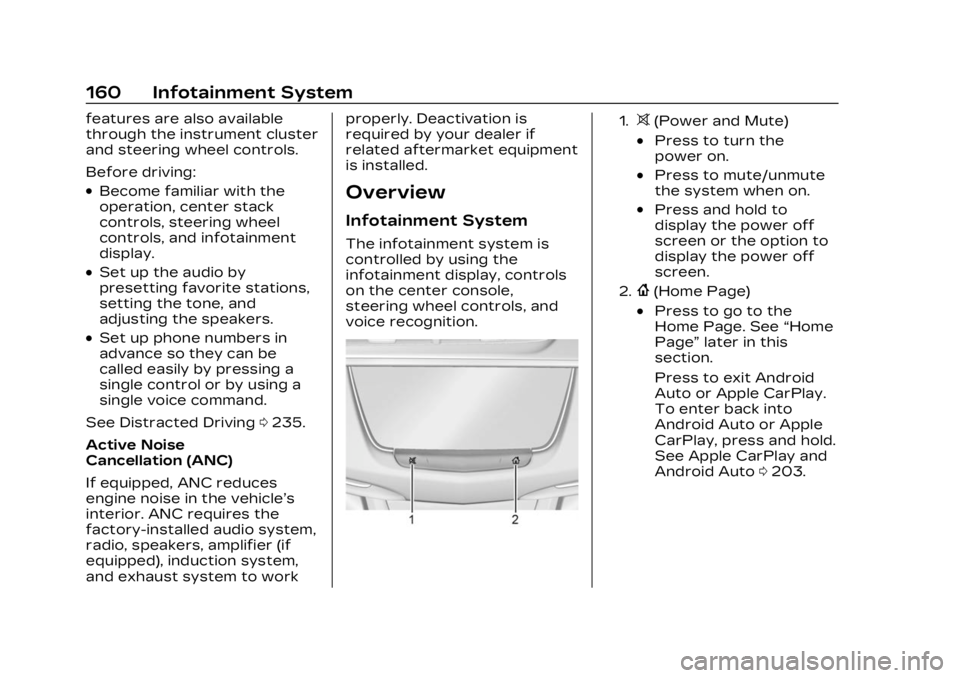
voice recognition.
1.>(Power and Mute)
.Press to turn the
power on.
.Press to mute/unmute
the system when on.
.Press and hold to
display the power off
screen or the option to
display the power off
screen.
2.{(Home Page)
.Press to go to the
Home Page. See
“Home
Page” later in this
section.
Press to exit Android
Auto or Apple CarPlay.
To enter back into
Android Auto or Apple
CarPlay, press and hold.
See Apple CarPlay and
Android Auto 0203.
Page 162 of 482
Cadillac XT5 Owner Manual (GMNA-Localizing-U.S./Canada/Mexico-
16406251) - 2023 - CRC - 3/25/22
Infotainment System 161
Infotainment Controls on
the Console with
Navigation Shown, Radio
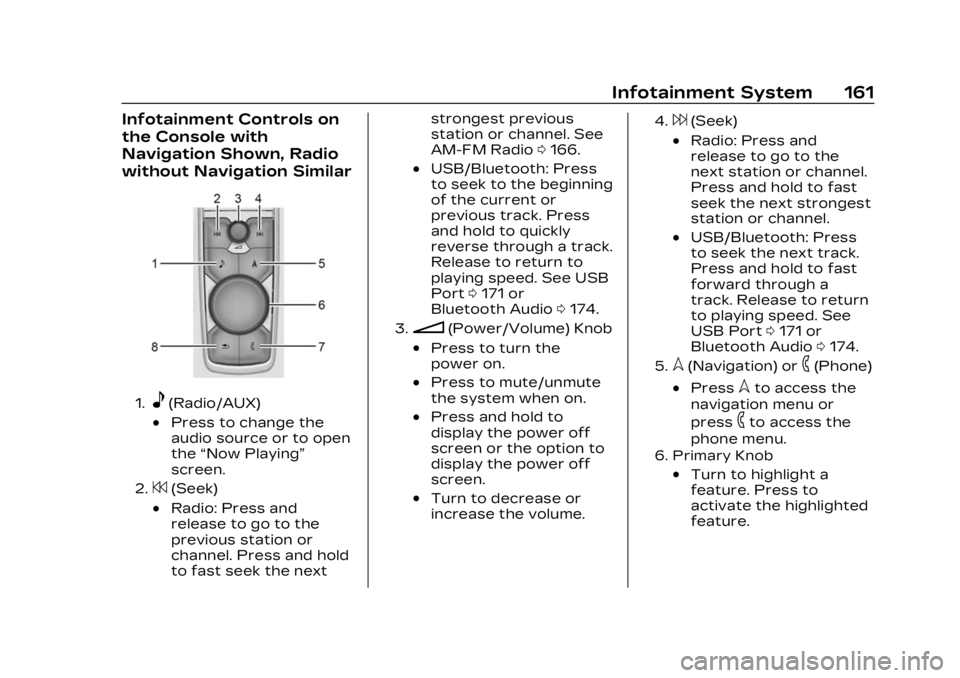
without Navigation Similar
1.e(Radio/AUX)
.Press to change the
audio source or to open
the“Now Playing”
screen.
2.7(Seek)
.Radio: Press and
release to go to the
previous station or
channel. Press and hold
to fast seek the next strongest previous
station or channel. See
AM-FM Radio
0166.
.USB/Bluetooth: Press
to seek to the beginning
of the current or
previous track. Press
and hold to quickly
reverse through a track.
Release to return to
playing speed. See USB
Port 0171 or
Bluetooth Audio 0174.
3.n(Power/Volume) Knob
.Press to turn the
power on.
.Press to mute/unmute
the system when on.
.Press and hold to
display the power off
screen or the option to
display the power off
screen.
.Turn to decrease or
increase the volume.
4.6(Seek)
.Radio: Press and
release to go to the
next station or channel.
Press and hold to fast
seek the next strongest
station or channel.
.USB/Bluetooth: Press
to seek the next track.
Press and hold to fast
forward through a
track. Release to return
to playing speed. See
USB Port 0171 or
Bluetooth Audio 0174.
5.l(Navigation) or6(Phone)
.Presslto access the
navigation menu or
press
6to access the
phone menu.
6. Primary Knob
.Turn to highlight a
feature. Press to
activate the highlighted
feature.