Speed CADILLAC XT6 2021 User Guide
[x] Cancel search | Manufacturer: CADILLAC, Model Year: 2021, Model line: XT6, Model: CADILLAC XT6 2021Pages: 431, PDF Size: 8.29 MB
Page 106 of 431
Cadillac XT6 Owner Manual (GMNA-Localizing-U.S./Canada-14574701) -
2021 - CRC - 2/8/21
INSTRUMENTS AND CONTROLS 105
Rear Camera Washer
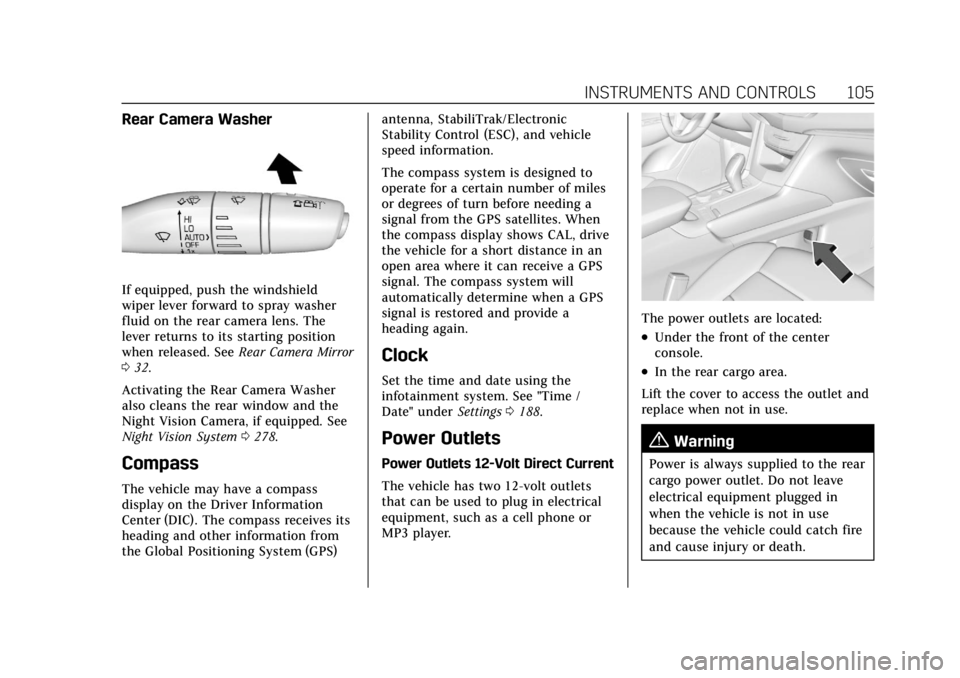
If equipped, push the windshield
wiper lever forward to spray washer
fluid on the rear camera lens. The
lever returns to its starting position
when released. SeeRear Camera Mirror
0 32.
Activating the Rear Camera Washer
also cleans the rear window and the
Night Vision Camera, if equipped. See
Night Vision System 0278.
Compass
The vehicle may have a compass
display on the Driver Information
Center (DIC). The compass receives its
heading and other information from
the Global Positioning System (GPS) antenna, StabiliTrak/Electronic
Stability Control (ESC), and vehicle
speed information.
The compass system is designed to
operate for a certain number of miles
or degrees of turn before needing a
signal from the GPS satellites. When
the compass display shows CAL, drive
the vehicle for a short distance in an
open area where it can receive a GPS
signal. The compass system will
automatically determine when a GPS
signal is restored and provide a
heading again.
Clock
Set the time and date using the
infotainment system. See "Time /
Date" under
Settings0188.
Power Outlets
Power Outlets 12-Volt Direct Current
The vehicle has two 12-volt outlets
that can be used to plug in electrical
equipment, such as a cell phone or
MP3 player.
The power outlets are located:
.Under the front of the center
console.
.In the rear cargo area.
Lift the cover to access the outlet and
replace when not in use.
{Warning
Power is always supplied to the rear
cargo power outlet. Do not leave
electrical equipment plugged in
when the vehicle is not in use
because the vehicle could catch fire
and cause injury or death.
Page 108 of 431

Cadillac XT6 Owner Manual (GMNA-Localizing-U.S./Canada-14574701) -
2021 - CRC - 2/8/21
INSTRUMENTS AND CONTROLS 107
To charge a compatible smartphone:1. Remove all objects from the charging pocket. The system may
not charge if there are any objects
between the smartphone and the
charging pocket.
2. With the smartphone screen facing the rear of the vehicle, slowly insert
the smartphone into the charging
pocket until a green
]appears on
Von the infotainment display.
This indicates that the smartphone
is properly positioned and charging.
If
]turns yellow, ensure that the
charging pocket is clear of any
objects and that the smartphone is capable of wireless charging before
repositioning it. If a smartphone is
inserted into the pocket and
]
does not display, remove the
smartphone from the pocket, turn
it 180 degrees, and wait
three seconds before inserting the
smartphone into the pocket again.
The smartphone may become
warm during charging. This is
normal. In warmer temperatures,
the speed of charging may be
reduced.
To maximize the charge rate,
ensure the smartphone is fully
seated and centered in the holder
with nothing under it. A thick
smartphone case may prevent the
wireless charger from working,
or may reduce the charging
performance. See your dealer for
additional information.
For vehicles with wireless phone
projection, the smartphone may
overheat during wireless charging. The
smartphone may slow down, stop
charging, or shut down to protect the
battery. The phone may need to be
removed from its case to prevent overheating. The
]may flash while
the phone is cooling down enough for
wireless charging to automatically
resume. This is normal. Individual
phone performance may vary.
Software Acknowledgements
Certain Wireless Charging Module
product from LG Electronics, Inc.
("LGE") contains the open source
software detailed below. Refer to the
indicated open source licenses (as are
included following this notice) for the
terms and conditions of their use.
OSS Notice Information
To obtain the source code that is
contained in this product, please visit
http://opensource.lge.com. In addition
to the source code, all referred license
terms, warranty disclaimers and
copyright notices are available for
download. LG Electronics will also
provide open source code to you on
CD-ROM for a charge covering the
cost of performing such distribution
(such as the cost of media, shipping,
and handling) upon email request to
Page 110 of 431
Cadillac XT6 Owner Manual (GMNA-Localizing-U.S./Canada-14574701) -
2021 - CRC - 2/8/21
INSTRUMENTS AND CONTROLS 109
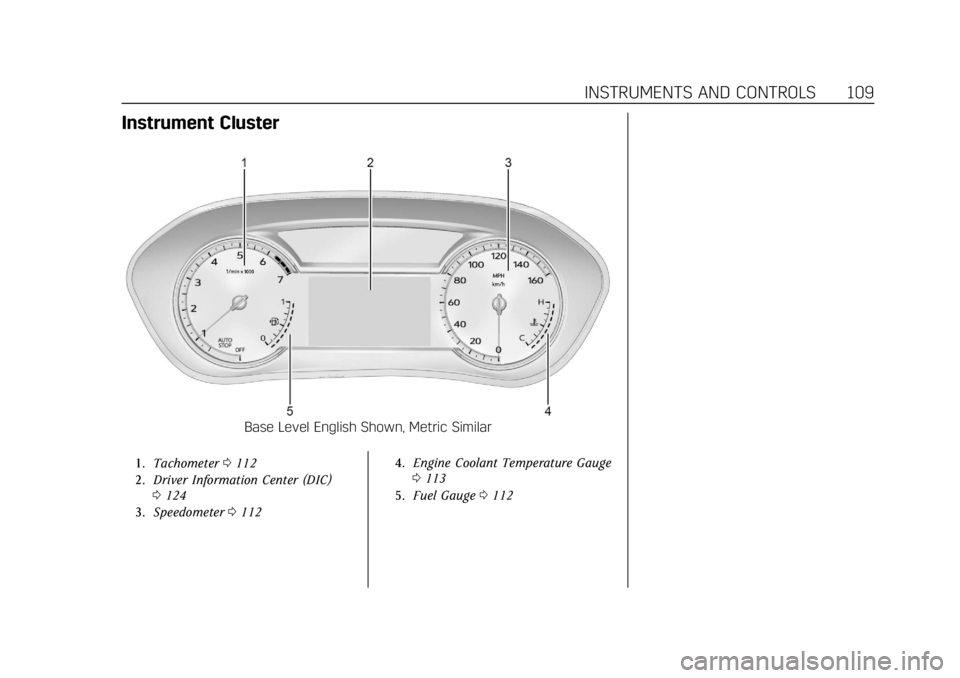
Instrument Cluster
Base Level English Shown, Metric Similar
1.Tachometer 0112
2. Driver Information Center (DIC)
0124
3. Speedometer 0112 4.
Engine Coolant Temperature Gauge
0113
5. Fuel Gauge 0112
Page 111 of 431
Cadillac XT6 Owner Manual (GMNA-Localizing-U.S./Canada-14574701) -
2021 - CRC - 2/8/21
110 INSTRUMENTS AND CONTROLS
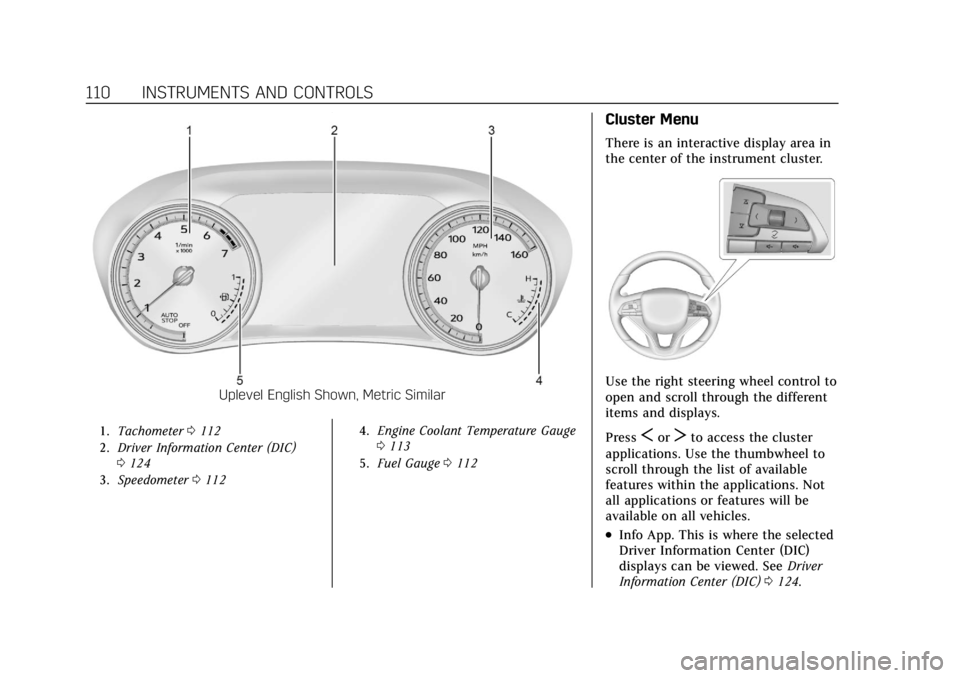
Uplevel English Shown, Metric Similar
1.Tachometer 0112
2. Driver Information Center (DIC)
0124
3. Speedometer 0112 4.
Engine Coolant Temperature Gauge
0113
5. Fuel Gauge 0112
Cluster Menu
There is an interactive display area in
the center of the instrument cluster.
Use the right steering wheel control to
open and scroll through the different
items and displays.
Press
SorTto access the cluster
applications. Use the thumbwheel to
scroll through the list of available
features within the applications. Not
all applications or features will be
available on all vehicles.
.Info App. This is where the selected
Driver Information Center (DIC)
displays can be viewed. See Driver
Information Center (DIC) 0124.
Page 112 of 431
Cadillac XT6 Owner Manual (GMNA-Localizing-U.S./Canada-14574701) -
2021 - CRC - 2/8/21
INSTRUMENTS AND CONTROLS 111
.Audio
.Navigation
.Phone
.Night Vision
.Options
Audio
In the Audio menu browse for music,
select from the favorites, or change
the audio source. Use the thumbwheel
to change the station or go to the next
or previous track.
Navigation
If there is an active route, press the
thumbwheel to cancel or resume route
guidance, or turn the voice prompts
on or off.
Phone
In the Phone menu, if there is no
active phone call, view recent calls,
or scroll through contacts. If there is
an active call, mute the phone or
switch to handset operation.
Night Vision (Uplevel)
If equipped, provides an infrared night
vision image of the area beyond the
headlamps that highlights and provides alerts to detected pedestrians
or large animals. See
Night Vision
System 0278.
Options
Use the thumbwheel to scroll through
items in the Options menu.
Units : Choose English or metric units
by pressing the thumbwheel while the
desired item is highlighted.
Info Page Options : Press the
thumbwheel to select the items to be
displayed in the Info app. See Driver
Information Center (DIC) 0124.
Display : Press the thumbwheel to
enter the Display menu. Select to turn
on or off the speedometer, time, fuel
range, or, if equipped, compass or
speed sign.
Speed Warning : The Speed Warning
display allows the driver to set a
warning at a speed that they do not
want to exceed. To set the Speed
Warning press the thumbwheel when
Speed Warning is displayed. Use the
thumbwheel to adjust the value and
press to set the speed. Once the speed is set, this feature can
be turned off by pressing the
thumbwheel while viewing this page.
If the selected speed limit is exceeded,
a pop-up warning is displayed with a
chime.
Head-up Display (HUD) (Uplevel) :
If equipped, this feature allows for
adjusting the angle of the HUD image
and changing or turning off the Speed
Limit Sign.
HUD Rotation (Uplevel): Press the
thumbwheel while Adjust Rotation is
highlighted to enter Adjust Mode.
Scroll to adjust the angle of the HUD
display. Press the thumbwheel to
confirm and save the setting. This
feature may only be available in
P (Park).
Speed Sign: If equipped, press the
thumbwheel while Speed Sign is
highlighted to turn it on or off.
Software Information :
Displays open
source software information.
Page 113 of 431

Cadillac XT6 Owner Manual (GMNA-Localizing-U.S./Canada-14574701) -
2021 - CRC - 2/8/21
112 INSTRUMENTS AND CONTROLS
Speedometer
The speedometer shows the vehicle's
speed in either kilometers per hour
(km/h) or miles per hour (mph).
Odometer
The odometer shows how far the
vehicle has been driven, in either
kilometers or miles.
Trip Odometer
The trip odometer shows how far the
vehicle has been driven since the trip
odometer was last reset.
The trip odometer is accessed and
reset through the Driver Information
Center (DIC). SeeDriver Information
Center (DIC) 0124.
Tachometer
The tachometer displays the engine
speed in revolutions per minute (rpm).
For vehicles with the Stop/Start
system, when the ignition is on, the
tachometer indicates the vehicle
status. When pointing to AUTO STOP,
the engine is off but the vehicle is on and can move. The engine could auto
start at any time. When the indicator
points to OFF, the vehicle is off.
When the engine is on, the
tachometer will indicate the engine’s
revolutions per minute (rpm). The
tachometer may vary by several
hundred rpm, during Auto Stop mode,
when the engine is shutting off and
restarting.
Fuel Gauge
When the ignition is on, the fuel
gauge indicates about how much fuel
is left in the tank.
There is an arrow near the fuel gauge
pointing to the side of the vehicle the
fuel door is on.
When the indicator nears empty, the
low fuel light comes on. There still is
a little fuel left, but the vehicle should
be refueled soon.
Here are three things that some
owners ask about. None of these show
a problem with the fuel gauge:
.It takes a little more, or less fuel to
fill up than the gauge indicated. For
example, the gauge may have
indicated the tank was half full, but
it actually took a little more, or less
than half the tank's capacity to fill
the tank.
.The gauge moves a little while
turning a corner, speeding up or
braking.
.The gauge takes a few seconds to
stabilize after the ignition is turned
on and goes back to empty when
the ignition is turned off.
Page 117 of 431
Cadillac XT6 Owner Manual (GMNA-Localizing-U.S./Canada-14574701) -
2021 - CRC - 2/8/21
116 INSTRUMENTS AND CONTROLS
Caution
Modifications to the engine,
transmission, exhaust, intake,
or fuel system, or the use of
replacement tires that do not meet
the original tire specifications, can
cause this light to come on. This
could lead to costly repairs not
covered by the vehicle warranty.
This could also affect the vehicle’s
ability to pass an Emissions
Inspection/Maintenance test. See
Accessories and Modifications0305.
If the light is f lashing : A
malfunction has been detected that
could damage the emission control
system and increase vehicle
emissions. Diagnosis and service may
be required.
To help prevent damage, reduce
vehicle speed and avoid hard
accelerations and uphill grades.
If towing a trailer, reduce the amount
of cargo being hauled as soon as
possible. If the light continues to flash, find a
safe place to park. Turn the vehicle off
and wait at least 10 seconds before
restarting the engine. If the light is
still flashing, follow the previous
guidelines and see your dealer for
service as soon as possible.
If the light is on steady :
A
malfunction has been detected.
Diagnosis and service may be
required.
Check the following:
.If fuel has been added to the vehicle
using the capless fuel funnel
adapter, make sure that it has been
removed. See “Filling the Tank with
a Portable Gas Can ”under Filling the
Tank 0287. The diagnostic system
can detect if the adapter has been
left installed in the vehicle, allowing
fuel to evaporate into the
atmosphere. A few driving trips with
the adapter removed may turn off
the light.
.Poor fuel quality can cause
inefficient engine operation and
poor driveability, which may go
away once the engine is warmed up.
If this occurs, change the fuel
brand. It may require at least one
full tank of the proper fuel to turn
the light off. See Recommended Fuel
(3.6L V6 Engine) 0286 or
Recommended Fuel (2.0L L4 Turbo
Engine) 0286.
If the light remains on, see your
dealer.
Emissions Inspection and
Maintenance Programs
If the vehicle requires an Emissions
Inspection/Maintenance test, the test
equipment will likely connect to the
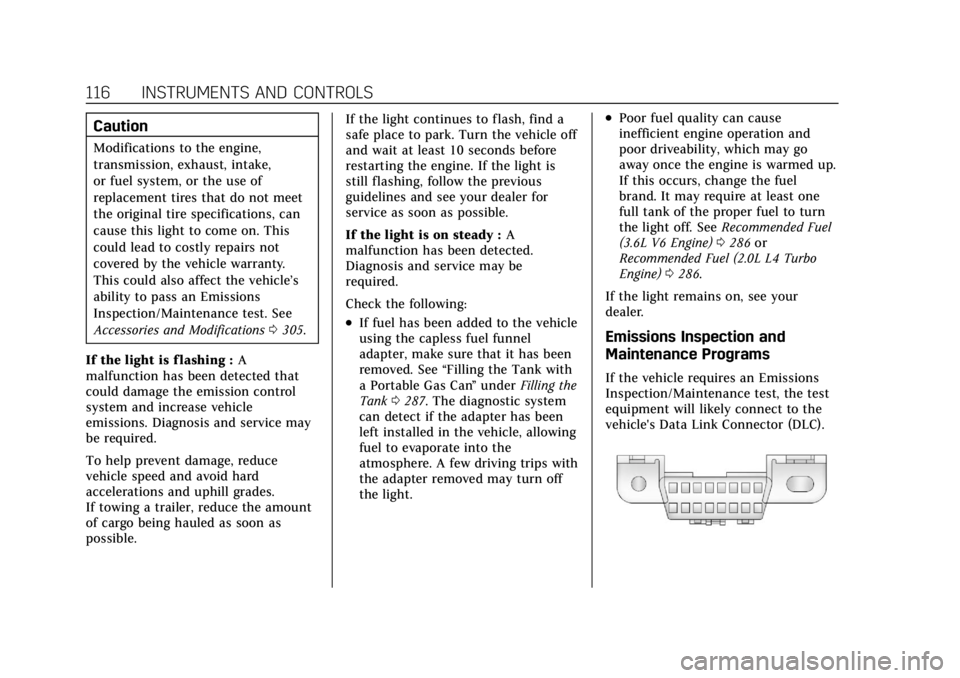
vehicle's Data Link Connector (DLC).
Page 118 of 431
Cadillac XT6 Owner Manual (GMNA-Localizing-U.S./Canada-14574701) -
2021 - CRC - 2/8/21
INSTRUMENTS AND CONTROLS 117
The DLC is under the instrument
panel to the left of the steering wheel.
Connecting devices that are not used
to perform an Emissions Inspection/
Maintenance test or to service the
vehicle may affect vehicle operation.
SeeAdd-On Electrical Equipment 0301.
See your dealer if assistance is needed.
The vehicle may not pass
inspection if:
.The light is on when the engine is
running.
.The light does not come on when
the ignition is in Service Mode.
.Critical emission control systems
have not been completely
diagnosed. If this happens, the
vehicle would not be ready for
inspection and might require
several days of routine driving
before the system is ready for
inspection. This can happen if the
12-volt battery has recently been
replaced or run down, or if the
vehicle has been recently serviced.
See your dealer if the vehicle will not
pass or cannot be made ready for
the test.
Brake System Warning
Light
MetricEnglish
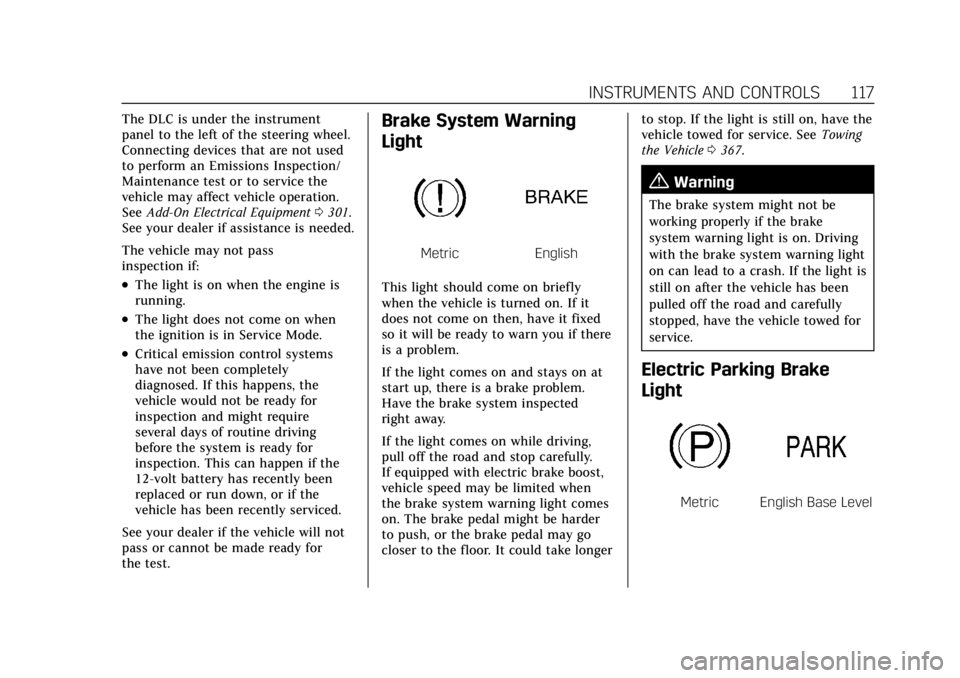
This light should come on briefly
when the vehicle is turned on. If it
does not come on then, have it fixed
so it will be ready to warn you if there
is a problem.
If the light comes on and stays on at
start up, there is a brake problem.
Have the brake system inspected
right away.
If the light comes on while driving,
pull off the road and stop carefully.
If equipped with electric brake boost,
vehicle speed may be limited when
the brake system warning light comes
on. The brake pedal might be harder
to push, or the brake pedal may go
closer to the floor. It could take longer to stop. If the light is still on, have the
vehicle towed for service. See
Towing
the Vehicle 0367.
{Warning
The brake system might not be
working properly if the brake
system warning light is on. Driving
with the brake system warning light
on can lead to a crash. If the light is
still on after the vehicle has been
pulled off the road and carefully
stopped, have the vehicle towed for
service.
Electric Parking Brake
Light
MetricEnglish Base Level
Page 125 of 431

Cadillac XT6 Owner Manual (GMNA-Localizing-U.S./Canada-14574701) -
2021 - CRC - 2/8/21
124 INSTRUMENTS AND CONTROLS
Door Ajar Light
This light comes on when a door is
open or not securely latched. Before
driving, check that all doors are
properly closed.
Information Displays
Driver Information
Center (DIC)
The DIC is displayed in the
instrument cluster. It shows the status
of many vehicle systems.
SorT:Press to move between the
interactive display zones in the
cluster. Press
Sto go back to the
previous menu.
yorz: Use the thumbwheel to
scroll to the previous or next
selection.
V: Press the thumbwheel to open a
menu or select a menu item. Press
and hold to reset values on certain
screens.
Info Page Options
The info displays on the DIC can be
turned on or off through the
Options menu. 1. Press
Tto scroll to the Options
menu. Use the thumbwheel to
scroll to Info Pages and press the
thumbwheel to select.
2. Scroll
yorzto move through
the list of possible info displays.
3. Press the thumbwheel while an item is highlighted to select or
deselect that item.
The info pages can also be turned on
or off through the DIC page Info Page
Options.
DIC Information Displays
The following is the list of all possible
DIC information displays. Some of the
information displays may not be
available for your particular vehicle.
While in the Info Page Options menu,
the info pages can be restored to the
default factory settings by pressing
and holding
Ron the left steering
wheel controls and the thumbwheel
on the right steering wheel controls at
the same time.
Speed : Shows the vehicle speed in
either kilometers per hour (km/h) or
miles per hour (mph).
Page 127 of 431

Cadillac XT6 Owner Manual (GMNA-Localizing-U.S./Canada-14574701) -
2021 - CRC - 2/8/21
126 INSTRUMENTS AND CONTROLS
If the vehicle is equipped with an
Active Fuel Management indicator,
the engine operating mode may be
shown in the corner of this display.
Average Speed :Displays the average
vehicle speed of the vehicle in
kilometers per hour (km/h) or miles
per hour (mph). This average is based
on the various vehicle speeds recorded
since the last reset. Reset the average
speed by pressing the thumbwheel
while this display is active to show a
confirmation window to select yes
or no.
Timer : This display can be used as a
timer. To start the timer, press the
thumbwheel while this display is
active. The display will show the
amount of time that has passed since
the timer was last reset. To stop the
timer, press the thumbwheel briefly
while this display is active and the
timer is running.
Press the thumbwheel while this
display is active to reset the timer.
Follow Distance/Gap Setting : When
Adaptive Cruise Control (ACC) is not
engaged, the current follow time to
the vehicle ahead is displayed as a time value on this page. When ACC
has been engaged, the display
switches to the gap setting page. This
page shows the current gap setting
along with the vehicle ahead indicator.
Driver Assistance :
If equipped,
shows information for Lane Keep
Assist (LKA) and Forward Collision
Alert (FCA).
Battery Voltage : Shows the current
battery voltage.
Coolant Temperature : Shows the
engine coolant temperature in either
degrees Celsius (°C) or degrees
Fahrenheit (°F).
Oil Temperature : Shows the engine
oil temperature in either degrees
Celsius (°C) or degrees Fahrenheit (°F).
Engine Boost : If equipped, displays
engine manifold pressure relative to
ambient air pressure. It will display
boost pressure generated by the
turbocharging system.
Transmission Fluid Temperature :
Shows the temperature of the
automatic transmission fluid in either
degrees Celsius (°C) or degrees
Fahrenheit (°F). Off Road :
Displays vehicle pitch and
roll information, road wheel angle,
and four-wheel drive (4WD) status.
Info Page Options : Scroll to choose
which info pages appear on the DIC.
Press the thumbwheel to select or
deselect.
Blank Page : Allows for no
information to be displayed in the
cluster info display areas.
Head-Up Display (HUD)
{Warning
If the HUD image is too bright or
too high in your field of view, it
may take you more time to see
things you need to see when it is
dark outside. Be sure to keep the
HUD image dim and placed low in
your field of view.
If equipped with HUD, some
information concerning the operation
of the vehicle is projected onto the
windshield. The image is projected
through the HUD lens on top of the