display CADILLAC XTS 2013 1.G Repair Manual
[x] Cancel search | Manufacturer: CADILLAC, Model Year: 2013, Model line: XTS, Model: CADILLAC XTS 2013 1.GPages: 438, PDF Size: 7.4 MB
Page 197 of 438
Black plate (15,1)Cadillac XTS Owner Manual - 2013 - 1st - 4/13/12
Infotainment System 7-15
While the USB source is active, use
the icons on the screen to operate
USB function:
.t(Seek Previous/Fast
Reverse)
.u(Seek Next/Fast Forward)
.j/r(Play/Pause)
.Z(Shuffle)
For information on how to use the
screen icons, see “Playing an
Audio CD.”
USB Menu
Press the MENU knob to display the
USB menu and the following may
display:
Browse: Select to display the files
on the USB device.
Tone Settings: Select to adjust
Bass, Midrange, Treble, Balance,
Fade, and EQ (Equalizer). See
“Tone Settings” under“Playing an
Audio CD.” Auto Volume:
If equipped, see
“Playing an Audio CD.”
Bose AudioPilot: If equipped, see
“Playing an Audio CD.”
Playing from an iPod®
This feature supports the following
iPod models:
.iPod nano® (1st, 2nd, 3rd, and
4th generation)
.iPod with video (5.0 and 5.5
generation). Video is not shown;
only audio is supported.
.iPod classic® (6th generation)
.iPod touch® (1st and 2nd
generation)
There may be problems with
operation and function in the
following situations:
.When connecting an iPod on
which a more recent version of
the firmware is installed than is
supported by the infotainment
system.
.When connecting an iPod on
which firmware from other
providers is installed.
To connect and control an iPod:
1. Connect one end of the standard iPod USB cable to the iPod's
dock connector.
2. Connect the other end to a USB port in the center console or in
the center stack storage bin.
3. Press the MEDIA button to select the source.
iPod music information displays on
the radio’s display and begins
playing through the vehicle’s audio
system.
The iPod battery recharges
automatically while the vehicle is on.
When the vehicle is off while an
iPod is connected using the iPod
USB cable, the iPod battery stops
charging and the iPod automatically
turns off.
Page 198 of 438
Black plate (16,1)Cadillac XTS Owner Manual - 2013 - 1st - 4/13/12
7-16 Infotainment System
If the iPod is an unsupported model,
it can still be listened to in the
vehicle by connecting to the
auxiliary input jack using a standard
3.5 mm (1/8 in) stereo cable.
iPod Menu
Press the MENU knob to display the
iPod Menu and the following may
display:
Browse:Select to display the files
or songs on the iPod. See “Browse
iPod Media” later in this section.
Tone Settings: Select to adjust
Bass, Midrange, Treble, Balance,
Fade, and EQ (Equalizer). See
“Tone Settings” under“Playing an
Audio CD.”
Auto Volume: If equipped, see
“Playing an Audio CD.”
Bose AudioPilot: If equipped, see
“Playing an Audio CD.” Browse iPod Media
Use the following to browse:
Playlists:
1. Turn the MENU knob to highlight
and press to view the playlists
stored on the iPod.
2. Turn the MENU knob to highlight and press to select a playlist
name to view a list of all songs
in the playlist.
3. Turn the MENU knob to highlight and press to select the song
from the list to begin playback.
Artists:
1. Turn the MENU knob to highlight and press to view the artists
stored on the iPod.
2. Turn the MENU knob to highlight and press to select an artist
name to view a list of all albums
by the artist.
3. Turn the MENU knob to highlight and press to select the album
from the list to begin playback. Albums:
1. Turn the MENU knob to highlight
and press to view the albums
stored on the iPod.
2. Turn the MENU knob to highlight and press to select an album
name to view a list of all songs
on the album.
3. Turn the MENU knob to highlight and press to select the song
from the list to begin playback.
Genres:
1. Turn the MENU knob to highlight and press to view the genres
stored on the iPod.
2. Turn the MENU knob to highlight and press to select a genre
name to view a list of artists of
that genre.
3. Turn the MENU knob to highlight and press to select to view
albums by that artist.
4. Turn the MENU knob to highlight and press to select an album to
view songs.
Page 200 of 438
Black plate (18,1)Cadillac XTS Owner Manual - 2013 - 1st - 4/13/12
7-18 Infotainment System
AUX Menu
Press the MENU knob to display the
AUX menu and the following may
display:
Tone Settings:Select to adjust
Bass, Midrange, Treble, Balance,
Fade, and EQ (Equalizer). See
“Tone Settings” under“Playing an
Audio CD.”
Auto Volume: If equipped, see
“Playing an Audio CD.”
Bose AudioPilot: If equipped, see
“Playing an Audio CD.”Phone
Bluetooth (Overview)
Instructions for using the cell phone
may differ between infotainment
systems. For vehicles with the CUE
infotainment system, see the CUE
infotainment manual.
Bluetooth-capable systems can
interact with many cell phones,
allowing:
.Placement and receipt of calls in
a hands-free mode.
.Sharing of the cell phone’s
address book or contact list with
the vehicle.
To minimize driver distraction,
before driving, and with the vehicle
parked:
.Become familiar with the
features of the cell phone.
Organize the phone book and
contact lists clearly and delete duplicate or rarely used entries.
If possible, program speed dial
or other shortcuts.
.Review the controls and
operation of the infotainment
system.
.Pair cell phone(s) to the vehicle.
The system may not work with
all cell phones. See
“Pairing”in
this section.
.If the cell phone has voice
dialing capability, learn to use
that feature to access the
address book or contact list. See
“Voice Pass-Thru” in this
section.
.See “Storing and Deleting Phone
Numbers” in this section.
{WARNING
When using a cell phone, it can
be distracting to look too long or
too often at the screen of the
phone or the infotainment
(Continued)
Page 203 of 438
Black plate (21,1)Cadillac XTS Owner Manual - 2013 - 1st - 4/13/12
Infotainment System 7-21
.If multiple paired cell phones are
within range of the system, the
system connects to the first
available paired cell phone in the
order that they were first paired
to the system. To link to a
different paired phone, see
“Linking to a Different Phone”
later in this section.
Pairing a Phone or Device
1. Turn the MENU knob, then press the MENU knob to select the
PHONE screen button.
2. Turn the MENU knob and press to select Bluetooth Devices.
3. Press the area just above the chrome bar and below the PAIR
screen button. A four-digit
Personal Identification Number
(PIN) appears on the display.
The PIN is used in Step 4.
4. Start the pairing process on the cell phone to be paired to the
vehicle. See the cell phone
manufacturer's user guide for
information on this process. 5. Locate the device named
“Your
Vehicle” in the list on the cell
phone. Follow the instructions
on the cell phone to enter the
PIN provided in Step 2. The
system recognizes the new
connected phone after the
pairing process is complete.
6. If the phone prompts to accept connection or allow phone book
download, select always accept
and allow. The phone book may
not be available if not accepted.
7. Repeat to pair additional phones or devices.
Listing All Paired and Connected
Phones
1. To list all paired devices, turn the MENU knob, then press to
select the PHONE screen
button.
2. Turn the MENU knob and press to select Bluetooth Devices. Deleting a Paired Phone
1. Turn the MENU knob, then press
to select the PHONE screen
button.
2. Turn the MENU knob and press to select Bluetooth Devices.
3. Turn the MENU knob to highlight the phone to be deleted.
4. Press the area just above the chrome bar and below the
DELETE screen button to delete
the highlighted device.
Phone Menu
Once a phone is connected and
selected, the following may display:
Recent Calls: Press the area just
above the chrome bar and below to
access the recent calls from the
connected device.
Contacts: Press the area just
above the chrome bar and below to
access the contacts list from the
connected device.
Page 204 of 438
Black plate (22,1)Cadillac XTS Owner Manual - 2013 - 1st - 4/13/12
7-22 Infotainment System
Keypad:Press the area just above
the chrome bar and below to access
the keypad to make a call using the
connected device.
Bluetooth Devices: Press the area
just above the chrome bar and
below to display a list of paired
Bluetooth devices.
Making a Call Using
Phone Book
For cell phones that support the
phone book feature, the Bluetooth
system can use the contacts stored
on your cell phone to make calls.
See your cell phone manufacturer ’s
user guide or contact your wireless
provider to find out if this feature is
supported by your phone.
When a cell phone supports the
phone book feature, the Phone
Book and Call Lists menus are
automatically available.
The Phone Book menu allows you
to access the phone book stored in
the cell phone to make a call. The Call Lists menu allows you to
access the phone numbers from the
Incoming Calls, Outgoing Calls, and
Missed Calls menus on the cell
phone to make a call.
To make a call using the Phone
Book menu:
1. Turn the MENU knob, then press
to select the PHONE screen
button.
2. Turn the MENU knob to highlight Contacts and press to select.
3. Turn the Menu knob to highlight the letter group and press to
select.
4. Turn the MENU knob to highlight the contact.
5. To place the call, press the area just above the chrome bar and
below the CALL screen button. To make a call using the Call
Lists menu:
1. Turn the MENU knob, then press
to select the PHONE screen
button.
2. Press the MENU knob.
3. Turn the MENU knob to highlight Recent Calls and press to
select.
4. Turn the MENU knob to highlight the contact or the phone
number.
5. To place the call, press the area just above the chrome bar and
below the CALL screen button.
Making a Call
To make a call:
1. Turn the MENU knob, then pressto select the PHONE screen
button.
2. Turn the MENU knob and press to select Keypad.
Page 216 of 438
Black plate (2,1)Cadillac XTS Owner Manual - 2013 - 1st - 4/13/12
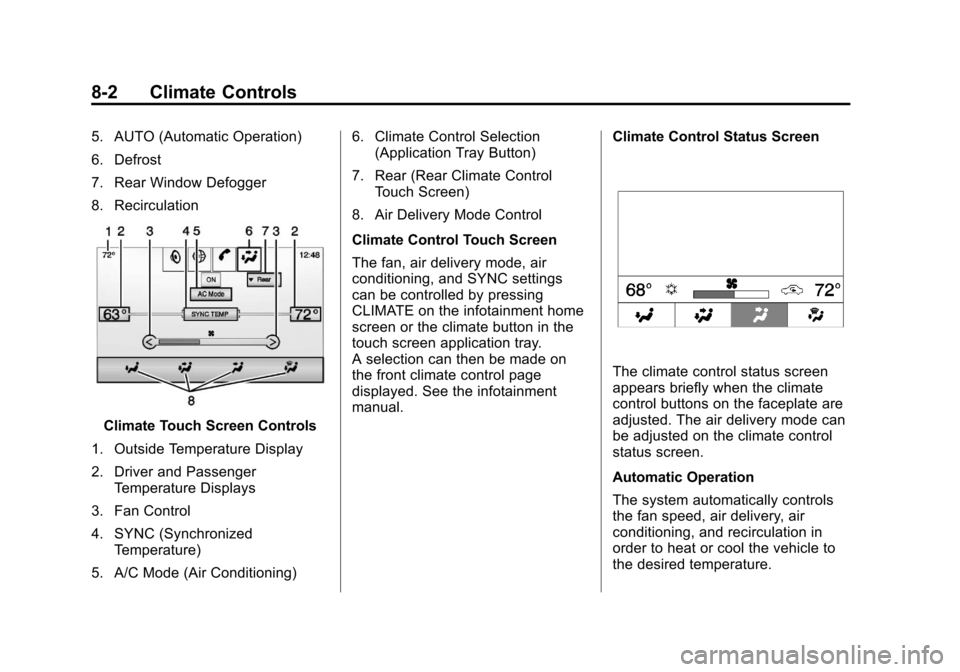
8-2 Climate Controls
5. AUTO (Automatic Operation)
6. Defrost
7. Rear Window Defogger
8. Recirculation
Climate Touch Screen Controls
1. Outside Temperature Display
2. Driver and Passenger Temperature Displays
3. Fan Control
4. SYNC (Synchronized Temperature)
5. A/C Mode (Air Conditioning) 6. Climate Control Selection
(Application Tray Button)
7. Rear (Rear Climate Control Touch Screen)
8. Air Delivery Mode Control
Climate Control Touch Screen
The fan, air delivery mode, air
conditioning, and SYNC settings
can be controlled by pressing
CLIMATE on the infotainment home
screen or the climate button in the
touch screen application tray.
A selection can then be made on
the front climate control page
displayed. See the infotainment
manual. Climate Control Status Screen
The climate control status screen
appears briefly when the climate
control buttons on the faceplate are
adjusted. The air delivery mode can
be adjusted on the climate control
status screen.
Automatic Operation
The system automatically controls
the fan speed, air delivery, air
conditioning, and recirculation in
order to heat or cool the vehicle to
the desired temperature.
Page 217 of 438
Black plate (3,1)Cadillac XTS Owner Manual - 2013 - 1st - 4/13/12
Climate Controls 8-3
When the indicator light is on or
AUTO is displayed on the touch
screen, the system is in full
automatic operation. If the air
delivery mode or fan setting is
manually adjusted, the auto
indicator turns off and the display
will show the selected settings. Auto
operation can be turned off
individually for climate settings.
For automatic operation:
1. Press AUTO.
2. Set the temperature. Allow thesystem time to stabilize. Then
adjust the temperature as
needed for best comfort.
To improve fuel efficiency and to
cool the vehicle faster, recirculation
may be automatically selected in
warm weather. The recirculation
light will not come on. Press
@to
select recirculation; press it again to
select outside air. OFF (Fan):
Press to turn the fan on
or off. The temperature control and
air delivery mode can still be
adjusted.
w/x(Driver and Passenger
Temperature Controls): The
temperature can be adjusted
separately for the driver and the
passenger. Press to increase or
decrease the temperature. Press
and hold to rapidly increase or
decrease the temperature.
SYNC (Synchronized
Temperature): Press SYNC on the
touch screen to link all climate zone
settings to the driver settings. Adjust
the driver side temperature control
to change the linked temperature.
When the passenger settings are
adjusted, the SYNC button is
displayed when the temperatures
are unlinked.
Rear (If Equipped): Press this
button on the front climate control
touch screen to open the rear
climate control screen. The rear climate control settings can now be
adjusted from the front
passenger area.
Manual Operationz 9 y(Fan Control):
Press the
fan control buttons or the touch
screen fan control, to increase or
decrease the fan speed. Press and
hold the buttons or the touch screen
control to adjust speed more
quickly. The fan speed setting
displays. Pressing either button
cancels automatic fan control and
the fan can be controlled manually.
Press AUTO to return to automatic
operation. To turn off the fan and
climate control system, press and
hold the fan down button or touch
screen fan control until it is off.
Page 218 of 438

Black plate (4,1)Cadillac XTS Owner Manual - 2013 - 1st - 4/13/12
8-4 Climate Controls
Air Delivery Mode Control:When
the climate information is displayed,
press the desired air delivery mode
on the touch screen to change the
direction of the airflow. The selected
air delivery mode button is lit.
Pressing any of the air delivery
buttons cancels automatic air
delivery control and the direction of
the airflow can be controlled
manually. Press AUTO to return to
automatic operation.
To change the current mode, select
one of the following:
Y(Vent): Air is directed to the
instrument panel outlets.
\(Bi-Level): Air is divided
between the instrument panel
outlets and the floor outlets.
[(Floor): Air is directed to the
floor outlets.
-(Defog): Clears the windows of
fog or moisture. Air is directed to the
windshield and floor outlets.
0(Defrost): Clears the
windshield of fog or frost more
quickly. Air is directed to the
windshield. Press the
0button to
turn on or off. Changing the air
delivery mode also turns the
defrost off.
#(Air Conditioning): Press the
AC Mode touch screen control to
turn the automatic air conditioning
on or off. If the fan is turned off or
the outside temperature falls below
freezing, the air conditioner will
not run.
Press AUTO to return to automatic
operation and the air conditioner
runs as needed.
Automatic Air Recirculation:
When the AUTO indicator light is
on, the air is automatically
recirculated as needed to help
quickly cool the inside of the
vehicle.
The climate control system may
have a sensor to detect air pollution.
When using automatic air recirculation, the air quality control
system may operate. To adjust the
sensitivity of the air quality sensor,
see
“Climate and Air Quality” under
Vehicle Personalization on
page 5‑44.
@(Recirculation): Press to
alternate between recirculating air
inside the vehicle or pulling in
outside air. The indicator light on the
button is lit when recirculation mode
is active. This helps to quickly cool
the air inside the vehicle or prevent
outside air and odors from entering.
Pressing this button cancels
automatic recirculation. Press AUTO
to return to automatic operation;
recirculation runs automatically as
needed.
Manual recirculation mode is not
available when in Defrost or Defog
modes.
Auto Defog: The climate control
system may have a sensor to
automatically detect high humidity
inside the vehicle. When high
humidity is detected, the climate
Page 221 of 438
Black plate (7,1)Cadillac XTS Owner Manual - 2013 - 1st - 4/13/12
Climate Controls 8-7
Automatic Operation
The system automatically controls
the fan speed, air delivery, air
conditioning, and recirculation in
order to heat or cool the vehicle to
the desired temperature.
When the indicator light is on or
AUTO is displayed on the touch
screen, the system is in full
automatic operation. If the air
delivery mode or fan setting is
manually adjusted, the auto
indicator turns off and the display
will show the selected settings.
For automatic operation:
1. Press AUTO.
2. Set the temperature. Allow thesystem time to stabilize. Then
adjust the temperature as
needed for best comfort.
To improve fuel efficiency and to
cool the vehicle faster, recirculation
may be automatically selected in
warm weather. The recirculation light will not come on. Press@to
select recirculation; press it again to
select outside air.
English units can be changed to
metric units through the Driver
Information Center (DIC). See
“Settings” underInstrument Cluster
on page 5‑9.
OFF (Fan): Press to turn the fan on
or off. The temperature control and
air delivery mode can still be
adjusted.
w/x(Driver and Passenger
Temperature Controls): The
temperature can be adjusted
separately for the driver and the
passenger. Press to increase or
decrease the temperature. Press
and hold to rapidly increase or
decrease the temperature.
SYNC (Synchronized
Temperature): Press SYNC to link
all climate zone settings to the
driver settings. Adjust the driver side
temperature control to change the
linked temperature. When the passenger settings are adjusted, the
SYNC button is displayed when the
temperatures are unlinked.
Manual Operation
z 9or9 y(Fan Control):
Press the fan control buttons to
increase or decrease the fan speed.
Press and hold the buttons to adjust
speed more quickly. The fan speed
setting displays. Pressing either
button cancels automatic fan control
and the fan can be controlled
manually. Press AUTO to return to
automatic operation. To turn off the
fan and climate control system,
press and hold the fan down button.
z N y(Air Delivery Mode
Control): Press the air delivery
mode buttons to change the
direction of the airflow. Selecting
any of the air delivery modes
cancels automatic air delivery
control and the direction of the
airflow can be controlled manually.
Press AUTO to return to automatic
operation.
Page 224 of 438
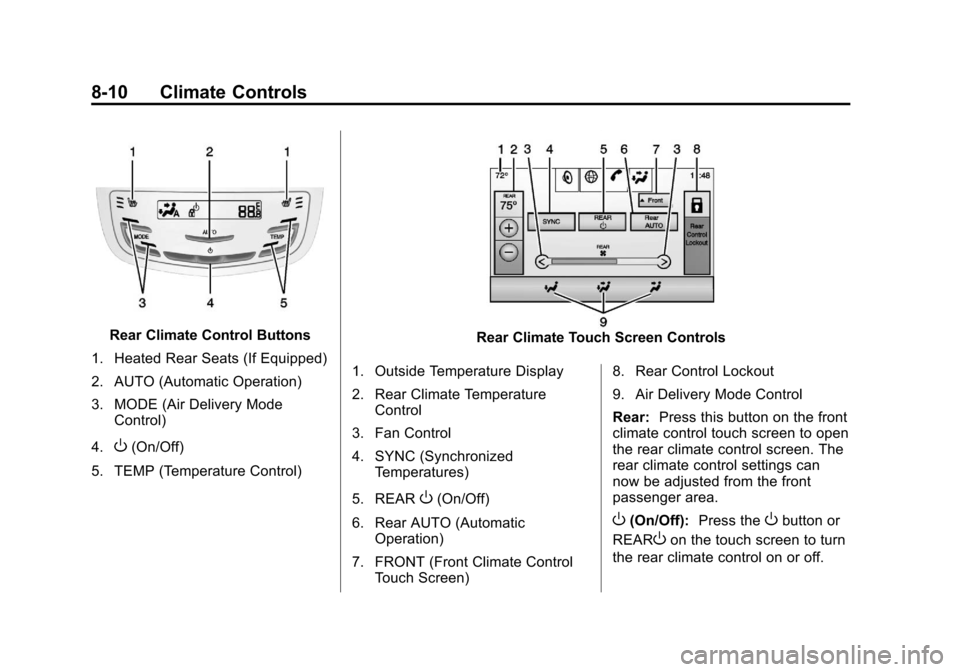
Black plate (10,1)Cadillac XTS Owner Manual - 2013 - 1st - 4/13/12
8-10 Climate Controls
Rear Climate Control Buttons
1. Heated Rear Seats (If Equipped)
2. AUTO (Automatic Operation)
3. MODE (Air Delivery Mode Control)
4.
O(On/Off)
5. TEMP (Temperature Control)
Rear Climate Touch Screen Controls
1. Outside Temperature Display
2. Rear Climate Temperature Control
3. Fan Control
4. SYNC (Synchronized Temperatures)
5. REAR
O(On/Off)
6. Rear AUTO (Automatic Operation)
7. FRONT (Front Climate Control Touch Screen) 8. Rear Control Lockout
9. Air Delivery Mode Control
Rear:
Press this button on the front
climate control touch screen to open
the rear climate control screen. The
rear climate control settings can
now be adjusted from the front
passenger area.
O(On/Off): Press theObutton or
REAR
Oon the touch screen to turn
the rear climate control on or off.