buttons CHEVROLET AVALANCHE 2005 1.G User Guide
[x] Cancel search | Manufacturer: CHEVROLET, Model Year: 2005, Model line: AVALANCHE, Model: CHEVROLET AVALANCHE 2005 1.GPages: 496, PDF Size: 3.25 MB
Page 128 of 496
Gate Operator and Canadian
Programming
Canadian radio-frequency laws require transmitter
signals to “time out” or quit after several seconds of
transmission. This may not be long enough for
HomeLink
®to pick up the signal during programming.
Similarly, some U.S. gate operators are manufactured to
“time out” in the same manner.
If you live in Canada, or you are having difficulty
programming a gate operator by using the
“Programming HomeLink
®” procedures (regardless of
where you live), replace Step 3 under “Programming
HomeLink
®” with the following:
Continue to press and hold the HomeLink
®button while
you press and release every two seconds (cycle)
your hand-held transmitter until the frequency signal has
been successfully accepted by HomeLink
®. The
indicator light will ash slowly at rst and then rapidly.
Proceed with Step 4 under “Programming HomeLink
®”
to complete.
Using HomeLink®
Press and hold the appropriate HomeLink®button for at
least half of a second. The indicator light will come
on while the signal is being transmitted.
Erasing HomeLink®Buttons
To erase programming from the three buttons do the
following:
1. Press and hold down the two outside buttons until
the indicator light begins to ash, after 20 seconds.
Do not hold the two outside buttons for longer
than 30 seconds.
2. Release both buttons.
HomeLink
®is now in the train (learning) mode and can
be programmed at any time beginning with Step 2
under “Programming HomeLink
®” shown earlier in this
section.
Individual buttons cannot be erased, but they can be
reprogrammed. See “Reprogramming a Single
HomeLink
®Button” following this section.
2-56
Page 129 of 496
Reprogramming a Single HomeLink®
Button
To program a device to HomeLink®using a HomeLink®
button previously trained, follow these steps:
1. Press and hold the desired HomeLink
®button.
Do not release the button.
2. The indicator light will begin to ash after
20 seconds. While still holding the HomeLink
®
button, proceed with Step 2 under “Programming
HomeLink®” shown earlier in this section.
Resetting Defaults
To reset HomeLink®to default settings do the following:
1. Hold down the two outside buttons for about
20 seconds until the indicator light begins to ash.
2. Continue to hold both buttons until the HomeLink
®
indicator light turns off.
3. Release both buttons.
For questions or comments, contact HomeLink
®at
1-800-355-3515, or on the Internet at
www.homelink.com.
Storage Areas
Glove Box
Open the glove box by pulling the bottom of the handle
upward.
Center Overhead Console
Your vehicle may have an overhead console equipped
with reading lights and a small storage area.
Press the button next to the light to turn it on. Press it
again to turn it off.
Front Armrest Storage Area
Your vehicle may have a center armrest storage
compartment in the front bench seat.
To open it, fold down the armrest and press the latch
handle located at the front of the armrest. Then, let the
lid pop up and swing open.
2-57
Page 154 of 496
If a hand, arm, or other object is blocking the sunroof
glass panel as it is closing, the glass panel will stop
at the obstruction. After the obstruction is removed, the
glass panel can be closed or opened.
Use care not to leave the sunroof open for long periods
of time as debris may collect in the tracks.
If the battery has been recharged, disconnected or is
not working, you may need to reprogram the sunroof. To
do this, start the vehicle and press the forward side of
the sunroof button until the glass panel moves to a fully
closed position. Release, and press again to move to
the vent position, which occurs when the sunroof is fully
tilted upward and the button is held for an additional
twenty seconds. This will reset the memory and enable
the sunroof to function properly.Vehicle Personalization
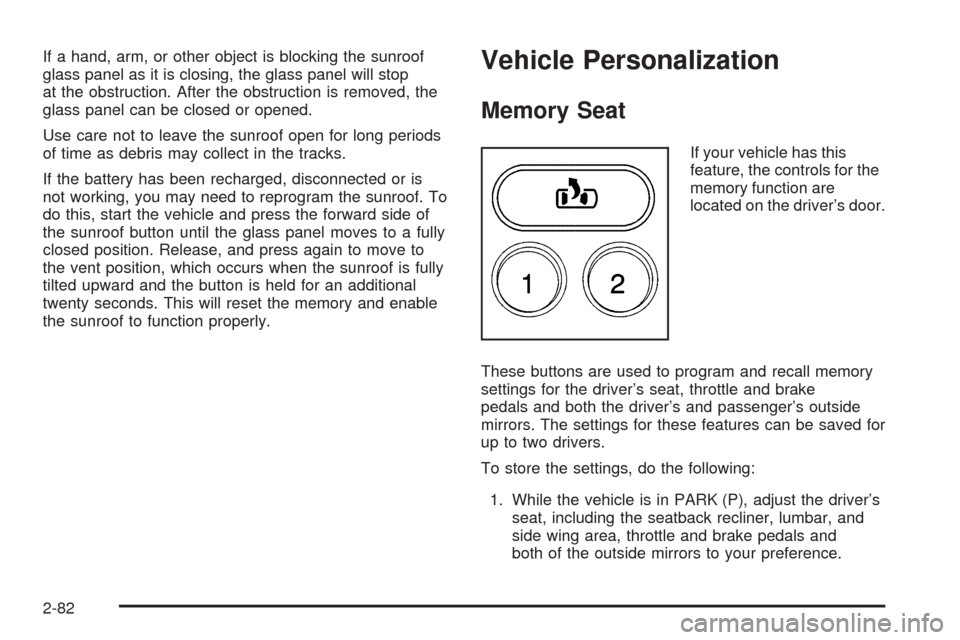
Memory Seat
If your vehicle has this
feature, the controls for the
memory function are
located on the driver’s door.
These buttons are used to program and recall memory
settings for the driver’s seat, throttle and brake
pedals and both the driver’s and passenger’s outside
mirrors. The settings for these features can be saved for
up to two drivers.
To store the settings, do the following:
1. While the vehicle is in PARK (P), adjust the driver’s
seat, including the seatback recliner, lumbar, and
side wing area, throttle and brake pedals and
both of the outside mirrors to your preference.
2-82
Page 155 of 496
2. Press and hold the 1 or 2 button of the memory
control for three seconds. A double chime will
sound to let you know that the position has been
stored.
To repeat the procedure for a second driver, follow the
preceding steps, but press the other numbered
memory control button.
Each time button 1 or 2 is pressed and released while
the vehicle is in PARK (P), a single chime will sound and
the memory position will be recalled.
To stop recall movement of the memory seat feature at
any time, press one of the memory buttons or power
seat controls.
Easy Exit Seat
The controls for this memory function are located on the
driver’s door.
B(Easy Exit Seat):This button is used to program
and recall the desired driver’s seat position when
exiting/entering the vehicle. The seat position can be
saved for up to two drivers.To store the seat exit position, do the following:
1. Press and release the 1 or 2 button. The seat will
move to the stored memory position.
2. Adjust the seat to the desired exit position.
3. Press and hold the exit button of the memory
control for three seconds. A double chime will sound
to let you know that the position has been stored
for the selected button (1 or 2).
To repeat the procedure for a second driver, follow the
preceding steps, but press the other numbered
memory control button.
To use the seat exit position, do one of the following:
Press the exit button on the memory control.
Or, if this feature is activated in the Driver
Information Center (DIC), removing the key from
the ignition will move the seat to the exit position.
See “Easy Exit Seat” underDIC Vehicle Customization
on page 3-58for more information on activating this
feature in the DIC.
2-83
Page 161 of 496
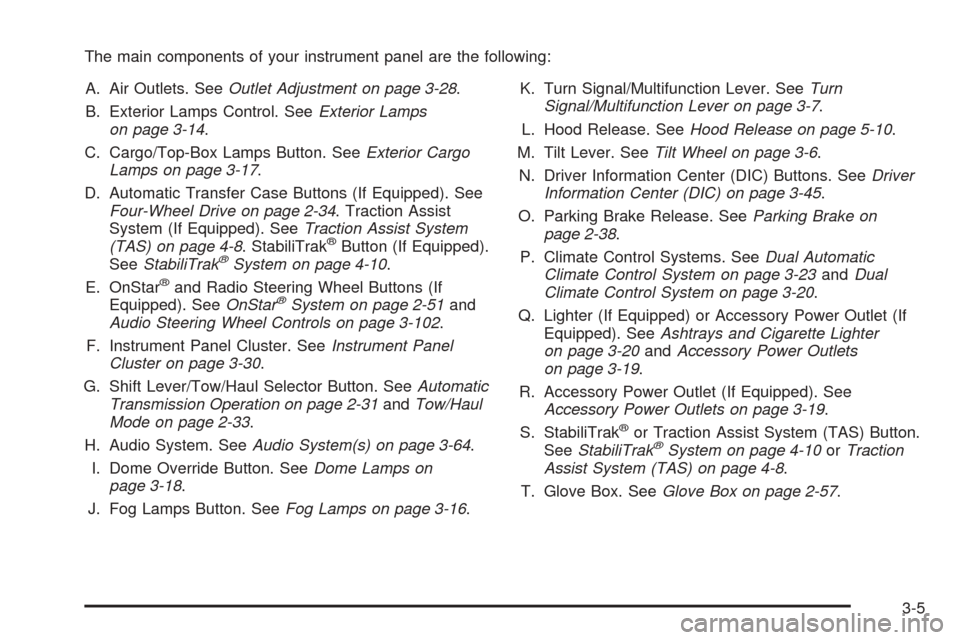
The main components of your instrument panel are the following:
A. Air Outlets. SeeOutlet Adjustment on page 3-28.
B. Exterior Lamps Control. SeeExterior Lamps
on page 3-14.
C. Cargo/Top-Box Lamps Button. SeeExterior Cargo
Lamps on page 3-17.
D. Automatic Transfer Case Buttons (If Equipped). See
Four-Wheel Drive on page 2-34. Traction Assist
System (If Equipped). SeeTraction Assist System
(TAS) on page 4-8. StabiliTrak
®Button (If Equipped).
SeeStabiliTrak®System on page 4-10.
E. OnStar®and Radio Steering Wheel Buttons (If
Equipped). SeeOnStar®System on page 2-51and
Audio Steering Wheel Controls on page 3-102.
F. Instrument Panel Cluster. SeeInstrument Panel
Cluster on page 3-30.
G. Shift Lever/Tow/Haul Selector Button. SeeAutomatic
Transmission Operation on page 2-31andTow/Haul
Mode on page 2-33.
H. Audio System. SeeAudio System(s) on page 3-64.
I. Dome Override Button. SeeDome Lamps on
page 3-18.
J. Fog Lamps Button. SeeFog Lamps on page 3-16.K. Turn Signal/Multifunction Lever. SeeTurn
Signal/Multifunction Lever on page 3-7.
L. Hood Release. SeeHood Release on page 5-10.
M. Tilt Lever. SeeTilt Wheel on page 3-6.
N. Driver Information Center (DIC) Buttons. SeeDriver
Information Center (DIC) on page 3-45.
O. Parking Brake Release. SeeParking Brake on
page 2-38.
P. Climate Control Systems. SeeDual Automatic
Climate Control System on page 3-23andDual
Climate Control System on page 3-20.
Q. Lighter (If Equipped) or Accessory Power Outlet (If
Equipped). SeeAshtrays and Cigarette Lighter
on page 3-20andAccessory Power Outlets
on page 3-19.
R. Accessory Power Outlet (If Equipped). See
Accessory Power Outlets on page 3-19.
S. StabiliTrak
®or Traction Assist System (TAS) Button.
SeeStabiliTrak®System on page 4-10orTraction
Assist System (TAS) on page 4-8.
T. Glove Box. SeeGlove Box on page 2-57.
3-5
Page 201 of 496
Here are some situations you may experience with your
fuel gage. None of these indicate a problem with the
fuel gage.
At the gas station, the fuel pump shuts off before
the gage reads full.
It takes a little more or less fuel to ll up than the
fuel gage indicated. For example, the gage may
have indicated the tank was half full, but it actually
took a little more or less than half the tank’s
capacity to ll the tank.
The gage goes back to empty when you turn off the
ignition.
If you have a diesel engine, see “Fuel Gage” in the
Diesel Engine Supplement.
Low Fuel Warning Light
The light next to the fuel gage will come on briey when
you are starting the engine.
This light comes on when the fuel tank is low on fuel.
To turn it off, add fuel to the fuel tank. SeeFuel on
page 5-5.
Driver Information Center (DIC)
The Driver Information Center (DIC) display is located
on the instrument panel cluster, below the speedometer.
The DIC buttons, if equipped, are located on the
steering wheel. The DIC can display information such
as the trip odometer, fuel economy, customization
features and warning/status messages.
If your vehicle is not equipped with the DIC steering
wheel buttons, you will not have all of the features listed.
You will scroll through the odometer, trip odometer
and engine hours by pressing the trip odometer reset
stem located on the instrument panel cluster. You
will also turn off, or acknowledge, DIC messages by
pressing the trip odometer reset stem. SeeSpeedometer
and Odometer on page 3-31for information on
features for vehicles without DIC buttons.
3-45
Page 202 of 496
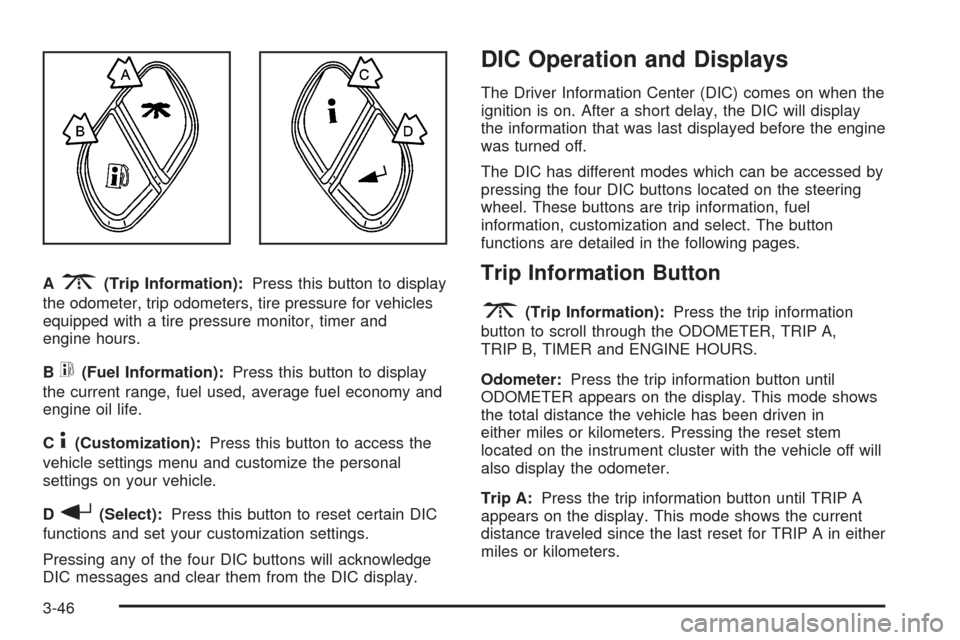
A3(Trip Information):Press this button to display
the odometer, trip odometers, tire pressure for vehicles
equipped with a tire pressure monitor, timer and
engine hours.
B
t(Fuel Information):Press this button to display
the current range, fuel used, average fuel economy and
engine oil life.
C
4(Customization):Press this button to access the
vehicle settings menu and customize the personal
settings on your vehicle.
D
r(Select):Press this button to reset certain DIC
functions and set your customization settings.
Pressing any of the four DIC buttons will acknowledge
DIC messages and clear them from the DIC display.
DIC Operation and Displays
The Driver Information Center (DIC) comes on when the
ignition is on. After a short delay, the DIC will display
the information that was last displayed before the engine
was turned off.
The DIC has different modes which can be accessed by
pressing the four DIC buttons located on the steering
wheel. These buttons are trip information, fuel
information, customization and select. The button
functions are detailed in the following pages.
Trip Information Button
3
(Trip Information):Press the trip information
button to scroll through the ODOMETER, TRIP A,
TRIP B, TIMER and ENGINE HOURS.
Odometer:Press the trip information button until
ODOMETER appears on the display. This mode shows
the total distance the vehicle has been driven in
either miles or kilometers. Pressing the reset stem
located on the instrument cluster with the vehicle off will
also display the odometer.
Trip A:Press the trip information button until TRIP A
appears on the display. This mode shows the current
distance traveled since the last reset for TRIP A in either
miles or kilometers.
3-46
Page 205 of 496
DIC Warnings and Messages
Warning messages are displayed on the Driver
Information Center (DIC) to notify the driver that the
status of the vehicle has changed and that some action
may be needed by the driver to correct the condition.
If there is more than one message that needs to
be displayed, they will appear one after another. Some
messages may not require immediate action, but
you should press any of the four DIC buttons on the
steering wheel, if equipped, to acknowledge that
you received the messages and clear them from the
display. If your vehicle is not equipped with DIC buttons
on the steering wheel, press the trip odometer reset
stem located on the instrument panel cluster to
acknowledge messages and clear them from the display.
Some messages cannot be cleared from the display
because they are more urgent. These messages require
action before they can be removed from the DIC
display. You should take any messages that appear on
the display seriously and remember that clearing the
messages will only make the messages disappear, not
correct the problem. The following are the possible
messages that can be displayed and some information
about them.
BATTERY NOT CHARGING
On some vehicles, if the battery is not charging during
operation, this message will appear on the DIC. Driving
with this problem could drain your battery. Have the
electrical system checked by your GM dealer as soon as
possible. Pressing any of the four DIC buttons, if
equipped, will clear the message from the DIC display. If
your vehicle is not equipped with the four DIC buttons,
pressing the trip odometer reset stem will clear the
message from the DIC display. SeeCharging System
Light on page 3-34andVoltmeter Gage on page 3-35.
BUCKLE PASSENGER
If your vehicle is equipped with the passenger sensing
system, this message reminds you to buckle the
passenger’s seat belt. SeePassenger Sensing System
on page 1-60.
This message will display and a chime will sound when
the ignition is on, the driver’s seat belt is buckled, the
passenger’s seat belt is unbuckled with the passenger
airbag enabled, and the vehicle is in motion. You should
have the passenger buckle their seat belt.
This reminder will be repeated if the ignition is on, the
vehicle is in motion, the driver is buckled and the
passenger is still unbuckled, and the passenger airbag
is enabled. If the passenger’s seat belt is already
buckled, this message and chime will not come on.
3-49
Page 206 of 496
Pressing any of the four DIC buttons, if equipped, will
acknowledge the message and clear it from the DIC
display. If your vehicle is not equipped with the four DIC
buttons, pressing the trip odometer reset stem will
acknowledge the message and clear it from the DIC
display.
BUCKLE SEATBELT
If your vehicle is equipped with the passenger sensing
system, this message reminds you to buckle the
driver’s seat belt. SeePassenger Sensing System on
page 1-60.
This message will display and a chime will sound when
the ignition is on, the driver’s seat belt is unbuckled,
and the vehicle is in motion. You should buckle
your seat belt.
If the driver remains unbuckled when the ignition is on
and the vehicle is in motion, the reminder will be
repeated. If the driver’s seat belt is already buckled, this
message and chime will not come on.
This message is an additional reminder to the Safety
Belt Reminder Light in the instrument panel cluster. See
Safety Belt Reminder Light on page 3-31.
Pressing any of the four DIC buttons, if equipped, will
acknowledge the message and clear it from the DIC
display. If your vehicle is not equipped with the four DIC
buttons, pressing the trip odometer reset stem will
acknowledge the message and clear it from the DIC
display.
CHANGE ENGINE OIL
This message is displayed when the engine oil needs to
be changed and service is required for your vehicle.
See your GM dealer. SeeScheduled Maintenance
on page 6-4andEngine Oil on page 5-15for more
information. Also seeEngine Oil Life System on
page 5-18for information on how to reset the message.
This message will clear itself after 10 seconds until
the next ignition cycle.
CHARGING SYSTEM FAILURE
On some vehicles, if there is a problem with the
generator and battery charging system, this message
will appear on the DIC, a chime will sound and the
charging system light on the instrument panel cluster
will come on. SeeCharging System Light on page 3-34
andVoltmeter Gage on page 3-35for more information.
Driving with this problem could drain your battery.
Turn off all unnecessary accessories. Stop and turn off
the vehicle as soon as it is safe to do so. Have the
electrical system checked by your GM dealer
immediately.
3-50
Page 207 of 496
CHECK OIL LEVEL
If the oil level in the vehicle is low, this message will
appear on the DIC. Check the oil level and correct it as
necessary. You may need to let the vehicle cool or
warm up and cycle the ignition to be sure this message
will clear. This message will clear itself after 10 seconds
until the next ignition cycle. SeeEngine Oil on
page 5-15for additional information.
CHECK WASHER FLUID
If the washer uid level is low, this message will appear
on the DIC. Adding washer uid will clear the message.
SeeWindshield Washer Fluid on page 5-36. Pressing
any of the four DIC buttons, if equipped, will clear the
message from the DIC display. If your vehicle is not
equipped with the four DIC buttons, pressing the trip
odometer reset stem will clear the message from the DIC
display. If you do not clear this message, it will clear itself
after 10 seconds until the next ignition cycle.
DRIVER DOOR AJAR
If the driver’s door is not fully closed and the vehicle is
in a drive gear, this message will appear on the
display and you will hear a chime. Stop and turn off the
vehicle, check the door for obstacles and close the
door again. Check to see if the message still appears
on the DIC. Pressing any of the four DIC buttons,
if equipped, will clear the message from the DIC display.If your vehicle is not equipped with the four DIC buttons,
pressing the trip odometer reset stem will clear the
message from the DIC display.
ENGINE COOLANT HOT
If the cooling system temperature gets hot, this message
will appear in the DIC. Turn off the air conditioning. If the
message is still on, or if the engine coolant temperature
gage continues to rise, pull the vehicle over when it is
safe to do so. SeeEngine Coolant Temperature Gage on
page 3-38for more information. Stop the vehicle and let
the engine idle in PARK (P) to allow the coolant to reach
a safe temperature. This message will clear when the
coolant temperature drops to a safe operating
temperature. Pressing any of the four DIC buttons, if
equipped, will clear the message from the DIC display.
If your vehicle is not equipped with the four DIC buttons,
pressing the trip odometer reset stem will clear the
message from the DIC display.
3-51