phone CHEVROLET AVALANCHE 2006 1.G User Guide
[x] Cancel search | Manufacturer: CHEVROLET, Model Year: 2006, Model line: AVALANCHE, Model: CHEVROLET AVALANCHE 2006 1.GPages: 532, PDF Size: 3.3 MB
Page 269 of 532
Audio Output
Audio from the DVD player or auxiliary inputs may be
heard through the following possible sources:
Wireless Headphones
Vehicle Speakers
Vehicle wired headphone jacks on the Rear Seat
Audio system (if equipped)
The RSE system will always transmit the audio signal
by infrared to the wireless headphones, if there is audio
available. See “Headphones” previously for more
information.
The RSE system is capable of outputting audio to the
vehicle speakers by using the radio. The RSE
system may be selected as an audio source on the
radio if the RSE system power is on. Once the
RSE system is selected as an audio source on the
radio, adjust the speaker volume on the radio, if
necessary. If the RSE system power is not on, the RSE
system will not be an available source on the radio.
Refer to the radio information for the radio that
your vehicle has for more information.The RSE system is capable of outputting audio to the
wired headphone jacks on the rear seat audio system
(if equipped). The RSE system may be selected as
an audio source on the rear seat audio system if
the RSE system power is on. Refer toRear Seat Audio
(RSA) on page 3-110for more information.Video Screen
The video screen is located in the overhead console.
To use the video screen, push forward on the release
latch and the screen will fold down. Adjust the screen’s
position as desired. When the video screen is not in
use, push it up into its latched position.
The DVD player and display will continue to operate
when the screen is in the up or the down position. The
video screen contains the transmitters for the wireless
headphones and the remote control. If the screen
is in the closed position, the signals will not be available
for the operation of the headphones or the remote
control.
Notice:Avoid directly touching the video screen,
as damage may occur. See “Cleaning the Video
Screen” later in this section for more information.
3-101
Page 270 of 532
DVD Player
The DVD player is located in the overhead console. The
DVD player can be controlled by the buttons on the
DVD player and/or by the buttons on the remote control.
See “Remote Control” later in this section for more
information.
The DVD player power may be turned on when the
ignition is in RUN, ACCESSORY, or when Retained
Accessory Power (RAP) is active.
The RSE system DVD player is only compatible with
DVDs of the appropriate region code for the country that
the vehicle was sold in. The DVD region code is
printed on the jacket of most DVDs.
Standard audio CDs, CD-R, CD-RW, Video CD and
Photo CD/CD-R media are fully supported by this DVD
player. DVD-R and DVD-RW media is supported if
formatted as DVD-Video. DVD+R and DVD+RW media
may or may not be supported by the DVD player.
The DVD player does not support DVD-RAM,
DVD-ROM, and DVD Audio media. An error message
will appear on the display if this type of media is inserted
into the DVD player.
When using the wired headphones, not included, if the
front seat passengers play a CD in the Radio with
Six-Disc CD (if equipped) or use XM™ Satellite RadioService (if equipped), you will hear the audio for these
sources, instead of the DVD or CD that is currently
playing through the RSE.
If an error message appears on the video screen, see
“DVD Messages” later in this section.
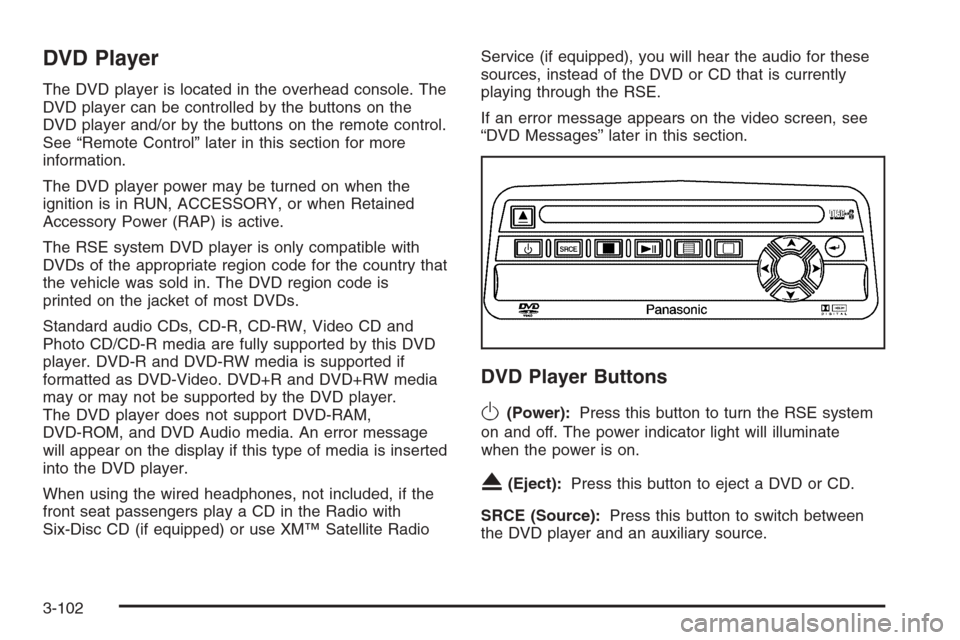
DVD Player Buttons
O(Power):Press this button to turn the RSE system
on and off. The power indicator light will illuminate
when the power is on.
X(Eject):Press this button to eject a DVD or CD.
SRCE (Source):Press this button to switch between
the DVD player and an auxiliary source.
3-102
Page 277 of 532
Problem Recommended Action
Sometimes the wireless
headphone audio cuts out
or buzzes.Check for obstructions,
low batteries, reception
range, and interference
from cellular telephone
towers or by using your
cellular telephone in the
vehicle.Check that the
headphones are facing
the front of the vehicle.
I lost the remote and/or
the headphones.See your dealer for
assistance.
The DVD is playing, but
there is no picture or
sound.Check that the DVD
player is in DVD mode.
The audio/video skips or
jumps.The DVD or CD could be
dirty, scratched, or
damaged.
The audio from the radio
for the Radio with
Six-Disc CD and XM™
has taken over the audio
from the DVD or CD when
using the wired
headphones.The RSE is working
correctly.Use the wireless
headphones or have the
front seat passengers
listen to another audio
source.DVD Messages
The following errors may be displayed on the video
screen:
Disc Format Error:This message will be displayed if a
disc is inserted upside down, if the disc is not readable,
or if the format is not compatible with the DVD player.
Load/Eject Error:This message will be displayed if the
disc is not properly loaded or ejected.
Disc Play Error:This message will be displayed if the
DVD player cannot play the disc. Scratched or
damaged discs will cause this error.
Region Code Error:This message will be displayed if
the region code of the DVD is not compatible with
the region code of the DVD player.
No Disc:This message will be displayed if any of the
buttons on the DVD faceplate or remote control are
pressed and no disc is present in the DVD player.
3-109
Page 278 of 532
DVD Distortion
There may be an experience with audio distortion in the
wireless headphones when operating cellular phones,
scanners, CB radios, Global Positioning Systems
(GPS)*, two-way radios, mobile fax, or walkie talkies.
It may be necessary to turn off the DVD player
when operating one of these devices in or near the
vehicle.
* Excludes the OnStar
®System.
Cleaning the Video Screen
Pour some isopropyl or rubbing alcohol on a clean cloth
and gently wipe the video screen. Do not spray
directly onto the screen and do not press too hard or
too long on the video screen.
Rear Seat Audio (RSA)
This feature allows rear seat passengers to listen to any
of the sources: radio, CDs, or DVDs. However, the
rear seat passengers can only control the sources that
the front seat passengers are not listening to. For
example, rear seat passengers may listen to and control
CDs or DVDs through the headphones while the
driver listens to the radio through the front speakers.
The rear seat passengers have control of the volume for
each set of headphones.
The front seat audio controls always have priority over
the RSA controls. If the front seat passengers switch the
source for the main radio to a remote source, the RSA will
not be able to control the source. You can operate the
rear seat audio when the main radio is off.
3-110
Page 279 of 532
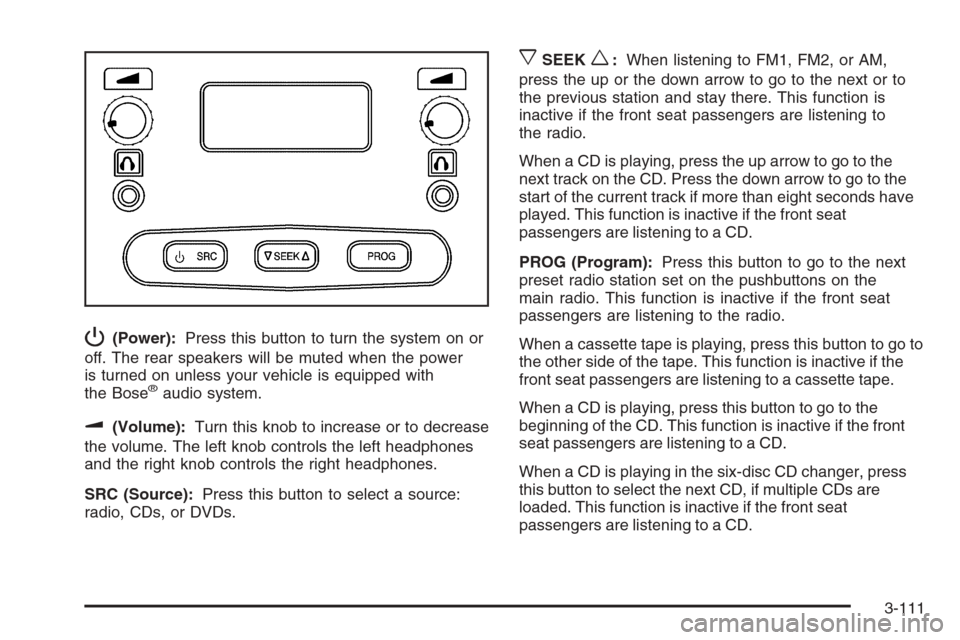
P(Power):Press this button to turn the system on or
off. The rear speakers will be muted when the power
is turned on unless your vehicle is equipped with
the Bose
®audio system.
u(Volume):Turn this knob to increase or to decrease
the volume. The left knob controls the left headphones
and the right knob controls the right headphones.
SRC (Source):Press this button to select a source:
radio, CDs, or DVDs.
xSEEKw:When listening to FM1, FM2, or AM,
press the up or the down arrow to go to the next or to
the previous station and stay there. This function is
inactive if the front seat passengers are listening to
the radio.
When a CD is playing, press the up arrow to go to the
next track on the CD. Press the down arrow to go to the
start of the current track if more than eight seconds have
played. This function is inactive if the front seat
passengers are listening to a CD.
PROG (Program):Press this button to go to the next
preset radio station set on the pushbuttons on the
main radio. This function is inactive if the front seat
passengers are listening to the radio.
When a cassette tape is playing, press this button to go to
the other side of the tape. This function is inactive if the
front seat passengers are listening to a cassette tape.
When a CD is playing, press this button to go to the
beginning of the CD. This function is inactive if the front
seat passengers are listening to a CD.
When a CD is playing in the six-disc CD changer, press
this button to select the next CD, if multiple CDs are
loaded. This function is inactive if the front seat
passengers are listening to a CD.
3-111
Page 281 of 532
PROG (Program):Press this button to play a station
you have programmed on the radio preset pushbuttons.
The radio will only seek preset stations with a strong
signal that are in the selected band.
When a CD is playing in the CD changer, press this
button to go to the next available CD, if multiple CDs are
loaded.
QSOURCER:Press this button to switch between
FM1, FM2, AM, or XM1 or XM2 (if equipped), or a
CD. If a CD is loaded the CD symbol will appear on the
display.
QSEEKR:Press the up or the down arrow to go to
the next or to the previous radio station and stay
there. The radio will only seek stations with a strong
signal that are in the selected band.
When a CD is playing, press the up or the down arrow
to fast forward or reverse.
QVOLR(Volume):Press the up or the down arrow
to increase or to decrease the volume.
Radio Reception
You may experience frequency interference and static
during normal radio reception if items such as cellphone
chargers, vehicle convenience accessories, and
external electronic devices are plugged into the
accessory power outlet. If there is interference or static,
unplug the item from the accessory power outlet.
AM
The range for most AM stations is greater than for FM,
especially at night. The longer range can cause
station frequencies to interfere with each other. For
better radio reception, most AM radio stations will boost
the power levels during the day, and then reduce
these levels during the night. Static can also occur when
things like storms and power lines interfere with radio
reception. When this happens, try reducing the treble on
your radio.
FM Stereo
FM stereo will give the best sound, but FM signals will
reach only about 10 to 40 miles (16 to 65 km). Tall
buildings or hills can interfere with FM signals, causing
the sound to fade in and out.
3-113
Page 317 of 532
The heavier the rain, the harder it is to see. Even if your
windshield wiper blades are in good shape, a heavy
rain can make it harder to see road signs and
traffic signals, pavement markings, the edge of the road,
and even people walking.
It is wise to keep your wiping equipment in good shape
and keep your windshield washer uid reservoir lled
with washer uid. Replace your windshield wiper inserts
when they show signs of streaking or missing areas
on the windshield, or when strips of rubber start
to separate from the inserts.
{CAUTION:
Wet brakes can cause accidents. They may not
work as well in a quick stop and may cause
pulling to one side. You could lose control of
the vehicle.
After driving through a large puddle of water
or a car wash, apply your brake pedal lightly
until your brakes work normally.Driving too fast through large water puddles or even
going through some car washes can cause problems,
too. The water may affect your brakes. Try to avoid
puddles. But if you cannot, try to slow down before you
hit them.
Hydroplaning
Hydroplaning is dangerous. So much water can build up
under your tires that they can actually ride on the
water. This can happen if the road is wet enough and
you are going fast enough. When your vehicle is
hydroplaning, it has little or no contact with the road.
Hydroplaning does not happen often. But it can if your
tires do not have much tread or if the pressure in
one or more is low. It can happen if a lot of water is
standing on the road. If you can see reections
from trees, telephone poles, or other vehicles, and
raindrops dimple the water’s surface, there could be
hydroplaning.
Hydroplaning usually happens at higher speeds. There
just is not a hard and fast rule about hydroplaning.
The best advice is to slow down when it is raining.
4-33
Page 503 of 532
Customer Assistance and Information...............7-2
Customer Satisfaction Procedure......................7-2
Online Owner Center......................................7-3
Customer Assistance for Text
Telephone (TTY) Users................................7-4
Customer Assistance Offices............................7-4
GM Mobility Reimbursement Program................7-5
Roadside Assistance Program..........................7-5
Courtesy Transportation...................................7-7
Vehicle Data Collection and Event
Data Recorders..........................................7-9
Collision Damage Repair................................7-11Reporting Safety Defects................................7-14
Reporting Safety Defects to the
United States Government..........................7-14
Reporting Safety Defects to the
Canadian Government................................7-15
Reporting Safety Defects to
General Motors.........................................7-15
Service Publications Ordering
Information...............................................7-15
Section 7 Customer Assistance and Information
7-1
Page 505 of 532
The BBB Auto Line Program is an out of court program
administered by the Council of Better Business
Bureaus to settle automotive disputes regarding vehicle
repairs or the interpretation of the New Vehicle
Limited Warranty. Although you may be required to
resort to this informal dispute resolution program prior to
ling a court action, use of the program is free of
charge and your case will generally be heard within
40 days. If you do not agree with the decision given in
your case, you may reject it and proceed with any other
venue for relief available to you.
You may contact the BBB Auto Line Program using the
toll-free telephone number or write them at the
following address:
BBB Auto Line Program
Council of Better Business Bureaus, Inc.
4200 Wilson Boulevard
Suite 800
Arlington, VA 22203-1838
Telephone: 1-800-955-5100
This program is available in all 50 states and the
District of Columbia. Eligibility is limited by vehicle age,
mileage, and other factors. General Motors reserves
the right to change eligibility limitations and/or
discontinue its participation in this program.Online Owner Center
The Owner Center is a resource for your GM ownership
needs. Specic vehicle information can be found in
one place.
The Online Owner Center allows you to:
Get e-mail service reminders.
Access information about your specic vehicle,
including tips and videos and an electronic
version of this owner’s manual (United States only).
Keep track of your vehicle’s service history and
maintenance schedule.
Find GM dealers for service nationwide.
Receive special promotions and privileges only
available to members (United States only).
Refer to the web for updated information.
To register your vehicle, visit www.MyGMLink.com
(United States) or My GM Canada within
www.gmcanada.com (Canada).
7-3
Page 506 of 532
Customer Assistance for Text
Telephone (TTY) Users
To assist customers who are deaf, hard of hearing, or
speech-impaired and who use Text Telephones (TTYs),
Chevrolet has TTY equipment available at its Customer
Assistance Center. Any TTY user can communicate
with Chevrolet by dialing: 1-800-833-CHEV (2438).
(TTY users in Canada can dial 1-800-263-3830.)
Customer Assistance Offices
Chevrolet encourages customers to call the toll-free
number for assistance. However, if a customer wishes to
write or e-mail Chevrolet, refer to the addresses below.
United States — Customer Assistance
Chevrolet Motor Division
Chevrolet Customer Assistance Center
P.O. Box 33170
Detroit, MI 48232-5170
www.Chevrolet.com
1-800-222-1020
1-800-833-2438 (For Text Telephone devices (TTYs))
Roadside Assistance: 1-800-CHEV-USA (243-8872)
Fax Number: 313-381-0022From Puerto Rico:
1-800-496-9992 (English)
1-800-496-9993 (Spanish)
Fax Number: 313-381-0022
From U.S. Virgin Islands:
1-800-496-9994
Fax Number: 313-381-0022
Canada — Customer Assistance
General Motors of Canada Limited
Customer Communication Centre, 163-005
1908 Colonel Sam Drive
Oshawa, Ontario L1H 8P7
1-800-263-3777 (English)
1-800-263-7854 (French)
1-800-263-3830 (For Text Telephone devices (TTYs))
Roadside Assistance: 1-800-268-6800
Overseas — Customer Assistance
Please contact the local General Motors Business Unit.
7-4